
It’s a fact: editing and photography enthusiasts can spend hours retouching images without even realizing it. However, we sometimes forget that time is still finite. Professional image creators are more than aware of this; deadlines are always present, and timelines must be met without compromising the quality of the work.

In an increasingly fast-paced world, any tool that can help us improve our productivity is welcome. This is where Adobe comes into play, specifically Adobe Firefly. Adobe’s generative model is capable of many things, but today we’ll focus on two very interesting features: Generative Fill and Generative Expand.
Enhance your projects with Generative Fill
At Softonic, we’ve already discussed Adobe Firefly at length and its incredible capabilities. Generative Fill is one of its most interesting features, as you might guess from its name; it allows us to add elements to an image. Using it is this easy:
- You can access Generative Fill from the Firefly web app. Upload an image from your device or select one from the sample gallery.
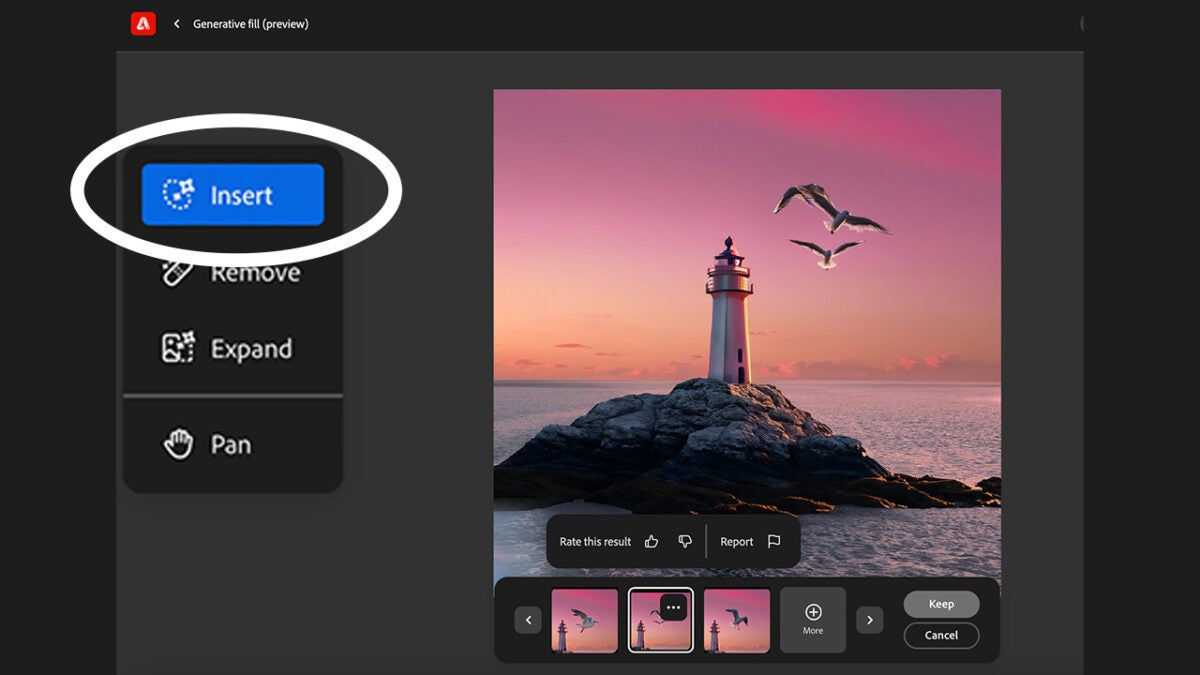
- Next, select the Insert option. You’ll find it on the left.
- Paint over the area where you want to include a new element.
- Write in the Prompt box what you want to add. Remember to be concise and direct; this way, you’ll get better results.
- If you don’t like the initial suggestions, click on More. Keep trying until you get an optimal result.
When you click on the variations, you’ll see a three-dot symbol. This allows you to rate the generation made by Firefly. If you think the result was good, simply select the thumbs-up symbol. If the image was the opposite of what you wanted, you can also rate it negatively by selecting the thumbs-down.
Resize your images with Generative Expand
Another of Firefly’s most attractive aspects is its Generative Expand option. Essentially, it allows you to effortlessly extend the boundaries of any image. Likewise, you can add new details or any type of element if you wish.
- From the Firefly web app, select the Generative Fill section.
- Upload an image from Upload image.
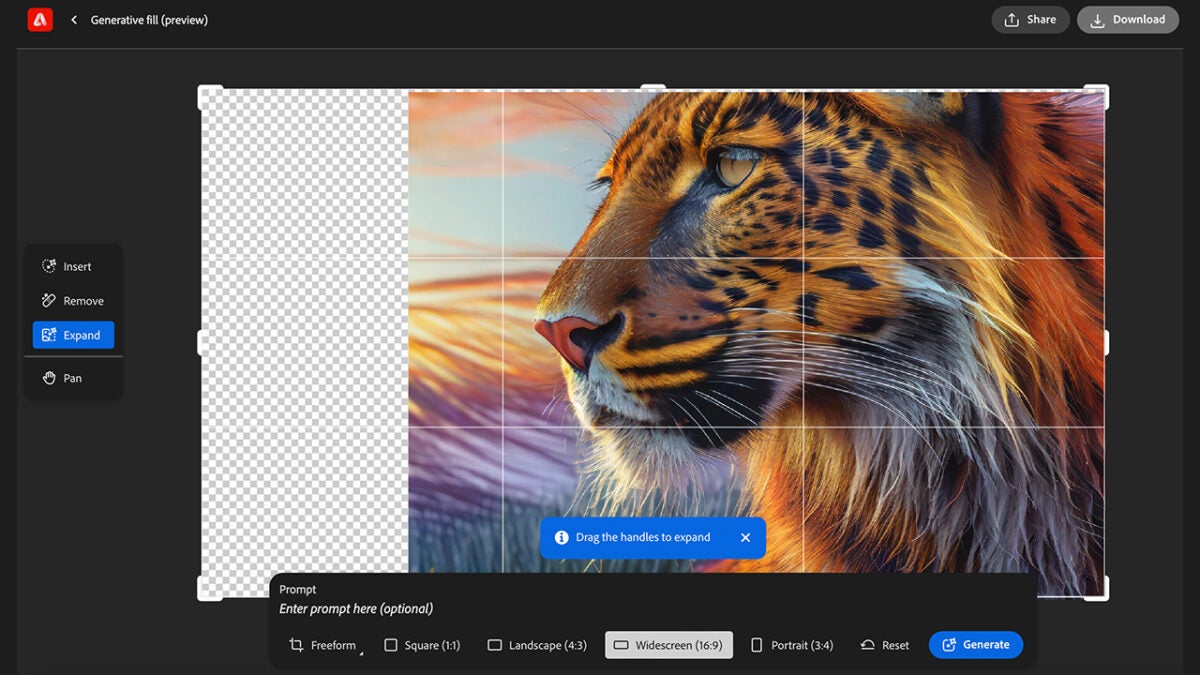
- Then, select the Expand option.
- Now, expand your image as you wish. You can do this freely (Freeform) or choose other aspect ratios (Square, Landscape, Widescreen, Portrait). From Freeform, you can set the exact dimensions of the image.
- Let Firefly automatically fill in the gaps. If you want something specific to be seen, you can always describe it in the Prompt before proceeding with the generation.
- Move and reposition the figure simply by dragging it across the canvas.
- When you’re done, share your edit from Share. Here you can copy the image or transfer it to Adobe Express to continue editing (add graphics, text, etc.). You can also select Download, which will automatically download it to your device.
What if I want to remove an object?
In addition to enlarging your image, Generative Expand also allows you to remove and replace elements as you wish. Here’s how you can do it:
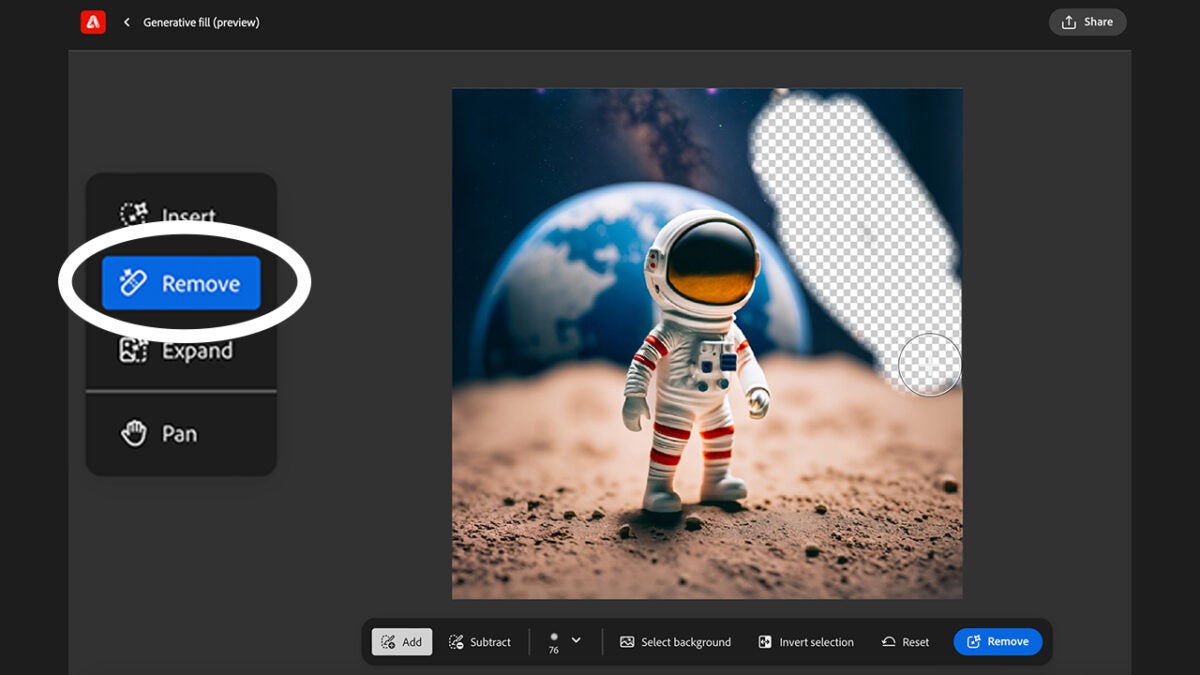
- Select Remove and paint over the elements you want to eliminate from the image. Then, click Remove again.
- Firefly will show new variations of your image, but without the objects you previously highlighted. If you’re not satisfied with the results, select More to see other options.
Generative credits: this is how they work
Adobe Firefly uses generative credits to work its magic. These are a kind of virtual “currency” created by Adobe that allows us to access Firefly’s features.
The consumption of these credits depends on the computational cost they generate. Adobe itself has a table on its website where you can check the usage rates. In the case of Firefly, the Text to Image and Generative Fill functions use one credit each time they are executed.
The number of generative credits a user has to spend is renewed each month, based on your subscription plan. This also applies to free users. In the case of the latter, their monthly amount (25 credits) is assigned on the day they first use any of the Firefly features. From that day, a month is counted, and then the credits are renewed. Use them wisely to get the most out of Adobe Firefly.
