 If you’re a frequent software downloader, then you’ll be aware of terms such as “Freeware”, “Shareware”, “Beta Version”, “Demo” etc. But do you really understand what they mean? Licenses are certainly nothing to be taken lightly as the the UK National Consumer Council recently highlighted in its claim that software licenses are “Misleading, burdensome and unbalanced”. They were in fact referring to big players such as Microsoft, Adobe and Symantec but the same questions could be asked of developers no matter how big or small.
In their study, “Who’s licence is it anyway?”, the NCC appeals to both the Office of Fair Trading and European Union to take action stating that:
Consumers can’t have a clue what they’re signing up to when some terms and conditions run to 10 or more pages. There’s a significant imbalance between the rights of the consumer and the rights of the holder.
It also adds its concern about the contract that users are bound to when they install a product:
Installation requires the user to agree to nonnegotiable terms set out in a licence agreement – the ‘terms and conditions’. These licence agreements are more like legal mandates than consumer options, raising concerns about the extent to which they favour the producer over the consumer.
With these concerns in mind, it’s worth knowing exactly what you are signing up for when you install a piece of software. Of course when you download something from Softonic, the license refers only to the commercial use of the product – is it a full version, can it be distributed freely, do you have to pay to use it etc. Here then is a lowdown to the meanings of the types of licenses you frequently encounter when downloading software:
Freeware – There is no exact accepted definition of this term but it generally refers to software than can be distributed freely (i.e. no need to pay the developer a licence fee) without modification. Note that despite the terms “free”, it does not necessarily mean that the program is free to download or use. Most software on Softonic falls under this category or Shareware.
Shareware – Software that can be distributed but requires the user to pay a licence fee to the developer. Usually the source code is not available so you can’t modify the software. Often you can download a demonstration version for free but are required to pay a licence to continue using it.
Demo – Solely a demonstration version of the software – usually for free and valid for a limited period of time – but not a full version. To access the full version, usually you have to pay a fee or download it separately.
Adware – Software that is usually completely free but also contains advertising to pay for it. The distribution rights depend on the developer. The good thing is it’s free to use but the obvious downside is that you may be plagued with adverts.
GPL/GNU – ‘General Public Licence’ – the most libertarian form of software you can download. It is totally free, the source code is readily available for you to modify and you can distribute it without a licence for free. A famous popular example of this kind of software is Linux.
BSD – ‘Berkley Software Distribution’, which is a Unix like operating system for which the licence is specifically named. Very similar to GPL/GNU although it offers total freedom of distribution and modification (even the licence can be modified to your own terms) whereas the former can occasionally impose limited restrictions based on the developers wants and requirements.
Beta Version – A program that’s still not complete and may be downloaded as a prototype. Developers usually allow you to download this for free and hope that you will report to them bugs and problems so they can fix them for the final release, but warn against Betas being used on essential computer systems – they are more liable to crash than final release editions. Rules on distribution and licensing depend on the developer.
Remember that if you are ever in doubt over the licensing status of a piece of software, it’s best to contact the developers directly to find out.
 Ever heard of Pixelmator? It’s a recently released image editor for Mac, with a cool Leopard-friendly interface and lots of tools and effects to work with. I’d probably consider it just a notch under Adobe Photoshop, because it doesn’t have as many effects, plugins or tools to work with, but it’s probably a little more user friendly and still achieves great results. What I really like about it is that it seems to have been designed specifically for Mac, so it works great with features like Automator or iSight and features that nice dark grey Cocoa interface. Pixelmator can be used to edit pretty much any sort of image or photo. If you’re interested, the developer even has a blog, where he regularly writes about updates and new features for Pixelmator.
 Yesterday, Nick listed what he considers as the
  I watched
  How far are we from the day when your neurons control your favourite games rather than your keyboard or mouse? Maybe not that far at all according to US/Australian firm Emotiv who say they have developed a neuro-headset which will enable gamers to interact with games using their thoughts and emotions alone. This opens up all kinds of exciting (and frightening) possibilities. The one thing it definitely means is that games will require your full concentration because any variation in what you’re thinking – such as “I need a toilet break” or “I should be working really” – will affect your gameplay. The headset will go on sale later this year at a cost of just $299 and will surely add a whole new dimension to games such as
  So it’s official – Blu-ray will be the next generation of disk that we watch all our movies and audiovisual entertainment on. Just like when VHS eventually triumphed over Betamax, Toshiba has
 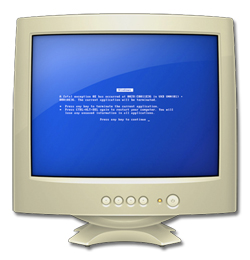 They say there are two types of people: those who break their computers and those who try to fix them. However I believe everyone, to a greater or lesser extent, has a natural tendency towards computer destruction.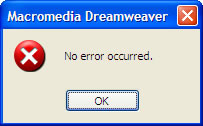
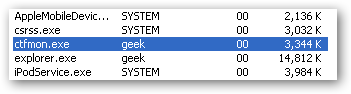 Coming to work on this lovely rainy morning, I turned on my PC and started running my usual applications, only to get a memory usage error message for ‘ctfmon.exe’. Now as an everyday PC user, I’m quite accustomed to having issues with my PC (who hasn’t had the normal.dot file issue?), so I didn’t get alarmed and decided to look up just what this ‘ctfmon.exe’ file was.
 Eyedroppers are the design term given to those apps or features within them which allow you to select any colour on your screen and reproduce it exactly. Although it should come as standard with any serious paint or graphics app, it sometimes doesn’t in which case the only solution is to use a third party app to complement your design software.