How to turn off the Windows startup sound

Rid your PC of that annoying startup soundThe blaring ‘ding, ding, ding, dong’ sound that plays when you start Windows is up there near the top of my list of worst noises. In fact, for me, it’s even worse than nails down a blackboard, a baby crying, or someone making a balloon animal. The good news is, the startup noise can be turned off very easily.

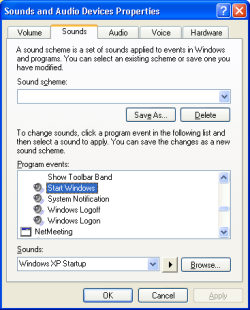
Simply access the Control Panel from the Windows Start menu and select ‘Sounds and Audio devices’. Click the ‘Sounds’ tab and take a look in the ‘Program Events’ section. Scroll down and find the ‘Start Windows’ event. Highlight it and choose ‘None’ from the ‘Sounds’ drop-down window. If you want, here you can add your own customised startup sound by locating the audio file on your computer using the ‘Browse’ button. Anything has to be better than that grating default noise.

Tips and tools to deal with e-mail stress

Stressed e-mailerEven as far back as 2000, there were reports that people were increasingly suffering from “e-mail stress”. Anyone who uses e-mail regularly for work will know what this is – the tyranny of the inbox that seems to keep filling-up with more questions, requests, meeting arrangements and orders whether you are at your desktop or not. In the worst cases, being away from your desktop for just a few minutes can leave you feeling like you’ve been hit by an avalanche on your return.

Nowadays, e-mail is ever more ubiquitous (think increasing numbers of laptops, Blackberries, WiFi connections and mobile devices) and e-mail stress is as big a problem as ever. As The Guardian reports:

Workers are suffering from the growing problem of ’email stress’ as they struggle to cope with an unending tide of messages, new research reveals. Employees are becoming tired, frustrated and unproductive after constantly monitoring the electronic messages that keep interrupting them as they try to concentrate at work.

Although increasing quantities and the ubiquity of e-mail nowadays are major factors in stress, the study found that it is the breaks in concentration that e-mails regularly cause that do the real damage. Karen Renaud of the study said:

Email is the thing that now causes us the most problems in our working lives. It’s an amazing tool, but it’s got out of hand. Email harries you. You want to know what’s in there, especially if it’s from a family member or friends, or your boss, so you break off what you are doing to read the email. The problem is that when you go back to what you were doing, you’ve lost your chain of thought and, of course, you are less productive. People’s brains get tired from breaking off from something every few minutes to check emails. The more distracted you are by distractions, including email, then you are going to be more tired and less productive.

This is an interesting perspective. Of course, most employers think that the more e-mail employees have to deal with, the more productive they will be but these findings suggest that actually the opposite can be true.

So are there any tools out there that can help make your e-mailing just a little bit less stressful? Assuming that most people work with Outlook, one of the best things you can do, before you try anything, is simply backup your mails with Genie Outlook Backup. Once you’ve done this, now feel free to experiment with some Outlook extensions and add-ons to improve your e-mail management such as Bells and Whistles for Outlook. This extension includes up to 20 organisational tools to help you better manage your mail such as an auto-responder, templates and attachment reminder. If it’s duplicate e-mails that are driving you mad, then try Duplicate Killer Merger for Outlook which removes and merges duplicated e-mails in one go.

The best tips to reduce e-mail stress are always the simple ones however. Some of my favourite have been put together by Web Worker Daily and Psychcentral. Their advice includes filtering important e-mail, setting aside time per day to deal with e-mails and my favourite, stop checking it all the time (or all together depending on how far you want to go!).

Have a cleaner, more organized Start menu

Clean up Windows Start menuIf you’re anything like us Softonic editors, you probably have a multiple-column Windows Start menu that is not useful anymore. So if you have decided to bring back its functionality as application launcher, you’d better put some order into that chaos before it’s too late.

The first – and most obvious – tip is, of course, not to install software that you don’t really need. Unless you work as a software journalist, you probably need only a few applications in your PC so simply don’t overload it with extra apps that will only eat disk space and system resources. Use the Control Panel to uninstall those apps you no longer need and you’ll contribute to cleaning the clutter in the Start menu.

Many newly installed applications add a complete collection of shortcuts to the Start menu. Think about Adobe Acrobat Reader or IZArc: you never actually launch those apps from the Start menu, but rather double click on PDF files or archive files to open them. Go ahead and delete those entries from the Start menu by right clicking on the correspondent folder and selecting Delete.

Clean up Windows Start menuFor further customization, right click on the Start button and select Properties. Then, in the Taskbar and Start Menu Properties window, click on the Customize button and you’ll access a complete settings window for the Start menu: the General tab lets you choose the icon size, limit the number of frequently used programs and disable the Internet and email icons, while the Advanced tab lets you choose exactly which icons should be displayed and which shouldn’t.

Finally, don’t forget that there are software tools with which you can clean up the Start menu, add new functionalities to it or make it look like Vista. If you’re interested in boosting up your Start menu, have a look at the Start Menu Utilities category at Softonic and you’ll find lots of tweakers and power-ups to improve the Windows native menu.

How to: Safely remove a USB device

Safely RemoveI say this all the time, but Macs are simply easier to use than PCs. Take a USB device: on a Mac, to remove it, all you have to do is drag the USB icon on your desktop to the trash can and it will eject it. On a PC, on the other hand, you need to click that Safely Remove Hardware icon in your System Tray, select the USB device and wait for it to tell you it’s safe to remove. The process opens up two different windows in a row, and if you have multiple USB devices connected, it doesn’t always guess which one is which, leaving you to decide.

The thing I hate though is when you want to remove a USB device from your PC, and you get the following message: problem removing USB device – try again later. That can happen even when it seems that you’ve closed every document in your USB. What really is going on is that some processes involving files from your USB are still running. You’ll have to look for them in your Task Manager (which you can open up either by right clicking on your toolbar or pressing Ctrl+Alt+Del) and shut them down.

If that doesn’t work, I suggest installing Safely Remove. This tool will recognize all USB devices connected to your PC, look for running processes and close them down. If it can’t, it’ll tell you which ones are running so you can close them yourself and remove your USB device safely. One last thing, never ever just plug out your USB device – this will damage it and in the long run make it inoperable. Don’t run that risk- download Safely Remove here!

Is defragging really worth it?

Defrag logoThe one thing I hate most about Windows is they way it slows down over time. It seems there is little you can do to stop this, especially if you’ve had your machine for a few years or so. I’ve tried uninstalling programs, deleting files and removing unnecessary extras but it seems that the only way you can ever return Windows to it’s glory is by wiping your hard drive and reinstalling from scratch again.

However, defragging is supposedly the one thing that can help remedy this problem. Due to the way it is made-up, the Windows file system becomes increasingly fragmented the more you use it. Defragging basically re-orders your hard drive files so that everything works in a much smoother way. Well that’s the theory. In reality, now that I’ve had my PC almost 3 years, I’m not noticing any real noticeable difference after defragging which is really annoying since the process can take a while and it feels like wasted time now.

One thing I’ve also noticed after defragging is that programs can suddenly stop working. The reason is that defragging can actually damage or corrupt dll driver files from time to time. As one poster on the Techspot forum points out:

You should only defrag every couple of months, or after installing new software. Defragging is necessary every now and then, but can lead to problems if files get damaged during the defrag process. Data errors do happen every once in a while, and if it happens to vital files you could end up with problems that are very difficult to diagnose. Defrag when required, but don’t overdo it because data corruption can/does happen when moving gigabytes of data around.

Defragging, then, can be useful but only if done periodically. There’s no point doing it once a year or even once every six months because by that stage, your disk will be so fragmented that the defragger will not be able to return it to its former state. However, at the same time, it’s not a good idea to do it every day because the constant reorganization of your files can lead to file errors.

Perhaps the best solutions are those such as Diskeeper which defrag in real-time meaning that your disk is always perfectly defragged all the time. This program “learns” how often it needs to run to maintain your particular system at an optimum level. The disadvantage of such a program is that it can kick-in whilst you are working and this may slow down your system while it defrags. However, once it has been used a few times, it settles into a rhythm that means it intrudes very infrequently and only when absolutely necessary.

The bottom line is: the nature of the defrag process probably means you’re better-off using a real time defragger to keep your system healthy. However, if you are going to periodically defrag, it can work but only when used in moderation and only if you’ve been using it from the start of your PC’s life. For those that now intend to turn over a new leaf, and are dissatisfied with Windows defragger, which is slow and often ineffective in my opinion, here are 10 alternatives you can use while Elena gives you a few other optimisation tips, which, when combined with defragging, can eliminate those slow-down blues.
Top 5 registry cleaners and tweakers

Registry Mechanic logoIf you’re experiencing startup errors, programs not working properly or general crashes and freezes of your machine, then the likelihood is that you’ve got some errors in your registry. Your registry contains some of Window’s most important components which form the backbone of many programs. If any of these entries get corrupted or damaged, Windows can start to malfunction in all kinds of erratic ways. Fortunately there are several tools out there designed to search and destroy such errors, or at least repair those registry values that have become damaged. Here are 5 of the best:

Registry Mechanic – One of the best all-round registry optimisers and cleaners

RegCleaner
– Simple but fast and effective registry cleaner

RegCure – One of the first truly effective registry cleaners and optimisers

RegSeeker – Shows in detail what’s wrong or infected in your registry

Free Window Registry Repair
– A simple but solid starting point for registry problems

How to install and use Photoshop actions

A few weeks ago I mentioned Photoshop actions when talking about the new Adobe Exchange service, but now I thought many people may not know what they are, how they’re installed, how to use them or what kind of results you can obtain with them.

Photoshop actions are code bits you run from within the program itself, containing a series of tasks you can apply as many times as you want on different images. They’re usually presented as one file (ATN extension) or batch of files and include menu commands, tool actions, filters and effects you can apply on any photo automatically by simply pressing the “Play” button.

Photoshop actions

Installing actions is easy: save the ATN file anywhere on your computer (tough I personally prefer to keep all of them in C:\Program Files\Adobe\Photoshop CS\Presets\Photoshop Actions) and then launch Photoshop. Open the image you want to work with and on the History window, click on the Actions tab. You’ll see a list of actions that come preinstalled with Photoshop. Now click on the little arrow button on the top right corner and select “Load action”. Look for the ATN file you just saved, load it and then press “Play”: the magic will begin. Sit back and enjoy while Photoshop automatically works with your images in front of your eyes. Once the action is done, simply save the photo and you’re done. Continue reading “How to install and use Photoshop actions”

Full Windows XP tweak guide

Windows XPWhat PC user hasn’t suffered at the hands of their Windows XP? I doubt you’ll find anyone who’s completely satisfied with their version of Microsoft’s operating system. You can put up with it, and curse at your PC every time it freezes and crashes, or you can join the crowds of XP tweakers, who fiddle around, improving settings and functions in their operating system in the hope that this will make it work better. I came across a very thorough guide this morning of 20 Windows XP tweaks, going from easy, basic ones for beginners, to intermediate and more advanced optimization tips.

You’ll start out learning how to switch off these annoying automatic updates, disable system restore or check your hard drive for errors. Intermediate skills then involve deleting unused fonts, uninstalling unused Windows components or unused devices while advanced skills entail things like getting your hands dirty with MSConfig or disabling unused Windows XP services. I wouldn’t say any of these tweaks are difficult to do, especially if you follow the clear explanations in the guide. To me the real difference between beginner, intermediate and advanced tweaks has to do with the consequences they will have on your PC. Obviously playing around with beginner tweaks, like enabling or disabling automatic updates, won’t put your PC at as much risk as an advanced tweak, like disabling startup items. That’s why when optimizing your version of XP it’s best to take your time and go through the simple ones first. If you really can’t see any improvements in your PC’s performances then you should move on to more difficult tips, but not without making a backup beforehand.

Do Macs really need anti-virus software?

Mac Virus logoIn light of Kaspersky’s recent announcement that they have developed a Mac anti-virus application “in case” any big Mac viruses break-out in the near future, the debate has been ignited again over whether Macs really need anti-virus software. Kaspersky made the announcement at the CBit technology exhibition currently taking place in Hannover, Germany. Conspiracy theorists may suggest that if any major Mac viruses do “suddenly” emerge, Kaspersky’s announcement would be viewed with extreme suspicion although the company say:

We see that Mac OS is taking a bigger and bigger share of the market. We made the prototype to be ready just in case.

For most people who use Macs, the reason for their choice is based mainly on its functionality and all round design although the fact that they are largely immune from the viruses that plague Windows has also attracted many converts. However, this doesn’t mean that they are bullet proof to attacks. As Infoworld point out:

There have been no attacks on the scale that affects Windows machines, such as the Storm Worm. But Apple’s software is far from perfect: In December, Apple issued 31 updates for Mac OS X. Its QuickTime multimedia player has also been patched several times.

Nevertheless, if you ask Mac users whether they use an anti-virus software, the answer will usually be “No” since attacks are so infrequent. Conspiracies aside, vendors such as Kaspersky and F.Secure are basically saying, “The more people who start to use Macs, the more chance there is that viruses will be developed for them.” Operating system monitors Net Applications estimate that, at present time, only 7.6% of home internet users use a Mac although this figure is growing all the time.

The Mac virus debate has even been highlighted by the BBC which attracted a glut of comments from Mac users, the majority of which stated that they do not use a virus checker. Nevertheless, a common theme throughout the comments is “Better to be safe than sorry” and although there are very few antivirus options available on the Mac, you might like to try McAfee VirusScan for Mac or VirusBarrier X5.

Make a football theme for your Windows Mobile device

I’m football crazy me, so this time of the year is always particularly exciting for me, especially if my team is still in with a chance of winning something as the season draws to a close. This year I’ve decided to show my support for my club by creating a theme for my Pocket PC, based around their colours and crest. The FlashThemes Generator is one of the best programs for building custom themes. Here’s how I created my FC Barcelona theme, but obviously you can adapt the images and colours to fit your own beloved side.

After downloading, installing and launching FlashThemes Generator you’ll be presented with a simulation of a Pocket PC device with an existing theme displayed. Open the control panel by clicking the green arrow at the top of the interface. Now choose ‘Select a background image’ and pick a wallpaper for the Today screen. I’ve chosen a simple picture of the club crest.

Set a background image

If you want, you can also add an image to your Start menu, which will appear behind the pull-down menu items. At this stage, you’ll probably that notice that some of the menu text or Today screen text is unreadible. Luckily you can change the colour to make the text a lot clearer.

Continue reading “Make a football theme for your Windows Mobile device”