Ask OnSoftware!

Do you need help getting the most out of your favourite program? Has your system locked you out and gone all HAL 9000? Want to find a simple way to fix that annoying little software issue? Well, you’ve come to the right place.

Whatever question you have, we want to hear it. Whether it’s about Windows, Linux, Mac, phones, games, whatever. All you have to do is send an email to this address:

ask@onsoftware.com

Make sure you explain your problem or query as clearly as possible. Obviously we won’t help you out with any illegal stuff or do your homework for you… but apart from that, the sky’s the limit. (Though questions that aren’t related to software at all may also get short thrift: this is a software blog, after all).

Each week, we’ll read through your mails (and the ones sent to OnSoftware Spain), we’ll select the most interesting questions,  and answer them here on the blog. We think it’s a pretty good way of sharing knowledge with our readers, as well as a good way to find actual solutions to real problems.

So what are you waiting for? Ask OnSoftware now!

Dive into oceans and travel in time with Google Earth

The launch of a new version of a Google app is such big news that sometimes it even reaches beyond the boundaries of software-related online media. Yesterday evening the new Google Earth 5 hit the news on TV and after seeing the new features explained by the company’s marketing managers, I was really looking forward to trying them out for myself.

Regarding the user-interface, the new Google Earth hasn’t changed that much. It keeps the same intuitive navigation tools and freedom of movement that make of this application not only an excellent interactive atlas of geography, but also a great time-waster.

New Google Earth 5

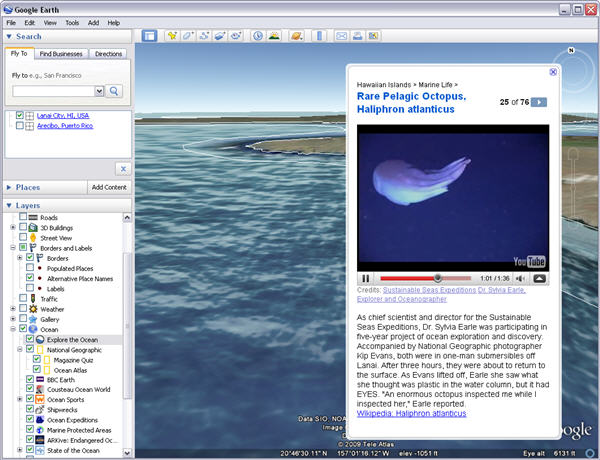
Focusing on the new features in Google Earth 5, the first one you’ll probably notice is the new Ocean layer. When clicking on it, you’ll activate a dozen new sublayers with all sorts of information about oceans, seas and marine creatures worldwide. You’ll be able to watch Youtube videos about whales, learn about ocean expeditions, track animals on their underwater migrations and even spot shipwrecks worldwide.

Don’t, however, expect to see fish swimming under the sea like you would while scuba diving; the new Ocean feature is more focused on information and knowledge about the sea, rather than realistic imagery. Also, I must say this information seems a bit chaotic sometimes; it’s hard to browse all data – unless you don’t mind spending 3 hours on the program – and you can’t use the built-in search tool to find specific locations under the sea.

New Google Earth 5

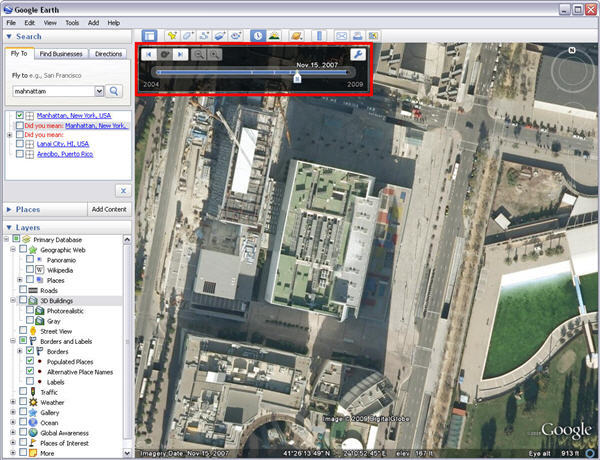
The other great tool in this new version of Google Earth is Historical navigation. You can enable it from the View menu by clicking on the “Historical Imagery” option, or click o the clock button in Google Earth’s toolbar. This tool enables you to see old satellite images from certain places, just like travelling back in time. Google’s time machine goes back only a few years, but that’s enough to see new skyscrapers, stadiums and other constructions while they were being built.

Last but not least, the new Google Earth 5 lets you record videos of your own virtual tours more easily – including voice over to explain details – and share them with your friends

Get high quality Skype video calls on your Mac

Skype LogoI recently started taking advantage of my Mac’s iSight by using it for video calls on Skype. However, I was disappointed to see that the default video resolution is a measly 320 x 240 pixels. iSight does support 640 x 480 high quality video calls but for some strange reason, Skype does not take advantage of it by default so you have to give it a little push. Note that this hack is NOT for High Definition video quality – it quite simply doubles the resolution of the video quality to 640 x 480 pixels for much clearer images. High Definition video calls are available on Skype but annoyingly, it only works with a specific Logitech webcam :(.

To increase the resolution of video chats on Skype, try the following steps:

  • Download the latest version of Skype (you must have version version 2.5.0.85 or higher installed)
  • Close Skype
  • Search in Spotlight for “config.xml”. If you find more than one, the full path of the file you are looking for is /Users/your account name/Library/Application Support/Skype/your Skype user name
  • Find the following code:

<Video>
<Device>Built-in iSight</Device>
</Video>

And change it to:

<Video>
<CaptureWidth>640</CaptureWidth>
<CaptureHeight>480</CaptureHeight>
<Device>Built-in iSight</Device>
</Video>

  • Save the changes and restart Skype.

The call recipient should now see your video image in it’s full glory of 640 x 480 definition. Note that if you or the recipient are experiencing slow or sluggish images, it’s probably due to a lack of RAM or processing power but most Macs and PC’s with at least 1GB of RAM and 2Mhz processor should be able to handle it.

Top free tools to open, create and edit PDF documents

Top free tools to open, create and edit PDF documentsPDF files have become the industry standard for shared documents, because they have the unique feature of looking exactly the same, either on screen or on printed paper, no matter which operating system or hardware you use. This is possible thanks to the information contained in each PDF file, which includes a fixed layout as well as any used fonts, images and vector graphics.

But there are also some important drawbacks to the PDF format. Splitting a document into several pages or fixing a simple typo, two tasks that can be easily done on any text file, are far more complicated on a PDF document. This is why we’ve decided to compile a list with all the software you need to create, open, manage and edit PDF files for free.
Top free tools to open, create and edit PDF documentsOpenPDF files without hogging resources
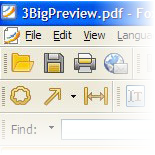
If you used Acrobat Reader 7 or 8, you surely went trough the pain of having to wait 30 seconds to open a PDF file. The latest version of the program, Acrobat Reader 9, improved a lot in performance but many users turned to other lighter and faster tools such as Foxit PDF Reader and Cool PDF Reader. Both offer maximum compatibility, though Cool PDF Reader stands out for its size – only 600 KBs. Foxit includes more features and can be embedded into web browsers.
Top free tools to open, create and edit PDF documentsCreate PDF documents with a virtual printer
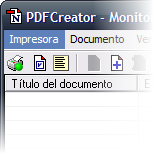
Some years ago you could only create PDF files with Adobe Acrobat and the Distiller module. Luckily now you can choose between quite a few virtual printers that make use of GhostScript to create a fully compatible PDF file out of anything you print, with no limitations or watermarks at all. The most popular one is PDFCreator, though you can also use DoPDF and Bullzip. DoPDF produces smaller files, while Bullzip can encrypt the file and add watermarks.
Top free tools to open, create and edit PDF documentsOpen PDF files in Microsoft Office and OpenOffice
Being able to open a PDF file from a productivity suite certainly eases your workflow. If you need to convert a document from PDF to DOC, you can use a couple of free apps: Some PDF to Word Converter and Free PDF to Word Converter. Both try to keep the structure and layout of the original document, but the truth is that results may vary. At least the first one, Some PDF to Word Converter, lets you process several documents simultaneously.
Top free tools to open, create and edit PDF documentsSplit and join pages, cut, annotate…
If you need to join PDF files into one or split a large document into several pages, there are also free apps for that. PDF Split & Merge and Adolix Split & Merge PDF feature a wide range of options. But if you’re looking for a really powerful tool, then you should have a look at PDFill PDF Editor and jPdf Tweak, two excellent apps that can add watermarks, combine and split documents, rotate pages and add notes, among other possibilities
Top free tools to open, create and edit PDF documentsCopy and print text from protected PDF files
Some PDF files have copying or printing restrictions, which can be a nuisance. To copy text from a protected PDF you can use FreeOCR.net, a tool that scans documents with a powerful optical recognition engine. Another option is creating an unprotected copy of the file, which you can do with Free PDF Unlocker. This tool uses GhostScript to extract all the information and save into a new document. It has no graphic interface, but is very easy to use.

[Via: OnSoftware Spain]
Today’s downloads for Windows, Mac and Mobile

Dowbload Extra Photo SlideShow FreeWindows: Creating a photo slideshow can be a pain if you don’t have the right tool. With Extra Photo SlideShow Free you can create your own personalized photo slideshow, with background music and tons of transition effects, in just a few easy steps. Simply select your pictures, your favorite music and customize some basic settings, and you’re done!

Puzzle your way around ancient GreeceSymbian: If you’re a fan of point-and-click adventure classics such as Day of the Tentacle or Monkey Island, then fire up Zeus Quest on your mobile and get ready for some fun. Set in ancient Greece, your mission is somewhat of a mystery, but it’s something to do with a spacecraft crashing into the sea around 1000 BC. In fact, you start completely unaware of anything other than the fact you’re on a beach with two sunbathers and a goat. Good luck!

All2MP3 logoMac: There’s no doubt that MP3 is king when it comes to all things audio. If your music or audio isn’t in Mp3 format then you need a simple way to convert it which is what All2MP3 does. All2MP3 converts music files directly into MP3 audio format using AppleScript. After starting the program, you simply drag and drop files onto the program window and select the quality of target files. All you have to do is click on the All2MP3 button and you’re done!
Webmail never stops

With Yahoo Mail and Hotmail having been revamped recently, and while Gmail continues to develop, I thought it might be a good moment to step back and look at their relative benefits. I’ve had active Yahoo and Hotmail accounts for a decade, but over the past couple of years Gmail has become my emailing home – so if anyone wants to accuse me of a Gmail bias, it’s true, I have one!

So, Gmail stole me away from Yahoo and Hotmail. Have they pulled off any developmental tricks to bring me back?

The biggest functional difference between the three is the reader pane. Both Yahoo and Hotmail utilize this, so you can read messages while still having your inbox open. Those two also let you drag and drop mail into folders, which makes organizing your mail really easy. Running Firefox, Yahoo! Mail was noticeably faster than Hotmail, which still suffers from a bit of lag. A split second makes all the difference today. Yahoo and Gmail are comparable, with messages appearing without noticeable loading times.

While it lacks the reader pane, Gmail shows mail in a ‘conversation’, which is much easier to use than the ever-lengthening emails in Hotmail and Yahoo, when you’re exchanging a string of messages. Where Gmail really differentiates itself is with its Beta status, which I personally think is a conceit on Google’s part to allow constant development with user feedback. And we all know it’s cooler to be using a beta product than a final version, right?

My cynicism aside, Gmail features Gmail Labs, which allows users to use interesting developmental apps for Gmail, and customize it to their needs. Neither Yahoo or Hotmail are anywhere near this flexible.

All three offer color changes, Hotmail and Yahoo have a miserly selection, and Gmail has a much larger ‘themes’ selection. Of course, color is all down to personal taste, but I think the majority of these aesthetic customizations are pretty nasty! Of the original designs, Gmail is the clearest and most neutral, and its text more readable. The inbox text in Yahoo is a little small, but the page layout is good. I can’t recommend Hotmail, as it’s page in any configuration is claustrophobic.

Despite niggling fears that Google wants to own my soul, it’s impossible to ignore that Gmail is the faster, more flexible and aesthetically friendly webmail option.