Thanksgiving wallpapers and pictures

It’s amazing how quickly time goes by: it’s Thanksgiving week already! You surely have tons of things to prepare – grocery shopping, home decoration, turkey recipes – so we thought it would be a good idea to lend you a hand with such a busy agenda. We’ll write some posts to help you with Thanksgiving planning over the next few days, and the best way to start is, of course, a bunch of Thanksgiving wallpapers! These are some of the best ones we’ve found on other sites.

Click on the image to download the full-sized wallpaper. Some of them are available in various resolutions.

Thanksgiving wallpapers

Continue reading “Thanksgiving wallpapers and pictures”

Why Macs aren’t more expensive than PCs

MacBook ProThe Psystar v Apple case has brought into focus again the debate over whether Macs provide value for money. It was inevitable that at some point, a company would try and make Macs appealing to those who seek lower budget PCs as Psystar rather illegally tried to do so.

Firstly, it’s important to point out that as far as portables go, there’s no way that Macs can compete with lower-end PC laptops. There simply aren’t any Apple Macbooks costing in the region of $600 like there are with PC laptops. However, when it comes to the higher end portable computer market and the mid-range standalone machines, Macs actually work out cheaper. The devil as they say, is usually in the detail i.e. the software.

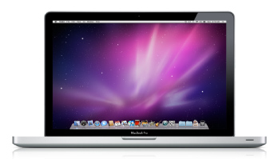
Let’s take a look at the Dell Studio XPS Studio 16 for an original retail price of $1,642 v The Macbook Pro with an original retail price of $1,699.
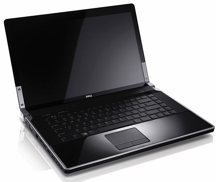
DellBoth have a 15 inch screen, Intel Core 2 Duo processor and 4GB RAM. The Macbook Pro has only a 250 GB Hard Drive compared to 500 GB in the Dell. The MBP has an NVIDIA GeForce 9400m graphics card while the Dell has an ATI Mobility RADEON HD 3670 Graphics Card. The MBR has a 7 hour battery while the Dell has a “6 cell” battery.

For an extra $150, we can add an extra 250GB to the MBP to bring it’s specifications to exactly that of the Dell (although you can buy external 250GB external hard drives for just $60).  However, for arguments sake, lets pay Apple’s rather pricey $150 online purchase upgrade so the total price comparison is MBP $1,849 v Dell XPS Studio 16 for $1,699. Total price difference means the Dell is $150 cheaper – so far.

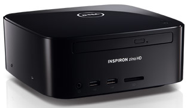
Mac MiniLet’s also take a look at a standalone like the Mac Mini for an original price of $599. The closest Dell equivalent is their own mini the Inspiron Zino HD for an original price of $442. The Mac Mini has a 2.26GHz Intel Core 2 Duo processor compared to the Zino AMD Athlon 2850e (512K, L2, 1.8GHz). The Mac Mini has 2GB of memory compared to the Zino’s 3GB. The Mac Mini has 160GB of hard drive space compared to the Zino’s 320GB. Both have an 8x CD/DVD ROM drive and the Mini has an NVIDIA GeForce 9400M graphics card compared to an Integrated ATI Radeon HD3200 Graphics card. Total price difference means the Zino is $157 cheaper than the Mini.

Now let’s get onto the subject of software. Windows 7 basic is provided free with both Dells and Snow Leopard is includedDell Zino for free with the Macs. However, if you factor in additional software costs to the Dell such as Vista Ultimate, it adds another $130 more to the cost of a Dell and the Windows 7 Home Ultimate upgrade adds another $122 more to that. If you were to treat yourself to a copy of Adobe Photoshop Elements & Premiere Elements (broadly similar to elements of iLife) on top, that would be another $99.
This would add another $351 to the cost of the Dell XPS Studio and Dell Zino taking their total costs to $2,050 and $793. That would make the Dell XPS Studio $201 more expensive than the MacBook Pro and the Zino $194 more expensive than the Mac Mini.

In addition, Macs also come bundled with iLife which normally sells separately for a very modest $79 and includes iPhoto, iMovie, iDVD, iWeb and Garageband. In my opinion, this collection of apps are worth considerably more too. You don’t get anything like iLife bundled with a new PC. You do get some basic household management software in the form of Microsoft Works, but it’s of pretty poor quality – and much less exciting. If we subtract this $79 from the value of the Mac, it makes the Dell $280 more expensive than the MacBook Pro and the Zino $224 more expensive than the Mac Mini.

However there is one big caveat to all this. Dell regularly run price offers on their products whereas Apple usually don’t. For example, at the time of writing, Dell are offering a generous $323 off the price of the XPS Studio 16 and $93 off the Zino. This still makes the MacBook Pro only marginally more expensive than the XPS Studio and the Mini remains cheaper than the Zino.

Of course, this is a very crude price comparison. There are some things that simply won’t show-up in such an exercise and that’s time efficiency and usability. Time is money as they say and over the lifespan of both my Mac and PC, the Mac’s superior stability and efficiency has been priceless.


Microsoft Office Mobile 2010 – a marked improvement

Office Mobile logoWindows Mobile users have had top put up with limited, stripped-down versions of Microsoft’s Office tools for years. Finally, Microsoft seems to pumping up the power of its mobile productivity suite, Office Mobile 2010. Released at the same time as Microsoft Office 2010 for PC, the latest version adds some powerful new functionality to the suite and harnesses the capabilities Windows Mobile 6.5 to deliver a more comfortable user experience.
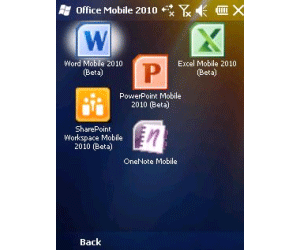
The overall look and feel of all the apps within Microsoft Office Mobile 2010 is much improved on the previous version. The drop-down menus are sexier and more touch-friendly, and the apps support touch gestures for zooming in and out of documents and flicking through files. That said, the toolbar icons within the apps still look very outdated compared with the desktop versions. I was also disappointed to learn that you still can’t drag over text with the stylus to select it for copying, cutting and pasting.

Main screen

In terms of the utilities themselves, Word, Excel and PowerPoint are definitely more functional than they’ve ever been on a mobile. For instance, Word Mobile 2010 now includes more formatting options, a whole bunch of new preset formulas have been added to Excel Mobile 2010, and PowerPoint Mobile 2010 adds a feature for hooking up to your PC via Bluetooth and flicking through slides from your phone.

Continue reading “Microsoft Office Mobile 2010 – a marked improvement”

Thanksgiving 2009: are you ready for the big day?

thanks1.pngWell, Thanksgiving is creeping closer, which means that you’re running out of time. Got the turkey trussed, the corn cobbed and the pumpkins pied? The lists made, the jobs delegated and the timing perfect? No? Didn’t think so. Let OnSoftware come to the rescue with some of the most useful tools this Thanksgiving season. Don’t worry if you don’t celebrate Thanksgiving (or if it was last month) – this is great stuff for any celebration, whether it’s Christmas, Hanukkah or Eid.
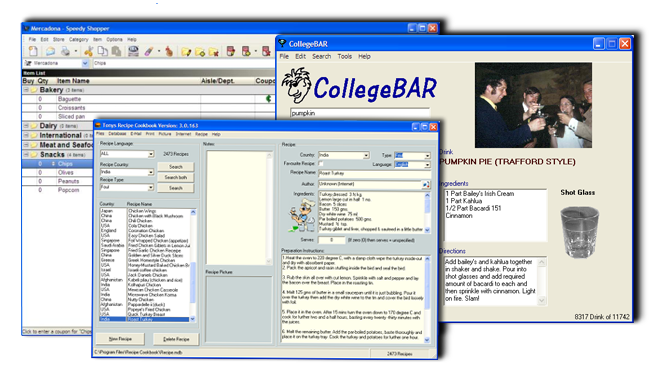
Your first challenge is to decide on the big meal. No need to be too creative – people like the old favorites at times like this – but it’s still nice to put a new twist on something traditional. Apart from literally thousands of online recipes, there are also some nice desktop apps that mean you won’t even need internet access, helpful if you’ve all escaped to a cabin in the woods. Recipe Cookbook is one – this app will give you hundreds of (sometimes wacky!) ideas, as well as covering the basics.

Now you know what you’re eating, it’s time to write the shopping list. Make sure you don’t arrive home from the market with everything BUT the turkey by enlisting some technological help. Speedy Shopper should be first in line. Grocery List Generator, meanwhile, integrates with Firefox, a really handy way of creating lists as you browse recipes online.

combo11.png

Now that the food’s planned and bought, there’s a whole bunch of jobs to get done. Make sure nothing gets forgotten and everyone pulls their weight by running the tightest ship around. As everyone knows, organization is the key to success, so download a great planner to make sure everything goes goes like clockwork. As ever, we have the perfect Firefox add-on, ReminderFox, but if you’s prefer something offline, we can help with that too. Just take a look at the this selection and you’re sure to find one that suits – Golden Rules is my personal favorite.

After all that organizing, planning, shopping and cooking, it will probably be high time for the last essential – a cocktail. Ok, the Pilgrims may have raised an eyebrow, but things have come a long way since 1621 and after all that work, a toast to the Mayflower is very much in order! With a store of over 11,000 drinks – both alcoholic and non – CollegeBAR is sure to provide inspiration. Thanksgiving Special, anyone?!

First impressions of Google Chromium OS

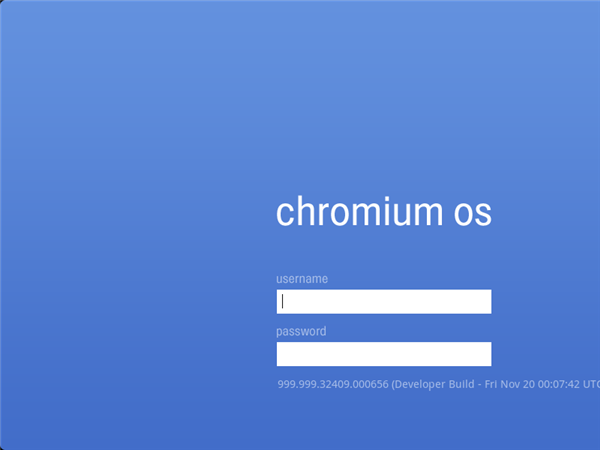
Google Chromium OS has been on everyone’s lips for a few weeks, and is finally available for download – only as source code, though. The new operating system developed by Google is intended to dramatically change the way we use our computers today, and definitely move on to the Cloud.

Google Chrome OS

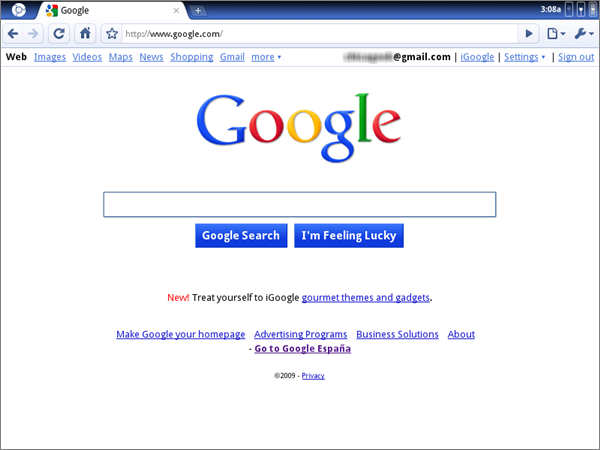
I’ve tested this very first version of Chromium OS on VMware, and I have to say that my first impression has been one of disappointment. After reading so much about it I expected something else… at least something more than a web browser! Because that’s exactly what Chromium OS looks like: a simple, standard web browser.

Google Chrome OS

After the initial shock, the truth is that having a web browser as operating system – or viceversa – is quite a revolutionary idea, with a few positive sides to it. First, everything’s done online: you use online apps, you store files online, you work with online documents. Everything is available anytime, anywhere. Second, it makes the system much faster and lighter on resources. Chromium OS hardly takes 10 seconds to boot up, and has been developed with netbooks in mind. Third, the web browser interface saves you the pain of having to learn how to use a new operating system. You’ve probably been using web browsers for a few years now, so you know how they work. Continue reading “First impressions of Google Chromium OS”

Friday Timewaster: Vector Conflict

Vector Conflict: The Siege is a defense game where you have to keep waves of attacking vector enemies from hitting you. Vector graphics gave us the first true 3D games way back, and ever though they’re unnecessary today, there’s something undeniably attractive about their minimalism.

The game is pretty tricky. You have  a number of weapons at your disposal, and a tiny radar to warn you of approaching attacks. You can be attacked from any direction, so you have to spin round taking out enemies with one eye always on the radar. It plays straight from your browser, after just a little loading time.

How to: Protect your online photos with watermarks

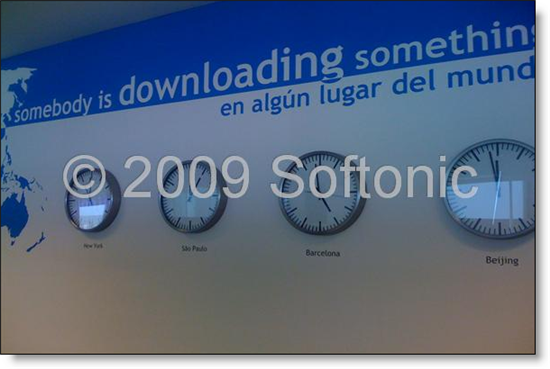
Everyone loves sharing their photos online on Flickr, Picasa and other similar sites. The risk of it is that some people think all online images are public property, so they can simply take them and use them anywhere else. Unfortunately there’s little you can do to avoid this without getting too complicated, like disabling right click or preventing image hotlinking. But you can try to discourage people from taking your photos with watermarks.

Protect your online photos with watermarks

Watermarks are text messages printed on top of images, usually with subtle transparency or engraving effects, that mark those photos as your property. These texts won’t prevent people from taking your photos if they want to, but they will at least identify your images online – and who knows, maybe work as a promotional campaign for your work!

Watermarks are generally easy to apply. Some programs – such as SnagIt – already feature watermarking tools, but you can also find dedicated watermark utilities like Siotra Watermak. This simple app helps you add watermarks to your photos in a couple of clicks!

Protect your online photos with watermarks

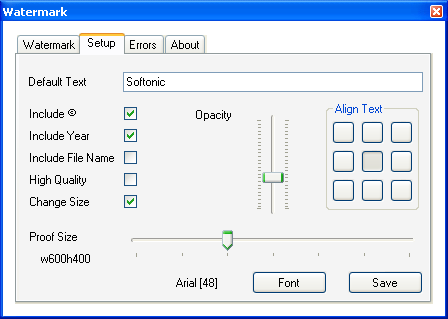
Siotra Watermark features a tabbed interface. All you have to do is select the source and target folders in the program’s first tab, and configure the watermark in the second tab. You can set a custom text, choose the font, tweak the transparency level, select the watermark’s position and include some extra elements like the copyright sign or the file’s name. Once you’ve done customizing the watermark, don’t forget to press ‘Save’!

Siotra Watermark doesn’t offer a watermark preview, but it does let you modify watermarked images as many times as you need to – without changing the original photos. The program only works with folders, so it’s great for watermarking images in batches, but not so useful if you only want to edit one.

Microsoft Office 2010 Beta available for download

Microsoft have finally launched a first Beta version of the much anticipated Microsoft Office 2010. You can download it from the Microsoft Office website, as long as you have a Live ID (your Hotmail address or Live Messenger account will do the trick).

Microsoft Office 2010 Beta

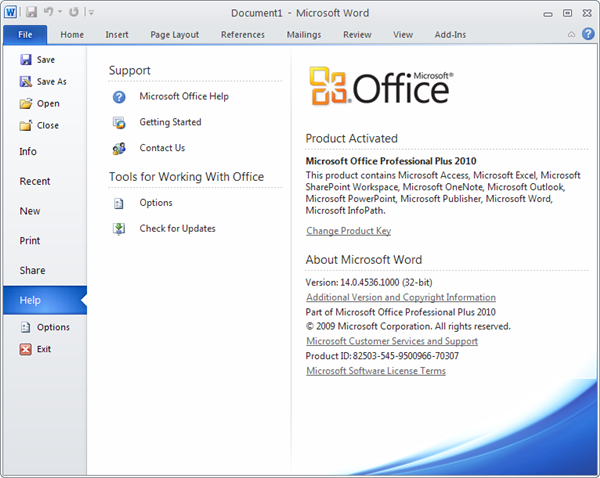
Microsoft Office 2010 Professional Plus Beta is available in several languages, for both 32-bit and 64-bit systems, and features a few differences from the Technical Preview we tested last July. First of all, the number of apps included in the suite has grown from seven to ten, with Infopath Designer, InfoPath Filler and SharePoint Workspace – the new name for Microsoft Groove.

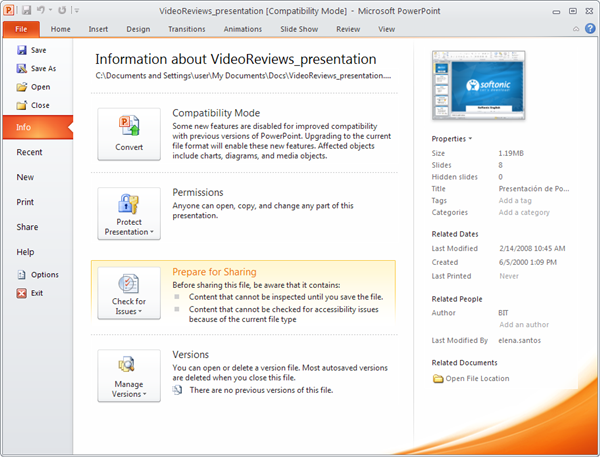
Secondly, the interface in all the Office 2010 has been slightly redesigned. They still keep the ribbon toolbar, but in a much clearer, cleaner style. Also, the ‘Office’ button has been renamed to ‘File’ and opens up a different – and I’d say much more complete – information pane.

Microsoft Office 2010 Beta

Another important new feature is the ability to share documents online, something that wasn’t implemented in the Technical Preview. You can now save any Word document, Excel spreadsheet or PowerPoint presentation to your SkyDrive account directly from the Share menu. Continue reading “Microsoft Office 2010 Beta available for download”

Google Chrome OS: What can it offer?

Today Google are going to show off their in-development operating system Chrome OS, and possibly even release a beta version. There are already three major OS choices, so what can Google do differently?

The Cloud: It’s expected that the main feature of Chrome OS will be its reliance on being online. Instead of loading your PC with tons of software, as much as possible will be accessible via cloud computing. Most computing is done while online now anyway, so this may make a lot of sense. As Google itself offers an increasingly powerful array of online tools, such an approach meshes perfectly. Perhaps it will somehow make Google’s Wave useful, instead of being the coolest web app no-one is using that it is today!

However, there has to be more to it than that, as you can already use Google’s applications from your browser, and while a stripped down OS will save disk space and CPU usage are there really so many machines out there that struggle with what’s already available? Apple’s OSX has the unique selling point of sleek sexy usability, Linux can be endlessly tinkered with by tech-heads, and Windows 7 is a lighter, better version of the dominant OS around the world. I don’t think being small and lightweight can really be enough for Chrome OS.

Security: It is rumored that Chrome OS users won’t have to deal with viruses, malware and their associated security updates due to a completely rethought approach to security architecture. This would be a godsend for everyone except Symantec and the other security software companies – but to be honest I just can’t see how you can create risk free computing, as hackers have been around forever.

Design: In the same way there is an assumption that a Google branded phone will be the best thing since the iPhone due to Google inherent good design sense, people are assuming the same from Chrome OS. Personally, I think they’ll struggle to out design Apple. Their mobile Android OS is eminently functional, flexible and really neat, but when it comes down to pick up and play design, Apple are the masters.

Maybe Google will prove me wrong. The essence of Chrome OS design is supposed to be minimalism, which I completely approve of, but if it just works like a minimal Windows or Linux like interface – that will be boring. I know it’s a tall order to reinvent the wheel, but that’s still what I want!

We’ll know all this within hours, and will update with our impressions soon.

Sync Firefox data the easy way with Mozilla Weave

The most tedious part of buying a new computer is having to transfer all your data from the old system to the new one. With photos, music, documents and the likes there’s not much of a choice: you use your favorite backup software or simply copy and paste files and folders from one computer to another using an external hard drive. But what about your web browser data? History, bookmarks, passwords. All of that needs to be synced too. And here’s where Mozilla Weave comes in handy.

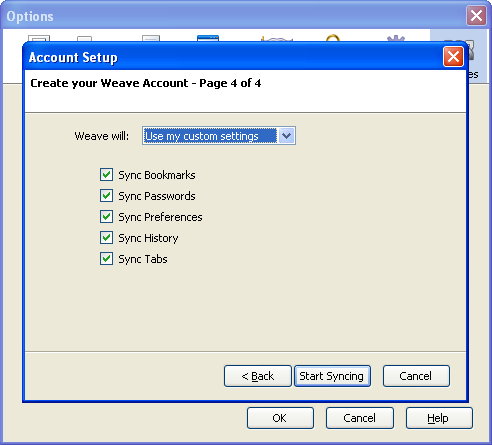
This project was released from the Mozilla Labs a few months ago, as an experimental Firefox add-on, and has just hit version 1.0 Beta. Mozilla Weave lets you sync browser data (bookmarks, history, tabs, passwords and user preferences) between multiple instances of Firefox installed across different computers and devices.

Sync Firefox data between computers with Mozilla Weave

The first thing you have to do after installing Weave is create a user account, either on the Weave servers or your own. This account is used to sync data from your browser to the server, so that it’s available when you need to sync it with other instances of Firefox or other devices – your laptop, your mobile phone, another computer. The account creation process also gives you the chance to customize the extension’s settings and choose the syncing method: merging data between the local computer and the server, syncing from computer to server or syncing from server to computer. Continue reading “Sync Firefox data the easy way with Mozilla Weave”