Today’s downloads for Windows, Mac and Mobile

Download SkyDrive ExplorerWindows: If you need more space but can’t be bothered to buy another external hard drive, try online storage. With SkyDrive Explorer you’ll be able to access your Live SkyDrive free storage from Windows Explorer, just as it it was one more local drive on your computer. All you need is a Windows Live ID, and 25 GB of online free space will be yours for free!

Discover the Universe with the NASA appiPhone: If you’re a interested in space exploration, this NASA app for iPhone is a must. This app basically allows you to follow all of NASA’s missions. The main screen lists the missions you can follow, and touching any of them takes you to a description of the mission with a counter for the time elapsed since the mission started.

A better finder rename logoMac: Renaming files can be an absolute nightmare if you’re faced with a batch of wrongly-named ones, or recovered files which have had their IDs corrupted. A Better Finder Rename (now updated to version 8.37) is a comprehensive file renaming solution for Mac and can rename huge numbers of files in seconds. A Better Finder Rename allows you to do just about everything you need to rename files.

The Kindle eBook reader comes to your PC, but is it your best option?

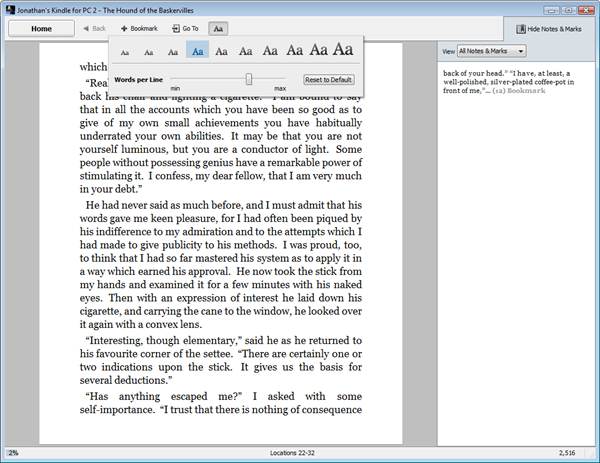
Lets leave the ‘why would you read a book on your PC?’ question to one side for a moment, and take a look at Amazon’s new free eBook reader:

What you can see is everything Kindle for PC can do. You can insert bookmarks, but not annotations or highlights (like you can on the Kindle device). The library system is basic, although clear and there’s an amazon button that takes you to the shop via your browser. The presentation of text – the important bit – is minimal. You can’t alter font, but can change size and the width of pages. There’s no option to mess around with color or background at all. I was pretty unimpressed with the text, as there are tiny apps like Gargoyle (unfortunately not an ebook reader) that present text in a much more readable form. This just looks like text in MS Word! You can use out-of-copyright eBooks from the Gutenberg project, though, which is good.

Dedicated desktop readers aren’t very common, but there are other options. Check them out after the break – I’ll start at the bottom!

Continue reading “The Kindle eBook reader comes to your PC, but is it your best option?”

Sharing items in Google Reader

Google Reader is the only RSS reader I’ve ever used – except for the ones I’ve had to test and review for Softonic –  and I wouldn’t change it for any other. I simply love all of its features: it works really well, it’s available everywhere as long as you have an Internet connection, it has extensive support for keyboard hotkeys and best of all, it includes some handy sharing features that enable you to easily share interesting articles with friends, workmates or even readers of your blog.

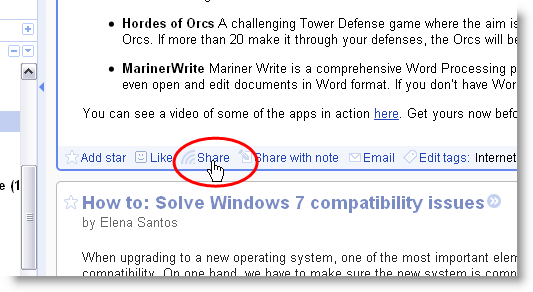
Sharing articles and blog posts in Google Reader is as simple as clicking the Share link below each one of them. If you want to add a personal comment as well, click the Share with note link instead.

Sharing items in Google Reader

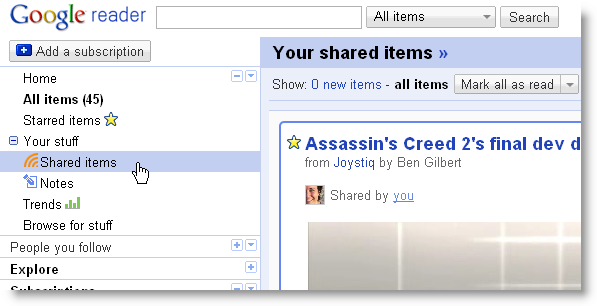
These shared items will automatically be added to your public page, a website automatically generated by Google Reader that updates with every story you mark as shared in your feeds. To check all the items you’ve shared so far, simply click Shared items in Google Reader’s sidebar.

Sharing items in Google Reader

But there’s more to this Shared items feed than just displaying a list of selected blog posts. From here you can check how your public page looks like (by clicking the little blue arrows beside the feed’s title), view and edit your Google profile, and also tweak some sharing settings. These settings enable you to decide who can access your shared items, customize the appearance of your public page and find more people to share items with, to name a few. Continue reading “Sharing items in Google Reader”

Get six Mac applications worth $154 for free

MacHeist logoIt’s not everyday you get six free Mac applications for free but the team at MacHeist is offering software worth a total of $154 for absolutely nothing over the next 3 days. The applications on offer are ShoveBox, WriteRoom, Twitterific, TinyGrab, Hordes of Orcs and Mariner Write. Note that Mariner Write will only be unlocked once 500,000 users have taken up this special offer so the more that sign-up, the better it is for everyone.

The MacHeist team have become famous for their giveaways. Here’s a quick look at the current offer:

  • ShoveBox A clever application for remembering all the things that you don’t have time for while you’re application whether it’s web pages to visit later, PDF’s for later reading or a To-Do list of your daily activities.
  • WriteRoom Miss the good old days of typewriters? WriteRoom provides a distraction free writing environment that ensures you focus more on your writing and less on distractions such as Facebook, IM clients and YouTube.
  • Twitterific Possibly the pick of the bunch on offer. If I didn’t use Tweetie than I’d definitely consider switching to this slick and well crafted Twitter client which stands out for it’s high level of customization.
  • TinyGrab A super quick way of sharing screenshots or funny images you’ve just found on the net. Just select the portion of the screen you want to share, drag it to your menu bar and you instantly receive a URL for sharing it.
  • Hordes of Orcs A challenging Tower Defense game where the aim is to defend your village from starving Orcs. If more than 20 make it through your defenses, the Orcs will be having you for breakfast.
  • MarinerWrite Mariner Write is a comprehensive Word Processing package that´s simple to use and can even open and edit documents in Word format. If you don’t have Word, it’s a great alternative.

You can see a video of some of the apps in action here. Get yours now before it’s too late!

How to: Solve Windows 7 compatibility issues

When upgrading to a new operating system, one of the most important elements to take into account is compatibility. On one hand, we have to make sure the new system is compatible with our hardware – that is, all the devices and peripherals connected to our computer. This is usually solved with the latest versions of their drivers, updated to support the new operating system.

But on the other hand, we also have to take software compatibility into account. If we’ve become particularly fond of a certain software utility, we should make sure it also works in our new operating system: Windows 7.

Upgrading from previous OS versions

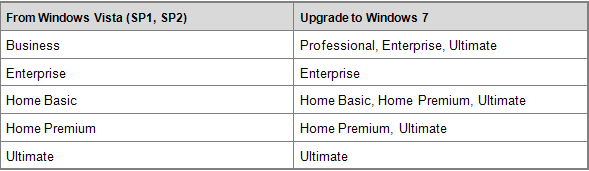
Windows 7 can be safely installed as an update on Windows Vista, as long as you follow these correspondences:

Windows 7 compatibility issues

This means that you won’t need to backup anything and install the new operating system from scratch. All the documents, software and user configuration settings you had in Vista will still be there after installing Windows 7. This method is supposed to make system upgrade easier, but in my personal experience, I always prefer to do a clean install when changing to a new operating system.

Windows Easy Transfer

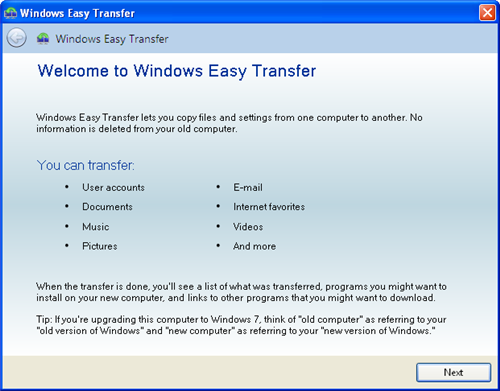
Installing Windows 7 as an update for Windows Vista means you can keep all your documents and user settings safe through the installation process. But what if you’d like to choose what to keep and what to erase? And most importantly, what if you’re upgrading from Windows XP – and not Vista? In those cases, you can use Windows Easy Transfer.

Windows 7 compatibility issues

This tool lets you transfer your personal documents to your newly installed Windows 7 in several ways: using a special Easy Transfer cable, burning a CD or DVD, via a local network or using an external hard drive. Windows Easy Transfer is free and available for both Windows XP and Windows Vista. Continue reading “How to: Solve Windows 7 compatibility issues”

Firefox at 5: remembering Phoenix

180px-mozilla_foundation_logosvg.pngAs you may have read elsewhere, today marks the 5th anniversary of the release of Mozilla Firefox 1.0. The browser, intended as a direct attack on the market dominance (and abysmal build quality) of Internet Explorer, has gone from strength to strength in those five years, proving that the software we use to view the web can be as important as the content we’re viewing.

But this story didn’t really begin on November 9th, 2004. Firefox had already been around for a couple of years, under the name of Phoenix (and, briefly, Firebird). That was when many internet users, including myself, first had a chance to get to grips with what was to become a revolutionary piece of software. I was still using a 56k dialup connection when I first used Phoenix, so load times really mattered!

phoenix-feb03-sm.png

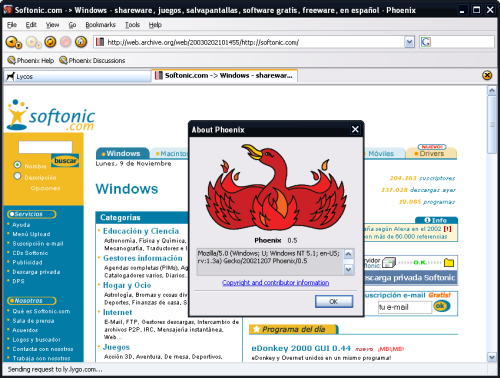
You can still download Phoenix 0.5 (from 2002) and, apart from gaping security holes it’s riddled with, the program itself is eminently usable and very reminiscent of Firefox 3.5.5. Some page elements display incorrectly on newer websites, but the most notable difference is how much faster ‘bloated’ Firefox 3.5.5 is. Also, Firefox uses a heck of a lot more memory than Phoenix ever did, but that seems OK because computers have so much more memory available.

Many of the keyboard shortcuts and features in Firefox were already available in Phoenix. Tabbed browsing, for example, works well in the older browser, though you couldn’t carry out advanced tab operations like dragging tabs to reorder them. Phoenix 0.5 also fails the Acid3 browser test, with a score of 39/100 – still strikingly better than ‘standards be damned’ Internet Explorer 7 (12/100).

Taking another look at Phoenix 0.5 today has brought back a lot of memories… like how the default theme was ugly but the favorites manager was streets ahead of IE’s offering (which it still is). Phoenix was an important piece of software that restored hope to web users like me who’d grown up with Netscape, only to see it die from lack of development. So yes, today is Firefox’s birthday. But I’m remembering Phoenix.

Chopping big emails down to size

During the summer, Gmail increased its maximum attachment size to 25MB, up 5MB on its previous limit. Great news, I hear you cry – now you can squeeze a few more photos into that email or send an album in 2 parts rather than 3!

Well yes, you can, but does that mean you should?letter2.png

One thing you have to remember about email is that it’s old. Really old. Although it mightn’t feel it, email has been around for more than 30 years and, unlike other technologies, it hasn’t been updated much. This doesn’t have much of an impact on our day-to-day use, but like they say over at the Google Operating System blog, “…sending a large attachment via email is relocating using the U.S. Postal Service as your moving company. It is painful, limited, and expensive.” It will get the job done, but it’s not the most efficient way.

So what’s the alternative? Well, if you are in physical contact with your recipient, you could just put the file on a memory stick. Once you follow the basic security principles, it’s a very simple way of transferring data. Obviously, this only works if you are geographically close to the recipient. In fact, email’s ability to overcome this problem is one of the reasons it became so popular. Just because it’s popular, though, doesn’t make it the best, so have a think about using free web hosting services instead. Don’t worry if it sounds complicated – you’ll get the hang of it quickly.

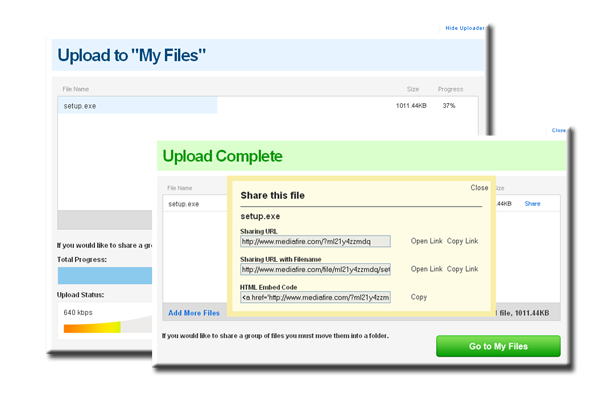
Go to a free hosting site – Mediafire and Hotshare are two well-known ones – and upload the file in question, just like you would attach it to an email. With 200MB of space usually available, it has a significant advantage over the now elderly email. Once it is uploaded, the service will give you a link, which you email to your friend. Your friend clicks on the link, and downloads the file that you uploaded. If it sounds complicated, it’s only because I have detailed every step – do it once or twice and it will become second nature.
compos2.png

Even though it’s not the most efficient way, you might still have your reasons for wanting to send larger files by email. If you do, you’ll need to make them smaller, and there’s two ways of doing this. You can compress (or ‘zip’) them, or divide them into smaller files. Either way, you’ll need a tool to do this, and the recipient will need a similar tool to decompress or re-join. IZArc and 7-Zip are two reliable – and free – file compression and decompression utilities. Likewise, in the area of file splitting, you’ve got plenty of choice. Even though they’re not pretty (and show little imagination in the name stakes), HJSplit and Gsplit are both fuss-free methods of chopping those unwieldy files down to size.

Monday Timewaster: Small Worlds

Exploration is a standard attraction in many games, and Small Worlds makes it a central feature. I don’t want to say too much, as playing it for the first time is genuinely surprising. It’s a platform game – you control the red figure above, using the cursor keys. It’s completely simple to play and not difficult, but really addictive and extremely pretty. Just play it!

[Via: ByteJacker]

How to: Use Steam natively on a Mac

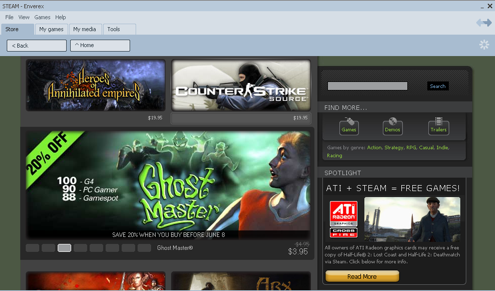
Steam logoOne of the only major disadvantages of switching to Mac is that there are far fewer games available for OS X than Windows. For example, Steam is a hugely popular gaming application on Windows which allows users to download and update an array of great games from developers Valve – the makers of Half Life.
Sadly it’s not available on Macs and usually, the only way to use it on a Mac is to install a virtual environment such as Parallels, VMware or boot in Windows using Bootcamp.

However, the former is expensive and usually results in poor game performance and of course, both methods require purchasing Windows. It’s far better – and cheaper – to run games natively in OS X if possible. But how?

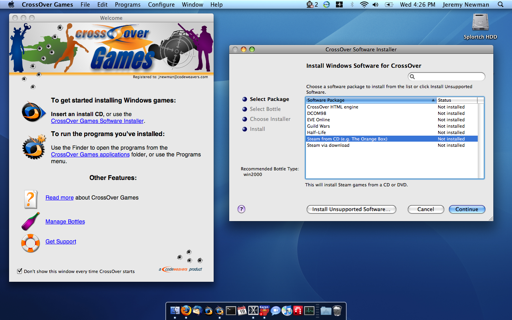
That’s where CrossOver Games comes-in. CrossOver Games is based on what’s known as the “Wine” platform which means it allows you to play Windows games on Mac (or Linux) computers without purchasing a copy of Windows. Best of all, it’s only around $40 which is a snip compared to buying a virtual environment or Windows. CrossOver Games comes from the same makers of CrossOver which allows you to run many Windows applications on your Mac in a virtual environment. The advantage of CrossOver Games however is that it squeezes every last drop out of the Wine platform in order to handle the demands of games.

crossover1.png

The app is designed for those with little technical knowledge and holds your hand throughout the setup process. You should be up and running within a matter of minutes. It won’t work for all games but the good news is that all the major ones – such as World of Warcraft, Half Life and the Steam platform, work perfectly and have been awarded “platinum” status for their stability on the Wine platform. You can find a full list of the specific games that work within Steam (most of which have been awarded at least silver status) here.

Steam screenshot

If you’ve been disappointed by gaming using a virtual environment or with Boot Camp and only miss Windows for gaming, CrossOver Games is a great solution.

Today’s downloads for Windows, Mac and Mobile

Download Oxelon Media ConverterWindows: Do you need to convert any audio or video file? Oxelon Media Converter is the perfect tool for the task. This simple app can convert multiple media files simultaneously, and it works surprisingly fast! Oxelon Media Converter supports dozens of formats and is perfectly embedded with Windows Explorer, which enables you to convert files with one click.

Create spooky photos on your iPhoneiPhone: Halloween is upon us once again, but if you haven’t got the money or the inclination to go trick or treating this year then check out Spooky Photo Free. This app allows you to make scary scenes out of your photographs. For example, you could put a zombie into a wedding picture, make bats appear in the sky above your house, or add a menacing pumpkin head onto an image of your dog.

1PasswordMac: Keychain on Mac does a pretty good job of managing passwords but once you’ve tried 1Password you’ll probably never look back. If you’re tired of making up passwords to access sites or worried that your passwords are not secure enough, it really is invaluable. 1Password creates strong, unique passwords for you, then remembers and restores them all within your web browser.