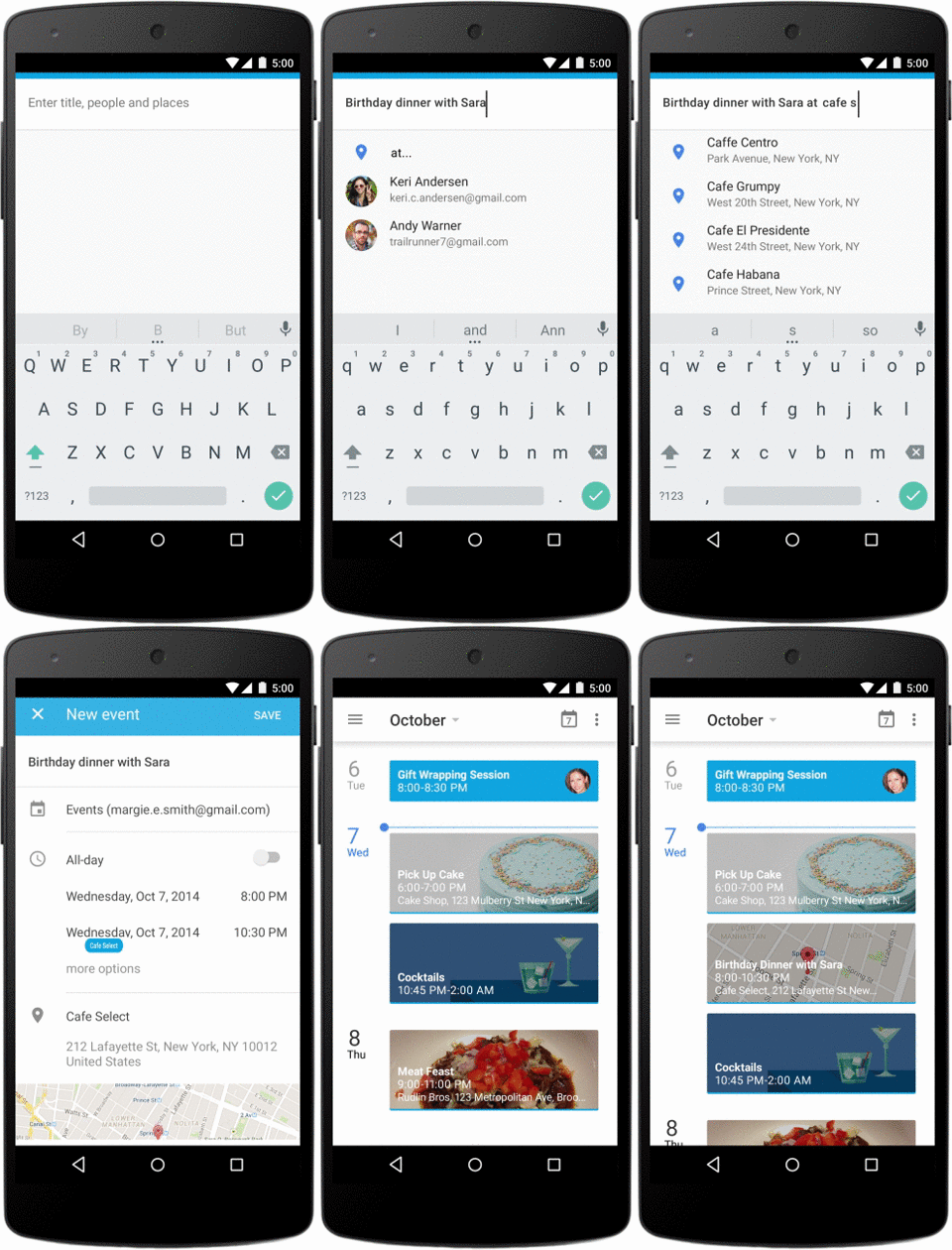
Google just announced a completely redesignedGoogle Calendar for Android that’s smarter than ever. The updated app now scans your Gmail for events and will automatically add them to your calendar. Gmail on the web hinted at this feature by allowing auto-event creation when you hovered over an address or event.
Default player
brightcove.createExperiences();
Google Calendar is so smart that it’ll even update your event if there’s a delay. For example, if your flight gets delayed, the new time will show up in the calendar event. Automatically created events will update if subsequent emails show a change in time or place.
Taking automation even further, Google Calendar for Android now features auto-completing events. Just start typing a place or a contact’s name and the app will give live suggestions below. The app also understand natural language so you don’t have to worry about plugging in the correct information into the correct space.
Last but not least, there’s a new Schedule View, which shows your events in a clear list with maps and illustrations. The app feels a lot more modern and incorporates Google’s Material Design language.
The new Google Calendar app for Android is rolling out today to Android 5.0 Lollipop users and will be available to all Android 4.1+ users in the coming weeks.
Google is also working on an iPhone version but doesn’t state when it will be available.
Call of Duty: Advanced Warfare will be launched tomorrow, and as the first reviews come in, actor Kevin Spacey has been speaking out about why he took part in the game.
The early reviews of Call of Duty: Advanced Warfare are based on a review event, meaning we won’t know some things – like how well multiplayer works for everyone – until after its release. It does seem, however, that this title, developed by Sledghammer Games, has reinvigorated the series after last year’s disappointing Ghosts.
Kevin Spacey says playing the part of Jonathan Irons was “an opportunity to do something that nobody had done, and also frankly to reach a new audience”. He also explained his amazement at seeing himself portrayed in the finished game, after acting out his scenes in blank studios.
Default player
brightcove.createExperiences();
Call of Duty: Advanced Warfare is not, of course, the first game to feature a CGI actor, nor is it clear how this advances gaming, as the actor put it. Nevertheless, the portrayal of Spacey in the game is impressive, and undoubtedly adds some gravity to the story.
Google is preparing a competitor to Apple’s Airdrop, the feature that lets you easily share files and data between devices. Called Copresence, it will allow you to share files with other devices and even other operating systems, so you could share between your Android device and iPhone, for example.
Copresence was found in the latest Google Play Services APK. It’s the result of the company’s purchase of Bump last year. The technology in Bump could allow the transfer of files between Android and iOS, and could also monitor transactions to harvest data about user behavior, according to AppleInsider.
The advantage of Google’s system, obviously, is it won’t simply be locked to one eco-system. Airdrop only works between Apple devices, which is limiting. The concern with Copresence is that it’s potentially yet another way Google can use your behavior to better target advertisements. As we have written before, if you use a free service, you are actually paying by allowing companies to sell your data to third parties.
Copresence could be launched in the next few weeks, according to Android Police. We’ll find our more soon.
The Internet Archive is dedicated to ensuring that we don’t lose all of our internet heritage, keeping copies of websites and much more, that has long since ceased to exist. Now, the organization has added over 900 classic arcade games that can be emulated and played free in your browser.
The Internet Archive says that not all of the games are playable though – they are straight emulations, and may not work with your PC controls. However, many of them work well, and there is support for gamepads if you have one connected.
The downside of The Internet Archive’s arcade collection is speed. You may find the site slow to load pages, and loading games can also take a very long time. Still, there are some big name titles in there, like Arkanoid, Street Fighter 2 and OutRun. Firefox is the recommended browser for these arcade games, but others will work (though, for example, we found some games ran slower in Chrome).
Another way to check out old arcade games is using the MAME emulator, which you can download here.
Ubisoft’s open world racer The Crew is out soon, and now we know how powerful your PC will have to be to run it. We’ve got the minimum, recommended and optimum requirements below.
The Crew will only work on 64-bit versions of Windows, and you can see a development video below, detailing how the PC version will get improved graphics over the console versions.
Minimum PC requirements:
Operating System: Windows 7 SP1, Windows 8/8.1 (64bit)
Processor: Intel Core2 Quad Q9300 @ 2.5 GHz or AMD Athlon II X4 620 @ 2.6 GHz (or better)
RAM: 4GB
Video card: NVIDIA GeForce GTX260 or AMD Radeon HD4870 (512MB VRAM with Shader Model 4.0 or higher)
DirectX: DirectX June 2010 Redistributable
Sound: DirectX Compatible Sound Card with latest drivers
Peripherals: Keyboard required, XBOX 360 controller optional (or compatible controller)
Recommended requirements:
Operating System: Windows 8/8.1 (64bit)
Processor: Intel Core i5-750 @ 2.66 GHz or AMD Phenom II X4 940 @ 3.0 GHz (or better)
RAM: 8GB
Video card: NVIDIA GeForce GTX580 or AMD Radeon 6870 (1024MB VRAM with Shader Model 5.0 or higher)
DirectX: DirectX June 2010 Redistributable
Sound: DirectX Compatible Sound Card with latest drivers
Peripherals: Keyboard required, XBOX 360 controller optional (or compatible controller)
What’s the best alternative to your Android phone’s camera app? Softonic Editors Suzie, Tim, and Niek hit the streets to find out, testing three leading Android camera apps in three different locations to help you decide which one you should be using.
To find the best alternative, we narrowed down the results and tested three of the most notable free camera apps for Android: ProCapture Free, Focal, and A Better Camera.
The test wasn’t about seeing which app is best for professional or advanced users, but rather to see which app is easiest to use on a daily basis, in any situation, and gives the best results.
1) The quality of resulting images under varying conditions (high light, low light, and bright indoor lighting);
2) The speed of the camera when taking action shots; and
3) The usability of the camera in terms of its functioning and interface.
Check out the video for a look at how we did it, and read on to see which camera app is the best alternative to your Android’s stock camera.
Default player
brightcove.createExperiences();
The Set-Up
To be able to compare each app’s performance under different circumstances, we hit three different locations in our home base of sunny Barcelona. We went to the beach to take photos in natural lighting and with movement, to a bar to test shooting in low light, and back to Softonic HQ to take photos with lots of color in artificial light. The camera speed and interface were tested during the process.
We used a Motorola Moto G running Android KitKat 4.4 to take the pictures, although we also repeated the tests with the higher end HTC One running the same software to make sure that the quality of the hardware didn’t affect the comparative results (which it didn’t).
We strapped the smartphone to a tripod and took all the images consecutively, under the same conditions with every app, to ensure reliability and consistency.
We also did a benchmark test to get a closer look at the image quality, but our results are based on our own observations, with the benchmark either confirming or negating our findings. Click here to see the full benchmark test.
The Test
The Beach: natural light and movement
We hit the beach first, taking the opportunity to test two variables: pictures with natural light and movement. The natural light was taken care of by the cloudless sky. To test camera speed and get that coveted action shot, we put Suzie on a bike from Barcelona’s bike-share system, snapping photos as she weaved between palm trees. Tim took a picture every time the bike was in the same location: back wheel at the base of the palm tree.
One of the most important factors when taking an action shot is the tap to focus feature, which lets your camera quickly focus on the image before you take a shot.
ProCapture was noticeably lacking in this area because it’s tap-to-focus feature is only available in the paid version. This means that ProCapture only focused on the image after tapping the shutter button. Although Suzie wasn’t biking particularly fast, ProCapture’s delay meant that she was almost completely out of the frame once the shot was actually captured.
Google Camera, Focal and A Better Camera on the other hand, were pretty much aligned in terms of tap to focus and shutter speed, giving much better results of the desired frame.
In terms of the end result, the images themselves turned out crisp and clean with little to no blur, but let’s not forget, we were checking the image quality for natural lighting as well.
In this instance, it looks like A Better Camera was, indeed, a better camera, both in color and contrast. ProCapture resulted in better coloring as well, although cyclist Suzie was missing in most of the photos. Photos taken with Focal seemed a bit overexposed, but they were very well balanced and sharp, something we confirmed in the benchmark test. Google Camera, on the other hand, landed last, with overexposed photos containing the least saturation and contrast.
The verdict: focus is key
Considering the tap to focus feature and the sharpness of resulting images, both key considerations for action shots, Focal comes out on top during our first round of testing. It may suffer from slightly less saturation and a bit of overexposure, but Focal really proved itself in terms of usability; the animations for tap to focus, as well those for taking the picture, were the most comfortable when using this app. ProCapture’s lack of focus, on the other hand, puts it in last place.
Winner: Focal
The Bar: low lighting
After the beach, we ventured into the city’s Gothic quarter to take low light photos in one of the area’s coolest bars. We set Niek up with a coffee and a magazine, a typical Instagram-worthy shot. He was illuminated by a back lamp, and we took the picture without flash.
With high hopes for an improvement from previous experiences with Google Camera’s fairly mediocre results, we were slightly disappointed that all three apps had problems taking photos in the low light surrounding of the bar.
In terms of usability, focusing took longer than expected, and actually taking the picture made the interface of Focal, A Better Camera and ProCapture freeze for up to a second while waiting for the hardware to take the photo. Here, A Better Camera was the biggest disappointment: the animation for focusing, as well as that for taking the image, was extremely subtle and went almost unnoticed. This made it hard to tell if we actually took the picture or not.
In terms of image quality, Focal’s overexposure during the beach test actually proved useful in the dark bar. The picture turned out warm, and the contrast worked to set Niek apart from his surroundings.
The photos we took with Google Camera were bright, but the colors appeared unnatural. A Better Camera had the same problem with colors, although instead of making it too bright, it made the image too dark. Both images appeared a bit unnatural to us, although the benchmark showed evidence that the images taken with both A Better Camera and Google Camera did, in fact, have fairly good exposure.
ProCapture, once again, didn’t impress, with an image that was much too dark.
The verdict: warmth wins
Despite the benchmark results, Focal still came out on top for us. Even with a hardware-related interface freeze, the big, full-screen preview and large shutter button made it least painful for taking photos in low light, and the image turned out warmer than the others for such a dark setting.
A Better Camera’s pictures turned out well, but its extremely minimal animations when taking photos make it uncomfortable to use.
Winner: Focal
The Office: still life with bright colors
Finally, we headed back to Softonic HQ to take some still photos with bright colors. With no shortage of random objects lying around, we set-up a scene with bright artificial lighting and some colorful objects including a princess pink water bottle, a PS3 controller, and an Assassin’s Creed flag.
As it turns out, our front-runner Focal showed one critical flaw. Although it uses the entire screen to preview the picture, giving a nice clean interface, it also means that you can’t see the entire picture in the preview. In fact, only about 80 percent of the final image is visible in the preview. This can be extremely frustrating, especially when you’re trying to set up a frame for an image but have no idea what’s actually in it. As a result, composing a still image with Focal was irritating.
Surprisingly, ProCapture took the lead in terms of usability. The otherwise boring interface actually helped us compose the scene by showing exactly what was in the photograph, including the photo’s expected coloring and contrast. Here, the preview is best at representing the end results.
In terms of the color, for us, there wasn’t a clear front-runner. All images had bright colors, while the image produced by Focal seemed the most natural to the naked eye.
Our benchmark test, however, proved otherwise; measuring color levels showed that A Better Camera, Google Camera and ProCapture had very bright colors with little interference, while Focal’s images weren’t as bright or saturated as the others.
The verdict: mixed results
Despite being disappointing in terms of image preview, Focal once again managed to nab the top spot in terms of resulting images, while ProCapture took the category when considering usability.
Focal’s images may not stack up in the benchmark, but they look the best from a user perspective. ProCapture’s preview, on the other hand, shows exactly what you’d expect from the final product, making it much easier to compose a photo. Google Camera and A Better Camera fall somewhere in the middle of the road. With no clear winner in the category, ProCapture and Focal shared the top spot.
Winner: Focal & ProCapture
The Benchmark
In order to get a better sense of some of the technical capabilities of each app, we did a benchmark test to see how each app stacks up against each other when it comes to image quality. For the benchmark tests, we used an analysis software to test images for technical aspects like pixel noise and dynamic range.
In the end, the benchmark was used only to support or negate our findings, as opposed to defining our winners in each category. For a full recap of the benchmark test and its results, take a look at our article detailing the benchmark process.
The best alternative is…
Having tested all three apps in real-life picture-taking scenarios, it’s safe to say that the best alternative camera app for Android is Focal.
The biggest disappointment was ProCapture Free, although one of its biggest setbacks, tap to focus, is remedied with the paid version of the app. A Better Camera, on the other hand, was more hit and miss. It takes fairly decent photos, but a lack of animation when doing so makes it much less user friendly than the others.
While Focal may not produce the most technically advanced photos (at least according to our benchmark test), its ability to take quick action shots, low-light images, and natural looking stills with nice coloring make it the best alternative to your Android phone’s stock camera app.
It’ll be interesting to see, however, if there are any major updates to Android’s stock camera app with the release of Android 5.0 Lollipop.
Downloading codecs for media formats can be quite annoying, so it’s good news that Windows 10 will support MKV and HVEC files.
MKV is a popular video format, and the latest build of Windows 10 Technical Preview now supports it. Implementation is not yet complete though – if you try to open an MKV file in Windows Media Player, you’ll see a message claiming that the format won’t work, but it will play anyway. Presumably, the warning message will be removed in future builds of the Technical Preview.
Support has also been added for the HVEC (High Efficiency Video Coding) format. This is a relatively new format, debuting in 2013, but could become popular as it’s supposedly an improvement over MPEG compression, offering more compression for the same video quality.
You can test Windows 10 by downloading the Technical Preview. This is can be used until April 15th 2015, and will allow you to follow the development of Microsoft’s next operating system and contribute by giving feedback about your experience.