Color-coded categories on Google Calendar help you stay organized

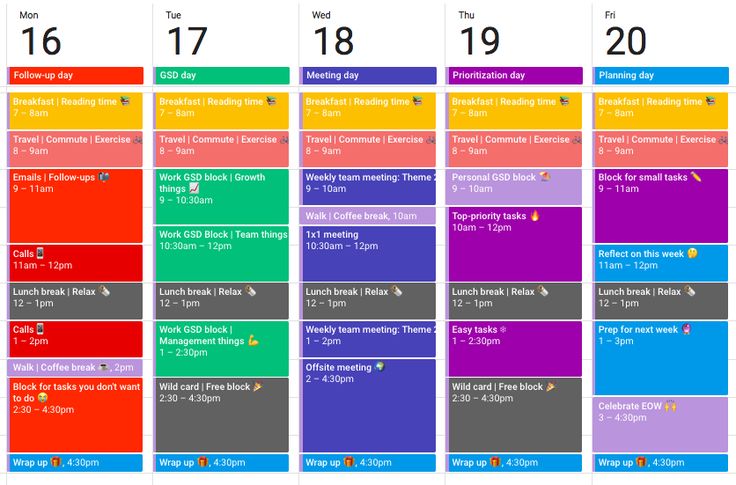
If you’re obsessed with planning and organizing your week, you’ve probably gone wild with color labels in Gmail. In an effort to mimic the success of that feature, Google Calendar will receive an update that includes color-coded categories. You’ll be able to see who and what gets most of your time.

Google Caldendar DOWNLOAD

Last year, Google Calendar introduce a Time Insights feature so you can see how you spend your time. It was an effort to help you organize your precious time better, making sure you focus on top-priority tasks. The problem is that many people spend more time in meetings than actually executing work.

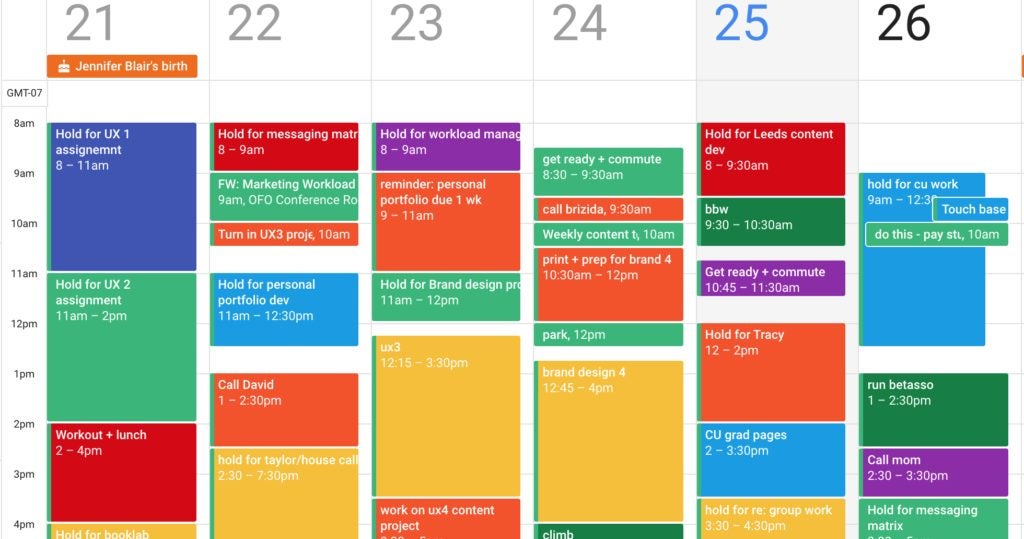
Enter the new Time Insights update. Only available to top-paying members, you’ll be able to add colors to various meetings and tasks with labels. When you enter the insights menu, there’s a section that lets you organize the timeline by color. If you don’t have a label for one of the projects, you can quickly add one there.

The other option is going into the meeting details and adding a color and label. It will still show up on the insights menu. In this way, you can quickly see who or what is eating up all of your time, and then adjust accordingly. It’s an excellent way to improve productivity, especially when you want your focus on a specific task.

Color-coded categories on Google Calendar help you stay organized

This update is at least better than the last creepy Google Calendar update where colleagues can see where you are when you’re supposed to be working. If you’re sharing meetings or tasks with them, you’ll might be able to share the color labels too. The new feature is set for release towards the end of August 2022. Just remember, you need to be on one of the top subscription packages.

Google Calendar gets a creepy update

The virtual calendar and diary app has become a mainstay of the modern worker. Not only can you check your availability, quickly schedule meetings, set agendas, and even host meetings from your computer or smartphone, but you can also consult with colleagues’ online schedules to check their availability too. Google Calendar, however, looks set to take this a little further with an update that some might think is a little creepy.

Google Calendar Download Now

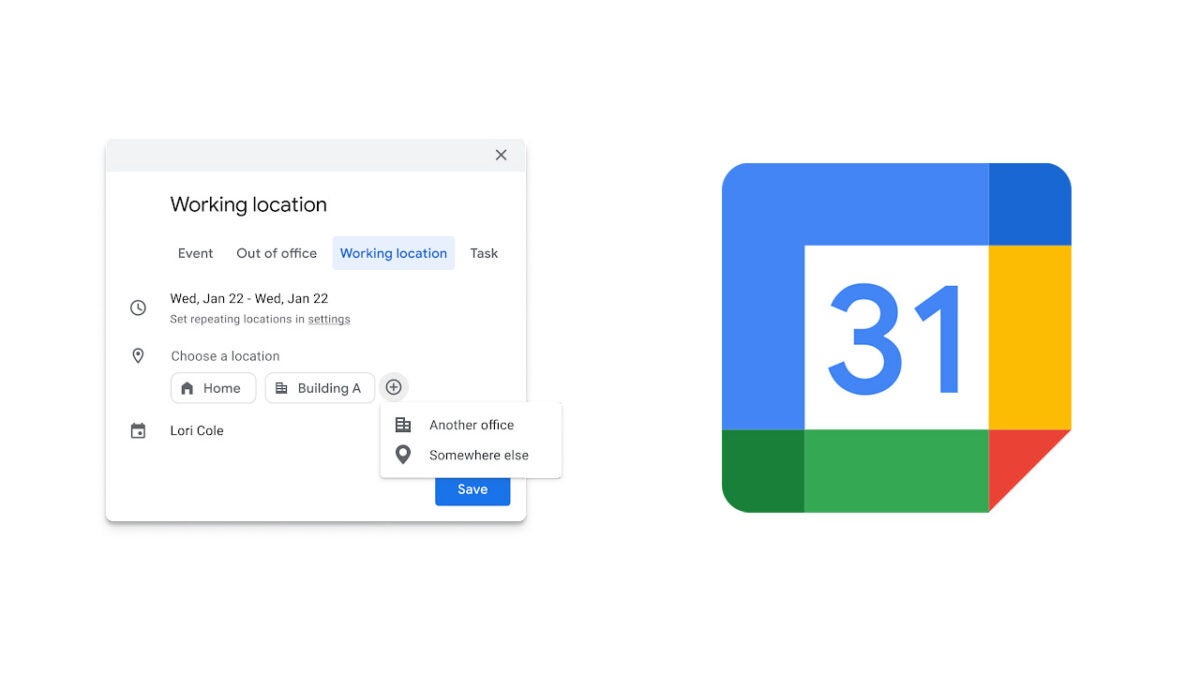
Google is introducing an update to Google Calendar that will allow your colleagues to know your location while working. The update will give you the ability to set the building you are working in as your location so that other people can then see where you are working and when. The information will then be displayed on your Google Calendar.

In the google Workspace blog post announcing the update, Google said:

“Whether you’re suggesting a meeting room to your colleagues or want to know where someone might be working for the day, we hope this update makes planning in-person collaboration easier.”

Like a lot of things these days, Google says that this information is as much for its algorithm as it is for your colleagues. Sure, colleagues will be able to check which building you are working in, what time you will be finishing, and then maybe wait outside for you when you are done, but Google says this update will also help Google Calendar make improved meeting room suggestions when you trying to book a meeting on the app.

Google also says that the move will help users better organize their day and should also be a big help for people who are managing the calendars of other people as they’ll be able to update the working locations of the people whose schedules they are managing.

In today’s increasingly virtual modern workplace, it is refreshing to see an update that will help better plan in-person meetings and collaboration. It is the increased efficiency in this area that is likely behind this update from Google.

In other Google Workspace news, did you know that Google is boosting the scheduling options for Workspace users?

Manage overdue tasks with Google Calendar

Google’s latest update to its Calendar app offers deeper integration with tasks. It is now much easier to view and manage overdue tasks via a new “Pending” section, which has been made available across its web and mobile versions.

This new feature comes shortly after the application received an update back in December 2021 that added an option that allows users to repeat tasks with customizable rules and conditions. It was a move that would potentially offer better productivity tracking and management.

Google Calendar has come a long way since its first inception. It has constantly been receiving updates through the years. These incremental additions all aim to help users boost the efficiency and quality of their work and productivity—some of which might have gone unnoticed to this day.

The new Pending section will appear as a drop-down menu that will highlight the number of overdue tasks that you might have missed or overlooked over a 30-day period. It details the date it was created and when it was originally due. From there, you can take immediate action from within the app, including editing the task condition or marking it as complete.

This update comes as a small but thoughtful one that adds more utility to the already quite robust Google Calendar. Considering millions of people use this particular app on a daily basis for work and general productivity, it’s a win-win scenario for everyone. It’s already available via the web app, while Android and iOS users can expect it on February 17 and March 1, respectively.

10 things you didn’t know you could do with Google Calendar

Google has a ton of services, which means many go overlooked. A common one is Google Calendar, the calendar platform that is linked to other tools as well. If you’re a big fan, you may already know these tricks, but if not, heads up: here are 10 things you didn’t know you could do with Google Calendar.

Change colors

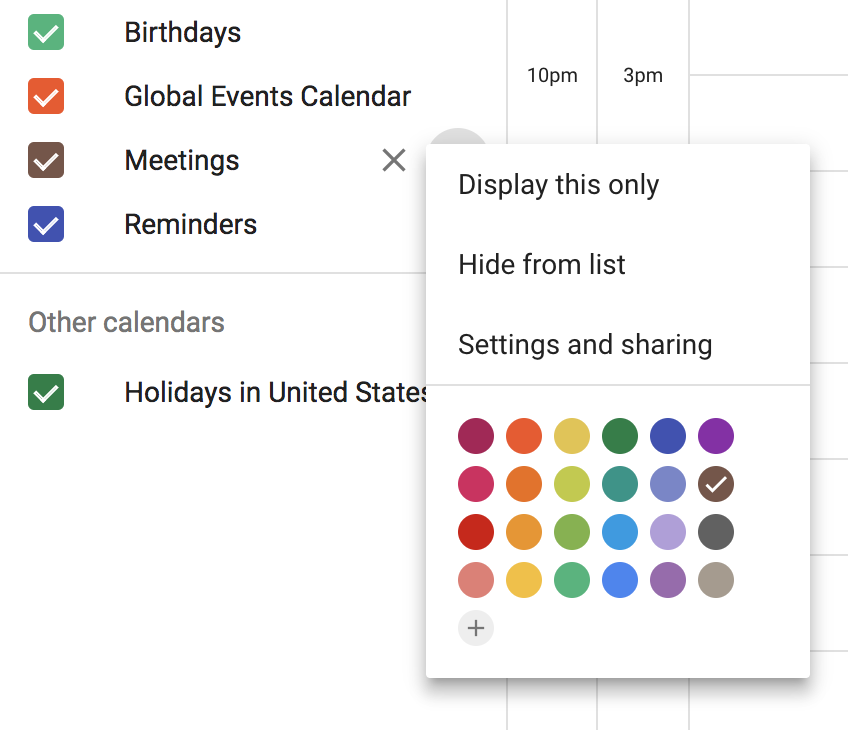
This is one of the simplest features: having different colors for each calendar. Don’t just have one calendar with work stuff and family stuff and your friends’ birthdays. Make a separate calendar for each function. On the left side, click the + button next to “Add a friend’s calendar.” Then click “New calendar.” Add the name and any details, then click “create calendar.” We just created one called “Meetings.” When we go back to the main calendar, we can hover our cursor to the right of the calendar title and click the three dots to open “Options for (calendar name).” Switch the check mark to your favorite color and enjoy!
Share calendars

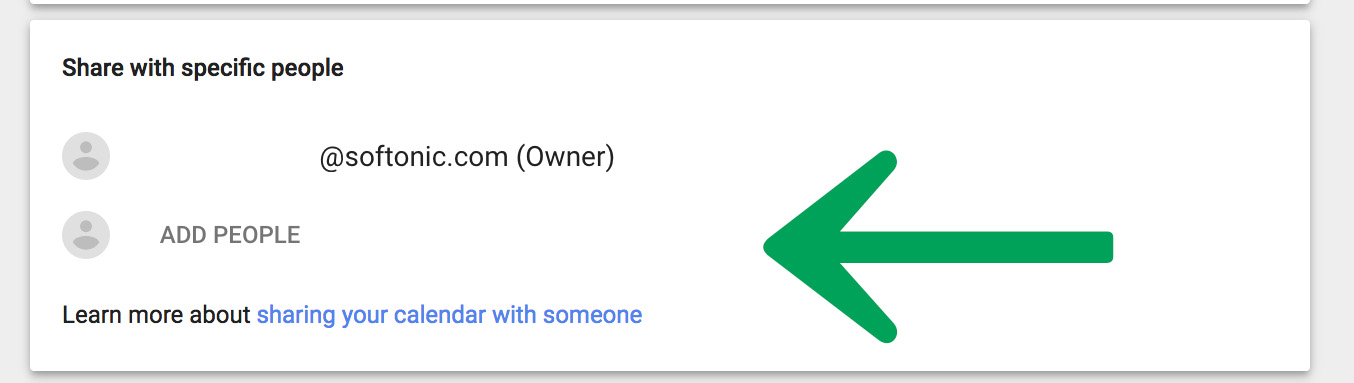
If you work with other people, having a common work calendar is the best way to stay organized. It’s as easy as going to the settings, selecting the calendar name on the left, then scrolling to “Share with specific people” and adding participants’ emails. Likewise, you can assign roles – whether readers or editors – to each person.
Offline mode

A useful feature that can help you in a pinch: using offline calendars. When you’re on a calendar, click on “Settings” and then “Offline.” Google will download all the necessary data to your PC to use the calendar when you’re not connected. There’s a catch: you need the Google Calendar extension to take advantage of this.

Email notifications

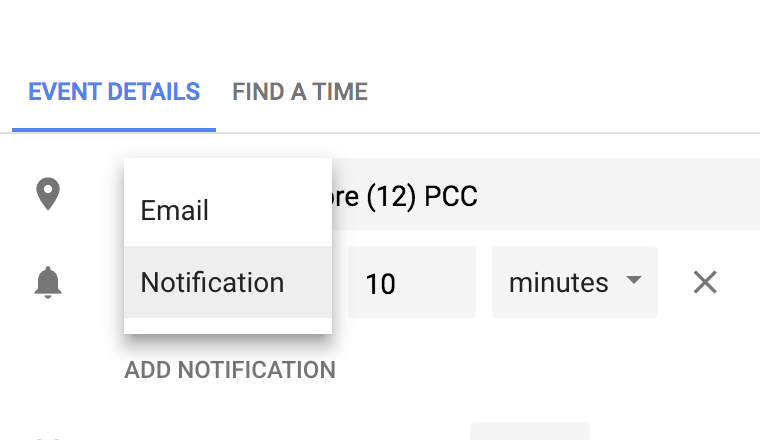
You’ve got an important appointment, so you put it on your calendar, but your life is busy so you forget to check your calendar on that fateful day. If you don’t want this to happen, you can send yourself a notification via email. Open your event and click the edit icon in the upper left corner to get to the “Event Details” screen. Next to the little bell icon, click “Notification” and you’ll see an “Email” option.  Piece of cake.
Attach files

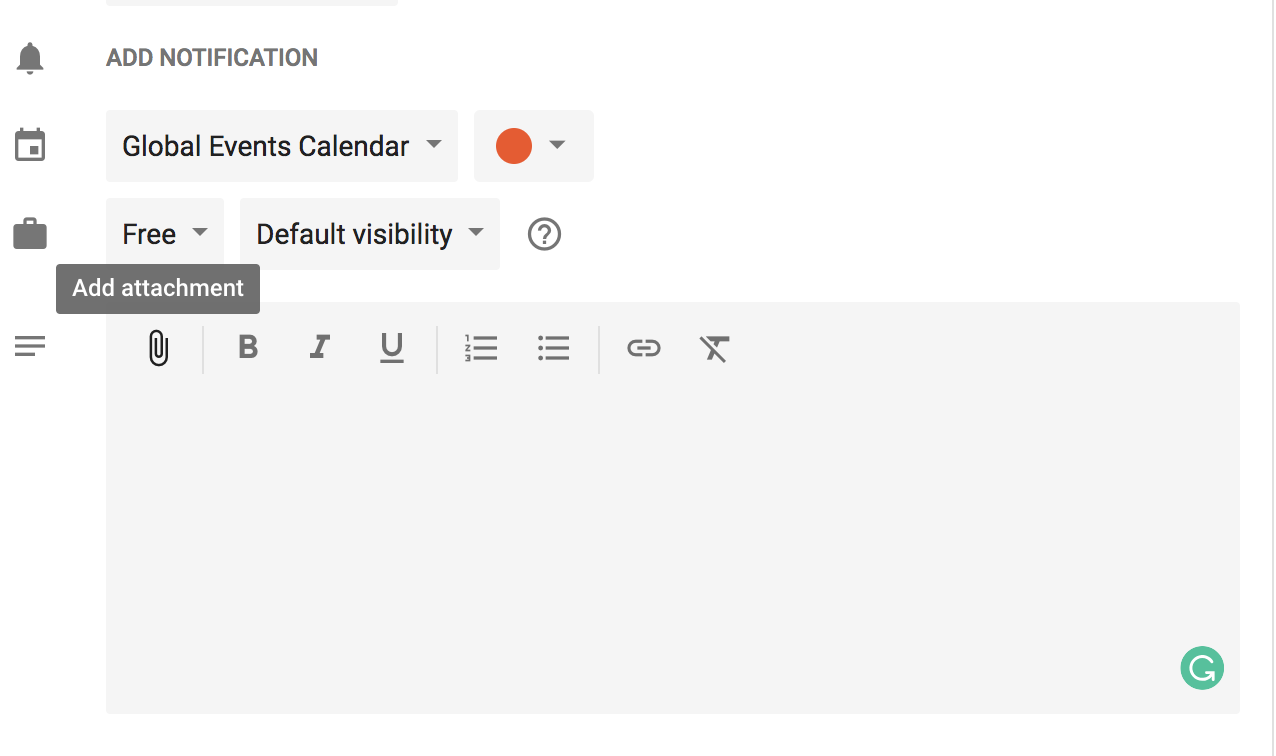
You can attach files to each event. This is especially helpful if you’re taking a trip, for example, and you want to include the boarding passes. When you’re creating an event, look at the big text box and click the paper clip to “Add attachment.” You may have to save it to the Drive first, but that will only take a few seconds.
Keyboard shortcuts

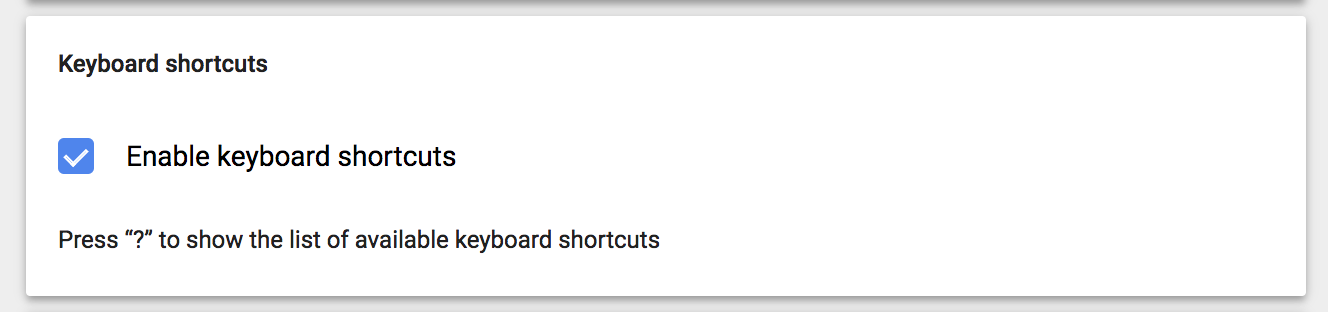
Keyboard shortcuts can help you out in a hurry. To enable them for the Google calendar, go to the settings and scroll to the end to see “Enable keyboard shortcuts.

Embed calendars

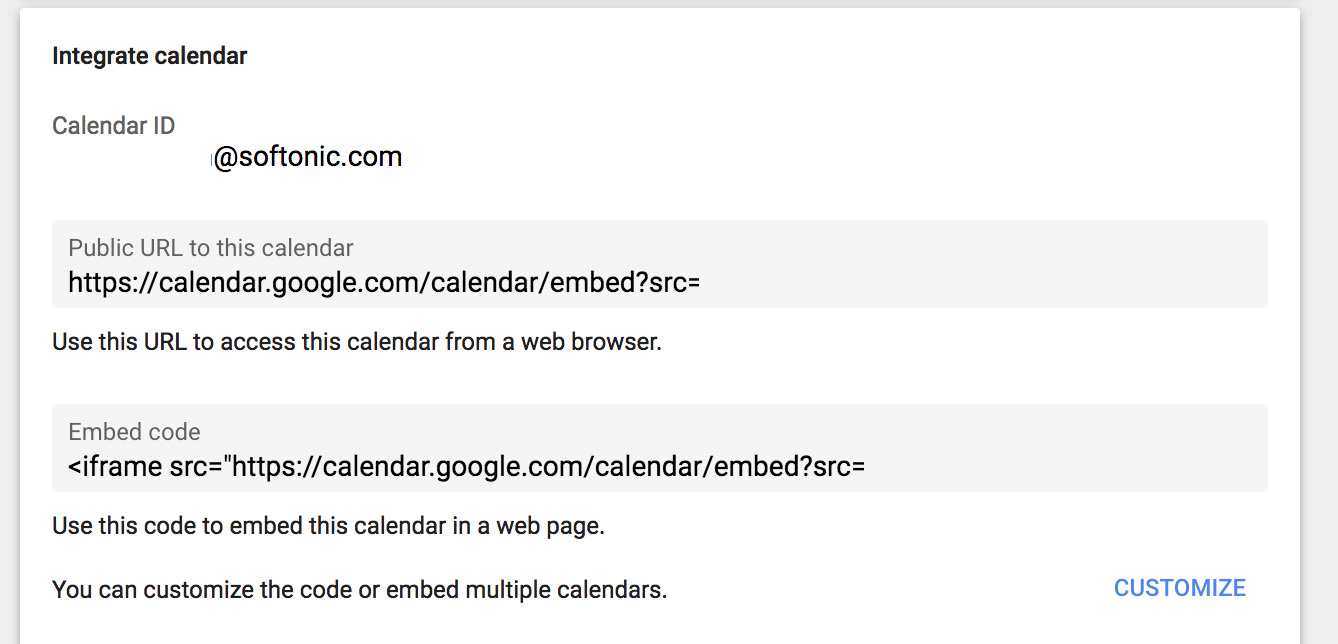
Just like you can share your calendar, you can also embed it widget-style into a web page. When you go to the settings of the calendar at hand, click on “Integrate calendar” and go to the bottom. When you find the code that starts with “iframe,” copy and paste it into your personal or professional web page.
Change time zones

You travel a lot and have meetings in different time zones. Google Calendar lets you configure each one according to the country you’re in. Wonderful, right? It’s one of those features that you can even take advantage of without traveling, since you may work with international clients from home.

Quick schedule view

The Google Calendar may look ugly and unwieldy. Did you know you can change it? Click where it says “Month” and you’ll get several options. Our advice for a quick glance is to set it to “Schedule.” It’s a no-brainer: all the content can be seen as if you were checking… well, a scheduling planner. 
 

Google Calendar wants to bring out the best in you

Google Calendar for Android is a popular and great tool for creating reminders and setting appointments. But now, Google has gone one step further and introduced “Goals” – a new feature that aims to help you be the best that you can be. Sounds deep huh?

The new “Goals” option allows users to create objectives for basically anything, and will do its best to make sure they darn-well do them! This can include anything from setting some time aside to read, doing a fitness routine – basically any activity you’d like to spend more time doing!

In order to set a goal, just click the “+” button on the app and select the option “Goal”. You’ll then have to answer a few simple questions (pretty straight forward). After doing so, Google will look for holes in your schedule where you can devote a bit of time to doing said activity, as well as send you a few notifications to give you a little bit of much-needed encouragement.

You can get a better idea of how Goals works in this video:

At the moment, it seems that this new option has not been made available on all handsets. If you find you don’t have this option, fear not, you will do soon!

Google Calendar for Android gets automatic event scanning and redesigned interface

Google just announced a completely redesigned Google Calendar for Android that’s smarter than ever. The updated app now scans your Gmail for events and will automatically add them to your calendar. Gmail on the web hinted at this feature by allowing auto-event creation when you hovered over an address or event.

Default player


brightcove.createExperiences();

Google Calendar is so smart that it’ll even update your event if there’s a delay. For example, if your flight gets delayed, the new time will show up in the calendar event. Automatically created events will update if subsequent emails show a change in time or place.

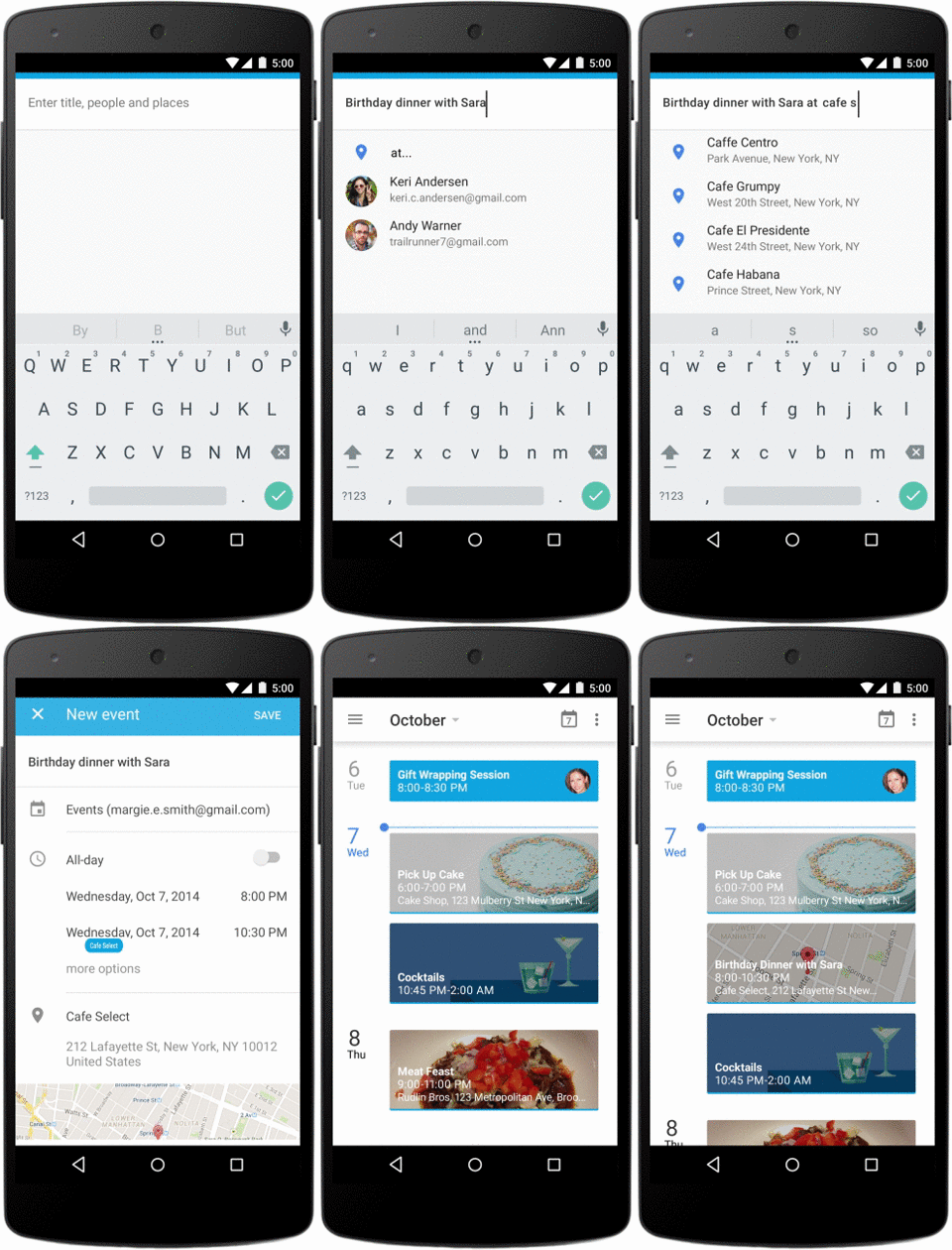
Taking automation even further, Google Calendar for Android now features auto-completing events. Just start typing a place or a contact’s name and the app will give live suggestions below. The app also understand natural language so you don’t have to worry about plugging in the correct information into the correct space.

Google Calendar quick event create

Last but not least, there’s a new Schedule View, which shows your events in a clear list with maps and illustrations. The app feels a lot more modern and incorporates Google’s Material Design language.

The new Google Calendar app for Android is rolling out today to Android 5.0 Lollipop users and will be available to all Android 4.1+ users in the coming weeks.

Google is also working on an iPhone version but doesn’t state when it will be available.

Source: Gmail Blog

Related Stories

Google’s Copresence could be its answer to Airdrop

How to use Android 5.0 Lollipop

Angry Birds Transformers arrives on Android

Snapchat: Love it or leave it?

Follow me on Twitter: @lewisleong

Leaked: updated Android Google Calendar screenshots

If you use Google’s Calendar app on Android, you will soon see a refresh of the design if leaked images are to be believed.

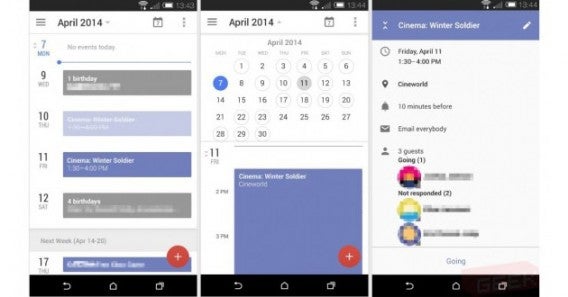
Geek.com has published screenshots of a radical redesign for the app. It’s got a fresh new look, and interesting new features like the ability to send an email with a summary of the day’s events. It will also improve Google+ integration, adding information like the birthdays of people in your circles.

Image source: Geek.com

The new user interface looks much flatter and cleaner than before. The design was seen in a ‘Timely’ test version of the app for Android, and there’s no guarantee the design or new features are final. Instead of grids and lines, we now see blocks of flat color. Transitions in the app are smooth, with a parallax effect over the background as you swipe through months.

Source: Geek.com

RELATED STORIES

Google Calendar Privacy flaw adds people to events without asking

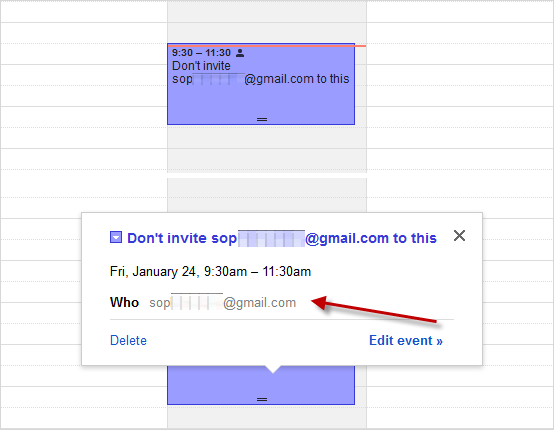
A bug in Google Calendar means you can accidentally invite people mentioned in events you create. If you put an email address in an event description or title, Google will ask you if you want to send invitations to those people, but they will be added to the event and be sent a reminder about it even if you decline.

This bug was probably a feature. Google Calendar recognizes emails, and assumes you want to include people you mention in an event. But it doesn’t give you the option of not including them. We tested the bug, first found and described by Terence Eden.

When you create an event, and mention an email address, a pop up will ask you “Would you like to send invitations to guests?“. Even if you say no, the mentioned email address will still be in the list of guests when you edit the event. Worse still, while they won’t be sent an invitation, they will get a reminder from Google about it.

You can’t turn this feature off. Terence Eden noticed the problem when his wife mentioned her boss in a Calendar event – her boss promptly replied accepting, even though she wasn’t supposed to be invited. If you use a Gmail address in a calendar event, that user will have it added to their calendar whether you want them to or not. They won’t get an email notification, but will get a reminder pop-up. This bug works on the web, but not on Android. It works with some non gmail addresses, but not all. If you delete a calendar event, the user mentioned may get a cancellation notification.

According to The Verge, Google is now looking into the problem. Until something is done, don’t write email addresses in Google Calendar Events unless you are sure you want that person to know about it!

RELATED STORIES

[Updated] Google Calendar for Android updates to highlight events with color

Google Calendar is a great alternative to the stock calendar app installed on Android devices. With the ability to display multiple calendars from different accounts as well as syncing with your web-based Google Calendar, the app is very easy to customize and manage events.

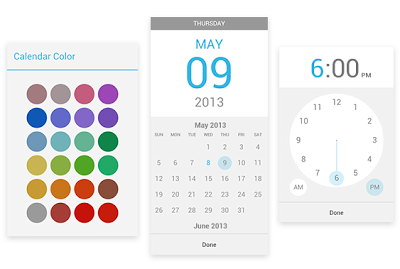
The new update that is rolling out to Android 4.1 (4.2.1) and higher allows you to customize events with different colors directly from the device. Another update is a redesigned date and time selection tool. Add in the redesigned timezone and improved repeating event tool, Google Calendar is becoming the calendar app that Android users should use.

The only problem is that the limited Android OS support means that many users will not be able to experience the newly updated app.

Updated : Android Official Blog originally stated the update was only available for Android 4.2.1 and higher.

[Source: Android Official Blog | Download: Google Calendar]

Google releases Google Calendar standalone app

Google has a few Nexus-branded devices running the stock version of Android 4.0+. The first party apps like Google Talk, Gmail, and the Google Play apps are portals to different services that are offered in the Android ecosystem. Google Calendar is another app that was previously locked into the stock operating system while other device manufacturers developed and released their own calendar apps that worked the same way.

Now Google has released a standalone Google Calendar app to the public. Unfortunately it only supports Android 4.0.3 or later so Gingerbread (2.3+) and Honeycomb (3.0+) users are still missing out. Allowing users to use a first party app is a great way to preview the stock Android experience while unifying a Google account over different devices.

How does Google Calendar compare to other built-in calendars like on the Samsung Galaxy SIII?

Continue reading “Google releases Google Calendar standalone app”