Apple replaces iTunes on Windows with these three applications

Users of Windows 10 and later versions can now enjoy device management and access Apple Music and Apple TV content through three dedicated applications.

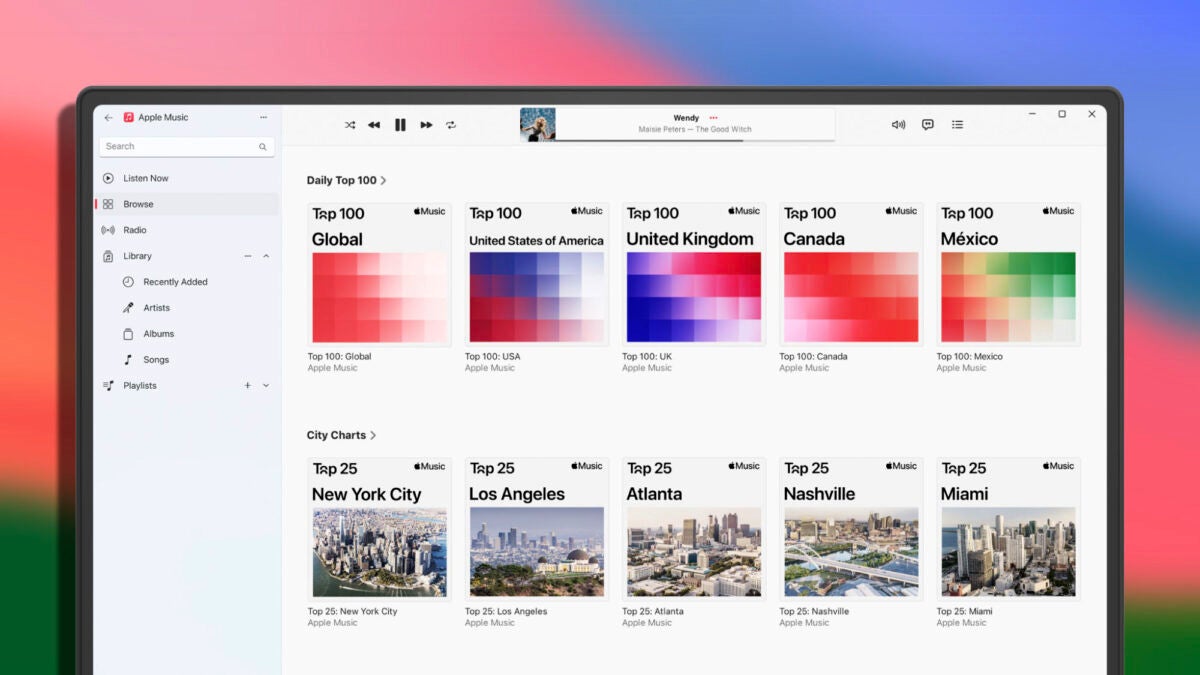
Apple has officially released the Apple Music, Apple TV, and Apple Devices apps for Windows computers, marking the end of an era for iTunes. This change is part of Apple’s efforts to distribute the responsibilities of iTunes across different apps, reflecting how these apps work on Macs. Windows 10 and later users can now enjoy device management and access Apple Music and Apple TV content through three dedicated apps.

Apple Music SUBSCRIBE

Three dedicated apps that replace iTunes

The transition has been in progress since October 2022, when Microsoft first announced plans for the Apple Music and Apple TV apps in the Microsoft Store. Subsequently, the Apple Music, Apple Devices, and Apple TV apps were launched as beta in January 2023, and since then, Apple has been carrying out regular updates. Today, the “Preview” label has been removed from the three Windows applications.

The Apple Music app allows us to listen to and manage music from our iTunes library, streaming music service, and purchases from the iTunes Store. On the other hand, the Apple TV app allows us to watch and manage movies and TV shows from iTunes, as well as access the Apple Music and Apple TV+ streaming services. Lastly, Apple Devices is designed to update, backup, restore, and manage our iPhone or iPad, and sync content with our PC.

The use of these applications requires Windows 10 or later, and it is necessary to install all three applications to complete the transition from iTunes. After adding the applications to the computer, iTunes will only be used to access podcasts and audiobooks. The iTunes library, please note, should not be deleted as it is used by the Apple Music and Apple TV applications.

Apple Music SUBSCRIBE

Clearly good news for both Apple and Windows users who, while iTunes Movie Trailers officially says goodbye, we will now have a more cohesive and coherent experience. With dedicated apps for different Apple services, using them will be even easier and more convenient.
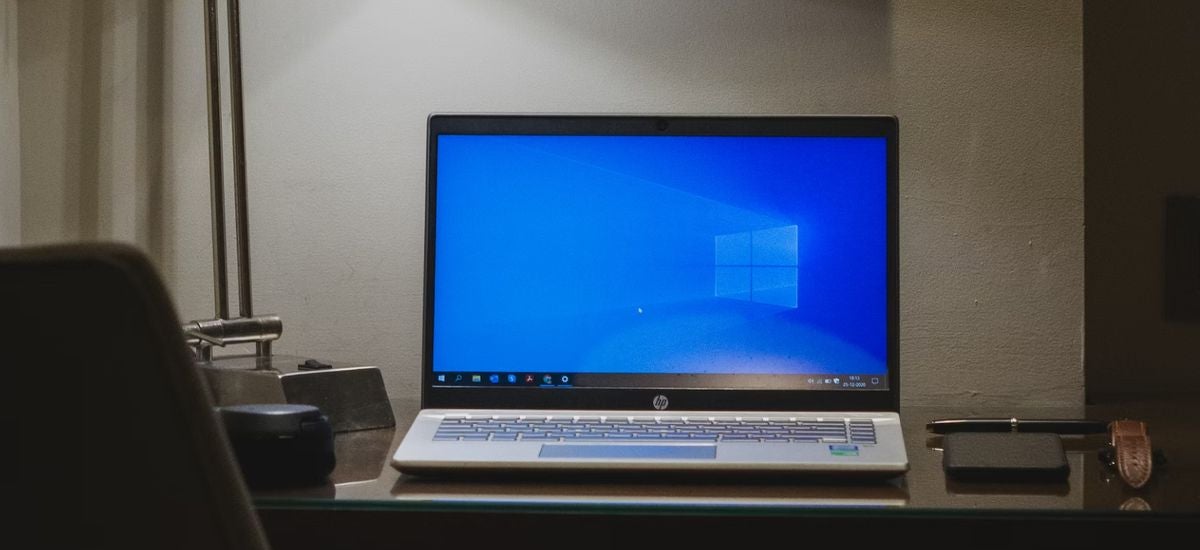

How to enable Copilot on Windows 10?

This week, Microsoft dropped a bit of a tech bombshell: they’re bringing Copilot, previously a Windows 11 exclusive, to the trusty Windows 10. That’s right, the same OS that’s humming away on a whopping billion devices out there.

Not ready to jump ship to Windows 11 but itching to test drive Microsoft’s latest AI sidekick? You’re in luck. Here’s the lowdown on snagging Copilot for your Windows 10 setup pronto. Big thanks to Albacore @thebookisclosed over on X for the scoop. Or, if you’re the play-it-safe type, you can hang tight and let Microsoft roll it out to your system when it’s good and ready. The update needed for this is on the horizon for the Stable Channel, but keep in mind, Copilot’s not in a rush – its rollout is a slow and steady affair.

Fancy getting Copilot up and running on Windows 10? You’ll need to join the Windows Insiders Program, do a bit of registry editing, and use a third-party app for some OS tweaks. But hey, if the thought of bugs or deep system changes gives you the jitters, maybe sit this one out. Remember, Windows 10 is pretty rock-solid, and updates from the Release Preview rarely cause a stir, but it’s always smart to err on the side of caution. And a friendly reminder: back up your crucial data before diving into any tech experiments!

Windows 10 DOWNLOAD

Enabling Copilot on Windows 10 step by step

Ready to unleash Copilot on your Windows 10 system? Follow these steps to get set up:

  • Update Windows 10: Make sure you’re running build 19045.3754 or newer. As of this guide, it’s available in the Release Preview Channel but should be accessible to all Windows 10 users soon.
  • Update Microsoft Edge: Head to edge://settings/help in your browser and install any updates waiting there.
  • Get ViVeTool: Download it from GitHub and extract the files to a folder you can easily access.
  • Use Command Prompt: Launch Command Prompt as an Administrator and navigate to the ViVeTool folder. For example, if it’s in C:\Vive, you’d type CD C:\Vive.
  • Enable features: In Command Prompt, type vivetool /enable /id:46686174,47530616,44755019 and hit Enter.
  • Restart your PC: This ensures the changes take effect.
  • Access Windows Registry: Press Win + R, type regedit, and hit Enter to open the Registry Editor.
  • Modify Registry: Go to Computer\HKEY_CURRENT_USER\SOFTWARE\Microsoft\Windows\Shell\Copilot\BingChat. Double-click IsUserEligible and change its value from 0 to 1. Remember, you need to be logged into your Microsoft Account for this to stick.
  • Restart again: This applies the registry change.
  • Enable Copilot in taskbar: Right-click your taskbar and select “Show Copilot (preview) button.” The Copilot icon will pop up next to the notification center, provided your taskbar isn’t on the left or right of your screen.
Windows 10 DOWNLOAD

Microsoft has plans to roll out Copilot to computers that are part of the Release Preview Channel and are operating on Windows 10, version 22H2. There’s a catch, though: this rollout is specifically for the Home and Pro editions of the OS. However, if you’re using a Windows 10 Pro machine that’s under the wing of an organization, you might have to wait a bit longer, as these systems aren’t included in the initial wave of the Copilot distribution.

Release date for Microsoft’s Windows 10 22H2 update finally confirmed

Microsoft’s focus is currently on Windows 11. However, that doesn’t mean they’ve forgotten about the fan favorite that made Windows 11 possible. In fact, the company has now finally confirmed that Windows 10 will be getting its very own 22H2 update in October.

Windows 10 DOWNLOAD

Unfortunately, if you’re expecting to be wowed by brand-new features that will justify your decision to stick with the aging OS and not move to the younger, more intuitive Windows 11, you’re likely going to be disappointed. While Windows 10 is getting a major update, it likely won’t be anything like the Windows 11 22H2 update. Microsoft has stated, in no uncertain terms, that it is no longer working on adding new features to Windows 11 and that its focus has now completely shifted to Windows 11.

This makes sense, as Windows 11 is the operating system that will carry the company into a new era of technological innovation. As we head into a more connected time with a higher focus on virtual services and markets, Microsoft needs an OS that can support this new forecast of the future. Windows 10 is still an incredible OS that has become ingrained in modern society, but it simply isn’t where the future of the company, or technology on the whole lies. 

So if the new update isn’t going to be as feature-rich as its Windows 11 counterpart, what will it entail? Well, you should expect a few quality-of-life changes, but the update will likely focus more on security upgrades and bug fixes. This is similar to what happened with Windows 7 before it was phased out and eventually discontinued.

Release date for Microsoft’s Windows 10 22H2 update

The now-defunct OS also went through a changeover period during which the only updates issued were simply to keep users safe on the internet and to address any bugs. This same is happening to Windows 10. This is Microsoft’s way of nudging you toward Windows 11 before support for Windows 10 ends in 2025. 

We’re going to follow Microsoft’s lead and try to encourage you to make the switch to Windows 11. Why? Because Windows 11 is the OS for the modern machine. Additionally, Windows 11 has years ahead of feature updates, brand-new capabilities, more intuitive functionality, and likely a few styling refreshes. In an effort to make the most compelling case for switching over before it becomes a prerequisite, here is an overview of the brand-new Windows 11 update.

Windows 10 Version 22H2 the featureless update is finally here

Microsoft seems to be quietly switching its primary focus to the further development of Windows 11. Proof of this can be found in the recent Windows 10 22H2 update – the update that changes nothing but your version number.

Windows 10 DOWNLOAD

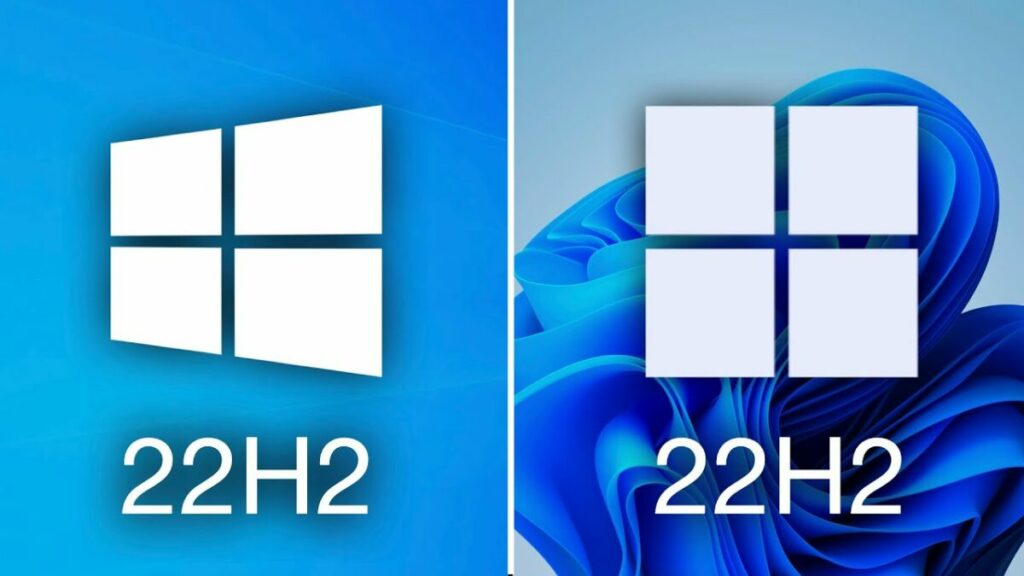
Windows 10 reigned supreme as the PC OS of all OSs. Now, though, Microsoft seems to be preparing to shelve the former premier operating system in favor of its contemporary and successor, Windows 11. The recent update which sees Windows 10 going from version 21H2 to 22H2 is incredibly small compared to previous Windows 10 updates, and especially small in comparison to the massive updates being pushed to Windows 11.

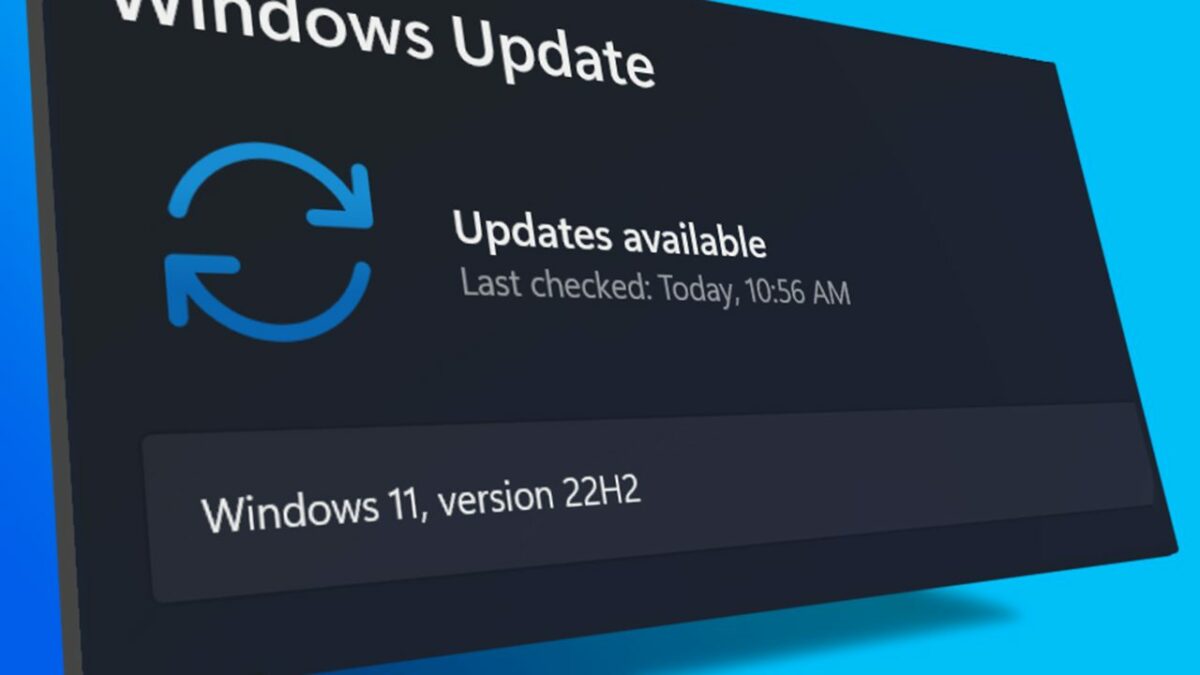
Windows 10 version 22H2 is actually only 177 kB in size. That isn’t a misprint. So what can an update this small actually do? Not much, as it turns out. In reality, all the update does is change the version number as support for version 21H2 is coming to an end

Windows 10 version 22H2

See, Microsoft has numerous types of updates that it releases for its operating systems still in service. The most well-known of these are the cumulative updates that are usually released in the second half of each calendar year. This latest update that pushes Windows 10 to version 22H2 is a cumulative update. Cumulative updates usually contain loads of new features to set the operating system up for whatever future plans the company has for them. However, there are no new features of which to speak in this update, so why release one at all?  

The various versions of the Windows operating system have always had shelf-lives. Recently, Windows 7 saw its end-of-life. This means there are no more updates coming to keep Windows 7 systems safe and bug free – no official updates that is. The shelf-life for Windows 10 version 21H2 is coming to an end, and instead of extending the shelf-life by another year or 2, Microsoft have decided to instead institute a new version number and thus begin a new shelf-life period. But what does this mean for the future of Windows 10?

Essentially, Windows 10 will still receive updates surrounding cyber security and bug fixes, but we might be looking at the end of new features being added to the aging OS. If you haven’t already, it might be time to move over to Windows 11, especially considering the updates that Windows 10 is still receiving are breaking critical operational features of the OS. For instance, Windows 10 KB5014666 is breaking USB printers.

Windows 10 KB5014666 is breaking USB printers

Microsoft has confirmed that update KB5014666 for Windows 10 is causing significant issues with USB printers. Ironically, this update, released on June 28th is supposed to add new printing features for Windows 10 devices.

Windows 10 DOWNLOAD

According to Microsoft, a bug in the update causes Windows 10 systems to display duplicates of single printers, suffixed by ‘Copy1.’ More critically, however, applications that refer to a specific printer by name are now unable to print documents. 

The company has stated that it is working on a fix for the issue and will release said fix in a future update. In the meantime, users affected are encouraged to file feedback reports and try an applicable temporary workaround. 

Here is one workaround for the Windows 10 printer issue on update KB5014666:

  • Open the Settings app, navigate to “Bluetooth & devices”, and select “Printers & scanners”
  • If there appears to be a duplicate installation of an existing printer, such as with suffix “Copy1”, confirm if printing works for this printer. This printer should operate as expected.
  • If there is a need to use the original printer installation and not the duplicate, right-click the duplicate printer, select “Printer properties” and select the “Ports” tab. Observe the port in use.
  • Open “Printer properties” on the original printer and select the “Ports” tab. From the list displayed, select the port option in use by the duplicate printer. If this original printer works normally, the duplicate copy printer can be removed.
Windows 10 KB5014666 is Breaking USB Printers

In the event that the steps highlighted above prove ineffective, Microsoft recommends the following additional fixes: 

  • Update the print driver for your device. For guidance, see Install the latest driver for your printer.
    • ​If you already have the latest driver, consult the printer Manufacturer’s website for any device firmware updates.
  • ​If you are still having issues, uninstalling and reinstalling your printer might help.
    • ​Turn off your printer and disconnect any cables.
    • ​Open the Settings app, navigate to “Bluetooth & devices”, and select “Printers & scanners.”
    • Select the affected printer and select the “Remove Device” option.
    • ​Restart your device.
    • ​Turn on your printer and reconnect it to your device.

As confirmed on the Windows Health Dashboard, this bug in the new update only affects Windows 10 21H2, 21H1, and 20H2 (including Windows Server). If this bug wasn’t enough, the internet is swarming with fake Windows 10 updates, some embedded with Magniber Ransomware.

Magniber Ransomware embedded in fake Windows 10 updates

Windows 10 is no stranger to viruses, malware, and ransomware. But the latest widespread ransomware attack is turning out to be something particularly dangerous. A new breed of ransomware, known as Magniber, is targeting Windows 10 users and hides as a software update. 

Windows 10 DOWNLOAD

The threat actors behind the Magniber ransomware use various names under which to distribute the malware, but the most commonly used titles seem to be Win10.0_System_Upgrade_Software.msi and Security_Upgrade_Software_Win10.0.msi. While these might be fairly easy for anyone with a working knowledge of computers to avoid, other sources point out that the threat actors are also using knowledge base articles to distribute the malware. 

According to submissions to VirusTotal, the Magniber ransomware campaign seems to have originated around the 8th of April 2022 and has gone global since then. We don’t have complete clarity on how exactly these fake Windows 10 updates are being promoted, but we do know that the downloads are primarily distributed from fake warez and crack websites. 

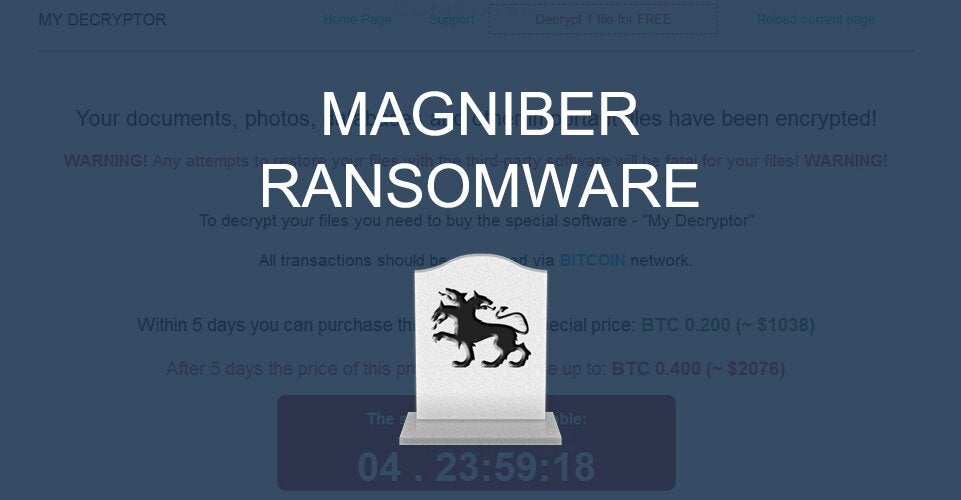
As soon as the ransomware is installed, it begins deleting shadow volume copies and will then encrypt your files. While it encrypts your files, it’ll also attach a random 8-character extension to them. One such example is .gtearevf. It also creates digital ransom notes, titled README.html, within each folder. The readme contains instructions on how to access the threat actor’s payment site using Tor in order to pay the ransom.

The payment site is titled ‘My Decryptor’ and allows users to decrypt one file for free. You can also contact ‘support’ and see the ransom amount in Bitcoin. As far as we have been able to dig, the general amount is usually around $2,500. The website also features a timer set for 5 days and a warning that if you don’t pay, some of your data will be published on the internet and sent to all your contacts. 

The tragic thing about this entire sordid enterprise is that it targets versions of Windows 10 used by general consumers and students, not enterprise versions for businesses. The ransom demand is exorbitant, to say the least, and unfortunately, there don’t seem to be any weaknesses or vulnerabilities to exploit in the ransomware.

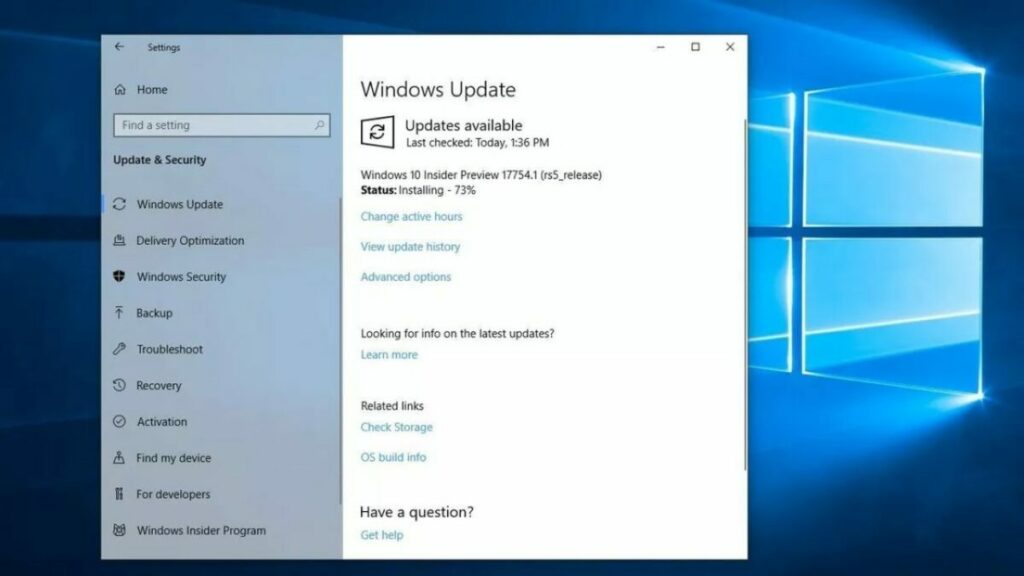
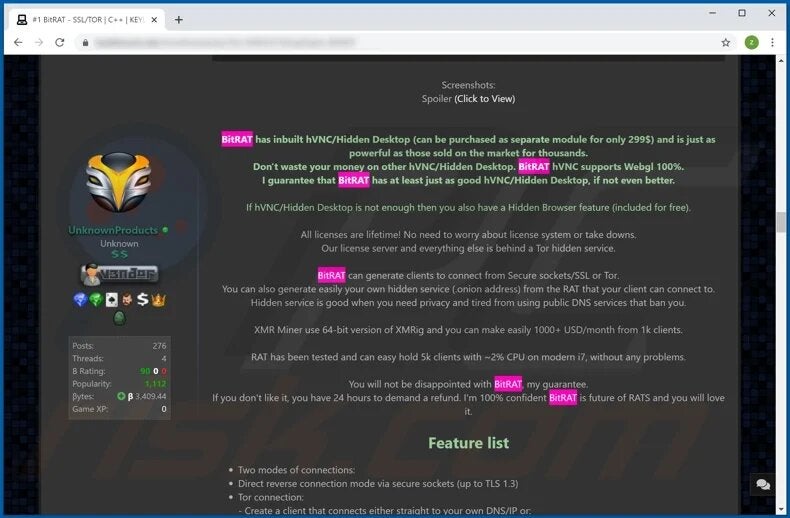
In other Windows 10 security-related news, the BitRAT trojan malware is spreading across Windows 10 PCs using pirated versions of Windows 10. Also, here’s how to upgrade Windows to 11. The same interface is used for general Windows 10 updates. Do it by the book and avoid malware like Magniber.

Unofficial fix for Windows 10 Zero-day bug

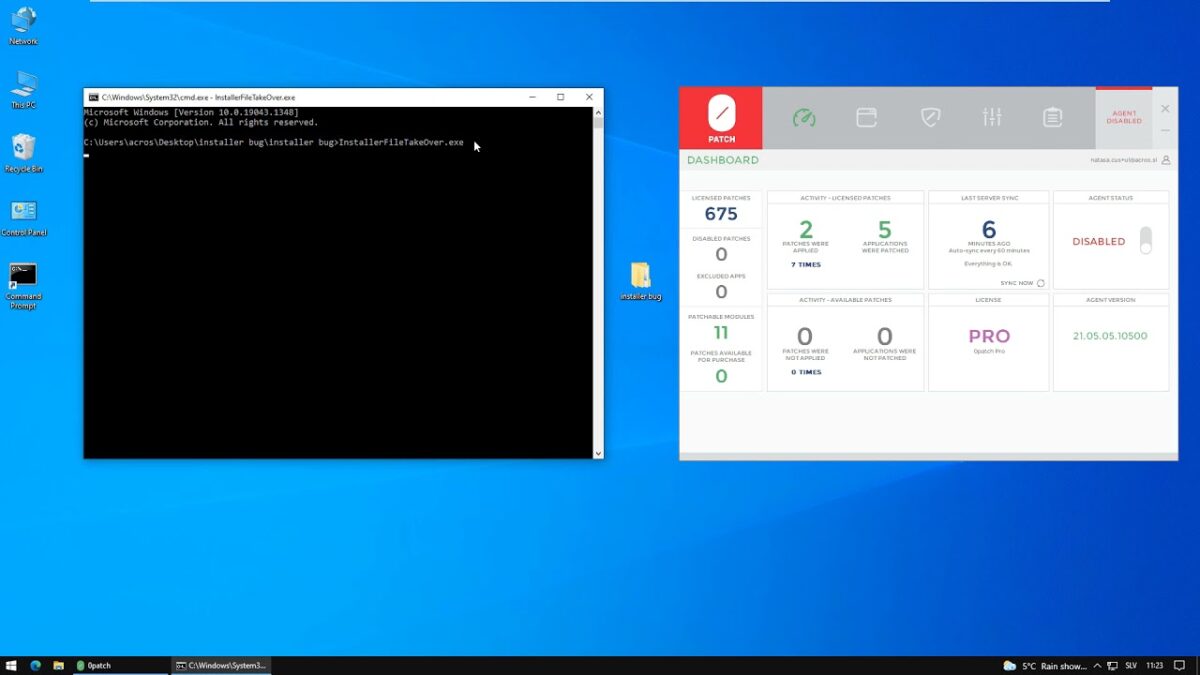
A particularly unpleasant zero-day bug plaguing Windows 10 devices finally has an unofficial fix. While Microsoft has released numerous official fixes for the bug, each has only worsened the situation. Luckily, however, 0patch has stepped in once again to prevail where Microsoft continues to fail. 

First identified in the summer of 2021 by security researcher Abdelhamid Naceri, the vulnerability (tracking code CVE-2021-34484) allowed threat actors to elevate their user privileges on target devices if they knew the username and password of at least two different users, putting billions of Windows users at risk for attack. The vulnerability affects users of Windows 10, 11, and even Windows Server.

In August of the same year, Microsoft released a fix for the 7.8 severity vulnerability as a feature of its Patch Tuesday release. The fix came under the critical examination of Naceri, who, finding the fix severely lacking, published a proof-of-concept evasion method on GitHub. According to Naceri, Microsoft failed to address the root cause of the vulnerability, instead choosing to focus only on what Naceri saw as a symptom. 

Subsequent to Naceri’s findings, 0patch released a fix for the vulnerability, but as soon as Microsoft realized that their patch had failed, the vulnerability received a new tracking number, CVE-2022-21919, and immediately pushed an additional fix. This fix proved worse than its first, in Naceri’s opinion, and virtually undid the progress 0patch had made in patching the original vulnerability. 

Luckily, 0patch has ported the fix, which has now been proven to work with Microsoft’s March 2022 Patch Tuesday release. As with the previous 0patch fix, the latest is free to download, provided you have a registered copy of the affected Windows operating systems. The following is a list of compatible versions, all of which have been furnished with the March 2022 updates:

  • Windows 10 v21H1 (32 & 64 bit)
  • Windows 10 v20H2 (32 & 64 bit) 
  • Windows 10 v1909 (32 & 64 bit) 
  • Windows Server 2019 64 bit 

It is pertinent to note that devices that experienced end-of-life were not furnished with the March 2022 update. 

The original 0patch fix still works on three versions of Windows 10, namely, Windows 10 1803, 1809, and 2004. As of yet, there is no evidence of the vulnerability having been exploited in the wild, so to speak, and no viruses or malware have been confirmed to be associated with it. If you’d like to explore Windows 11’s updates more comprehensively, why not read our article on the subject.

BitRAT trojan malware spreads via pirated Windows 10 downloads

If you’re looking to obtain a pirated copy of Windows 10, you may just be setting your device up for the BitRAT trojan virus. The new cyber attack is available to online criminals for a low amount, and they have the ability to mask it with phishing or other malware distribution channels. For the moment, it only seems to be targeting unofficial Microsoft Windows 10 Pro licenses.

Based on the Korean characters found in the code, it appears as if the source country is known. To be more specific, cybercriminals seem to be using webhards, which are cloud storage services that many people in South Korea use. Perhaps they’re close to finding the culprits behind BitRAT if they know the location where it was created.

So, how does the BitRAT trojan malware work? When you download the pirated Windows 10, you’ll receive a file called W10DigitalActiviation.exe. Activating it looks like a standard license activator. However, it actually downloads malware in the background that infects the system and registry. 

What it does is collect information from the computer, which BitRAT sends to the hacker. It can also perform DDoS attacks or bypass the UAC. For more extreme malware actions, it records your keyboard tapping, which means the hacker can spy on your passwords and discussions. It can even go as far as offering complete remote control of your desktop.

With so many malware attacks happening in 2022, it’s imperative that you learn how to remain safe online. Piracy always comes with inherent risks, and it’s always better to obtain official licenses to safeguard against cybercriminals. Don’t take the chance, and pay for Windows 10 if you need to.

Windows 10 Data Wiping Feature Isn’t a Clean Sweep

Recently, researchers have found that Microsoft’s resident data wiping feature isn’t performing exactly as intended. While marketed as a data wiping utility that works hand in hand with the Windows 10 and 11 update and factory reset tool, the utility is leaving valuable and vital user information behind. As researchers have recently discovered the data left behind can be easily located and therefore used should a ‘wiped’ device and up in someone else’s hands. 

The news has subsequently been confirmed by Microsoft MVP Rudy Ooms in a blog post concerning his findings. Ooms also took to Twitter to release a more detailed explanation of the issue. As Ooms explains, hitting the ‘Reset PC’ and ‘Remove Everything’ options on Windows 10 and 11 doesn’t actually remove all of the user data. Instead, it stores this information on the old system in both versions of Windows. This issue has only been identified so far on Windows 10 and 11 version 21H2. In previous versions of both operating systems, namely version 21H1 of Windows 10 and 11, the windows data wiping feature works as intended.

Researchers noticed that in most cases, user data that had not been removed was being stored in newly created folders called Windows.old. These folders would appear on the ‘fresh start’ or ‘wiped’ discs. In a statement, Ooms said that this process was not occurring by design. Proof of this is that when selecting either of the options, users are presented with prompts that warn them of the impending removal of all personal and company data and settings from the current device. 

An even more disturbing turn of events, the Windows.old folder was discovered to contain previously encrypted data that in its current state had been decrypted. Furthermore, any files that had been marked in OneDrive as ‘always keep on this device’ also remained in the Windows.old folder.

Microsoft does not currently have a fix for the problem. Ooms has however said that he has created a PowerShell script that will act as a temporary solution. Anyone intent on performing complete data wipes of their Windows 10 or Windows 11 devices should run the script first and then initiate the Microsoft cleanup utility.

If you haven’t yet had to wipe personal data or perform a factory reset on your device, read our article on resetting Windows 10 and 11. You might also enjoy our guide on upgrading Windows 10 to the new Windows 11 operating system.

Microsoft urges users to update Windows 10 before its too late

Microsoft has added another version of Windows 10 to its Windows Lifecycle Support page. Windows 10 version 20H2 will cease to receive critical security updates from May 2022. While this doesn’t seem like a massive issue at face value, systems still running the old OS when the time comes will likely feel the impact quite prominently. 

The most prominent issue is that systems running older versions of Windows 10 will be left unprotected even if major security concerns are discovered. This means it will be much more difficult to patch holes or obliterate bugs found after May 2022. This end of support for Windows 10 20H2 will likely affect users in other ways because other major software companies tend to cease support for Windows versions that Microsoft no longer supports. 

Here is a list of the versions of Windows 10 that Microsoft will no longer support from May 10, 2022.

  • Windows 10 Home, version 20H2
  • Windows 10 Pro, version 20H2
  • Windows 10 Pro Education, version 20H2
  • Windows 10 Pro for Workstations, version 20H2

There are a few versions of Windows 10 for which support has been extended. Microsoft will support these versions of Windows 10 20H2 for one more year, officially ending support in May 2023:

  • Windows 10 Enterprise, version 20H2
  • Windows 10 Education, version 20H2
  • Windows 10 IoT Enterprise, version 20H2

While upgrading to Windows 11 is the ultimate solution, the new OS’s system requirements make this impossible for many Windows 10 users. 

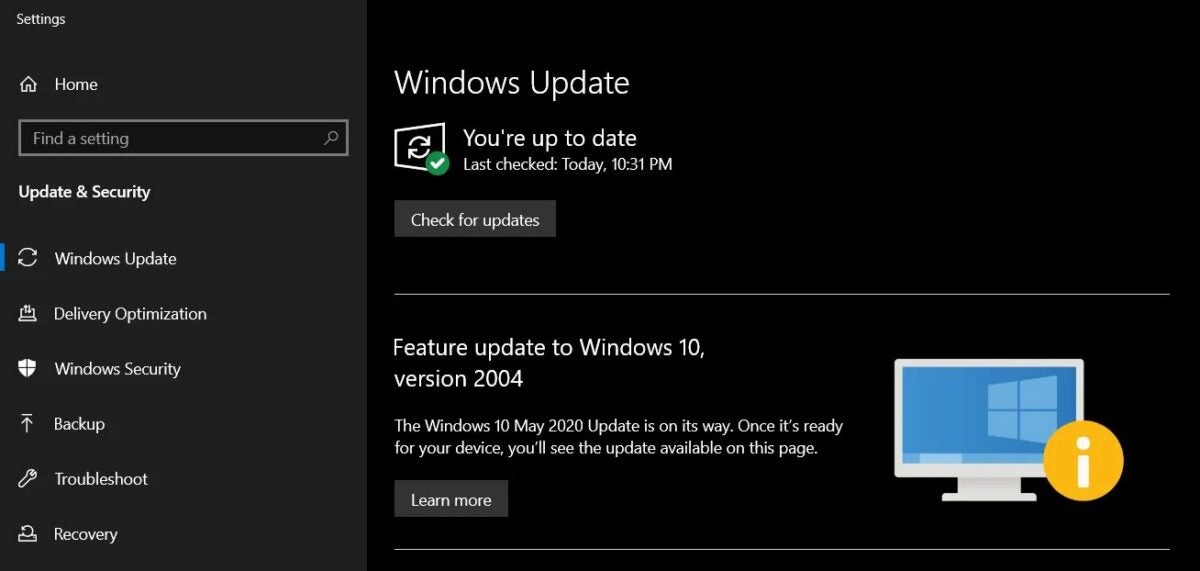
If you’ve upgraded to the newest version of Windows 10 and your computer isn’t running well, it might be time to reset your PC. While you’re in the Update & Security neighborhood, why not check if your system is eligible for an upgrade to Windows 11?