Short videos on Instagram may be a thing of the past

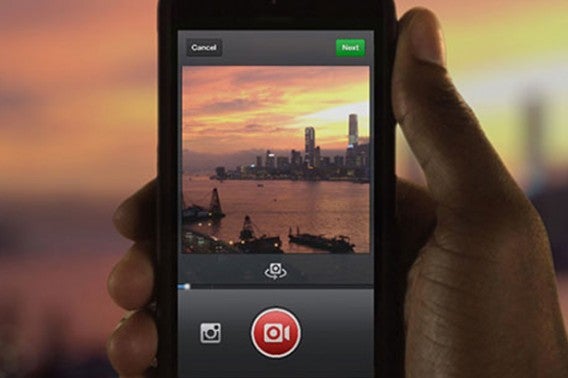
Since 2013, Instagram has allowed us to post videos lastinig up to 15 seconds, but now, it’s letting us get a little bit more creative with the option to upload 60 second videos!

Initially, the 60-second videos we have already witnessed on the app were only available to paying advertisers, so, we’re gusessing that since the “live-streaming” hype has been “a thing”, Instagram simply just wants a piece of the action (and why would it not?)

We also wonder if Instagram allow us to post longer videos, they will also start to introduce more editing options, such as the ability to cut videos from anywhere you want? Hopefully we don’t have long to find out!

Let’s see if this gives their users something to smile about, as opposed to huffing and puffing with regards to the other changes the Facebook-owned app is planning to make.

WhatsApp now lets you use bold, italics and strikethroughs in your chats!

WhatsApp continues to add various features to the application for both Android and iOS, in the hope of stopping you having to turn to the competition.

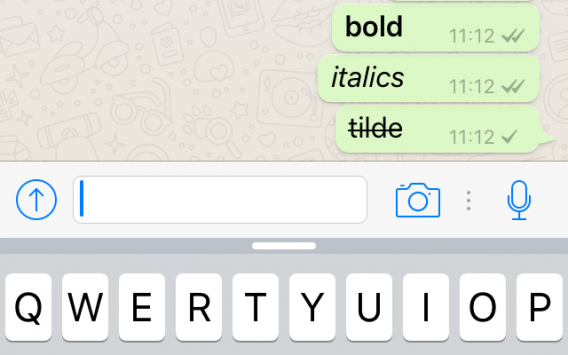
The latest update allows you to use different text formats when writing and receiving messages, such as creating bold, italic and strikethrough text – wherever you want it to appear.

The update is now available on the beta versions of the app (2.12.17 for iOS and 2.12.535 for Android) but will soon reach all phones.

Do you already have these updated versions of WhatsApp? Well, then you’re ready to go!

In order to start using this new feature, you need to do the following:

–          To use bold letter, place asterisks either side of the word: *bold*

–          To use italics, simply add underscores to either side of the word: _italics_

–          To use strikethroughs in text, use tildes either side, like this: ~strikethrough~

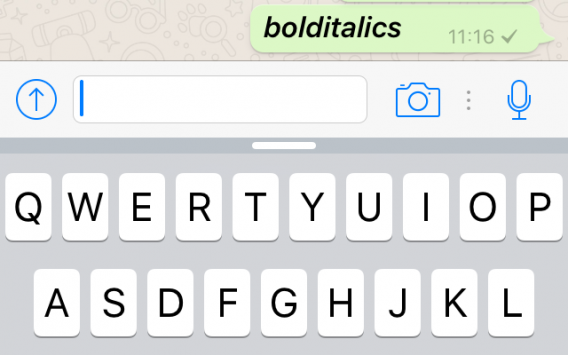
But that’s not all! You’re now able to combine the formats such as: _*bolditalics*_

Go and try it for yourself!

PlayStation fans be warned: this news could make your life

PlayStation has given us some of the most memorable games since our childhood, and a recent announcement from Sony may just be about to make your day.

A press release was published last week on the Sony Computing Entertainment corporate website revealing that as of April 1st, the company will be changing its name to Sony Interactive Entertainment Inc. (SIE). It also announced that it will be forming ForwardWorks Corporation, which is “a new company that is aimed to deplot new services toward the ever-expanding smart device market.”

Does this mean what we think it means? Could we really shortly seeing some of our favorite PlayStation characters hit the screens on our Android and iPhone devices?

Although the press release seems legitimate, one worries that the said launch date also happens to be April Fool’s Day – we really hope it’s not some kind of sick joke!

In any case, what games would you like to see on your mobile?


Here’s a quick reminder of just some of things we might expect to see:

Instagram responds to its angry users who are convinced the app has changed

A few weeks ago, Instagram shook the cyber world with the announcement that they were planning to change the way we view the information in our feed. Following in the footsteps on Twitter, Instagram decided that is was going to eliminate the chronological feed we have seen on our screens since the dawn of time, and instead use a new algorithm that would choose content for us, based on our tastes.

As you can imagine (and may have witnessed), this change has cause quite a stir around the world, and many users have created posts and campaigns on the network begging the company not to go ahead with the changes.

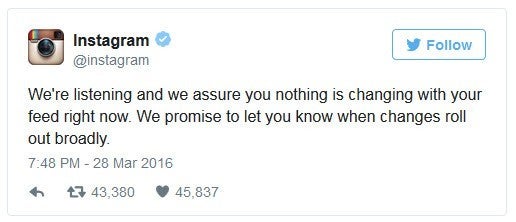
Instagram has finally responded to the countless campaigns with the following tweet:

So there you have it! It appears that Instagram hasn’t, or doesn’t plan to change our feed any time soon! So, if you have already thought about deleting your account or starting some sort of protest yourself, don’t be too hasty – just hold out a little bit longer until they release actual confirmation of any changes they plan to employ.

It’s worth mentioning that there are also rumors on the internet that there may be a select few whom may be experiencing some changes already (during a testing period), but we have to stress that these are rumors!

Have you noticed a difference in your Instagram? And how would you feel if they got rid of the chronological timeline?

Responsible Messaging: Managing Security

Online messaging technology has been around for over two decades, but as sophisticated as these systems get, hackers seem to be one step ahead. Are you sure you’re protected? Sadly, most people are not, and what’s worse, most people truly aren’t protected against hackers and online privacy invaders. Thankfully, there are a few simple tips that can help you stay safer when communicating online, including:

Don’t Share Personal Information

One of the easiest ways to avoid becoming the victim of a problem online when sending and receiving messages is to simply avoiding sharing personal information? The fact is that many people become too comfortable with placing personal information online these days, and this can lead to serious issues. Even if you use a screenname, it can be possible for hackers to trace your information when you provide it, so always be aware of what you’re sharing.

Messaging Services Store Your Data

Something else to consider is how messaging services store your data. Most store indefinitely as a part of their terms and conditions. These are the things you agree to that probably don’t read fully when installing new software. After all, it’s easier to scroll through and check the “Yes, I’ve read the terms and conditions and agree to them” box rather than try to sift through the legal jargon.

The problem with this is that these companies can hold you legally liable, and they can also exercise their legal power in court to hold you responsible le for things you said online. As a result, it’s best to read your agreements carefully, but it’s even better to hold your tongue if you aren’t willing to back something up in court.

Leave No Stone Unturned

The bottom line is that you should never say anything online that you don’t plan to admit to in public. As we’ve seen in the past year with the debacle involving so-called instant-delete messaging programs, which promise to erase you messages and pictures seconds after you send them, there is almost always still a network in place that captures and stores your communication. This isn’t even to mention the prospect of the government getting involved and archiving your communications due to an off-hand remark.

As a result, always think twice before sending a message, making an online comment, or updating your social media feeds. You never know who will be able to see these messages down the road.

If you like Messenger for Windows, try Yahoo! Messenger for free!

The best video editing software: compare, download, and enjoy!

Discover the best editing tools to create every kind of video content – from home movies to high-end professional productions in 4K.

Today, almost everyone has a smartphone capable of recording good quality videos instantly. This, combined with the growing popularity of action cameras such as GoPro, means that more and more video content is being captured every day. The sad thing is many videos are just left to sit on people’s phones or in the cloud because they are not good enough to share in their raw form. This is when you need video editing software to trim and tweak your recordings. These range from expensive professional suites with huge learning curves, to small tools that can crop and combine clips. Here you can discover the best app for your video editing needs.

1. Adobe Premiere Pro

Adobe’s Premiere Pro is the video suite for professionals

The tool for professionals

Adobe has set the standard for software across a number of creative fields, and Adobe Premiere Pro is one of it’s flagship programs. Premiere is arguable the best video editor on the market. While all of this makes it sound like it should be everyone’s first choice, this is not necessarily the case. As a pro level tool, it is laced with complexity that people just wanting to crop and chop could easily find baffling. Also its pricing model – which requires a subscription to Adobe’s Creative Cloud – really limits its use among enthusiast editors. It is undoubtedly state-of-the-art, and stuffed with features and tools, but Adobe Premiere Pro is only a tool for professionals

Pros

  • Highly professional video editing solution
  • Work natively with a huge number of video formats
  • Sync projects across computers

Cons

  • Very complex
  • Only available on Creative Cloud subscription

Download for

PC
Mac

2. Final Cut Pro X

An more accessible pro-grade video editor

A simplified tool for professional results

Apple’s pro-grade video editor has been popular among video professionals for years, but it’s latest version Final Cut Pro X the program rebuilt from the bottom-up. This new build is considerably more powerful, while also being slightly more streamlined for new users. This change could frustrate long time fans and professionals who may feel it has been dumbed-down, but for new users it provides easier access to its many tools. This focus on a different level of user is also reflected in a recent update which allows uploads to multiple YouTube accounts at a time – a huge bonus for more active vloggers. Despite being more friendly for beginners, Final Cut Pro X is still a pricey proposition for causal editors who may want to look else where.

Pros

  • Rewritten from the bottom up
  • Improved tools for YouTubers interface
  • Very fast

Cons

  • Interface may be oversimplified for professionals

Download for

Mac

3. Sony Vegas Pro

Sony offers a great range of video editors to build your skills, culminating in Vegas Pro

An editor with other, lower band options, letting you grow as you learn.

Designed for professionals needing to produce high-quality HD videos up to 4K, Sony Vegas Pro is another expensive tool. However, unlike the previous apps on the list, the full range of Sony video editors provides a number of entry level options – such as Movie Studio 13 – allowing you to build your talents and progress through their products as necessary. This Professional version includes features such as support for gigapixel images, multilayer files, and a wider support of capture cards that the lower end versions lack. The Vegas family of products offers a good range of options for every skill level, but Sony Vegas Pro is certainly the jewel in the crown (but it is priced accordingly).

Pros

  • Covers all professional needs
  • Support for lots of formats
  • Tons of audio and video effects and filters

Cons

  • Complex to begin with
  • Modular workflow compared to Premiere and Final Cut

Download for

PC

4. iMovie

Free, user-friendly tool from Apple to turn your home videos into polished movies

A great free tool for Mac users.

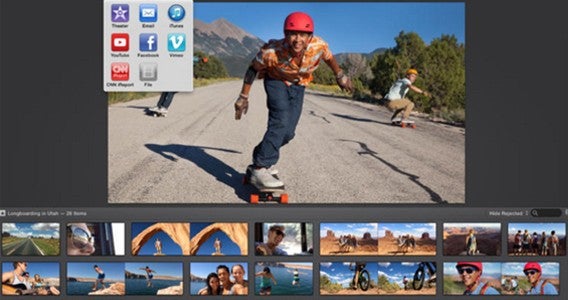
iMovie is Apple video editor to create and edit movies on your Mac. This free tool allows you to import your movies and clips, before offering you simple user friendly ways to cut and paste them together. Its simplicity extends beyond the ability to splice clips together too, providing new comers a selection of simple tools to edit, add soundtracks from iTunes, record voice over, and easily import images and clips from their iPhone. iMovie does lack advanced editing functions but, for most people, it should allow for fantastic results with minimal effort.

Pros

  • Simple video editing
  • Lots of templates
  • Integration with iTunes and iPhoto

Cons

  • Not all formats supproted
  • Uploading to YouTube is not always smooth

Download for

Mac

5. Avidemux

A simple, free, and effective application for PC and Mac

Free cross-format editing tool

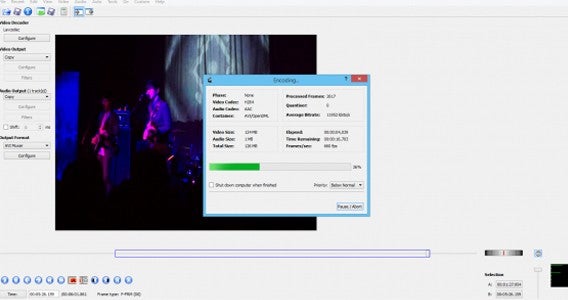
If you are looking for a free editor that can apply small cuts, add filters, and utilize multiple formats, Avidemux is a brilliant choice. Supporting AVI, MPEG , MP4, and ASF files in a variety of codecs, you should have no trouble importing videos to edit from a huge variety of sources. If you are feeling a little more technical then you can also automate tasks using its projects, job queues, and powerful scripting capabilities. It’s not perfect, but Avidemux is a great tool for performing basic editing without the hassle of converting formats – and it’s free.

Pros

  • Lightweight and simple
  • Handles several different formats

Cons

  • May drop frames in certain formats
  • Interface is dated

Download for

PC

More alternatives

Windows Movie Maker | Win

OpenShot Video Editor | Win

Lightworks | WinMac

VSDC Free Video Editor | Win

Best weather radar apps: discover, compare, choose!

Find all the best apps for Android, iOS, Windows, and Windows Phone to help you forecast the weather in your area or where you are traveling.

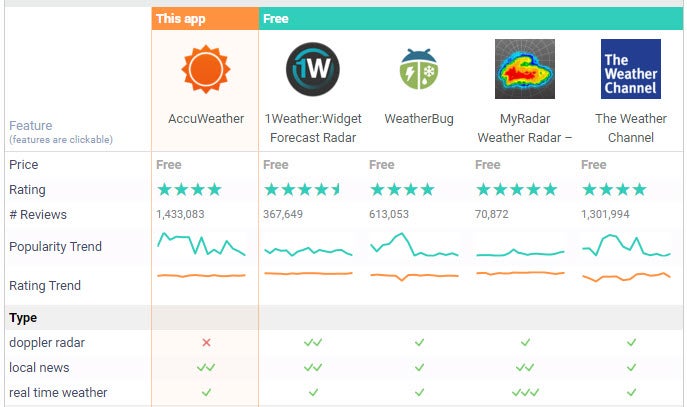
Apps have made forecasting the weather far easier than used to be. There are numerous tools out there, all claiming to offer the most accurate prediction of whether the weekend will be sunny or stormy. However, some are more accurate and easier to use than others. This can be a real problem, for making plans – after all if you are planning a BBQ for Saturday and your app is telling you to plan for balmy temperatures, the last thing you want to see is snow. So, if you would rather know the weather before stepping outside your front door, we have a comparison of the best weather apps and widgets for Android.

Compare the best weather and weather radar apps

Android versions comparison

1.AccuWeather

AccuWeather offers worldwide weather forecasts and news.

Accuweather.com

You may already know AccuWeather from its web version, and the Android and iOS apps mirror this same functionality. Its services include the ability to see the current weather anywhere in the world and upcoming forecasts for the next 15 days. The ease with which you can change location makes it brilliant for people who regularly travel. AccuWeather offers lots of additional weather information, this includes weather alerts for some locations, a satellite map to track weather fronts,  and up the minute climate news.

Pros

Push notifications for weather alerts

Handy widgets

Accurate weather forecasts

Cons

Perhaps too much infomation

The interface sometimes feels dated

Download for

Android
iOS
Windows
Mac

2.WeatherBug

Up to the moment weather reports, including allergy forecasts

Earth Networks

Where AccuWeather offers lots of information and tracks points of interest from all over the world, WeatherBug detects your current location to gives you constantly updated information. It shows all the relevant information about the weather in your area and even goes into specifics like dew point, humidity, and pollen count – with is brilliant for hay feaver sufferers. Additional support includes storing locations and video reports, all presented in a clean modern format. A great feature set.

Pros

Provides very detailed weather info

Clear maps

Seven-day forecasts

Live images

Cons

Some features restricted by locations

Sometimes slow to load

3.The Weather Channel

Offering deep dives into your local weather

The Weather Channel app

Perhaps the most recognized source for weather, The Weather Channel provides in-depth weather reports, live radar, and free videos. The app is no exception, offering all of the information available on the web-version presented on a straightforward touch interface. In the apps Local section you can track the current climate, see a 36 hour forecast, or look at the weather for the next 15 days. The Weather Channel app also lets you set up push alerts for sever conditions, breaking weather news, lighting, snow, rain, and pollen in the local area.

Pros

Looks great

Details weather information

Lots video content

Cons

Radar is slow to load

Buggy interface

4.MyRadar Weather Radar

Real-time weather radar to track incoming weather fronts

ACME AtronOmatic

MyRadar Weather Radar is a fast and easy-to-use app that displays an animated weather radar of your current location. This enables you to easily track incoming weather and to plan accordingly – no more excuses for forgetting your umbrella. Just start the app, and a map of your location will pop up, complete with animated weather conditions. Its high-res animated radar helps lets you see weather in vivid and colorful detail, although at times it can be slow to load.

Pros

Helpful for travel and planning outdoor activities

Good and quick radar

Good alert feature

Cons

Radar is sometimes imprecise

Sometimes it can be slow

5.1Weather

Simple and clear information, with all the depth you need

Just 1Weather please

1Weather manages the perfect balance between being simple and clear, while still providing all the detail you could want in an app. It is well designed and offers loads of different widgets to ensure you always have exactly the information you want at your fingertips. You can even track weather in up to 12 different locations at once, so even globe trotters should be able to know the climate conditions where they are and where they are going.

Pros

Attractive and intuitive design

Option to see temperature in notification bar

Includes lots of widgets

Cons

Maps are not always accurate

Download for

Android
iOS

More alternatives

Weather Underground | AND iOS WEB

Yahoo! Weather | ANDiOSWEB

Find the best activity trackers: get in shape and have fun

Nothing replaces hard work when you are trying to get fit. But there are activity trackers for Android and iOS to help you improve and provide feedback – if you have the dedication.

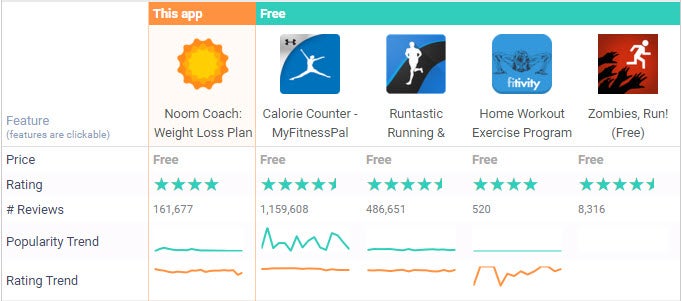
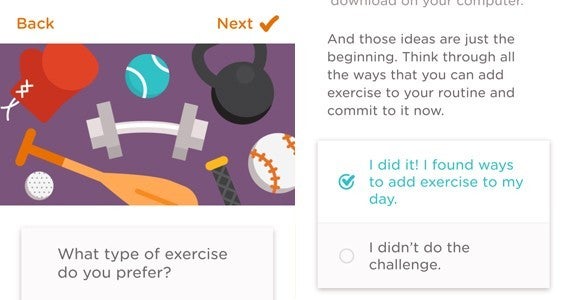
Don’t let anybody tell you any different, getting in shape is a challenge – but fortunately there are lots of apps to help you. From apps that track your calorie intake and offer words of encouragement as the lbs slowly melt away, to activity trackers that pester you to exercise regularly, there is bound to be an option out there that can work for you. These five apps offer a range of options for all fitness and activity levels, find the best one to suit your needs.

Compare the fitness tracking apps

Android version comparison

1. Noom

A flexible, approachable, and friendly app and service for diet and activity tracking

it works

Noom is a light and cheery app that is perfect for people looking for an easy way to start tracking activity and diet. With a focus on weight-loss, the app and online service offer advice and encouragement. It’s wealth of options also make it easy to find whatever you are trying to log. A subscription model is available to get more tailored advice.

Though it is a great place to start, Noom is not the best choice for more experienced fitness fans: crowd sourced calorie information is not always accurate and some deeper options (like water consumption) are lacking.

Pros

Full tracking service

Lots of different tracking options

Simple for beginners

Cons

Some calorie database entries are wrong

Light on exercise tracking

Download for

Android
iOS

2. MyFitnessPal

A more comprehensive life and activity tracker

Get in shape

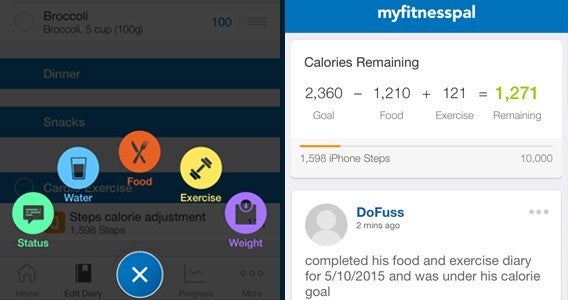
Offering a slightly more complex experience to Noom, MyFitnessPal takes a little longer to learn and become familiar with. However, once you are versed in its various function and it knows your regular activities, it provides a more complete experience. The sheer volume of options can be overwhelming, and not always brilliant, but again putting in the effort is eventually rewarded with more refined searches.

Two definite advantages of MyFitnessPal are deeper exercise tracking elements – including individual weight training activities to help you with routines – and a water tracker to ensure you are hydrating properly.

Pros

Water tracking

Deep activity tracking

Clear breakdown of activities

Cons

Overwhelming at times

Volume of options can make searches complicated

Interface is more fiddly than competition

Download for

Android
iOS
Windows Phone

3. Fitivity

Bodyweight focused training routines to take you from pushover to powerhouse

feel the bern

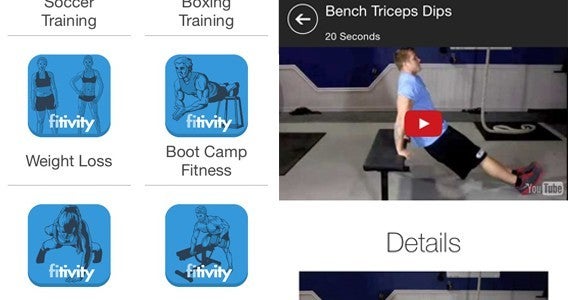
Fitivity offer loads of training options split over different difficulties and activity types. If you are a traveling, and have limited access to equipment, then its Home Bodyweight Program is brilliant. Once you find an appropriate level, you can use its routines to get a good training in your hotel room or the park. There are also videos on hand for each exercise to ensure you know the correct form.

Using your own body’s weight for resistance, Fitivity offers a training you can do almost anywhere. Its routines cover your entire body, and slowly increase in difficulty as you move through the weeks and levels.

Pros

Multiple training types for different circumstances

Videos for correct form

Good progression through levels and routines

Audio helps with each routine and exercise

Cons

On small screens you can’t follows video as you practice an exercise

No in-app timer to aid routines

Download for

Android
iOS

4. Zombies, Run!

A more engaging way to train for running

Getting ready for the end

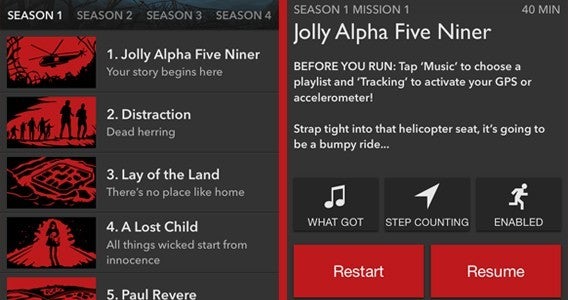
If you are looking for a way to spice up you run, then you nee Zombies, Run! The premise is simple, as you run the app tracks your progress and at set distances it will activate a radio play. This story casts you as a runner in the zombie apocalypse, and provides you with advice and encouragement from a local camp of survivors over a walkie-talkie. It can even track via either GPS or internal accelerometer – while the later is not as accurate it does allow for tracking on treadmills.

Serious runners may find the story unnecessary and casual runners may struggle with the distance, but people looking for a way to spice up their run will enjoy the gamification Zombies, Run! offers.

Pros

Gameifies running

Nice audio performances

Track activity on a treadmill

Cons

Some random events are almost impossible

Can take time to manually calibrate accelerometer

Long distances for those starting out

Download for

Android
iOS

5. Runtastic – all of them

The most complete activity tracking service’s running app

leg it!

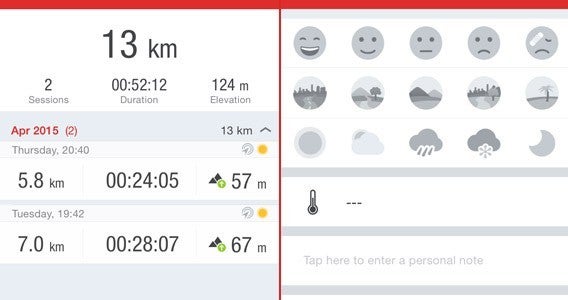
One of the most popular and well known activity trackers, the basic Runtastic app offers a great way to track your run. It’s GPS mapping allows it to accurately track your route including element’s like elevation which can impact your workout. Combine this with its timer, split-time counter, music player, plus other extras, and this app offers a comprehensive way to enjoy and record your sessions.

However, Runtastic’s greatest asset is not the app itself but the full Runtastic service it is attached to. This allows you to login and connect your training across its full range of apps (including – but in no way limited to – Runtastic Road Bike, Runtastic Push-ups, and Runtastic Six Pack Abs Workout) to get an overview of all your activity.

Pros

Load of metrics for every run

Lots of options for tracking

Fantastic GPS activity tracking for your runs

Part of a huge collection of apps that link to Runtastic’s service

Cons

Calories estimations skew low

Free version’s limitations are regularly exposed

No use on a treadmill

Download for

Android
iOS
Windows Phone

Alternate fitness apps and trackers

Daily Yoga | ANDiOS

Mango | iOS

MyPlate | ANDiOS

Best cloud photo storage: 5 apps to safely back up your photos

Find out the best way to back up your photos. Choose the best online photo storage app for your needs!

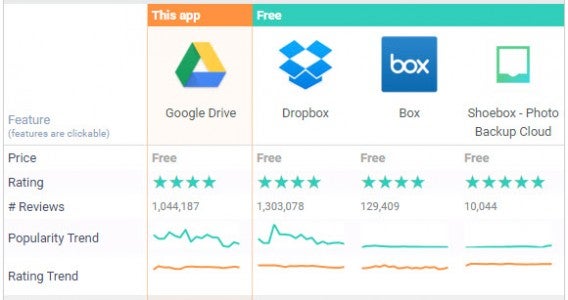
Progress in hard drive technology over the past few years means that they are now far more stable and reliable than they once were, they are still far from infallible. This means that you should always be careful to back up your sentimental and valuable data to ensure that, if the worst happens, you are protected.

Luckily there are now lots of  great free backup apps for you to choose from. These cloud services not only provide protection for your files, but also let you access them remotely from anywhere. Best of all, you probably already registered to use many of these free services without having realized it.

Android versions comparison

1. Google Drive

A free service that you are probably already registered to use

Google Drive and Doc and Photos

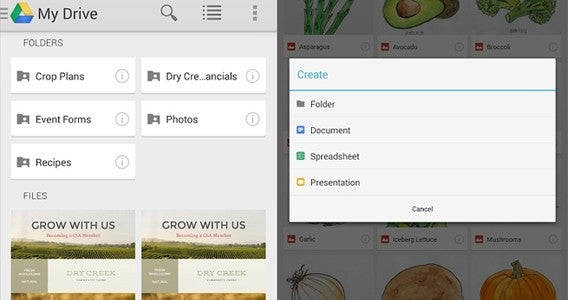
You probably already have a Google account, which means that you already have access to Google Drive. If you use Google Doc, Google Sheets, or any of Google’s other online office apps, then – whether you realize it or not – you are already familiar with the service because it is where all of your documents are stored. Uploading things to Google Drive is as simple as dragging them into the folder on your browser, but the app also lets you set up automatic uploads and syncing between the Google’s free cloud service and your connected devices. On your computer this works as a simple folder where you can just drop files where they are automatically uploaded – do be aware that this takes up hard drive space. For free you get 15GB of storage, with more options available in subscription packages.

Pros

  • Access from multiple account
  • Upload images from phone camera
  • Syncs between devices

Cons

  • There is a learning curve
  • Takes up space locally on PC

Download for

Android
iOS
Mac
Windows

2. Dropbox

A familiar service that is a veteran of cloud storage, but with limited free space

Drop the box

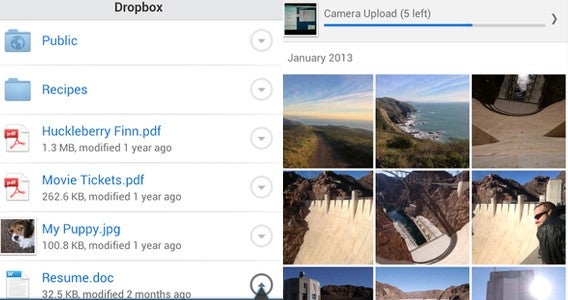
One of Dropbox‘s greatest assets is that is has been around for a long time and a lot of people are comfortable using it. This is particularly useful as it mean that the app’s ability to easily share files and images with other users has become second nature to many. Unfortunately, when you first create your free Dropbox account, you are limited to just 2GB – which is much less than the competition. It does offer the chance to earn more free space through referring friends and other methods, but it is a major limiting factor. Dropbox adds a folder on your desktop that syncs with your online account, this means any changes you make to this local file is reflected in the cloud, and visa-versa.

Pros

  • Easily view files
  • Sharing is simple

Cons

  • No in-app editing
  • Just 2GB storage for free

Download for

Android
iOS
Mac
Windows

3. Shoebox

An amazing photo storage service with a personal touch

Put your photos in a shoebox

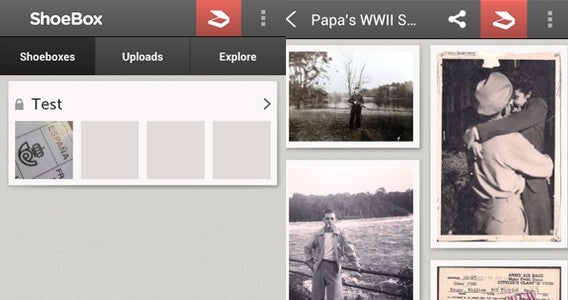
Organizing and saving all of your photos to the cloud Shoebox is an exceptional photo-saving app. The service integrates web, desktop, and mobile apps together. This provides easy access to your photos, no matter where you are. One of this cloud service’s greatest advantages is how it organizes images along its timeline, providing it a more personal touch than many of its competitors. Shoebox’s free service provides unlimited storage for all of your photos however – to tempt you into its $5 a month to subscription service – it limits the resolution of your pictures to just 1024 pixels.

Pros

  • Excellent timeline
  • Upload unlimited photos
  • Seamless integration over multiple devices

Cons

  • Free version limits photo quality
  • Photo specific

Download for

Windows
Mac
iOS
Android

4. Box

A cloud alternative that provides lots of storage for free and good upgrade options

What's in the box?

Providing a range of different grades of account – free, paid, and businessBox offers something for everyone. Starting at 10GB of free storage, Box’s base level account compares favourably with services like Dropbox. It does apply a file size limit of 250MB to its free account, however, and this could be off-putting if you regularly work with larger files such as video. But, if you are a regular user looking to share photos, JPGs, and documents, it should be more than enough.

Designers and other people who needs to upload lager files can upgrade to the Box Personal Pro plan at a cost of $10 per month. This lets you upload files of up to 5GB while also expanding your cloud storage space to 100GB.

Pros

  • 10GB of free space
  • Cross-platform

Cons

  • Upload limit
  • No auto upload

Download for

Android
iOS
Mac
Windows

5. iCloud Drive

A simple cloud storage option for less experienced users in the Apple ecosystem

Put it in your iCloud

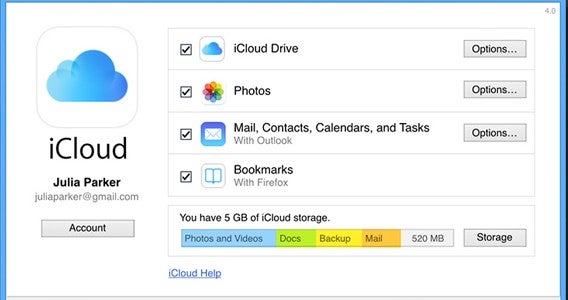
If you are an Apple users then iCloud Drive is an incredibly intuitive and well integrated cloud storage option that automates much of the uploading and syncing process. While it’s available for Windows, this app is designed to benefit Mac and iOS users with it simple drag-and-drop interface and cross-app editing. Perhaps the only major issue Apple users will discover with iCloud Drive is that its 5GB of free storage is quickly filled once you start syncing everything – especially as it allows you to upload files of any type or size. In fact, in someway, the file size limit of 15 GB feels like a bit of a slap in the face to free users who only have 5GB.

iCloud Drive is best for sharing files and data between you apps and Apple devices. It is also worth noting that if you want to store your music on iCloud Drive then you’ll need iTunes Match ($24.99 a year).

Pros

  • Easy to use control panel for all skill levels
  • Integrated with Windows Explorer

Cons

  • Storage is limited
  • Not as good on Windows machines

Download for

Mac
Windows

More alternatives

Amazon Photos Cloud Drive | AndroidiOSMacWindows

Google Photos | AND iOS

Microsoft OneDrive | AND iOSWIN/WIN10MAC

OneDriveBitcasa | AndroidiOSMacWindowsWindows 8

CloudMe | AndroidiOSMacWindows

SugarSync | ANDWIN MAC

More sync and backup apps here

Messenger for Desktop at a Glance

Now that you’ve downloaded Messenger for Desktop, it’s time to go full-steam ahead. This program mirrors Facebook’s Messenger feature, but it can run independently of Facebook on your desktop with no need to log in at all. With this stated, here are some of the attributes of Messenger for Desktop and how they can help you connect with friends faster:

Cross-Platform Support

Messenger for Desktop works with Windows, OS X, and Linux, making it the perfect cross-platform solution for when you either want to use different operating systems or for when you have multiple devices running on different operating systems at once. Simply install and let Messenger for Desktop handle everything for you.

Advanced Texting

With Messenger for Desktop, you can text friends, but you can also utilize advanced options that aren’t available through Facebook Messenger. For starters, you can see who has read your text after it’s been sent. You can also make and receive hi-def phone calls and record voice messages. In addition, you can send and receive stickers to let others know how you feel without having to send a message at all.

Customizable Themes

One major drawback to Facebook Messenger is that it allows you to only use the look and feel that it offers. In Messenger for Desktop, you can customize the theme of the program, offering you limitless possibilities when you want to customize your experience. The best part is that Messenger for Desktop still functions like Facebook Messenger, so you’ll still receive messages and notifications sent by friends without having to open Facebook.

Launch on Startup

In addition to not having to open Facebook to send and receive messages in Messenger for Desktop, you don’t even have to open the program in order for it work. By default, Messenger for Desktop will be set to open when you start your computer or digital device, meaning messages will be received automatically without you having to do a thing! You can enable or disable this feature in the Messenger for Desktop menu if it becomes a hassle.

Group Chat

Although some phone messaging apps can provide support for group chat, many are bulky and difficult to navigate. Messenger for Desktop solves this problem by offering a seamless group chat experience without the need to be checking your phone every five seconds and without the need to have Facebook running in the background. Essentially, you get all of the benefits of Facebook’s group chat feature without the additional hassles.

Love messaging online? Check out Imo!