How to listen to music with the best music players

We will help you discover great apps to listen to music for free. Enjoy your own tracks, listen to online radio, and stream your favourite artists.

There are lots of great apps to help you enjoy music for free. From players that let you enjoy your own catalog of digital music to streaming services that allow you to enjoy and discover entire music catalogs,  there has never been a better time to be a music fan. There are lots of different free audio players available, the trick is to find the best one to suit your needs. Below is a list of some of the best, with the strengths and weaknesses of each to help you decide the best for you.

Compare the music players
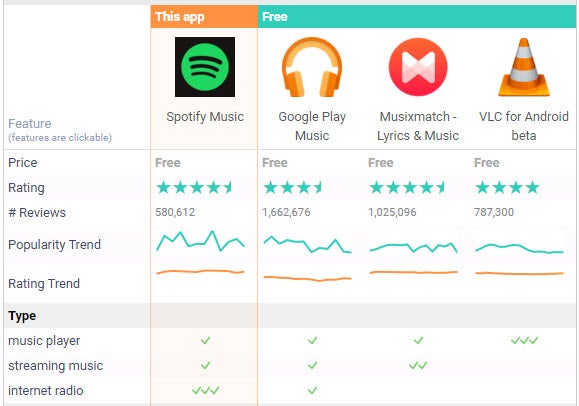
Android versions comparison

1. VLC Media Player

Play your audio and video with this versatile multimedia player

Videos Love Content

VLC is an incredibly versatile free media player that allows you to watch movies and listen to music. The best thing about VLC is the fact it can play almost any kind of video or audio format, including many that other players and devices can’t. The list of supported file formats include OGG, FLAC, MKV, MP3, MP4, WMV, and MOV – which should cover you for most situations. If you decide to use it for movies as well as for music, then it also supports subtitles so you can apply SRT format files to your videos.

Pros

  • Supports a vast range of formats
  • Simple user interface
  • Google Drive and Dropbox streaming

Cons

  • Playback isn’t always seamless

Download for

Android
iOS
WIN
WIN10
MAC

2. iTunes

Apple’s music and video player that is a must for iPhone and iPad owners
Aye, tune


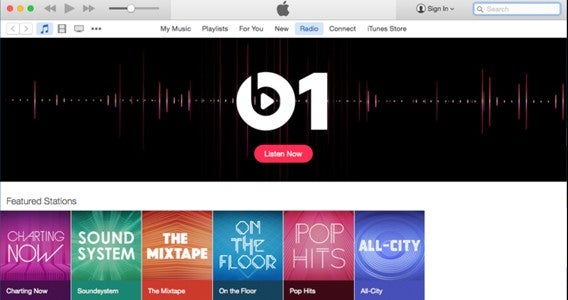
Apple’s leads the charge in the music industry’s shift to online distribution, and iTunes is the audio and video player that made it all possible. As well as offering a front for the iTunes store and Apple Music, this app also allows you to add your own music to its library from files on your computer and CDs, that you own, to listen to when ever you like. Perhaps most importantly, once items are in your library you can move them to any of your iOS devices because the app also allows you to manage your iPhone, iPads, and iPods from its interface. It’s an all-in-one home for your music and video.

Pros

  • Simplified interface
  • Apple Music streaming service
  • Improved playlist creation
  • Curated and automatic radio stations

Cons

  • Limited file formats supported
  • Almost overwhelming number of features!

Download for

Windows
Mac

3. Spotify

A massive selection of music to stream for free right now

Spotty hi-fis

Spotify is a music streaming app that lets you listen to millions of songs from your smartphone and computer for free. The services’ popularity quickly grew when its came to Windows and Mac PC, but it was only after its mobile app became a free service (it was originally a premium service for subscribers) that it really became a household name. This free version of the app can now be enjoyed anywhere over Wi-Fi or a mobile data connection. However if you do not want to stream over 3G or 4G, and would rather download the files to host them locally on your device, you will have to pay the subscription fee.

Pros

  • Large music library
  • Excellent music discovery options
  • Slick interface and social features

Cons

  • Kills your battery
  • Not good with a weak data connection
  • Ads in the free version

Download for

Android
iOS
Windows
Mac

4. Google Play Music

Free online and offline music player with lots of free cloud storage
Watch music with your goggles


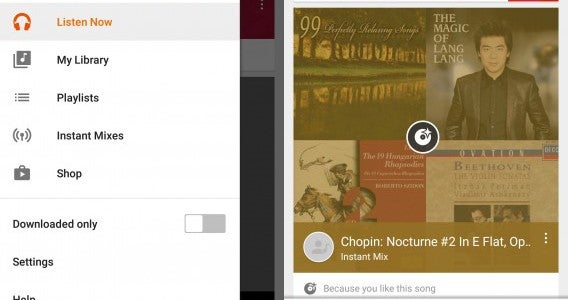
Yes, music streaming apps can quickly exhaust your mobile data. For this reason, the Google Play Music app lets you listen to music offline for free. The service lets you upload all of  the music you have on your tablet, mobile phone, or PC to the cloud so you can share them between devices to play offline through the app. This allows you to listen to them anywhere, anytime, offline for free. You can upload up to 50,000 songs to your account, which could easily be your entire music library, if it isn’t though – you can always pay to unlock extra storage. Convenient and easy to use.

Pros

  • Easy to use
  • Cloud storage
  • Works on and offline

Cons

  • Will import tracks already on your device
  • You can’t buy songs

Download for

Android
iOS

5. musiXmatch

A nice streamlined player that can find you the lyrics to any song

Cross that musicy matchy

If you love karaoke, memorizing lyrics, or singing along to your favourite songs, then musiXmatch is almost unbeatable. This music app integrates with other music players. Once installed it provides a floating windows over the player, containing the words of any song to which you are listening. It works brilliantly with Spotify, Apple, and Google music services. Along with offering lyrics in an overlay, musiXmatch is also an awesome audio player. Its interface shows the standard artist, album, playlist, track, and folder views – so you can browse your music library ease – while its clear buttons during playback should be simple enough for anyone to use.

Pros

  • Huge database of lyrics
  • Simple to use
  • Connects to Spotify, Google Play Music, and Apple Music

Cons

  • Vocal removal option is weak
  • Intrusive advertising

More alternatives

Amazon Music | ANDiOS WIN MAC

jetAudio Music Player Basic | ANDWIN

MusicBee | ANDWIN

MediaMonkey | WIN

doubleTwist – AND

Shuttle Music Player | AND

Poweramp | AND

Rocket Player – AND

More music players for Windows here

More audio players for Mac here

More MP3 and audio apps for Android here

More MP3 and audio apps for iPhone/iPad here

Keeping Up With Friends: Messenger for Desktop’s Advantages

As busy as life can be, it’s important to stay in touch with family, friends, and loved ones … that’s where Messenger for Desktop comes into play. Messenger for Desktop is a wonderful solution for people who don’t want to hassle with logging into Facebook, but it can also provide you with the ability to send and receive messages, get involved in group chats, and more, all from a simple, powerful app.

See Who Has Said Hi

As mentioned, everyone is busy these days, but with Messenger for Desktop, you can come home and see who has messaged you, almost like a virtual answering machine. When you open Messenger for Desktop, any missed messages will be displayed, allowing you to quickly and easily respond. This functionality is also good for when you want to keep your computer running overnight so that friends can message you while you sleep. When you wake up, your messages will be right there waiting for you.

Keep in Touch With Lost-Lost Friends

As you get older, there’s no doubt that you’ll lose touch with people who were once very close to you. This doesn’t mean that they aren’t close to your heart; it just means that life has its way of separating people at times. When you use Messenger for Desktop, however, you can connect or re-connect to those people in your life that have fallen away.

Stay in Touch With Family

If you live a long distance from family members, Messenger for Desktop is the perfect solution to let you keep in touch with those you love. Whether it’s asking your mom for her famous recipe or asking your brother for car advice, you can do it using Messenger for Desktop. You can also use Messenger for Desktop to organize group chats, a perfect solution for organizing a family reunion, whether virtual or in person.

Using Messenger for Desktop With Friends at Work

Another way to take advantage of Messenger for Desktop is to use it at work. When you and your colleagues all install the program, you can communicate in real-time on work-related issues or simply plan an outing after work. Because messages are sent through the program and not through Facebook, you won’t have to worry as much about work restrictions on social media sites running through the company’s Internet.

See How to Get Free Stickers for Facebook, fast and easy!

Yours, Forever: Think Twice Before Hitting Send

Skype’s popularity has skyrocketed with over 74 million users worldwide, and it’s even more useful when you know some simple tips and tricks. Here are a few of the extra features in Skype you probably aren’t aware of (yet):

1. Transfer Your Skype Contacts to Another Skype Account

If you decide to add or swap Skype accounts, you don’t have to lose all your contacts in the process. You can backup the contacts or transfer all of your contacts from one account to another. Go to the main Skype screen and click on “Contacts”. Then select “Advanced” and click the option to “Backup Contacts to File”. This action generates a file (in the .vcf format) that can be saved directly to your computer. If you would like to transfer these contacts into another Skype account, just select “Contacts” and choose the option called “Advanced”. Click the option “Restore Contacts From File”. That will let you load your contacts into a different Skype account.

2. Make Calls Using the List of Contacts

You can make calls directly to any of the contacts in your Skype list. Go to the main Skype page and choose the option “Tools”. From there, select “Options”. Here, click on “General Settings” and then put a checkmark in the box next to “When I double-click on a contact start a call”. Double-click on any of the contacts in the list and it will make the call immediately.

3. Edit a Message You Already Sent

Sometimes, you type in a message and accidentally typed something wrong. You can edit this message and resend it. Press the up arrow on the computer keyboard. This will bring up the last message that you sent. Make the changes directly from there and then resend the edited message.

4. Get Access to More Than 25 Additional (Secret!) Emoticons

Most users are unaware that there is a whole set of hidden smiley faces and emoticons that you can’t even see from the regular emoticons in Skype. You can access these using their shortcodes. Here are just a few of the shortcodes you can use to insert one of the hidden emoticons:

• (talk)

• (headbang)

• (bug)

• (u) — this is a broken heart

• (e) (m) — this is a mail icon

• (skype) — the Skype logo

You can get a complete listing of the hidden Skype emoticons and their shortcodes here.

5. Set Your Chat History to Automatically Delete

If you want to clear out your chat history, you can set Skype to automatically dispose of all chat messages and sessions as often as you like. Go to the main Skype screen and select “Tools”. Then click on “Options”. Now select “IM & SMS” and choose the selection called “IM Settings”. From there, choose “Show Advanced Options”. Next, click on “Clear History”. This will clear out all of your current chat histories. If you want to tell Skype to regularly cleanse your chat histories, proceed to “Show Advanced Options”. There, you can choose how long you want Skype to keep your chat history using the drop down menu.

If you love Skype, check out Line for even more online chatting options!

5 Skype Tips and Tricks You Need to Know

Skype’s popularity has skyrocketed with over 74 million users worldwide, and it’s even more useful when you know some simple tips and tricks. Here are a few of the extra features in Skype you probably aren’t aware of (yet):

1. Transfer Your Skype Contacts to Another Skype Account

If you decide to add or swap Skype accounts, you don’t have to lose all your contacts in the process. You can backup the contacts or transfer all of your contacts from one account to another. Go to the main Skype screen and click on “Contacts”. Then select “Advanced” and click the option to “Backup Contacts to File”. This action generates a file (in the .vcf format) that can be saved directly to your computer. If you would like to transfer these contacts into another Skype account, just select “Contacts” and choose the option called “Advanced”. Click the option “Restore Contacts From File”. That will let you load your contacts into a different Skype account.

2. Make Calls Using the List of Contacts

You can make calls directly to any of the contacts in your Skype list. Go to the main Skype page and choose the option “Tools”. From there, select “Options”. Here, click on “General Settings” and then put a checkmark in the box next to “When I double-click on a contact start a call”. Double-click on any of the contacts in the list and it will make the call immediately.

3. Edit a Message You Already Sent

Sometimes, you type in a message and accidentally typed something wrong. You can edit this message and resend it. Press the up arrow on the computer keyboard. This will bring up the last message that you sent. Make the changes directly from there and then resend the edited message.

4. Get Access to More Than 25 Additional (Secret!) Emoticons

Most users are unaware that there is a whole set of hidden smiley faces and emoticons that you can’t even see from the regular emoticons in Skype. You can access these using their shortcodes. Here are just a few of the shortcodes you can use to insert one of the hidden emoticons:

• (talk)

• (headbang)

• (bug)

• (u) — this is a broken heart

• (e) (m) — this is a mail icon

• (skype) — the Skype logo

You can get a complete listing of the hidden Skype emoticons and their shortcodes here.

5. Set Your Chat History to Automatically Delete

If you want to clear out your chat history, you can set Skype to automatically dispose of all chat messages and sessions as often as you like. Go to the main Skype screen and select “Tools”. Then click on “Options”. Now select “IM & SMS” and choose the selection called “IM Settings”. From there, choose “Show Advanced Options”. Next, click on “Clear History”. This will clear out all of your current chat histories. If you want to tell Skype to regularly cleanse your chat histories, proceed to “Show Advanced Options”. There, you can choose how long you want Skype to keep your chat history using the drop down menu.

If you love Skype, check out Line for even more online chatting options!

5 Skype Hacks You Can’t Live Without

Skype is one of the most widely-used and mature of all the VoIP services, and since 2003, it has remained a powerful communication tool. If you’re interested in getting the most out of Skype, check out these five hacks:

1. Backup Your Chat History

If you want to keep a record of your chat sessions for business or personal reasons, you can tell Skype how long to hang onto those old chat sessions. On the main Skype screen, select “Run” and enter “%appdata%\skype”. Then click “OK”. This action opens a window where you can open a folder using your Skype ID in the Name field. Look for a file called “main.db”. This is the file where all of your Skype chat histories are stored. Copy this file and save it to your computer or to an external storage drive for later access.

2. Use Skype on Wi-Fi Without an Internet Connection

If you don’t have Internet connectivity or only have access to a paid Wi-Fi hotspot, you can use your Skype credits to access Skype Wi-Fi. Skype claims to have access to more than 2 million various Wi-Fi hotspots around the world. Download the Skype Wi-Fi app and then use it to find the nearest Skype Wi-Fi hotspot. This app is available for both iOS and Android devices.

3. Get Rid of Those Pesky Skype Ads

When you’re trying to have a conversation, the ads can make it difficult. You can get rid of them simply by going to the “Control Panel” and selecting “Network and Internet”. Chose “Internet Options” and a window box will pop up. Find the “Security” tab and choose the option “Restricted Sites”. This will make the “Site” button available. Click that and then restart your computer or device. Reopen Skype and the ads will be gone.

4. Forward Your Skype Calls to Another Number

You can forward your Skype calls to your cell phone, landline, or to another Skype account so that you don’t miss any important calls. Remember, Skype-to-Skype call forwarding is free, but it will require Skype credits to use the call forwarding feature to route calls to your cellular phone or landline. To use call forwarding, select “Tools” at the top of the Skype screen in the Menu. Then click “Options”. This brings up a box. Select “Calls” and then choose the option “Call Forwarding”. Now, just enter the number to which you want to forward your calls.

5. Use Skype as a Security Camera

Skype can be used as a security camera if you set it up to always answer incoming calls. It does require two Skype accounts; one to make the call and one to receive the call. Just be sure you use your primary account as the call maker, not the call receiver, because someone else might call that number. Open Skype and position the webcam to point at the area you would like to monitor. To set up automatic answering, select “Tools” and then click on “Options”. Select “Calls” and then choose “Call Settings”. Find the option “Show Advanced Options”, and check the box for “Answer incoming calls automatically”. Then call that Skype account using your primary Skype account to begin monitoring via the webcam.

Also, don’t forget to check out What’s New in Office 2016 for Windows today!

6 Uses for Skype When Starting a Business

When you’re starting a business, you can’t just sit around waiting for the phone to ring; you have important things to get done! But you also can’t afford to miss incoming calls from potential customers, investors, or the people you’re working with. Here are several ways Skype can be a valuable business tool:

1. Keeping Costs Down

Landlines and cellular services are often expensive. Most small businesses don’t even have to have a landline if they use a VoIP service like Skype, and you can even use Skype accounts to stay connected to your employees. Skype is typically far less expensive than having to pony up for cell phones for your staff and business partners.

2. Collaborating on Projects

When starting out, many small business owners are still working another job or have family responsibilities. This, plus the fact that you spend so much time out generating business, means that you can’t always stop what you’re doing to collaborate with your team on projects. Skype is ideal in this situation because it offers video and audio solutions to collaborate on-the-go.

3. Sharing Office Documents

Skype allows you to share Office files with another caller, such as your Excel spreadsheets, Word documents, and PowerPoint presentations. This can also be much more secure than emailing documents back and forth. Additionally, it helps with document version control, which is making sure that everyone is working on the latest version of any particular document.

4. Holding Meetings

Startups have to have a lot of meetings because they are continually having to make decisions about the mission, accepting investors or taking out loans, building up inventory, and much more. With Skype, you can hold meetings anytime, anywhere, even if one of the partners is in another country.

5. Managing Remote Workers

Many startups depend on contractors and freelancers for positions that they can’t afford to fill with full-time workers. Skype helps these small businesses keep up with those remote workers and telecommuters while keeping security at a premium.

6. Screen Sharing

Maybe you’re designing a new system, or perhaps you’re working on a system you aren’t familiar with. You will need to be able to share screenshots with your tech guru or with another worker so that you can both see what’s going on. Skype makes it easy to share what’s on your screen so that you don’t have to take off, drive to the person who does your tech support, and waste hours on something that could take a couple of minutes to resolve.

Read about how Skype is one of Back to the Future II’s Top 8 Tech Predictions!

Going Mobile: How Skype Can Affect Your Social Life

Skype is a great way to find new friends while staying in touch with old ones. Did you know that having a rich social life actually makes you healthier? People with a strong support network who regularly communicate with other people live longer and are healthier than those who go it alone.

There are several ways that Skype can benefit your social life. Here are a few examples:

Skype Lets You Talk Wherever You Are, Whenever You Want to Talk

Skype accounts can be accessed from all sorts of devices, including desktop PCs, tablet computers, cell phones, home phones or landlines, and even TVs and gaming consoles. That means that you can stay in touch from home, work, school, friends’ houses, or even during your daily commute. All you have to do is download the Skype app to the device you want to use and enter your user ID and password. It’s that easy to stay in touch all the time!

Skype Lets You Communicate With Friends Using Other Types of Devices

Maybe you have to use a Blackberry for work and keep an iPhone for your personal communications. Or, perhaps you are on a Windows phone and all your friends are on Android phones. Skype works across platforms and is available for all Android phones and tablets, iPhones, Windows phones, Blackberry devices, and Amazon Fire tablets.

Skype Connects You With Friends Around the World

Whether you want to hit the open road and have a chat or connect with friends who are going to school overseas or working on a mission trip somewhere remote, you can use Skype to communicate all over the world without incurring international phone charges. Some phone companies charge upwards of $50 per month for international voice services and much higher if you use the data plan for video chat.

Thankfully, Skype can be used as a social networking app free or inexpensively, allowing you to find new friends from interesting and exotic places. Many Skype users connect with others to learn a new language, familiarize themselves with different cultures, or educate themselves about walks of life very different from their own.

Skype Makes Communication More Lively

If all you have is a cell phone, you can’t chat face-to-face with your friends and family who are far away. Skype makes it like you’re right in the room with them. Skype keeps families in touch with loved ones serving in the military, lovers attending schools across the country, and parents with children who move far away.

To learn the basics of using Skype to connect, check out this video: How to Create an Account in Skype and Start Using It!

Need a taxi? Now you can book one from Google Maps!

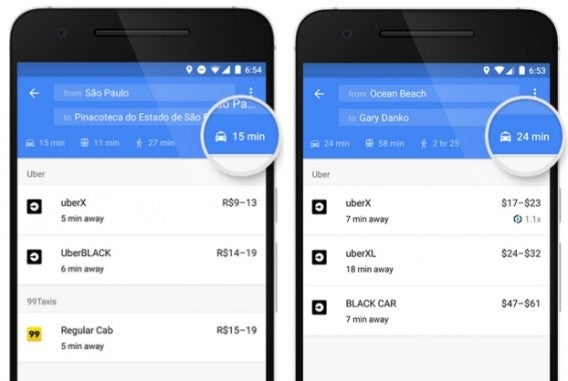
The famous application from Google just got even more useful and has teamed up with various taxi companies (location depending), and now allows you to book a taxi straight from the platform – and it’s so darn simple!

All you have to do is click on the taxi icon when choosing your ideal route (where you would normally find car route, public transport route or walking distance etc. Once clicked, you are shown just how long the taxi will take to arrive to your location, and the average cost of your trip.

Holger Flier, software engineer at Google Maps wrote in the Google blog: “When you search for directions using Google Maps on your mobile device, we’ll show you a dedicated tab with information for ride services, in addition to the existing car, transit, walking, or biking options you’re familiar with.”

For the time being, this feature is only available on the updated version of the Android app, but we can expect to see it on iOS shortly!

The five best free music apps

There has never been a better time for music lovers, with services like YouTube Music, Jay-Z’s Tidal, Apple Music, and Spotify giving you access to all the tracks and artists you love. But there are some great lesser-known alternatives, and here five best free music apps we think you should try.

TuneIn (Android|iOS|Windows Phone|Windows)

TuneIn is the perfect service if you just want to put on some carefully selected background music. This online radio service that gives you access to stations around the world, all you have to do is search for stations by content type, format, and musical genre. There are even options to follow specific stations and users to make sure there is always something playing that you want.

Deezer (Android|Windows Phone|Web)

Deezer is a music streaming app with a model very similar to the all-conquering Spotify. But despite the competition, this French app has remained popular thanks to its wide range of features. Among its many options you can upload your own music, discover playlists, and find new releases or popular mixes to match your tastes. And yes, you can do all this for free – only having to pay to remove the ads or to play saved music offline.

Humm (Android)

If you have ever used YouTube as your mobile music player, you know that when the screen goes off, so does the music. Here is where you should try Humm, an app that offers many of YouTube’s features in an easily accessible format. After telling it what kind of music you like, Humm recommends music for you, even curating you some default playlists. You can also create stations from the available tracks. iOS users can try Musi (iOS) for a similar experience.

VEVO (Android|iOS|Windows Phone)

Music is even better with images, and if you want music videos there really is only once choice: VEVO. Thanks to a distribution agreement between some of the biggest names in music – including Sony, Universal, EMI, and Google – this great app provides instant access to the latest releases. That’s right, with VEVO you can see popular music videos when and where you want to. Create playlists, share videos, and enjoy hours of content.

Google Play Music (Android|iOS)

But, if you have been paying attention, you may have noticed that every app up to this point has basically been a streaming service in its free form. That is not the case for our final pick which lets you play your music offline: Google Play Music. The premise is wonderfully simple, after setting up an account, you can sync up to 50,000 tracks from your tablet, mobile phone, and PC to the cloud. You can then easily download and share this music with any of your devices to be played at your leisure offline.

Were there any music apps missing? Let me know in the comments. I’ll be back next week with five apps to create a customized speaking avatar. See you in seven days.

Related Stories

Five apps to learn a second language

Five voice changing apps

5G and why we need it

VR is here to stay

Follow me on Twitter: @DoFuss

YouTube’s new live-streaming platform

Google is apparently working on a new live-streaming app, supposedly called YouTube Connect.

You might have already realized that live-streaming apps such as Periscope have grown increasingly popular over the last year – even Facebook has jumped onboard with its new video function. Recent reports indicate that Google has secretly been working on creating its own version, which will enable users to broadcast their own live streams straight from the smartphone (yeah, nothing groundbreaking here).

Just like the other apps available, users can log in using their YouTube or Google accounts and start streaming directly from their devices, which according to sources, should be available on both iOS and Android handsets.

Although this feature doesn’t seem to offer anything particularly different to the others already available, there is one thing that differentiates YouTube with the others – its video reputation.

Google hasn’t confirmed anything as of yet – but it is presumed that there may be an announcement during the Google I/O in May this year. Stay tuned!