9 great apps for iPhone that make Android users green with envy

Thinking about switching to iPhone and need an idea as to what exclusive apps it has to offer? Or maybe you want to defend yourself when Android users make fun of you for being a part of the iPhone culture. Whatever the reason, we’re here to help.

Here are 10 of the best applications available only to iOS users, that are enough to make any Androider regret their earlier choices in life.

This list is not just our top picks. They all boast millions of downloads as well as a 4+ star rating on the Apple App Store. Let’s just say they’re the best of the best.

Let’s take a look!

1. Hyperlapse

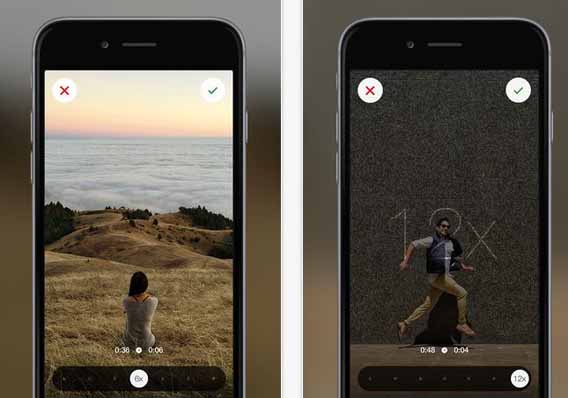
Tired of shooting videos on your mobile that turn out blurred and pixelated? Don’t waste your money by buying a camera and a tripod, download Hypergram from Instagram completely for free! Hyperlapse is the only app for iPhone that has the ability to stabilize your video recordings in a way that will make them appear like a quality film. It specializes in a particular type of video called Timelapse – a technique that shows motion either in hyper-speed or the complete opposite. Since it launched in 2014, it’s attracted millions of users, and once you download it – if you haven’t already – you’ll soon see why!
1

2. Camera+

Camera+ is a great replacement for the default camera installed on your iPhone, and contains one of the most advanced photo-editing and management tools on the market. It boasts advanced lens options, dozens of effects and can fix pretty much any problem you may have with the photos you take. With so much to play around with, you can spend hours, but believe us – it’s worth it.

23. Infinity Blade Trilogy

If you want to make an Android user jealous of any of the games for iPhone – make sure it’s the Infinity Blade Trilogy. Although Infinity Blade III is the most advanced game of the series, we recommend that you try them all to fully enjoy the dozens of intense battles on offer. So, why isn’t it on Android? The official response is that the game’s developers believe there is too much piracy surrounding Android apps, however there is a rumor to suggest that its creators have a special exclusivity agreement with Apple.

3

4. Clear

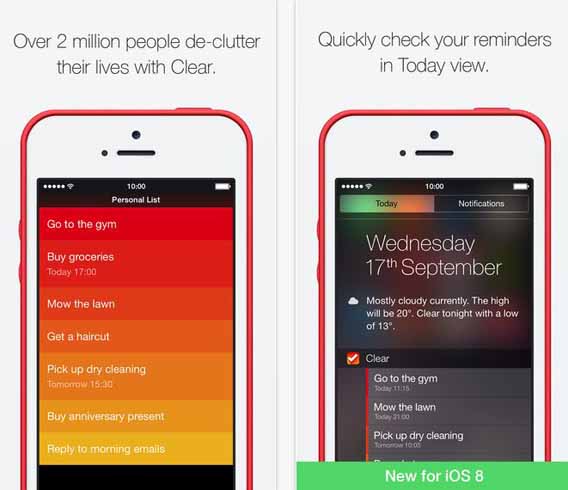
There are thousands of applications to produce lists, to the point that it’s easier to just pick up a pen and go old school instead of choosing one to download. Clear, as the name suggests, prefers to keep it simple, and offers a basic yet intuitive interface that many of you have been looking for.

Clear also has the ability to put reminders in various places of your phone, which makes it stand out from the crowd of the many other apps of this nature.
4

5. GarageBand

GarageBand is great for finding your inner musician. With this suite, you can compose pretty much anything you like, from symphonies and rock ballads to ringtones for your mobile phone. It even allows you to connect electronic instruments (such as guitars and keyboards) to your device to record directly. The results are pretty impressive, and there’s lots of fun to be had while playing around with the options. Best of all, it’s free!

So why isn’t it on Android? Well, it’s simple – it’s made by Apple!  6. iMovie

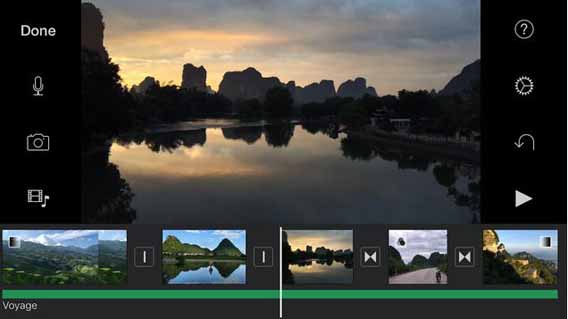
If GarbageBand has the ability to make you a musician, then iMovie has the ability to make you a film director. This app allows you to record, edit and share your own high-quality home movies, equipped with great effects with various filters and templates. Apple have put a lot of effort into making this app, and their hard work has really paid off – you’ll be amazed!
6

7. Sky Guide: View Stars Night or Day

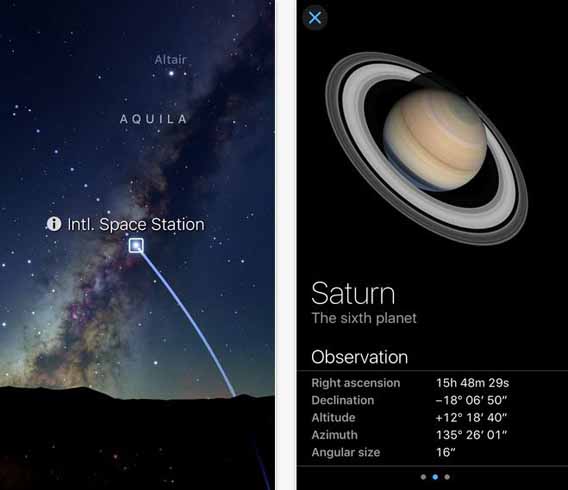
Sky Guide is the perfect app for all you stargazing lovers out there. How does it work? Simply open the application, point it at the sky and it will instantly identify the various stars, constellations, planets, satellites and much more for you. It’s the perfect conversation starter and a great introduction for those not so familiar with the skies above.
7

8. Paper by FiftyThree

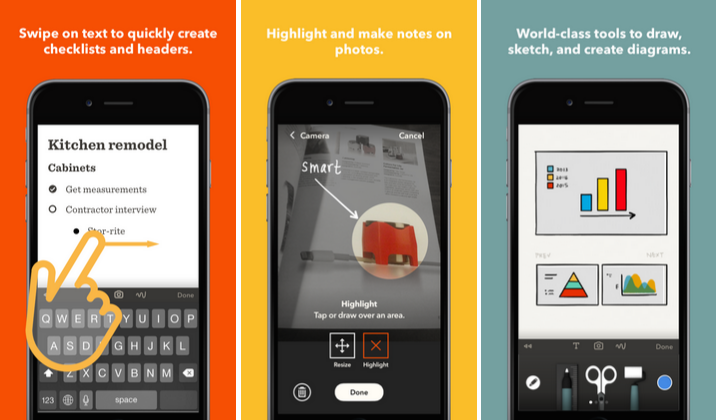
This app started as a drawing application but has since become an incredible virtual notepad for creating your lists, notes, and doodles. You can organize your creations as you like, and even export them into PDFs or PowerPoints. Paper by FiftyThree is one of the best digital note-taking apps available. The ease of use is amazing and the response from the app with on-screen actions is great. A must-have app for people who want simple and amazing digital notebooks.
9. Mr Jump

Although Mr Jump (the successor of Flappy Bird) may not be as impressive as Infinity Blade, but we guarantee you’ll enjoy wasting your time with this more than any other game. The objective is simple – to jump at exactly the right moment in order to avoid the obstacles. Don’t be fooled – it’s a lot more difficult that you think!

9

What’s your favorite iPhone app that you wouldn’t find on Android?

10 fantastic apps for Android that iPhone will never have

Android vs iPhone – it’s that never-ending battle. While iOS has plenty of things going for it (not to mention beautiful devices, we can’t deny that), Android regularly comes out on top for various reasons.

There are a bunch of excellent apps that are individually exclusive to each operating system – we’ve put together some of our favorite ones that are only available on Android!

Here are 10 of the best available on Android that iOS can only dream of having.

1. Google Opinion Rewards

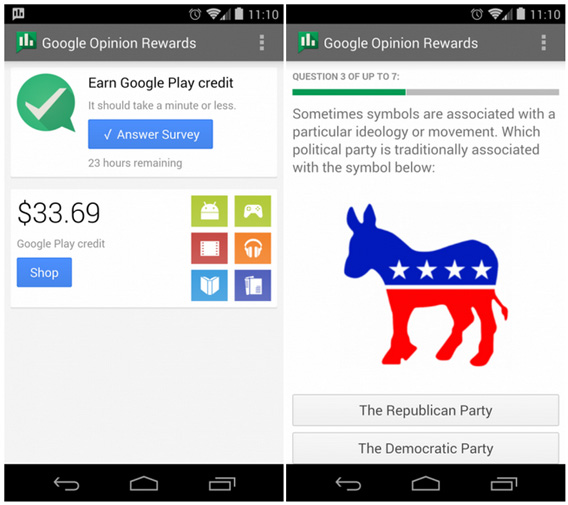
There are many apps that promise to make you money, but very few offer the security that Google Opinion Rewards offers. It’s simple – after registering yourself with the app, it’ll start to send you surveys. Once you start completing the surveys, you’ll be rewarded with credits, which you can use to pay for items on the Google Play Store. In fact, some of the apps mentioned below are paid apps – so what better way to spend your credits?

google-opinions-2

2. ES File Explorer

iOS is a very closed operating system. So closed, that it won’t allow you to go into your folders and move things around as you please. Android is different – and while its operating system has its own file browser, it’s a much better idea to install an external one. For this, we recommend ES File Explorer. This clever app lets you review all your files and easily view which ones are taking up the most space on your phone. It also allows you to delete apps you may not use, as well as explore your media and control the content you have in the cloud.

3. Turbo Booster

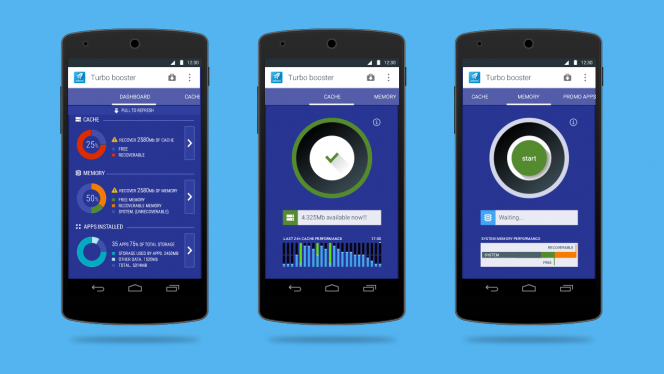
Turbo Booster is a tool that cleans unnecessary files from the memory of your Android device in order to boost its performance. It has three main functions: deleting residual files, cleaning the RAM memory, and helping you get rid of the applications you don’t use anymore. Turbo Booster solves these issues in a fast and simple manner. The difference you’ll see varies according to device, but your Android phone’s performance will definitely be improved.

4. ADV Screen Recorder

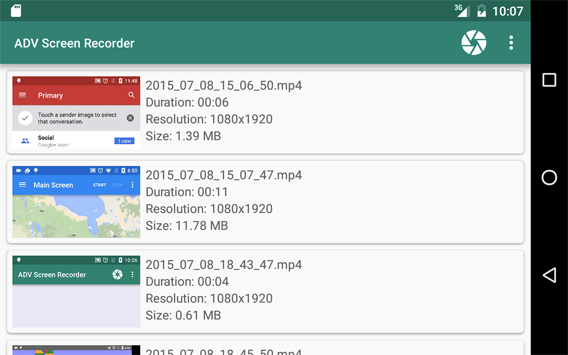
Capturing what you see on your mobile’s screen can be an extremely useful tool for various reasons. The problem with iOS is that this process is impossible without the use of a PC (or rather a Mac) to hand. For Android, you’ve got ADV Screen Recorder, that allows you to capture exactly what’s happening on your screen at any time, and makes it easy for you to share it with whoever and wherever!

adv-screen-recorder

5. Unclouded

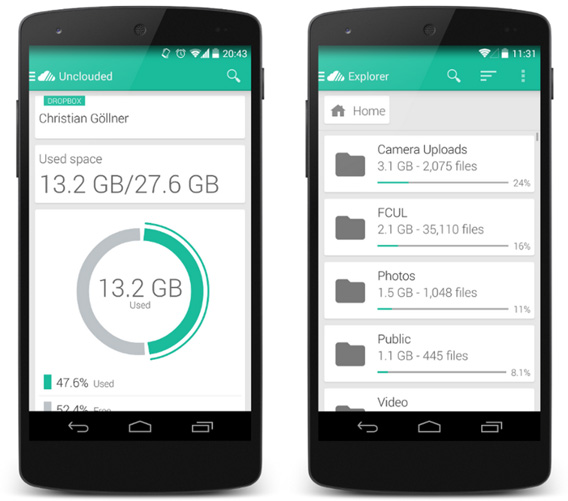
How many cloud storage services are you currently using? The chances are you’re probably using Drive, Dropbox or Mega, not to mention the data on your Gmail or Google Photos. The turth is, when you have to juggle several of them, it can at times get a little messy. Luckily, for Android, Unclouded helps you manage all of these accounts in one platform! The app has a free version which allows you to manage two services at the same time. If you want to synch more, you can pay for the Pro version. Why not start using Google Opinion Rewards to get it for free?

unclouded

6. Light Flow Lite

If your device is filled with loads of apps, it’s very likely that every now and then you miss an important notification. Although not all notifications are important, what if you were to be notified when one was? Well, this is possible thanks to Light Flow Lite, an app that allows you to set different tones, sounds, vibrations and LED light colors to your device, depending on the importance of the notifcation. The Lite version gives you access to just some of the services available, however if you pay for the full version, you obviously get much more.

7. Nova Launcher

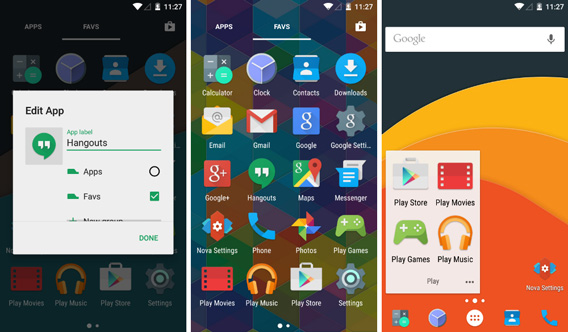
Depending on the brand and specific operating system, every Android device has a launcher, ie – different looks for your menus and home screen. We all know this is just not an option for iOS. With Android, there are various apps available that allow you to play around with the appearance of your screen, and one of them is Nova Launcher.

Nova allows you to play with these settings in a really fun way, and lets you change everything from the menu layout to the icons on your homescreen. The way your phone looks is completely in your hands!

Nova

8. KLWP Live Wallpaper Maker

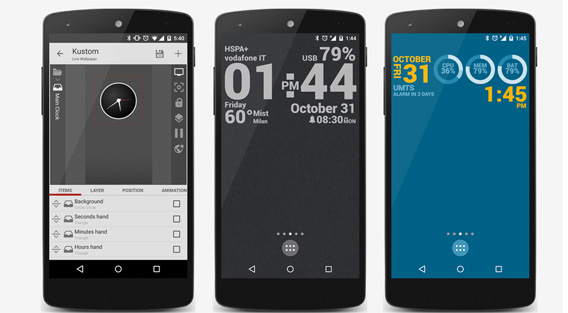
Once you’ve played around with the Nova Launcher, why not go one step further and apply a funky new wallpaper? This app allows you to change your wallpaper in a way like never before, giving you the ability to add various widgets (including clocks, battery icons, etc) in many different sizes and designs!

KLWP-Live-Wallpaper-Maker

9. AirDroid

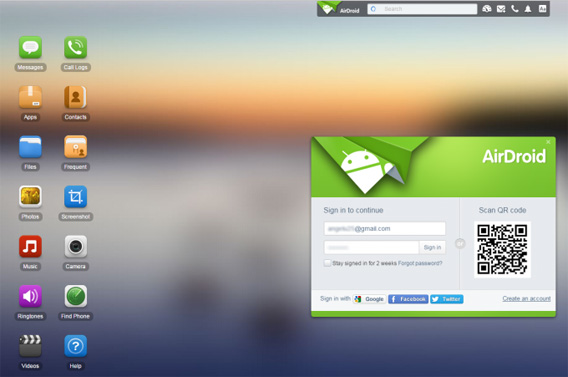
We live our lives glued to our phones, however when we need to do certain things, we may wish that the screen were bigger or that typing wasn’t such a chore. Fear not – Android has the answer! AirDroid is an app that allows you to connect your phone to your PC, so that you can control it from the comfort of your computer, without having to plug anything in. It allows you to send files directly, answer messages with the PC keyboard as well as manage your contacts.

Once installed on your device, AirDroid is connected to your computer using a QR code or a URL that the app will provide you with. It couldn’t be easier!

airdroid

10. uTorrent- Torrent Downloader

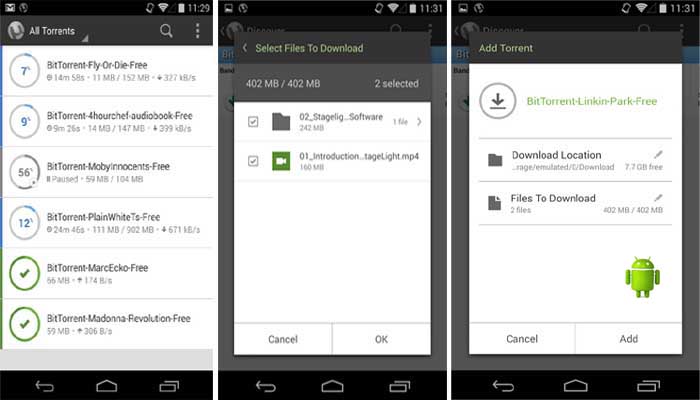
Downloading Torrents is a common activity for many of us, but did you know you can also do it on your Android device? There are many options of apps on the Google Play Store that allow you to download these types of files, but we recommend this classic. As the Apple App Store is so strict with its policies on apps, it’s almost impossible to find anything of this kind available on iOS.

Do you know of anymore great apps that are only available on Android? Let us know in the comments!

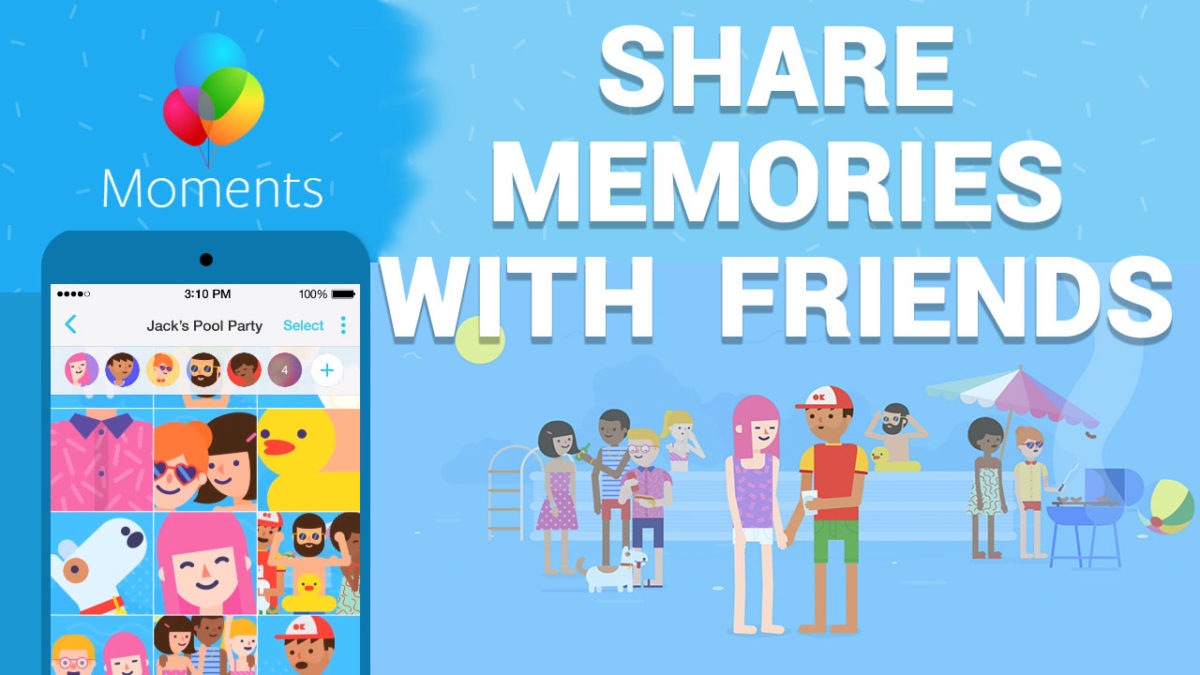
Moments: Facebook’s latest and easiest way to share photos

Facebook has recently introduced its newest addition, Moments, an app that promises to revolutionize the way we share photos with our friends – and you’re going to love it.

Picture this: It’s your birthday party, and you’re too busy playing host to worry about taking photos in order to remember your special night. Luckily, your friends are there to help and between all of them, you’ll probably end up with around 300 + pictures capturing the great fun you all had together. The only problem is, how do you get your hands on all these photos?

Well, you’ve got two options:

You could create a WhatsApp group, made up of all your friends who were present at the party, and ask them each to send you the 300+ photos one by one. You can then individually select the ones you like, save them to your phone’s memory and upload them to Facebook once you get them all organized. This could take days, even weeks – and we all know how unreliable friends can be when it comes to sharing their photos.

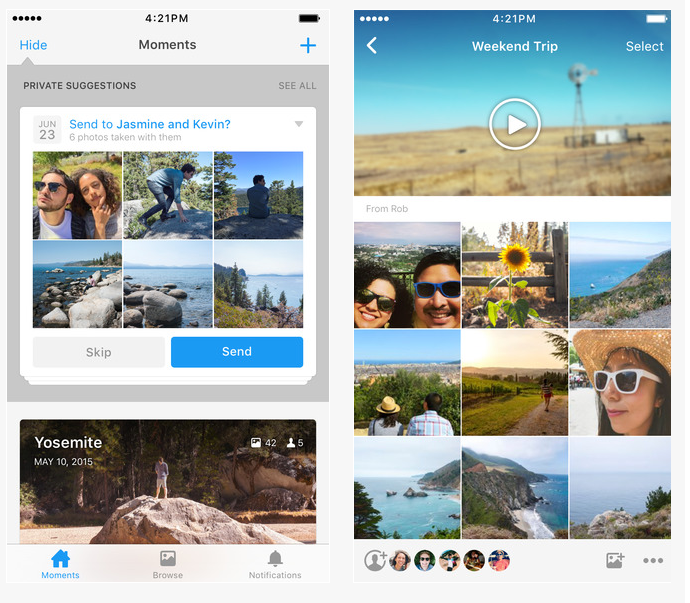
Or, you could simply use Facebook Moments! This clever little  app allows you to create and share albums with all the people who were at a particular event (Facebook even uses special facial-recognition technology!), therefore no one is left out, and no photo is ever forgotten about.

07-06-2016 10-11-24You can edit the privacy, as well as create customized slideshows creating the perfect visual memories from your special occasion.


Discover everything this app has to offer in this video!

How to share your photos from the last party

10 things you’re probably doing that put your computer at risk

Every day, we are play Russian roulette with our computer’s safety, and many of us don’t even realize it. Don’t believe us? Well, here are 10 things that you do on a daily basis that could potentially harm your system, and give cybercriminals a greater reason to attack.

It’s time to start treating your computer with the care and consideration it deserves!

10 things you do daily that put your computer at risk:

1. Using an operating system that is not updated

Be sure to activate the automatic update of your operating system. It might seem obvious, but how many times have you postponed an update because you were too busy at that moment in time? Working with a system that is not updated can leave your computer in an extremely vulnerable position, as cybercriminals are always introducing new ways to hack into your system that it may not be yet prepared to fight. Play it safe, and update it regularly!

2. Using the same password for various accounts

This mistake is extremely common, and many people fail to see the danger of it. If a cybercriminal gains access to your password for just one account, how many more could he possibly access?

keep-calm-my-password-is-1234

The solution? Use different passwords for your different accounts. Make sure your Gmail password isn’t the same as your Facebook, etc. There are some browsers out there that allow you to automatically generate various passwords for various things. Click here to discover Gmail’s awesome password generator, as well as many other secret features! You can take advantage of various password managers, such as Last Pass.

3. Believing that you already have a firewall activated

Today, both Windows and Mac include default firewalls that serve as a strong and reliable shield against the evils that lie in your computer and network. Microsoft itself warns us that we  “shouldn’t turn off Windows Firewall unless you have another firewall turned on. Turning off Windows Firewall might make your PC (and your network, if you have one) more vulnerable to damage from worms or hackers.”

4. Connecting to the first open Wi-Fi network you find

If you’re in a public space such as in a hotel or airport, you need to be extremely careful with which Wi-Fi network you connect to. First, make sure it’s the official network for the building and not a neighboring router. You could accidently fall into the traps of cybercriminals who may even use similar names in order to trick you and gain access to your private data.

wifilogo

If you’re using a laptop and you’re trying to connect to a new Wi-Fi network, it’s possible that you will be prompted with a window that asks you confirm the type of configuration you wish to use. If you can, use “Public Network” or similar at all times, so that your computer automatically turns off any file sharing settings that may be activated as well as increasing the strength of the firewall you are currently using.

For added security, try to only browse sites that use https:// in the navigation bar, such as Facebook or Twitter, as this indicates that your data is encrypted therefore not even the owner of the network can view your information. VPNs are also a great tool in these situations.

5. Using BitTorrent to download movies, games and music illegally

We all know why BitTorrent and similar are the most downloaded programs, however it’s much better to download these programs from trusted sites, such as Softonic. It’s no surprise that if you download from unofficial sources, you risk exposing yourself to malicious ads or misleading downloads that can infect your computer in various ways.

6. Searching for free adult entertainment

This habit, is very similar to the previous. The pages that offer free adult content are anything but safe and are basically a nest of cybercriminals waiting to catch you when you least expect it. What can you do? Well, you could opt for paid services, as these companies take your privacy and security into consideration in the hope of providing you a great service and maintaining your business. It’s logical!

7. Searching for scandals on the net (especially celebrity-related)

Every time the intimacies of the rich and famous get exposed, many people use search engines to get more information of the scandal in question. What they don’t realize is that there are also many cybercriminals who know this, therefore will create traps promising related content in order to trick you. If you wish to find legitimate information regarding a particular scandal, try to use sources like Google News (yes we know that it may not be as explicit as you may have wanted, but at least you’ll be safe).

8. Falling for scams on Facebook and the rest of the internet

Although these kind of ads may look trustworthy, the majority of them are not.

If you do happen to fall for one of these traps, there are two possible outcomes. In the best-case scenario, you’ll get a few more ads than you were initially receiving on Facebook. In the worst case scenario, the authors of the trap now have access to your personal information. It’s easy – just ignore them.

9. Being constantly connected to the internet

You don’t always need to be connected to the internet. If you’re planning to leave your computer on and connected for a long time without using it, simply turn off the router in order to cut the connection. Hackers are more attracted to computers which are always connected. If disconnecting your computer is not an option for you, then at least make sure you have a reliable firewall installed beforehand, to avoid any complications.

10. Neglecting your favorite browser

It’s all very well keeping your operating system updated, but what about the browser you use on a daily basis? If you do forget to update your Chrome, Firefox, Explorer, etc, you could be opening yourself up to many cyberattacks.

What can you do? Well, first of all make sure the browser you’re using is the latest version, and if you choose to visit pages you wouldn’t necessarily trust, take advantage of the incognito mode.


6 tricks for Gmail you never knew existed

There are many tricks and secrets for Gmail that can massively improve your email experience. For example, did you know that you can use it to find out which of your subscribed services are selling your information to other companies?

Here are 6 tips and tricks for Gmail that will change the way you email forever.

1. Find out if the services you’re subscribed to are selling your information

Want to find out if your favorite services are selling your email to other companies to spam you?  This trick will help you find out!

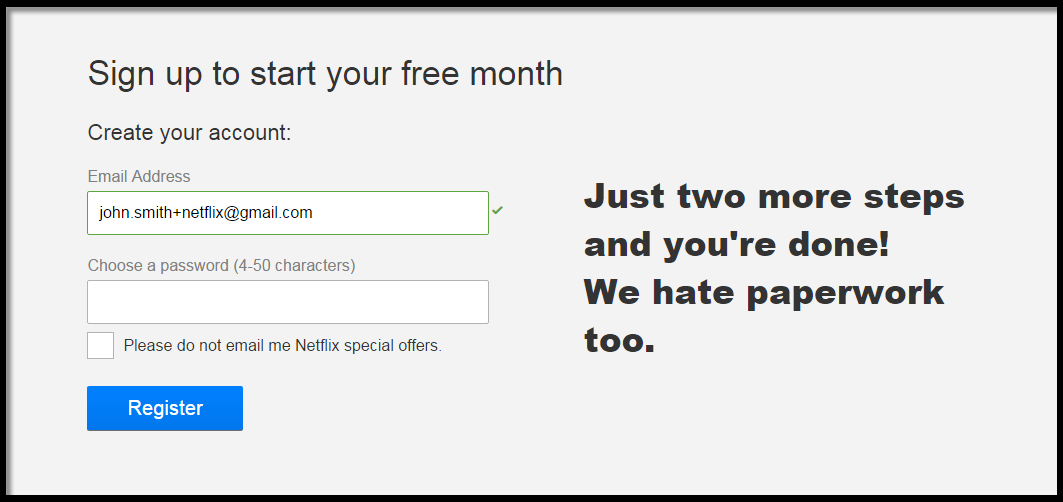
Imagine that you want to subscribe to Netflix. When you need to enter your email during the subscription process, add a “+” along with the name of the service (this will allow you to filter it). For example if your email address is: john.smith@gmail.com, the email you should register should be: john.smith+netflix@gmail.com.

02-06-2016 18-20-39

By adding this suffix to your email – you’ll still receive the emails to your account, however when you receive a spam email from an unknown company – you’ll know which service sold your email address. Scandalous, huh?!

2. How to tell if somebody has broken into your Gmail account

One of our greatest concerns when it comes to our email accounts is security – and sadly Gmail can be just as vulnerable as other service providers. Here are two ways you can check to see if your account has been hacked or not:

Consult your latest account activity

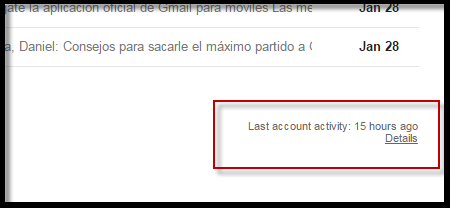
Go down to the last email on the first page of you inbox. In the bottom right-hand corner, you’ll see the last time you connected to your account.

03-06-2016 9-54-38

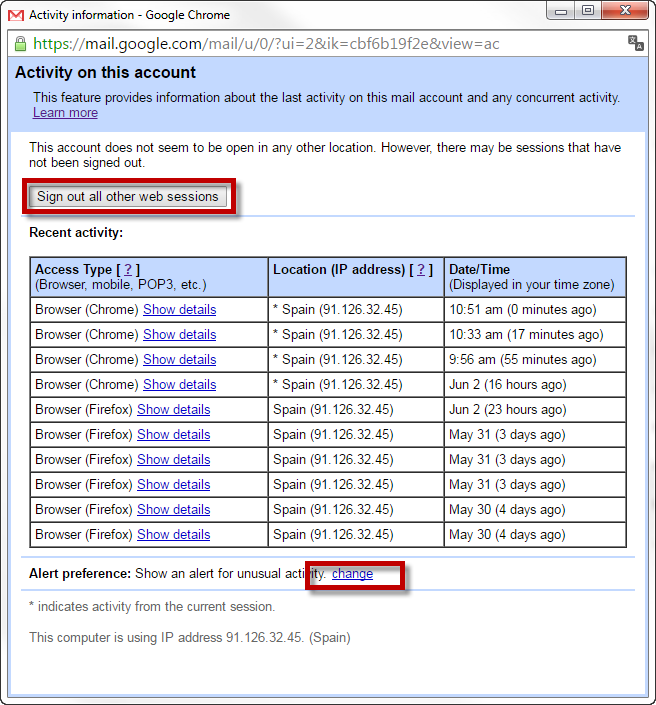
If you notice that the time doesn’t correspond to when you last use your account, there’s a chance someone may have accessed it without you realizing. You can click on Details for more information including the location of where it was accessed.

If you have noticed that something isn’t quite right, you can opt to sign out of ALL of your Gmail sessions currently open, and change your password just to be safe. You can also activate alerts that will warn you of any strange activity going on with your account. If you do receive a notification, it’s important that you change your password as soon as possible.

03-06-2016 10-51-34

Have you ever noticed this option in your settings?

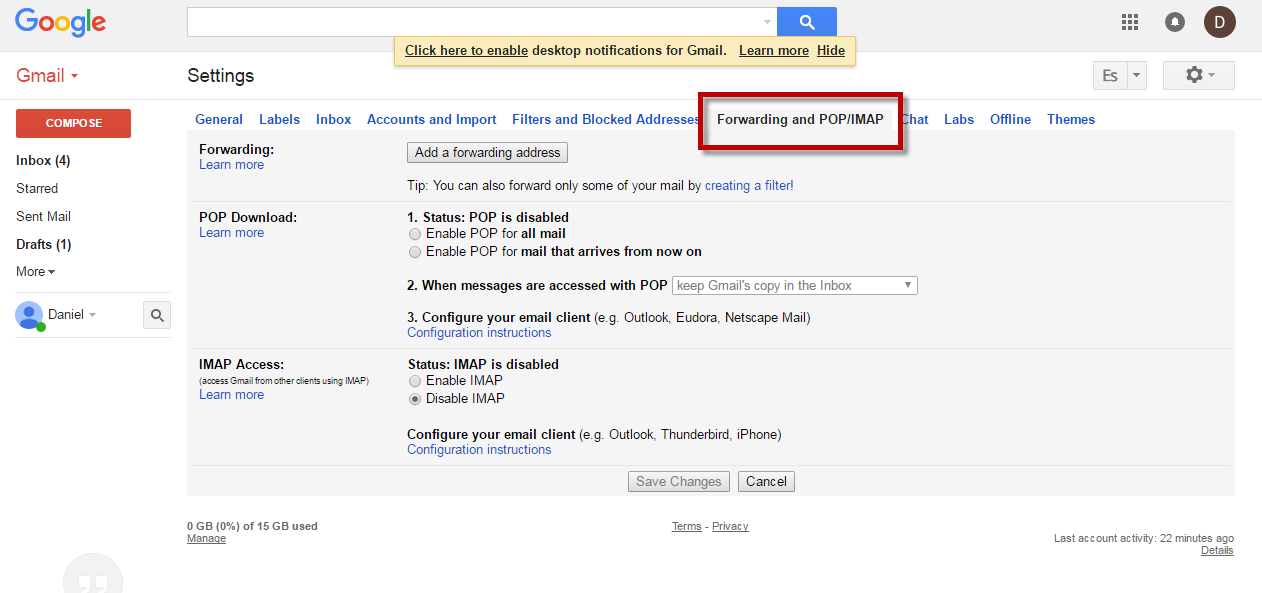
If someone has accessed your Gmail account, it’s possible that they may have activated an option that redirects all of you incoming mail to another address. To find out if this is happening to you, click the cogwheel within your Gmail account. Select the Settings tab and then Forwarding and POP/IMAP. If you see that this option contains an email address that you are not familiar with, it means that somebody has implemented it in order to spy on you.

03-06-2016 10-58-453. Convert your Gmail into WhatsApp

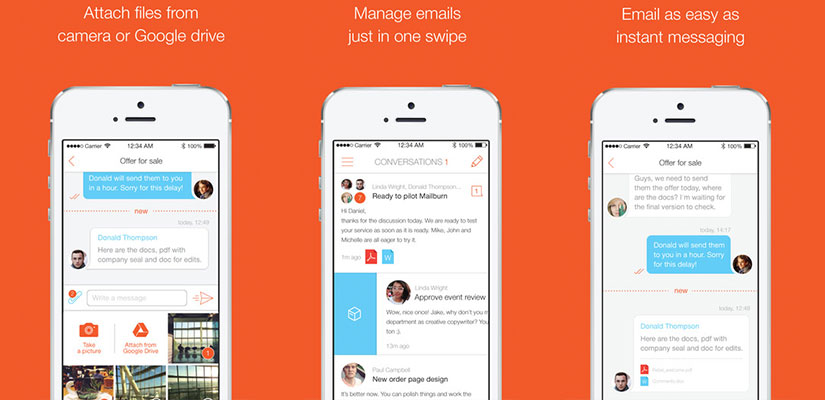
Do you have an iPhone? Well, if you do, there’s a great app called Mailburn, which has the ability to turn your “chat” emails into a WhatsApp-style platform. It’s the perfect app if you’re having an important conversation on Gmail and wish to remain informed of it, even when you’re away from your computer.

Want-Mailburn-app4. Convert your emails into tasks

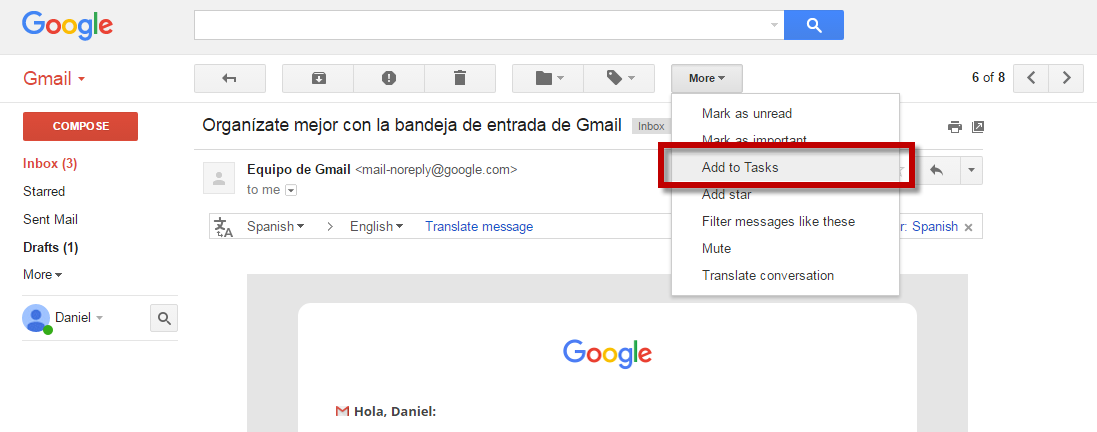
Every time you receive an email that requires you to do something, it’s easy to turn it into a task in the hope that you won’t forget to do it. When you receive an email, simply go to “More” and select “Add to Tasks”. A window will then appear in the bottom-right of the screen containing your new “to-do list” with all the tasks you’ve added to it so far! You can even edit them to create lists, deadline dates, etc.

03-06-2016 11-36-08

5.Program your mails

Boomerang is an excellent application that allows you to program messages to be sent whenever you want them to be! This can be great for various professional reasons, but it can also be a lot of fun – how about sending yourself an email to arrive in one year’s time? What would you say to your future self?

6. This message will self-destruct in …..
Do you fear that messages containing confidential information may end up in the wrong hands? The extension Snapmail for Chrome allows you to add a new button alongside “Send” on Gmail. This button encrypts your message and sends the recipient a link to read it. Once clicked, SnapMail warns them that the message will self-destruct in 60 seconds.

Google’s secrets don’t just end there. Check out Five geeky secrets for Google that will change the way you search forever.


11 reasons why Google Photos will change your life

This week, Google Photos is celebrating its one-year anniversary!

Launched in May 2015, this clever little app – which has now completely replaced the former Google Picasa platform –  has proved to be a popular favorite when it comes to sharing your videos and photos online, and with great reason.

You can download Google Photos here: (iOS | Android)

Here are 11 cool features you didn’t know Google Photos was capable of:

1. Save data and battery

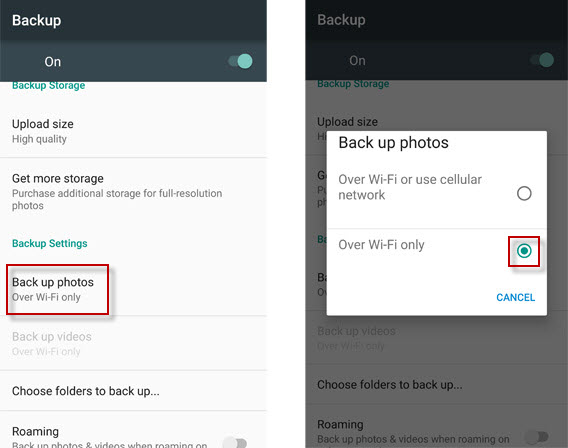
Google Photos backs up all your photos and videos that you have taken using your mobile or tablet. The following feature allows to choose whether you can only do this when connected to a Wi-Fi network, therefore you won’t have to worry about consuming a chunk of your mobile data. Don’t forget that here, we discuss how you can change various app settings that will help limit the amount of mobile data you consume.

1-bkacupwifi

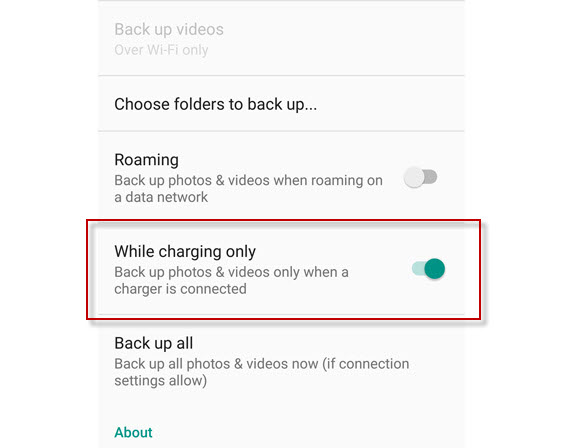
The Android version of the app also gives you the option to choose whether or not you want to synchronize your data when the phone is charging. This is a great option if you’re on a trip and don’t want to drain your battery synching all your photos and videos!


1-charging

2. Free up disk space

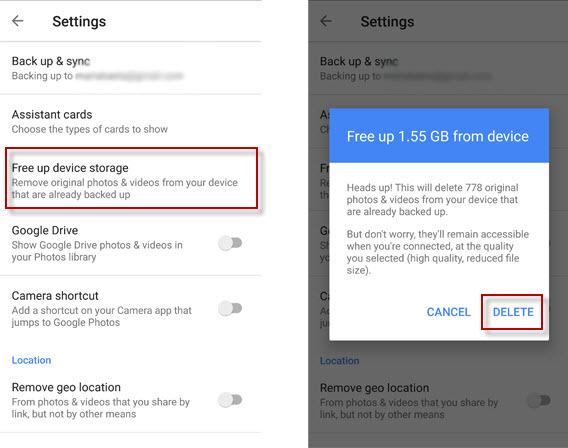
Although Goolge Photos backs up your photos in the cloud, by default it also backs them up on your device. If you’re short of space, it’s a great idea to configure the app to delete anything that is already stored in the cloud.

To do this, go into Settings and select the option Free up device storage. The app will scan your device to detect how much space you can save by deleting the photos that are already in the cloud. It’s worth noting that if you choose to delete these photos from your phone or tablet, you’ll need to have access to an internet connection in order to view your photos in the future.

2-delete

3. Save your old photos

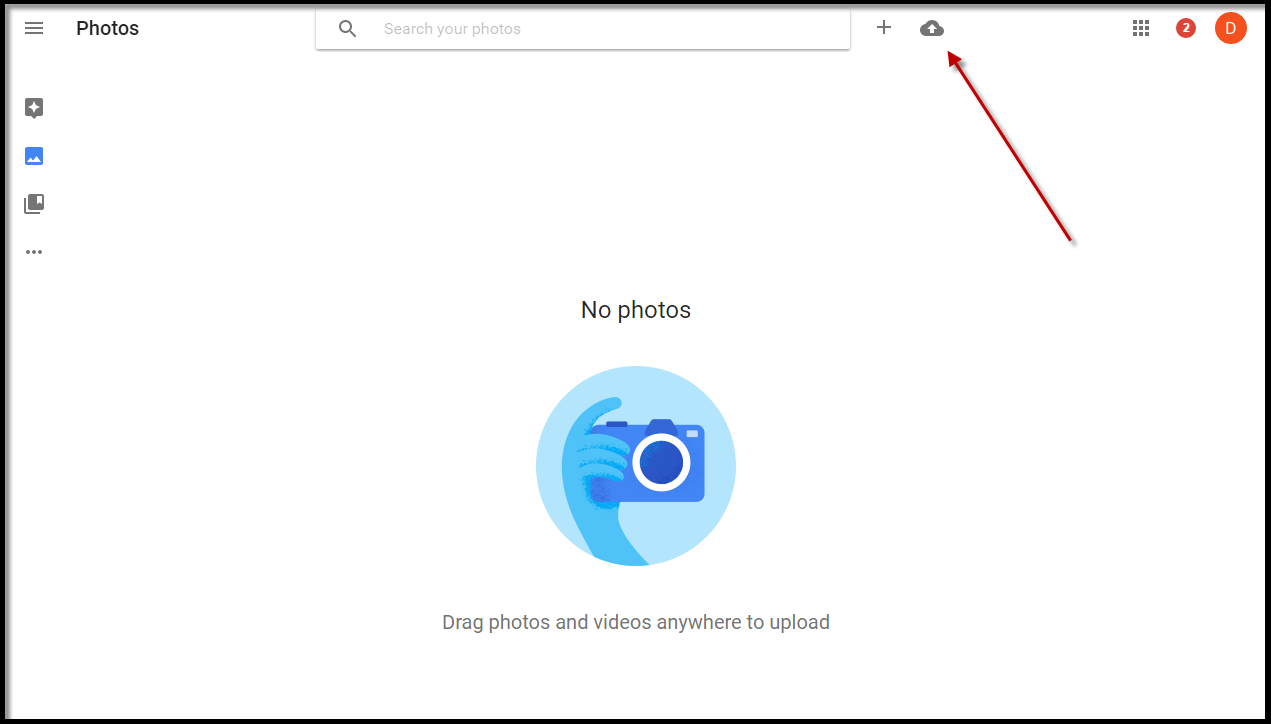
Although Google Photos performs an automatic back up of your photos from your registered devices, it also has the ability to organize the ones you may have scattered around on various others. If you access the Google Photos web platform, you’ll be given the option to upload all the photos that it has detected on your devices.

01-06-2016 12-03-26

Once they are uploaded, it will automatically organize them by the time they were taken, therefore if you’re looking for those lost photos from back in 2007, you may be scrolling a while – but you will find them!

4. Save the photos from all of your apps

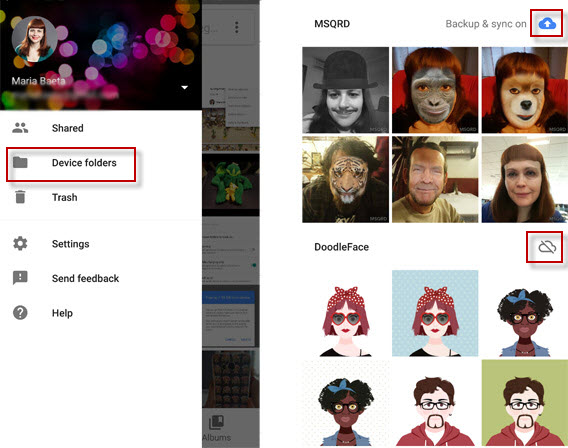
Obviously, Google photos by default takes your photos from your camera files, but what if you want to store your photos from other apps, such as WhatsApp, Instagram and MSQRD, etc? Well, you can!

In order to manage what folders are copied onto Google Photos, go to Device folders (see below). You’ll then be presented with the various apps you have on your device, and by touching the cloud icon, you can choose whether or not you want to back up the photos from that specific app.

4-folders

5. Select various photos with one touch

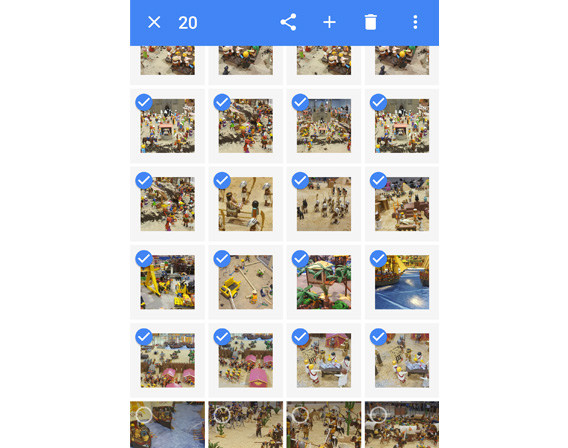
Need to select certain photos from an album? It’s easy with Google Photos. Simply touch a photo, and drag your finger across the other photos you wish to select, without lifting your finger off the screen. To deselect them, simply do the reverse!

7-arrastrar

The web and desktop versions are similar, however in order to use the drag option, you’ll need to hold down the Shift key at the same time between clicks.

6. Retrieve deleted photos

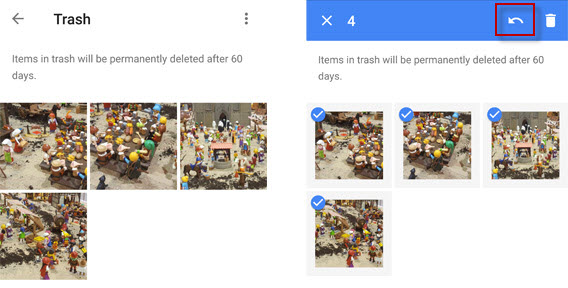
When you delete a photo on Google Photos, it goes to your recycle bin. You have up to 60 days to think about whether or not you want to delete it for good, or get it back. Regret deleting something? Simply open the bin and select the photos or videos you wish to recover!

5-tras

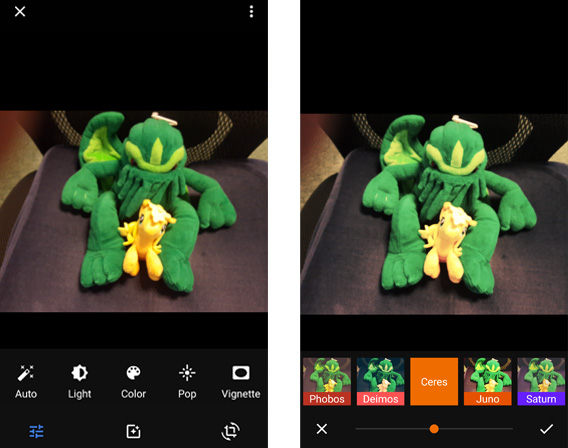
7. Edit your photos!

Although it’ll never be Photoshop, Google Photos does have a pretty good platform that allows you to edit your photos within the app itself. When you have selected a photo that you wish to edit, click on the marker icon. Here you can explore the various ways you can change the brightness, contrasts and even add filters. The web version works exactly the same way.

6-edit

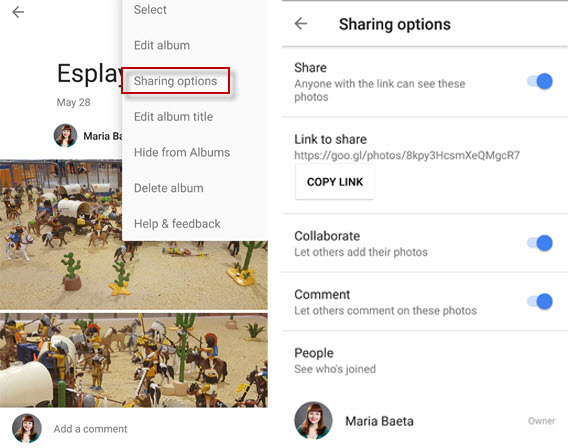
8. Share with ease

Want to share those photos of your last trip or birthday party with your friends? It’s easy! Select the photos, videos or albums and tap the Share button. But that’s not all – with Google Photos, you actually have full control over what you share. Explore the options to make sure the right people get to see exactly what you want them to see!

8-sharing

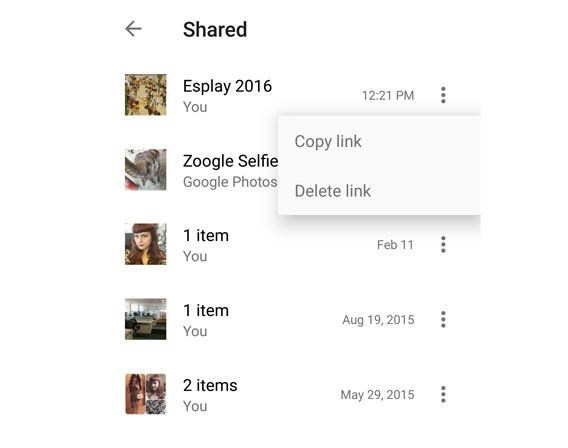
From the Shared folder, Google makes it easy for you to see exactly what you’ve shared and who can see it!

8-shared

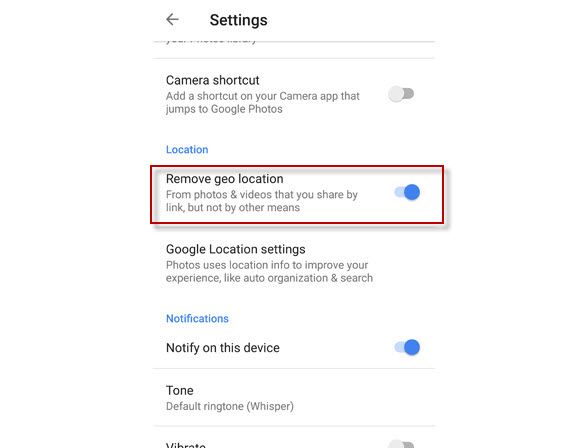
For extra security, it also allows you to remove the geotag of the the ones you’ve shared, just in case you don’t want people to see where the photos were taken. To do this, go to Settings > Location > Remove geo location.

8-geo

9. Sync everything with Google Drive

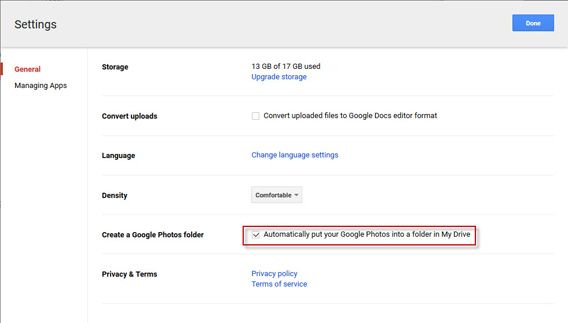
Did you know you can also keep a copy of your photos and videos from Google Photos on your Google Drive? To do this, access Google Drive from your browser and go to Settings > General and activate the option “Automatically put your Google Photos into a folder in My Drive.”

9-drive

As of this moment, your Drive will have the Google Photos option fixed to the main options for your convenience.

10. Upload videos directly to YouTube

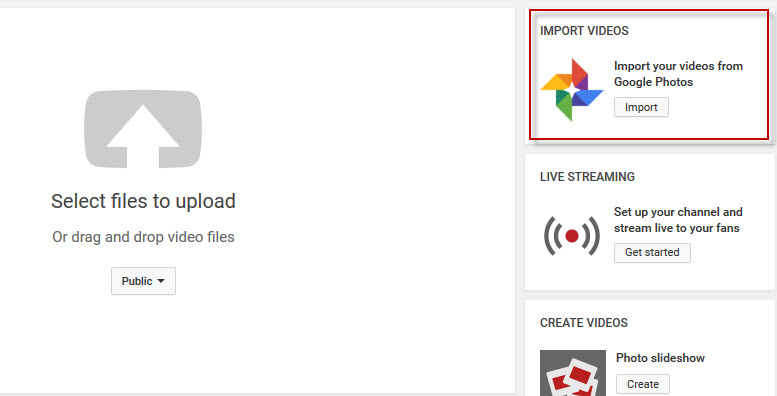
If you have videos stored in Google Photos, it’s easy to upload them on to YouTube. Using the web version of Google Photos, select the option Import your videos from Google Photos. This option is especially useful if you want to upload videos from you phone, or that have been sent to you via message.

10-youtube

11. Download all of your photos in just one click

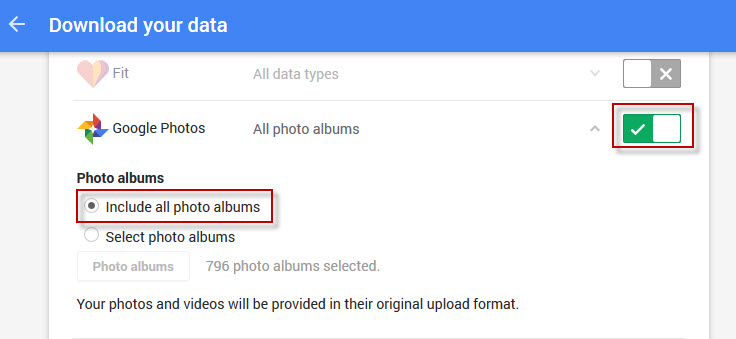
Need to quickly download your Google Photos? Well, Google makes it very easy for you. Simply go into Google Takeout, while logged into your Google account. Select Include all photo albums in Google Photos – which will create a compressed file with all of your information.

11-takeout

Do you ever get worried about what data Google is keeping about you? Here’s how you can find and delete everything Google has on you in 7 easy steps.