
The best apps for making videos from photos

Want to turn your photo collections into videos? These five apps, programs, and websites will help you create epic slideshow videos.

According to Facebook users on the social network engage with videos an awful lot more than they engage with photos. Furthermore, we’ve now also got social networks like Snapchat and Tik Tok that encourage users to create short and snappy videos and photo videos to share across the network. We’re transitioning from a photo first world to a video-first world. Hell, we might even be living in a video-first world right now and we simply haven’t caught up yet.

It isn’t easy for many of us, I included, to simply create fun and engaging videos at the drop of hat. If like me, you’re still a photos first person, you will be looking to make videos out of your photos. Today, we’ll walk you through some of the best apps to help you make videos from photographs.

How to make videos with pictures

Below we’ve laid five of the best ways to turn your photographs into slideshow-like videos. You don’t need impressive video editing skills or experience. These Android and iPhone apps, programs, and websites have all been designed to be user-friendly and with ease of use in mind.

MiniTool Movie Maker
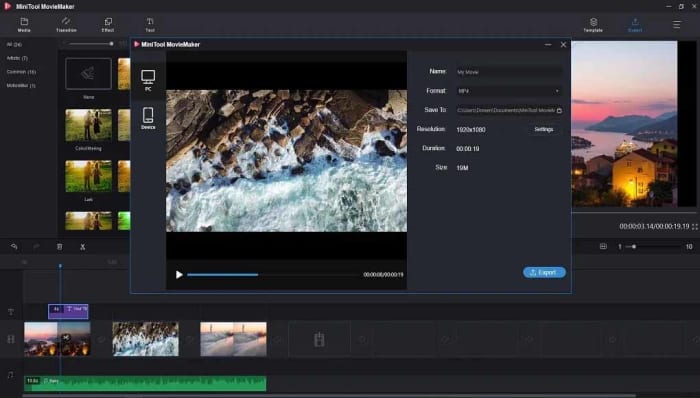
Our top choice today is the MiniTool Movie Maker, which offers a fantastic and free solution to anybody looking to turn their photos into videos. What stands out about the MiniTool solution is that it gives you the freedom to create your movies without imposing a company watermark. Normally, these tools make you include their branding on free versions and will only remove them if you pay for a premium version.

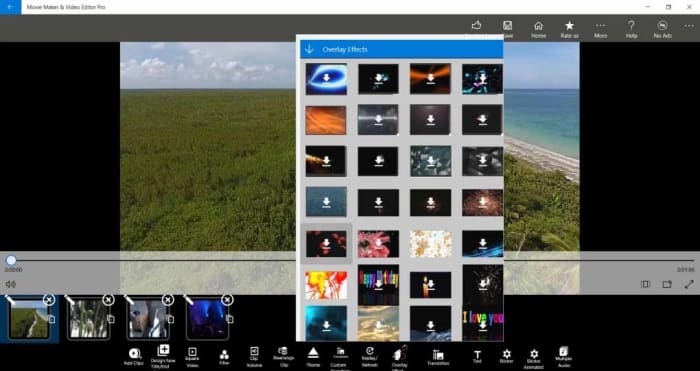
Other standout features of the MiniTool Movie Maker app, which is available to download on Windows include fun and easy to use Hollywood-style movie templates and an impressive array of effects including transitions titles. Editing tools to go with your slideshow capabilities include splitting and trimming clips and combining multiple clips together. When you’re done and your video is complete, MiniTool can export your creation to all major video file formats.

MiniTool Movie Maker Download now
9

Google Photos

Google Photos is a great tool for making videos out of your photos. The app is so good at making videos from Photos that it can do it by itself. Google Photos can automatically group your photos together, based on a number of different categories it can recognize, and then add music and transition effects to create short videos from your pictures. This means that once you have the app installed on your Android phone or tablet, or iOS iPhone or iPad you’ll automatically receive notifications from the app telling you whenever it makes movies from your photos.

These automatic movies are great but obviously you’re going to want to make your own too. There’s nothing stopping you at all from making your own photo slideshow movies using Google Photos and you can include all the cool effects that go into the automatic movies too. These features include music, text, transition effects, and even Google Maps integrations showing where you were when the photos were taken and even including your travel details too.
Google Photos Download Google Photos
7

Slideshow Maker

Slideshow Maker is another video editor for Windows 10 that offers a lot of video editing features that will help you take your static photographs and give them a new life. Similar to the MiniTool Movie Maker, Slideshow Maker has some really great features including slow-motion effects, color filters, and more. Impressively, Slideshow Maker is even capable of outputting videos that can work with VR headsets too.

Another key feature of Slideshow Maker is that it is free although you will have to deal with a number of adverts if you use the free version. Another negative point that you need to consider is that the app isn’t compatible with MP4 video files, which is a very common video format. If most of your files are MP4, you might want to look at one of the other apps on today’s list.

Slideshow Maker Download now
9

Photo Slideshow

This classic Windows program offers a wide array of professional-level movie-making features. The kicker here, however, is that the program isn’t free, and you’ll only get access to its features for a very short free trial period.

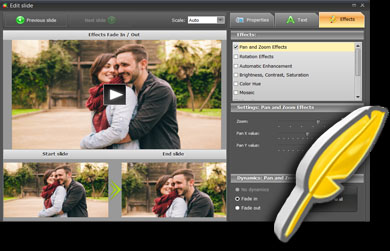
If you do decide to go with Photo Slideshow, however, you’ll get access to features like transition effects, music tracks for your slideshows, face focusing effects, and even animation. The animation effects, in particular, add a lot of possibilities to your videos allowing you to pan in and zoom into your photos. Other cool animations adding vignettes and retro film-like effects to your movies too.

Photo Slideshow Download now
7

Animoto

Our final solution today for turning photos into videos is the Animoto site. Animoto does have professional and team plans but, fortunately, it also offers a free plan for casual users like you and me. The only catch with the free version is that your videos will include an Animoto watermark. If you don’t mind that, however, then Animoto offers a simple solution that doesn’t require you to download any apps or programs at all.

What’s great about the Animoto solution is just how simple it is. You will have to create an account on the site but once you’ve done that everything will run smoothly. All you need to do is select the template you want from the many available on the site and then upload your photos. After that is just a case of putting your photos in order and letting Animoto do the rest. If you’re a technophobe, then we suggest you look at Animoto as it couldn’t be simpler to use and still impressive results.
All the best tips and tricks for Google Photos

These are all the best tips and tricks for Google Photos that will help you take better photos and make it easier to find them when you want to view them.

Google Photos

The introduction of cameras on most devices has increased the need for effective photo applications. Google Photos has been around for about 5 years now and is a free app that can help you organize your memories and much more. The app is available on Android phones and iOS iPhone and iPad devices. Your photo collection can also be viewed and edited on web browsers at photos.google.com.

The main reason for downloading Google Photos, as opposed to other photo apps, is that it is a free unlimited back up of all the photos and videos on your device. The images are restricted to 16MB and videos to 1080p, but this is more than enough for the majority of phone cameras out there.

After downloading and opening the app you will be asked if you want to back up the photos on your device and, and from then on all of your photos and videos will automatically be backed up to Google’s cloud storage. All you need is a Google account. In addition to photo back up, Google Photos has a massive amount of features that you may not know about, so here are some more useful tips to get you started.

Google Photos Download Google Photos
7

Google Photos tips and tricks

1. Back-Up More Folders

To start off, Google Photos will automatically backup from your camera folder and prompt you to add other image folders, as they are created on your phone. But if you want the ability to back up other folders in your Google Drive directory, this can be done in menu > settings > Backup and sync > Back up device folders. You can then choose the important image folders that you need backing up.

2. Create More Space on Your Phone

Google Photos Create More Space

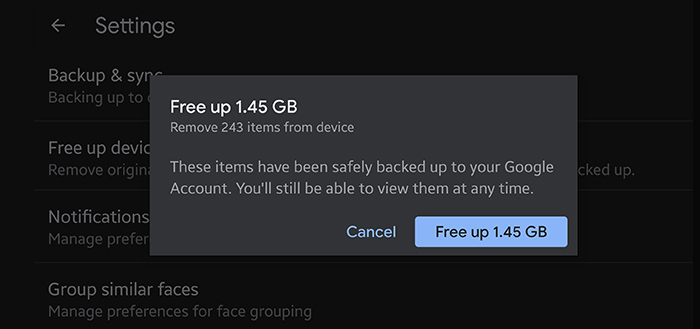
Phone companies are forever increasing the amount of storage space available on their devices and the more expensive phones seem to have a huge amount of space. However, as you visit more places and meet up with more friends, this space inevitably runs thin and you get the annoying pop-up informing you of your lack of space. Google Photos has got you on this and makes it easy to free up space. With one tap, you can delete the photos and screenshots on your phone that have already been backed up to your Google Drive. This means that you are not wasting time going through your vast photo collection to find things to delete. You can carry on snapping away quickly and with ease. This feature can also be activated in settings>Free up device storage.

3. Powerful Photo Search

With Google being known as the best search engine in the world, it is no surprise that they can apply these acumen to its Google Photos application. Finding certain photos to quickly show a mate can usually involve traipsing through an endless disorganized mess of pictures on your phone, at which time your friend has up and left to speak to someone less preoccupied.

With the Google Photos search, you can easily search your photos and videos for anything you can think of including people, animals, places, activities, and inanimate objects. The search possibilities are endless. Just click on the search box at the top of your app, or Google Photos webpage, and type in whatever search words you can think of. In the drop-down menu, there is also a selection of faces you can select and other useful search filters, enabling you to quickly find what you are looking for. You will be surprised, and maybe a little creeped out, by the results generated as Google Lens can even pick out people in the background of photos that you never even knew were there.

4. Automatic Album Creator

If like most people, you do not have time for the tedious task of sifting through endless pages of photos and organizing them into folders, then help is at hand. When you click on the albums tab in the Google Photos app, you will see that there are some albums that have been automatically created at the top of the page; such as people, places, and things. But things are about to get better, as you can also create your own unique albums.

Automatic Album Creator

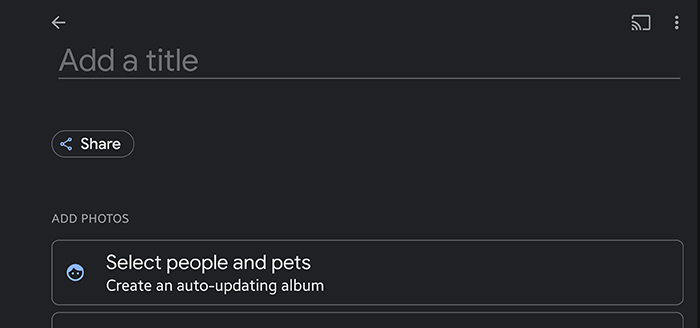
If you select New Album, you will notice that there is an option to select people and pets. Pressing this will present you with a collage of faces that have been extracted from your Google Photos pictures. All you need to do is select the faces to include in the album, click confirm and it will automatically create an album for that person or pet, just insert an album name at the top. What’s more, it will continually group any future pictures of that person or pet, into the same shared album. If you do not see faces when you create an album, then you can turn face grouping on and off in menu>settings>Group similar faces.

5. Google Home Integration

Google Home

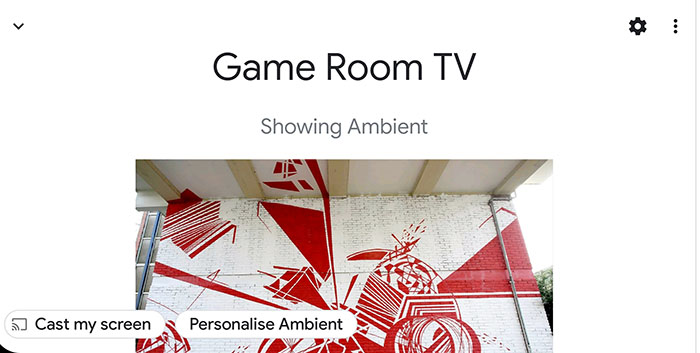
Over the past few years, smart home devices have really taken off, with Google home being one of the class leaders. If you have a Chromecast or a Google Nest Hub, there is a feature called ambient mode, which can display images from your Google Photos albums on your screen, when your device is not in use. Enabling this feature is easy, but you need to have the Google Home app installed on your smartphone and your smart devices connected to it. To set up this feature, open up the Google Home app, select your Chromecast or Nest Hub, and tap on ‘Personalise Ambient’ at the bottom of the page. Then tap Google Photos and select the album that you would like to be displayed. The album selected will then be promptly displayed on the device of your choice.

6. Rediscover This Day and Memories

Rediscover your day is a nice way to be reminded of past events to maybe upload to social media and rekindle old times. This feature is automatically turned on in google photos but can be turned off and on in settings > suggestions > Rediscover this day. This is an excellent feature of Google Photos until a lovely picture of you and an old flame pops up to destroy your actual day. But don’t worry, Google has thought of this and you can now hide people from your memories with a few simple steps.  In the Google app navigate to menu > settings > memories > hide from memories > people and pets and you are presented with a photomontage of faces to forever delete from your daily thoughts.

7. Stylized photos and Editing Tools

Photo editing tools

As you take photos on your smartphone, Google will also select certain photos and automatically edit them to look much more magical or put them into an attractive collage. If you lose track of one of these stylized photos, you can access them, as well as rediscover your day collections, in the For you tab at the bottom of the Google Photos app.

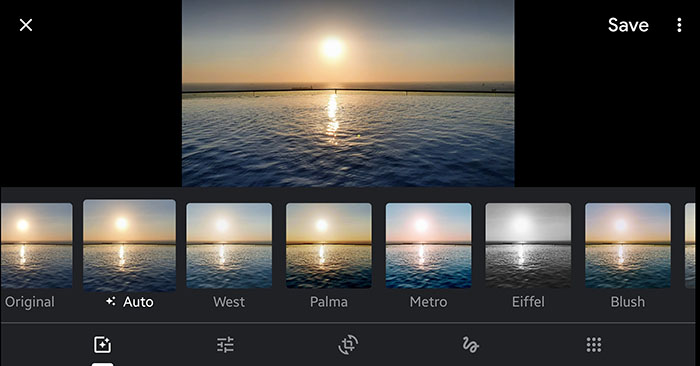
When opening an image in Google photos, you are sometimes presented by pop-up adjustments that google can make automatically to your picture. You can also click the second icon from the left at the bottom of the page to open up editing tools.   Here you can apply filters, change lighting, crop, rotate, draw, and write on your picture. These tools are simple to use and can really boost all your photos and slideshows. If you want to share photos, you want them to look great, so image editing is key.

8. Photo Printing (USA only)

Google Photos Printing

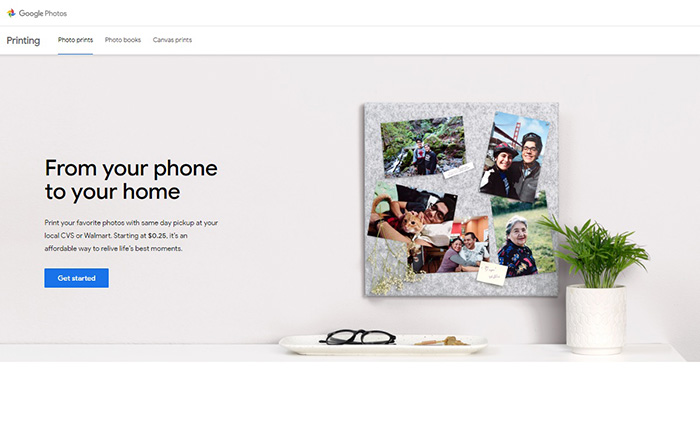
Now that you have organized your photos into albums and know where your important snaps are, how about decorating your house with some of your most treasured memories. If you are lucky enough to live in the US, your favorite photos can now be printed and collected the same day at over 11,000 locations, courtesy of CVS, and Wallmart. You have three options of photo prints, photo books, and canvas prints, which are ordered and paid for on pick up from the store.  Details of how to do this can be found here.

Top photo editing apps for your phone

These are the best mobile photo editing apps for Apple iPhones and iPads, and Android smartphones and tablets.

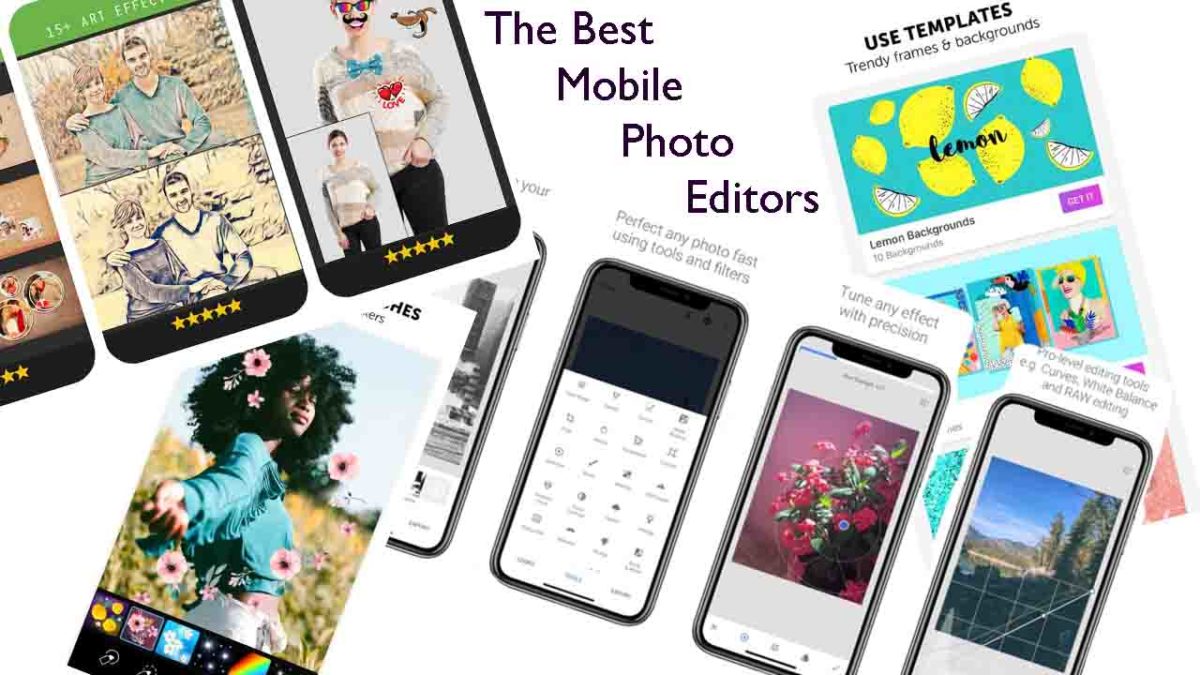
The best mobile photo editors

These days the camera on your smartphone is one of its most important features. Phone manufacturers have been falling over themselves for years now to bring us the best cameras with the most impressive bells and whistles. We’ve seen Google pumping crazy AI features into its Pixel phones and Huawei adding privacy-busting 50X zoom to its P30 Pro. Most phones now, even budget offerings, have two or sometimes even three lens camera app systems as well as a separate front-facing camera for selfies and video calls.

It isn’t just about taking photos though, oh no. These days, if you want your photos to stand out on social media, you need to optimize your photos once you’ve snapped them. That means editing them to make sure they look as good as they possibly can. Fortunately, however, just as the hardware manufacturers have been working overtime on their cameras, software developers have been working hard on photo-editing apps.

Let’s look at the best photo editing apps available for Android on the Google Play Store and iPhone on the Apple App Store.

Best photo editor apps

PIXLR

Pixlr

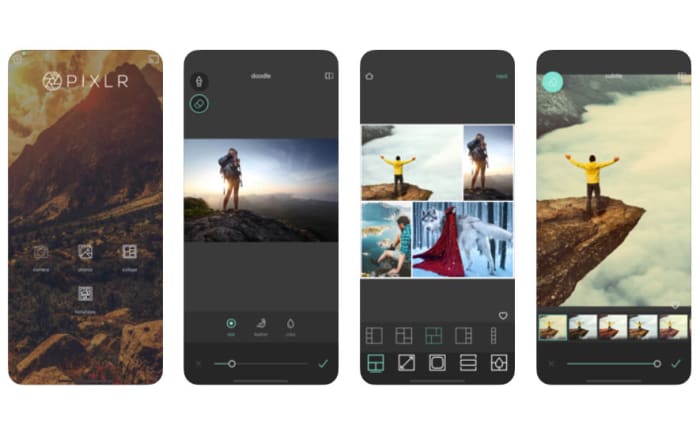
Pixlr is a very well-regarded browser-based photo editor that you can use on Linux, Windows, or Apple Mac via a modern browser like Google Chrome or Mozilla Firefox. Pixlr also has rather impressive mobile apps for Android devices and iOS iPhones and iPads. The mobile photo apps are designed for quick edits and retouching and make it very easy for users to get great results. There are plenty of filters and features here for you to play around with and once you’re done, the Pixlr apps make it really easy to share your creations via integrated social network connectivity.

If you try out the Pixlr mobile apps and like them, you should definitely try the browser-based app, which actually offers a fairly decent and free alternative to Adobe Photoshop.

PIXLR Download now
8

PicsArt Photo Studio

PicsArt

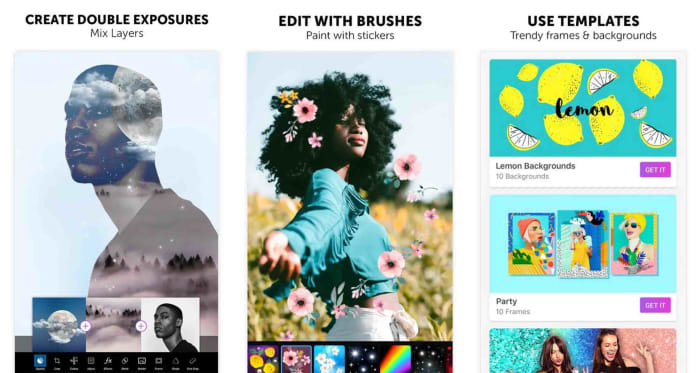
PicsArt has a really wide feature set that offers plenty for any budding amateur snapper and social sharer looking to edit photos. PicsArt makes it really easy to put together collages, add cool stickers to your photos, and add all manner of filters and text as well as optimizing your photos with improved lighting and color balancing tools.

The broad appeal of PicsArt is that it is a great tool for people looking to perform serious edits but also works well for those simply looking for a laugh by putting together a meme or creating an entertaining GIF. Interestingly, PicsArt also has a collaboration feature that allows you to submit work to the PicsArt community so that people can make their own edits.

PicsArt - Photo Studio Download now
8

Fotor Photo Editor

Fotor

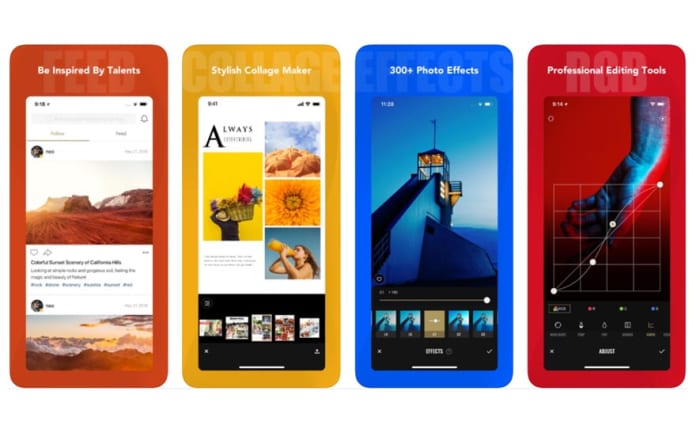
Another excellent mobile photo editing app is Fotor. Fotor gives any budding photographer the tools they need to make a wide variety of professional-looking edits to their photos. The app has over 1,000 filters and includes other more regular features like vignettes, highlights, image temperature and saturation tweaks, exposure control, and more basic editing features like cropping, rotating and brightness and contrast control.

Although you can download a free version, Fotor includes in-app purchases and requires users to log in to use it. The app, however, also includes a very handy one-tap auto improvement feature. A simple click will put Fotor to work editing your photo, which if it doesn’t end up as exactly what you’re after, often provides a great starting point for further edits.

Fotor Photo Editor Download now
8

Snapseed

Snapseed

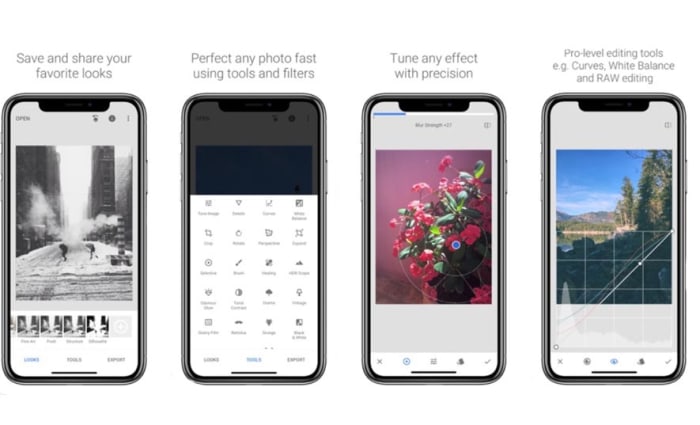
Although Snapseed is Google’s own photo editor, it is an excellent choice for anybody looking to edit the photos they take on their camera. You can add filters, edit the lighting effects on your photos, and also add interesting features like lens bokeh, which is the blurring effect that you get around the subject that is the focus of your image.

The best thing about Snapseed is that it is free and gives you access to almost all the editing features you’ll find in any mobile photo editing app. That being said, it can come off as a little intimidating, if you’re only looking to make simple edits.

9

Google Photos

Google Photos, formerly Picassa, is an incredible mobile app. Google Photos will automatically back up your photos to the cloud and then prompt you to clear space on your device. You can then view your photos using your internet connection whenever you want. This way you can have pretty much every photo you’ve ever taken in your smartphone’s photo gallery forever. Furthermore, Google’s AI will automatically organize your photos into easily searchable tag groupings and albums.

On top of that rather ridiculously well-executed feature, Google Photos also offers some pretty decent photo editing capabilities.  As well as filter options, contrast and saturation editing, and other basic features like cropping and rotating, Photos also has interesting AI-enabled features like auto-cropping of documents.

Google Photos Download Google Photos
7

Photos Effects Pro

Photos Effects Pro

We’re finishing our look at some of the best mobile photo editing apps with a fun entry to the list. Although Photos Effects Pro sounds like something you’d expect your photo enthusiast uncle to have on his ten-year-old MacBook, it is actually much more suited to a younger Instagram or Snapchat user.

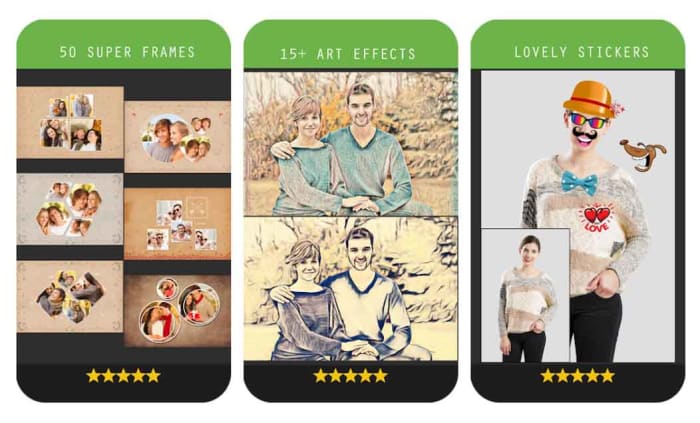
Like most mobile photo editors, Photos Effects Pros has filters and effects, but it stands out for its fun stickers that’ll take your photos and turn them into something truly comical. You can also use your finger to paint on top of your photos and add AI-infused edits like turning your photos into painted or hand-drawn scenes. Outside of these effects’ features, Photos Effects Pro only has a few rudimentary editing tools but it is completely free to use, which means it is definitely worth a download.

Photo Effect Pro Download Free ►
8
Wrapping up

Mobile photo editors are a little different from their full-size desktop companions in that they simply can’t offer the complete editing suites your PC or Mac can. Sure, expensive subscription-based apps like Adobe Lightroom CC can give you a real taste of what your PC can do, complete with RAW file editing, but editing photos is much more difficult to do on a smartphone screen of five or six inches than it is on a 15 inch laptop or a computer with a much bigger monitor. You can still do a lot, however, with filters, basic editing techniques, effects, and stickers, which is why we’ve been able to bring you six excellent photo editing apps. Another good mobile photo editing tool worth checking out on your Android phone is VSCO.

Google Photos now has over 1 billion users and a new younger sibling

Photos becomes one of 9 Google apps to have over 1 billion users and the Photos team has just launched Gallery Go to offer their services to owners of more modest devices.

Google Photos is one of the best, if not the best photo organizing program out there. Add that it is free and that it comes pre-loaded on every Android device and you might think that having 1 billion users isn’t that big of a deal. It wasn’t that long ago that Google Chrome logged its 5 billionth download after all.

The truth is though, that Google Photos’ success was a given as it was originally designed to bolster Google’s ill-fated social network Google+. An unmitigated failure, that risible misstep is no more, with Google having pulled the plug earlier this year. Photos, however, is here to stay and it could be argued it has seamlessly facilitated our shift towards a world where we take photos first and ask questions later.

Photos becomes one of 9 Google apps to have over 1 billion users

Google Photos on an Android phone

Reaching one billion downloads is a big deal then but, unsurprisingly, this isn’t Google’s first rodeo. Photos is actually the ninth Google product to clock such a huge number of active users.

The other 8 Google products to make it to the 1 billion club are Android, Chrome, Gmail, Google Drive, Google Maps, the Google Play Store, YouTube, and Google Search. Even with failures like Google+ in  recent memory, clearly, Google knows a thing or two about internet success.

Despite its connection to a doomed product, however, and even in such lofty company as its Google products brothers and sisters, Photos has managed to show itself to be something quite special indeed.

Google Photos Download Google Photos
7

One marker for its success is the speed of its uptake. Photos first hit the scene around four years ago in 2015. It took only five months before Photos had 100 million users and had reached 500 million just a year and a half later.

Fast Company has pointed out just how quickly Photos has been adopted by so many people: “Gmail took a dozen years to hit a billion users; Facebook and Instagram, about eight years apiece.” Google Photos hit the 1 billion user mark in half the time it took Facebook and Instagram to do the same.

The Photos team doesn’t seem content with that rapid rate of expansion either. They want more users and they want them as quickly as possible. Photos has had and still has a fast but steady uptake of new users. It had 500 million users after two years and 1 billion after four. You’d expect 2 billion users in eight years then, but that number might rise quicker due to the latest announcement from the Photos team.

Google has launched Gallery Go, a new lightweight and offline version of Photos

Yesterday, the Google Photos team announced the release of Gallery Go. Gallery Go joins the ranks of Google other “Go” apps, designed for owners of smartphones with more modest feature sets. If your phone doesn’t have a lot of processing power or RAM, and your connection speeds or data package is limited, you’ll likely have some of Google’s Go apps on your phone.

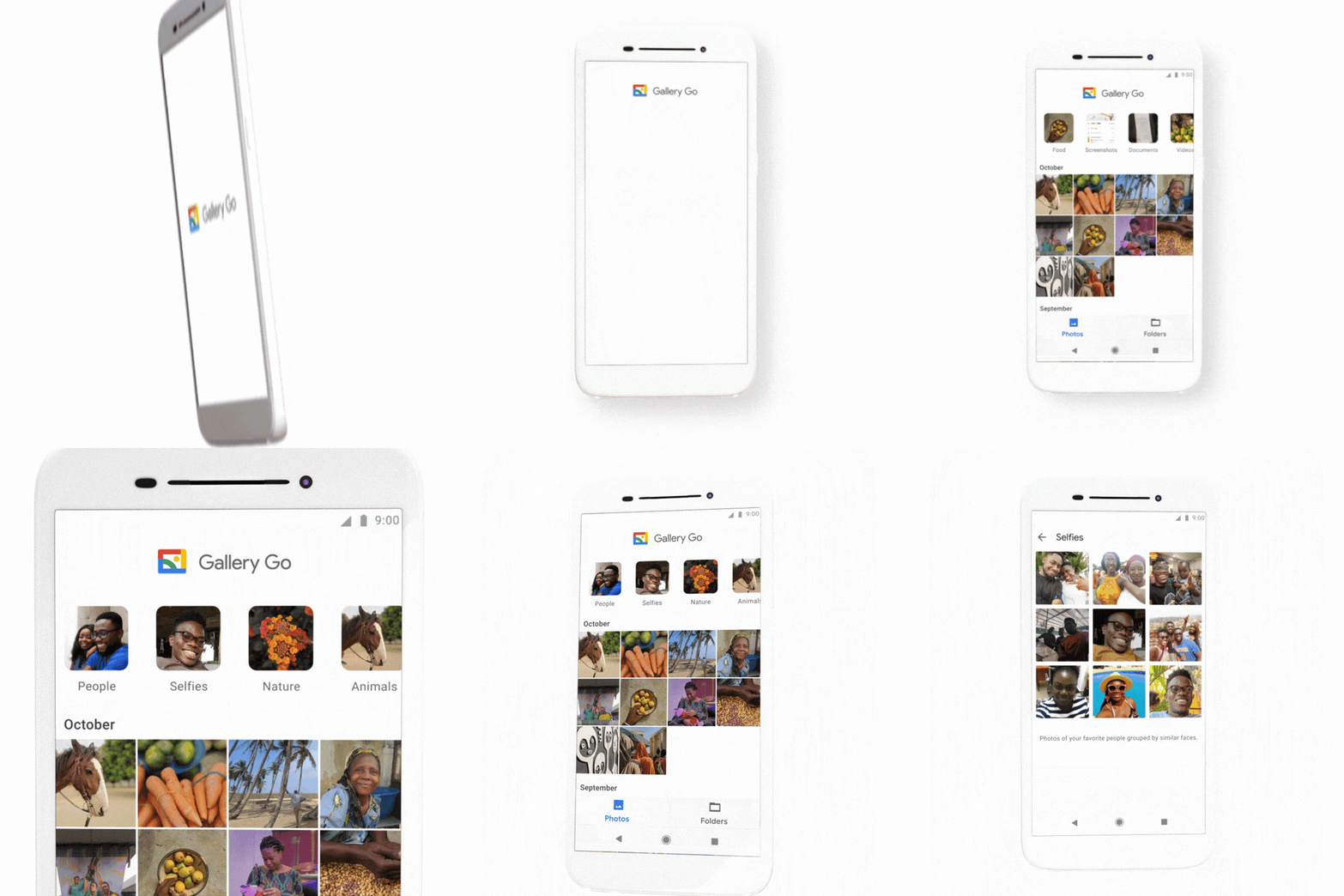
These apps include Gmail Go, YouTube Go, Maps Go, and Files Go and there is now a Go alternative for Photos. Launched at Google for Nigeria, Gallery Go is designed to work offline meaning Gallery Go photos aren’t automatically backed up to the cloud. Gallery Go still uses Google’s machine learning algorithms, however, to automatically organize photos, but it only does so with the photos that are stored on the phone locally or on an SD card.

Image via: Google Keyword

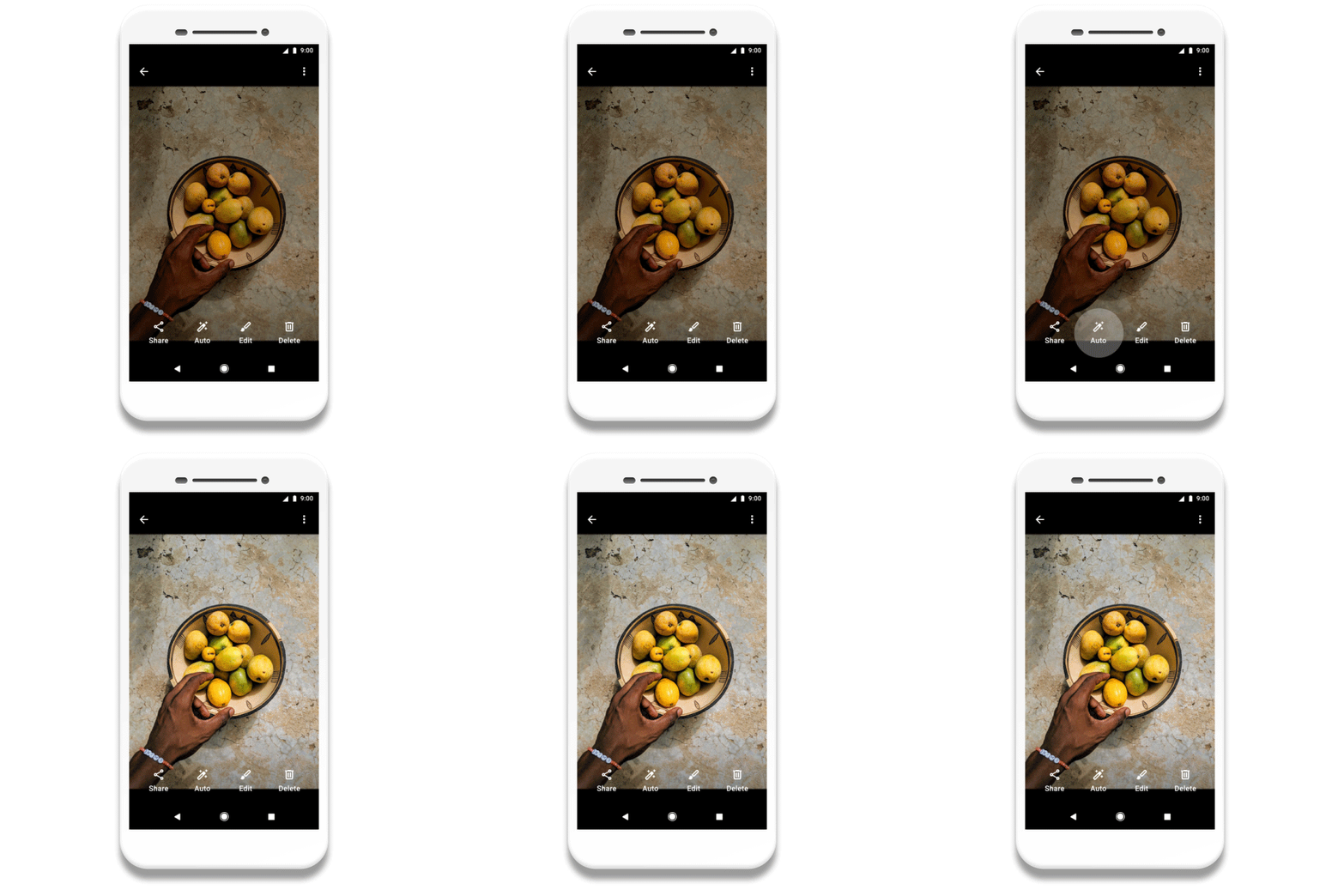
As well as offline machine learning algorithms, Gallery Go is also able to pack in some simple editing tools. The Google blog post on the launch of Gallery Go describes them like this, “With Gallery Go it’s easy to get great looking photos in just a few taps. [You can] Use auto enhance… for instant fixes. You can also choose from a variety of filters to get a new look, and easily rotate and crop, so your photo looks just right.”

Often these basic editing tools are all you need, so putting them into the lighter version of Photos means a lot more people will have access to the photo editing tools they need.

Image via: Google Keyword

Perhaps the most impressive thing about Gallery Go, and indeed all of the Google Go apps, is its size. Google has managed to squeeze in offline AI algorithms, a sleek photo library, and photo-editing tools into a package of only 10 MB.

As well as working well on less powerful smartphones, Gallery Go is also designed to not take up much hard drive space as often these less powerful phones only have 4 GB of space, if not even less. This is why it also important that Gallery Go works with photos stored on SD cards too.

Launching Gallery Go in Nigeria gives a good indication of what the Photos’ team plan is. With Photos being a powerful app that works best when it is always connected to the internet, it has alienated huge swathes of Android users around the world. Most Android users have more modest handsets and limited access to the internet. Gallery Go puts the power of Photos in their hands.

If Gallery Go can catch on in places like Nigeria, other countries in Africa, and across the continents of South America and Asia, there is a good chance the Photos team will notch up its 2 billionth user in much quicker time than it took to get to 1 billion.

Gallery Go is available now on the Google Play store and will work on all Android devices running Android 8.1 (Oreo) or higher.

Google Photos update brings live video previews to your main timeline

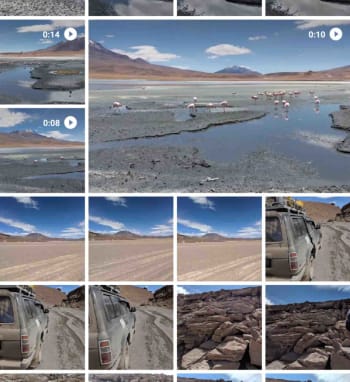
The new Google Photos live video thumbnail feature will play all videos you scroll past in their entirety as long as they’re on your screen.

Live thumbnails on Google Photos

Google Photos has come a long way since the old Picasa days. As well as seamlessly syncing all the photos you’ve ever taken across all of your devices, recent upgrades have seen cool features like live albums that automatically update with new photos of particular people or pets, auto-editing and fixing of images, and even experimental features like the colorization of black and white photos.

Simply put, since Picasa became Google Photos, it has gone on to change our very relationship with photographs. We’ve never had photography so easy and we’ve never taken more photos knowing we’ll be able to view them, share them, and edit them on any device and no matter where we are. The thing with Google Photos though, is that it isn’t just about photos, and Google is about to introduce an interesting little feature to Photos that will really liven up our timelines.

The new Google Photos live video thumbnail feature will play all videos you scroll past in their entirety as long as they’re on your screen

You might have already noticed it, if you have the latest version of Google Photos (v4.20) already installed on your phone. Whenever you’re scrolling through the Google Photos timeline any videos you’ve captured or added to your Photos collection will play right there in the thumbnail.

You won’t hear any sound, which is good because autoplay videos with sound are very annoying, but the videos will play from to start to finish in the thumbnail and will loop around and start again should they stay on your screen for longer than the length of the video. If this doesn’t happen for you, you should update Google Photos now.

Google Photos Download Google Photos
7

If there is more than one video thumbnail on the screen at the same time, then Photos will try to play them as live thumbnails one at a time in reverse chronological order. Our tests have found this feature to be a little buggy, however, but we’re sure it’ll work perfectly sooner rather than later.

Google Photos on Android
You can tell a video thumbnail from the small play icon in the top-right. Now, if the video is hosted on your Android phone, it will play without sound in the thumbnail itself.

The other thing to consider is data. If you’re automatically backing up your old photos and videos to the cloud and are worried about the data live video thumbnails might use up, don’t. Our tests showed that all backed up videos didn’t show as live thumbnails and remained static when operating over both mobile and Wi-Fi networks. It is only locally hosted videos that will get the live thumbnail treatment.

Google Photos video thumbnails on desktop
The feature works differently on desktop. You can hover the mouse cursor over any video thumbnail and it will play through.

For now, live video thumbnails are only available on Android as the feature is yet to launch on iOS. There are no auto video thumbnails on Photos for desktop, but video thumbnails will play if you hover your mouse cursor over them. This feature works on desktop for all videos too, as they’re all hosted online anyway.

Google is changing how you move photos from Google Drive to Google Photos: This is all you need to know

Everything you need to know about the new relationship between Google Drive and Google Photos

Google Drive, and its composite parts like Docs and Sheets, has revolutionized office teamwork. Google Photos has made it easier than ever before to back up your photos. These two programs have always been interchangeable, with photos in Drive showing in Google Photos and vice versa. This is all about to change, however.

sync between Google Photos and Google Drive

Google has announced that both apps will no longer automatically sync with each other. Now you have to move photos from Google Drive to Google Photos yourself.

Let’s have a look in greater detail at what this means.

Why is Google changing the relationship between Drive and Photos?

Google is saying that user feedback is the main reason it is making the change. Apparently, users have said that the link between the two services is confusing, so it is moving to simplify the relationship between Drive and Photos.

What does the change mean?

Starting in July, new photos and videos added to Google Photos will not show up automatically in Google Drive and new Drive photos and videos will not show up automatically in Google Photos.

Instead of auto-syncing between the two apps, Google is introducing a new feature to Google Photos called “Upload from Drive,” which will give users the chance to select photos from their Google Drive to be added to their Google Photos collection. Google has also pointed out that this will include “Shared with Me” photos.

The big thing you need to note about this change is that as these photos won’t automatically sync with your Google Photos account, they’ll count towards your storage quotas on BOTH apps if you choose to sync them.

What about photos and videos already synced?

Google has pointed out that all photos and videos synced before this change is implemented will remain so. Your Drive photos will stay in Google Photos and if you have a “Google Photos” folder in Drive, it will stay there but won’t update automatically.

Photos folder in Google Drive

Has anything stayed the same?

Yes, Backup and Sync for Windows and Mac will work the same as it always has and if used to upload photos to both services in Original Quality, the space will only count once towards your storage quota.

Google claims confusion is behind the big change. This makes some sense when you consider Photos as a chronological feed showing all the pictures you’ve taken using your smartphone camera or uploaded manually. Any photos automatically added through synchronization with Drive could cause confusion. Now, however, users will know when Drive photos will have been added to Photos as they’ll have imported them themselves.

Google Photos could soon colorize your black & white photos

Google Photos will soon have a colorize feature going into beta testing.

Every year Google’s I/O conference in May lays out all the big things the internet giant is hoping to bring out over the next 12 months. This year’s offering just passed and, well, it wasn’t as exciting as conferences gone by. We got a cheaper smartphone and a bit of shading around the edges on stuff like privacy. Nothing major to grab the headlines.

Fortunately, however, Google has always been a bit slow in the implementation of its I/O conference promises, which means there are still some cool new Google innovations on the way from past I/O conferences. One such promise is now closer to fruition, and it is an absolute cracker.

Google Photos will soon have a colorize feature going into beta testing

New colorize feature for Google Photos

At last year’s I/O conference, the buzzword was AI. Google was all about telling the world about the fancy things its impressive AI algorithms could do. There were many brags that grabbed the news, but a particularly cool feature was the AI-assisted colorize feature that Google was going to add to its Photos app.

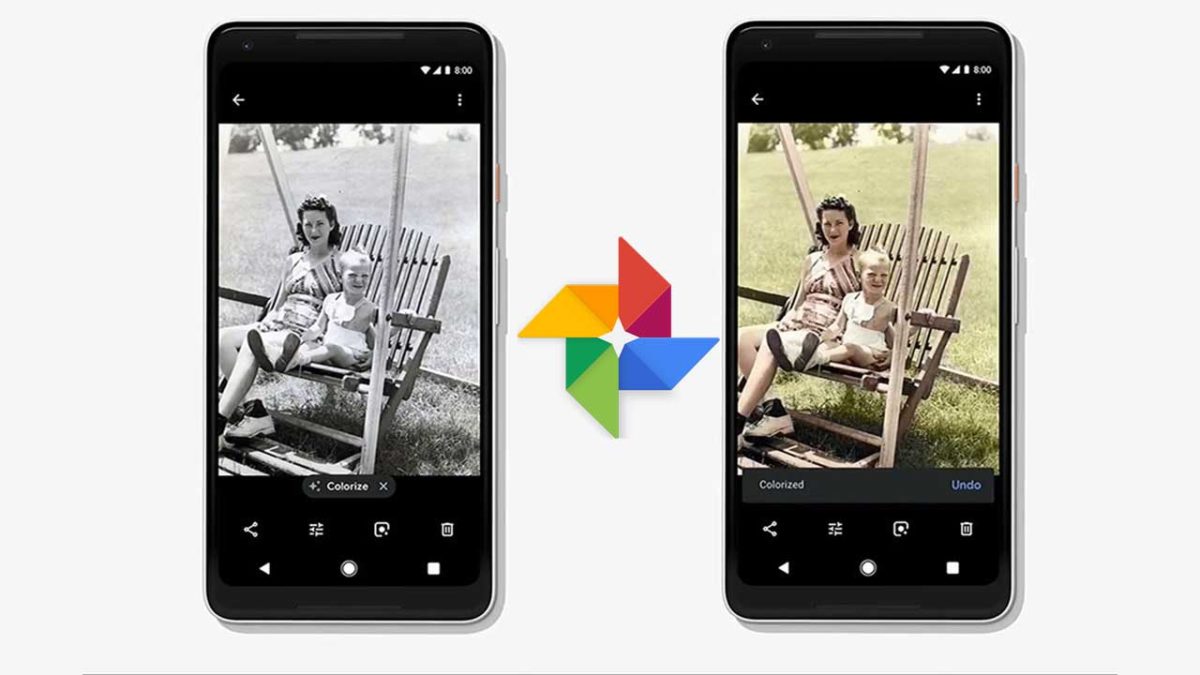
Colorize takes black and white photos and then magically turns them into photos bursting with color. Colorizing black and white photos has been around for a while, but it has always needed a person to go in and decide what colors to add and to which objects. You can see some great examples of colorized images here and here.

Google Photos Download Google Photos
7

The human process can be time-consuming, which must have been one of the reasons Google thought it would be a good idea to teach a machine to do it instead. Trouble is, it looks like training a machine to do it is a time-consuming process, too. Since Google announced the feature over a year ago, it has not been heard of again. In fact, we’re only hearing about the progress the team has made now, because Mashable called the Photos team out on their radio silence. In response to that, the Photos project lead, David Lieb, took to Twitter with a working example of Photo’s new Colorize feature.

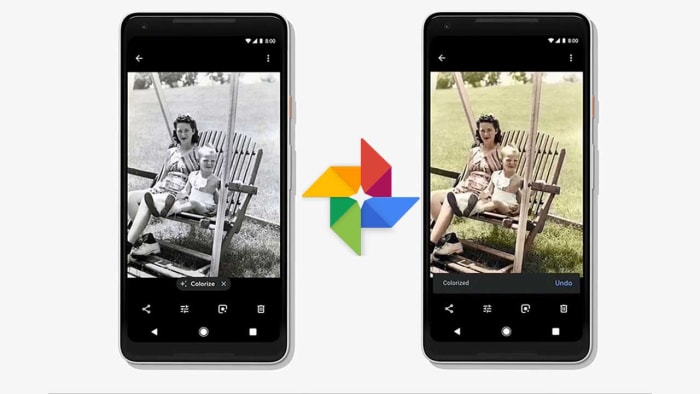
Lieb’s working example is quite impressive, but it does show the difficulties he and his team are facing.  The AI has done an admirable job of adding colors to the black and white image, but it is clear that, in some instances, it adds the wrong colors.

The example does show, however, how easy it will be to colorize images when the feature finally lands on the Photos app. It looks like Colorize will show in the list of filters you can choose from when editing images.

The bad news though, is that although Lieb did mention that a beta version of the feature will be coming soon, he made no mention of a specific date or an expected time frame for that to happen.

Google Photos update will help tidy up your galleries

Google Photos will soon start making crop and adjust suggestions pictures of documents.

Google has made a lot of noise about its in-house AI development. Thanks to its key position at the very heart of the internet, it enjoys a natural advantage when it comes to AI over other big players like Facebook and Microsoft. One of the key products that Google has been augmenting with AI is Google Photos. With Photos now able to make albums that include specific people or pets automatically and even add color to old black and white photos, it is clear that Google’s AI is already making quite the impact.

AI doesn’t just work on the headline-grabbing stuff like the features described above though. Much more basic features are taken care of by machine learning algorithms, too, and this latest innovation definitely falls into that category. It might not sound like the most exciting new feature on paper, but in practice, it will help you keep your Photos app tidy and much more presentable.

Google Photos will soon start making Crop and adjust suggestions for pictures of documents

Photos header

Having a camera in our pockets all the time has changed our everyday behavior. Now, rather than noting basic information we see around us, most of us will just whip out our phones and snap a quick picture. This inevitably means that most (if not all) of us have random photos of scraps of paper interspersed between our everyday photos.

Google Photos Download Google Photos
7

To help us tidy these up, Photos will start automatically suggesting these photos be edited in order to make them look better.

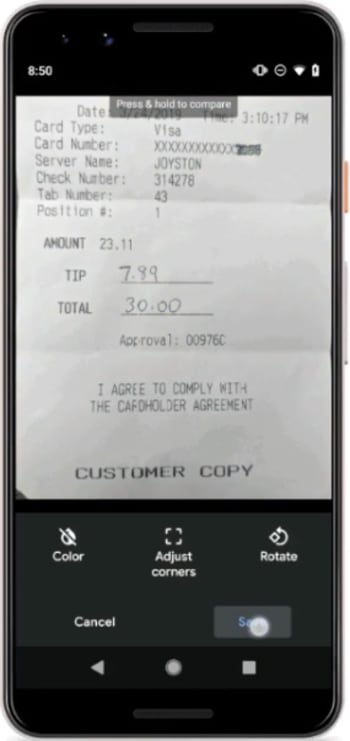
In a tweet, Google described this new feature as a single-tap way of making  these photos of documents look smarter. When the feature lands on your Android phone, a single tap will remove the background and tidy it up around the edges.

As well as removing the background, Photos will also open up a brand-new user interface designed specifically for documents. This will include the ability to rotate the document and switch the image to black and white should there be no color in the document.

New Google Photos document editor

All of the above happens automatically when Google Photos detects a picture of a document. There has been no word from Google so far, however, about whether or not the new document crop and adjust features can be activated manually. This may depend on how much faith Google has in its AI to recognize every single document we snap. Nothing is more frustrating than being unable to access a feature you need because your phone doesn’t know you need it and won’t give you the option to access it.

The new document editor features are rolling out to Google Photos now, so if you own an Android smartphone and use Google Photos, you should expect to see it on your phone soon.

We put Google’s Night Sight camera mode to the test in the Amazon jungle

How does Google’s new Night Sight feature stand up against heart of darkness found in the deepest most remote parts of the Amazon jungle?

How good is Google Night Sight

Google’s Pixel smartphones are known for having some of the best cameras you can find on a phone. The cameras themselves aren’t too special; all of the magic comes from within, via Google’s famous AI. Pixels don’t just snap photos, they build them. When the camera mode is turned on the Pixels are snapping away in the background and then when you hit the shutter release, the phone takes the best data from nine separate images and composites it all into a single photo. In the hands of a good photographer, the results can be stunning. Head over to the Team Pixel Instagram page to see more examples.


View this post on Instagram


Landing #sfo under an insane #sunset over #pacific #california #sanfrancisco #siliconvalley #lifeontravel #teampixel #pixel3xl

A post shared by Francois (@francoisigworld) on Dec 30, 2018 at 5:59pm PST

With software as the main driver behind the Pixel’s camera, it stands to reason that Google will be able to update the Pixel cameras with new software and new features. New software can make old cameras better. This is exactly what happened in the run-up to the launch of the Pixel 3 when Google announced a new camera feature called Night Sight. Details were patchy, but the news was that the cameras on the new Pixel 3 phones would be able to take much better photos in low light situations. Once the Pixel 3 launched, reports came in that the feature was impressive, but also that it would be coming to older Pixel phones too.

As a Pixel 2 owner who was about to spend nearly a week in the heart of the Amazon jungle, I was excited about having the chance to really put this new feature through its paces.

Google Camera Download now
8

I was heading into the largest rainforest on earth near Iquitos in Peru. We had a boat for sailing the Amazon river, and a guide, but no fixed itinerary. The plan was to pitch camp in any safe places we could find and, if necessary, stay with local families in some of the small villages that sat next to the river. We would be far away from any cities or towns with regular power supplies so at night we’d only have small flashlights or the moonlight to guide us. In short, it would be very dark.

How good is Google Night Sight?

It must be said that Night Sight shots are rather impressive. Before heading into the rainforest, I took a few comparison shots in an apartment and the difference between the photos I took using the regular camera mode and the photos I took using the Night Sight mode were profound.

Living room shot taken in the early evening twilight using the regular camera mode on a Google Pixel 2
This is the same shot taken using the new Night Sight mode on the Pixel 2

You can see the clear difference between these two shots. The Night Sight mode gives the shot much more illumination and makes it much easier to make out everything in the picture. You have to really look at the regular camera image to make out the cat on the table and it is also difficult to determine any of the items on the coffee table at the front of the shot. Also, the colors in the Night Sight shot are much more vibrant with the bright poncho draped over the chair really catching your attention. The Night Sight picture is a massive improvement on the image taken by the regular camera mode.

Living room and hammock shot in the early evening twilight using the regular camera mode on a Google Pixel 2
This is the same shot taken using the new Night Sight mode on the Pixel 2

The difference here isn’t as clear as in the first shot, but there is still an improvement from using the Night Sight feature. The more expansive shot of the whole living room gives Night Sight more light to play with, meaning it can process more information than on the more closed shot of a small section of the room.

How to use Google Night Sight in the dark

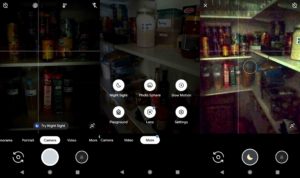
To use Google’s Night Sight feature is easy. In fact, if you open the camera in low-light conditions, the camera will suggest the Night Sight feature to you. To find it yourself, all you have to do is hit more when you open the Google camera app and then click Night Sight, which will be the top-left option in the menu that pops up.

How to use Google night Sight
Just look for the moon!

When Night Sight is active, a little moon will show on the center of the shutter button. You have to tap this and then hold the camera still while it takes in as much light as possible. You’ll see a circle appear on the screen that will turn white to show you how much longer you need to keep the camera still. Once the camera has gathered enough light and information to work its magic, you’ll be able to move the camera again and snap other photos. You’ll have to wait a few moments for the camera to process all the information and create your photo.

The way Night Sight works highlights a key aspect of the feature. It needs light to work. The darker the scene you are trying to capture, the longer it will take the camera to gather enough light. You could end up holding the camera still for quite a few seconds.

Using Night Sight in the Amazon jungle

Having fully familiarized myself with how to use Google Night Sight on my Pixel 2, we headed out into to Amazon rainforest. We spent five days sailing along the river and heading into the jungle at various spots in search of wildlife and to learn about the different types of plants and the medicinal effects many of them can have.

At night we stayed in different places with just a mosquito net to protect us. We slept on a small beach created by a sand embankment, in the house of a village shaman, and out in the rainforest itself. Light was always in short supply, so we had the perfect chance to put Night Sight to the test. You can check out some of the shots below.

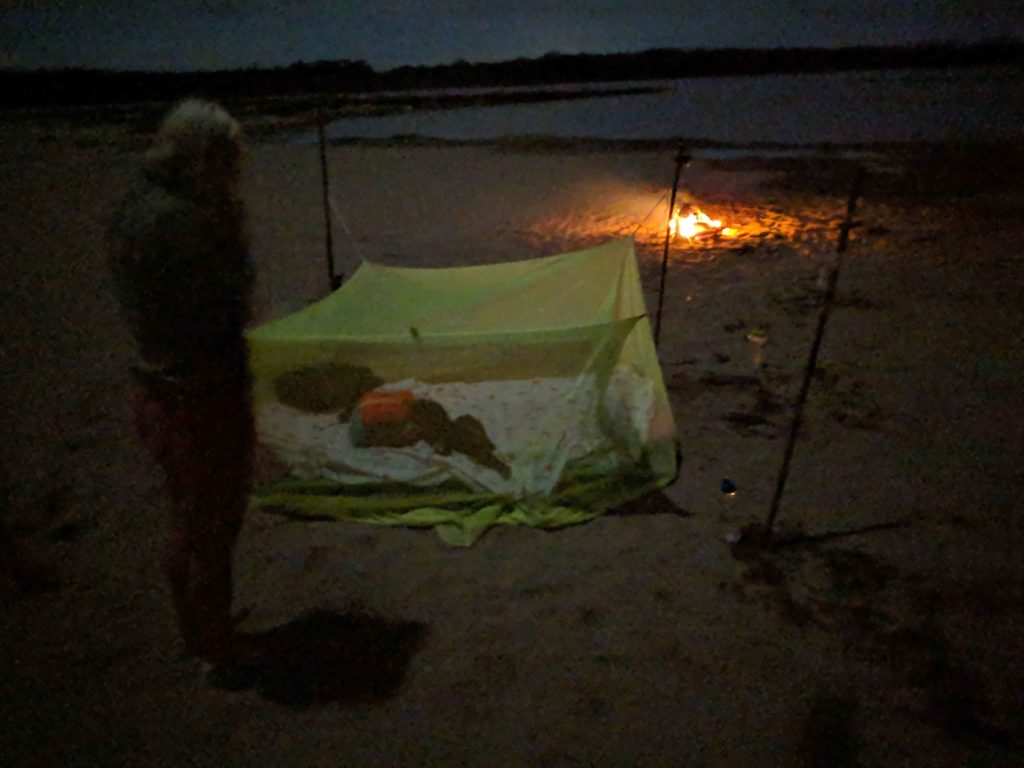
For our first night we slept on a small beach on the banks of the Amazon river. We ate jungle boar cooked over an open fire.
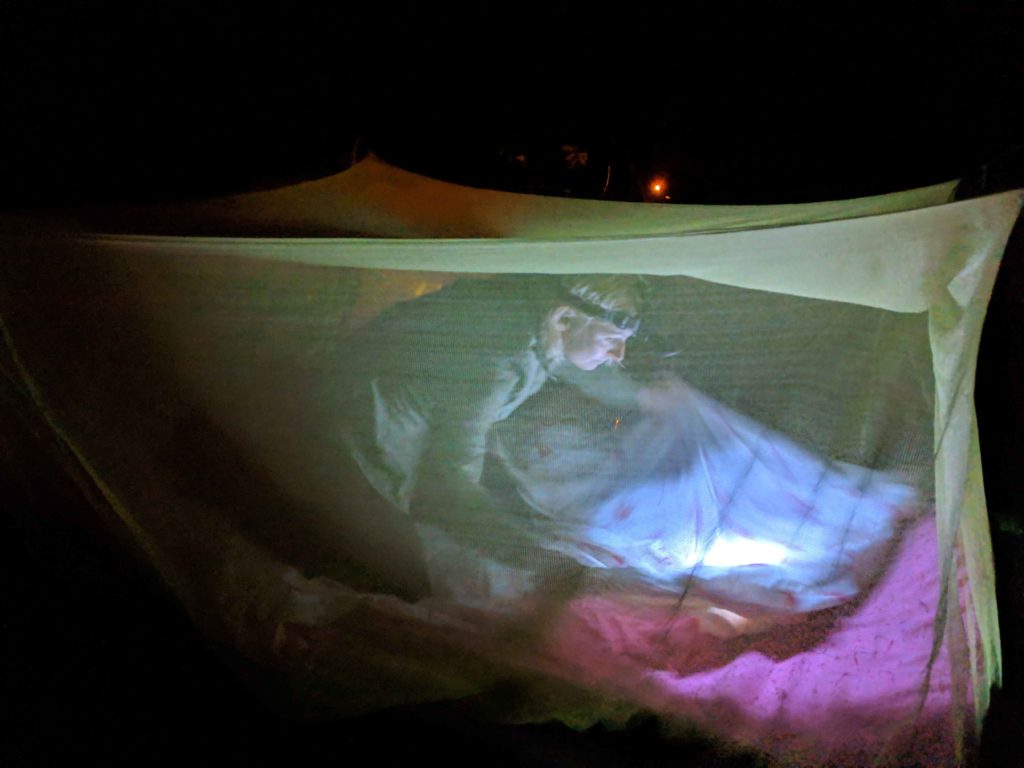
We slept under a mosquito net as the fire slowly burned out beside us. The warm glow from the dying embers was the only thing keeping the wildlife from coming to check us out.
After that, we slept in the rainforest itself. I had to build a platform for us to sleep on so that we wouldn’t be bitten by snakes during the night.
Apart from the jungle canopy above us, once again all we had between us and the stars was our mosquito net.
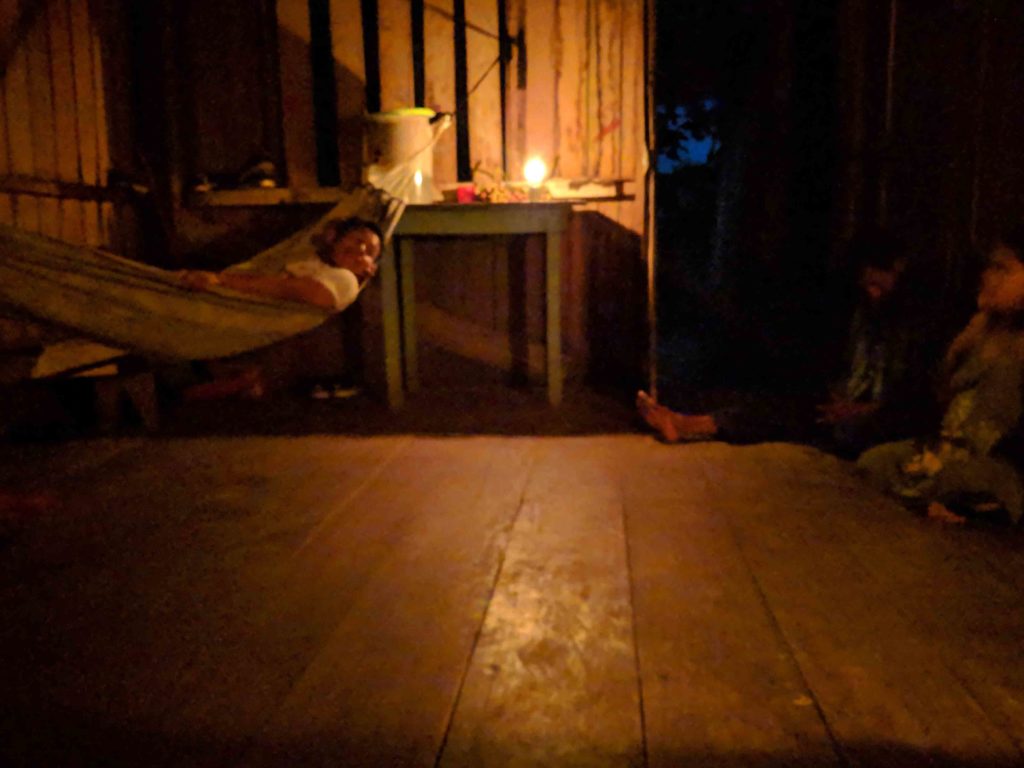
On another night we stayed in the house of a village shaman. He and his family made us very welcome and we loved our time with them. There were no electric lights at night, just oil lamps burning away so we could see each other’s faces.
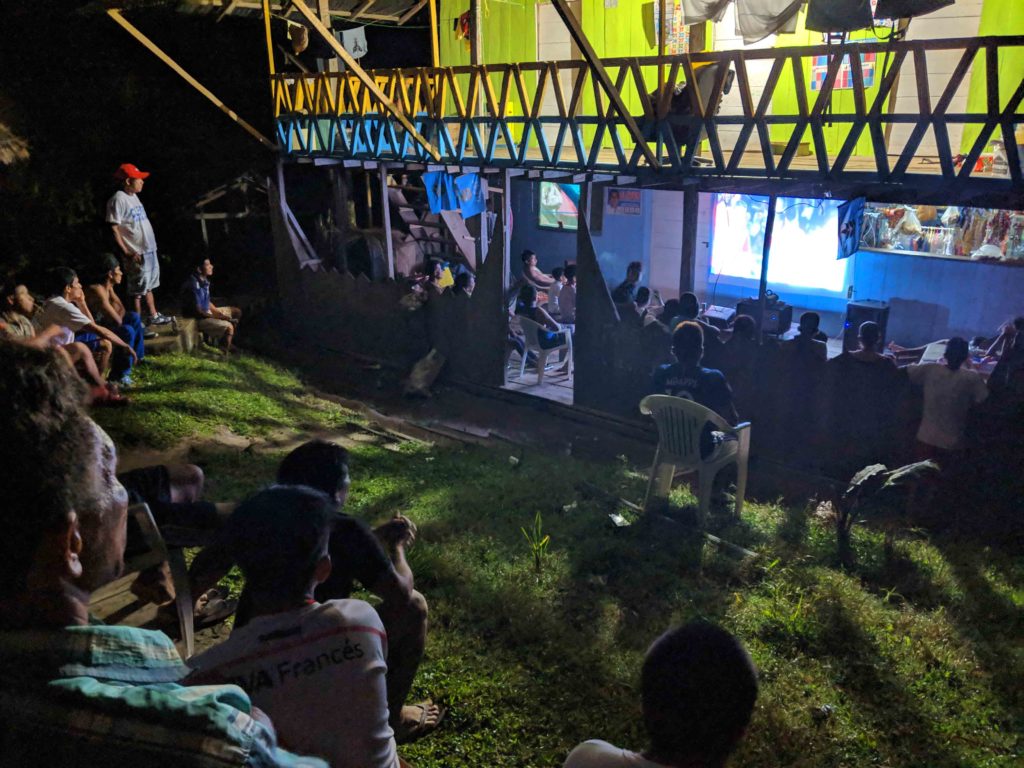
We were in the village when Peru were playing Costa Rica. We headed over to watch the match at the local shop, which was showing the match on a big screen.

Conclusion

You can see from the shots above that the best photos are the ones that have a direct source of light in them. The flames from the campfire, the lights from the local shop, and the headlamp all illuminate the images and enable Night Sight to put together much sharper images than the more traditional low-light situations of the other three shots.

The other shots include quite a bit of noise and grain, which shows as either distortion of the images or discoloration. This could be used with an artistic flair, the photo taken in the shaman’s house has a ghostly quality about it, but will often lead to shots looking disappointing.

There is room for improvement, however, and a clear path to make it happen. At the moment, you can’t use Night Sight with the phone’s flash, which is disappointing as all of our test shots showed that direct sources of light really help Night Sight work its magic. If you add to this just how terrible the Pixel camera flash is anyway, putting these two camera features together could help Google take its low-light smartphone photography to the next level.

All-in-all, however, Google needs to be applauded for its new Night Sight feature. It marks a clear improvement over the regular camera setting and allows users to capture memories and moments at times when it would normally be impossible. I’m very happy that they added the feature to my Pixel 2 and think that other phone manufacturers need to start working on their own Night Sight feature for their handsets too.

Google Photos: How to use the cool new Live Albums feature

We look at Google Photos’ newest feature, Live Albums, and show you how to create them

How to use Google Photos Live Albums

With so many details leaked about Google’s latest handsets, the Pixel 3 and Pixel 3XL, it was easy to forget this year about the other big announcements that usually come with the Pixel announcements. Every year, alongside the Pixel devices, Google unveils some brand-new features for Google Photos and this year didn’t disappoint.

Google Photos Download Google Photos
7

What are Live Albums in Google Photos?

You know a new feature or product is good when it makes sense the first time you hear about it. Live Albums is one such feature. They allow you to select the people and even the pets you’d like to be a part of the album. Then, whenever you take a photo that includes any of the selected people or pets they’ll automatically be added to the album. These Live Albums can then be shared, just like normal albums, and everybody will be able to access the new and updated albums whenever new photos are taken and added to them.

Using this latest feature for Google Photos is really easy. All you have to do is:

  1. Open your Google Photos app on your iPhone or Android device.
  2. Select New Album.
  3. Hit the option Automatically add photos of people & pets.
  4. Select the people and pets that you want Google Photos to automatically add to the album.
  5. Hit Turn on in the top-right of the screen.

Once you’ve created your Live Album, you’ll also be given the option to share it with whomever you wish. Another cool feature is that you can turn any album into a Live Album by activating the setting in step 3 when the album is open.

Behind the scenes, there will be a lot of heavy lifting being done by Google’s AI. Facial recognition for humans and animals is no mean feat. The end product, however, makes perfect sense. Google has made it easier than ever to make and update albums that are filled with our loved ones. Live Albums are definitely photo albums 2.0. Well done, Google.

Google Home hub Perfect Photos Gadget
The Google Home Hub will automatically update and show Live Albums

To make the most of Google Photos newest feature, and all of the other AI powered features that come with it, Google has built Photos into its latest Assistant powered device, the Home Hub. As well as automatically updating the family photo albums the Hub displays, it’ll also respond to voice commands. You’ll simply have to ask to see photos of your trip to Italy and Photos and the Hub will work their magic.

Photos is taking bold strides into the future with its new features and Google is building hardware to showcase its new skills. If you love taking photos, this can only be good news for you.