How to turn off in-app purchases on iPhone and iPad

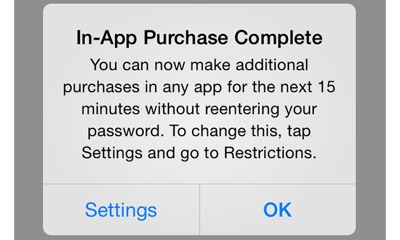
iOS 7.1, Apple’s latest update to its operating system, now includes a warning message for in-app purchases.

Many app developers rely on the in-app purchase system to generate revenue instead of offering a full paid version.

The window is clear and unequivocal: once you enter the password for your Apple account, you can make in-app purchases for 15 minutes without having to reenter the password.

iOS 7.1 guards against unauthorized in-app purchases

A new window has appeared in iOS 7.1

Required password for all in-app purchases

With iOS 7.1, Apple has decided to strengthen its security measures, and the in-app purchase settings can be easily changed by going to Settings, then General and Restrictions.

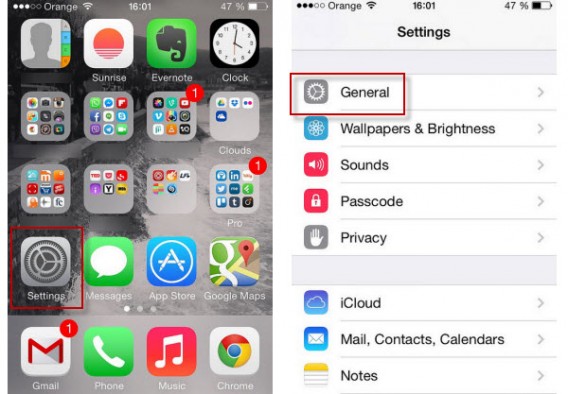
On your iPhone, go to Settings, then tap on General.

iPhone options

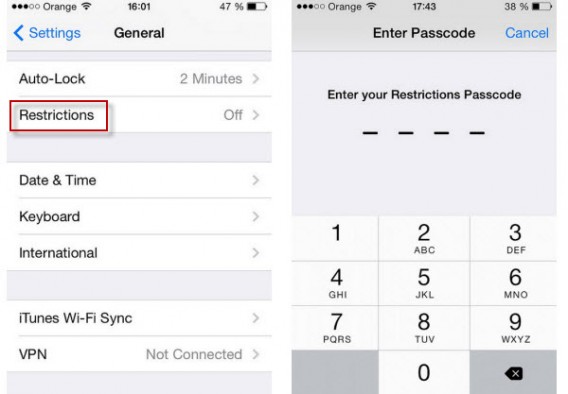
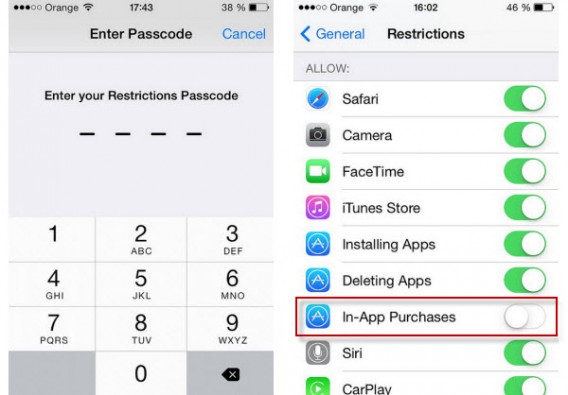
Enter your passcode to access the Restrictions menu on your iPhone.

Restrictions related to iPhone services

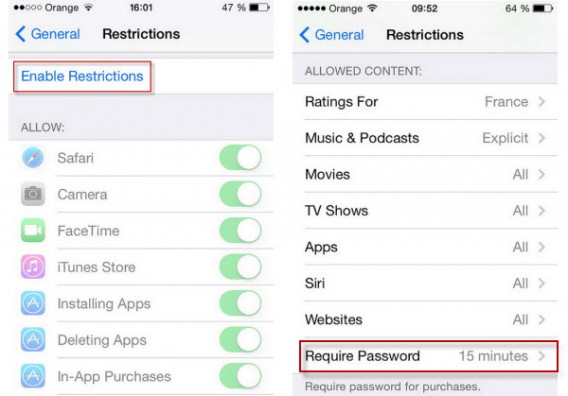
Enable Restrictions and select the Require Password option.

Activate restrictions related to iPhone services

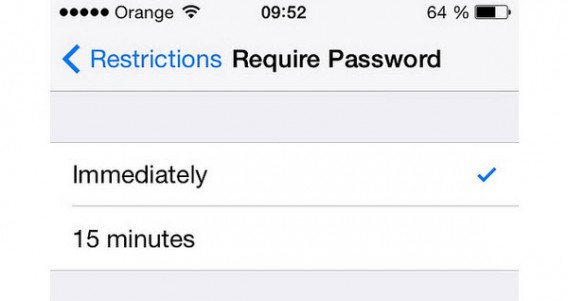
From now on, you’ll automatically be asked for your password before any in-app purchase.

Activate immediate password requirement

Disable all in-app purchases

There’s also a second option in this menu that can also be very useful, letting you disable all in-app purchases. This is probably the best way to stop you (or others who have access to your phone) from going on a spending spree on your iPhone or iPad, as all in-app purchases simply disappear. If you want to avoid accidental purchases, this is what you have to do:

In the Restrictions menu, enter the passcode to unlock the device, look for the In-App Purchases option, and disable it.

Disable all in-app purchases on your iPhone

Type your passcode and disable in-app purchases

And that’s it! No more micro-payments within apps.

These improvements introduced in iOS 7.1 seem to confirm that Apple still cares about security. Recent iOS security scares (the ‘white screen of death’ or the fake phone chargers) were dealt with quickly, and this update to in-app security follows in the same vein.

Follow me on Twitter: @bbrassart

Related links

iOS 7.1 gets interface improvements and integrates CarPlay

After much anticipation, the first major update for iOS 7 has finally been released. iOS 7.1 sets out to improve bugs that were compromising the user experience for some, especially those with older iPhone models. It can’t exactly be called an overhaul, but once you’ve installed the update, you’ll notice some small but useful improvements to your iPhone, iPad or iPod Touch. Here’s a (non-exhaustive) list of the biggest changes in iOS 7.1.

CarPlay ready

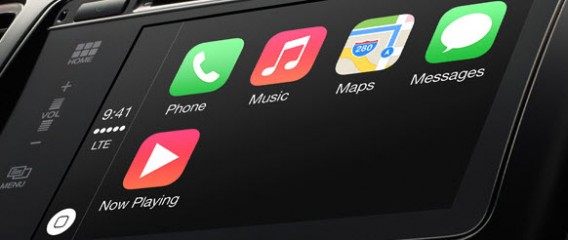
Having been revealed on March 3, the CarPlay mode is probably the biggest addition to iOS 7.1. The new feature lets you connect your iPhone 5, 5C or 5S to some high-end vehicles to bring the iOS experience to your passenger seat. CarPlay on iOS 7.1

CarPlay on iOS 7.1

It means that drivers will be able to take advantage of the Telephone, Maps, Music, Messages, Spotify or Beats Audio apps via a touchscreen or Siri. In broader terms, this means that Apple’s iOS is no longer limited to tablets, smartphones and Apple TV. Car makers have yet to release any compatible vehicles, be we doubt we’ll be waiting long.

Subtle graphic changes

Apple has used the update to make small changes to the overall appearance of iOS. Among the changes are:

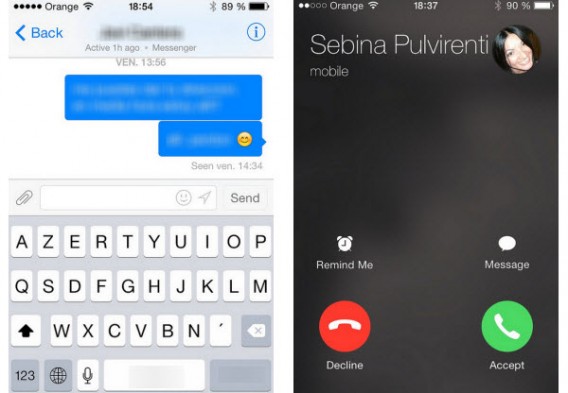
  • The keyboard font has a slight cutout effect, which makes the letters easier to read. The gray background is slightly darker.
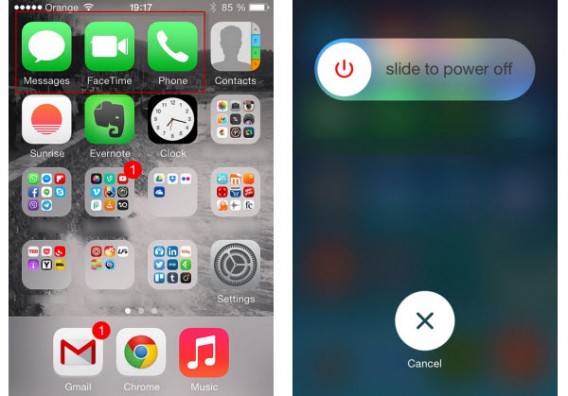
  • Buttons in the phone app are more rounded.

Slight changes to the interface

Keyboard more visible, buttons more rounded

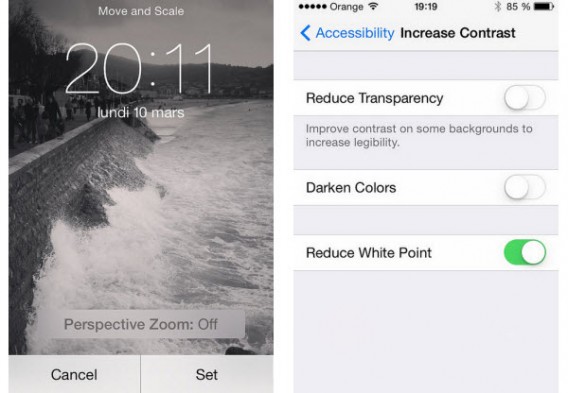
  • It’s now possible to disable the parallax effect when you pick a wallpaper (you can actually do this in all versions of iOS 7 by selecting Reduce motion in the Accessibility menu, which limits all visual effects).
  • A new button in the Accessibility settings lets you control the intensity of white points on the interface. A second button lets you see the outline of virtual buttons.

New accessibility options

Parallax can be disabled and there are more accessibility options

  • Telephone, Messages and FaceTime icons are now a darker green.
  • The lockscreen has been revamped.

A very slight color change

A color change and new-gen lockscreen

  • A rebound effect has been added when you open the Notification or Control Center.

iOS 7.1 offers a more powerful Siri

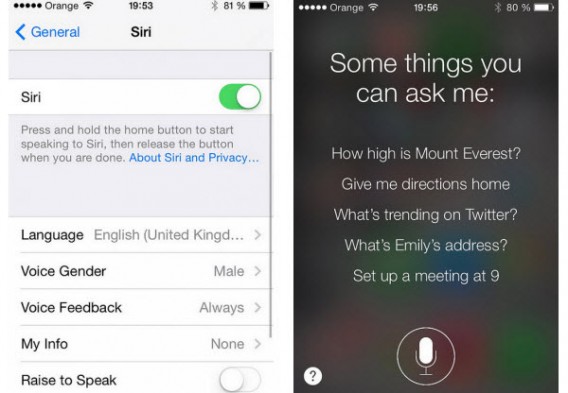
Apple has added new male and female voices in Mandarin Chinese, British English, Australian English and Japanese. There’s also been a change to the way you can use Siri– you can now hold the main button while you make your voice request.

Some changes for Siri

A change for Siri

More services for iTunes Radio

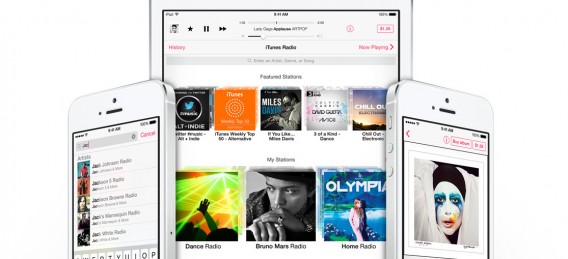
The teams at Cupertino have also taken advantage of the opportunity to make some improvements to iTunes Radio, currently only available in the US. In the list of changes accompanying the update, it’s noted that you can now follow sport and news broadcasts directly in the app, and that a new buy button has also appeared.

iTunes Radio

iTunes Radio

Less visible, but equally important

Other than aesthetics and new features, there’s also a noticeable difference in iOS 7.1’s performance; Apple has placed particular emphasis on the update’s benefits for iPhone 4, an older model that’s still in common use. We’ve done our own analysis to compare iOS 7.1 pre- and post-update on an iPhone 4 to see just how good these performance improvents are. These benefits should apply to others devices too, but the biggest changes are noticeable on older models.

A major iOS update is always reason for celebration, and this time, even Apple has decided to dedicate a full page to explain the benefits of the update. While some users predicted news of an Apple watch or even an Apple TV set, Cupertino has obviously chosen to take a step in the direction of the auto market. Does this mean that Apple is ready to welcome even more new platforms? Only time will tell.

Do you like the changes from the new iOS 7.1 update?

Instagram guide: How to import videos from your PC

In this sixth installment of our Complete Guide to Instagram, we explain how to publish photos and videos from your computer to the social network.

Version 4.1 of Instagram introduced an important feature: the ability to import videos stored in your phone’s library. This means that you can publish photos or video clips on Instagram that have been previously edited on your computer. Here’s how to do it.

[Note that the beta version of Instagram for Windows Phone 8 doesn’t yet support video mode, and users can only import images.]

1. Choose the right export settings for your Instagram videos

(This step only applies to videos)

To make sure that your phone is able to play the video clip, it’s essential that you follow a couple of export settings.

First of all, your video must be less than 15 seconds. The resolution used for media in Instagram is 640 x 640 pixels, which means when you export the clip, you have to resize it.

Traditional cameras usually film in 16:9. In order to get a square image, you can put a white frame around the top and bottom of the video. This will reduce the video or image to a square size of 640 x 640 pixels.

The frame rate per second should be set to 25. Export the video using codec H264. The bit rate of the file must be less than 35000 Hz.

Once all of the settings are properly configured, you can export a copy of the short film to your phone.

2. Import the photo or video onto your iPhone, Android or Windows Phone

This step depends on the OS of your smartphone:

iPhone

Apple’s official solution for importing media in film format – syncing through iTunes – is complex and not really suitable for a clip shorter than 15 seconds or for a single photo.

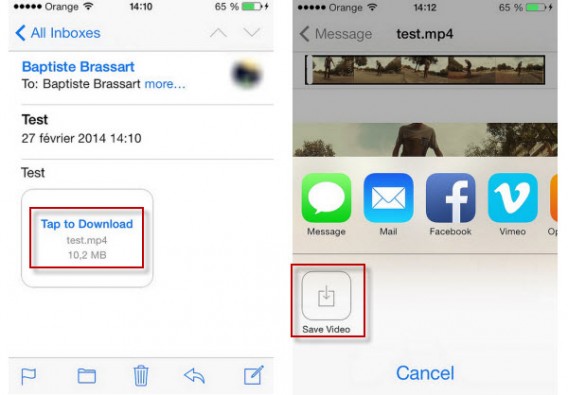
The solution? Send the photo or video by email, open the Mail application on your iPhone, and then save the attachment in your camera roll.

iPhone save video to InstagramSave the video in the iPhone film

Android and Windows Phone

For these two operating systems, simply connect the smartphone via USB to the computer, unlock the phone and then copy and paste the media into the folder in the Media Library using File Explorer. For Android users, the folder is called Pictures, while for Windows Phone users, it’s Camera Roll.Copy and paste the media using File Explorer into the smartphoneCopy and paste the media using File Explorer into the smartphone

3. Start Instagram, then locate the file in the Camera Roll

After all these steps, you should be able to select the photo or video that you’ve imported off your computer. It should be the latest item in your library.

Import the imageSelect the media stored in the phone

4. Publish the Photo or Video

Follow the standard publishing process for Instagram, and then share the media on Instagram, Twitter, Facebook or even Tumblr.

With this method, you’ll be able to provide high quality content, even if your smartphone doesn’t have the latest generation camera. Photos and videos not recorded on mobile devices are widely tolerated and accepted by the Instagram community. In fact, brands use them in particular to interact with their followers, so feel free to show off your favorite creations.

Make sure to check out the rest of our complete guide to Instagram to get the most out of Instagram.

Windows Phone Guide: how to move from iPhone to Windows Phone

In this installment of our guide to Windows Phone, we explain how to move from iPhone to a Windows Phone without losing any data. Just like changing from an Android phone to a Windows Phone, it’s takes a little effort.

Every time we buy a new smartphone we have the same problem: how can we transfer all the data from the old device to the new one? The answer will depend on many factors. Microsoft is well aware of this and offers a relatively complete guide. The market share of Microsoft ‘s mobile OS is still relatively small and marketing teams are still working on it. Softonic will give you a complete guide to move successfully from iOS to Windows Phone. Contacts, photos, videos, apps, and email: we’ve got them all covered.

Sync your mailbox with Windows Phone

This is probably the simplest of all. To display all of your emails in your new Windows Phone, you have to go to go to Settings > email + accounts. A very large number of email services are supported, including some of the most popular like Yahoo! Mail, Gmail, Hotmail, and Outlook. iCloud.com is supported, but it’s not directly mentioned in the list. Don’t panic, just go to other account. All mail accounts that support IMAP or POP should work correctly.

Mailbox syncing It should be fairly easy to sync your iCloud.com account

Contacts and calendars: a delicate operation

To transfer the contacts from your old iPhone to your new Windows Phone, we have two possible scenarios:

  • First scenario: local storage or on iCloud.com

By default, Apple devices let you save your contacts in iCloud. Many users refuse to open an online account and prefer to store data locally. If you belong to this second group, here’s how to transfer your contacts and calendars to your new Windows Phone. Don’t have Outlook on your PC? Then you should download an app to group your contacts in an Excel file. Contacts Backup, xCalendar, ExcelContacts, My Contacts Backup will all do: options are endless, although some are paid.

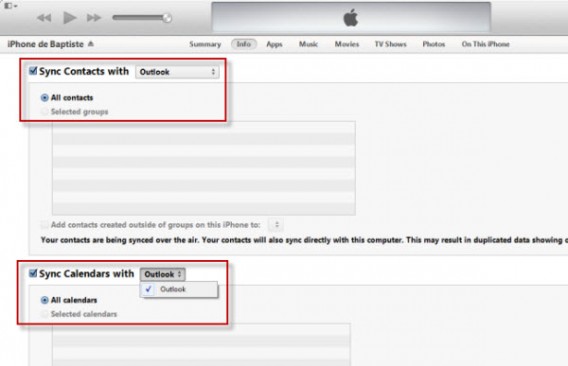
Once you have the file with your contacts saved on your computer, open it and save it as a CSV file. For the last step, login to your Microsoft account on your Windows Phone and under Add people to your contact list, click Import from file. If you use Outlook you have to connect your iPhone to your PC and open iTunes. Then click Info > Sync Contacts with. Choose Outlook, and then click Apply. To import your iPhone calendar you must follow the same procedure: connect your iPhone to your PC via USB, open iTunes and select Info > Sync calendars with Outlook and then click Apply.

Syncing on iTunes

Sync contacts in iTunes

If you use Exchange, but don’t sync with Outlook, you will have to force sync between the phone and PC.

  • Second scenario: storing your contacts on an online account

If you use a could-based service, the steps are quite simple. You can easily sync a Google, Yahoo!, Facebook, and Outlook.com account. Just go to the Settings > email + accounts > Google menu, enter an email address and password.

Windows Phone: add Google account

Tap Settings and then Email and accounts

Windows Phone: add Google account (2)

Enter your Gmail address and associated password and validate

Then select calendar, contacts and email to synchronize everything.

Documents stored on your device or online

Only those of you who are using OneDrive, Microsoft’s storage solution, can see sit down and relax. The app is installed by default on Windows Phone and all you have to do is login to find all the files stored on your online space.

Sync via OneDrive

The OneDrive Microsoft app is installed by default on Windows Phone

To be sure nothing is lost, however, we advise you to download all of your Dropbox files onto your computer, then copy them to the Windows Phone using a USB cable.

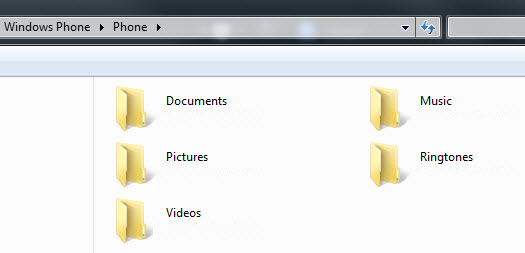
File explorer

Connect your Windows Phone to your PC using a USB cable to transfer files

To synchronize the contents of your iCloud.com, Google Drive or other online storage solutions (like MEGA.co, etc.), the steps are the same.

Music: find your favorite artists on Windows Phone

The solutions offered by Microsoft will vary depending on your use of the cloud. If you use a streaming service like Spotify, Deezer or TuneIn Radio, they all offer working Windows Phone apps. All you need to do is log into your account to listen to your custom playlists.

Deezer interface

The main music streaming services are available for WP8

Is your music in iTunes? Sync Windows Phone with your music: if you are using Windows 7, 8 and 8.1, install Windows Phone for PC, click Settings and select iTunes. There is also a Mac version.

If you are still using Windows Vista or XP, you simply have to copy and paste or drag and drop files between the Music folder on your phone and the iTunes library folder on your PC.

If you use the Amazon MP3 Service, download the Amazon MP3 Downloader to retrieve your purchases and your local music, and then transfer the data onto your Windows Phone via Windows Explorer or Finder.

Photos & Videos: the cloud makes it easier

Regarding your multimedia files, people who use online storage will again be in a better position. If you store your photos on Facebook, Flickr, or OneDrive, then download the corresponding Windows Phone 8 app and connect your account to synchronize all of your online files on your Windows Phone.

Bad news for those who don’t save their images on the cloud: you need to connect your old iPhone to your computer, copy the files to your PC or Mac, and then paste the data in your Windows Phone.

Application ecosystem

If you still have any doubts regarding the apps available for Windows Phone, we invite you to (re)read our summary of top 30 mobile apps and their respective availability on Windows Phone, Android and iOS to get an idea of what’s out there.

As you may have noticed, the verdict is final. The use of online services to store contacts, documents and music becomes essential when changing smartphone.

Find out more about Windows Phone in our guide.

Instagram guide: 12 tips to get more followers

In this sixth installment of our Complete Guide to Instagram, we’ve put together 12 top tips that will help you increase your number of followers on Instagram.

For many of us, “success” when it comes to social networks is measured through the number of subscribers to our account. Instagram is no exception to this rule and “just” following the rules of photographic composition is usually not enough to make sure your photos are popular. Here is a series of small, easy-to-implement tips that will showcase your account.

Subscribe to all your contacts who are already using Instagram

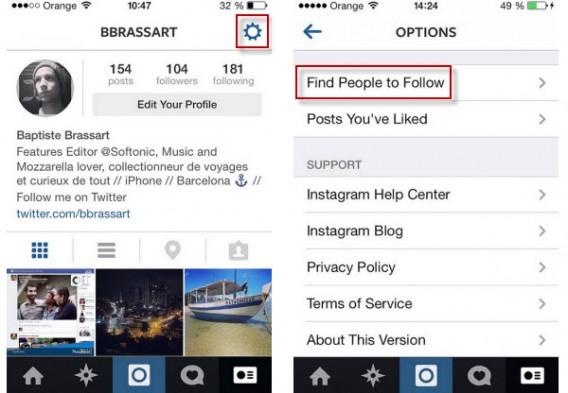
Before you embark on a frantic race to achieve likes, you can first count on your friends to build up a solid base of followers. To do this, go to the options menu and press Find people to follow.

Instagram: Find people to follow

Go to options and then click Find People to Follow

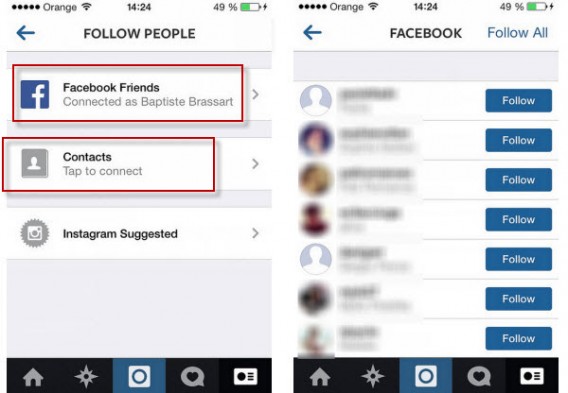
It’s then possible to scan your address book and your Facebook account to find people you know.

Instagram: Find people to follow

Subscribe to your friends who are already using Instagram

Make sure your account is public

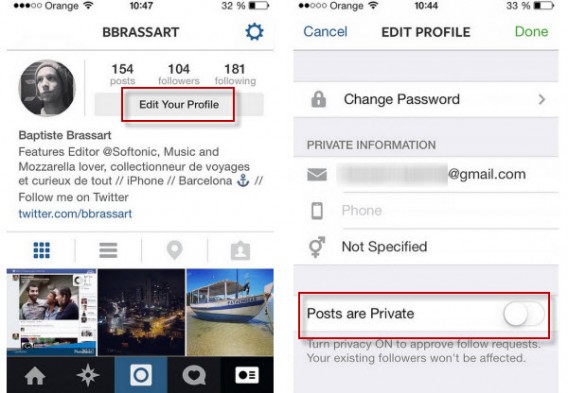
From the menu Edit your profile, make sure that Publications are private is not ticked. Of course, you have chosen this option, but you can change your mind.

Instagram: check your settings

Make sure your profile is public

Share your photos on other social networks

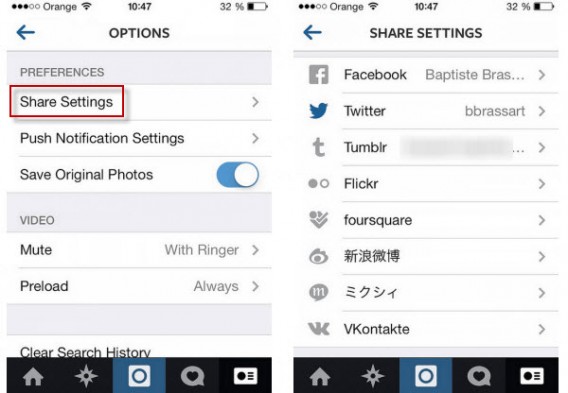
One of the strengths of Instagram is the ability to publish content on other online services such as Facebook, Twitter, Tumblr, Foursquare, and Flickr. To link all of these accounts to your Instagram profile, go to the option, Preferences > Share Settings.

Instagram: link up with other networks

Link all of your social networks to Instagram

Look after your bio

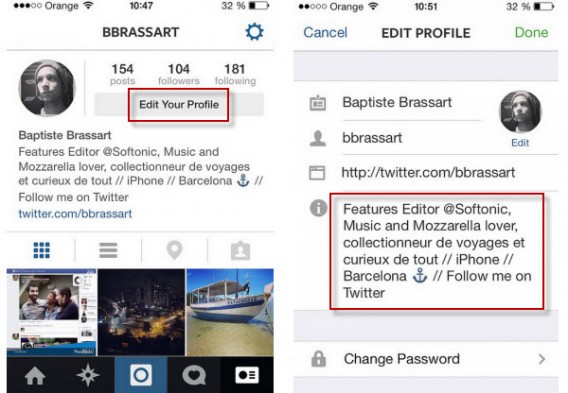
Instagram attracts millions of users and so it’s important to look after your profile. Most users will probably just skim over it, but for those who take the time to read your bio, it’s probably the info in your profile that will make them want to follow you.

Instagram: take care with your profile

Your profile could be read by anyone! Look after it!

Add a caption to all your photos

For each photo or video you share on Instagram, you can add a short piece of text. Our advice? Try to describe the situation as accurately as possible, while avoiding an avalanche of hashtags. By simply reading the description, users should be able to put the picture in context.

Don’t hesitate to specialize in one area

Are you a fan of big guns? Feel free to use your entire Instagram account to show this. Users will more easily identify the type of photos you put on there and can immediately choose to follow you or not. Then get in touch with your imaginative side – and show some originality! There are already too many accounts that only publish photographs in black and white, or only use the Toaster filter, for example.

Use hashtags properly

To gain popularity on Instagram, it’s important to use the right hashtags at the right time. Many sites such as TagsforLikes.com reference the most current popular words. Among the ones you just have to use, there is of course #tbt for ThrowBackThursday , #ff for FollowFriday or #YOLO for YouOnlyLiveOnce.

So hashtags are used to sort pictures and videos by keyword. Through the Explore tab, you can find the content you want. The goal? Follow authors sharing the same interests, hoping they follow you in turn.

Avoid quick fixes

Some websites and fake Instagram accounts offer so-called revolutionary solutions. Don’t trust them, because most of them don’t meet Instagram’s conditions of use. By using their service, you may well see your Instagram account being disabled.

Get more Instagram followers?

Connect your Facebook account to Instagram

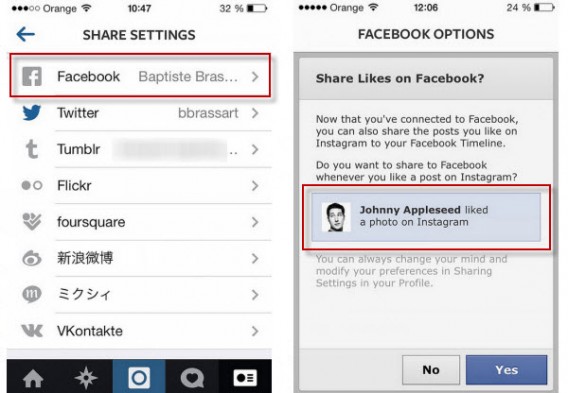
In the menu Options > Share Settings > Facebook options, Instagram gives you the ability to automatically display your Instagram content on your Facebook wall. Tick ​​the box “Share likes on Facebook” to encourage your friends to interact with it.

Instagram: share on FacebookShare content that you like on Facebook

Post photos at the right time of the day

One of the most common ways to generate likes is to appear in the top results of a specific hashtag search. It only takes a few seconds, but the more people who are connected during those few seconds, the greater your chances of gleaning new followers. A little analysis is therefore necessary.

Instagram users typically consult their timeline in the morning before leaving for work or in the evening at home, on the comfort of their own couch. Think about the time that you’re going to share your photos with the world. A photo published at 11.30am is unlikely to unleash crowds of followers.

Use third-party applications and offer original content

Collages, original effects, unpublished filters, regram friends: you’ve got lots to choose from. Many applications of this type are free, so take the opportunity to add a touch of originality to your account. Simply type Instagram into your favorite app store and download the applications that seem the most interesting.

Third party apps for Instagram

See? Lots to choose from!

Follow these tips and you should see your number of followers gradually increase. The increase will probably not be very dramatic in the early days, but your publications should gradually become more successful.

Have we missed something? Don’t hesitate to give us your best hints and tips in the comments!

Windows Phone Guide: how to move from Android to Windows Phone

In this installment of our guide to Windows Phone, we explain how to transfer the data stored on your Android phone to a Windows Phone.

If you’ve finally decided to take the plunge and put your Android on the shelf in favor of a Windows Phone, you might be wondering how to transfer all your data from one phone to another. It’s a question that comes up with every new phone purchase, and the answer actually depends on several factors.

Microsoft understands the problems associated with making the switch, especially because its presence in the market is still relatively low, but it offers a relatively comprehensive help page to make the transition to Windows Phone easy.

Here, we’ll show you exactly how to move from Android to Windows Phone. Contacts, photos, videos, applications, and emails: this article will ease your fears if you’re still hesitating because you don’t want to lose your data.

Sync your mailbox with Windows Phone

This is probably the simplest of all operations. To display all of your emails in your new Windows Phone, you have to go to go to Settings > email + accounts. A very large number of email services are supported, including some of the most popular like Yahoo! Mail, Gmail, Hotmail, and of course, Outlook.

If your email provider isn’t included in this list? Don’t panic, just go to the option entitled other account. All mail accounts that support IMAP or POP should work correctly.
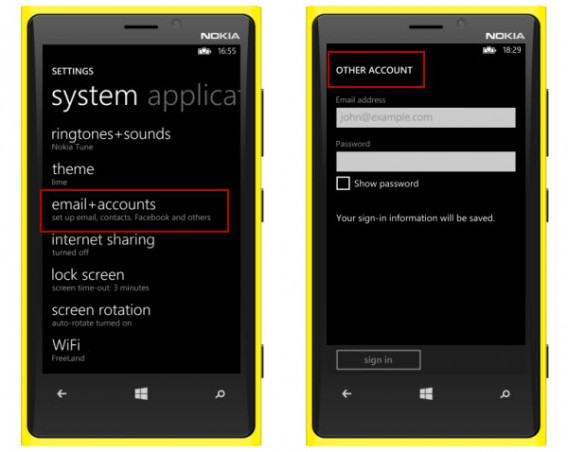
Add your email to Windows Phone

Synching with your mail shouldn’t cause any problems

Find contacts and calendars on your Windows Phone

From the moment you launch an Android device, Google invites you to link your phone contacts to a Google Account. This Google Account is the mandatory gateway that lets you benefit from services such as Google Maps or Google Drive, including emails, contacts, files stored online, and much more.

The good news is that Windows Phone supports the addition of Google accounts. Synchronizing a Windows Smartphone can happen in just a few simple steps. Once again, go to the Settings > email + accounts > Google menu, enter an email address and password, and then the process is extremely simple.
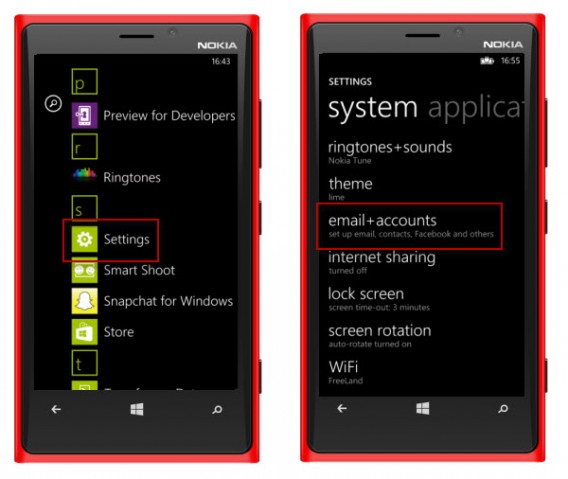
Windows Phone add Google account

Tap Settings and then Email and accounts
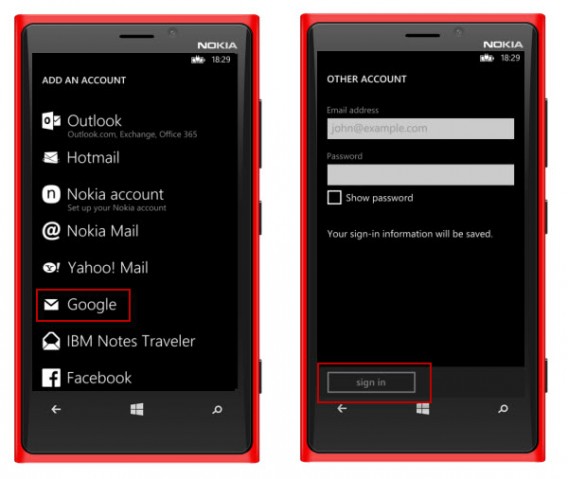
Add Google Windows Phone

Enter your Gmail address and associated password and validate

Then, simply select calendar, contacts, and email to synchronize everything.

If you’re not connected to Google on your Android and prefer the services provided by Yahoo!, Facebook, or even Outlook.com, then the procedure is exactly the same for these accounts.

For all other Android users who prefer to store their contacts on the SIM card of their phone rather than online, you can download the Windows Phone 8 transfer my data app. It automatically retrieves the contacts stored on your old phone using Bluetooth technology. The telephone numbers are automatically added to the People app on the Windows Phone.

Finally, it’s also possible to insert the SIM card into your new Windows Phone, and you’ll find your address book as you left it.

Import documents stored on your Android

Unlike emails and contacts, there is unfortunately no magic recipe for transferring spreadsheets, text files, and other PDF documents stored on your phone.

Only users of OneDrive, the Microsoft storage solution, are spared this hassle. The application is installed by default on your Windows Phone, and you simply have to connect to your Microsoft account to find all of the data you stored in your online space.
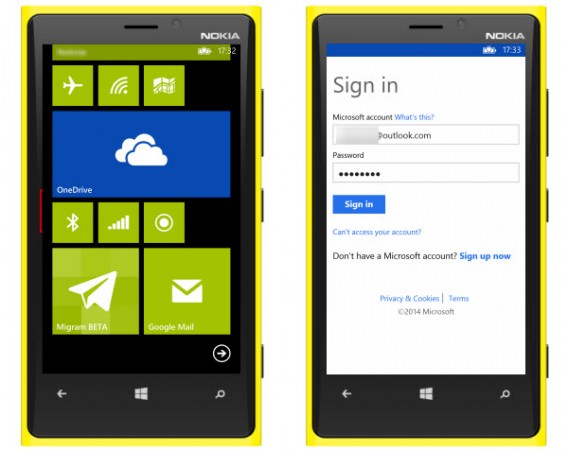
Documents in Outlook

The OneDrive Microsoft application is installed by default on Windows Phones

For those who manage their documents from Dropbox, it’s useful to know that there are unofficial apps like Boxfiles for Dropbox that can help. To be sure nothing is lost, however, we advise you to download all of your Dropbox files onto your computer, then copy them to the Windows Phone using a USB cable and with the help of Windows File Explorer or OS X Finder.
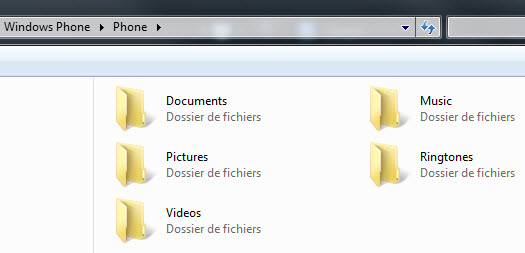
File explorer

Connect your Windows Phone to your PC using a USB cable to transfer files

To synchronize the contents of your Google Drive or other online storage solutions, like MEGA for example, the procedure is the same.

Microsoft offers parallel software to help you synchronize your documents with your Windows Phone. This official solution was developed by the Redmond teams and is available for PC and Mac

For people who use Windows 8 on their PC, you can’t go without the Metro application, My Windows Phone, probably the easiest one to use.

Music: find your favorite artists on Windows Phone

The solutions offered by Microsoft will vary depending on your use of the cloud. If you use a streaming service like SpotifyDeezer, or TuneIn Radio, they all offer working Windows Phone applications. All you need to do is log in to your account to listen to your custom playlists.
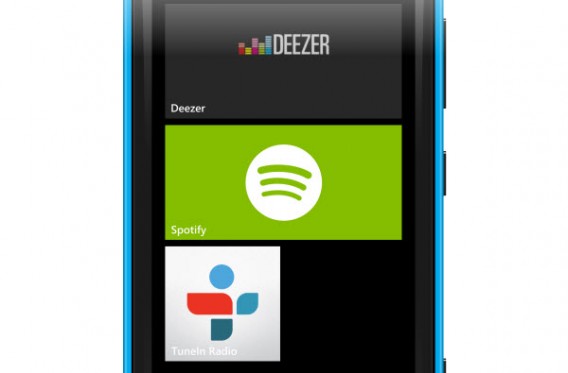
Streaming music

The main music streaming services are available for WP8

Do you keep your music library on your computer? Connect the Windows Smartphone via USB or use the Microsoft software to add music to your new device.

If you use the Google Play Music Manager, the service for storing and streaming audio from Google, you will unfortunately have to download all of your music onto your PC and then synchronize it using Microsoft software or via a USB cable. It’s the same situation if you use the Amazon MP3 Service: download the Amazon MP3 Downloader to retrieve your purchases and your local music, and then transfer the data onto your Windows Phone.

Photos & Videos: the Cloud makes it easier

Regarding your multimedia files, people who use online storage will again be in a better position. If you store your photos on Facebook, Flickr, or OneDrive, then download the corresponding Windows Phone 8 app and connect your account to synchronize all of your online files on your Windows Phone.

Bad news for those who don’t save their images in the cloud: you need to connect your old Android to your computer, copy the files to your PC or Mac, and then paste the data in your Windows Phone.

Application ecosystem

If you still have any doubts regarding the applications available for Windows Phone, we invite you to (re)read our summary of top 30 mobile services and their respective availability on Windows Phone, Android and iOS to get an idea of what’s out there.

Find out more about your Windows Phone in our guide.
Instagram guide: how to get the most from Instagram Direct

In this fifth episode of our complete guide to Instagram, we want to introduce three original ways to use Instagram Direct, a new feature launched in December 2013 to send pictures to a small group of people.

A message to those who still haven’t used Instagram Direct. What are you waiting for?! It opens up a world of possibilities for interaction with your followers. Available for iOS and Android, with this feature you will be able to send a private photo or video to one or more contacts (with a maximum of 15).

Before introducing this feature, the social network offered only two privacy settings: public or private. Your pictures were therefore to be seen by either the world or your followers. To be honest, it wasn’t a sustainable situation for one of the world’s largest social networks.

Related story: Instagram guide: Protecting and sharing your profile

There are two ways to start a conversation on Instagram Direct. For the first one, all you have to do is go to your home page and click on the mailbox icon in the top right corner. The second option is to choose Instagram Direct on the last screen, just before you share the photo or video.

There are 2 ways to use Instagram Direct

There are two ways to start a conversation on Instagram Direct

Now that you are familiar with Instagram Direct, it’s time to discover three specific uses that can surprise your followers, increase your visibility or simply help you get the most from it.

1. Invite friends to a party or event

Instagram Direct does much more than just sharing a picture. After you’ve shared a photo or video –  in other words, you can’t start a conversation without sharing something – your chosen followers can comment on the publication.

That’s why Instagram Direct becomes the ideal tool to send a personalized invitation to your closest friends. You’ve organized a party? Send your friends a preview of what they will miss if they don’t go. They won’t be expecting that!

Instagram Direct #party

Send an invitation to your friends via Instagram Direct. They won’t be expecting that!

An alternative for organizing a party or get-together: Doodle

2. Share a private photo or video with your friends

Since it’s a completely private communication channel, Instagram Direct offers a retreat from the bustle of hashtags and your news feed. A private group (limited to a maximum of 15 followers) is perfect if you want to comment on the newest addition to the family, your favorite band’s new album or the results of yesterday’s game.

Share a private photo on Instagram

Only the selected followers can see and comment on what you’ve published

An alternative for sharing private pictures or contents: WhatsApp

3. Offer unique content to your followers

Are you behind a successful blog? Are you an entrepreneur or a CEO crazy for new technologies? Then this is what will grab your attention! Big brands can also make the most of Instagram Direct to launch marketing campaigns.

Instead of speaking to the hundreds or even thousands who follow you, why don’t you choose 15 lucky winners and interact with them via Instagram Direct? This is a qualitative approach that your followers will enjoy!

Run competitions via Instagram

An alternative for organizing a give-away: Twitter

A feature struggling to find its audience

It seems that Direct Instagram is struggling to find its audience. However, we can imagine that new uses, whether commercial or not, will soon appear. What we know for sure is that with the Direct function, Instagram has stepped into the world of instant messaging for smartphones.

For more information on this competitive and coveted sector, you can find our comparison of messenger apps for Windows.

Read our Complete guide to Instagram to get all the info you need to become an Instagram pro!

Do you know about the Instagram Direct feature? Have you used it?

5 reasons to leave WhatsApp now Facebook owns it… and 1 great reason to stay

Facebook just bought WhatsApp for the tidy sum of $16 billion. As the number one instant messaging app for smartphones, WhatsApp connects nearly 450 million active users a month. WhatsApp’s servers, which handle around 600 million photos daily, are now in the hands of Facebook.

It’s a scary thought which will obviously be met with skepticism by some users. Here are 5 initial doubts you may have about the Facebook-WhatsApp merger, and one reason you may disregard them all and stay with the mobile messaging service.

Privacy: We want to limit the influence of Facebook on our lives

We’re not oblivious: Facebook’s power and reach are amazing. The mammoth social media company already has control over much of the world’s online personal information. If we continue using WhatsApp, we’re helping Facebook create a monopoly over personal information, while at the same time, amassing a phone book with nearly 500 million numbers.

Why keep all your eggs in one basket when there are equally effective instant messaging alternatives?

Security: Don’t rely on WhatsApp’s engineers

Security and WhatsApp have a complicated history. You only have to think back to the recent Priyanka virus, or the WhatsApp Sniffer scandal, to get a little bit antsy.

Can we expect redemption? It seems pretty unlikely, especially considering the recent NSA scandal and the news that even mobile apps, including Facebook, were not immune to the collection of personal information by the American security agency. This isn’t exactly reassuring for WhatsApp users.

Advertising: Facebook could try to monetize the acquisition of WhatsApp

The developers of Instagram, another major mobile app recently acquired by Facebook, have already considered integrating ads into its newsfeeds.

Enough said– if Facebook bought WhatsApp for $16 billion, it’s certainly not going to idly sit by on its purchase. There’s a good chance that advertising will arrive sooner or later to WhatsApp, even if that’s denied by both Zuckerberg and WhatsApp’s CEO.

Interface: I don’t want to see blue in WhatsApp

As well as advertising, and despite declarations from the publisher saying ‘nothing’ will change, the possible integration of Facebook with WhatsApp is sobering. Imagine the famous blue buttons fixed to the Facebook home screen in WhatsApp.

Could this be the new WhatsApp?

These are only guesses, but we can’t help but think that some sort of integration between the two services is only a few months away.

Time to move on: WhatsApp is no longer fashionable

Although the number of WhatsApp users are exponentially increasing, the service may be losing a bit of its ‘trendiness’ as a result.

As many teens are gradually abandoning Facebook for Snapchat (which Facebook unsuccesfully tried to purchase last year), there are also a ton of people flocking to Telegram, which recently made news for its growing popularity.

And yet …. All your friends are on WhatsApp, so why change?

The one reason that’s enough to make you change your mind and stay with WhatsApp? With 450 million active users, WhatsApp has something that tips the scale far in its favor. There’s a good chance that most of your friends already have WhatsApp installed, and getting everyone to switch services may be more of a hassle than it’s worth.

As the saying goes, if it ain’t broke (yet), why fix it?

If you’re not convinced, and are looking to make the switch, there are plenty of popular alternatives to the service, which already have some traction in the market:

RELATED STORIES:

Which OS has the most popular apps: iOS, Android or Windows Phone?

Choosing between a Samsung Galaxy, iPhone 5 or Nokia Lumia is more than choosing between devices; it’s about choosing a platform that can offer you the best user experience. If you need help deciding which OS would suite you best, we’ve compared the availability of 30 essential apps for three of the most popular mobile operating systems for smartphones.

More than just fancy phones with internet, smartphones now offer real app ecosystems. Wedged between the mobile tech giants (namely Google, Apple and Microsoft) who create the OS, we find app developers. As these companies vie for the developers’ attention, the developers are the ones who decide if their apps will be available on Windows Phone, Android or iOS.

If you’re in the market for a new smartphone, check out the table below to see if some of those most essentials apps are available on the platform you’re learning towards. To find more information about each app, you can click the link.

App / Service
Facebook
Twitter
Spotify
WhatsApp Messenger
Instagram BETA
Skype
YouTube
Kindle
Snapchat
Shazam
Vine
VLC
Amazon Mobile
eBay
Flickr
Facebook Messenger
NetFlix
Pinterest
Dropbox
BBM
WeChat
Google Earth
Viber
LINE
Google Maps
UC Browser
SkyDrive
TuneIn
Evernote
Runtastic

Although these are the most popular apps for iOS, Android and Windows Phone users, keep in mind that the quality of each app can differ on each different platform. Spotify for Windows Phone, for example, has been strongly criticized.

Our opinion

Windows Phone has been accused of not having many good apps, but that’s changed quite a bit lately. Microsoft has been working hard to attract some of the best app developers, and as you can see, is only missing 8 of the top 30 apps from our table. Dropbox and Snapchat are a few notable apps still not officially available for Windows Phone.

Both iOS and Android offer all of the top 30 best apps for smartphones. It’s true that Apple’s App Store, often considered the best app store, offers some apps exclusive to the platform, like YouTube Capture, Sunrise Calendar and others, but they tend to have the highest popularity among hardcore tech geeks.

The same goes for the Google Play Store; developers only offering  popular apps such as WhatsApp or Dropbox for iOS, as was the case in the past,  in no longer an issue.

Thinking about buying your first smartphone?

For a first smartphone, the choice of OS shouldn’t be a decisive factor. The above comparison of the three main mobile operating systems shows you that no matter what you pick, you should be covered for the basics.

You already have a smartphone, but want to upgrade?

In this case, mid-range iPhone or Android phones should suit you best. If you like taking pictures, you should also consider a Windows Phone, but keep in mind that in terms of ecosystem, Microsoft’s mobile OS hasn’t traditionally been the strongest.

The geek in you wants to buy a high-end phone?

If you’re determined to buy a Windows Phone, you should know that there are many unofficial apps for services that are still missing. Some developers offer, for example, unofficial versions of Dropbox.

Which OS do you think is the best for smartphones?

Related articles:

Instagram guide: How to record, edit and share video

In this fourth installment in our complete guide to Instagram, we shine the spotlight on video. Here are our top tips and tricks for saving, editing and publishing videos on the social network.

On 20 June 2013, Instagram unveiled a new flagship function: video mode. Cinemagram (iPhone | Android) and Vine ( iPhone | Android) had already paved the way, and Instagram was trying to get in on the game by relying on its strong user base. Here, we’ll show you how to make videos using the popular social network.

Please note: This tutorial was made on an iPhone, but the steps differ only slightly from one platform to another.

Image stabilization, a prerequisite for making your video a success

If you don’t want to make your followers dizzy, it’s important to stabilize your clip as best you can, a key factor for driving the popularity of the video. In the absence of an automatic stabilizer, it’s important to support your smartphone with both hands to reduce vibration. More than the quality of your camera phone, it’s the fluidity and lack of blur that are important on Instagram. Here’s are a few concrete example:

Instagram video account wildflowers_gmc13

Instagram video account stepuplp1567

As you can see above, stabilization has an important advantage. If the smartphone is well supported, the action is smooth, which in turn considerably limits blur.

Remember that there are different accessories for Android and iPhone especially designed to reduce instability.

iPhone stabilizer

A very useful accessory to stabilize your smartphone

Capturing images

The length of Instagram clips is between 3 to 15 seconds. It’s worth noting that with Vine, you only have 6 seconds. Before recording, it’s always good to plan a mini-scene. Followers will like this. Also, remember to look for the best angle before starting to record.

Most of the rules of composition that are explained in our article “Get that ‘10,000 likes’ image” also apply to video format. Think about the rule of thirds and adjusting the brightness.

Remember that just touching the screen is enough to adjust the camera focus.

Instagram video exposure

Change the focus with one touch

You’ll notice that video mode offers fewer editing options than photo mode. The composition grid is unfortunately missing, and its unclear why, but the editor isn’t integrated with video mode. It’s also no longer possible to manually control the flash when recording.

To showcase your creativity, you can create surprising effects by alternating the main and front cameras.

Create surprise effects using the back and front cameras

Create surprise effects, alternating the back and front cameras

In Instagram, you can release the red button, then press it again to create a series of scenes. Before you start, remember that it won’t be possible to change the order of scenes afterwards.

You can create stop motion videos by taking a series of short video clips.

Once you’ve recorded the different sequences, you can delete any unwanted scenes by pressing the button marked with a cross to the left of the screen. You can only delete one scene at a time, the oldest to the most recent.

Pressing on the same button a second time will delete the last recorded scene permanently.

You can only delete the most recent scene first

You can only delete a scene at a time, the most recent to the oldest

If you leave your finger on the cross button, Instagram will offer to delete the entire clip.

Another important function relates to the audio. Instagram has access to the phone’s microphone and as a result, all Instagram videos have sound. Note, there is no option to disable audio. Once you’ve finished recording, press the Next button at the top right of the screen (or a simple arrow using Android), to go to the next step.

Post-production

The second step lets you preview your video without posting it. Click the moving video icon to play the clip. Take advantage of this screen to pay attention to the little details; it’s here that you’ll be able to listen to the video’s audio track for the first time. If you’re not satisfied, go back and delete the sequence that you don’t like.

It’s also in the post-production part of Instagram Video that you can apply one of 13 available filters to your creation. They’ve got different names, although the proposed effects are essentially the same (black and white, sepia, tungsten, etc.) as in Photo mode.

Scroll through the thumbnails at the bottom of the screen to the left and select the filter you want by pressing it. Note that you can select the Normal filter if you don’t want to apply a special effect to your video.

Post-production Instagram

There are 13 different filters available for videos

Once this step is completed, it’s time to move on, choosing a cover and sharing the clip.

Share good videos with the right people

The next screen gives you a few simple options. Instagram lets you choose the cover for your clip, which is basically the photo that your followers see before the video starts. The cover automatically defaults to the first scene of your video. We advise you to choose the most representative image of the video to generate the most likes possible.

The last step, for sharing your clip on Instagram, Twitter, Facebook, Tumblr or Foursquare, is identical to Photo mode. By linking your Facebook account to Instagram, you can post the video as a link on your Facebook wall.

Publish a video

Alternate photos and videos on Instagram

Video mode opens up new possibilities on Instagram. Brands are in on it too, as more than 40% of the 1,000 most shared videos on the network are the work of professionals. Video lets you offer original content, which is undoubtedly one of the best ways to set you and other users apart.

In an upcoming episode of our Complete Guide to Instagram, we’ll explain how to import photos and videos on your PC to Instagram.

How many likes did your last Instagram video get?