9 surprising features in Google Hangouts

In the world of VoIP calls and free video, a war started ages ago between Skype (owned by Microsoft), mobile chat applications like Viber or LINE, and Hangouts, the offering from the giant of Mountain View, Google.

If I could only keep one of these, I’d opt for Google Hangouts. Beyond the simple fact that Hangouts works fantastically, even during video conferences with 10 people, it’s the other little bonuses of Hangouts which make it a must-have.

Here are 9 of the best features of Google Hangouts that you may have missed, but which could forever change the way you use the service.

1. Register your call or conference on YouTube

The first little-known, but very handy feature: Hangouts live, which lets you record your calls as YouTube videos.
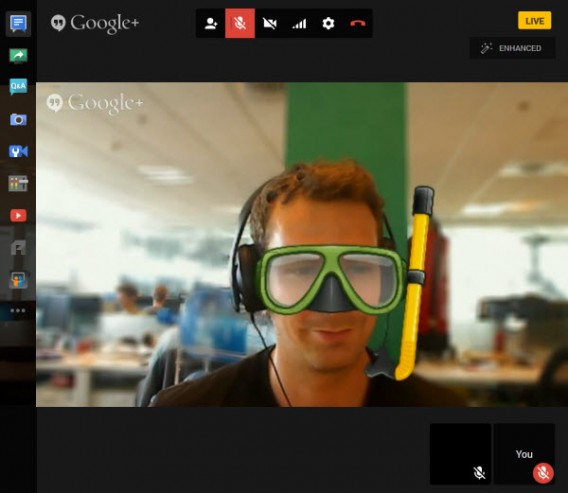
Hangouts on Air live

As its name suggests, videoconferencing is broadcast live on YouTube, but by paying attention to the privacy settings, you can significantly restrict access to your video conference.

Once the call and the live broadcast have ended, the video is automatically saved in your YouTube account. To see it again, go to the Video Manager section in YouTube.

2. A mini control room in real-time

The Hangouts live feature offers another significant advantage: it allows you to access a control room from the options menu.
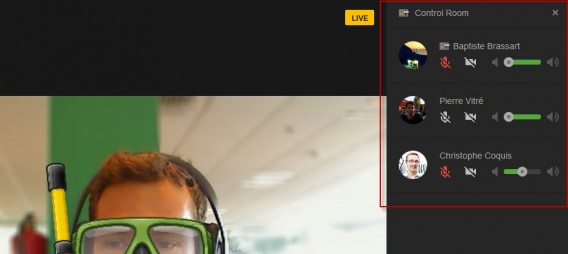
Governed Hangouts live

Using this control room, you can turn each videoconference participant’s microphone or webcam on or off.

The tool has already been adopted en masse by YouTubers and other podcasters all over the world because it severely reduces post-production work.

3. Manage your Circles to launch calls quickly

As part of the Google ecosystem, Hangouts is closely linked to the Google + social network. This means that to use this VoIP service effectively, you need well organized Google + circles, which will significantly save you time.
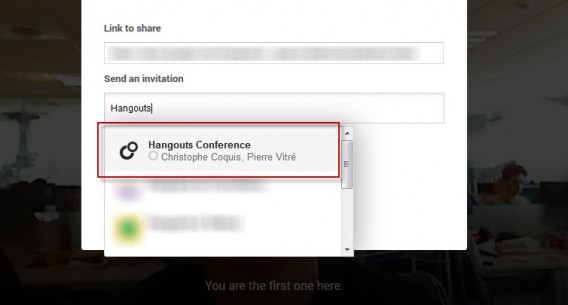
Circles Hangouts

If you often have videoconferences with a group of friends or colleagues, consider creating a circle so that you can start the conversation quickly and without having to add the participants one by one.

4. Schedule your Hangout times

Hangouts NotificationsYou can plan a video call in advance with Google Hangouts. More than a video conference, this is like creating an upcoming Google + event and inviting all the participants in advance.

Hangouts details

When creating the Hangouts call, you’ll  find your Google + Circle of friends and can add a description in the Details field. Then, the Google+ notifications system takes over to keep you informed of developments related to the event.

5. Applications and Games for Hangouts

As well as the YouTube videos module and collaborative working via Google Docs, which I’ll discuss below, Google Hangouts includes a dozen other third party applications, all of them free.
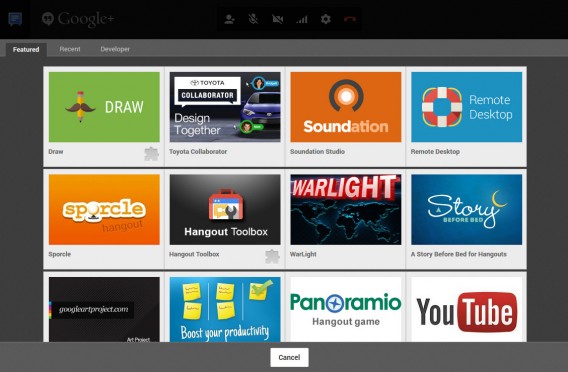
Apps Google Hangouts

To use them, simply download the module corresponding to the service. The icons are then added to the control center on the left of the screen, and can be viewed by all participants in the video call.

Sound design with Soundation, short stories with A story before bed, or even a visual quiz with Panoramio are all add-ons that offer something to liven up your Hangouts conversations.

6. Collaborative working via Hangouts and Google Docs
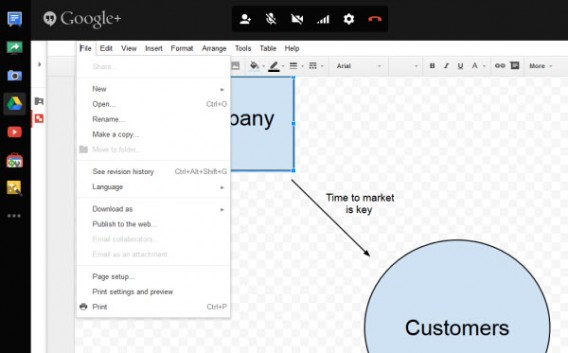
Google Hangouts Drive

If screen sharing has become a standard function over time for all video conferencing services, the same can’t be said of collaborative working. Google Docs scores points where services like Skype can’t even compete.

Several people – up to 10 – can edit a document during a call. To do this, you need to download the module, and then create a new document or open an existing one. Once completed, the document can be saved locally, or in your Google Drive.

7. Watch YouTube videos with others

YouTube Hangouts is another app that’s definitely worth checking out. It can broadcast a video in a window in the center of the call, making the video visible to all participants.
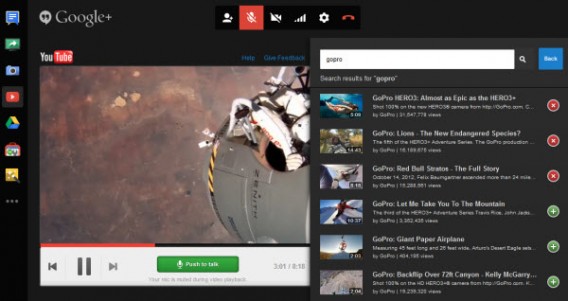
YouTube Hangouts

Google has paid close attention to detail with this function, even muting the microphone of your contacts as soon as the video starts to play. To watch a clip or the latest trailer, search for the video from the search engine and then add it to the playlist module.

In the mood for a Podcast? Prepare your playlist of videos in advance, publish your show on YouTube with Hangouts live, and avoid all those tedious post-production tasks.

8. Change the bandwidth

Once the call starts, you may struggle to get online access because the bandwidth given to videoconferencing might be too big. To correct this annoying side-effect, click the internet connection symbol between the cogwheel settings icon and the webcam disabling icon.
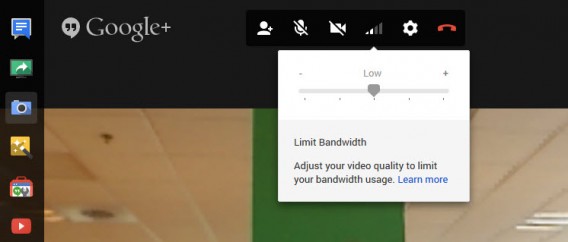
Limit bandwidth Hangouts

By reducing the amount of bandwidth given to video calling, picture quality is reduced, but it will let you continue surfing the web, playing online games, and downloading things while on the call. Note that although the video quality drops, you shouldn’t notice any lag between audio and video.

9. Shuffle button for Hangouts effects

You may or may not remember the famous MSN winks, but Google Hangouts has its own handful of animations that are just as funny as they are kitsch. The feature is called Google Effects and is installed by default.
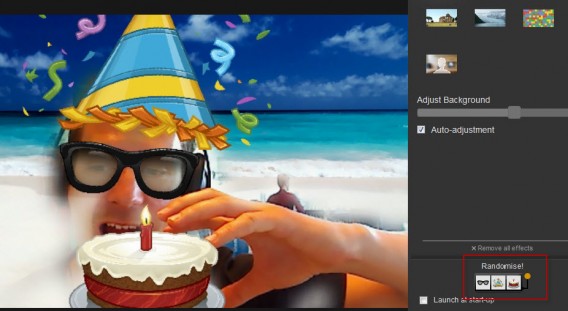
Randomize effects Hangouts

What you perhaps didn’t know is that Google lets you randomly modify effects. The button is hidden at the bottom right of the window, and fortunately, there’s nothing too ridiculous to share online.

Clearly, Google Hangouts has a few more things that some of the other VOIP services have to offer, and if you’re tired of plain old Skype, make sure to give Hangouts a spin.

If you’re still into Skype, check out our tutorial on using Skype group chats.

Follow me on Twitter @bbrassart

How to use screensavers as animated wallpaper

The Windows operating system has loads of secret tips and tricks which are unknown to the general public but which can be really handy (or just fun) on a day-to-day basis. Today Softonic explains how to create an animated background, or, more accurately, how to make your screensavers into backgrounds for your PC.

The options for customizing Windows seem endless. Fonts, wallpapers or complete themes: the Microsoft operating system definitely owes part of its success to these customization options. Sometimes a simple command line can change the entire look of your computer.

We’re going to tell you exactly how to use the default screensavers as animated wallpapers.

1. Run the command prompt and type the following line: screensaver_name.src / p65552

Command line screen saver

2. Here’s a non-exhaustive list of screensavers that you can use: Ribbons.srcBubbles.src and Mystify.src.

Screensavers

3. Once you’ve enabled the command line, you can continue to work or browse using your PC as if nothing’s happened, while enjoying your new animated wallpaper.

Screensaver

As you can see, the taskbar is still accessible, just like the Start button if you are using Windows 7 or Vista. The only downside is that the desktop icons are hidden by the screen saver.To access these folders and/or files, you must go through Windows File Explorer.

4. To stop the screen saver and return to the basic screen background, simply right-click on the icon for the screensaver and select Close window .

Close window

Do you love customizing your PC? Check out all of our special Windows video tips and tricks.

Follow me on Twitter @bbrassart
Frontback interview: “We’re more than just a selfie app”

Frontback is the dual-perspective photo app getting a lot of buzz right now, letting you take a photo with your front and back cameras, and then combining them into one post.

We had the opportunity to chat with Frontback co-founder Frédéric della Faille about how the app started, why its popular, and what the future holds. Check out our interview to find out more about the photo app everyone’s talking about.

Softonic: How did you get the idea for the app, and did you expect it to be such a success? Can you summarize how it all began?

Frédéric della Faille: Frontback started as a side project of CheckThis, an online publishing platform accessible from a browser. A year and a half ago, we started working on CheckThis for iPhone, trying to restrict the platform to photo sharing. The app launched, but wasn’t as successful as expected. There was a small, super active community, but since then, we’ve removed it from the App Store.

Co-founder's first frontback

I was trying to explain why a user could benefit from sharing several photos rather than a single Instagram post. I created a post on CheckThis with the words Front and Back and 2 images taken with the front and back camera of my phone. I shared them on social networks and, because most of my friends are in Belgium, they could see […] my apartment for the first time. They all thought I looked really tired, but it generated a lot of engagement.

People no longer judged CheckThis as a product but instead, for its content.

The CheckThis community was inspired by this post. Friends who are total non-geeks used CheckThis just for that purpose. It got to a point where I said to myself:

This is much more powerful than what I was expecting.

I created the first mockups to turn it into a standalone app. Since we’d already raised funds, we couldn’t get into something new because of our investors.

The co-founder of Frontback [Melvyn Hills ] came from Belgium to Brooklyn for a month and I told him “Listen, Melvyn, it’s a secret, but the two of us are going to work on this together.” We developed the app in 4 weeks [and] Frontback was immediately successful.

In 12 hours, we had exceeded the number of downloads that we had from CheckThis, which had been in the App Store for I think 9 months.

Because of my previous experience in digital advertising, I attach great importance to brands and communication. What was traumatic about CheckThis was that we had done a lot of communication, but it didn’t work.

For Frontback, we did the opposite. We didn’t have video, we didn’t have any marketing […] we only had the product. Since we had around fifty beta testers, friends in the world of emerging technologies in New York and Brussels, and also friends in the music industry, the links began to spread. We were spotted by tech media before we even contacted them.

I decided to focus my marketing efforts on one tech outlet, who finally agreed to publish an article on the app.

S: What’s your explanation for the selfies trend? Do you think it’ll last?

F: The selfie is a self-portrait. We’ve just given it a name that’s a bit cooler. But it’s always existed. In any case, we’re not a selfie company,  that’s clear!

Birth frontback

S: So, if users don’t take selfies and shoot two different photos, you don’t mind?

F: The latest Staff Pick that we chose was of a child being born. That has nothing to do with the selfie. There’s a lot of emotion that comes out of this picture. People are really immersed in the hospital at the moment it’s happening. If they hid half of the screen, it wouldn’t have as much emotion.

In any case, we’re not a selfie app, that’s clear!

Of course, we still enjoy the selfies. Last summer, we felt that something new was about to pop up. Some rather sophisticated selfies were starting to pop up.

There are two Frontback user types: one who comes for the selfie and then makes a composition around it; and the ones who come for the opposite and use the selfie as the complimentary photo.

One day, an article was published by an influential blogger in Japan who had discovered that touch gestures allowed you to move from the back camera to the front camera. For him, doing this completely changed the perception of the app and its possibilities.

It’s funny because, in general, the Japanese user posts a dozen composition photos and then slowly starts to introduce themselves in the frame. That’s pretty much the opposite of the European user. Europeans usually start with a selfie, then get a bit tired of it and move on to compositions.

For the record, these gesture features came to me through talking to Jack Dorsey, founder of Twitter, who is also a friend of mine. He told me: “You should try to find a solution for us so that we can take two good quality pictures with the front camera”

Obviously, we were scared of breaking the momentum of the product. We launched these features without talking about them.

“You should try to find a solution for us so that we can take two good quality pictures with the front camera,” Jack Dorsey, founder of Twitter

S: You’ve published a post on your blog about this since then…

F: We’re only now beginning to feel a little bit better prepared [to] transform the tool into a social network. We’re also able to explain what we can do with the camera a bit better. We certainly don’t want a user to have to go through 10 screens of explanations. It doesn’t matter if they discover [touch gestures] a bit later.

S: It’s also the creative side that users likes, the idea of having an app in your hands with which you can really express yourself.

F: When someone sees this little baby, if they don’t know about gestures yet, then we assume they’ll ask questions: “Did this person really take a Frontback, or is there something else that I don’t know about in this product?” Advanced users have the right to know stuff that the user in his first session can’t grasp yet.

S: Exactly. Would you say that these are the opportunities that differentiate you from other selfie apps?

F: A photo plus a photo doesn’t make 2 photos. It’s much more than 2 photos.

A selfie is quite limited by space. Your arm isn’t 2 meters long so the frame is still pretty tight.

S: Do you define yourselves as a social network, or would you prefer to rely on the spread of links on Facebook and Twitter to increase the number of users?

F: Clearly we’re a social network, and it’s not because everyone else is doing it that we’re doing it.

We don’t share our figures, but they are impressive. There are things happening with the app. Users are asking us to move towards social networking.

Stripes frontback

Clearly, we’re a social network, and it’s not because everyone else is doing it that we’re doing it.

For example, last week we got a nice surprise. A user in Chicago received a gift from one of our female users in Japan. They met through Frontback. Users inspire each other and get to know each other. There’s something incredibly fascinating about this, and users are pushing us to move towards more ways for contact one another.

S: Every picture posted on frontback also has a unique URL. I guess that helps you attract people to your app?

F: Yes, exactly. The idea is to create a platform and control the content viewing experience. Nowadays, it’s the cell phone that offers the best viewing experience.

S: Can you tell us about any new features you’d like to introduce in the future? For example, will it be possible to take 2 photos in one shot?

F: The hardware doesn’t allow this. If it were possible, perhaps we could try, but in any case, at the moment, neither the iPhone nor Android devices allow users to do it.

I know that Samsung has a Dual Shot function that lets you take pictures with the two sensors at the same time but […] I don’t think the Frontback user would be satisfied with this feature for taking 2 photos simultaneously. There’s this idea of composition: if the photo is going to be shared, we always want to look our best. The ability to combine 2 photos is super important to us.

S: Would importing photos from the photo gallery be conceivable?

F: No, that doesn’t fit with our philosophy, at least not yet. Uploading photos would distort Frontback. We’re in no hurry to consider that kind of functionality. We don’t have to reach a billion users, not yet anyway.

We’re really focusing on the existing community to try to understand the behavior of users, the ways they use the app, those kinds of things.

We don’t have to reach a billion users, not yet anyway.

We are extremely conscientious with regards to our roadmap. We don’t want to develop any additional functions as a knee-jerk reaction just to try things out.

S: Speaking of users, Frontback has a very international community.

F: It sure does. 60% of our users are outside the United States. As for the rest, you’ll find a lot in South America and Asia. A little less of Europe, but I know that since last Thursday [Editor’s note: since May 1], Apple has put us at the top on the AppStore in many countries in Europe. That should bring us more visibility there.

Everything is done organically. We haven’t developed any activity or marketing ideas yet. Growth is organic, since we haven’t really mastered the internalization of Frontback yet.

S: You’ve announced over a million downloads on the Apple AppStore. Do you have any other figures on the number of current users?

F: No, we don’t comment about them. Our figures are very good! From time to time, I tweet a number here and there. What really matters to us is commitment.

Pilot fighter frontback

It’s about knowing what a user does. Something happening with the app is what interests us the most, not just submitting incredible overall figures.

S: Finally, what are the most unusual photos you’ve seen on Frontback?

F: There are some every day. The Staff Pick is a feed that Elisa, the community manager, and I work on carefully. We see so many posts capturing so many different moments, that it becomes impossible to choose one.

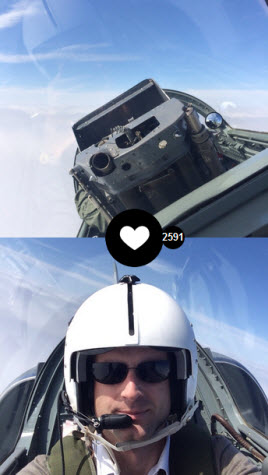
A recent post that aroused a lot of emotion is the image of a fighter pilot. It’s a Frontback in full flight and that’s something really special. A Belgian firefighter has [also] posted during a mission.

Photos that create emotion are the ones that aren’t just simple Frontbacks.

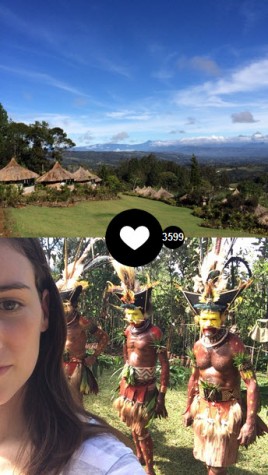
Papua New Guinea frontbackA user from Paris posted from New Guinea recently. It’s completely amazing. She got 3500 likes in 2 days. That’s completely unexpected!

You have to consider that there’s no offline mode, nor any uploading of photos, so she is really there, and that’s what creates something special.

When people use the app where you’d never think of using it, that’s obviously emotional for the team. Photos that create emotion are the ones that aren’t simple Frontbacks.

Frédéric, thanks for taking the time to speak with us.

You can find the whole Frontback community via the official app blog. If you need some inspiration, check out these 11 original ideas for creating a Frontback.

Frontback is available for both iPhone and Android.

Follow me on Twitter @bbrassart

How to use Skype’s free group video call feature

To compete with Google+ Hangouts and other VOIP services, Skype has removed its Premium subscription model and now offers group video calls for free. Available for both Windows and Mac, as well as Xbox One, the newly free feature lets you include up to 10 people on a single call.

Here, we’ll show you how to make a group video call, giving you all the tips and tricks for taking advantage of VoIP from the comfort of your couch.

Initiate a group video call on Skype

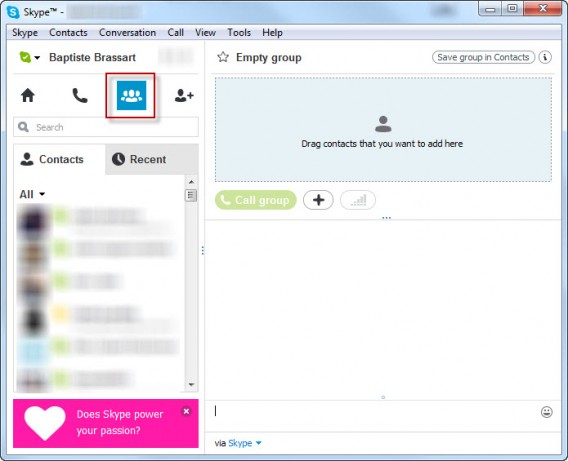
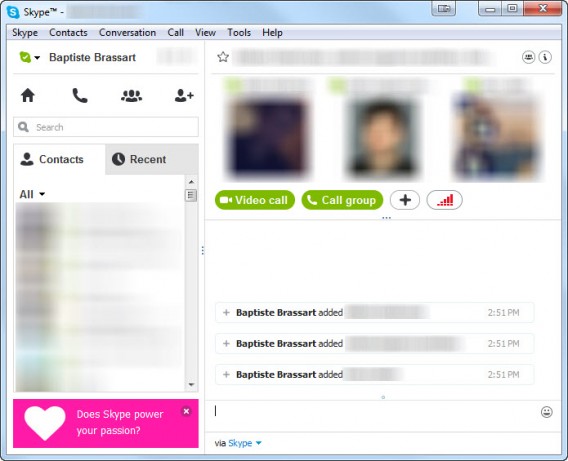
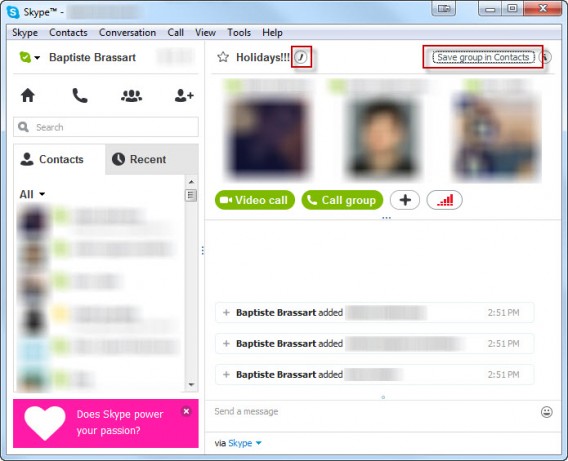
To set up a call and (virtually) meet your friends, go to the Discussions tab, then drag contacts to the top right of the window. You can add up to 9 participants (it’s 10 including you). Add participantsOnce you’ve grouped together the people you want to call, simply click the Video Call button to start a video conference, or choose the Call the group option to open a chat without activating your webcam. Skype Call a group of peopleNote that it’s possible to save a group in your Contacts . You can rename the group using the pen icon at the top left, as seen below. Enter the name of the group and click OK to save it. This option can be especially useful if you regularly video conference with the same people.Skype Change the group nameSkype Call in progress
Add a participant during an ongoing conversation

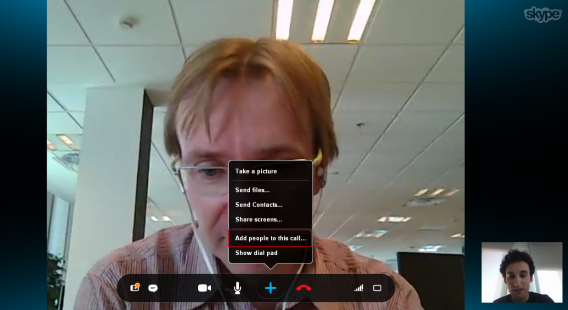
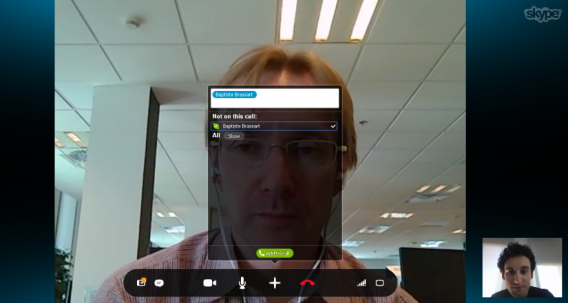
Did you forget to add a friend to the group conversation? Don’t worry– there’s a way to add another person to a video call that’s already in progress, although only the person who initiated the call can do this. This person will have to click the + button, then choose Add people to the callSkype Add ContactSelect the contacts you want, then click OK. Skype Add SassOnce the added person has accepted, you can continue with your free video call.
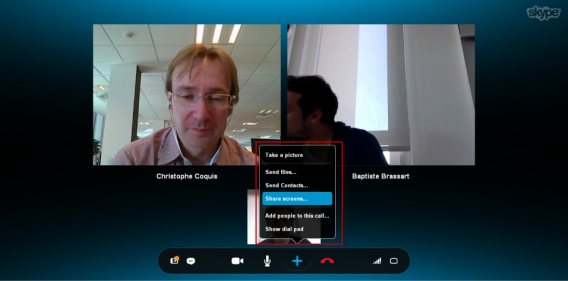
The little extras during calls

Sending files, much like screen sharing, is now an integrated function for any self-respecting chat system. Skype is no exception to the rule and provides the following possibilities: screen grab, sending files and contacts, and screen sharingSkype Additional OptionsBelow is a short video published by Microsoft to help you better understand all the features of group video calls.


Default player


brightcove.createExperiences();

Our opinion

With this Skype feature available for both PC and Mac, Microsoft is taking on Google Hangouts, ooVoo, and other similar services, head-on. It’s certainly taken a while, but Skype can always count on its existent (and substantial) user base to be happy about this change.

If you want to spice things up, check out our article on the Top Skype Voice Changers.
Follow me on Twitter @bbrassart

Traveling to Brazil for the 2014 FIFA World Cup? Check out these 11 apps

The World Cup causes unparalleled excitement every 4 years for soccer fans around the world. For those lucky enough to go to Brazil for the 2014 World Cup, there’s more to see than just soccer over the course of the 4 week tournament.

Rio de Janeiro, Sao Paulo, Brasilia, Porto Alegre, Salvador, Cuiabá, Fortaleza, Manaus, Recife, Natal, Belo Horizonte and Curitiba are all host cities of the 2014 World Cup in Brazil.

Lucky for us, we have plenty of in-house Brazilian editors who’ve helped us compile a non-exhaustive list of 11 mobile apps that’ll help you make the most of your trip to Brazil for World Cup 2014.

Accomodation : Where do you stay?

Airbnb

AirbnbHotels and hostels in Brazil are probably overloaded for this year’s World Cup tournament, so why not go the alternative route and take a look on Airbnb? This service, where homeowners rent out their properties to vacationers, is used in many countries and has become really popular (and useful) in the past year.

Booking

Booking.comIf you want to go the more traditional route, the Booking.com app is a must for online booking. Just like the website, the mobile app lets you filter options by price, area, and type of room, among other filters.

Hotel ASAP

Hotel ASAPDo you want to find hotels that aren’t necessarily shown in tourist guides or general apps? Try Hotel ASAP. Highly recommended by our Brazilian colleagues, this app includes the most interesting and unique hotels in the country.

Restaurants: Discover the best restaurants in the country

Nativoo guides

NativooMore than just a directory of places, the Nativoo app (Android and iPhone) is a comprehensive tourist guide. Restaurants, hotels, transport, and landmarks are all included in the app, making it the perfect ally for your trip to Brazil. The app is available in several versions for most major Brazilian cities.

You can download Nativoo guides for the following cities:

Foursquare

FourSquareThe geo-location app has just undergone a complete overhaul. With the division of Foursquare’s social aspect to a new app, Swarm (on both Android and iOS), the developers leave Foursquare as an app to recommend restaurants, hotels, and other places around the city, all based on your tastes.

Comer na boa – Porto Alegre

Comer na BoaTravelling to Porto Alegre, the largest city in southern Brazil? In this case, you can not miss Comer na Boa. This app lists the best restaurants in the city, as well as ratings and comments posted by other customers. Southern Brazil will welcome you with open arms.

Tourism: discover Brazil’s many attractions

Concierge Brazil

Concierge Brasil

Concierge Brazil apps are all published by Guia 4 Rodas, one of the most respected travel guides in Brazil. To celebrate Brazil’s choice as World Cup host, the publishers released an app for each host city of the competition. The guides are highly recommended for anyone interested–directly or indirectly– in Brazil.

You can download Concierge Brazil for the following cities:

Brazil Mobile

Brasil Mobile

Available for iPhone and iPad, the Brazil Mobile app aggregates and classifies all of Brazil’s attractions by category. Despite its somewhat outdated interface, Brazil Mobile gives you all the info you need to know about Copacabana, Iguazu Falls, or the Maracana stadium.

You can download Brazil Mobile for iPhone and iPad for the following cities:

Useful information- Transport, taxis and traffic

TripAdvisor

Trip Advisor

For all those lucky enough to go to Brazil, it looks like there have been many more before you: TripAdvisor is very popular and a great resource in the World Cup host country. This tourist guide has info about the best restaurants and hotels in the country, as well as offering helpful tips and travel information of every kind.

Waze

Waze For those who still don’t know about Waze, it’s a free GPS for smartphones. The idea? Connecting all drivers for better traffic warnings, including traffic jams, construction, and accidents. Traffic in Brazil is not particularly fluid, so it might be a good idea to download the app so that you don’t miss any World Cup games.

Easy Taxi

Easy TaxiNeed a taxi to get safely back to your hotel? Try Easy Taxi. This booking service works in all World Cup host cities. Just like Uber, you press a button and the taxi nearest you will come and pick you up.

In summary

To make sure you don’t miss anything during your stay in Brazil, we recommend that you install all of these apps. Some are standard, but useful, while others will help you make the most out of your trip to Brazil.

Of course, you’re most likely in Brasil for the World Cup tournament, so make sure to check out our guide for following the 2014 World Cup in Brazil through social media.

Follow me on Twitter @bbrassart

5 alternatives to Snapchat for sending messages that self destruct

Apps for sending self destructing messages are slowly but surely setting up camp in app stores, and it’s rumored that Facebook is next in line with Slingshot.

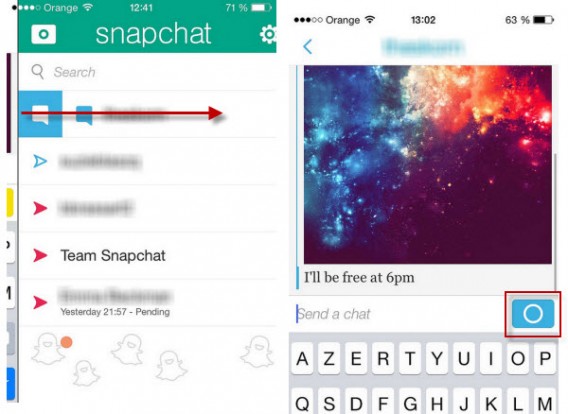
Snapchat, the app for sending self-destructing pictures, videos, and now messages, paved the way. Following the PRISM scandal, many developers have followed suit in various forms. Why? If millions of people already share images that self-destruct, why not offer a destructable e-mail or chat application?

Among a myriad of encrypted services, I have compiled a list of the five most successful multi-platform apps, including Confide, TigerText, or Privatext. Either way, there should be something for everyone.

Confide, the best compromise between security and ease of use

Confide

Available for Android and iOS, Confide succeeded in combining maximum security with exemplary ease of use.

The core of the system? To read incoming messages, you must slide your finger over the hidden message to make the message appear. In use, Confide protects you against any attempt at a screenshot. If the correspondent tries, you’ll be notified immediately and the image will not be saved.

In other words, if you’re looking for a serious application that’s easy to use, you can’t go wrong with Confide.

Confide

Privatext: the serious service

Privatext

When you’re on Privatext, it’s all about mimimalism.

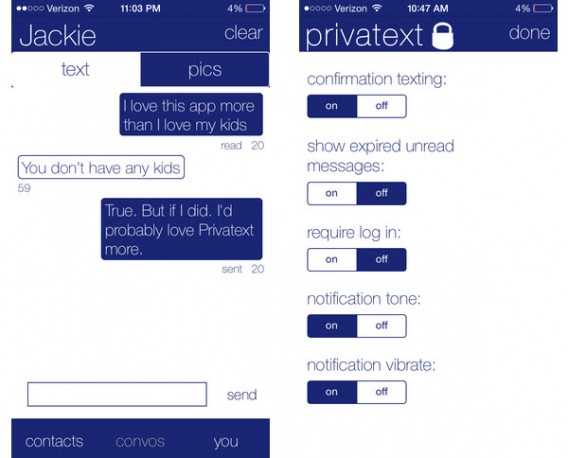
To create an account, simply fill in your email address. As the name suggests, Privatext is used for nothing more than to send secure text messages. When you open the app for the first time, you can see that the emphasis is clearly placed on security.

The biggest issue, however, is the interface: it could definitely use some improvement. During my test, I could see some bugs in the display, and if you choose to use Privatext daily, it could get annoying.

Privatext

Frankly Chat: colorful, simple and safe

Frankly

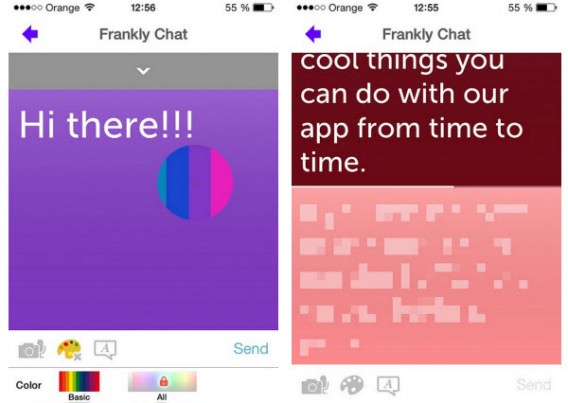
To create a Frankly Chat account, you have to provide your phone number, which the app uses to find potential contacts who are already registered with the service.

Fortunately, Frankly Chat has many good features to attract users: like Confide, it’s impossible to take screenshots of the program.

The data disclosure system is similar: content appears only when you touch the screen. Special mention must also be given to the editing options, which are comprehensive and fun to use.

Frankly Chat

TigerText Secure Messenger App: designed for companies

TigerText

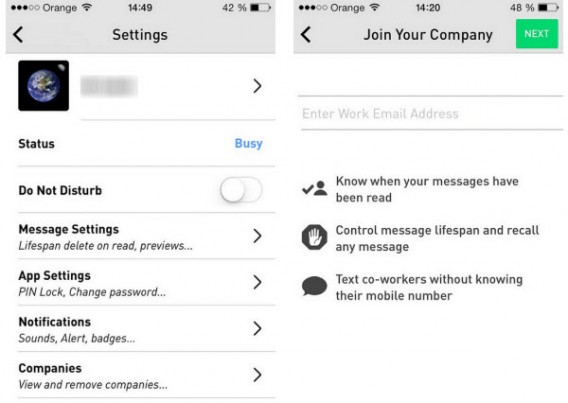
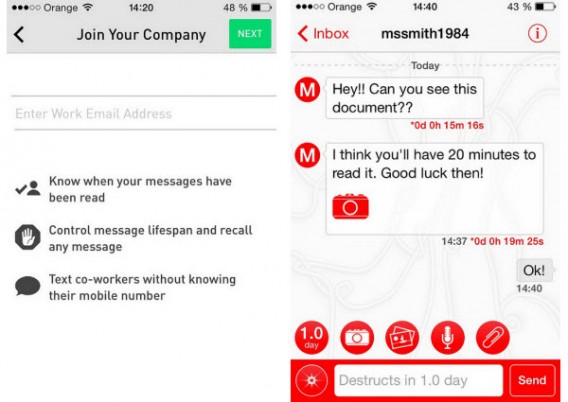
TigerText Secure Messenger App is more than an alternative to Snapchat. Recognized by industry professionals, TigerText is designed primarily for businesses.

Many medical professionals have already turned to TigerText. This multiplatform service allows all employees of a company to connect without having to exchange phone numbers.

Finally, and perhaps the best evidence of the seriousness and efficiency of this service, TigerText offers a $1 million guarantee if data sent using the service is intercepted.

TigerText

Wickr: as convenient as it is effective

Wickr

Wickr provides a good compromise between an interface that’s a pleasure to use, and enhanced security. It allows you to share any type of data, from video and audio messages, to photos.

Changing meeting times, adding colleagues without having their number, an ID system that performs well: these options allow you to use Wickr in a ton of different ways. In short, it’s an excellent choice for those wishing to make their communications secure.

Wickr

Many options to suit your needs

Out of all the options, I think both Wickr and Confide offer the best options and most interesting apps.

Regardless, all these apps offer a great disposable service. After all, why should all of our conversations be stored forever on another company’s servers? Now that you know a little more, you can choose the service that suits you best.

If you want to use a more popular messaging app, check out our article comparing the privacy of some of our favorite messaging apps.

Follow me on Twitter @bbrassart

Snapchat update: 5 things you need to know

In addition to photos that self-destruct, Snapchat now lets you chat and make video calls using new touch gestures.

Available on both Android and iPhone, Snapchat has always poured its content into the ephemeral web. Photos, messages and video conversations are not stored on your phone. Development teams have also retained the spirit of immediacy and simplicity that gives Snapchat its charm – not to mention makes it a success.

Before you jump straight into a video chat, here are 5 things you should know before using the new features.

To start a conversation, swipe to the right

To facilitate conversations and video calls in real time, development teams have added a new screen to their app. To get there, go to the screen where all the snaps are listed and drag the screen from left to right on the name of your friend.

You’re now in the new chat panel. The latter includes all the messages you’ve exchanged with your correspondent. If your contact is online, a blue icon appears in place of the yellow button for sending a snap.

Snapchat video

Change camera easily

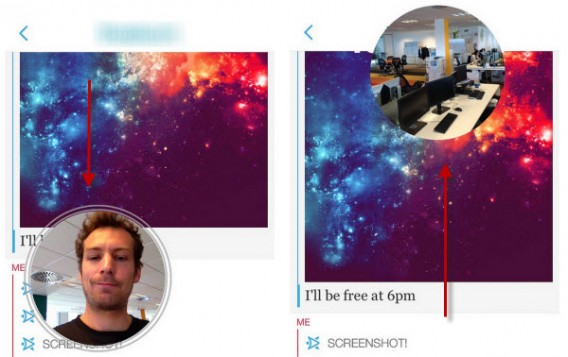
When you hold down the blue video button, you can show your friend what you’re seeing with the back camera of your phone or the camera on the front. If he or she wants to start a video chat, all he/she needs to do is press the button.  Snapchat now has a little feature for those who haven’t had a lot of practice. If you want to activate your smartphone’s rear camera, just move the video bubble up. If you want to activate the front camera, swipe the video bubble down.

Snapchat video bubble

A redesigned notification system

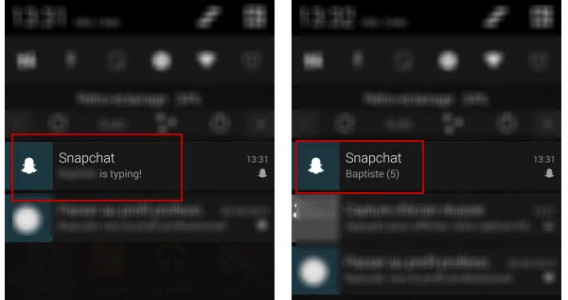
Unlike most chat applications, Snapchat has redesigned its notification system. The idea is simple: minimal notification. Even if someone sends you 10 messages in a row, the number of pending messages appears in a single alert.

Another small new feature that’s been well thought out: when your friend starts to write to you, the words “Your friend is typing” appear on the screen. This may, for example, allow you to start a video chat straight away and avoid a whole bunch of messages.

 Snapchat notifications

Check the time of sending

Finally, it’s now possible to know precisely what time a particular message has been sent. Simply slide your finger from left to right when you’re on the chat screen.

Heure d'envoi des messages Snapchat

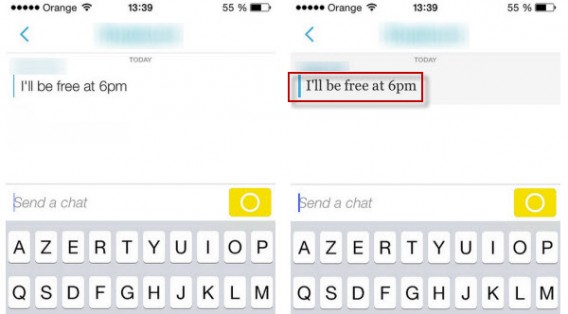
Messages can be saved

This update introduces another change. If you chat with your friends via instant chat tab, your contact can save messages you have sent. Simply type the phrase in question so the message font changes and the text is stored.

Our recommendation is that if you want to send sensitive information, the traditional Snapchat method – the self-destructible photos – are better, plus an additional drawing or text, if needed.

Save a Snapchat message

That covers all the newest updates and features of Snapchat.

For more details about the messaging app, check out our complete guide to Snapchat.

Follow me on Twitter @bbrassart

Trials Frontier: 6 essential tips to maximize gameplay

Trials Frontier, the mobile version of Ubisoft’s bike game Trials Fusion for Xbox One, Playstation and PC, is already a phenomenon. In less than a week, the game attracted more than 6 million iOS users.

While the game is completely free, you need to buy in-app purchases if you want unlimited play. If you’re already hooked on Trials Frontier and want to progress quickly without having to dip into your pocket, follow these 6 essential tips.

If you fall, restart the race from the beginning

This is probably the best piece of advice you’ll hear about Trials Frontiers: when you fall, rather than restarting from the last checkpoint, you can restart the track by pressing and holding down the arrow at the top right

.Trials Frontier Restart button

In other words, checkpoints are useless. By starting again from the begging, the timer is automatically reset. Another advantage is that you don’t have to pay the gas tax required for each race. There’s no secret: to get a good time, try to finish every race without falling.

Only time counts; style is secondary

Aerial acrobatics are only useful when you’re asked to perform them. The important thing is to cross the finish line as quickly as possible and to pass through all the intermediary points. On the other hand, if you’re feeling like Travis Pastrana and your air time allows it, then there’s nothing stopping you from combining business with pleasure.

Trials Frontier Backflip

Leaning forward, the key to overcoming obstacles

This may seem obvious, but it really is key to becoming a master: weight distribution on the bike is crucial. That’s why in many situations, you need to shift your character’s weight to the front of the bike at the right place and the right time.

Trials Frontier Lean front

Although there are only 4 buttons to control your 2 wheels, the laws of physics are fairly well respected. To pass over vertical walls, you need to give yourself momentum by shifting your character’s weight forward.

Press and hold over the item you want

After playing the game for about a hour, one of the characters you meet in the village saloon gives you an unbeatable tip: press and hold on an item to increase your chances of winning it when you’re spinning the wheel at the end of the race.

Trials Frontier Wheel of fortune

This technique is only effective when the girl tells you about it. You should be able to do this from about level 6.

Spend your money at the right time

As with many free-to-play games, one of the developer’s techniques to get you to buy credits is to make you wait. To avoid this inconvenience, only upgrade your motorbike at the end of the game.

Trials Frontier Bike upgrade

After each upgrade, you’ll wait longer and longer before the opportunity for the next one comes along. The trick is to upgrade before closing the game. The next time you login, you’ll find your bike tuned and ready to go.

Prioritize the boy’s missions

Continuing with the upgrades, when you see a mission suggested by the small boy who loves acrobatic flips, accept it. These missions help you build a new bike using the blueprints you collect, and of course, this is an essential step if you want to progress in the game.

Trials Frontier Backflips

By following these invaluable hints, you’ll be able to play Trials Frontier for several hours without having to dip into your pocket.

Follow me on Twitter @bbrassart

RELATED ARTICLES

Snapchat: everything you ever wanted to know

In this FAQ we focus on Snapchat: with these 13 questions and answers you’ll learn everything you’ve ever wanted to know about the app and its use.

Snapchat has become an essential app for those who wish to send messages that self-destruct. However, there are many questions that need a answers.

Confidential information and user account

How do you open an account with Snapchat?

It’s free and simple. Remember that the official Snapchat app is only available for Android and iPhone, but 6snap, the unofficial app for Windows Phone works just the same.

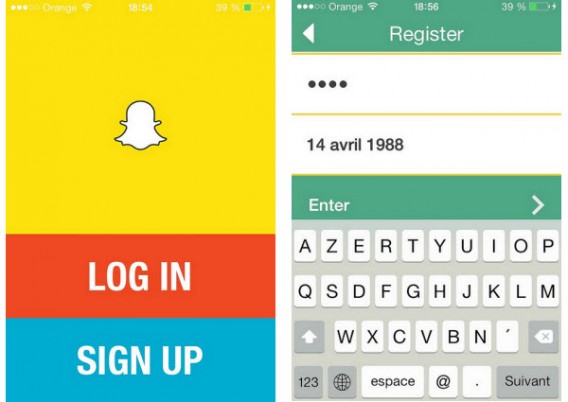
Once you’ve downloaded the app, select Sign up and fill in the fields with your email address, password, and date of birth.

Snapchat sign up

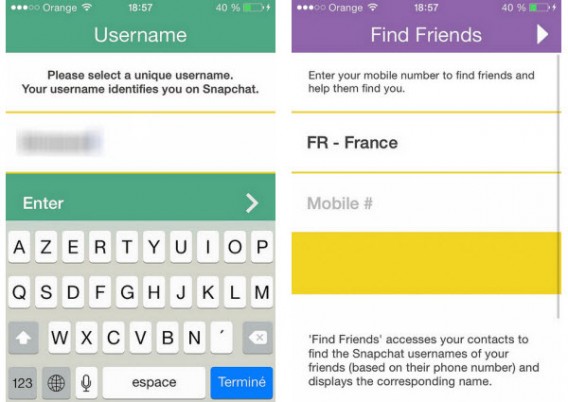
Once you pass verification, you have to choose your username. You can link your phone number to the app to help you find your friends (although this is not a prerequisite).

Snapchat username and friend search

Can I change my account and my personal information?

Once the account is created, you can modify certain personal information from settings.

Snapchat settings

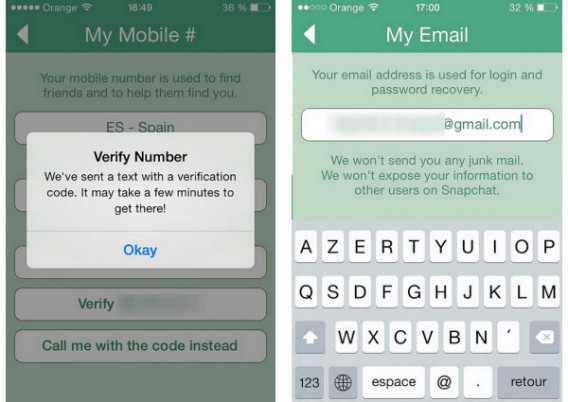
On this menu you’ll be able to change the phone number associated with your account (Snapchat will then send you a code via SMS for security reasons) and the email address where you receive all the important notifications from Snapchat.

Snapchat verification

However, you won’t be able to change your username. If you want to use another nickname, we recommend you close the account and open a new one.

How do I add friends to my contact list?

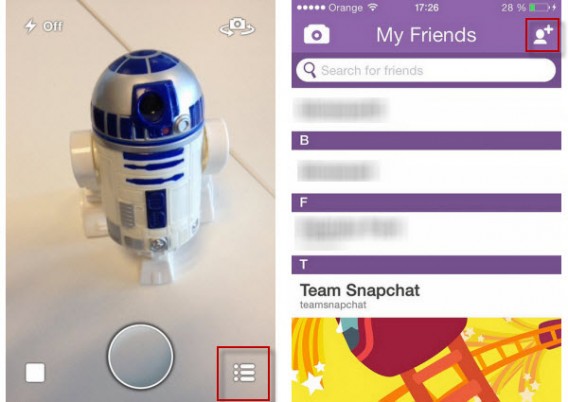
The easiest way to add people to your contact list is to link your phone number to your account. Then simply go to the contacts menu in the Add Friends option.

Snapchat add friends

The app gives you two options to add friends. On the first, it gives you a list of the people in your address book who are using Snapchat. The search tab, symbolized by the magnifying glass, lets you search by username.

Snapchat add friends

In summary, if you want to add someone on Snapchat, you must know either their phone number or exact username.

How do you know if someone has blocked you or deleted you?

Snapchat doesn’t send notifications when one of your friends blocks you or deletes you from their contacts.

When someone blocks you, they will disappear from your contacts list. You won’t even be able to find them through Snapchat’s search engine.

If, on the other hand, someone deletes you from their contact list, they will still appear on your list of friends, but if you send them a picture, they won’t receive it.

Getting started with the app

How do you access Snapchat’s menus?

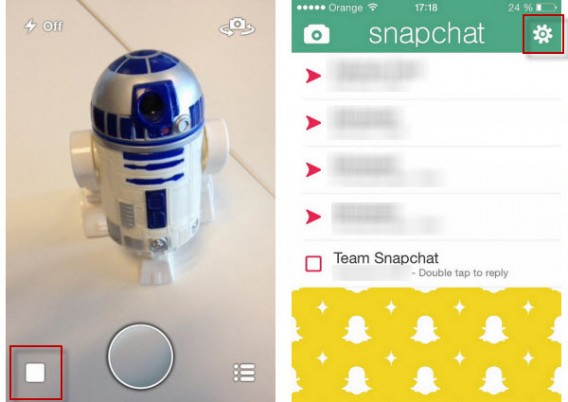
Snapchat has three main screens. Every time you open the app you start at the camera. To access the main menu, you must select the square button on the bottom left or drag the screen from left to right. To see your friends, select the icon in the bottom right corner or drag the screen from right to left.

Snapchat main interface

Can you send videos via Snapchat? How do you go from Photo mode to Video mode?

To record a video for your contacts, you simply have to leave your finger on the trigger. The maximum length of a video is 10 seconds and the sharing process is the same.

How do I choose how long the picture will be seen?

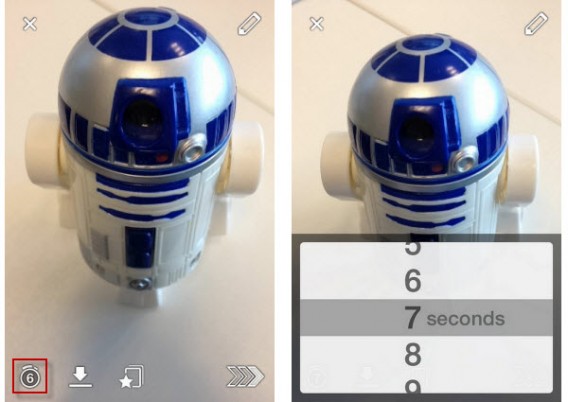
To change the allotted time you must first take the photo or video you want to share, then click on the stopwatch icon. A drop-down menu will let you set the timer from 1 to 10 seconds.

Snapchat change time limit

Can you import photos stored on your smartphone?

The answer is no. You can’t send any of the photos stored on your iPhone or Android. There are some applications like SnapRoll for iOS, but for security reasons we don’t recommend using them.

Can you comment on photos?

No, you can’t send comments on the photos or videos you receive. When taking your snaps, you can add text to the picture or video in two ways. With the pencil on the top right of the screen you can write or draw freehand. You can also add text by tapping on the screen.

If you want to comment on friends’ pictures, you can reply by sending them another photo or video. To make it easier, your friend’s username will already be selected when taking the picture. Don’t forget that Snapchat doesn’t have a standard chat system.

What is the 403 error message?

Many users complain about getting a 403 error message when sending a message to their friends. Don’t worry, it’s not your smartphone, it’s a technical problem with the app itself. You can try to uninstall and install the app again to get rid of this message. If this doesn’t work, wait until service is restored.

Advanced Features

Can you save any of the pictures, and what does the Screenshot message mean?

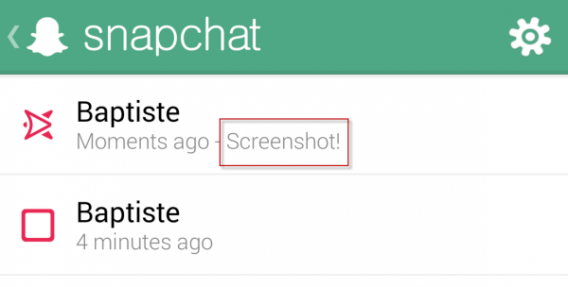
The answer is yes. Although Snapchat messages self-destruct, it’s possible to take a screenshot of the picture or video you were sent using the smartphone’s physical buttons. So, be careful with what you send and who you sent it to.

If your friend takes a screenshot of what you’ve sent, you’ll get a notification – sometimes. This depends on the smartphone you are using. Screenshots taken with an iPhone are systematically detected, while those made with a Google Nexus 5 weren’t detected during our tests.

Snapchat screenshots

How do you add filters to photos?

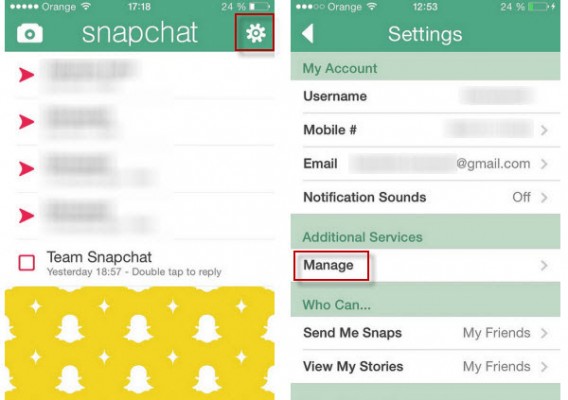
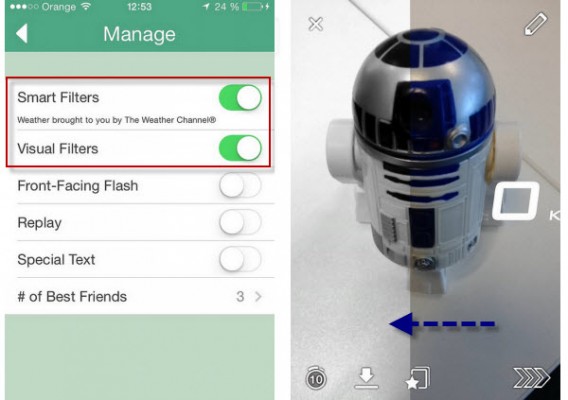
To add filters to your photos like with Instagram, you must enable the corresponding feature in the Settings menu: just click Manage under Additional Services.

Snapchat additional features

Snapchat filters

You can then activate visual filters to add effects to the pictures. Smart filters, on the other hand, will let you add a watermark with additional information (phone speed at time of photo, time, weather, etc.).

What are Snapchat Stories and how do you make a photo public?

Snapchat launched Snapchat Stories with their October 2013 update. Snapchat Stories can be compared to the “walls” found on other social networks. The snaps and videos you add to your Story are not public; they are only visible to your friends for 24 hours.

If a friend shares a photo only on Stories, you’ll have to access their profile to see the picture.

Snapchat Stories

Wrapping up

When using Snapchat, more than with any other app, it’s very important to understand how it works, or you can end up sharing content with the wrong person. So be careful with the publications that appear in your Snapchat history, or you could find yourself in a very compromising situation!

Follow me on Twitter @bbrassart

RELATED ARTICLES

11 cool ways to take Frontback photos

Frontback, the social app that lets you take dual perspective photos, is now available for Android. Here are 11 great, original ideas for creating awesome photos for the mobile app specialized in selfies.

To keep even the most creative users happy, Frontback has introduced a few handy features to keep your selfies fresh. The best addition? If you’re not happy with your photo, you’ll be able to change it as easily as tapping the image. But that’s not all– a slide up or down will let you swap images, moving them from the bottom to the top, and vice versa, with a single touch.

Jump straight into the world of Frontback and get inspired with these 11 original ideas to create your own great Frontback photos.

Clone yourself

What better way to surprise people than by messing with the rules of nature? Frontback invites you to take a picture of what’s in front of you in the first image, and a selfie with the second, so why not put yourself on display twice? You can even spice things up by changing the orientation of the camera.

Clone yourself

Extreme selfies

Sometimes you need to take a risk to really impress people. Thinking about scaling a mountain or going bungee jumping? It’s probably a good idea to take a selfie of it. Frontback will let you capture the special moment – just try not to risk your life for that perfect picture too often.

Extreme selfies

The kiss

Your moment of tenderness deserves more than just an average selfie. Frontback lets you take images that are both funny and touching – all you need to do is cook up a unique scene.

The kiss

An upside down Frontback

Photos of feet are huge on Instagram. The hashtag #fromwhereistand, indicating a first person POV, is one of the most popular on the network. With Frontback, you can take the concept a little further and add a photo of your surroundings too.

Heads and toes

Shadow and light

The interplay of light and shadow in photography add an element of mystery to the objects in your image. As you can see in the two examples below, the possibilities are practically infinite, as are the number of likes your photo could get!

Shadow and light

Benjamin Button, the Frontback version

If you’ve got your baby photos hidden away somewhere, now’s the time pull them out. Publish an image of yourself at two different ages, and show the young-at-heart side of your personality.

Baby/adult

Somewhere between photography and art

How would you like to recreate a famous artwork or painting, this time, starring you? The more famous the original, the better. At the moment, people are trying to “emojify” themselves– in other words, imitate emoticons from messengers. Can you do better than this?

Art or photo?

Man’s best friends

Maybe you’ve got the heart of a lion, or the cunning of a fox. Perfect – take a photo and complete the image with your face. Even better, copy the faces your pets pull, and create a really funny photo.

Animals and people

The two-in-one mashup

A new take on Frontback is to try and create complete images by using both cameras on your phone. Even harder, try to merge two different shots to give the impression of unity and flow. We’ll warn you now – it’s harder than it looks.

Photo montages

Before and after

Time travel by capturing two different moments in the same shot. Be careful though: like you see in cheap ads, before and after pics can give some pretty crazy results. Furniture assembly, recipes, haircuts, home improvement– the possibilities are endless.

Before and after

Symmetry

It seems that nature likes symmetry. Surprise your Frontback followers by taking totally symmetrical images, without a mirror. A handy tip: you can return to an image you’ve already taken by sliding your finger to the left or the right.

Symmetry

Be creative!

Now that you’ve got a few tips for creating Frontback images that’ll stand out from the crowd, you might even be chosen as one of the Frontback team’s famous Staff picks.

Of course, don’t be afraid to mix up these 11 ideas to create even crazier and more creative Frontback pics.

Article co-written by Samuel Marc

Follow me on Twitter @bbrassart

RELATED ARTICLES: