The best messaging and social apps of 2014

One of the most highly contested categories in our Best apps of 2014 series was best messaging app. Gathering 8 editors to round out our top 5 picks, we looked at criteria including innovation, functionality, design, everyday use, and multi-platform integration. Which one fit this criteria perfectly? Tinder.

Read on to find out why, and check out our other finalists for the best messaging app of 2014.

Default player


brightcove.createExperiences();

Tinder

Logo Tinder

In 2014, Tinder was everywhere. Launched in 2012, the dating app really took off internationally this year, easily making it the best messaging app of 2014.

There’s more to Tinder than just the hype though. It comes with a sleek design, and is very easy to use; swiping left or right to discard or accept (respectively) a profile has become somewhat of a social phenomenon. Being able to quickly meet people without the usual pressure that dating brings appears to be quite thrilling for single people everywhere.

Looking at all the clones that popped up during the year–none of which have been able to dethrone Tinder– shows just how much the app completely revolutionized the way people see online dating in 2014.

Download Tinder for AndroidiOS |Windows Phone (unofficial client)

WhatsApp

Logo WhatsAppWhatsApp was almost impossible to avoid in 2014. Early in the year, it made headlines when it was purchased by Facebook for a whopping $19 billion, literally showing how valuable the messaging app is. It also caused lots of recent drama with its inclusion of read receipts, a new feature that angered many users.

Despite all the drama, it remains the top mobile messaging app in the world, and in an attempt to remain on top, announced a few new features this year including VOIP calls and message encryption for Android devices (coming soon to iOS).

Download WhatsApp for AndroidBlackBerryiPhoneWindows Phone

Telegram

Logo TelegramAfter the purchase of WhatsApp by Facebook, some users were afraid of the safety of their data now under Facebook’s control. As a result, people started looking elsewhere, and Telegram emerged as a serious and secure alternative.

WhatsApp has since revised its service, implementing end to end message encryption, but some people over at Telegram claim that WhatsApp not so subtly uses their ideas for ‘inspiration’ about upcoming features, showing just how innovative Telegram can be.

Fortunately for Telegram, it does have a few additional tricks up its sleeve, notably, its multi-platform availability, especially on desktop.

Download Telegram for AndroidiOSMacWindowsWindows Phone |Linux |Web

Facebook Messenger

Logo Facebook MessengerHated by some, loved by others; this pretty much sums up Facebook  Messenger’s year. Why all the controversy? This year, Facebook decided to force its mobile users to install a standalone app to use Messenger on mobile, instead of letting them chat through the native Facebook App.

Android users were plagued with privacy concerns, and eventually, Facebook went back on it’s word and started bringing back Messenger in it’s native Android app. It doesn’t say much for Messenger, but it does show just how important the service is to users.

Download Facebook Messenger for AndroidBlackBerryiPhone | Windows 8.1Windows Phone

Google Hangouts

Logo Hangouts

If we’re only considering the quality and variety of messaging options available in a single app, Google Hangouts probably would have come out on top. It’s arguably one of the best VoIP calling services in the world, thanks to the power of Google’s servers.

In 2014, Google managed to simplify its range of mobile apps and services. Whereas before, there was Google Talk and Google Voice (among others), the majority of these services are now grouped under Hangouts for a very powerful messaging tool.

Download Google Hangouts Android | iOSChrome plugin

All about swiping

It looks like the novelty of Tinder, a new way to meet people online, trumped some of the more traditional messaging services we’ve come to know and love. Still, that doesn’t mean that they’ve stopped trying to add new features to entice users.

What can we expect next year? Well, as Tinder’s novelty slowly starts wearing off, expect to see more online dating apps with a bit more depth than a superficial swipe.

Check out the rest of the best apps of the year in our Best apps of 2014 series.

Follow me on Twitter: @bbrassart

Office Tip: how to create a PowerPoint presentation from a Word document

If you need to make a presentation based off of something you’ve written, why not kill two birds with one stone and turn your Word document into a PowerPoint presentation?

When it comes to making a public presentation, PowerPoint remains the industry standard. Luckily, Word does the same for word processing software. Here, I’ll show you a little trick that’ll help you take advantage of two of Microsoft’s most used programs in its Office suite: converting a PowerPoint into a Word document (and vice versa).

1. Open a new PowerPoint presentation

Open a new PowerPoint presentation and then go to the Insert tab. On the left you’ll find the New Slide icon. Click on it.

Insert New Slide

2. Choose Slides from Outline

In the drop-down menu that appears, select Slides from Outline to import the contents of a Word document as slides.

Slides from Outline

You can also change the theme of the presentation using the default themes provided.

3. Select document

Select the Word document you want. PowerPoint will then import the different headings within the text, which have been formatted using the Heading styles. The images and the text of the document will not be automatically added to the presentation.

4. Copy & Paste

To finish importing the document, all that’s left to do is copy and paste the images and text from the Word document to the presentation. How? The easiest way is to have the two documents open side by side, and manually copy and paste the contents.

Word PowerPoint

5. Save as PowerPoint

All that’s left to do now is save the presentation in pptx format, PowerPoint’s default format. To do this go to File, then click Save as and then finally Computer. And there you have it, your PowerPoint document is finished and ready to be presented to your audience.

One last tip: To do this operation in reverse, that is to say, quickly turn your PowerPoint presentation into a Word document, click on File and then Save As. Change the output format and choose Outline / RTF. Once it’s saved on your PC, you can simply reopen the document and edit it in Word.

Check out some more Office tips:

Office Tip: add page numbers to your Word document

Office Tip: how to type multiple lines in an Excel cell

Office Tip: type faster by replacing one word with another

Office Tip: access your Word, PowerPoint and Excel documents online

Office Tip: use tabs in Word, Excel and PowerPoint

Office Tip: restore or minimize the Ribbon interface in Word and Excel

Originally published in French on Softonic FR.

Follow me on Twitter: bbrassart

3 useful Continuity features in OS X Yosemite

Continuity is a feature that links OS X Yosemite and iOS 8, letting you start an action on one device (like writing an email) and then completing it on the other. Continuity syncs things you do between the different operating systems.

Requirements for Continuity

Unfortunately Continuity is a feature that’s only supported in OS X Yosemite and iOS 8. You will need to make sure your Apple devices support the new operating systems. Continuity also requires Bluetooth 4.0 Low Energy (LE), which connects devices without impacting battery life.

Continuity requires you to log onto the same account and connect to the same Wi-Fi network on each Apple device in your home.

Use Handoff to answer calls on your Mac

One of the uses of Continuity is to answer phone calls on your Mac. Apple calls it Handoff. Your phone will ring like normal, but you’ll see a notification on your Mac and you can answer or reject a call. You can answer and talk normally using the Mac’s microphone and speakers.

Handsoff Continuity Mac iPhone

Handoff in Continuity

Send SMS from your Mac

Apple now allows messages to show in the Messages app for Mac. Previously, Messages only supported iMessages sent from Apple devices but now it supports SMS from your friends who aren’t using Apple products. Continuity solves that problem by extending the ability to send SMS and MMS messages from any Apple device.

SMS messageSend SMS from your Mac

While syncing all SMS through Messages isn’t really revolutionary, it makes it easier to continue conversations on any of your Apple devices.

Start a document on your Mac and finish on iOS

Perhaps the most useful feature of Continuity is the ability to start documents on one platform and continue to work on them on the other.

Apple’s iWork suite fully supports this function, letting you start a document in Pages on your Mac and have it sync automatically to your iOS device. An icon will show up on your iOS device that you can drag upward to continue working, without losing any changes.

Unfortunately, the iWork suite isn’t as popular like the Google Docs suite or Microsoft Office, but this new feature may bring more users to use the apps.

Mac and iOS KeynoteSync on multiple devices

Unifying OS X and iOS 8

Continuity is not a huge revolution in communication between platforms, but does add more functionality to Apple’s ecosystem.

Related Articles

How to send disappearing messages in iOS 8

Which is safest: Android, iOS or Windows Phone?

Should I be afraid of the Shellshock bug?

Originally published in French on Softonic FR.

Follow me on Twitter: @bbrassart

Office Tip: how to freeze and lock multiple Excel cells

Freeze and lock Excel cells: If I had to choose only one tip for Microsoft Excel, I would probably recommend this one. It’s very handy for sharing spreadsheets without having to worry about any accidental modifications.

In Microsoft Excel, locking cells of a spreadsheet has two major advantages: Firstly, by enabling this option, you won’t have to worry about accidentally changing the cells. Erasing a formula by mistake happens way too often. Secondly, it allows you to share spreadsheets with colleagues, associates or friends, without worrying about information getting changed.

Here’s how to protect your data in Excel:

1. When your Excel document is completed and ready to be shared, go to the Review tab and select Protect Sheet.

Review Protect the sheet Excel

2. In this new window, you need to set a password to secure the document. This is also where you manage the permissions for users of the document.

For example, you can allow users to: add columns to the document, insert hyperlinks, and so on.

Protect Sheet

3. Excel will ask you to enter a password and then re-enter it to confirm.

Confirm Password

All the cells in your document are now locked. Other users can’t edit the document or delete formulas by mistake. The only thing they’re able to do is copy the contents of the document and paste it into another worksheet.

4. If you try to change the content of the document afterwards, Excel displays a notification on the screen.

Protected Sheet Excel
To unfreeze the document, you need to click on Unprotect Sheet under the Review tab. You will need to type in your password.

5. One last tip: if some of your colleagues need to modify only a few Excel cells, you can manually unlock the boxes.

Before you lock the spreadsheet in step 1, click on the cell you want to make editable while holding down the Control key. Then right-click and choose Format Cells.

Format Cells

6.
Unlock the cell by unchecking the Locked box.

Protection Cells

7. You can then perform steps 1, 2 and 3 to freeze the rest of the document. Your colleagues will therefore only be able to modify the data that you have previously selected.

Related Articles

Office Tip: how to type multiple lines in an Excel cell

Office Tip: type faster by replacing one word with another

Office Tip: access your Word, PowerPoint and Excel documents online

Office Tip: use tabs in Word, Excel and PowerPoint

Office Tip: Restore or minimize the Ribbon interface in Word and Excel

Originally published in French on Softonic FR.

Follow me on Twitter: @bbrassart

3 free alternatives to Office for iPad

While Office for iPad was finally released earlier this year, the free version of the official suite has limited functionality, mainly not letting you edit documents.

If you want to create WordExcel, or PowerPoint documents for free using only your iPad, try these alternatives instead.

CloudOn: for aficionados of online backup

Logo CloudOn

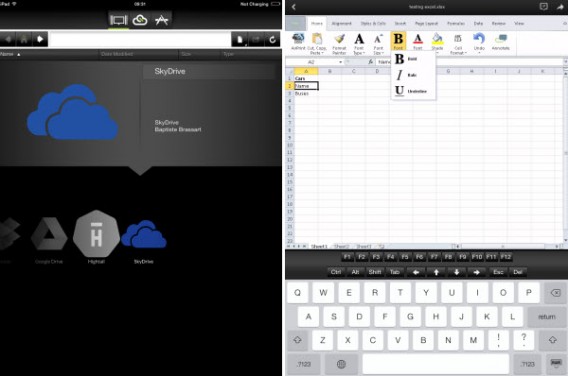
CloudOn is a great office suite for iPad. Its unique feature lies in the fact that before creating text files, spreadsheets, or presentations, you must connect your CloudOn account – created during free registration of the service – with an online storage service. Luckily, CloudOn supports the most popular cloud servics, including DropboxBoxGoogle Drive, and OneDrive.

Once the app’s been properly configured, you can create, edit, and save documents directly from your iPad. The interface, taking huge inspiration from Office 2013, is not designed specifically for touch, but it should still be able to satisfy your needs.

CloudOn for iPad

Pros:

– Can connect multiple accounts from cloud storage services

– Very responsive

Cons:

– Interface could be improved

– Can’t save files locally

Quickoffice: for fans of Google

QuickOffice logo
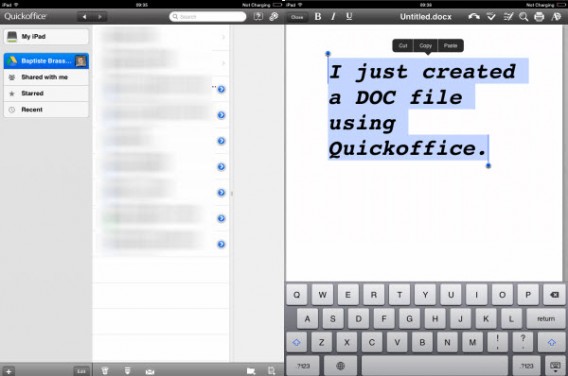
As a product of Google, how does Quickoffice differ from Google Drive? The Quickoffice Suite has been designed primarily for Microsoft Word (DOCX), PowerPoint (PPTX), and Excel (XLS) documents.

Not surprisingly, you have to connect to a Google account to use it. With Quickoffice, you can juggle the backup in the cloud via Google Drive and on your iPad.

Documents created with Quickoffice are automatically compatible with Word, Excel, or PowerPoint. The interface is simple and really pretty, and the app is at the same level as CloudOn when it comes to quality and responsiveness.

Quickoffice

Pros:

– Ease of use

– Backup files locally or in the cloud

Cons:

– Must connect with a Google account

OliveOfficeHD: for the impatient

Logo OliveOffice HD
Despite a rather disconcerting opening screen, OliveOfficeHD is a free office suite that lets you create Word, Excel, and PowerPoint document in minutes. Simply click the Office icon to get to work.

From this second screen, almost as desolate as the opening one, you’ll be able to create text documents, spreadsheets, and presentations. The comparative advantage? Proposed layouts for each type of content, which could save you valuable time. Beware though: OliveOfficeHD offers no online synchronization, and you can’t use it to convert PDF files.

OliveOfficeHD

Pros:

– Extremely Practical

– No registration required

Cons:

– Interface unclear

– No cloud synchronization

Productivity on your iPad

The release of Office for iPad marks the beginning of a new era for many professionals using an iPad, and now, you have some free alternatives with a bit more functionality that can help you make the most of your Word, Excel, and Powerpoint documents on iPad.

Related articles:

Microsoft Office for iPad: the highs and lows

Office Tip: type faster by replacing one word with another

What is Office 365 and why should you use it?

Original article published in French on Softonic FR.

Follow me on Twitter: @bbrassart

Photo Editing: 5 mobile apps are put to the test

What’s the best photo editing app for Android and iOS? If you had to chose one, which would it be?

Choosing a winner out of the hundreds of photo editing apps available on the App Store and Google Play isn’t easy. When it comes to photos, the end result is important, but the user experience shouldn’t be overlooked.

After rummaging through dozens of apps, I came up with a list of multiplatform solutions to consider:

Instagram: Android | iOS

Snapseed: Android | iOS

VSCO Cam: Android | iOS

Aviary: Android | iOS

Pixlr Express: Android | iOS

These apps will be assessed for four different criteria:

  1. Ease of use
  2. The number and quality of filters
  3. The different editing options
  4. Backup capabilities and exporting the final product

Let’s see which of these popular apps will rank as the best photo editing app for iOS and Android.

Easy to use: An important aspect to consider

Instagram

The app is a long way from being a full mobile photography studio. On the main screen, your feed is displayed with pictures of people you follow. Once a photograph is taken or imported, different filters can be applied. To access more editing options, you need to press on the wrench.

Even though the different operations are conveniently linked together, not everything is optimized for editing photos. The interface is consistent, but it rushes the user into quickly posting photos with a filter.

Snapseed

Snapseed pushes the boundaries by offering unconventional touch gestures. In order to manipulate various editing options, you’ll need to use all your fingers. Swipe up or down to select an option, and left or right to increase or decrease the intensity.

VSCO Cam

VSCO Cam is not an easy app to use. It serves as a social network, editing studio, and photo gallery all at the same time. It’s difficult to understand at first, and you’ll need several days to understand what each button does. “Elitist” is the adjective that best describes VSCO Cam, Although navigating through the app’s menus is not necessarily a bad thing as it generally offer quality options.

Aviary

The process of modifying a photograph taken with a smartphone can be split into three stages: taking photos or importing media, editing, and exporting. The Aviary editors seem to have  understood this, because the app has three main screens, one for each stage. The options are presented in a dropdown menu at the bottom of the screen.

Pixlr Express

To avoid overloading the Pixlr Express interface, the developer opted for small rectangular icons, allowing them to offer a full range of features. Unfortunately, I noticed that despite the small size of the buttons, some transparency effects cover the preview of the final product. Overall, Pixlr Express’ interface isn’t bad, although it certainly isn’t one of the app’s strong points either.

Conclusion

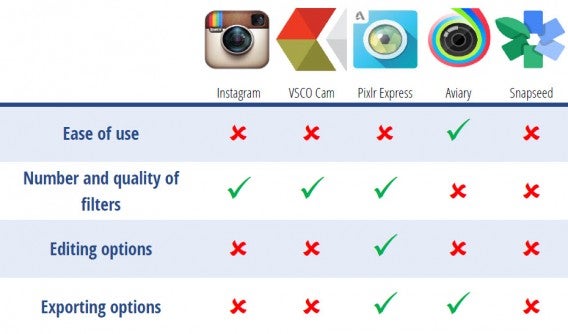
Without compromising on the available features, Aviary offers the most user-friendly experience, regardless of your level of expertise.

Aviary interface

Aviary’s interface is the easiest to use

Filters: one of the main features

Instagram

Instagram popularized vintage photo filters. After capturing a shot, you can chose from 19 different filters. Black and White, Sepia, or Toaster are a few of the more popular ones, although personally, I’m still waiting for a Polaroid filter. You can adjust the intensity of the filter by double tapping the icon.

Instagram’s filters are varied, customizable, and of good quality. They completely fulfill their purpose, which is to improve the rendering of a photo, regardless of its initial quality.

Snapseed

Snapseed is a photo editing app that’s a bit more specialized. It wasn’t designed for people to just add simple filters. In fact, they aren’t even classified as such.

There are nine effects that can be combined with each other. Vintage, for example, is one of them. Each effect is comprised of several fully customizable options, as opposed to a single adjustable intensity level. With Snapseed, you need to dive into the app a little bit in order to get the best results.

VSCO Cam

The people at VSCO Cam prefer to talk about presets rather than filters. VSCO Cam pays tribute to photography with most of its filters by being inspired by existing film or camera lenses. There are ten default settings available. You can download more, either for free or through in-app purchases.

Once selected, you can adjust the intensity of the filter. VSCO Cam filters are typically more subtle. In some cases, the proposed layers perfectly complement your photo, but you can’t magnify low quality photos with a single preset.

Aviary

This app features 12 very unique filters. All of them can be found in the Effects menu. Some, such as the Dean filter, are particularly pronounced and strongly distort the original shot. They are designed primarily for photos taken with a low-quality cameras.

Fortunately, you’re given the option of adjusting the intensity for all filters. When it comes down to it, only a few of the filters are really useful.

Pixlr Express

In terms of filters, Pixlr Express covers a much wider range than its competitors. It offers over 100 free filters, all with adjustable intensities. How does the app not get overloaded? The filters are downloaded in the form of add-ons. As a result, you get a number of possibilities and some really excellent filters.

Conclusion

It’s very difficult to pick out a clear winner, but it’s important to distinguish between two types of users: beginners who want to customize their photos without too much work, and photophiles that place a lot of importance on photographic composition. The first should opt for Pixlr Express or Instagram, while the latter should try VSCO Cam.
Filters VSCO Cam Instagram Pixlr ExpressVSCO Cam, Pixlr Express, and Instagram filters, respectively

Editing options: one step to a mobile photo studio

Instagram

Filters have always been the backbone of the app, but Instagram has also added some additional editing options. Brightness now has its own button, and other features are can be found by selecting the wrench icon. This is where you can adjust contrast, saturation, image rotation, and more.

Each option is easy to add and has a real effect on the final photo. Unfortunately, the number of tools available is less than what you’d expect. Some of Instagram’s limitations include not being able to add text or stickers to the picture, and the ability to only create images in square format.

Snapseed

If you prefer not to go into detail when it comes to editing your photos, Snapseed offers automatic enhancement of your photos. Photos can be customized even more using touch gestures.

Even though Snapseed isn’t designed for beginners, the app has plenty of options that cater to amateur and semi-professional photographers. The number of settings and sub-options should be enough to satisfy most people.

VSCO Cam

In VSCO Cam, you can find the most common picture editing options. Exposure, temperature, resizing, contrast, or saturation: the range of features is fairly decent. The Shadow tint option is a particularly cool effect that can be finely tuned to produce excellent results.

Unfortunately, a few basic features are missing from the app. VSCO Cam is the only app that doesn’t offer a blur feature. There’s no option to add text either. It’s simply not enough to compete with the likes of Pixlr Express.

Aviary

Frames, stickers, adding text, creating memes: Aviary is rather full of editing options. Add in an easy-to-use interface and you get a great app for turning mediocre photos into social network posts.  In short, Aviary is a fun app that breaks away from the norms of photography.

Pixlr Express

In terms of editing options, Pixlr Express is top of its class. To start off with, all the standard image editing options are available in the Adjustment tab. Pixlr also allows you to edit your photos using overlays with adjustments like lighting effects. These options can be found under the Overlay tab. To complete the picture, you can add text, stickers, and frames.

Conclusion

Pixlr Express succeeds in offering a variety of options without adding unecessary options. Looking for a well made app that can crop your photos, add text, optimize the format, or even radically alter the original shot? Look no further: Pixlr Express is the one for you.

Pixlr Express editing options

Pixlr Express offers a string of original editing features

Export: an option that’s overlooked

Instagram

Instagram offers five different export options: its own social network, Facebook, Twitter, Tumblr, and Flickr. After applying the changes, in order to save a copy on your device, you are required to post the photograph. It’s a serious limitation compared with the alternatives.

Also missing is the option to change the file size of the final product. Like I said earlier: Instagram is designed to quickly post snapshots.

Snapseed

With Snapseed, you’re able to save, post, and upload your shot wherever you want. Everything can be found under the Export tab in the top right hand corner of the screen. By choosing Open With, you’re able to open the photo and then post it in any compatible apps installed on your phone.

VSCO Cam

Once you’ve saved your changes, go back to your photo grid. Then, select the photo or photos you want to export and press the export icon, the square with an arrow in the top right hand corner.

VSCO Cam doesn’t directly export the photos to your smartphone’s album, so don’t forget to select the Save to Camera Roll option. In terms of online sharing, VSCO Cam offers a number of decent options. Instagram and Facebook are available, but so are Twitter and Google+. Tumblr is the only one that’s missing.

Aviary

Aviary is often better than its competitors. Why? The publisher doesn’t feel the need to add their own social network, and so pictures taken have to be be released on other platforms.

In use, the app has some great little features, like automatic backups after you’ve applied changes. You can share your shots wherever you want; the range of possibilities offered by Aviary is great.

Pixlr Express

Pixlr Express offers a somewhat different approach. When you export the photo, you can adjust the quality of the final file. It’s even possible to manually enter the file size before you save or post it. Although this little feature can be useful for gaining a few extra megabytes of memory, Pixlr Express is held back with only letting you share on Facebook and Twitter. This simply isn’t enough for a top-rated photo app.

Conclusion

With no clear winner, it’s once again a toss-up between Aviary and Pixlr Express.

Aviary Pixlr Express export

Resize your photos with Pixlr Express; share them everywhere with Aviary

And our winner is … Pixlr Express!
Table

Pixlr Express provides a good balance between advanced editing options, a suitable interface and good-quality final rendering.

Related Articles

Instagram, the complete guide

What you need to know about syncing photos in iCloud

How to protect private pictures on your phone

Originally written on Softonic FR by Baptiste Brassart.

Follow me on Twitter: @bbrassart

Office Tip: type faster by replacing one word with another

Did you know that you can actually type faster in Microsoft with the Find and Replace function?

As part of our Office Tips series, I’ll show you a little trick that’ll help you type faster by replacing a few letters with a complete word using the Find and Replace function.

1. Specify abbreviations

Before typing up your document, you need to specify which abbreviations you want to use and for which words. In this example, I’ll shorten the term Softonic International to Sint and then replace it, once the text is written.

My advice: choose a set of letters that is unlikely to appear in other words. For example, you can type xxx for the phrase return on investment or any other expression that comes up frequently in the document. xxx is very quick to type, and that particular sequence of letters isn’t likely to appear in other words.

Of course, you can use multiple abbreviations to represent different words or phrases in a single document. This is even more effective when you need to type long words or expressions.

So, as you can see below, I chose to type in Sint for Softonic International. The term appears twice in the text.

sint Replace Word

2. Find and replace

Once the document is written, press Control + H to bring up the Find and Replace menu.

In the first box marked Find what, type in the expression that you want to replace– in this case Sint.

In the second box marked Replace with, enter the word or words you want to replace it with– in this case Softonic International.

Then hit Replace all to change all occurrences of the word in that document.

Softonic International

3. Replacements

A pop up menu tells you the number of replacements made. Click Yes to scan the entire document.

Replacements Yes Word

In this case, there were only two, and they’ve been properly placed.

Not only does this save time, it can also prevent spelling errors for words or names that you commonly misspell. And just like that, you’ll be able to write a text quicker and with less errors (hopefully).

In the next episode of the series, I’ll explain how to write multiple lines in a single Excel cell.

Check out all of our Office Tips:

Office Tip: Add page numbers to your Word document

Office Tip: Access your Word, PowerPoint and Excel documents online

Office Tip: Restore or minimize the Ribbon interface in Word and Excel

Office Tip: Use tabs in Word, Excel and PowerPoint

Follow me on Twitter: bbrassart

Office Tip: Add page numbers to your Word document

Numbering pages in a Word document is fairly simple, until it comes to the cover page. That pesky little page always seems to mess with formatting, creating more drama and wasted hours than necessary. Luckily, I have a tip that’ll help you automatically number pages correctly, without having to alter the layout.

1. Comply with the style

Rule number one, which unfortunately cannot be neglected: to automatically number pages in any type of word document, you need to comply with the styles offered by Microsoft. Here’s a short breakdown of the main styles in Word.

– Normal is the default style, which can be used for anything except the title.

– Title is for the main title of the document.

– Heading 1, 2, 3 etc. are for headings, ordered according to the document’s structure. Heading 1 is for chapter or section titles, Heading 2 for subheadings or subsections, Heading 3 for subsections of subchapters, and so on.

Before you begin writing a long document, make sure you have a clear structure for it. It’s a necessary evil, but you’ll find that it makes things much easier.

If you haven’t added a title or subheading to your Word document yet, check the image below:

Add styles Word

2. Add Table of Contents

Next, you should think about adding a table of contents or summary. Go to the References menu and then to Table of Contents. Select Automatic Table 1 to add one.

Add table of contents Word

3. Update Table

If you want to change the layout afterwards (by moving paragraphs or inserting images), you need to update the table of contents by clicking on the Update Table of Contents tab.

Update table of contents Word4. Number the pages

Once the table of contents has been adjusted, all you need to do to finalize the document is number the pages, which you can do as follows.

On the Insert tab, click Header & Footer, then Page Number, then choose if you want the numbers at the Bottom of Page or Top of Page. In this example, they’ll automatically be placed in the bottom right hand corner.

Add page numbers Word

5. Numbering from Page 2

For more complex documents, such as a portfolio or report, the default page numbering in Word automatically adds a page number to the cover page, which normally shouldn’t be included in the page count.

To start numbering from page 2, click on the footer of the cover page to bring up the Design menu in the Ribbon Interface. Check the box marked Different First Page to make the cover page number disappear.

Different first page6. Format page numbers

Now, go back to the Insert tab. Go to Page Number, and finally, Format Page Numbers.

Format Page NumberIn this menu, check the Start at option in the Page numbering section and then replace 1 with 0.


Page Number Start at 0

With this formatting, I’ve managed to remove the page number from the cover page and display page 2 of the document as page 1, all without altering the layout.

It may seem complicated, and while it may be tempting, don’t try to manually change the numbers. The key to saving time is having a good structure for your document and a good use of styles.

Keep checking back for more tips in our Office Tips series.

Check out all of our Office Tips:

Office Tip: Access your Word, PowerPoint and Excel documents online

Office Tip: Restore or minimize the Ribbon interface in Word and Excel

Office Tip: Use tabs in Word, Excel and PowerPoint

Follow me on Twitter: bbrassart

Office Tip: access your Word, PowerPoint and Excel documents online

If you happen to be away from home but need to access a Microsoft Office document, you can use Office Online. It’s a really practical solution for keeping all your documents close and editing them from any computer with an internet connection.

When I was a student, I always carried a USB stick with me. Today, if you look through my bag, you won’t find anything that resembles removable storage. These days, I edit my Office documents with Office Online, a Microsoft web app that synchronizes with the different programs in Microsoft Office.

Here’s how to use Office Online.

1. Save documents

Save documents to OneDrive so that you can access them later.

Once you’ve completed your Word document, Excel spreadsheet or PowerPoint presentation, click Save As. You’ll be given three options: OneDrive (Microsoft’s online storage), Computer (to save locally,) and Add a place (for using Office 365).

Choose OneDrive, then Sign in.

Connect OneDrive

2. Create a Microsoft Account

If you don’t have a Microsoft account, you can create one on this page. A Microsoft account includes your OneDrive storage, an Outlook email address, and the ability to sync your PC or smartphone with your account.

3. Connect to OneDrive

By connecting your OneDrive account to Microsoft Office 2013, you can save all your documents to the Microsoft cloud in just one click.

4. Access Office Online

How can you edit these documents on another computer?

Once you’re on another PC or Mac, open the web browser, go to the Office Online home page, click Sign in at the top right, and enter your email address.

Email Office Online

5. Log in

Enter your account details and log in.

6. Edit documents

This is where you will be able to edit all of your Word, PowerPoint and Excel documents. Select the icon of the program you want to open.

Then choose Recent documents on OneDrive, open the document you want, then edit it by going to Edit document, and then Edit in Word Online.

Recent documents Office Online

Edit in Word Online

You’ll find that the interface is very similar to Office 2013; the only difference is that it’s in the browser. Your documents will be automatically saved. In other words, when you’re back on your PC, you’ll be able to find the most recent versions of any texts, spreadsheets, or presentations you may have tweaked in the web browser.

Check back for our next office tips, where we’ll give you info about page numbering.

Related Articles

Office Tip: Restore or minimize the Ribbon interface in Word and Excel

Office Tip: use tabs in Word, Excel, and PowerPoint

PowerPoint: 6 essential tips for creating the perfect presentation

Follow me on Twitter: @bbrassart

Office Tip: use tabs in Word, Excel and PowerPoint

Over the years, I’ve learned a few simple tricks using Office, and none have come in handy as much as Office Tab. I can’t count the number of times I’ve dreamed of being able to use tabs with Microsoft Office. I was convinced that it was impossible to open multiple files in one window. Then, I discovered Office Tab.

How does it works? Once installed, if you double-click on a Word document while another one is already open, the program adds a tab to the Word interface instead of creating a new window.

The demo version is free for 30 days, and it comes in two versions: Office Tab, which is compatible with Word, Excel, and PowerPoint, and Office Tab Enterprise, which works with all Microsoft Office software packages.

1. Download and set-up

Download Office Tab and follow the installation process. In the Select products window, if you use an older version of Microsoft Office, check the first box only. If you’ve already purchased Office 2013, choose the second option, then confirm by clicking Next.

Office Tabs 2010 2013

2. Select destination

Select the destination path, then select the components you need: Office Tab for Word, Excel, or PowerPoint. I advise you all to install all of them since the files are small.

Office Tabs programs

3. Close and install

Close all windows in Word, Excel, and any other program in Microsoft Office before proceeding with the installation.

4. Customize

Finally, after installation is finished, Office Tab takes you directly to the Office Tab options control panel.

In this panel, you can customize how you’d like these plug-ins to behave. If you explore a little bit, you’ll find a few interesting features.

Office Tabs options

5. Access tabs

Below is a screenshot of Word 2013 before and after you install Office Tab. The second image shows the same thing, but with Excel 2013.

In any case, notice that the ribbon interface has been changed. A new section, located at the top right, appears on the screen. Tabs that allow you to juggle between documents are placed just below the ribbon.

Word with or without Office Tabs

Excel before and after having installed Office Tabs

Now, you can comfortably navigate Office with multiple documents in a single window using tabs.

Although the free trial lasts only 30 days, if you’re a big user of Office products (which let’s face it, many of us are), then it’s a great solution.

Related Articles

Office Tip: Restore or minimize the Ribbon interface in Word and Excel

How to restart Windows Explorer if it isn’t responding

The top 5 Skype voice changers

Follow me on Twitter: @bbrassart