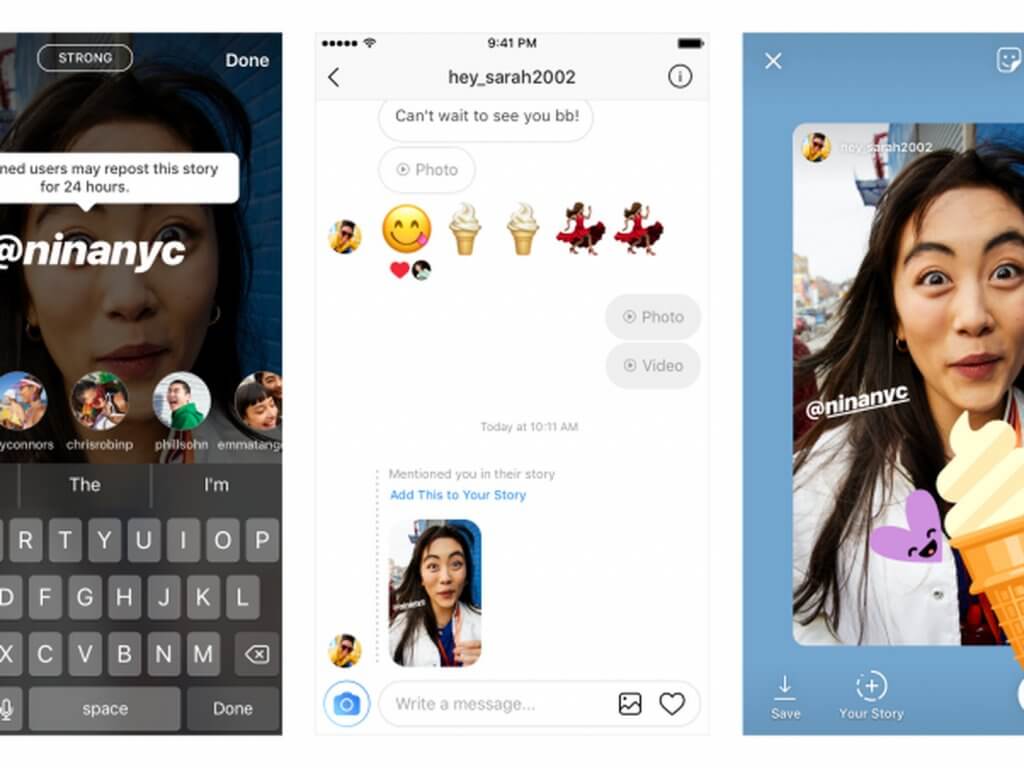
In this third episode of our complete guide to Instagram, we explain how to repost, or ‘regram’, Instagram photos and videos from other users, while obviously respecting their copyrights.
PhotoRepost is a well-designed application that lets you “repost” your friends’ Instagram snapshots and videos. This reposting system, in addition to offering a real alternative to the simple “Like”, has two significant advantages: conservation of the original image quality, as well as respecting and developing the media offered by the original author.
Before PhotoRepost, Instagram users had to take a screenshot on their phone before reposting an image. Then, they’d have to somehow try to crop the image properly. Of course, it was normally pretty obvious that the photo had been taken from somewhere else.
Here, I give you a step-by-step guide for using PhotoRepost to repost an Instagram image or video in a matter of seconds.
1 – Install PhotoRepost
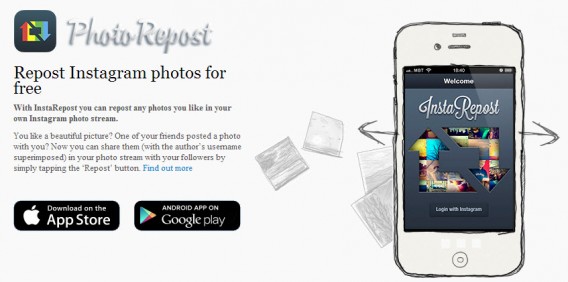
PhotoRepost is available on both Android and iOS, the only two platforms currently offering the latest version of Instagram.
Windows Phone owners will probably know that a beta version of Instagram is currently available, but PhotoRepost doesn’t yet offer an app that’s compatible with Windows Phone 8. It’s likely that they’re waiting for a final version for WP8 before offering a service.
2 – Connect to your Instagram account
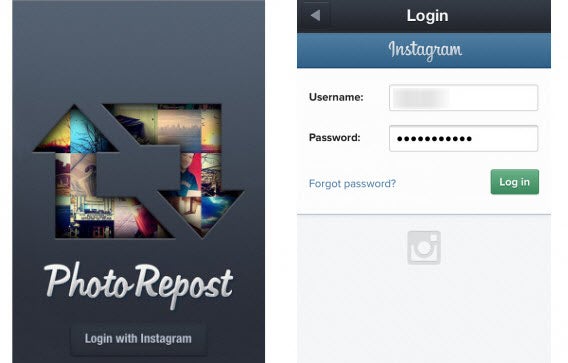
Once the app is installed, press “Login with Instagram” to give PhotoRepost access to your Instagram profile and photos. Enter your user name and password and press “Login”.
3 – Select the photo or video you want to repost
Your Instagram feed will appear on your screen. From here, you’ll be able to see your stream, ‘like’ a photo or video, or view your list of followers.
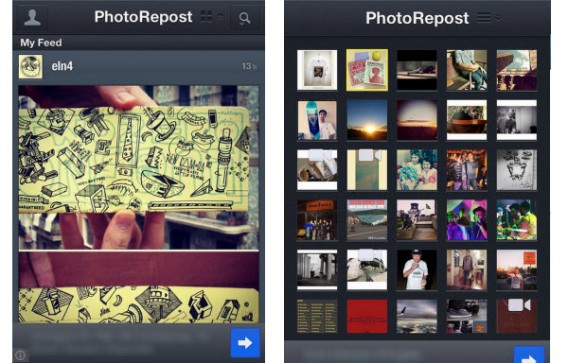
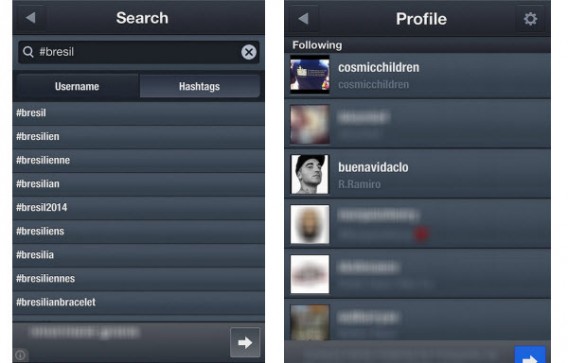
It’s also possible to search for users, as well as images or videos related to a hashtag, through the integrated PhotoRepost search engine.
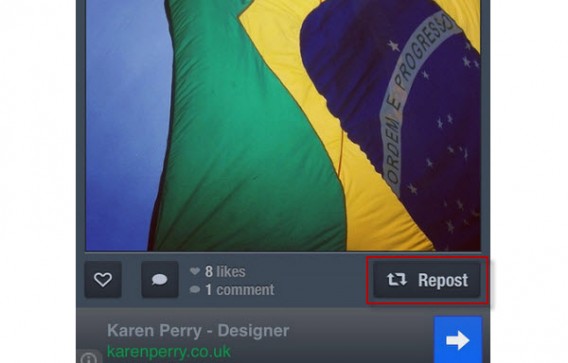
Once you find the media you want to repost, press the “Repost” button at the bottom right of the photo.
4 – Change the media before posting
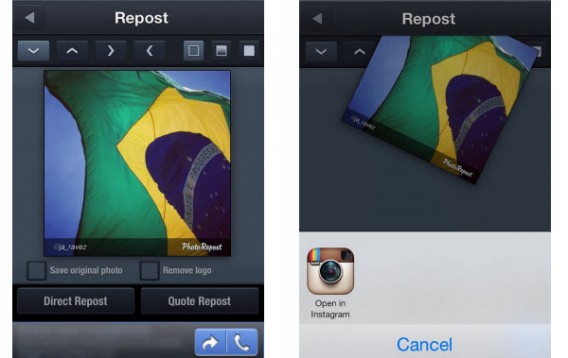
If you use the free PhotoRepost app, editing options are limited. If you decide to spend a bit of cash for the Pro version, it’s possible to change watermark inscriptions and their location, as well as being able to delete the original user’s logo.
Then, you’ll have two options: “Direct Repost” or “Quote Repost”. This second option simply adds the commentary that accompanies the original picture to your post. In any case, the next step is the same: sending directly to Instagram. To do this, click on one of the two options mentioned above, then select “Open in Instagram.”
5 – Edit and publish the photo in Instagram
You can access Instagram directly from PhotoRepost. You can add a new filter to the photo before publication, but we advise you not to change the original image; the author of the photograph has probably already tried to optimize the photo using editing techniques and filters.
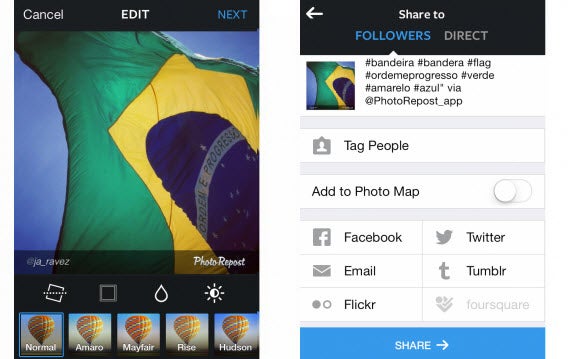
Then, you can share the photo. To publicize your post, you must stay on the “Subscribers” tab. You can then edit the message accompanying the media, add new hashtags or mention friends. Then click “Post” and the photo or video will appear in your, or another contact’s, stream.
And here’s the result!
Gone are the days of screenshots and approximate cropping. The free version of PhotoRepost lets you re-post Instagram content that you like, giving your thread of photos a makeover while respecting the original author.
- Download PhotoRepost for Android
- Download PhotoRepost for iOS
Read our Complete guide to Instagram to get all the info you need to become an instagram pro!
Have you ever tried to repost a friend’s photo?