No More Upside Down Videos: Quick and Easy Ways to Rotate Videos on Your PC

Have you recorded a video vertically or upside down again? Learn how to easily rotate any video file from your PC with these free programs.

It has happened to all of us that, in a hurry, we have recorded a video vertically, sideways or even upside down. Whether it’s because we want to quickly immortalize an event, because of the habit of using TikTok or simply because we are distracted, it is very common to make this mistake. Things get more complicated if it is a unique moment such as your child’s first steps, a birthday or your best friend’s wedding. Is there no way to turn the video around?

If you search the Internet you will find hundreds of video editing programs with which, more or less quickly, you can flip a recording but which one to choose? In today’s article we are going to show you how to flip a video from your PC quickly and easily. Here we go!

1. VLC Media Player

VLC Media Player is the most powerful and downloaded free multimedia center on the market. From it you can play any type of audio or video format, convert file types and even play DVDs, CDs and Blu-Rays quickly and easily.

In addition to all this, VLC Media Player allows you to edit your videos to a certain extent, as well as repair defective recordings and rotate their image in just a few clicks. That is why it is an indispensable tool to rotate any video without any complications.
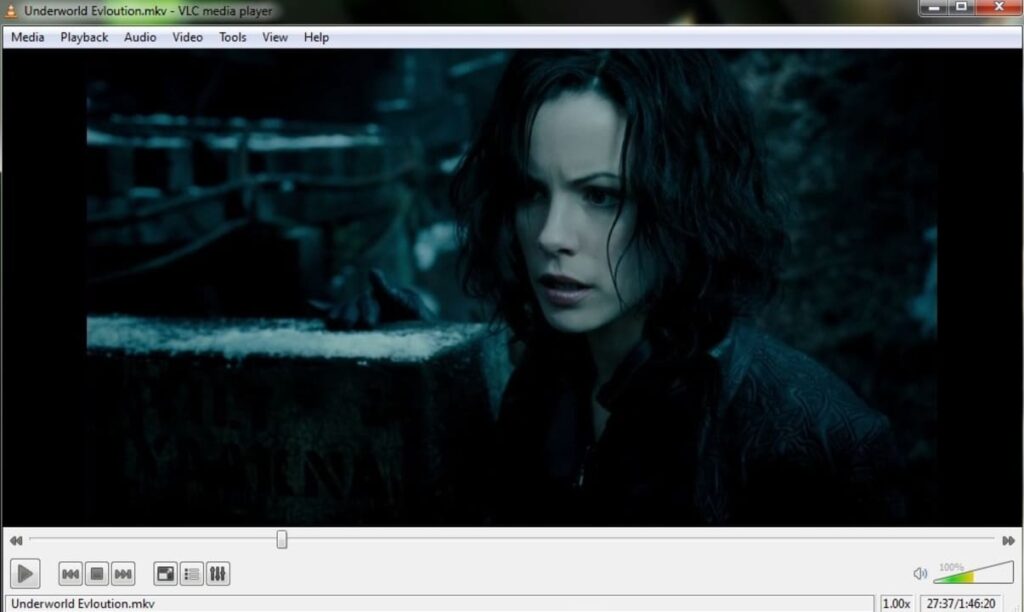
How to rotate a video with VLC Media Player

In order to rotate a video using VLC Media Player you must first open the video by clicking on “Media” followed by “Open File”. Then click on Tools, and click on Effect and Filters or, if you prefer, you can also press the Ctrl + E keys.
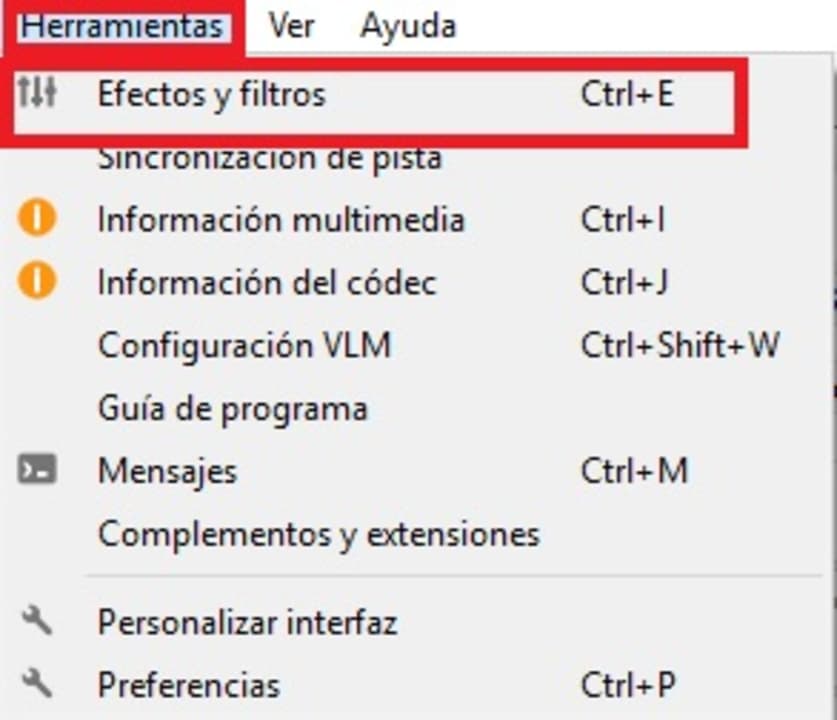
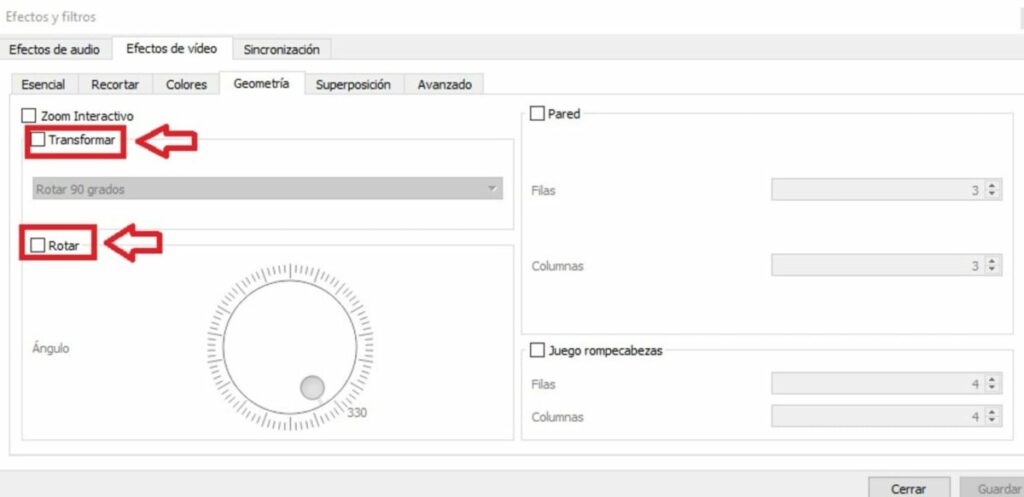
Once in the Effects and Filters menu, click on the Video Effects tab and then on Geometry. From there you will be able to adjust the orientation of the video in two ways:

  • The first will be by clicking on Transform and selecting the angle we want to rotate it (180 degrees if it’s upside down or 90 if it’s sideways).
  • The second is by clicking the Rotate option and adjusting the angle we want with the knob on the screen.

As you can see, rotating a video with VideoLAN Media Player is fast, easy and effective.
Where to download VLC Media Player

You can download VLC Media Player from its official website or, if you prefer, quickly and safely below these lines. Remember that all files stored in Softonic are virus free so… What are you waiting for to download it?

VLC Media Player DOWNLOAD
9

2. VideoPad Video Editor

VideoPad Video Editor is a powerful video editor that has nothing to envy to such popular options as OpenShot or Shotcut. It is especially useful for recording content for social networks, so it is especially recommended for anyone who dreams of becoming the next fashion influencer.

Among the many advantages of VideoPad Video Editor we find that it is a really intuitive and easy to use program. In fact, its learning curve is almost zero. In addition, its results are almost professional so it is perfect for anyone who is not experienced in editing programs. Despite being a paid software, it has a fully functional free version with which you can work and familiarize yourself with its options.
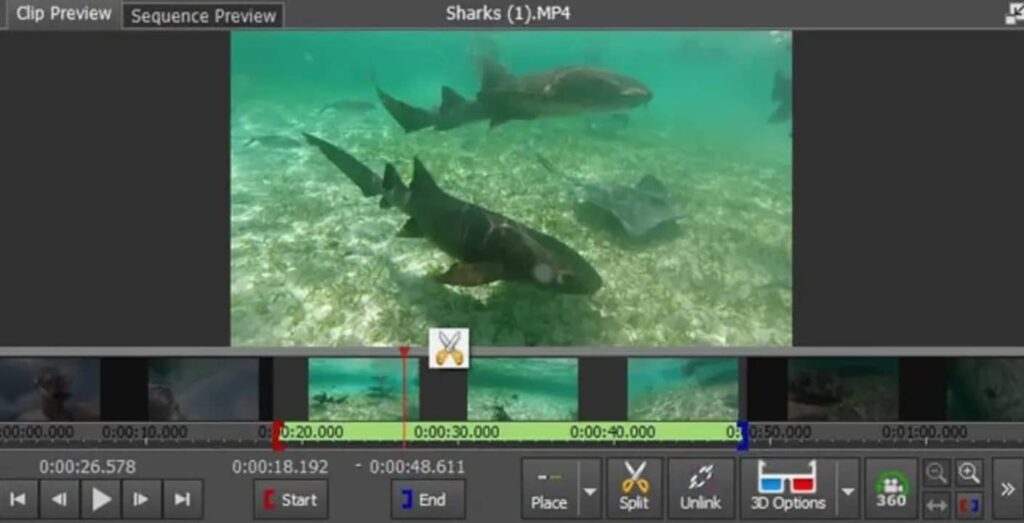
How to rotate a video with VideoPad Video Editor

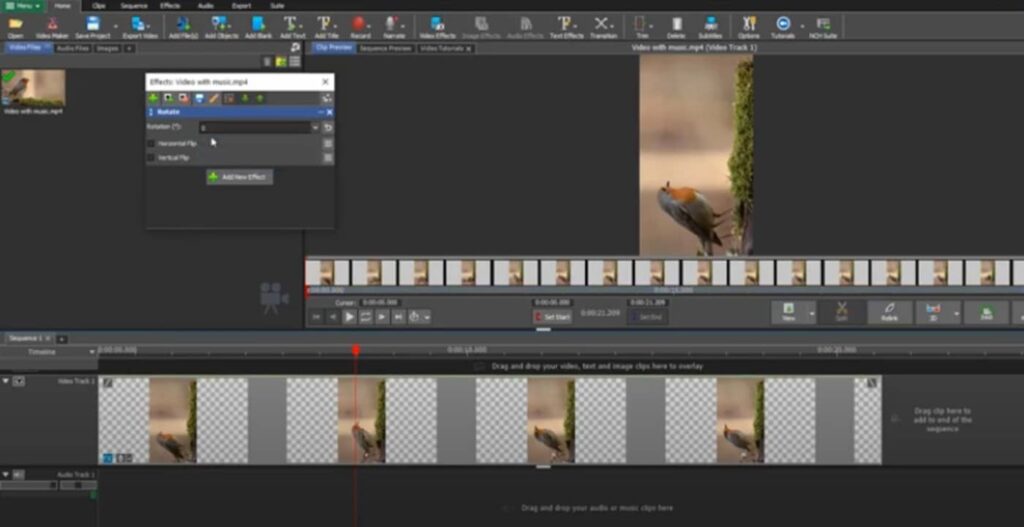
Flipping a video using VideoPad is really easy. First open the file in the editor and drag and drop the video onto the timeline. Once done, right click on it and go to the effects menu. Within this, click on the rotate effect. Now simply select how much you want to rotate the video and save the resulting file.
Where to download VideoPad Video Editor

Interested in trying VideoPad Video Editor? You can download the video editor from its official website. You can also download it from the same Softonic page below.

VideoPad Video Editor DOWNLOAD
9

3. OpenShot

OpenShot is a powerful open source video editor, known for its versatility and good results. The program is completely free and multiplatform, so you can continue working on all your projects from any of your computers. In addition to that, it supports videos of almost all known audio and video formats, so you can edit any of your recordings without any problem.
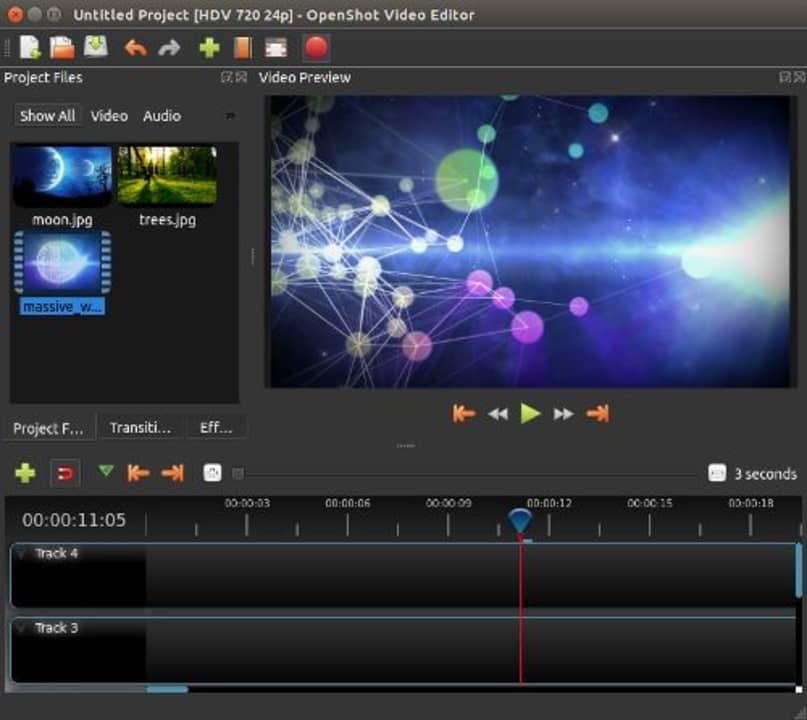
How to rotate a video with OpenShot

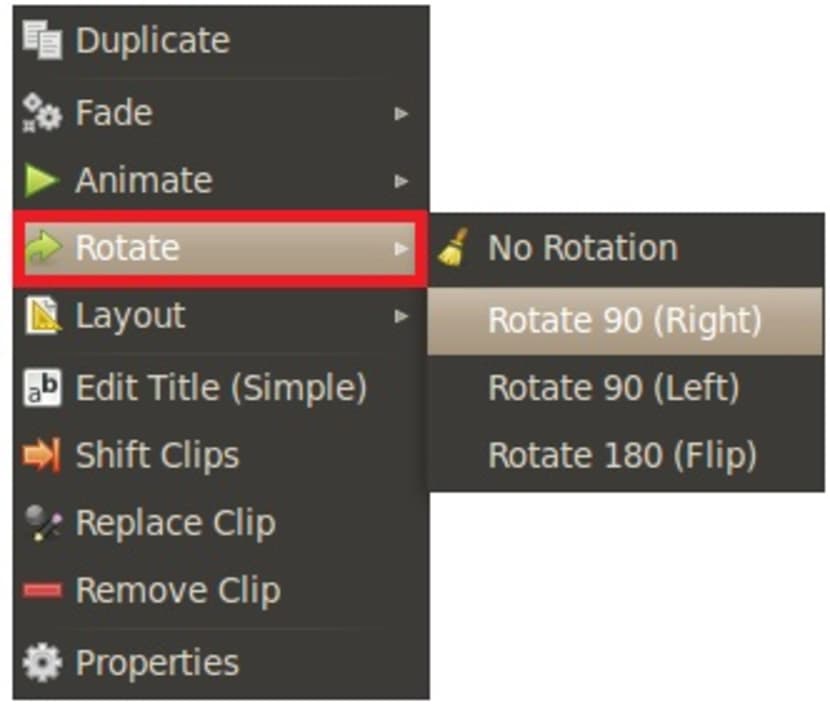
Have you recorded a vertical video and need to rotate it? Don’t worry, with OpenShot it’s very easy. Just open the video track and right click on it. Once the drop-down menu opens, select the “Rotate” option and choose how many degrees you want to flip the recording. It’s that simple and uncomplicated.
Where to download OpenShot

Since it is an opensource program, you can download OpenShot completely free of charge from its official website by clicking on the following link. You can also download the program quickly and safely from Softonic by clicking below.

Openshot DOWNLOAD
9

4. Free Video Flip and Rotate

As its name suggests, Free Video Flip and Rotate is a software with which you can rotate your video in a matter of seconds. Unlike the other alternatives that we have presented, this program is not a video editor. It is simply a program with which you can rotate your recording 90 degrees, both clockwise and counterclockwise. All this quickly, easily and without complications.
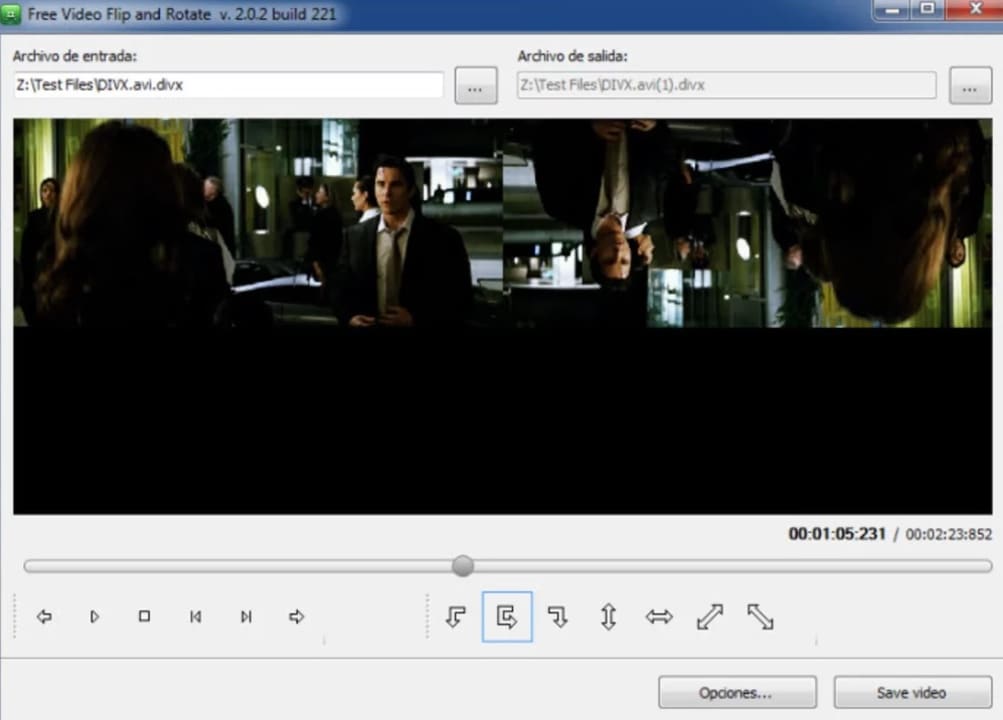
How to rotate a video with Free Video Flip and Rotate

As we have already told you, Free Video Flip and Rotate is a free program and very easy to use. Simply open the video by clicking on “Open file” or dragging it in the central box of the program. Once this is done, a menu will appear from which you can rotate the video at will, either 90 or 180 degrees as well as flip it both vertically and horizontally. Finally, save your newly edited video. It couldn’t be easier.

Where to download Free Video Flip and Rotate

Free Video Flip and Rotate is the perfect software for anyone who is looking for a lightweight and easy to use program to rotate the video in a couple of clicks. You can download it from its official website or from the Softonic website by clicking on the link below.

Free Video Flip and Rotate DOWNLOAD
7

5. Movavi Video Editor

We end our list with Movavi Video Editor, a tool that allows you to rotate your recordings, edit them and add all kinds of effects. Surely you’ll think that if it can do this, the program must be worth a pretty penny but don’t worry, it’s completely free. Its only weak point? Having so many options makes it perhaps the least intuitive on the list.
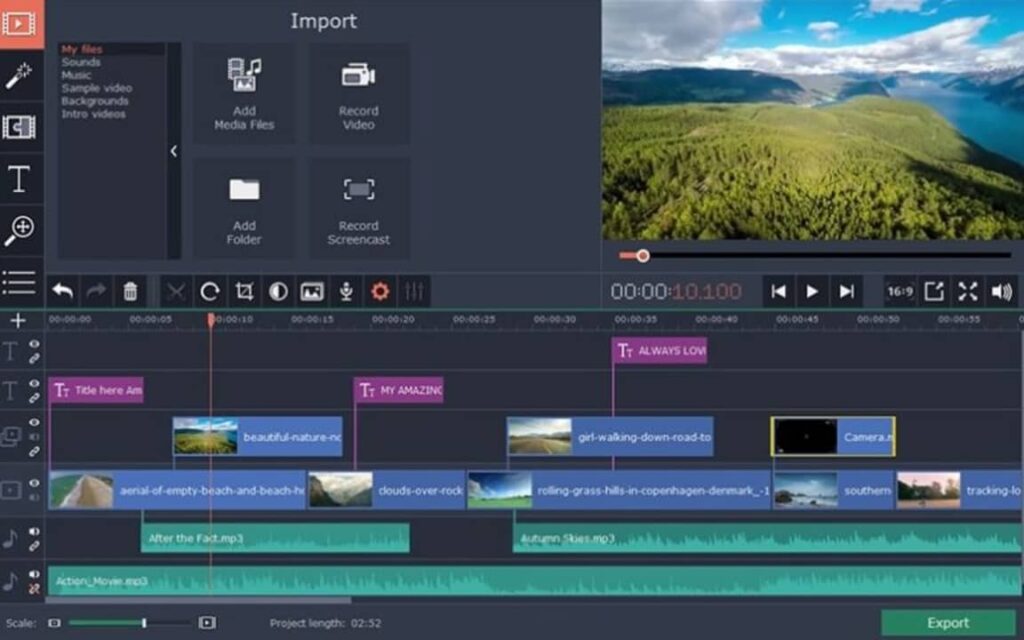
How to rotate a video with Movavi Video Editor

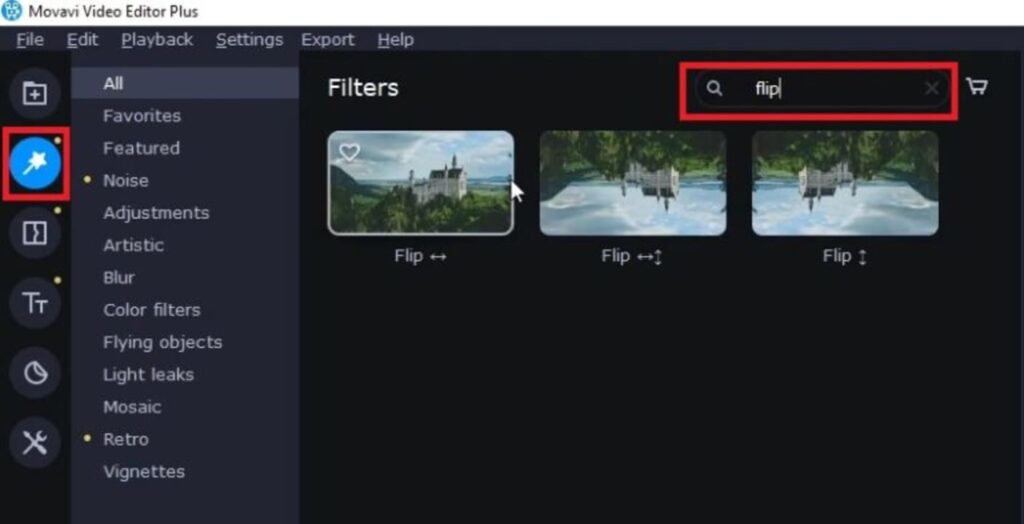
To rotate a video with Movavi Video Editor, first open the file to be edited. Then click on the “Filters” icon in the left side menu (it looks like a wand with a star on its tip). After that, select the “All” option and, inside the filter search engine, type “Flip”. You will see the option to flip your video and even create a mirror image of it. Once you have finished editing, simply save your video.
Where to download Movavi Video Editor

As we have already told you, Movavi Video Editor is perhaps the least intuitive editor on the list, since it allows you to do an endless number of editing processes with your videos, but that doesn’t mean it’s difficult to use. If you want a good video editing program, don’t hesitate to download it from its official website or below.

Movavi Video Editor DOWNLOAD
8

How to rotate a video online

You are probably reading this article because you want to rotate a single video on time, without downloading any software or installing anything on your PC. If this is your case, don’t worry because there are many free online resources to rotate a video without downloading anything.

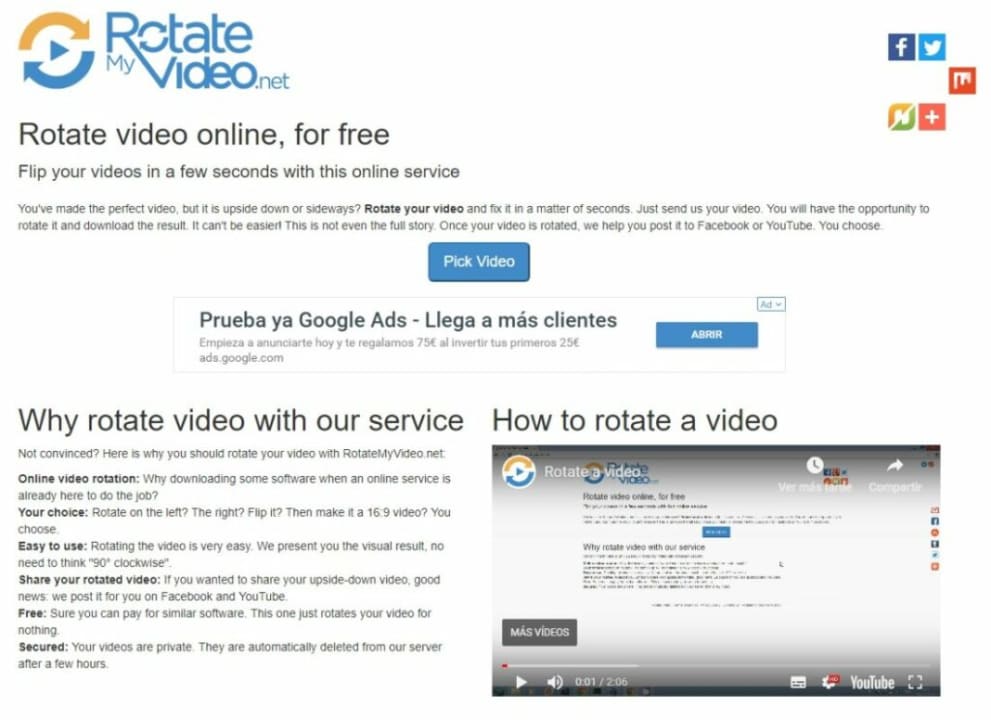
We especially recommend RotateMyVideo, a secure website that works perfectly. To rotate your video from this site, just upload the file, select how you want to rotate the recording and wait for the image conversion to take place.

Depending on the size of the file, this process will be faster or slower. Once finished, the website gives you the option to save your video directly to your computer.
Rotate any video in seconds from your PC

We hope this article has helped you to rotate a video from your PC. Remember that if you have the video on your mobile, you can also choose to use the video editor preinstalled on your smartphone. Did you like what you read? Don’t forget to share it with your friends on social networks!
5 free programs to convert MKV to AVI or MP4

Do you want to change the format of your MKV files to MP4 or AVI? Get it easily thanks to these 5 free programs and online tools.

Have you downloaded a video in MKV format and it takes up so much space that you don’t know what to do with it? Don’t worry, you are not the only one. Although Mastroska files offer a picture quality comparable to that of a Blu-Ray, it takes up a lot of space on your hard drive and is not always compatible with video players. That is why it is common to convert MKV videos to AVI, MP4 or any other lighter format for easy viewing, storing and sharing. But how to do it?

In today’s article we are going to show you how to convert MKV video quickly and easily. There are countless free programs that you can use to convert this video format in just a few seconds. All of them will be really useful if, for example, you need to reduce the size of your MKV files or if, for example, you want to watch a video on your Smart TV and it is unable to play this file format. We hope they will help you!

What is an MKV file and what is it used for?

The MKV format, also known as Matroska Video, is a file type capable of storing several videos, audio tracks and subtitles within the same file. It is really versatile, because unlike others, it is not an audio or video compression format, but a multimedia container. Thus, in the same MKV file we could find, for example, a video in H.264 format and an audio in MP3 that would be played simultaneously by double-clicking on it.

The MKV format is especially popular when digitizing a DVD or Blu-Ray. It is capable of adding an unlimited number of multimedia files of different formats within the same file, preserving their quality and with the ability to add DVD-style menus. In fact, an MKV file even allows quick searches within the same file. That is why they are usually large files compared to, for example, MP3 or AVI files.

Why convert an MKV file to another format?

As mentioned in the previous point, MKV files are very versatile and especially useful for digitizing DVDs or Blu-Rays. They can contain an unlimited amount of videos, audios and subtitles in a single file without losing any quality. However, it is very common after downloading or creating an MKV file to convert it to a lighter format.

Here are the main reasons for converting an MKV file:

  • To reduce its size– Since an MKV file is not an audio or video compression, but a multimedia container, its files can have gigantic dimensions. To free up hard disk space without sacrificing the content of the MKV file, it is common to convert it to a lighter format that preserves the audio and video quality.
  • Sharing the file – An MKV file is usually very heavy and therefore difficult to share over the Internet. To facilitate this process it is necessary to convert the file to other formats such as AVI or MP4.
  • Compatibility issues– The vast majority of Smart TVs do not support the MKV format. If we are thinking of playing on our TV some kind of content downloaded from the Internet in this format, we will first need to convert it to AVI or MP4.

1. HandBrake

We start our list with HandBrake, considered by many to be the best multimedia converter on the market. It is completely free and compatible with almost all – if not all – file formats. It is also cross-platform and is available for Windows, Mac and Linux.

How to convert MKV file with HandBrake

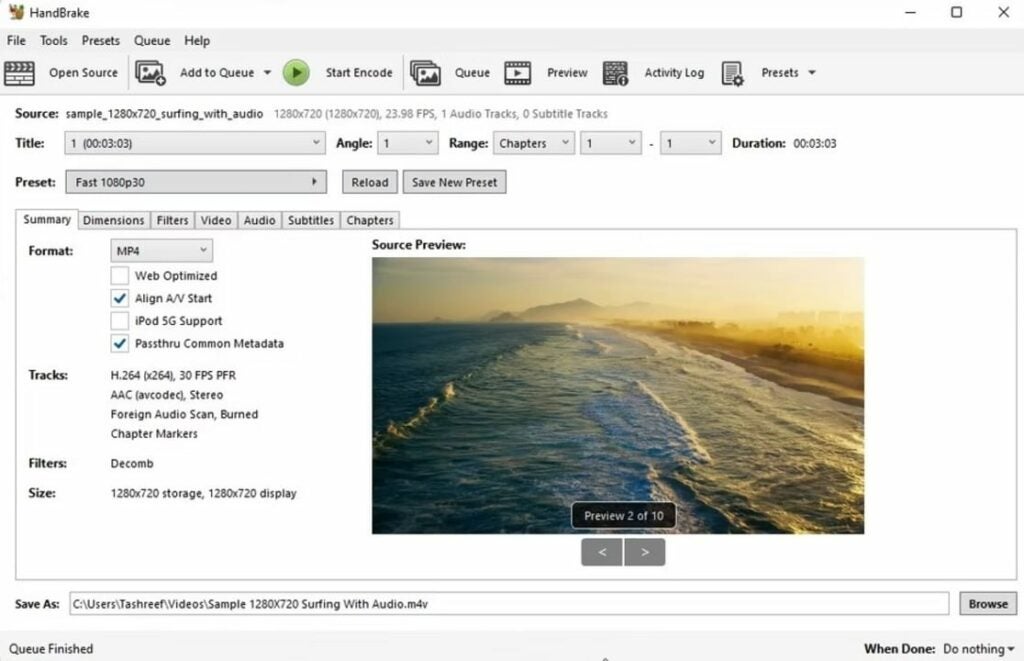
Converting a file with HandBrake is really easy. Just drag the file to the application and it will automatically convert it to the most suitable format to preserve its quality. It’s really easy!
If you prefer, you can also configure the process by hand, selecting the type of target format. Just click “File”, select the MKV file and then click the “Summary” tab and choose the target format. Now just click the “Start Encode” button and HandBrake will convert the video in a matter of seconds.

Where to download HandBrake

You can download HandBrake from its official website or, if you don’t want to, from the Softonic website itself. All our files have been scanned and are virus-free, so you can download them quickly and safely below.

HandBrake (Windows) DOWNLOAD

2. VLC Media Player

Although it is not a converter as such, VLC Media Player will be very useful whether you want to play MKV files or if you prefer to convert them to AVI or MP4. VideoLAN Media Player is a versatile multimedia center known not only for being able to play any type of audio and video file, but also for its ability to convert it to another one in the blink of an eye.

How to convert MKV file with VLC Media Player

As we have already told you, VLC is much more than a file converter, it is one of the best media players for Windows 10. It is, therefore, an excellent option if you want to be able to review your MKV files from your computer and then transform them to another format without having to download an additional program.

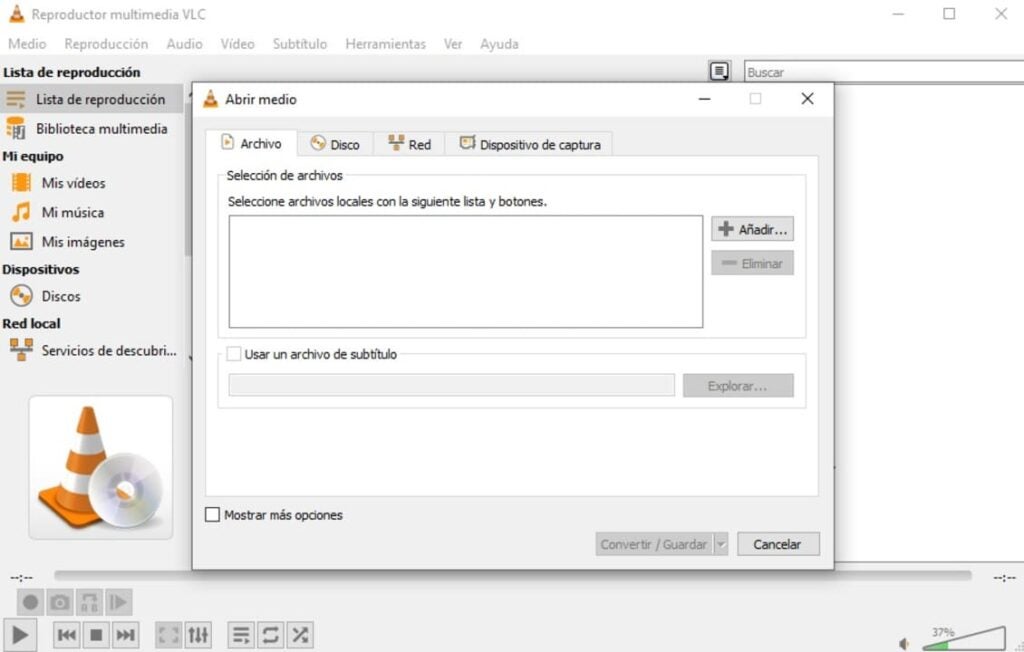
To convert an MKV file with VLC Media Player simply click on the “Media” option and, once the drop-down menu opens, select the “Convert” option. Alternatively you can also use the keyboard shortcut “Ctrl + R”. Once you have done this click on the “Add” button and choose the file to convert. After that click “Convert/Save”, select the file type… And that’s it! Your video file will be converted to the desired format.

Where to download VLC Media Player

VLC Media Player is an almost indispensable program on any computer, so we strongly recommend downloading it. You can download the file from its official page or, if you wish, quickly and safely below.

VLC Media Player DOWNLOAD

3. Freemake Video Converter

Freemake Video Converter is a powerful yet easy to use video converter, always offering a fast, flexible and very satisfying experience. A very interesting feature of this application is that it not only allows you to change the format of MKV files on your hard drive but also to download any video on streaming platforms such as YouTube.

How to convert MKV file with Freemake Video Converter

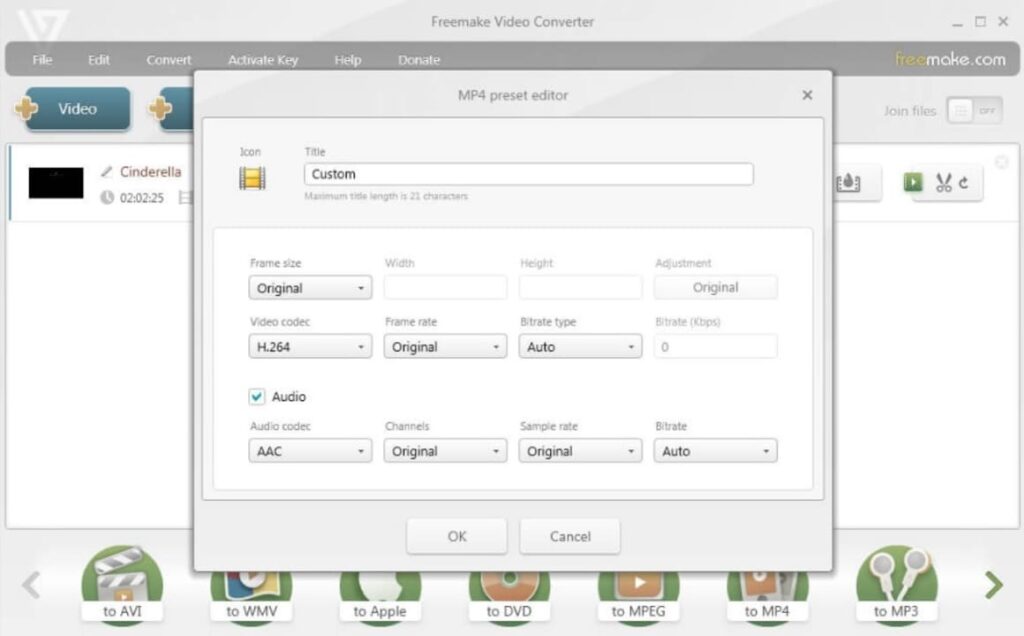
The operation of Freemake Video Converter is very intuitive, so you won’t have any problems changing the format of your MKV file. First of all you need to add the file to convert by clicking on the “+Video” option. After that choose the target format, customize the frame rate and click on the “Convert” button and in a few seconds you will have your MKV file in AVI or MP4 format!

Where to download Freemake Video Converter

Freemake Video Converter is totally free, so don’t miss the opportunity to download it. You can get it from the program’s official website or below these lines.

It is important to know that once installed, you will see that some of its features will appear as blocked. This does not mean that you need to pay to have them because after three days you will receive a notification that will unlock them.

Freemake Video Converter DOWNLOAD

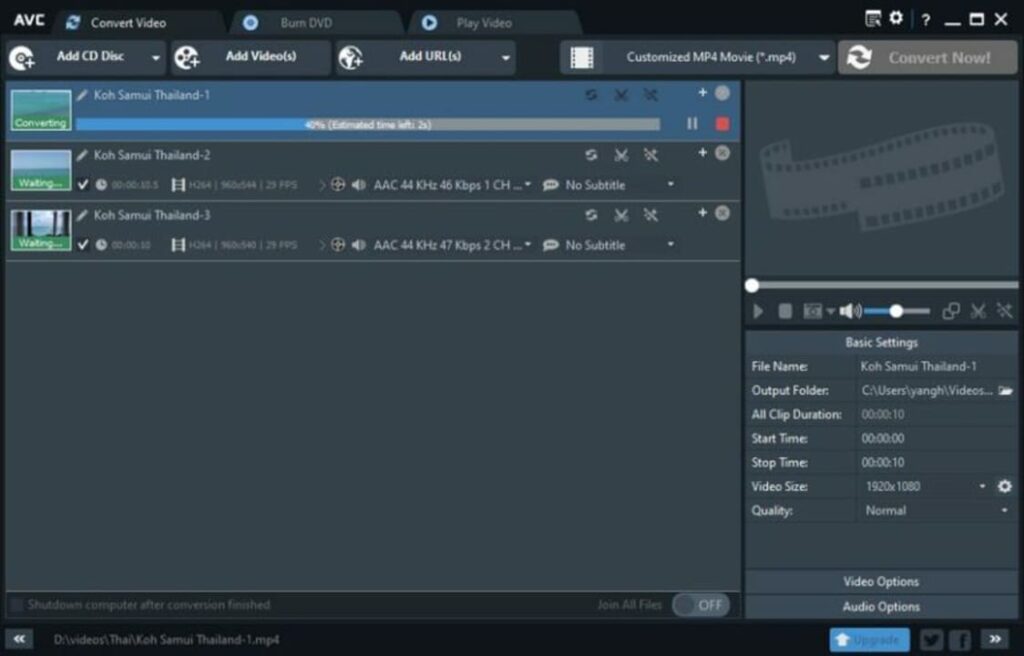
4. Any Video Converter Freeware (AVC)

Any Video Converter Freeware is one of the best video converters that you can download completely free of charge. AVC supports most, if not all, of the video formats that exist today.

One of the peculiarities of this AVC is that with it you can not only convert your MKV videos, but also edit them, cut them, optimize them… Even add effects to them! Besides that, the program works with files from your computer as well as online videos and also allows you to download and convert videos from sites like YouTube, Facebook, Vimeo, Metacafe, etc.

How to convert MKV file with Any Video Converter Freeware (AVC)

Converting an MKV file to AVI or MP4 is very easy, just follow these steps. First click the “Add Video(s)” tab and select the file you want to change the format of. Then choose a target format from the list and click the “Convert Now!” button. It’s that easy and fast.

Where to download Any Video Converter Freeware (AVC)

You can download Any Video Converter Freeware (AVC) from its official website or, if you prefer, quickly and conveniently below. Note that the free version of Any Video Converter is excellent and provides everything you need to perform your video conversions. However, you can upgrade to a paid version and get interesting features such as converting several videos at once, burning videos to CDs, DVDs and Blu-Rays as well as removing DRM from some videos.

Any Video Converter Freeware DOWNLOAD

5. CloudConvert

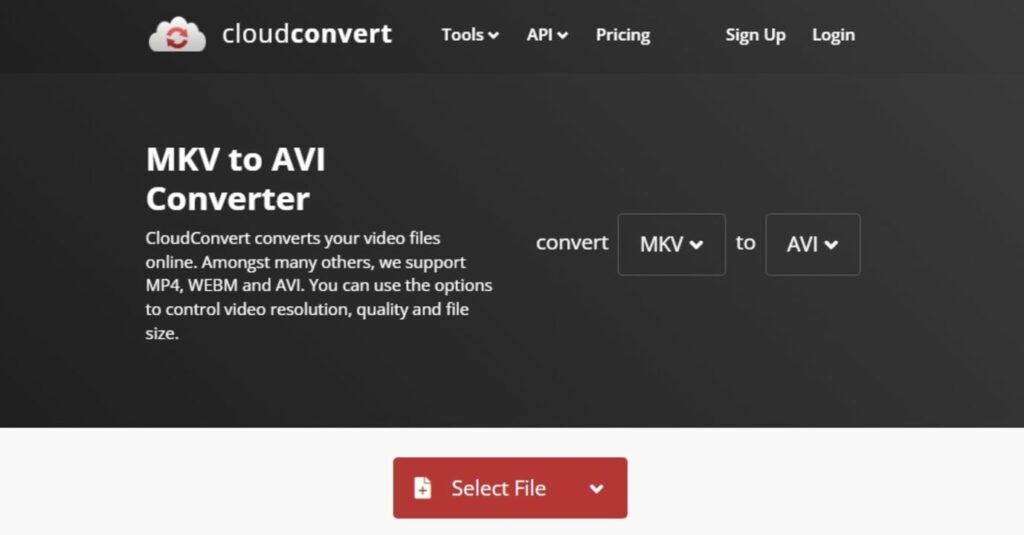
Don’t want to download anything but don’t want to give up converting your videos? We recommend that you take a look at CloudConvert, an excellent online tool with which you can convert any MKV file to AVI or MP4 quickly, easily and effectively.

CloudConvert includes both a free and a premium paid service. Both are fully functional and the only difference is that the free version allows you to convert a total of 25 files per day (up to 5 simultaneously) and with a maximum size of 1 GB.

How to convert MKV file with CloudConvert

You can easily convert any file format from CloudConvert. To do so, visit its official website and select “MKV” and “AVI” or “MP4” from the “Convert” drop-down menu. After that, click the “Select File” button and upload the video file you want to convert. You can also convert files directly from a URL or from cloud services such as Google Drive, Dropbox or OneDrive.

Finally, customize the resulting file by changing its resolution, quality or video codec (among many other options). Despite being an online service, CloudConvert gives you total freedom to customize and edit the resulting file. Once you have done this, click on “Convert” to change the file format. Before downloading you will see a preview of the file. If the result is what you expected, click “Download” to save it to your computer.

Converting your MKV files has never been easier

We hope that our selection of programs to convert MKV to MP4 or AVI files has helped you. And remember, if you liked what you have read, don’t forget to share it with your friends via social networks.

50 Sensational Desktop Wallpapers to Download Right Now

Download now these 50 wallpapers for your PC or Smartphone, they are amazing. Landscapes, castles, drawings, futuristic images, sunrises etc. Discover and download them for free here.

Are you looking for a good desktop wallpaper for your PC? Tired of always having the same wallpaper on your Mac or your smartphone? you have come to the right place! And it is that although we do not think about it often, the image with which we decorate our desktop and cell phones says a lot about ourselves, so… Why settle for anything?

At Softonic we have scoured the Internet in search of the best free 4K and HD wallpapers so that your screens look like never before. Here you will find 50 backgrounds covering the most popular themes. Landscapes, series, videogames, anime, star wars, aesthetic-type backgrounds… Don’t worry, we haven’t forgotten about dynamic backgrounds either. Go ahead and try them all!

How to download and customize wallpapers on PC, Mac and mobile

If any of the desktop wallpapers that we offer make you tickle, don’t hesitate to download them and put them on your computer… They are for free! Don’t know how to do it? Don’t worry, it’s very simple. You just have to follow these steps.

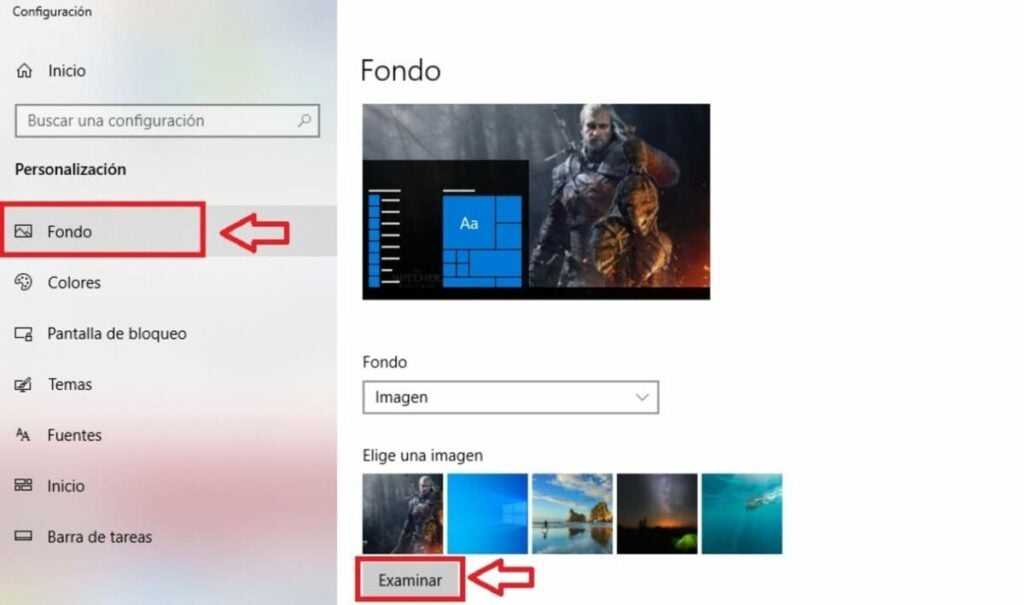
  • On PC– Click on the download link to save the wallpaper to your hard drive. Now simply right click on the desktop and select the “Customize” option. Under the “Background” tab, click “Browse” and select the background you just downloaded.
  • On Mac– Click on the download link to save the wallpaper to your computer. Now select the Apple menu and choose “System Preferences“. Once done, go to “Desktop and Screensavers” and select the “Desktop” option. Open the “Photos” drop-down menu and select the wallpaper you just downloaded.
  • On mobiles and cell phones– Click on the link to download the wallpaper to your mobile. If you are an Android user, access your device’s gallery and set the image you want as wallpaper. If you have an iPhone, go to your phone’s settings, click on “Wallpaper” and select the option “Add new wallpaper“. Then select the image of your choice.

4K and HD wallpapers

1. Nubes coloridas

DOWNLOAD 4K BACKGROUND

DOWNLOAD HD BACKGROUND

2. Anime girl dream

DOWNLOAD 4K BACKGROUND

DOWNLOAD HD BACKGROUND

3. GTA V – Los Santos

DOWNLOAD 4K BACKGROUND

DOWNLOAD HD BACKGROUND

4. Stranger Things

DOWNLOAD 4K BACKGROUND

DOWNLOAD HD BACKGROUND

5. Darth Vader Lightsaber

DOWNLOAD 4K BACKGROUND

DOWNLOAD HD BACKGROUND

6. Fantasy Landscape

DOWNLOAD 4K BACKGROUND

DOWNLOAD HD BACKGROUND

7. Swiss Alps

DOWNLOAD 4K BACKGROUND

DOWNLOAD HD BACKGROUND

8. Fireworks

DOWNLOAD 4K BACKGROUND

DOWNLOAD HD BACKGROUND

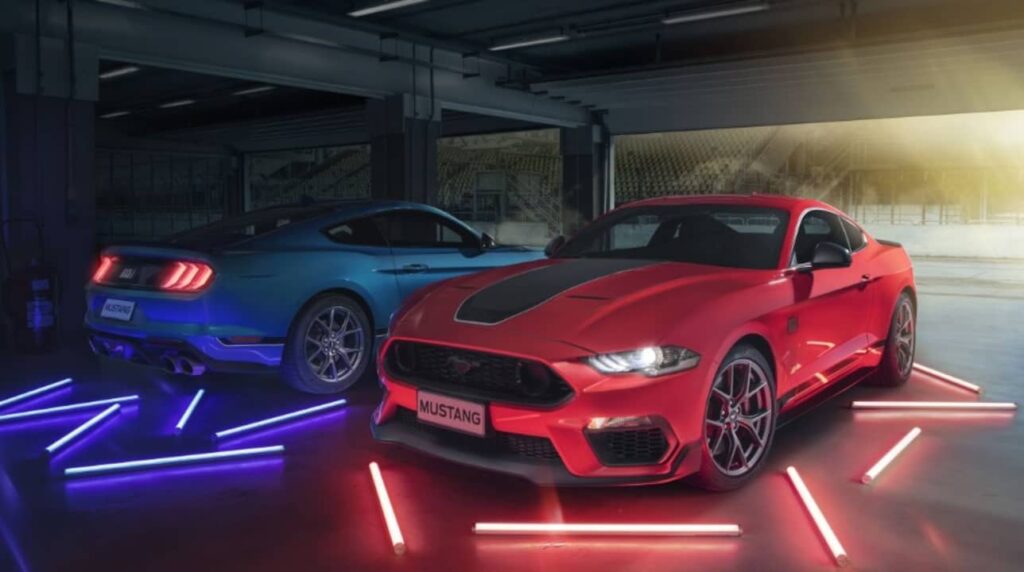
9. Ford Mustang

DOWNLOAD 4K BACKGROUND

DOWNLOAD HD BACKGROUND

10. Lion at Sunset

DOWNLOAD 4K BACKGROUND

DOWNLOAD HD BACKGROUND

11. Black dog

DOWNLOAD 4K BACKGROUND

DOWNLOAD HD BACKGROUND

12. Avatar: The Sense of Water

DOWNLOAD 4K BACKGROUND

DOWNLOAD HD BACKGROUND

13. Neytiri (Avatar)

DOWNLOAD 4K BACKGROUND

DOWNLOAD HD BACKGROUND

14. Wednesday (Jenna Ortega)

DOWNLOAD 4K BACKGROUND

DOWNLOAD HD BACKGROUND

15. Pair of keychains

DOWNLOAD 4K BACKGROUND

DOWNLOAD HD BACKGROUND

16. God of War Ragnarok

DOWNLOAD 4K BACKGROUND

DOWNLOAD HD BACKGROUND

17. Elden Ring

DOWNLOAD 4K BACKGROUND

DOWNLOAD HD BACKGROUND

18. Super Mario

DOWNLOAD 4K BACKGROUND

DOWNLOAD HD BACKGROUND

19. The Last of Us (2023)

DOWNLOAD 4K BACKGROUND

DOWNLOAD HD BACKGROUND

20. Arcane

DOWNLOAD 4K BACKGROUND

DOWNLOAD HD BACKGROUND

21. Chainsaw Man

DOWNLOAD 4K BACKGROUND

DOWNLOAD HD BACKGROUND

22. Particle explosion

DOWNLOAD 4K BACKGROUND

DOWNLOAD HD BACKGROUND

23. Marvel’s Spider-Man

DOWNLOAD 4K BACKGROUND

DOWNLOAD HD BACKGROUND

24. Assassin’s Creed Valhalla

DOWNLOAD 4K BACKGROUND

DOWNLOAD HD BACKGROUND

25. Death Stranding

DOWNLOAD 4K BACKGROUND

DOWNLOAD HD BACKGROUND

26. Kitten with flower

DOWNLOAD 4K BACKGROUND

DOWNLOAD HD BACKGROUND

27. The Last of Us 2

DOWNLOAD 4K BACKGROUND

DOWNLOAD HD BACKGROUND

28. Elephant Fantasy

DOWNLOAD 4K BACKGROUND

DOWNLOAD HD BACKGROUND

29. Guardians of the night

DOWNLOAD 4K BACKGROUND

DOWNLOAD HD BACKGROUND

30. Sunset at Alpha Centauri

DOWNLOAD 4K BACKGROUND

DOWNLOAD HD BACKGROUND

Mobile and cell phone wallpapers

1. Anime couple

DOWNLOAD BACKGROUND

2. Astronaut

DOWNLOAD BACKGROUND

3. Lake Tahoe

DOWNLOAD BACKGROUND

4. Leo Messi

DOWNLOAD BACKGROUND

5. Color explosion

DOWNLOAD BACKGROUND

6. Blue Ford Mustang

DOWNLOAD BACKGROUND

7. Kratos and Atreus

DOWNLOAD BACKGROUND

8. Northern Lights

DOWNLOAD BACKGROUND

9. Hello Kitty

DOWNLOAD BACKGROUND

10. Shetland Sheepdog

DOWNLOAD BACKGROUND

Dynamic backgrounds for mobile

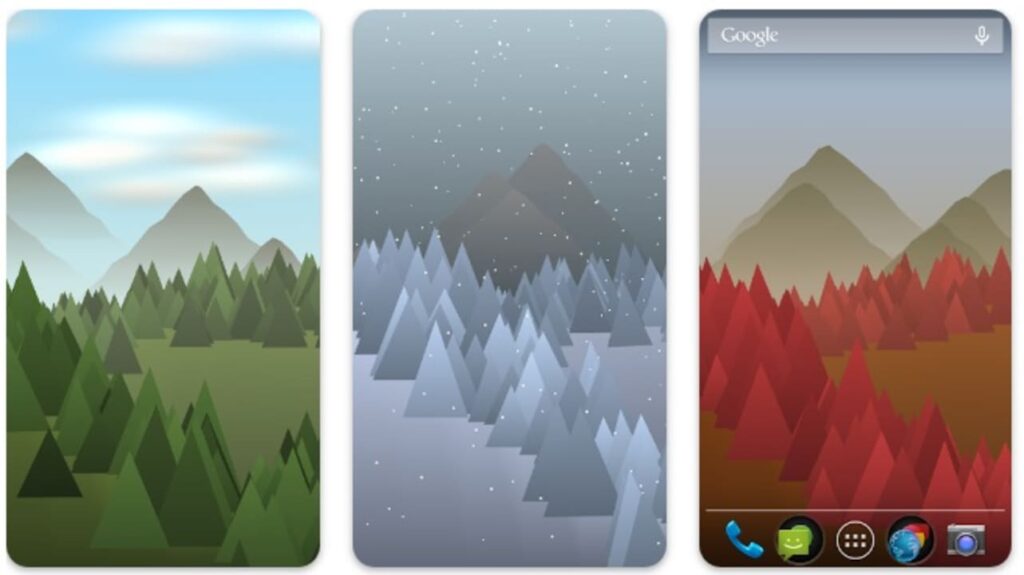
1. Forest Live Wallpaper

Forest Live Wallpaper DOWNLOAD
9

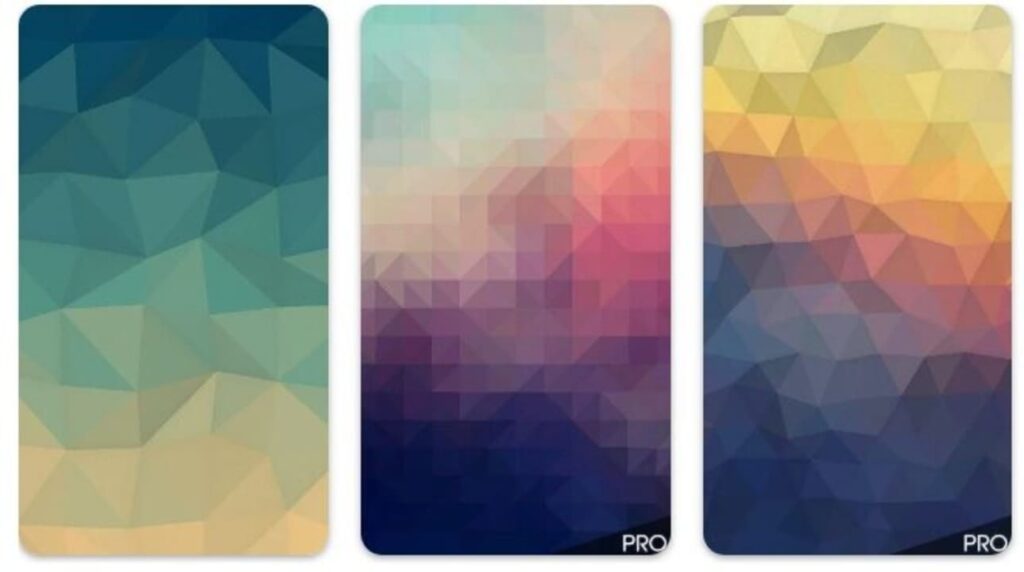
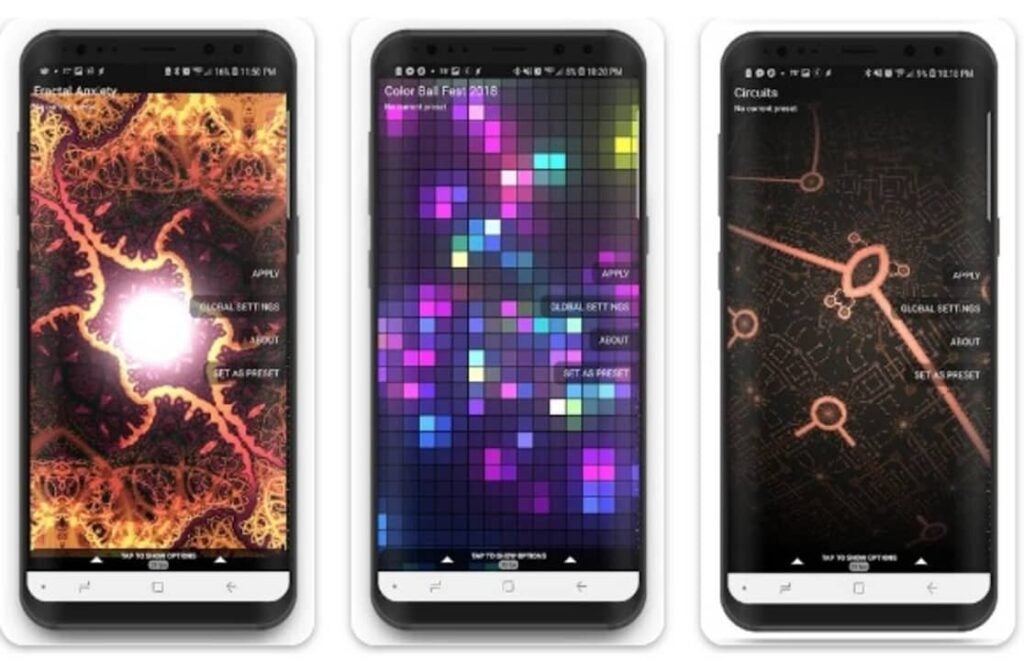
2. Fracta Live Wallpaper

Fractal Live Wallpaper DOWNLOAD
8

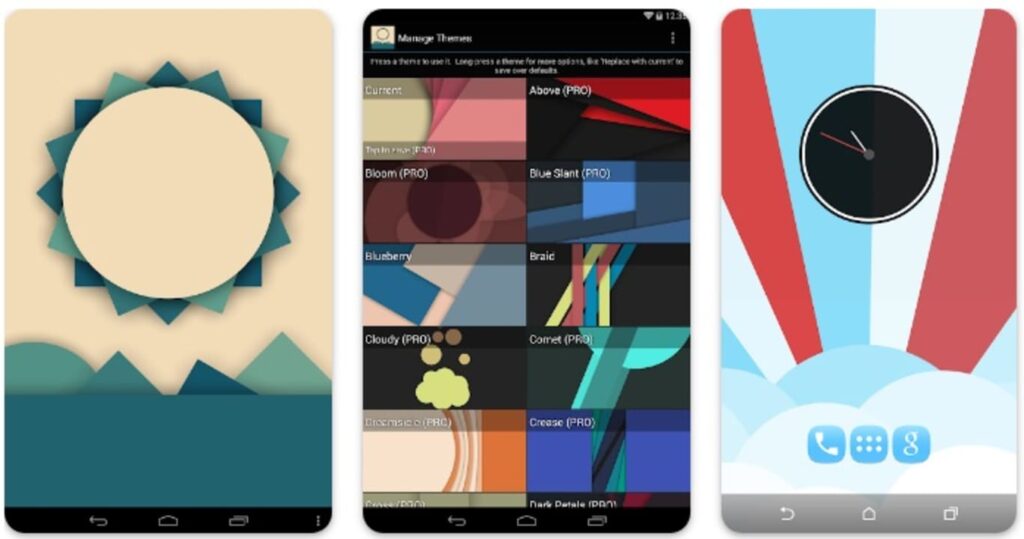
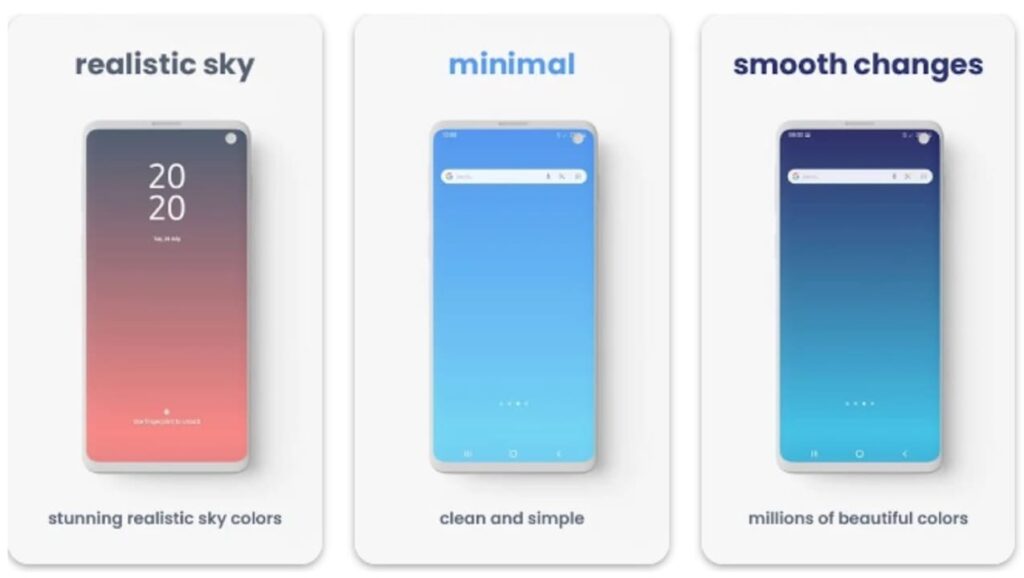
3. Minima Live Wallpaper

Minimal Live Wallpaper DOWNLOAD
8

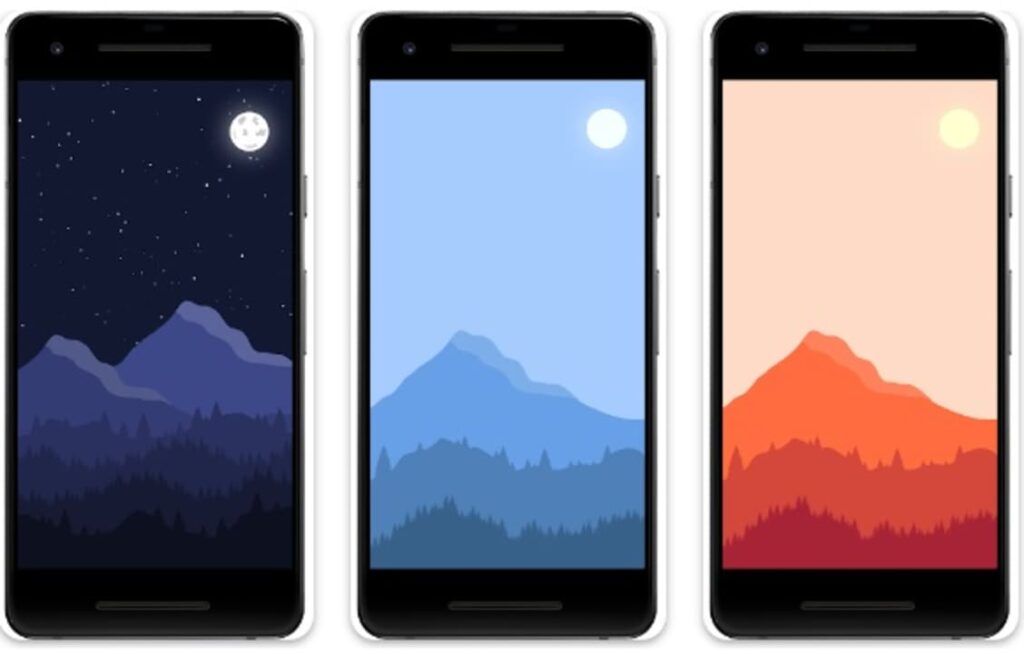
4. 2D Mountain Landscape

2D Mountain Landscape DOWNLOAD
9

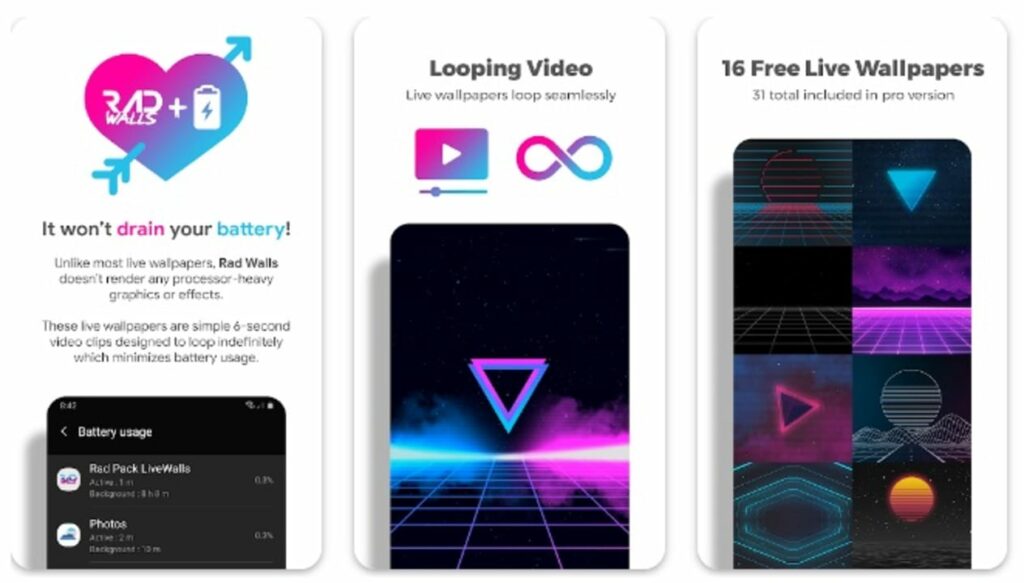
5. Rad Walls

Rad Walls DOWNLOAD
9

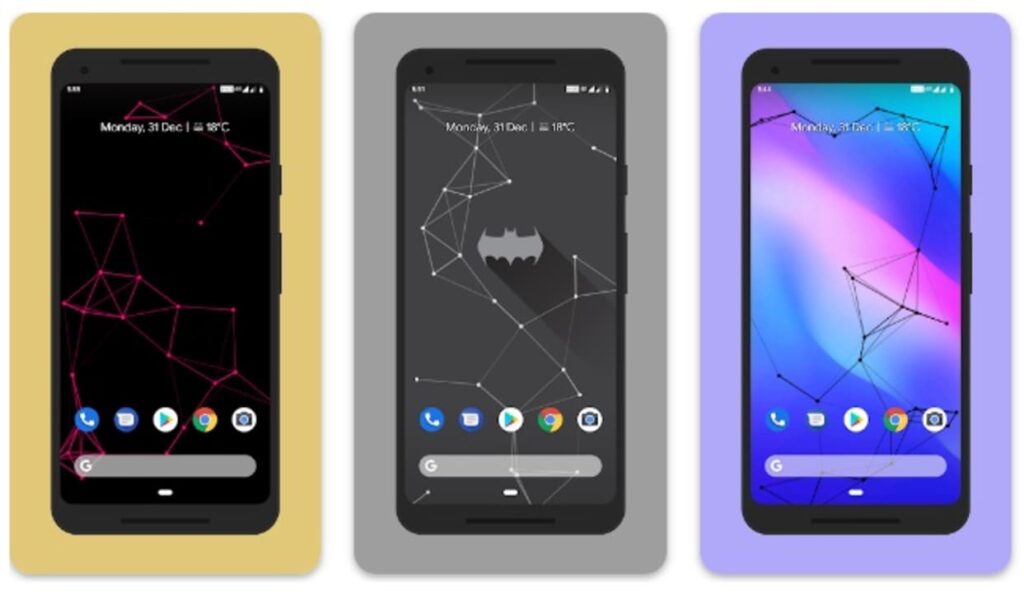
6. Particle Live Wallpaper

Particle Live Wallpaper DOWNLOAD
9

7. Wallow

Wallow DOWNLOAD
8

8. ShaderPaper

ShaderPaper DOWNLOAD
8

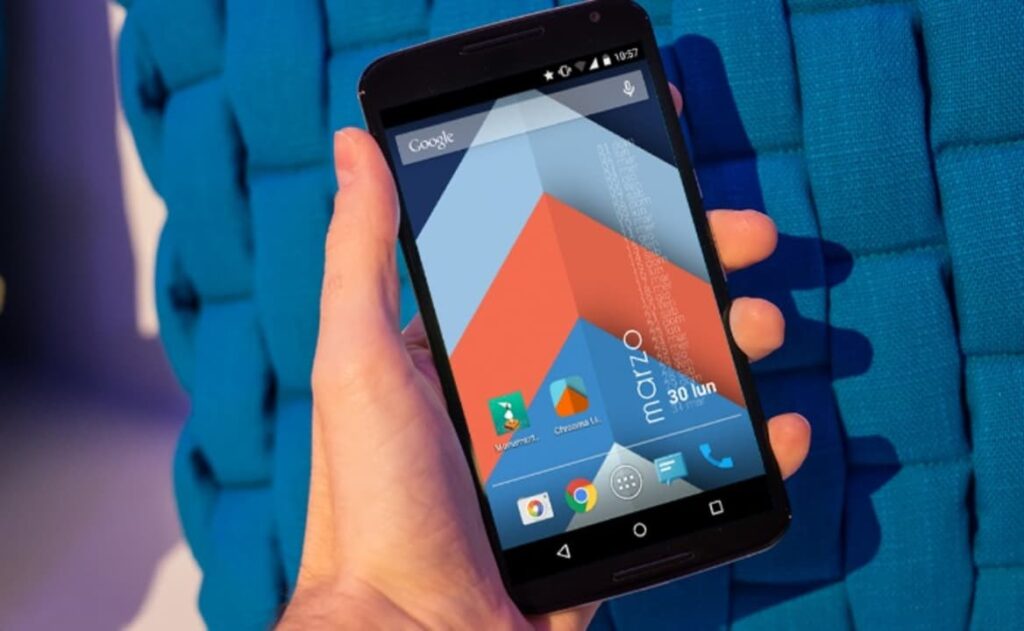
9. Chrooma

chroma DOWNLOAD
9

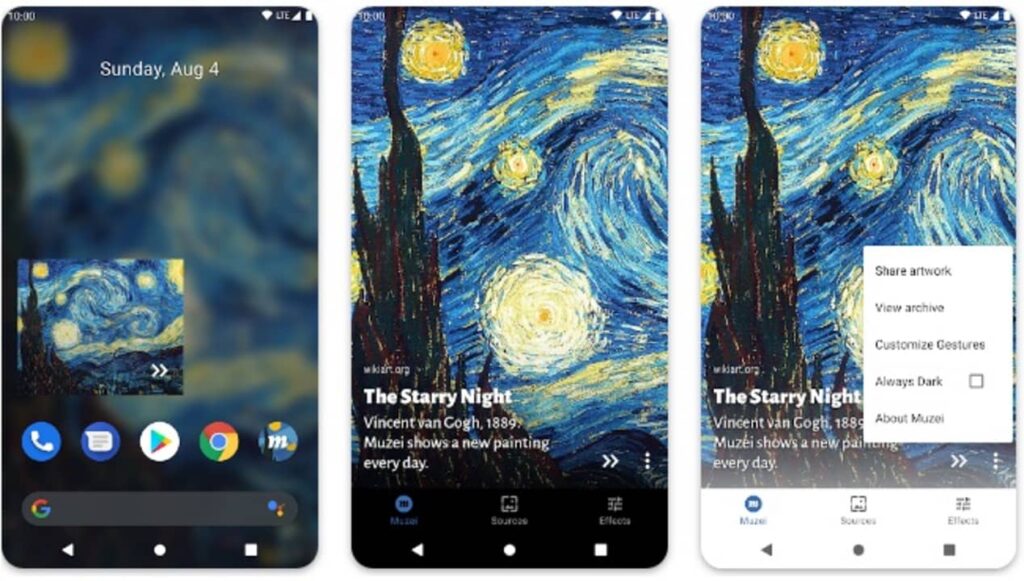
10. Muzei

Muzei Live Wallpaper DOWNLOAD
9

Do you want more free backgrounds to download?

Has our selection become too small for you Don’t worry! There are endless web pages from which you can download amazing backgrounds in just a few seconds. These are the ones we like the most:

If what you are looking for are wallpapers for your smartphone, we recommend that you take a look at our selection of the best wallpaper apps and animated wallpapers. And if you like landscapes, don’t miss these landscape wallpapers. Now you have no excuse for the screen not to look beautiful!

5 Best Free Apps to Record Audio with your PC

Have you ever wondered how to record a podcast, take audio notes or record the sound of any streaming video? With the rise of new technologies, recording audio has become an increasingly present task in our classrooms, companies and even among online teaching professionals. If you are thinking of taking voice notes, recording any kind of audio clip or trying your hand at recording your own podcast, you will need to have the right software installed on your PC. But… Which program to download?

If you have searched the Internet, surely you have already seen that there are endless tools with which to record audio from your PC. However, not all of them are easy to use or free. To make your life easier, at Softonic we have prepared a list of the best free programs to record audio from your PC. We hope they help you!

1. Audacity

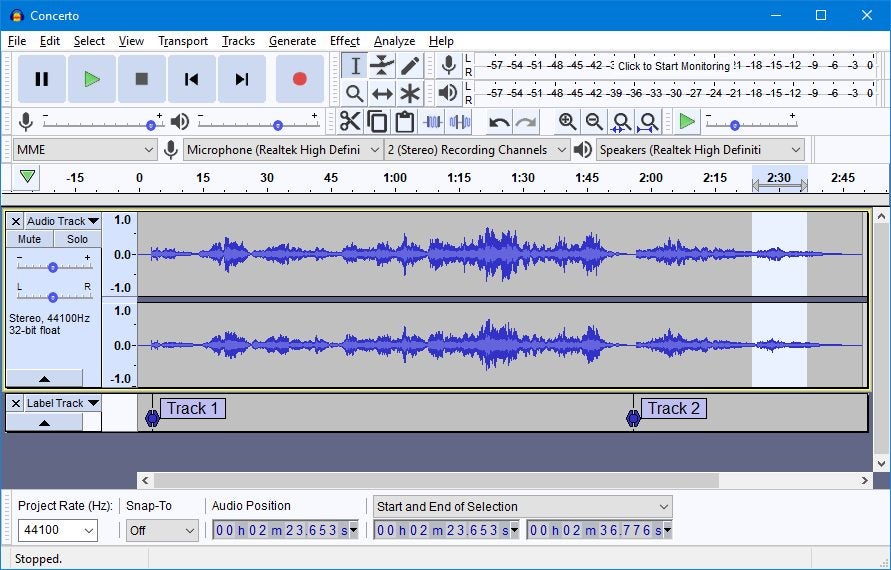
Audacity is, without a doubt, the best option to record audio from your PC. Not only is it a powerful free recording software, but it is also open source, thus opening up a world of possibilities for its users. One of its strengths is that, thanks to its simple and intuitive interface, it is a program accessible to all types of users. This translates into recording and editing tracks in record time, always offering professional results.

Despite being a seemingly simple program, Audacity offers all the necessary tools to record and mix audio tracks. It also includes tools to improve the sound, analyze the bass frequency and add effects such as audio equalization. Without a doubt, it is the perfect option to record any audio track from your PC.

Main features of Audacity :

  • Allows you to record and edit audio tracks
  • Very easy to use
  • Professional tools
  • Multiplatform
  • Free and Open Source
Audacity DOWNLOAD
9

2. Sound Forge

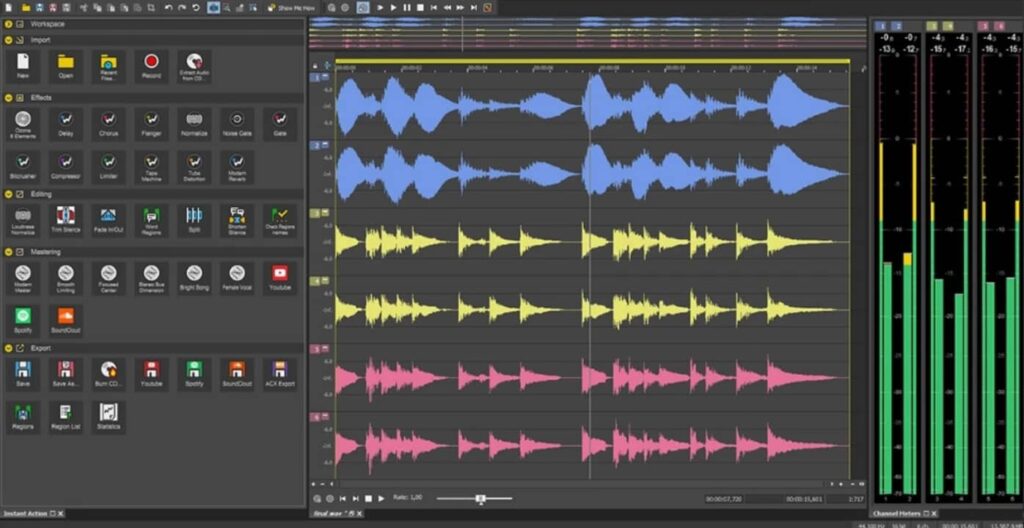
Sound Forge is a very powerful digital audio editing suite designed for the professional and semi-professional audience. In fact, for many years it has been considered the go-to audio editing program for artists, producers and engineers in the industry. Among its main features we find its exceptional audio quality and its advanced mastering and effects tools, with which you can create the perfect audio track.

In addition to being able to record audio, Sound Forge is a software designed to edit and polish the tracks created to the smallest detail. The program also stands out for its high compatibility with file formats and the possibility of exporting them directly to your favorite platforms. Its only weak point: its high learning curve. Sound Forge has a free trial version with which you can enjoy this editor and, if it meets your expectations, purchase its Pro version.

Main features of Sound Forge :

  • Professional recording and track editing tools
  • Recording of up to 32 different audio channels
  • VST plug-in support
  • Supports high-resolution audio recording
  • Includes a wizard to help beginners
  • Headlining software for major artists
Sound Forge DOWNLOAD
8

3. Ocenaudio

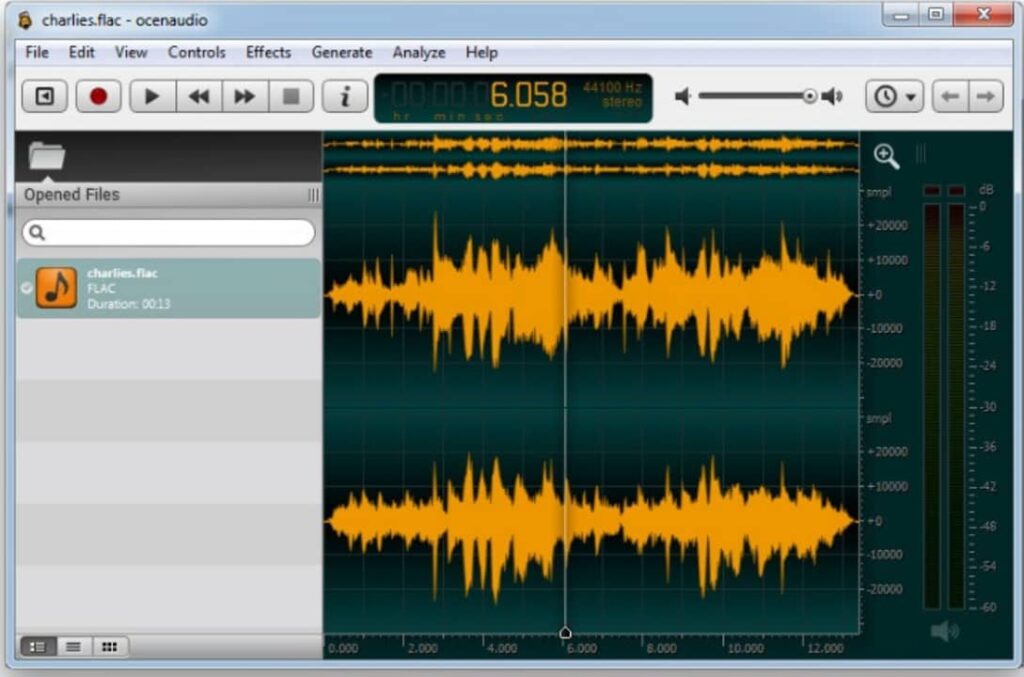
Ocenaudio is a free audio editor that is very easy to use with which you will be able to record, edit and analyze any track in just a few clicks. Although it is not the most powerful tool on the market, it does include some really interesting features such as the ability to add VST (Virtual Studio Technology) plugins. This makes it especially suitable software if, in addition to recording audio tracks, you want to add effects to them.

Among the main virtues of Ocenaudio is its ease of use. It has an intuitive interface and easy-to-learn controls. In addition, the program is completely translated into several languages, ideal for those who do not yet master the language of Shakespeare. As a final point, Ocenaudio is compatible with a large number of formats (FLT, MP3, M4A, 3GP, OGG, MOV, MKV, AVI, VOC, WAV, etc.) being perfect for both importing and exporting our audio tracks.

Main features of Ocenaudio:

  • Easy to use
  • Allows simultaneous editing of multiple files
  • VST plug-in support
  • Portable version available
  • Available in different languages
  • Completely free of charge
Ocenaudio DOWNLOAD
8

4. Wavosaur

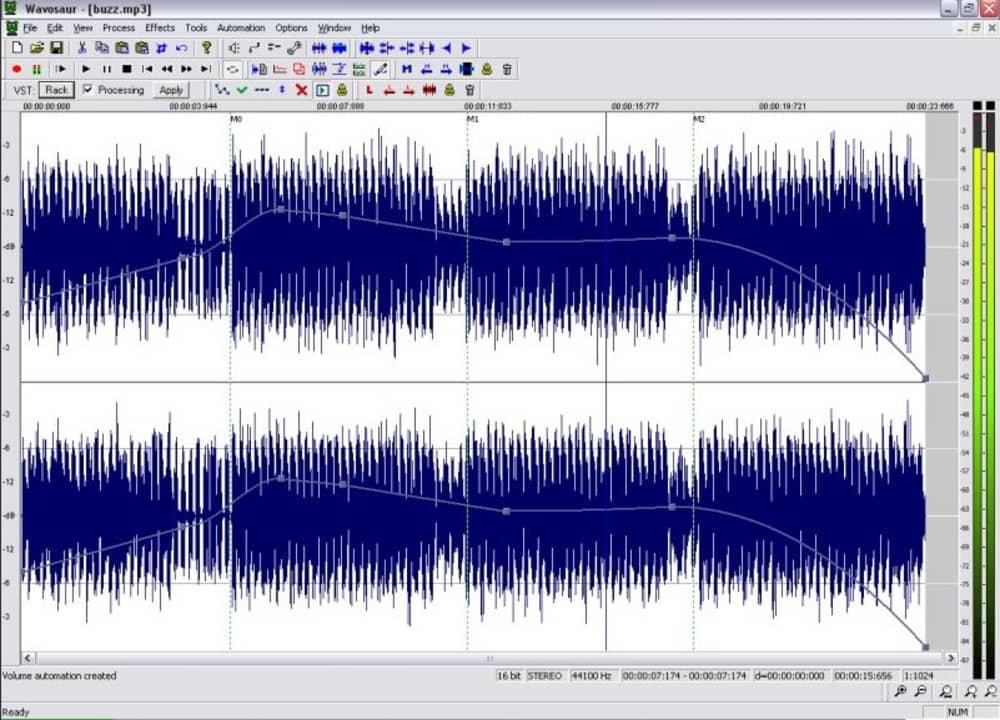
Wavosaur is another excellent option to record audio from your PC completely free of charge. This application stands out for offering native support for VST, making it a useful tool not only for recording, but also for editing, adding an effector and manipulating tracks to your liking. In addition to this, it has all the options of a good audio editor, allowing you to record, analyze, copy, paste, modify channels and convert any type of track with just a few clicks.

A very interesting point about Wavosaur is that it is a portable program and therefore does not require installation. Just download the file, double click on it and start recording and editing audio instantly. In addition to this, it is an app with high file compatibility, accepting to import and export audio in WAV, MP3, AIF, AIFF and OGG VORBIS formats. And it’s free!

Main features of Wavosaur:

  • No installation required
  • VST support
  • Export audio files as text
  • Analyzes the audio frequency of the second and third spectra
  • High format compatibility
Wavosaur DOWNLOAD
8

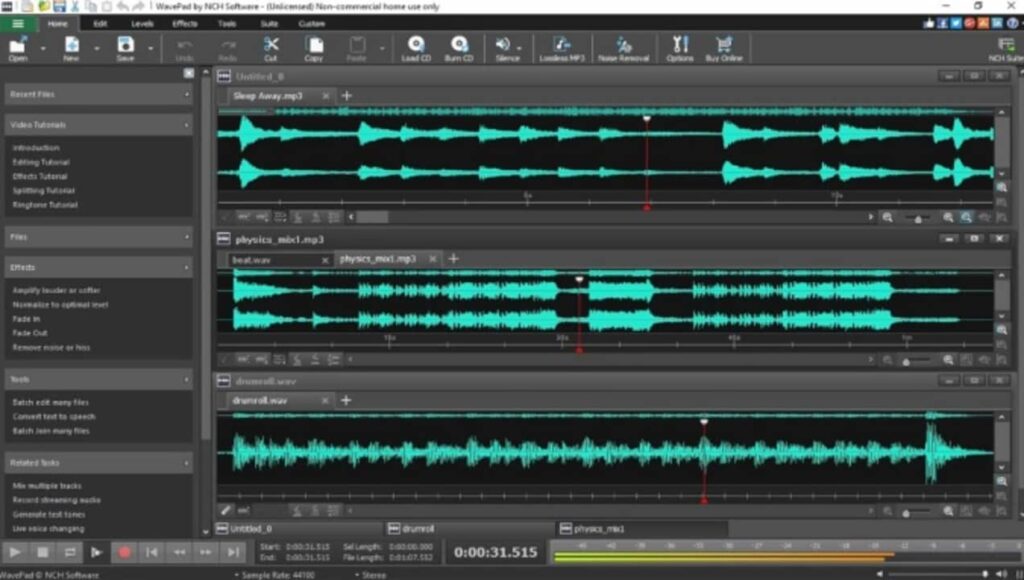
5. WavePad

We close our selection with WavePad, a powerful and complete audio editor with which you can record and edit tracks from your PC. The program has all the basic and advanced editing tools as well as the possibility of adding audio effects. In addition to this, it allows the integration of DirectX and VST plugins, thus opening the possibility of adding endless additional tools and effects.

One of WavePad’s strengths is its compatibility between formats. In fact, it is compatible with almost all current music and audio file formats (MP3, WAV, VOX, GSM, WMA, AU, AIF, FLAC, real audio, OGG, AAC, M4A, MID, AMR, etc.) It is also very intuitive and easy to use, making it perfect for both new and experienced users. WavePad is completely free to download, but is only available for non-commercial use.

Main features of WavePad :

  • Compatible with the vast majority of formats
  • Intuitive and easy to use
  • Compatible with DirectX and VST plug-ins
  • Includes a large number of audio effects
  • Allows batch processing
WavePad DOWNLOAD
8

How to convert videos to different formats

Converting video files can sound intimidating but there’s nothing to be worried about. Here we’ll show you five ways to convert video formats.

Converting videos from one file type to another may sound like some sort of technical nightmare but actually. It is a lot easier than you’d think. There are a million and one reasons you might need to do it too. You may want to upload your video to the internet or maybe that video you took on your iPhone is too large as you now have a camera that can capture in 4K.

Whatever the reason doesn’t matter as there are a lot of great programs out there that can help you take a video saved as one format and convert it into another. We’ll now walk you through the best of them and show you just how easy it can be to convert video files.

Video converters

Unlike with pictures, there is no single file type for video that everybody uses. There is no JPG of video, and instead, there are many different video formats including MP4, AVI, MOV, WMV, MKV, MPEG, WebM, AAC, and FLV to name but a few. This is how to convert them all into each other.

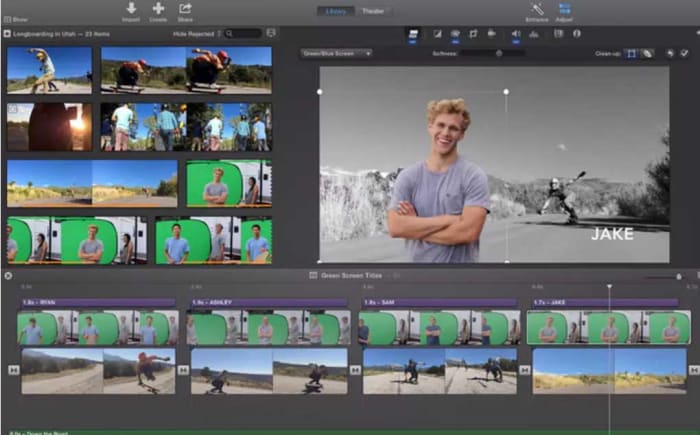
iMovie

iMovie for Mac offers a rather robust entry-level video editing suite for all budding movie makers fortunate enough to have a Mac. iMovie has a plethora of cool features that will allow you to take your home movies and camera phone recorded videos and bring them all together into a polished final product.

Another of the key features iMovie has to offer is the video conversion tool. With this tool you simply need to import the video file of your choice and add the video to your storyboard. From there you need to hit Share and then choose File. This will then give you the option to save the video with a new name, new resolution, new quality, level, and a new file format.

iMovie Download now
7

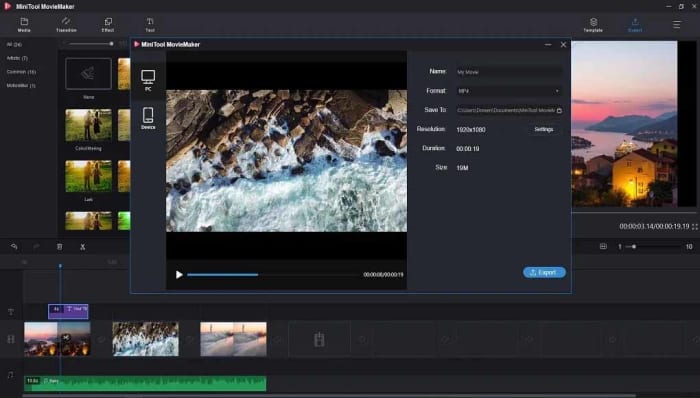
MiniTool Movie Maker

We like MiniTool Movie Maker here at Softonic because gives away a lot of great video editing features for free. Furthermore, as well as offering anybody looking to make their first movie the tools they need to do so, the app also lets you make your videos for free without having to display a watermark, like most other free video editing apps, do.

The video converter on MiniTool Movie Maker allows you to convert almost all different video file types and even gives you the option to edit the videos you’re converting too by adding various elements such as subtitles or filters. It is easy to use too. You simply import your video and set your target format and the app does the rest.

MiniTool Movie Maker Download now
9

Total Video Converter

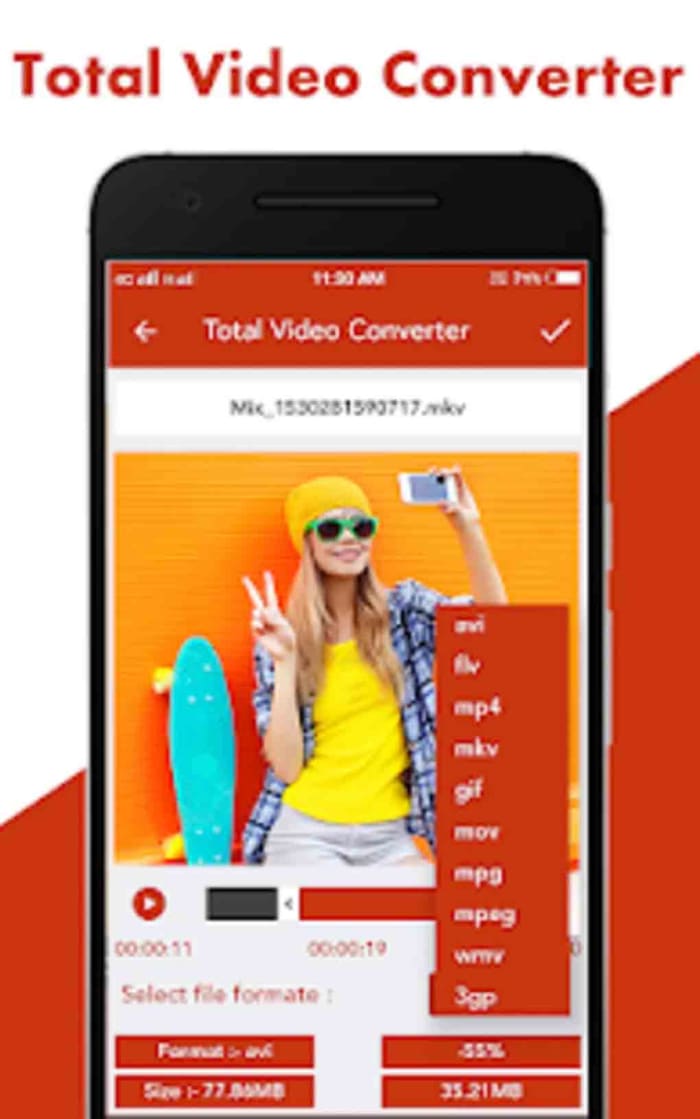
This app for Android offers a quick and simple video conversion solution for mobile users. There’s also a Windows version of the program and a version for Apple Macs too. Sadly, however, there’s no iOS version available at the moment so iPhone users can’t use this program to convert their videos.

Converting videos on mobile couldn’t be easier. When you open the app, it will automatically show you all the video files you have on your device. This means you don’t have to go searching around your device or copying and pasting files from one place to another. The app just shows you everything you need right there in one place. From there it is simply a case of selecting the video you want to convert and the format you want to convert it to and then hit Convert. The app will do the rest. The app converts files quite quickly and also offers a video player too so that you can watch the videos you’re converting too.

Total Video Converter Download now
8

Online Video Converter

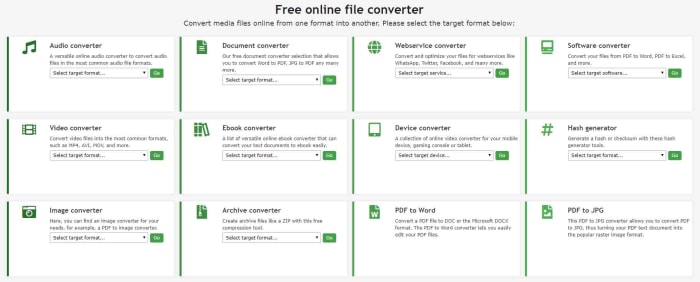
As well as showing you the best apps for Android, iPhone, Windows, Linux, and Mac for converting videos, we thought it would also be helpful to show you the best website for converting videos too. Online-Convert is an absolute beast of a site that will help you convert almost any type of file, not just videos. Here you can easily convert Word files to PDF and vice versa as well as easily converting software, images, eBooks, audio, and more.

We’re here though for video and the process couldn’t be simpler. All you need to do is go to the site and find the Video Converter box. There you need to open the drop-down menu and select the type of video file you want to convert your video into. Once you’ve done that, click Go, upload your video, and then hit Start Conversion. There are more advanced video conversion settings you can play around with, but these are optional. This method can be as simple or as complicated as you like.

VLC Media Player

VLC converter MP4

VLC Media Player is the internet’s favorite video and media player. It can play almost every type of video format and codec and barely breaks a sweat while other video players would struggle or simply crash. VLC is the don and always has been. VLC also offers a pretty robust video conversion solution too, which we’ve gone into in greater detail before.

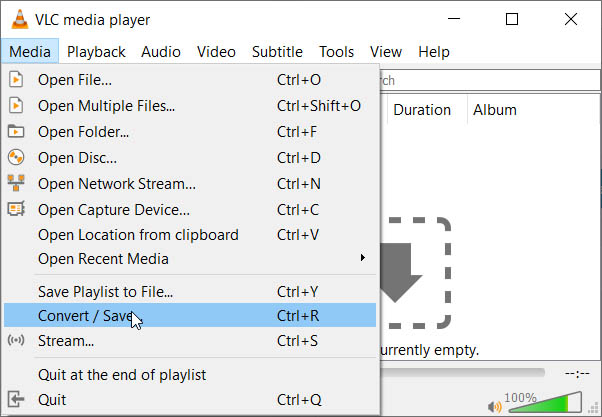
The video conversion process on VLC Media Player couldn’t be easier. If you open the program and go to the Media menu, you’ll see the Convert/Save button. You simply need to click this and then click the Add button to select the video file you want to convert. After that, you click Convert and select the destination of the converted file, the file name, and the new file type. As you’d imagine with VLC there are an awful lot of compatible file types here for you to choose from. From there it is as simple as hitting Start.

VLC media player download free ►
8

Best Chromecast apps

Have you just bought a new Chromecast? These are the must-have apps you need on your Android or iOS device to get the most out of your purchase.

The Google Chromecast is a fantastic little device that makes it possible to wirelessly “cast” media from your Android and iOS mobile device onto your TV. You simply plug the Chromecast into one of your TV’s spare HDMI ports, hook it up to a USB-based power supply, and then you’re good to go. The connection then works over Wi-Fi, which means you can control apps on your phone that are then run through the Chromecast.

The way the system works then relies on compatible apps. Not all apps will stream wirelessly from your mobile device your TV via the Chromecast. Instead, you need to find Chromecast compatible apps and that is what we’re here for today. Today, we’re going to walk you through all the best Chromecast apps.

Best apps for Chromecast

These are the Chromecast apps you need to download right now. They will help you stream your content wirelessly from your mobile device to your TV.

Google Home

This list will mostly revolve around media. The Chromecast is a fantastic little device that makes it really easy for you to take the media content you have or are streaming onto your phone and have it display on your much bigger TV. In truth, however, there’s more to the device than that and the Google Home app is how you unlock what else the Chromecast has to offer.

The Google Home allows you to run all your smart home connected devices and also allows you to enjoy features such as content discovery, universal search, and app recommendations. If you’ve just got your first Google Chromecast, you should definitely download the Google Home app as, in truth, it is more like the official companion app to the Chromecast. In fact, the app used to be called the Chromecast app.

Google Home Download now
8

Netflix

Netflix in the living room

So, we’ve already mentioned that one of the top uses for the Google Chromecast is casting media such as videos and photos to your big screen TV. You’ll no doubt be relieved and in no way surprised then to learn Netflix is compatible with your Google Chromecast and is one of the best Chromecast apps around today. You can, of course, download Netflix on Android smartphones and iOS iPhones.

What’s great about the Netflix mobile app is that it allows you to cast your movies or TV shows to the TV and then use your mobile phone as a remote control. You can control playback, skip scenes, and of course browse the Netflix library all while sat on the sofa using your phone. Other great Chromecast media playing apps include HBO Go, Hulu, Roku, Plex, and if you’re in the UK, the BBC iPlayer. By connecting your phone to your TV the Chromecast turns your television into a smart TV.

8

YouTube

YouTube on the TV really is a treat. In truth, the platform has long been a big-screen platform with well-produced content that’s easily able to compete with more established networks coming from a wide variety of professional media outlets as well YouTube’s army of popular bedroom content producers.

The YouTube Chromecast app is simple yet effective and it couldn’t be easier to cast any video you find onto your TV. YouTube also has a premium model now too that includes being able to download videos but that also gives access to premium content, much like Netflix has Netflix Originals.

8

AllCast

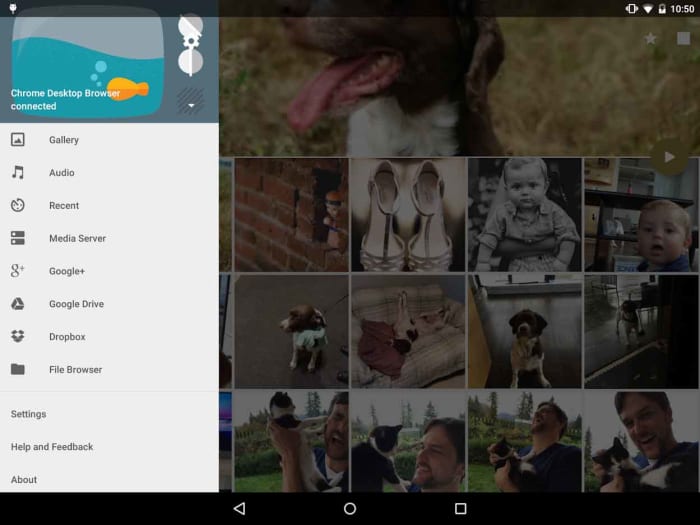
AllCast is probably the most versatile Chromecast app out there and is available on both iOS and Android devices. AllCast offers an easy and effective way to cast all the photo and video media you have on your phone onto your lounge TV. The app also makes it possible for you to cast photos you have stored on cloud storage solutions like Dropbox.

You can try AllCast for free, but all the best features are hidden behind a paywall. Furthermore, you can only cast videos up to five minutes in length on the free version, which means you’re going to have to pay to get any real value out of the app.

AllCast Download now
7

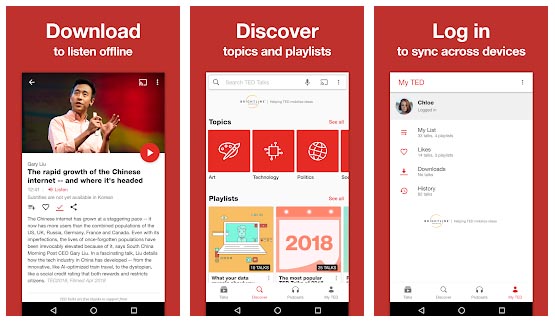
TED

TED talks are a cultural phenomenon these days. Instantly shareable and infinitely inspiring, everybody has watched and shared at least one TED talk. That’s what makes the TED app so perfect for using with your Chromecast. TED talks can inspire you on a personal level, but so often you want to share the experience with somebody else and that is the Chromecast comes in.

Whether you’re watching a brand-new lecture on your living room TV or sharing one of your old favorites with your family, the Chromecast-enabled TED app makes it easier than ever to watch TED talks as a group.

Google Photos

How to Breathe New Life into your Old Phone Get a cloud based photo sync app google photos

It probably comes as no surprise that there are many great Google apps that are Chromecast compatible. We’ve already mentioned YouTube and Google has recently made its native Files app for Android Chromecast-compatible too, which offers another great way for you to display the photos and videos you hold on your phone on a much larger screen.

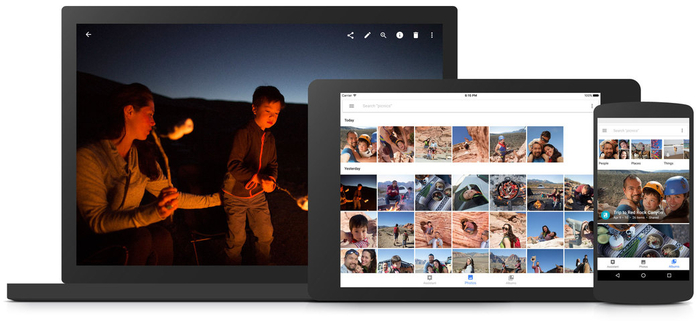
The final app we’re highlighting today, though, is Google Photos, which deserves a special mention all on its own. As well as turning your TV into a giant picture frame, the Chromecast compatible Google Photos app can also help you broadcast all the magical creations you can build on the app. As well as slideshows and albums, Google Photos can help you turn the photos and videos you’ve captured on your smartphone into dynamic movie-like experiences, complete with transition effects, music, and even special integration elements from other Google apps such as Google Maps.

Google Photos Download Google Photos
7

5 Hidden Features in VLC Player That You Need to Know

VLC can play online video files like YouTube videos, play almost all video codecs,  is available on almost every platform including Windows, Mac, Linux, Android, iPhone, and more. It can easily control playback framerate, bookmark exact moments in media files, and can even boost its out-the-box media playback features with extensions and plugins. VLC Media Player is an absolute beast of a program that can even be set up as your webcam.

In truth, though, VLC Media Player is so much more than just an open-source media player and does more than simply play video files or other media files. In fact, VideoLan can be used as a video editor as it has editing capabilities, advanced controls, and much more. Unfortunately, many of these hidden features may not be apparent unless you read up on all that VLC Player has to offer. tick with us for the best VLC tricks. Here are some hidden VLC tips that can make VLC Media Player much more powerful and save you tons of time.

VLC media player download free ►
8

More than a video player: Top 5 hidden VLC features

1. Creating Audio and Video Effects

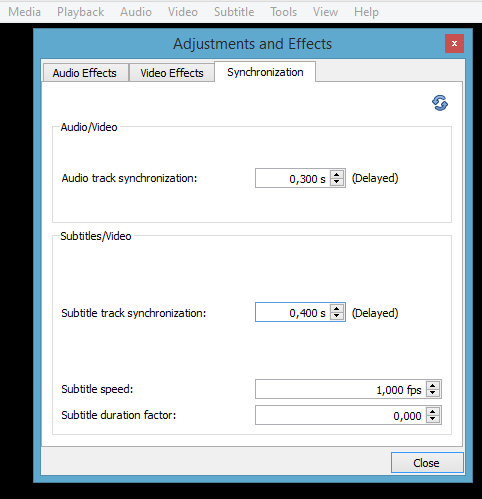
Sometimes when streaming, the audio file isn’t correctly synced up with the video, and this can be incredibly annoying. To fix this issue (or just to create some cool audio/video effects of your own,) open VLC Player and select Tools, then click on Effects and Filters. Next, choose Audio Effect or Video Effect. Here you can play around with the effects that are available and see the changes you make live. This menu item also allows you to change the Brightness, Hue, and other effects. Change the tab to Synchronization to correct the audio-video syncing problem.

VLC Sync

2. Take a snapshot of a Video

Taking a snapshot of a video is usually a tedious process involving Print Screen and Microsoft Paint. To take a snapshot with VLC, play a video and right-click on the desired screenshot. Hover the cursor over the Context drop-down Menu on the option that says Video. To enter capture mode and open capture device you need to select Take Snapshot in the popup menu. That’s all there is to it.

3. Use a Video as Your Desktop Wallpaper

Screen recorder and desktop recording. No other media player offers this particular feature. Open VLC Player and go to the Preferences window. Choose the icon that says Video. Next, choose the Output box and select DirectX (DirectDraw). Restart VLC. Then load the video you wish to use and click the Video menu again. Choose Set as Wallpaper. When you are finished, change the Output setting back to Automatic and restart.

Convert/save files with VLC. Follow the link below to learn how to convert video and convert media files using VLC Media player.

4. Listen to Online Radio Stations

Nullsoft Shoutcast

Literally hundreds of SHOUTcast radio stations are available in VLC Player, but these stations have to be enabled to be accessible. Go to Media and select Services Discovery, then choose SHOUTcast. Finally, open the Playlist and find the station you wish to play. This feature can turn any compatible audio device into a powerful internet radio

5. Stream Podcasts

Forget downloading extra software to stream the podcasts you want to see. Open VLC Player and select the View menu. Then choose Playlist. Hover your cursor over the Podcast selection area in the sidebar. Click the + button, and then paste the address of the podcast feed into the box. VLC Player can then stream that podcast.

Check out VLC for Windows 10 to get a jump on the future of audio and video!

The best apps for making videos from photos

Want to turn your photo collections into videos? These five apps, programs, and websites will help you create epic slideshow videos.

According to Facebook users on the social network engage with videos an awful lot more than they engage with photos. Furthermore, we’ve now also got social networks like Snapchat and Tik Tok that encourage users to create short and snappy videos and photo videos to share across the network. We’re transitioning from a photo first world to a video-first world. Hell, we might even be living in a video-first world right now and we simply haven’t caught up yet.

It isn’t easy for many of us, I included, to simply create fun and engaging videos at the drop of hat. If like me, you’re still a photos first person, you will be looking to make videos out of your photos. Today, we’ll walk you through some of the best apps to help you make videos from photographs.

How to make videos with pictures

Below we’ve laid five of the best ways to turn your photographs into slideshow-like videos. You don’t need impressive video editing skills or experience. These Android and iPhone apps, programs, and websites have all been designed to be user-friendly and with ease of use in mind.

MiniTool Movie Maker

Our top choice today is the MiniTool Movie Maker, which offers a fantastic and free solution to anybody looking to turn their photos into videos. What stands out about the MiniTool solution is that it gives you the freedom to create your movies without imposing a company watermark. Normally, these tools make you include their branding on free versions and will only remove them if you pay for a premium version.

Other standout features of the MiniTool Movie Maker app, which is available to download on Windows include fun and easy to use Hollywood-style movie templates and an impressive array of effects including transitions titles. Editing tools to go with your slideshow capabilities include splitting and trimming clips and combining multiple clips together. When you’re done and your video is complete, MiniTool can export your creation to all major video file formats.

MiniTool Movie Maker Download now
9

Google Photos

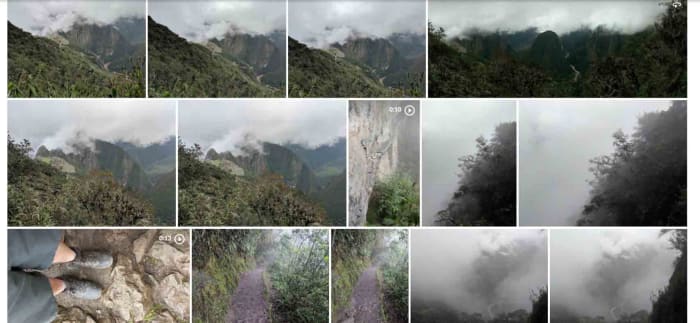
Google Photos is a great tool for making videos out of your photos. The app is so good at making videos from Photos that it can do it by itself. Google Photos can automatically group your photos together, based on a number of different categories it can recognize, and then add music and transition effects to create short videos from your pictures. This means that once you have the app installed on your Android phone or tablet, or iOS iPhone or iPad you’ll automatically receive notifications from the app telling you whenever it makes movies from your photos.

These automatic movies are great but obviously you’re going to want to make your own too. There’s nothing stopping you at all from making your own photo slideshow movies using Google Photos and you can include all the cool effects that go into the automatic movies too. These features include music, text, transition effects, and even Google Maps integrations showing where you were when the photos were taken and even including your travel details too.

Google Photos Download Google Photos
7

Slideshow Maker

Slideshow Maker is another video editor for Windows 10 that offers a lot of video editing features that will help you take your static photographs and give them a new life. Similar to the MiniTool Movie Maker, Slideshow Maker has some really great features including slow-motion effects, color filters, and more. Impressively, Slideshow Maker is even capable of outputting videos that can work with VR headsets too.

Another key feature of Slideshow Maker is that it is free although you will have to deal with a number of adverts if you use the free version. Another negative point that you need to consider is that the app isn’t compatible with MP4 video files, which is a very common video format. If most of your files are MP4, you might want to look at one of the other apps on today’s list.

Slideshow Maker Download now
9

Photo Slideshow

This classic Windows program offers a wide array of professional-level movie-making features. The kicker here, however, is that the program isn’t free, and you’ll only get access to its features for a very short free trial period.

If you do decide to go with Photo Slideshow, however, you’ll get access to features like transition effects, music tracks for your slideshows, face focusing effects, and even animation. The animation effects, in particular, add a lot of possibilities to your videos allowing you to pan in and zoom into your photos. Other cool animations adding vignettes and retro film-like effects to your movies too.

Photo Slideshow Download now
7

Animoto

Our final solution today for turning photos into videos is the Animoto site. Animoto does have professional and team plans but, fortunately, it also offers a free plan for casual users like you and me. The only catch with the free version is that your videos will include an Animoto watermark. If you don’t mind that, however, then Animoto offers a simple solution that doesn’t require you to download any apps or programs at all.

What’s great about the Animoto solution is just how simple it is. You will have to create an account on the site but once you’ve done that everything will run smoothly. All you need to do is select the template you want from the many available on the site and then upload your photos. After that is just a case of putting your photos in order and letting Animoto do the rest. If you’re a technophobe, then we suggest you look at Animoto as it couldn’t be simpler to use and still impressive results.

Best VLC add-ons

If you have VLC but think it is missing a key feature, check out our list of the best VLC extensions, plugins, and addons.

VLC Media Player is a verifiable institution. The ever-reliable media player has been around on Windows, Mac OS X, Linux, and Android and iPhones for what feels like forever and can play pretty much any video type or codec that has ever been invented is as popular now as it has ever been. It is the versatility that has always made VLC so popular with so many users but did you know that VLC is even more versatile than most people know. VLC can do so much more that think it can because of something very simple: extensions.

Yep, there are many VLC extensions, add-ons, and plugins that you can install to further augment VLC’s features. There are lots available too. If something about VLC has been frustrating you, there is likely an extension to fix the problem. If you’ve ever thought the VideoLan video player was missing a vital feature, there’s a good chance there is a VLC addon or plugin available that will add that feature to your version of VLC. Let’s take a look then at some of the best VLC Media Player add-ons, extensions, and plugins.

VLC media player download free ►
8

VLC plugins, extensions, and addons

These are all the best VLC Media Player extensions we’ve found to help you get more from the most popular and versatile video and media player available today.

SyncPlay

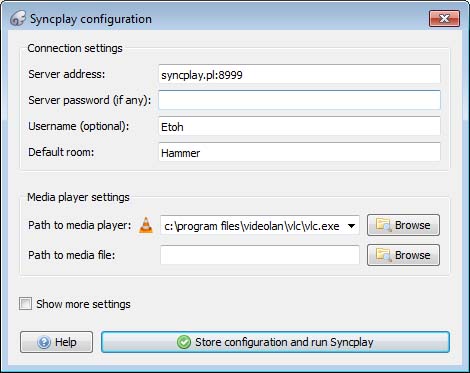
SyncPlay for VLC Media Player truly is an extension for our times. We’ve all had to deal with being away from loved ones recently, stuck at home and unable to spend time with friends and family. Sure, apps like Zoom and Skype have allowed us to chat with each other but when it comes to actual activities, it’s been tough. SyncPlay solves this problem, for one activity anyway, by making it possible to watch the same video concurrently on multiple computers at the same time. Yep, SyncPlay allows you to watch the same movie with friends and family even if you’re not in the same house.

To work you need to install VLC Media Player and the SyncPlay extension on all the different computers. Each PC then needs to connect to the same server and you’re ready to go. Once it has begun, one user can control playback on all the systems at once.

TuneIn Radio

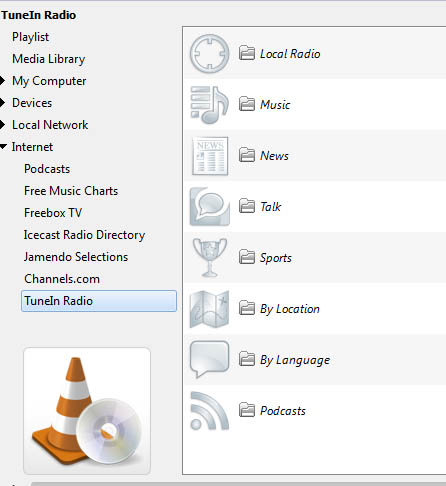
The TuneIn Radio plugin for VLC does exactly what you think it does. The plugin automatically grabs and displays all available TuneIn Radio stations instantly turning your VLC Media Player console into a massive and powerful internet radio. This means you can browse TuneIn’s extensive list of active radio stations without having to open Google Chrome, go to the radio stations web page, or look for it on a search engine.

With TuneIn installed on your VLC console you can easily browse radio stations by Music Genre, Local Radio Stations, News, Talk, Sports, and more. This extension basically puts radio stations from all around the world at your fingertips.

VLC for mobile Download now
8

Remember “Now Playing”

This simple extension works a little like Shazam but with audio tracks, you listen to while using internet radio stations. Yep, this extension will work perfectly alongside the TuneIn Radio extension we’ve just told you about. Basically, whenever you’re listening to internet radio you can use this extension to grab all of the metadata relating to that song so that you can then go and search for it and play it on your own. This extension keeps track of everything you’ve listened to so that you don’t have to.

Resume Media V3.4

The thing with VLC is that you usually use it to consume large media files. Whether they be movies, TV shows, or podcasts they all can last well over an hour. Sometimes you might not have all the time you need to get from start to finish and have to interrupt your playback. Of course, you can try to remember where you left off so that you can get back to it later, but wouldn’t it be much better to have VLC do that for you?

The Resume Media V3.40 plugin does exactly that. Whenever you close VLC Media Player with an active video or audio file, the extension will automatically start that file at the exact moment you left it when you open it up again.

Click to Play/Pause

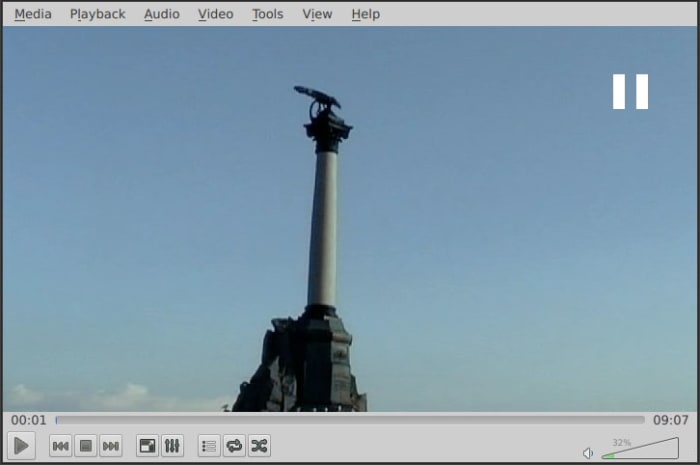
As more and more online streaming platforms have launched a number of them have added cool new features that make so much sense. We’ll get to the Skip Intro button in a minute but first we’re going to show you a simple extension that will make a big difference to how you use VLC. Straight out the box, VLC offers two ways for you to control playback. You can hit the tiny Play/Pause button in the bottom left of the screen or you can hit the space bar on your keyboard.

This extension makes it much easier to control playback by allowing you to click anywhere on the video to play or pause the action. As we said, it might not sound like much but trust us, it will make a big difference.

Skipper

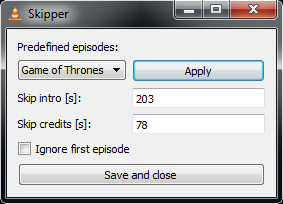
Please don’t misunderstand this as hyperbole or fluff. We think that the Skip Intro button might just be one of the greatest inventions of the 21st Century. Show intros and credits are incredibly annoying when all you’re trying to do is binge a season or two of your favorite show. Even if you like the intro, watching it 10-20 times in a single day is going to drive you crazy.

Well, the Skipper extension for VLC brings this wonderous innovation to the world’s most versatile media player. You can simply type I the amount of time you want skipping at the beginning and end of every media file and you’re good to go.

7 of the best selfie apps available for iOS and Android

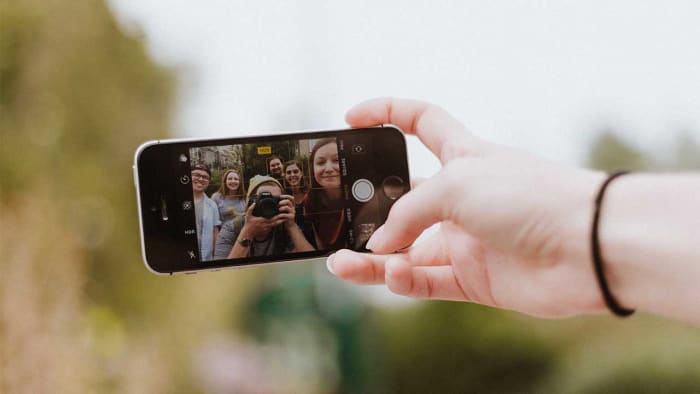
Like it or not, we’re selfie-obsessed these days. Where taking a selfie was once an awkward game of angles documented on MySpace, the dedicated smartphone selfie camera now means Instagram feeds are filled to the brim with next-level self-portraiture.

That said, if you’re still leaning on basic Instagram filters to capture the best version of your pout, you’re stuck in an amateur hour. Some selfie-apps help you create a better picture, and that’s that. While others can move around your features to create a whole new face.

Whether you’re into turning yourself into an avatar, channeling your favorite animal, or just want to look better online, there are plenty of apps to choose from. And, many of them are free.

If you want to take the perfect selfie, read on for our roundup of best selfie apps.

Retrica

retrica app

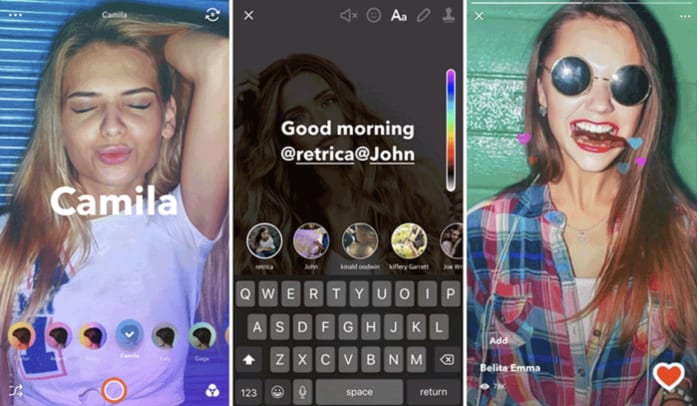
Retrica is a photo editing app that comes with a range of filters, doodle and text options, plus several stickers. For selfies lovers, this is one of the best apps.

You can record longer videos or custom GIFs, and there’s a social media component built right in. The app is free and has pretty good reviews across the board.

You can save your Retrica pics directly to your camera roll, turn them into collages, and add overlays to your selfies with minimal effort. Some users have reported that the videos can be a bit clunky at times, but for pics, you shouldn’t have any trouble.

Retrica Download now
7

Pixlr

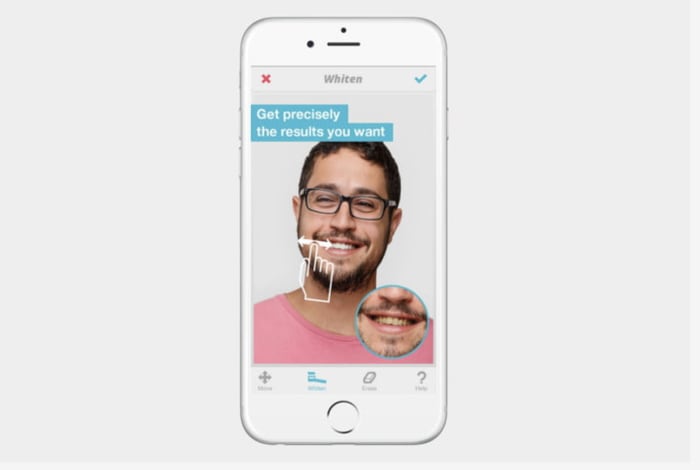
Okay, Pixlr is the app best suited for giving your portraits and selfies a professional touch. The app brings some serious facial detection tech to the table, allowing you to hone in on specific facial features – whiten your teeth, smooth out your skin, delete a few pimples, and just add some all-around definition to your face(s).
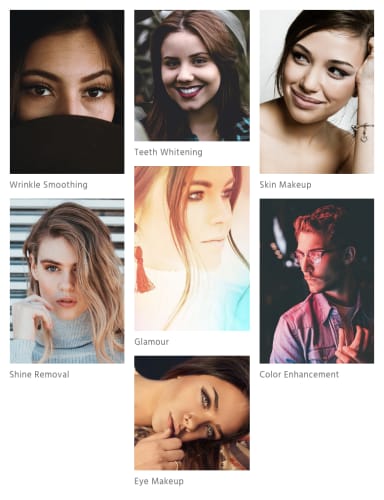
This isn’t the app to turn yourself into a dog or a cheetah or add any whimsical flower crowns to your look—but this is a solid app for your own digital transformation.

PIXLR Download now
8

Visage Lab

visage lab effects

A free app, with in-app purchases, of course, Visage Lab is a quick fix for the selfies you hate but plan on posting just so you’ll have something to put up.

The app automatically analyzes a photo and corrects things like blemishes, wrinkles, or discolored teeth, and red eyes. Beyond the auto-enhancement features, you can manually add effects and filters to spruce up your edited selfies.

The extra filters allow you to play with lighting and color, change up the background, and add in some playful effects.

Visage Lab Download now
10

Facetune 2

Facetune 2 selfie app

We’d be remiss to talk about the best selfie apps without giving Facetune a proper shout out. The app is all about beautifying faces and can perform subtle skin improvements, as well as full-blown plastic surgery. Augment lips, shave off a portion of your jawline, make your eyes a bit bigger and brighter.

Tread carefully with the special effects, as it’s easy to get carried away with the changes—and people you meet online might be surprised during your IRL encounter.

Facetune 2 Download now
8

YouCam Perfect

youcam makeup selfie app

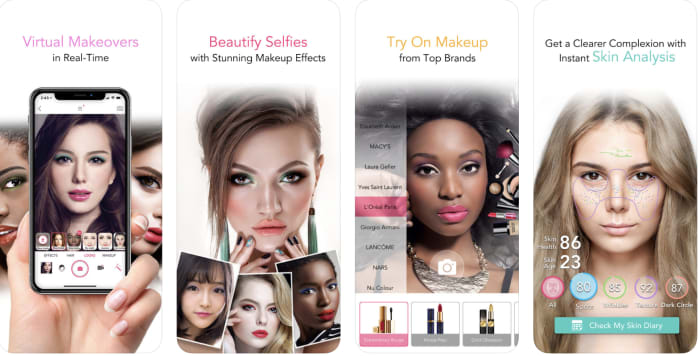
If you’re into playing with makeup, but don’t want the mess, YouCam Perfect is the selfie app for you. The selfie app is more makeover game than practical app, allowing you to try on different looks—specific lipsticks, blushes, and eyeshadows, as well as holiday-themed faces.

The app also lets you adjust your skin tone—for a healthy glow, smooth wrinkles, and pores, and whitens teeth. Additionally, the app comes with a tutorial element, with live demos and chat.

YouCam Perfect Download now
8

Snapchat

It didn’t take long for Snapchat to become one of the most popular camera apps on the Apple App Store and the Google Play Store. Fun to use and with a share first, consume later philosophy, Snapchat’s irreverent AR filters and cool, whacky stickers have helped millions of users around the world take fantastic selfies. This app isn’t just about selfies but it knows how to do them well.

8

Beauty Camera

Beauty Camera is a great photo editor and selfie camera app that will help you take even your best photos and make them better. Editing features include removing imperfections, photo filters, and more. The app is free to download and is definitely worth checking out, if you want to up your selfie game and share better photos with your friends.

Beauty Camera Download now
9

Putting your best face forward has never been easier

Selfies certainly aren’t going anywhere anytime soon. And at least with these apps, you can join the fun with some top-notch snaps of your own. Whether it’s a digital glamour shot, a rearranged face, or some touchups and a new filter–this app lineup promises a camera roll full of Insta-ready pics.