E3 2014: HUNT: Horrors of the Gilded Age is an action RPG by Crytek

Crytek revealed a new game called HUNT: Horrors of the Gilded Age at E3 2014. A horror action game with RPG elements, it has interesting potential.

Set in the US at the end of the 19th century, the world is populated by horrible monsters in dark and ominous landscapes. Gameplay is like the standard action game, but focuses on four-player coop and includes RPG-elements. The ultimate aim? Succeed in the missions and…try not to die.

Default player


brightcove.createExperiences();

An interesting bit of information was passed on by Crytek CEO, David Adams, who said the game has randomly generated levels so players will never fight in the same place or against the same enemies twice.

Dark places, horrific monsters, and survival

In the gameplay video, HUNT: Horrors of the Gilded Age was shown in alpha version. The preview showed the four characters in a swampy forest. They move silently towards a lit area, shooting out the lights so they remain undected. But HUNT: Horrors of the Gilded Age only pretends to use stealth action because when you enter a combat area, the action begins.

HUNT_IMG1

During the video, players had to deal with zombie-like enemies with older weapons like pistols. It’s not uncommon for one of the group to get captured by larger creatures. Like other action games, you will have to quickly mash a button to escape.

The perspective changes a lot through each of the four characters. In one example, a player was killed and the perspective switched to another member killing the monster. Other team members can be resurrected if they’re approached immediately.

After defeating the first wave of enemies, the team moved to a gate. The pre-scripted event showed one of the classic reveals where zombies flooded through the gate. One of the characters, equipped with a flamethrower, began to spray the zombies before they rushed everyone. It was like something straight from a gore movie.

HUNT_IMG2

Arriving in a cemetery, ghostly monsters (sort of like the little girl spirit from The Exorcist) appear, accompanied by a dark and moody soundtrack. To be honest, it was pretty unnerving, and totally not the kind of scene you want to find at night in a cemetery. Even though the ghosts can disappear and reappear in different places, they were still vulnerable to bullets.

Lots to prove, and to try in beta version…

There are a lot of co-op action games and HUNT: Horrors of the Gilded Age has a lot to prove. Crytek is known for amazing graphics and good gameplay, but the game still has a lot of unknown elements.

Considering the game is still early in development, the final release could be dramatically different from what we saw at E3 2014. If you’re interested in trying the game, sign up for the closed beta to get a first-hand experience.

Check out all our E3 2014 coverage on Softonic!

Follow me on Twitter: @zoltan__v

World Cup 2014: How to track, follow and watch every game

A true sports fan doesn’t just watch the game on TV– they need much more information. If you’re a true fan and want to follow everything during this year’s World Cup 2014 in Brazil, we’ll show you the best apps to give you all the info you need.

How have you been preparing for one of the most important events in the last 4 years? You’ve probably already started following your favorite players and the national teams on social networks, or maybe, if you’ve been lucky enough to get tickets, you’ve installed some of the best apps for travelling to Brazil.

The fact is that this World Cup will no longer be just a television event: multitasking with multiple devices has become common practice among all soccer (and sports) fans.

To follow the event, we won’t just be watching the game on TV; we’ll be using smartphones, tablets and computers to see the stats, to read the news and find out which teams got knocked out, to get updates on group standings, and to follow the results of games being played simultaneously.

Let’s have a look at the best apps and websites to follow FIFA World Cup 2014.

The calendar – never miss a game

If you’re “soccer crazy”, you’ll already have the dates and times of the World Cup matches committed to memory. In any case, a reminder is never a bad thing, especially if it’s stylish and easy to use.

One good reminder tool is the Pocket World Cup Schedule, a web page to keep in your browser’s bookmarks so that you can see the 2014 World Cup schedule at any time, especially from mobile devices like smartphones and tablets, where it’s particularly convenient to use without having to install anything.

Pocket World Cup Schedule

Pocket World Cup Schedule seen on mobile browser

Results in real time, when you’re away from the screen

When it comes to applications for following results in real-time, to say there are plenty is an understatement. Seeing as it’s unlikely that we’ll be able to see all the World Cup matches live, we’ll probably have to resort to an app to see how the games are going.

Personally, I prefer to use LiveScore, an app for AndroidiPhone and iPad (it’s also available as a web app), because it gives me a complete overview of the Serie A without forgetting the other leagues.

LiveScore shows you formations on the field, goals by minute, and other important events like cards and substitutions. It also includes live statistics of the matches and other useful functions like a calendar, and team scores in the various groups.

LiveScore

The World Cup section in the LiveScore app

For apps that follow the World Cup exclusively, Sofa 2014 World Cup Live Score is definitely one of the best, available on AndroidiPhone and iPad.

Aside from giving you results in real time, SofaScore integrates other important information about the tournament, everything from goal scorers to a table of matches.

Sofa Score

Sofa Score on the iPhone (left) and Android (right)

News and information about the teams and the tournament

Calendar and results in real-time might not be enough for you. To see all the information about the World Cup from your smartphone, there are many applications available which also include a news section, goal replays, and many more.

The official app from FIFA, available for Android, iPad and iPhone, give you essential information about the World Cup, such as groups, games, and standings, but it stands out for its News section, where you can find in-depth articles and videos.

By browsing the app, for example, I found the video presentation of the national teams in the World Cup which, in addition to being fun, also gave me useful information on the nations taking part in the competition.

FIFA for iOS (left) and FIFA for Android (right)

Another good app is World Cup 2014 Brazil, although its only available for Android. Like the FIFA app, it integrates photos, videos, and news about each World Cup match. It has a section on the history of the tournament with tons of data, and it allows for some customization, letting you modify the app’s tabs.

Also available on Android is LiveSoccer Football World Cup, one of the most elegant app I found. Like World Cup 2014 Brazil and FIFA, it also includes news, photos and videos from FIFA, but it does so with a better design, sending you notifications about your national team.

LiveSoccer World Football Cup

The LiveSoccer Football World Cup app for Android

Detailed statistics for the real tactician

Despite the great apps I’ve already mentioned, the true soccer fan may not be content; they need to analyze matches, understand the reason for changes, and justify their dislike for Balotelli with statistical data in order to provide concrete evidence during debates with friends.

To help figure it out, I asked one of the experts of Italian soccer, one of the few people who makes use of this sort of statistical analysis in his work. Manusia Daniel, an editor at VICE, recommended several sites and applications to me.

To improve your couch coaching, FourFourTwo Football Stats Zone is definitely one of the best web apps and applications for the iPhone and iPad to help you in your new “job”. The app provides real-time data on the game as it happens, allowing you to compare players and analyze their performance in detail.

Stats Zone

The application for iOS FourFourTwo Football Stats Zone

Other applications of interest for analyzing post-match statistics are WhoScored, available only in a web app version, and Squawka, which, as well as having a website, also has an app for iPhone and iPad that will soon be available for Android (before the World Cup, with a little luck).

SquawkaComparative between players on Squawka

The complete fan kit for the World Cup

With these apps, you’ll have the essential app kit to follow the World Cup from your tablet or smartphone. Many of these you’ll use when you can’t follow a game live, and others will be for multitasking while you’re watching the game. Either way, these apps will no doubt be your allies when you’re following the 2014 FIFA World Cup.

Which apps will you use to follow the 2014 World Cup in Brazil?

Follow me on Twitter @ zoltan__v

Twitter: how to activate (and deactivate) the Mute function

Twitter started rolling out the Mute function to let you mute tweets from users so that they don’t appear on your timeline.

Instead of having to unfollow someone, you can mute them without the awkwardness of them knowing you don’t want their tweets flooding your timeline. The Mute function, however, doesn’t cancel everything: replies and @mentions will continue to appear in your notifications, the user will still be able to send you private messages, and your tweets will appear in their timeline.

Below, I’ll show you how to mute a user on Twitter for Android and the web version, as well as how to unmute an account you silenced. Please note, this function is still rolling out on the web version so it won’t be available to everyone yet. Similarly, an iOS version is expected, but still not available.

Mute users in the web version of Twitter

In the desktop version of the web app, you can mute a user from the timeline on their profile.

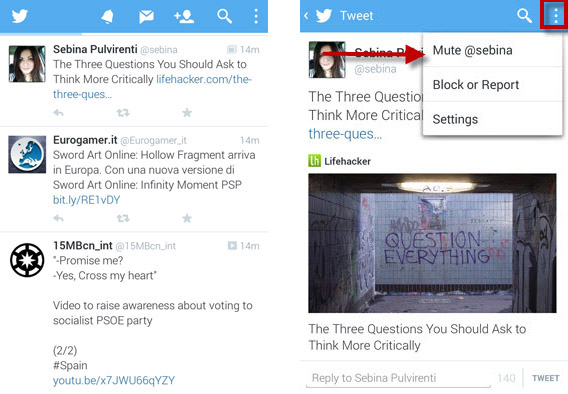
The quickest way is to hide a user’s tweets from your timeline. To do this, click on the More button (the one with three dots) at the bottom right of the tweet, and then click Mute @username.

Mute Twitter on web

Hide a user from your timeline on the web version

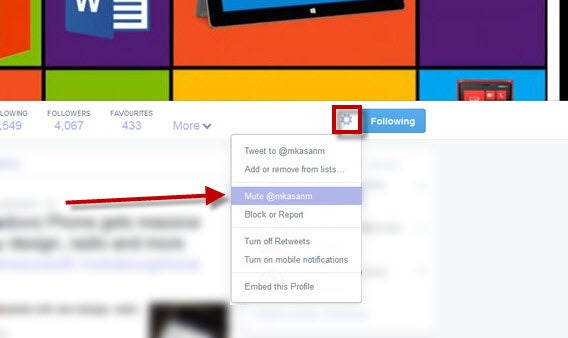
You can also do it directly from the profile you want to hide. Go to their user page and click on the gear wheel on the right. After that, select Mute @username.

Mute Twitter on profile

Mute users in Twitter for Android

You can mute a user from your timeline or their profile page. In your timeline, click on the person’s profile picture, and then on the button with three vertical dots in the top right of the screen. In the menu that pops up, click on Mute.

Mute on Twitter for AndroidSelect the tweet, press the three dots and then Mute

On the next screen, there’ll be an explanation of what the Mute function does. To accept and mute the person, click on Yes, I’m sure.

Confirm mute

To mute from their profile, press the gear wheel on the left. In the pop up that opens, select the fourth option, Mute @username.

Mute on profile

Go to their profile, press the gear, and then Mute

How to reactivate an account’s tweets

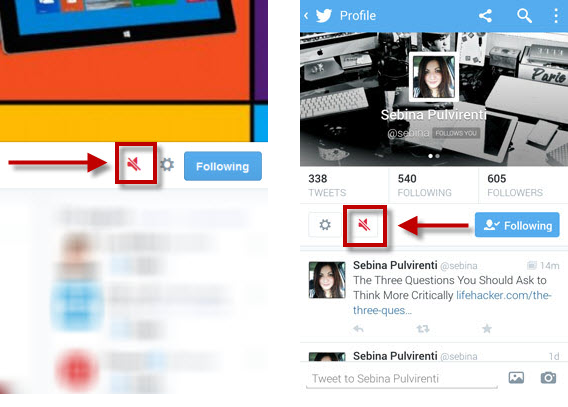
Don’t worry, muting or removing an account isn’t forever. To reverse the mute, go to their profile page. If you muted them, you’ll see the red speaker with a line through it, just like in the image. Click on the speaker to unmute the user.

twitter unmute

Unmuting an account on the web version (left) and the Android version (right)

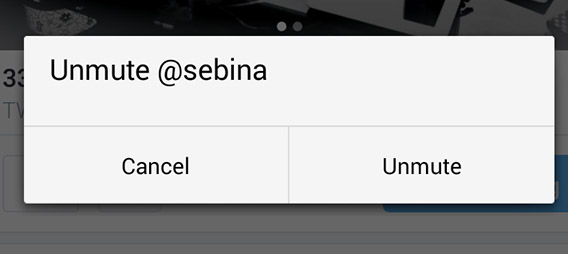
In the version for smartphones, you’ll be asked if you want to unmute the selected user.

unmute confirmation

Click Unmute to make the user’s tweets visible on your timeline again. Now, you’ll be able to see their messages on your timeline.

With the introduction of this new feature, Twitter hopes to fix the overwhelming influx of messages that invade many users’ timelines, avoiding the need for the fateful Unfollow button.

However, many people may criticize this move because Twitter, unlike Facebook, is not based on friendships, meaning that you’re free to follow whoever we want, with no obligations.

According to Phil Pearlman, an editor at Yahoo! Finance, this new feature could create confusion on the social network. As a result, the follower becomes much less important given that virtually anyone could start reading your tweets.

From the redesign of the profile and the mute feature, it seems that Twitter is getting closer and closer to Facebook.

Follow me on Twitter @ zoltan__v

How to edit a video with GoPro Studio

GoPro videos are of exceptional quality and, if they’re edited carefully, can become really awesome mini-movies.

There are a ton of programs you can use to edit GoPro videos, from the simple Windows Movie Maker, to the most advanced Adobe Premiere and Final Cut. There is one, however, that’s created specifically for videos recorded with a GoPro, and it’s a perfect compromise between simplicity and quality. It’s called GoPro Studio.

In this tutorial, I’ll show you how to create a video recorded using a GoPro Hero, from the point of importing, through to exporting, and everything in between.

Before you begin:

  • Make sure you’ve downloaded and installed GoPro Studio for Windows or GoPro Studio for Mac.
  • Import videos from GoPro to your computer

1. Import and convert files for the project

First, you have to import the video files you recorded. To do this, open GoPro Studio and click on the blue Import new files button in the top left corner. Choose the files you want to include and hit Open.

Choose videos to includeBefore you begin assembling the video, you can already start cutting any unnecessary sections that you want to delete. Click on one of the thumbnails in the left column and then on Play, in the bottom center, to start watching the clips.

On the left you’ll see two play buttons: you can use these to select sections of the file that you want to keep. The one on the left will determine the beginning of the clip, while the one on the right sets the end of the clip. You can choose several clips for one single movie.

Select segmentsUse the Advanced settings button to change the video settings. You can choose the video size and frames per second, increase the speed of the video, change the format, adjust the quality, or remove the “fish eye” effect typical of GoPro videos. Select the last option, Remember Settings, to make sure that the program will remember the settings you’ve chosen for the next video you want to edit. Press OK.

Advanced settings

To move the video to the conversion list, click Add Clips to conversion list (1) in the bottom right of the screen. Repeat these steps for all the videos you’d like to add, although you can go back and add more videos during the editing phase by pressing on the Import & Convert tab at the top. When you’re done and your video files have been added to the right column, click on Convert to (2) below.

Convert videos

When the videos are ready to be converted, the Proceed to step 2 option will appear at the bottom right of the screen. Click it to move on to the next step.

2. Add a title

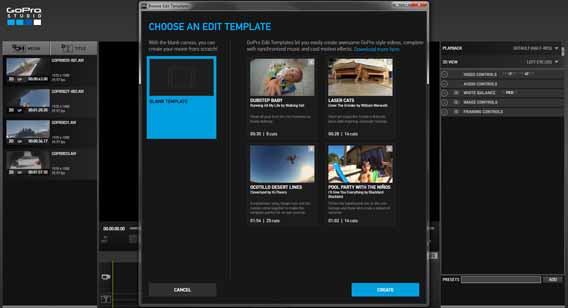
On the next screen, GoPro Studio offers you 2 alternatives: create a video from scratch, or use one of the templates in the software. If you choose the template option, all you have to do is replace the videos with your files. Below, I’ll show you how to create one from scratch.

Click Blank on the left hand side, and then click Create on the bottom right.

Create a video from scratch

To start, you can create an opening title for your video. To do this, click on Title in the top left corner (1). Then, type the text that you want to appear in the box in the top right corner, an option called Title properties (2). In the right column, you can change the text settings, including font, color, length of the gradient (fade), or select one of the presets from the list below.

Title your video

Then, drag the title from the left column into the box in the bottom right hand corner, next to the video camera and the  Drag videos here option, as shown in the image below. If you want the text to appear superimposed on the video, drag it to the second line, where you see Drag title here.

Drag video here

3. Edit the video

Next, add the video. Select the video you want to import first, and again drag and drop it to the timeline next to the clip you added earlier. In the right column, you can adjust various parameters such as the speed of the video, the duration of the fade, the audio levels, white balance settings, and the frame. At the bottom, there are also presets to give it a vintage or night vision feel.

Adjust settings

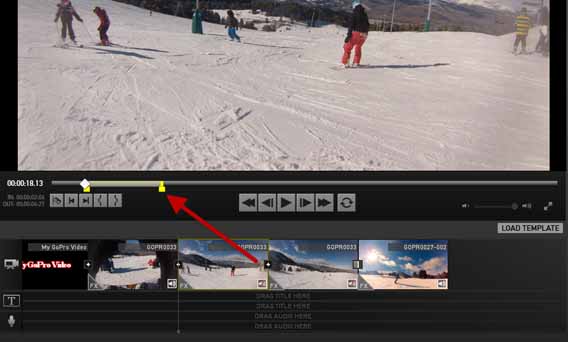
Similar to the import stage, you can also change the duration of each clip using the brackets at the bottom left of the preview screen, or by dragging the yellow lines in the video bar.

Change length of each clipUse the button with the razor blade symbol to cut files into two clips (1) if you want to apply different effects to each one. By clicking on the “+” symbol between the two clips, you can create a fade (2) effect, which is haha okay. sorry toa gradient between clips.

Create clips

When you’ve finished adding each clip, you can create a fade out effect to avoid the video being cut off abruptly. To do this, click on the last clip in the timeline. In the right column, under the heading Video controls, increase the line to fade out.

4. Add Music

If you want to give a little rhythm to your video, you can add audio tracks. To do that, click Media in the top left and then select the music you want to import. Then, drag the audio file into the timeline, where you see Drag your title here.

5. Export video

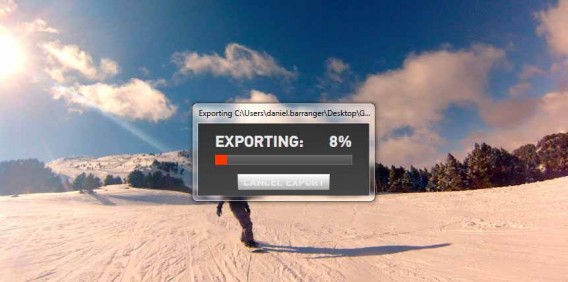
When you’ve finished editing the video, all you have to do is export it by clicking on the Export tab. Next, a window will open, where you can choose which video format you want to export it to. There are lots of video types, each suitable for different needs and devices.

Export videoIf, for example, you want to upload it on to YouTube, you have to choose the first option. If you want to see it on your computer or project it onto your TV at home, you need to select 1080p HD . Through the Custom option, you can set the parameters that you want. Once you’ve decided on them, hit Export .

Export your video

Press play

And you’re done! You’ve edited your first GoPro video and can upload it to Vimeo, import it to your smartphone, or project it onto your TV to show your family and friends.

If the process seems a bit difficult, don’t worry: mastering video editing takes time, but with a little practice, it’ll get easier. If you found that using this editing software was easy, you might want to try using professional software like Adobe Premiere Pro, which lets you add effects and has a lot more features to make your video a bit more personalized.

If you’re interested in video editing, check out our tutorial on How to edit videos using Free Video Dub.

Follow the 2014 World Cup in Brazil using social media

The 2014 World Cup in Brazil won’t just be the world cup of soccer; it’ll also be the world cup of social networking. With this in mind, we’ll explain how to stay up-to-date on games, players, and the national team through various social networks.

You probably followed the 2010 World Cup in South Africa on TV, streamed the games online, or kept yourself informed through a mix of print and online newspapers.

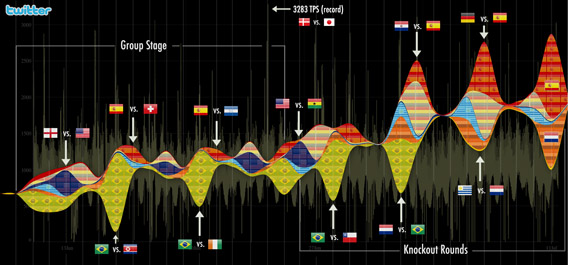
But even back in 2010, there were those who diligently used social networks to update and share messages. Japan’s 3-1 victory over Denmark was enough to set a new record for tweets per second, at 3,283. During the final, Twitter users were tweeting from 172 countries in 27 different languages.

Use of Twitter in South African World Cup

Use of Twitter during South African World Cup. Infographic created by @miguelrios

Four years later, and with an even greater variety of social networks and digital media at our disposal, predictions from the president of global customer marketing and sales at ESPN, Ed Erhardt, aren’t surprising. According to Erhardt, the World Cup in Brazil will be “the biggest social event ever.”

So how can you prepare for the 2014 World Cup? For starters: use the right tools on Twitter to follow the most important accounts, “Like” the right Facebook pages, and don’t miss key hashtags that will dominate social networks from June 12th.

Following the most important players

The first step is to follow the best players participating in the World Cup. The National Championships have come to an end, and the attention of fans and players is now focused on the World Cup itself.

As teams start to prepare for the championship, some players have actually been banned from social media, like the French national team or Mario Balotelli, in order to keep his head free from distractions. There’s also some big names, like Messi, who actually don’t have a Twitter account.

Despite some players not having access, it’s likely that Facebook or Twitter administrators will continue to post on their behalf, and even popular unofficial accounts will be flooded with updates. In short, posts and tweets will find their way into cyberspace, and if you want to keep up, you’ve got to follow the top players.

Here’s our list of the top 11 players that are most active on social media and will undoubtedly be updating their status’ regularly at the 2014 World Cup in Brazil.

Follow the official (and unofficial) World Cup channels

Another way to follow the World Cup and get immediate news, even before any news outlet breaks it, is to follow hashtags and specific accounts.

FIFA itself has two Facebook pages (FIFA World Cup and FIFA), two Twitter accounts (@FIFAWorldCup and @FIFAcom), and a Google+ account (FIFA World Cup), where you’ll find public information, photos, and updates.

FIFA also has a Twitter account dedicated to media called @FIFAMedia, where you can find other information from the press, radio, and TV. Meanwhile,  FIFA has its own YouTube channel, where it publishes videos about the competition.

There are also a ton of unofficial accounts that you can follow on Twitter, including @FIFAcomClub (an account for connecting fans), @FIFAworldcup14 (the unofficial guide to the World Cup), @FIFAWorldCupTM (news), @2014WC_Brazil (news), @FifaWrldCup_14 (a parody), and many more.


Official account of the 2014 FIFA World Cup in Brazil

Use Hashtags

Another essential tip for following the 2014 World Cup in Brazil is to search for and use hashtags from other Twitter users. You can find tweets about the most popular topics and get involved in conversations, without having to follow the accounts that tweeted it.

The most popular hashtags globally will be #WorldCup, #FIFA, #WorldCup2014#Brasil2014, #FifaWorldCup and #FifaWorldCupBrazil. Many more will pop up during the course of the tournament– to find out which ones are most popular, keep an eye on global trending topics.

The official Twitter Brazil account has created a public list to make following each individual national team easier. To get a complete view of tweets from the teams that’ll be participating in the World Cup, you’ll want to subscribe.

Stay connected with the US Men’s Team

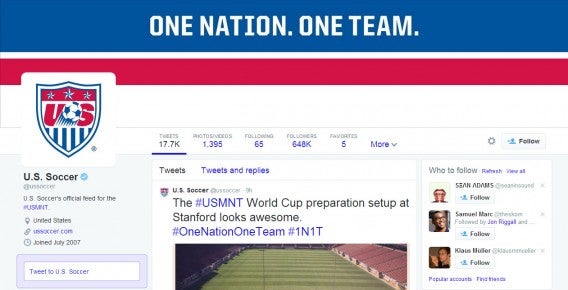
Aside from the international superstars, you can also follow the US Men’s National Team on Facebook, Twitter, and even Instagram. On Twitter, @ussoccer is the official feed for the US Men’s Team, along with an official Facebook page (U.S. Soccer) and an official Instagram account (@ussoccer).

US Soccer Twitter

Hashtags are important for following your team too. The most popular hashtags so far are #1N1T and #OneNationOneTeam, which is the slogan for the US’ World Cup campaign. Once the tournament gets into full swing, #USAv— (the three letter acronym of the opposing country) will be easiest way to follow individual games.

Of course, it’s not just the national team accounts that’ll be sharing info about the tournament. A lot of players on the US National Team are really active on social media and can give you up-to-date info right from the field, including a behind the scenes look at what’s going on in between matches. Below are the US Team’s 11 most active players on Twitter, Facebook, and Instagram, as well as the ever popular coach Jürgen Klinsmann.

Coach: Jürgen Klinsmann (Twitter | Facebook)

Forwards:

Midfield:

Defenders:

Goalies:

Use the right tool for you

Keeping track of all your accounts, hashtags and pages can be difficult, especially if you’re not an expert Twitter user. To make your life a bit easier, here are two pieces of advice.

If you’re a bit less experienced, the best thing you can do is create lists on Twitter to get all the accounts relating to the World Cup in one place, not confusing it with your normal social network stream.

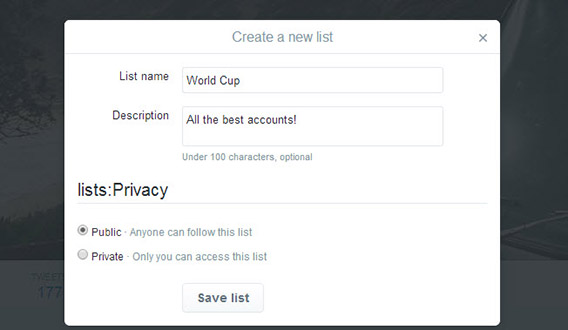
To create a list, log in to Twitter and click on the gear wheel in the upper right of the screen: from the menu that pops up, click on Lists. On the next page, click on Create New List in the bottom right. Here, you can add as many accounts as you want to follow, and share the list with whoever you want.

Create list on Twitter

Create a new list for the World Cup

If you’re a more advanced user, you might want to use Hootsuite (available as a web app, but also on Android and iPhone), an app that lets you aggregate all your social networks in one place. From here, with a single tab in the browser, you can manage Facebook, Google+ and Twitter, creating a personalized stream of feeds or hashtags so that you don’t miss a single second of the competition.

Either way, this is going to be one of the most social World Cups yet, and if you want to get as close to the action as you can without being in Brazil, social media will definitely help.

Will you be following the 2014 World Cup Brazil on social media?

What is Office 365 and why should you use it?

Check out Office 365, Microsoft’s subscription-only office suite, and see if it’s the tool for you.

Office 365 Home Premium is a subscription version of Microsoft Office. It includes the programs and apps that you’ll know from the software for PC, Mac, iPad, iPhone and Android, like Word, Excel, PowerPoint.

In addition to having to pay, the main difference between Office 365 and the desktop suite, Office 2013, is the ability to install programs under different user accounts on more than one computer and to use the Office app on iPad. Office 365 Home Premium also includes extra cloud storage call credits for Skype.

Office 365 will appeal to a variety of users and offers several subscriptions to suit your needs. Many subscription plans are aimed at small and medium-sized enterprises, but Home Premium is designed for families who want to use of the suite on several devices. In this article, we’ll focus on this type of subscription.

What does Office 365 Home Premium offer?

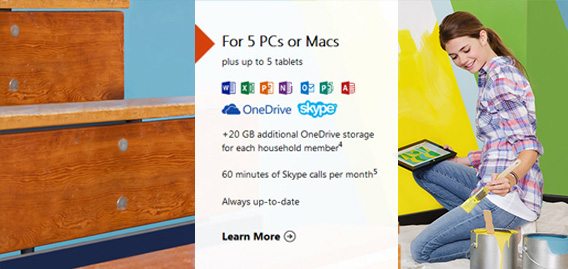
Office 365 Home Premium costs $10 per month and includes:

  • Word, Excel, PowerPoint, OneNote, Outlook, Publisher and Access that you can download and install on 5 PCs (Windows 7 or higher), Mac (OS X 10.6 or higher) or tablets (iOS 7.0 or higher)
  • An extra 20 GB of cloud storage on OneDrive for each account (up to 5)
  • 60 minutes of Skype calls per month
  • The Office 365 web apps include Word, Excel, PowerPoint and OneNote, and are already included in Office Online. You can use them from your browser and they offer the main functions of the corresponding desktop apps

 Office 365 Home Premium

Why should you use Office 365 Home Premium?

The main difference between Office 365 and Office 2013 is the payment method: with the desktop suite, you buy individual programs, while with Office 365, you pay a subscription for the whole family, which allows you to use the PC, Mac and iPad versions (the version for Android and iPhone is still free).

So, why Office 365, and not 2013 or the online version? The answer depends on what you wan to do with the suite. If you’re using Word sporadically to open files, open Excel and PowerPoint only occasionally, and you don’t need an email client such as Outlook, then the desktop version of Office (or just Office Online) are more than enough.

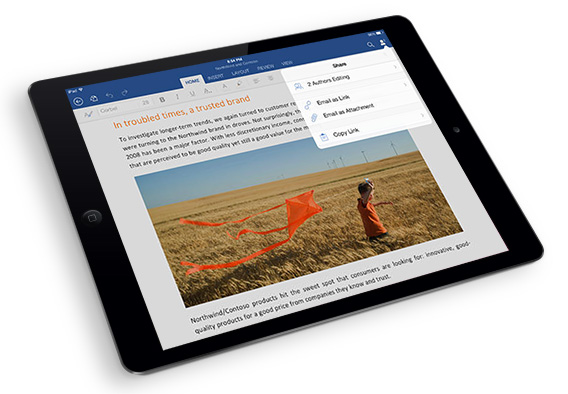
Office on iPad

However, if there are multiple users in your house who make heavy use of Microsoft Office programs, especially for professional purposes, Office 365 is the right choice. Also, if you want to use Office on iPad, a subscription to Office 365 is essential.

This way, by paying a single monthly or yearly fee, you and 5 other people you can install programs on (nearly) all your devices, meaning you don’t have to buy a version for each computer or family member.

The disadvantage – compared to Office 2013 – is that you’ll never own the software and must continue paying your subscription. On the other hand, this means that your Office 365 programs will always be up to date and available no matter what device you’re using. The choice is yours!

Follow me on Twitter @zoltan__v

Facebook: How to disable video auto-play

As you might have noticed, Facebook’s latest update includes video auto-play. Here’s how to turn that option off, both for the site and your smartphone app when you’re not using wifi.

We should have guessed after we read the rumors about Facebook looking into video advertising, because that goes hand in hand with the video auto-play feature. And sure enough, after a few weeks, we got confirmation with the mobile app update.

Some people might find this useful, not having to press play on the video in order to watch it, but that doesn’t mean that everyone wants videos and adverts to play automatically since, and especially for mobile apps, this feature uses more data.

Luckily, there’s a way to stop videos from playing automatically. On the website, you can stop it from happening all the time, while on the mobile apps (Android, iPhone and iPad) you can only turn this feature off when you are not using WiFi. Let’s see how to do it.

Turn auto-play off on the Facebook site

1. To stop videos from playing automatically on your timeline, simply log in, click on the arrow on the top right corner and click Settings. Alternatively, you can click on this link.

Facebook settings

2. On the menu on the left, click the last item: Videos.

Facebook video settings

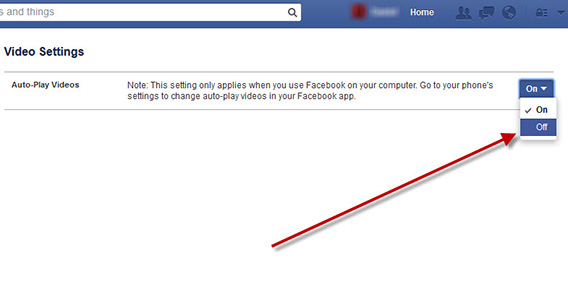
3. On the next screen, you’ll see the Auto-play Videos item. Select Off from the drop-down menu on the right.

Turn auto-play off

Android: enable auto-play on WiFi only

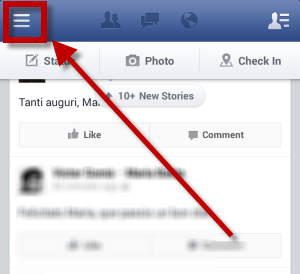
1. Open the Facebook app on Android and click on the icon with the three lines on the top left corner.

Facebook for Android

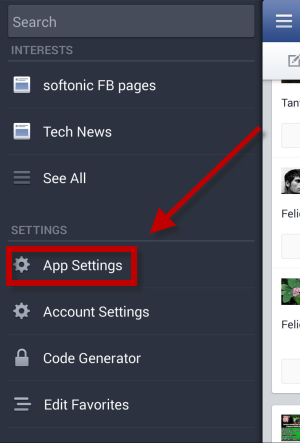
2. On the side menu that opens, scroll down to App Settings.

Facebook settings

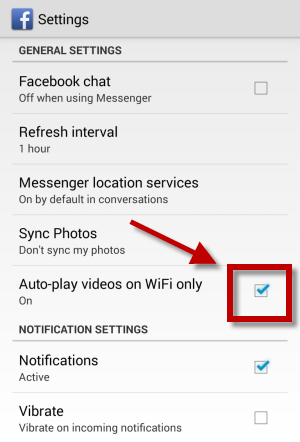
3. Under General Settings you’ll find Auto-play videos on WiFi only, make sure the box is checked and that you can see the word ‘On’.

Make sure the feature is "on"

iPhone and iPad: enable auto-play on WiFi only

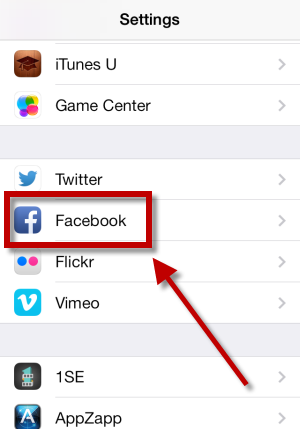
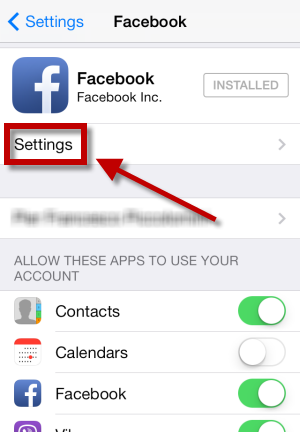
1. Go to Settings on your home screen, and then scroll down until you find Facebook.

Find the Facebook setings

2. Open the menu and tap on Facebook Settings.

Open Facebook settings

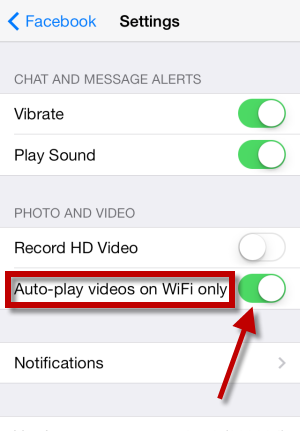
3. Under the Photo and Video section you’ll find Auto-play videos on WiFi only. Make sure that the button is on the right and that it’s green, as in the picture.

Enable this setting

Facebook has declared that even video ads will play automatically. We’ll have to wait and see if, when these ads are introduced, we’ll still be able to disable this feature, or if Facebook decides to sacrifice it in order to increase their revenues.

Follow me on Twitter @zoltan__v

Could the video auto-play feature become another reason to quit Facebook forever?

3 tips for optimizing the new Twitter profile

The new Twitter profile doesn’t just change the aesthetics of the social network; it also brings new opportunities for users. Let’s see how you can make the most of it.

Already in the pipeline for a few months, Twitter has made the new profile available to all users, inviting them to switch to the new interface. As with any layout changes, it can take a while to find your bearings, not to mention getting a grip of the new features.

We’ll explain what the changes are, as well as how to adapt to make your Twitter profile even more appealing.

Activate the new Twitter profile

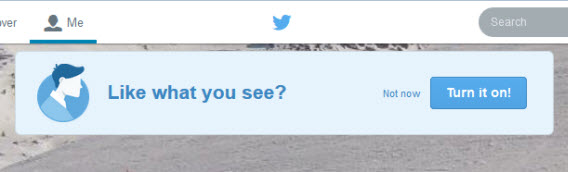
To switch to the new Twitter layout, just log into the social networking site and click on the link you see at the top. If you can’t find it, go to the new profiles section in the About page and click on Get it now. You’ll be redirected to the homepage of your account, where you can activate the new profile by clicking on Turn it on!

Twitter new profile

Choose your images carefully

The new Twitter is putting all its money on visual impact. Just like Facebook, the social network that’s all about tweets has decided to give priority to photos and videos. You’ll notice a much greater emphasis on images in your timeline, and now the same’s happening with profiles.

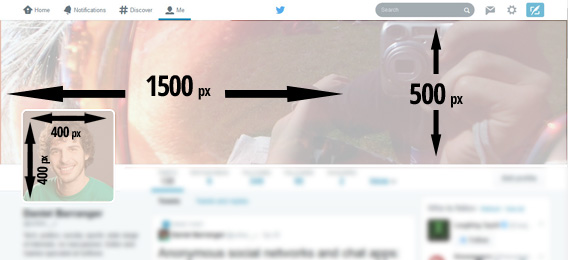
The first thing you should do is change your homepage images to make them fit better with the new design. The right dimensions are:

  • 400×400 px for profile photos
  • 1500×500 px for the header image

Twitter profile image sizes

The size of the Twitter profile images

Twitter is clearly pushing towards the personalization of your profile page, but it still provides you with a gallery of Flickr images to choose from for your header, if you prefer to use something a bit more generic.

flickr gallery for TwitterThere are endless way to combine a cover image and a picture, giving you the chance to have a creative and original profile that sets you apart from other users. The new design is not, however, fixed, and is adapted from time to time depending on the screen and the device of whoever’s viewing , making it impossible to have a predetermined composition for each monitor, as many have done on Facebook.

New Twitter profile image

An image taken with a fish eye lens can have great impact as a new header

My advice is to choose two images that go together regardless of their arrangement. In any case, the header will be displayed in full on all devices.

Set your main tweet and craft your biography

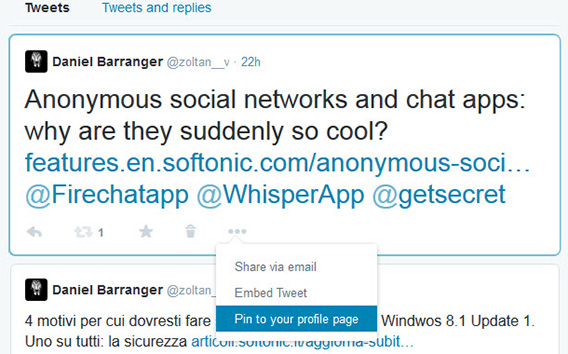
With the new Twitter profile, you can pin a tweet, or make it always appear at the top of your page. This is what other social network users will first see when they go to your profile, probably even before the biography, which is now relegated to the left of the screen.

Choose a tweet that represents you and that you want others to read first. Another option is to pin an image to give your profile even greater visual impact.

Twitter pinned tweet

Menu for pinning a tweet to your profile

Also, if you haven’t already done so, take this chance to write a biography, your sort of (mini) introduction on Twitter. Although it’s not on the new profile page, when a user clicks on your name on their timeline, the first thing they’ll see is a pop up with your biography above the header.

The other new feature is a timeline of tweets on your profile, which now shows your most successful activity (most retweeted or marked as favorites) as larger tweets.

Twitter tweet timeline

Retweeted or favorited tweets appear larger

With all these changes, Twitter hopes to encourage the 44% of accounts that have never tweeted anything to get out there and start tweeting. If you’ve only posted a few tweets, making your profile more appealing should encourage you to start posting more regularly.

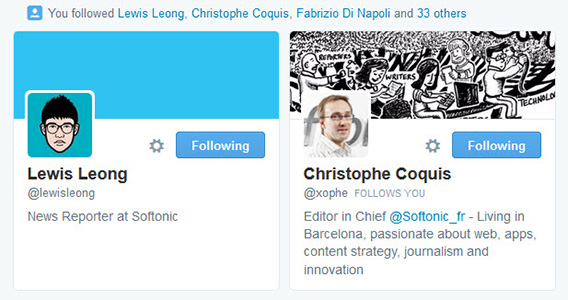
Going down the list, you’ll also find profiles of the people you’ve recently followed. Hopefully, this means that whoever visits your profile will follow you immediately, and you can do the same by visiting the profiles of others.

Twitter recently followed

Profiles of the last people you followed

Videos, photos, and favorite lists: your stories at your fingertips

As mentioned, Twitter’s finally realized that, in many cases, a picture is worth much more than 140 characters. Now, they’ve also added a tab on your profile where you can see all the media files you’ve uploaded on the social network.

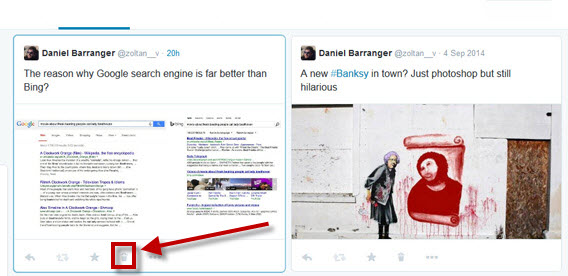
In this respect, we’ve got two pieces of advice. First, clean out embarrassing images and videos that you don’t want to appear in your profile. You can also delete tweets by clicking on the trash can icon, as shown in the image.

Twitter delete images

Clear images and tweets that you don’t want to appear

The other tip is to liven up the multimedia content of your account, because a profile with poor images and videos is unattractive, perhaps even more so than one without a description.

Along with fast access to photos and videos, you’ll also find buttons for viewing tweets that you’ve added to your favorites and lists. One annoying thing, however, is that the filter automatically removes the conversation from the main screen of your profile: whoever wants to see them will have to click on the appropriate tab. On the other hand, you don’t have to worry about removing conversations that you think are clogging your timeline!

Twitter tweets and replies

Less like Twitter, more like Facebook

As noted by many, the redesign of Twitter is very similar to that of Facebook, putting images front and center on your profile, rather than the more “volatile” tweet. The home page of your account is now much more personalized, hoping to provide even more information about you.

Whether you like the change or not, the new profile pages have much better visual impact, although they’re perhaps a bit light on the information side. In any case, any redesign brings with it new opportunities, which, more often that not, are worth taking advantage of!

Follow me on Twitter @zoltan__v

RELATED ARTICLES:

Anonymous social networks and chat apps: why are they suddenly so cool?

Anonymous messaging apps have suddenly become popular. Let’s see what they are, what they do, and why they’re quickly becoming one of the biggest trends.

Whisper, Secret, FireChat, rumr, and Truth are apps that let you post anonymous messages or let you chat without revealing your identity and have been racking up downloads in the App Store and on Google Play.

These apps let you share completely anonymously, publicly, or just with your contacts. The common root is the anonymity, even though each one of these apps has its own features that makes it different form the others. Since the trend started, “anonymous apps” seem to be constantly in the headlines. But what apps are they? How do they work? What do you use them for? And what’s the future like?

Chat, social networking, messages…but anonymity above all else

Some of these apps, like Whisper, were launched many months ago. Others, like Secret and Firechat, are relatively recent. Riding the wave of the trend, they reached the top of the charts in just a few days.

“Since its launch 15 days ago, FireChat has reached the 1st position in the Social Networking category in 15 countries and the top 10 in 105 countries. During second weekend since its launch, we were adding more than 2 users per second”, CEO of Firechat, Micha Benoliel, told us recently.

However, not all of these apps are the same. On the contrary, each one has its own peculiarity that makes it unique. Whisper is somewhere in between a social network and an IM app, where the only thing that identifies you is a nickname of your choosing. Posts – composed of text and a background image – are shared publicly with other users who can reply by loving it.

Secret lets you send the same kind of messages, but the big difference with Whisper is that even though sharing is still anonymous, it happens only between your contacts. If your posts are liked, they have more chance of reaching other people, starting with friends of friends. The app’s stream will still focus on your contacts’ activity.

Other apps like Firechat go further, creating a sort of group chat with people around you, without needing a data connection, thanks to the proprietary technology Open Garden.

Micha Benoliel tells us that the idea behind Firechat came from:  “Users’ demand for a messaging app that could work off-the-grid and from our will to show the potential of the Open Garden technology that could be easily understood by anyone.”

Other apps like rumr or Truth are still anonymous apps, but they offer a much more personal experience related to your contacts. In rumr, you create chat rooms with your friends, each person has their own text color, but nobody knows who is who. As it says on the app’s homepage, “It’s like having a conversation with the lights off.”

Truth goes further still, letting you send anonymous private messages to your phone’s contacts, even if the other person doesn’t have the app installed on their smartphone.

Immediacy and anonymity: the anti-Facebook

Like many other messaging apps, the users that first started using secret apps were young. These apps let them say what was really on their mind, getting their dirtiest laundry out in the fresh air.
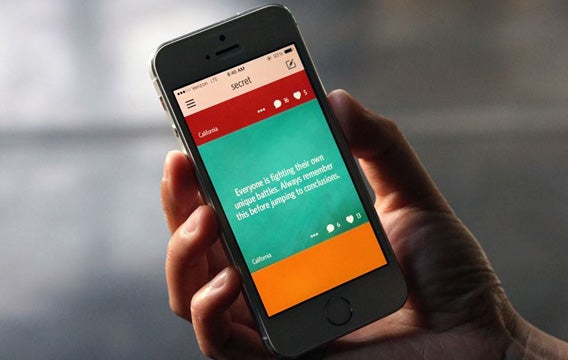
As Micha Benoliel highlights, “these kind of apps became popular because it is fast to start using them. There is no need to identify or create an account. It gives some users an additional freedom to express and say what they want.”

For Whisper’s Editor in chief, Neetzan Zimmerman, anonymity is the main feature of the app and it makes it an “anti-Facebook“. Whisper is the place where you can share what you can’t post on the social network, where everything is tied to your name and your image”.

The advantage of these apps is that it’s easy to start, there’s no need to identify and they give the users an additional freedom to express themselves.

Apps that address a broad, non-defined public like Whisper carry out a therapeutic function that relieves us from the psychological stress that keeping a secret involves. They are places where we can shout our secrets and problems out loud to unknown people without having to reveal our identity and without all the consequences being recognizable would involve.

The relief that people feel when publishing on these apps seems to be a digital version of Nova Pan’s project ‘Exchange Secrets’ on the streets of New York, where the student invites people to write a secret on a piece of paper, and then publishes it anonymously way on her blog. The amusement (or shock) you feel reading these confessions is the same, both on paper and in an app.

What these app create is often a sort of ‘empathic circle’ between perfect strangers. Actually, there is something intrinsically contradictory: even though these apps are called Whisper or Secret, they aim to spread secrets, as if it was something spoken that spreads from mouth to mouth.

As Zimmerman admits, their goal is to make Whisper a whistler-blower. A place to blurt out scoops, more than just a place to confess secrets.

Not just emotion and gossip

Though most of the messages are private confessions, unlike what most might think, these apps are not just used by emotionally confused teenagers. A few weeks ago, a post on Whisper said that Gwyneth Paltrow was cheating on her husband. One month later, the actress announced the couple was splitting up on her personal website.

As an article from the Nieman Journalism Lab reports, Whisper collaborates with the Huffington Post, which uses shared posts on the app to create stories, like the one on the consumption of marijuana, or other more frivolous ones like the 10 Reasons Grandparents Are The Best. Recently the app has started a partnership with BuzzFeed.
Until now, the use of Firechat seems limited – it reminds me of those old 90 chats, where you just needed a nickname to start writing to strangers – and it’s still mainly defined to users looking for virtual friends with whom to chat.

The potential of this though is still to be discovered and, according to Benoliel, “The main benefit resides in the Nearby window where you can start exchanging messages and photos with people around you even if you don’t have internet access. FireChat can be used during festivals where there is almost no connectivity, like Coachella or Burning Man. It can also be used on the subway, in the train or at the a ballpark.”

Firechat lets you exchange messages and pictures with people around you, even if there is no internet access

Firechat could become a sort of ephemeral social network where you could share opinions on the sports, updates on the protest or your mood with people in the same area in a “much more interactive and realtime way compared to apps like Whisper and Secret.”

Problems – and the future

Apart from acting as a virtual soapbox, where you can air your secrets, opinions, and frustrations, the potential ways to use social networks and messaging apps like Whisper, Secret, and Firechat are many and varied. So too are the threats inherent to these apps.

If, on one hand, anonymity seems to promote sincerity and to protect users, on the other hand it could be a limit to the depth of conversation. Moreover, a fictitious identity can attract trolls and haters, especially in direct messaging apps like Truth. Until now, however, we’ve actually seen more empathy than anything else.

Fake news has already been published on Whisper and Secret, like the alleged change of ownership of Evernote, as well as gossip. We can’t say if they will become a source of cyber-bullying, or if we’ll see changes to their anonymity policies in the future.

Whatever about dangers, the potential is huge. First of all, in regard to journalism and the sharing of private information anonymously through the apps. This could prove to be an important way of sharing information without revealing the source’s identity.

Moreover, compared to social networks like Facebook, where the publicity of our identity makes us wear social “masks” and act consequently, these apps let us be free. We can be more sincere and honest, even with ourselves. That means that apps like Whisper and Firechat could prove to be interesting indexes of social trends and moods.

Follow me on Twitter: @zoltan__v

RELATED ARTICLES

What can I do with my tablet: communicate long-distance

In this episode of our Tablet Series, we’ll explore how you can use different apps to communicate with friends, family and business contacts.

With your tablet, you can do many things, including using it to organize your work or turn it into a photo album.

But one of the main reasons we use these devices is to communicate. The problem is that with tablets, the options available for instant messaging and VoIP (video calling) narrows considerably.

In order to install and run apps like WhatsApp, Viber or Telegram, you have to bypass often complex problems by using alternative routes and workarounds, especially if your tablet doesn’t have a SIM card. With this in mind, we’ll explain how to use your tablet to chat, make calls and videocalls, simply and easily!

Not sure if your tablet is Android? Read our article where we explain how to recognize the operating system on your tablet!

Skype: videocalls with everyone

The must-have program for communication on your tablet is undoubtedly Skype. Almost everyone has it installed: it’s on PC, Mac, iPhone, Android, BlackBerry, and many other platforms. The tablet application works well and allows you to communicate with anyone who has installed the program, as well as call landlines and mobile phones from your device (subject to a surcharge).

To use it you just need a Microsoft account (the same as for your Hotmail or Outlook account) and then you can create a Skype account for free. Indispensable!

Download Skype for Android

The Skype interface on Android

Facebook Messenger: chat on the famous social network

If you’re subscribed to the social network, one of the fastest ways to communicate with your friends or contacts is through Facebook. Almost all members now have the app on their smartphone and by sending a message from here, you can rest assured it’ll be received.
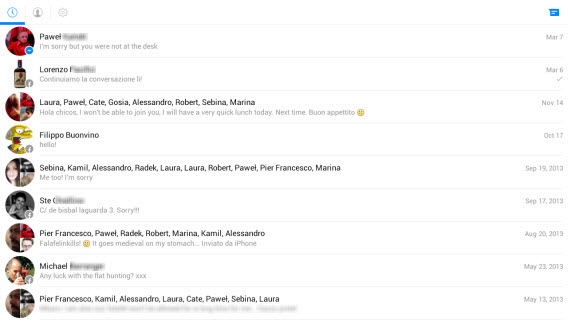

Although you can also use the classic Facebook app to send the message, Facebook Messenger has been designed specifically to write and receive messages, and makes the operation much easier.

Download Facebook Messenger for Android

Facebook Messenger on Android

Zello PTT Walkie-Talkie: over and out chatting

Another way to communicate with whoever you want is through Zello PTT, an app that is reminiscent of old radio communications. With it you can talk to anyone who has installed the application, on any platform. To do this, you need to create a free account, choose a contact, and press and hold the button in the center of the screen.

The other person will hear your voice live, just like with a walkie talkie. If the app is closed, the volume is zero or the status is set to busy, you’ll get a voice message.

Download Zello PTT Walkie-Talkie for Android

The Zello interface on Android

Hangouts: communication via Google

This app has the advantage of using Google accounts for communication and it’s also pre-installed on Android 4.x devices (it’s also linked up with text messages on these devices). With Hangouts you can chat with whoever you’ve got on your Gmail, as well as video calls to those who have it installed on their iPhone or as a client on their PC. You can include up to 10 people in one conversation via video.

Download Hangouts for Android

Happy, shiny people using Hangouts

1,000 uses for one device!

In this episode we had a look at the essential apps for communicating, from video calling to other devices or phones through to messages via Facebook. If you want to use your device to talk to friends and family, all you have to do is install one (or more) of these apps.

In the 10 episodes of the Tablet Series we’ve shown you so many possible uses for your device, depending on where you use it, your needs and the time of day. But obviously there are even more ways to get the most out of your tablet – all of which depend on what you want to use it for. To discover new applications and new products on Android, stay tuned to our Applications and Articles sections.

Read: Tablet Series: What can I do with my tablet?