How to stream to Discord Community in 5 easy steps

Soon you will be able to stream games on Discord, but there’s a catch!

Discord is software that allows many people to talk to each other for an unlimited amount of time. You can use it to create channels and servers to interact with friends, colleagues, or groups of family members in visual, audio, or text formats. It doesn’t matter if you do so casually or in a formal business context. The result is still excellent communication about anything.

The app was originally designed for gamers to get together online and chat about games and gaming. But before too long, the players wanted a more inclusive communication platform for social groups, businesses, schools, clubs, and more. That led to Discord opening up to other uses, including streaming. Here’s a look at how to stream on Discord.

Discord FREE DOWNLOAD
9

Accessing Discord

The app is available for Windows (11, 10, 8.1, 8, 7), iOS, Mac, Linux, and Android.

 Once you’ve downloaded it onto your device, you can start communicating with whoever you want or streaming content. An increasing number of people are live streaming videos of themselves playing games while giving commentary. You, too, can build your own community and stream games or whatever else you like to people on your channels.

How to stream on Discord

Discord has a live chat feature that allows subscribers and streamers to interact in the same room. Therefore, streamers have many opportunities to interact with their viewers and build their communities to include as many people as possible who want to hear or see what they are offering. You need a server as well as a voice channel to stream. Here’s how to do it

  1. Download and install Discord

    How to stream to Discord Community

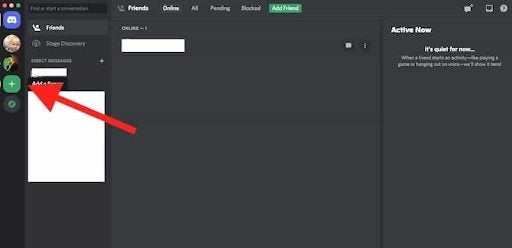
    Go to the Discord download page. Click on Download for Mac/Windows. Then install the software on your device. Open the app, register, and log in. You’ll see an invitation to go into public servers on the screen. There’s a plus icon that allows you to create your own servers. Once you’ve done so, a list of your servers will appear.

  2. Create a server

    How to stream to Discord Community

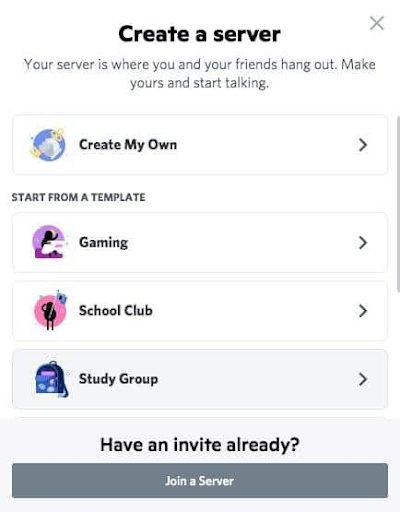
    Clicking on the Plus icon will take you to a screen where you’ll see templates for different categories of servers and an option to create your own. Once you have done so, give your server a name and an icon.

  3. Create channels

    How to stream to Discord Community

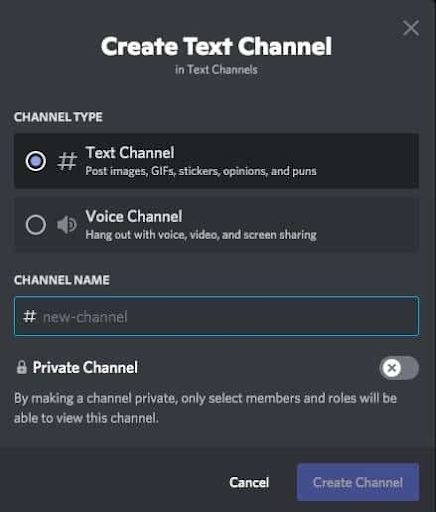
    Now you can set up different channels in your server for different topics, invite friends and contacts and start communicating. There are Voice or Text channels. To create a new channel, click the small plus icon. Pick the channel type, name your channel, and click on Create Channel. Now you can start streaming on any of your channels.

  4. Start streaming

    How to stream to Discord Community

    You can only stream on Mac or Windows, and audio sharing is only available on Windows 10 or macOS version 10.13 or later. Here’s how: Open Discord and get onto a voice channel on one of your servers. Look for the option to turn on your video. Click on the Video button to make the camera appear. You’ll then be visible on the screen, and conversation mode will be on.

  5. Share your screen

    How to stream to Discord Community

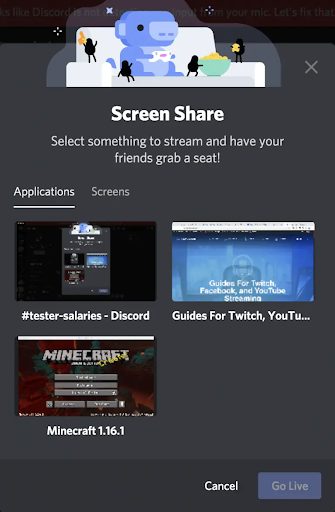
    Click on the Screen icon. A pop-up window will appear where you can choose how to share (a screen on your system or the whole screen). Then click on the Go Live button to share your screen with viewers. And you’ll be streaming!

    You can invite people to join you on our server. Click on the Invite button or send a server invite link. You can end your stream by clicking on the red Disconnect button on your Discord screen.

Watching a Stream

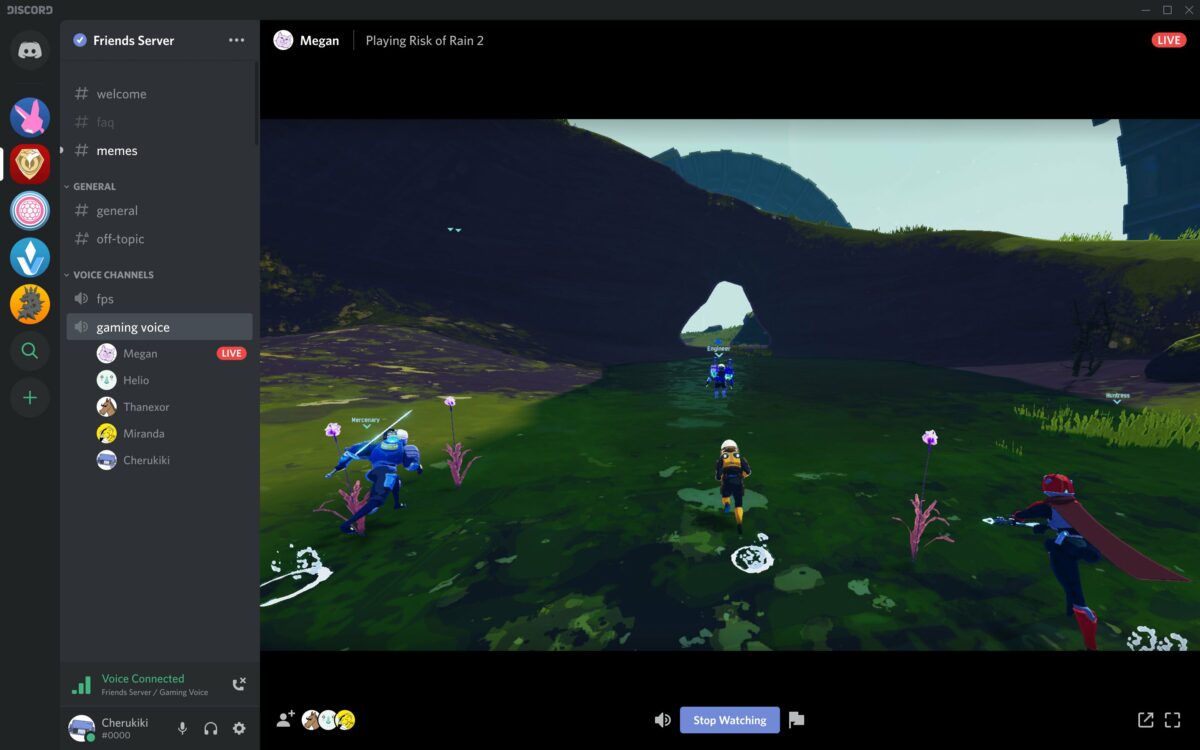
If you’re on a server where someone is live streaming, you can join the stream with a click.

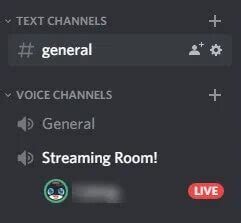
 You can see if someone is streaming because there’ll be a Live button on the screen. Click on the server’s name in the voice channel, and a window will pop up. Click on Join Stream to watch it.

Should you stream on Discord?

Streaming is a wonderful way to reach many people live on a Discord channel. You can stream so many different things, including games, the original reason for the introduction of streaming, cooking or gardening demonstrations, music, music videos, and movies, to name a few. The best thing about streaming is that you can find new Discord friends while you’re doing so. 

You can see their messages and replies in real-time, and you can reply to them in the same way. Engaging them while streaming is a good way to get them interested in your content so that they can spread the word about your stream. If you’d like to learn more, check out our guide on what Discord is and how it works.
How to create your games with MUGEN in 4 easy steps

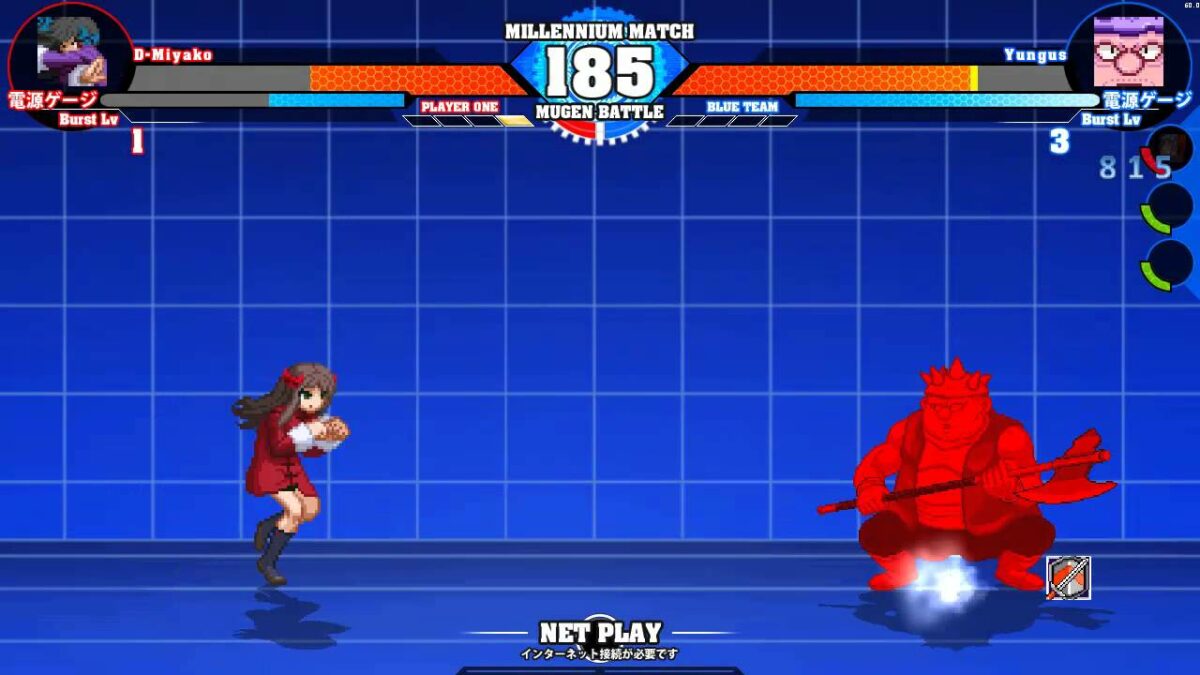
MUGEN (stylized as M.U.G.E.N) is a free game engine that is decades old but still going strong because people or groups of fans can use it to design their own games. The name MUGEN is derived from Japanese, meaning infinite or unlimited, and that describes the incredible variety of games people have created using it. It started as a shooting game developed by a company called Elecbyte, changed course, and became a fighting game. Years of work by fans have since produced an amazing array of games on MUGEN.

People have for instance pitted well-known superheroes like Goku, Superman, Donkey Kong, and Zangief against each other to see who will win a very entertaining fight. The application is free as are the third-party tools you can download and use to create your own characters and get them to play games of your invention. You can even get your characters to make specific moves by using specific buttons to control them.

Getting started

So you like games and you’re interested in the retro phenomenon that is MUGEN and decided to see what it’s all about. What do you do next? Here’s a guide to how you set it up and get started.

  1. Download MUGEN

    How to create your games with MUGEN

    Download. You can safely download MUGEN for free? and create a MUGEN directory on your device.

  2. Get a screen pack

    How to create your games with MUGEN

    MUGEN screen packs are freely available on the internet. Find one, download it, and unzip it if needed. Put all the files in a new folder in your directory.

  3. Get characters

    How to create your games with MUGEN

    Download a ZIP or RAR file of MUGEN characters, extract the files you want from the hundreds of characters available into a characters folder, and put it in your directory.

  4. Assign stages and complete game

    How to create your games with MUGEN

    A MUGEN stage has two files;?one has the extension .def and the other the extension .sff. Move both files to a stages folder in your MUGEN directory. Save the select.def file.rnrnStart making up your games and playing. And if you get stuck or need advice anywhere along the way there is a huge, thriving community out there to help you. There are also videos, tutorials, characters to download, and lots more.

Language and system requirements

MUGEN is a free 2D fighting game engine. A large and enthusiastic community has created thousands of fighters, original and drawn from fiction. It’s written in C, and it originally used the Allegro library. To run MUGEN, you need a fast processor and 4 GB of RAM, a video card with 512 MB of RAM, and a sound card.

Downloading and installing MUGEN

MUGEN is special because its community of fans has used it to produce a lot of original content. Because of this, there are many versions of MUGEN. None of them look the same because they have been created by many different people and groups. All versions can be downloaded from many different sites on the internet, or you can just examine them and decide which one you want to download. You can install it on Windows PCs, Macs, Linux, Android smartphones, PS4, Xbox, Nintendo Switch, and PS5.

Read the Readme file

Before installing the software, have a good look at the Readme file as this will explain installation clearly. You can access the MUGEN catalog on the official site if you want to learn more about updates to the software or download them. Even if you have no experience or knowledge of development, you’ll be able to use MUGEN easily. There are many tutorials and online forums where you can find and download content and use it to create your own games.

Customizing MUGEN

People who have created content by using the MUGEN game engine are called authors. Anyone can use the platform to create characters, skins, and games. You can import characters from other engines and tweak them as well. A very enthusiastic and large community of fans has also used the engine to produce lots of original content, which is available to everyone. There are many versions of MUGEN, and none look the same because of customization.

Why should you get MUGEN?

If you’re a games fan, you’ve probably heard of MUGEN. Although it was created way back in 1999, it’s still very much alive and kicking and has millions of enthusiastic fans around the world who continue to develop exciting new games and characters for it every day. Doing that is not for everyone.

It takes time and effort to make up a new game and the characters and stages that go with it. If that’s your inclination, great. If it’s not, you can still access all the characters, games, and stages other individuals and teams have created. They are freely available to everyone and even better, completely free.