How to use the Free VPN for Chrome extension in 3 steps

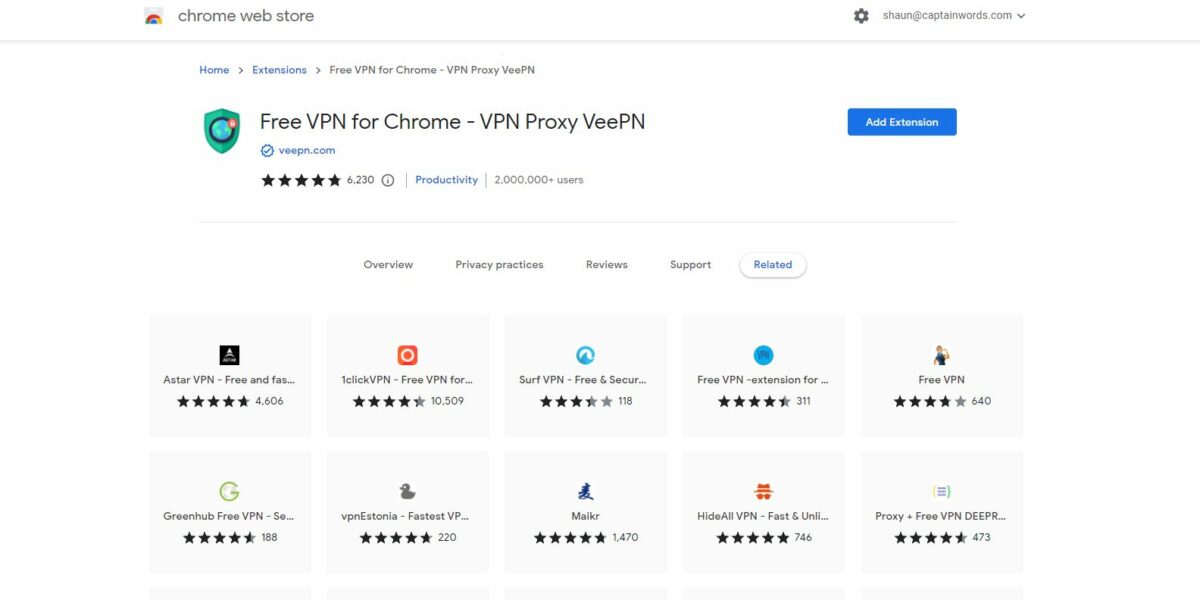
No matter the reason you surf the web, you’ll come across many reasons why you need a good and fast VPN service, and if it’s free, you’ll want it more. This article will explain how you can get your hands on the Free VPN for Chrome extension that lets you browse the internet without anyone tracking your activity.

Free VPN for Chrome - VPN Proxy VeePN DOWNLOAD
  1. Access the VPN extension

    How to use the Free VPN extension

    The first step is to head to our list of the best VPNs for Chrome. Remember, this is an online process, so you will require an internet connection. Once you locate Free VPN for Chrome on our list, click on download. It will give you access to the add-on to begin the installation process.

  2. Install Free VPN for Chrome

    How to use the Free VPN for Chrome extension

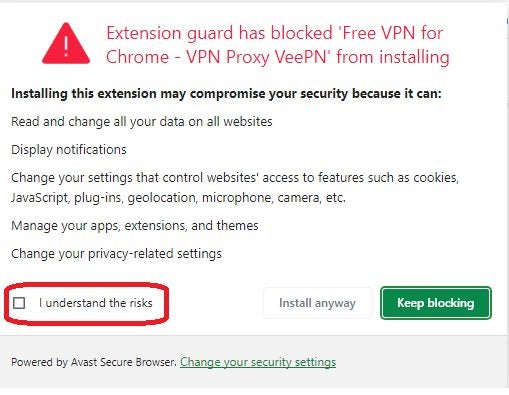
    Once you see Free VPN for Chrome, you can click on Add to Chrome to add it as an extension. Even if you’re using a different Chromium browser, you can still install the extension. Avast will usually ask you if you’re sure you want to proceed to protect from malicious add-ons.

    Give the extension some time to install, and then you’ll see it appear in your Extension Manager list. It’s usually enabled by default. If not, you can proceed to the next step.

  3. Enabling and using Free VPN for Chrome

    How to use the Free VPN for Chrome extension

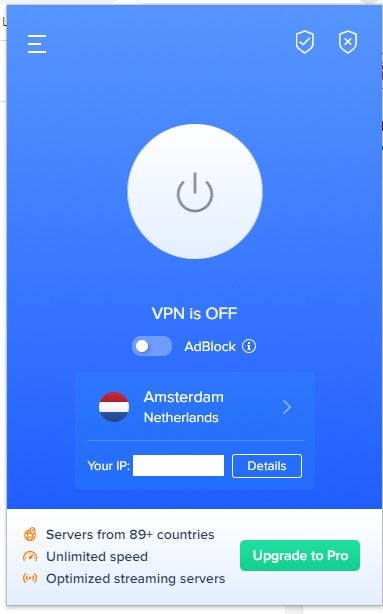
    To enable the Free VPN for Chrome extension, simply click on the toggle button. You can also pin it to your extension toolbar at any time. Just head to your Extension manager on the top right of the browser, look for the add-in and click on the pin icon. It’s now permanently visible on the extension tray.

    When you click on the Free VPN icon, it brings up a small window that will let you safely and anonymously browse the internet.

How to use the AdBlock Chrome extension in 5 steps

Are ads raining down on your computer every time you visit a website? Are you scared that you might accidentally download a malicious app because of these forced ads? Don’t stress. We will help you block these annoying ads by learning how to use the Adblock Chrome extension.

Adblock for Chrome DOWNLOAD
  1. Access Chrome extensions

    How to use the AdBlock Chrome extension

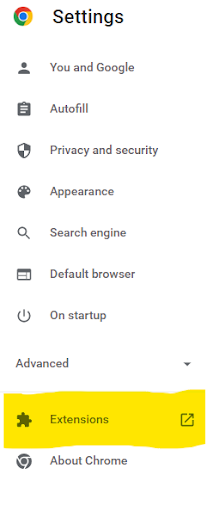
    It is possible that you may already have an adblocker extension installed. In that case, all you need to do is activate it. You can do it by going to the settings and finding the advanced settings options. In the advanced settings option, you will find the window that says “Extensions.” Click it to begin the process.

  2. See if you have an adblocker extension installed

    How to use the AdBlock Chrome extension

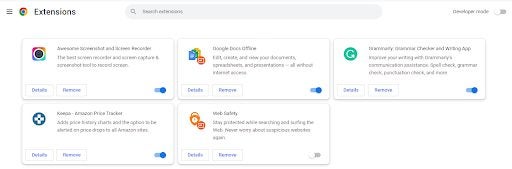
    After clicking on the Extensions option, you will be taken to a new screen where you will be able to see all the downloaded, installed, active, and inactive extensions. For example, search for the ad blocker if you have one installed, you will be able to see one. Refer to the image below to know more. If you have one, simply click on it to activate it, and if you do not have an extension, refer to the next steps.

  3. Access the Adblock extension

    How to use the AdBlock Chrome extension

    While you can visit the Chrome webstore for any extensions, we have a detailed list of adblocking add-ons for Chrome that provide downloads for any of the required items. It’s as easy as clicking on the download button by Adblock for Chrome to obtain the extension.

  4. Install Adblock on Chrome

    How to use the AdBlock Chrome extension

    Once you find Adblock, you’ll need to install the extension. You can do it by simply clicking on the Add to Chrome button situated on the top right corner of your screen to begin the process.

  5. How To Activate and Set Up The New AdBlocker

    How to use the AdBlock Chrome extension

    Once you install the new Adblock extension, go to your settings – advanced settings – extensions. There find your new extension and click on the blue switch to turn on the ad blocker. You can click on the extension settings to choose options like selective blocking, cookie blocking, block trackers, block all ads, and more.

Malware, Phishing, spyware, and viruses – what’s the difference and how to protect from them

Cybersecurity has become an integral part of our everyday life. Without it, we are exposed to hackers, malware, and other threats that may lead to serious consequences. No matter why you surf the internet, you will be exposed to these malicious threats if you are on it without any protection. 

In this article, we will be discussing malware, phishing, spyware, and viruses. We will explore these threats and inform you of ways to protect yourself.

Malware

Do you remember the last time you visited a website and accidentally clicked on an advertisement or suspicious link and an unknown application got downloaded on your pc?

Or maybe you might have downloaded a game from an illegal website, and a weird application got installed instead of the game. These unknown applications are all malware. 

When you install these applications, you will notice right away that it is not what you are looking for, but it becomes too late to regret. Even if you want to uninstall it, you won’t find the application on your installed app list. 

The primary purpose of these apps is to steal information from your computer or mobile devices. Besides this, malware can also install ransomware in your system to lock all your files and demand money to unlock them.

The best way to protect yourself from this malware is to avoid suspicious websites. You should only download or stream via official websites. Do not use torrents and other websites that pirate applications and multimedia files. 

Besides, you can also prevent yourself from ransomware by keeping a separate backup of all your essential files. Then, simply reset your device if it gets infected with ransomware, and your files get encrypted. 

However, it is best not to install any suspicious-looking application that gets downloaded into your system. Always check the application name and reviews before installing. 

Malware, phishing, spyware, and viruses

Phishing

Phishing is a technique used by hackers to get your personal information. These cyberattacks usually take place to get your login details for social media websites, e-banking, credit card details, and more. 

The basic idea of Phishing is to create a website that is a copy of a legitimate website like Facebook, Payment Gateway, or any shopping website. Then, hackers use it to trick you into believing that the fake one is real. 

Once you get to their fake website, you subconsciously believe it is real and enter your login details. However, nothing happens, and you move on, thinking there is some technical glitch. 

However, the hackers now have your user ID and password for your account. Now they can easily log into your account without you ever knowing about it. They can steal your identity or siphon your money slowly so that you do not notice it right away. 

To protect yourself from phishing, you must not visit any suspicious websites. You also should not enter your login details on the websites you were redirected to. Moreover, do not shop from a website you have never heard of because the chances are they are phishing for your banking details at the checkout.

Malware, phishing, spyware, and viruses

Spyware

Spyware is a type of malware that spies on your computer or mobile devices. Spyware is a very common application used by hackers to keep tabs on their targets. 

Once you install a malicious application on your device, the spyware gets active and feeds information from your device to the hackers. Spyware will take all this information, chats, call recordings, and more to the hackers whenever you search for anything on the internet or use any application to chat with someone. 

They can use this information to hurt you in many ways. For example, they can steal your identity, ask for ransom or sabotage your plans. The precautions you need to take are similar to malware. Remember to stay away from all malicious websites and applications. 

Malware, phishing, spyware, and viruses

Viruses

Viruses are similar to the previously discussed malicious cyberattacks. However, they are made purely to destroy your data and can enter your system undetected. 

These usually come along with files that you download from a pirate website or unofficial websites. Viruses do not need to be very bulky, and thanks to that, they can sneak in with all kinds of files. 

Even if the game you downloaded from the pirate website is working, there is no guarantee that a virus code did not enter your PC or mobile with it. 

Malware, phishing, spyware, and viruses

How To Protect Yourself From These Threats?

All of these malicious cyberattacks can be prevented by having prior knowledge and awareness. However, it is not always possible for everyone to be cautious all the time. That is why people are so vulnerable to these threats. The best way to protect yourself is by opting for cybersecurity services. Several companies like Norton, Avast, Quick Heal, Kaspersky, and more provide cybersecurity services worldwide.  

Norton 360 Premium offer UP TO 61% DISCOUNT
9

You can use their free application to block some of these cyberattacks, but if you need better and complete security, you need to pay a subscription for that. These subscriptions come on a yearly or monthly basis. They protect business also. 

These cyber security companies continuously upgrade their security database to locate new viruses, malware, and spyware to protect you or your business. In addition, when you install their application, you will find that they also provide a safe VPN service that reroutes your connection to make it more secure and untraceable. Moreover, they will also warn you before you enter a website that has been flagged for some malicious attempts. 

Protect your devices

Overall we can say that cyberattacks are severe threats, and if you ignore them, you may fall into some ransomware trap or worse. To protect yourself, you must use best practices and use cyber security software.

How to uninstall updates in Windows 10 and Windows 11

Sometimes, the updates in Windows OS can cause disruptions in your regular work schedule or introduce unwanted features. In addition, such updates can slow down the performance speed, but they also impact many OS-based functions. That’s why you need to uninstall updates or roll them back to restore previous versions/features

If you aren’t aware of how to uninstall updates in Windows 10 and Windows 11 through the uninstallation method, you can follow the below steps to get the task done.

How to uninstall updates in Windows 10 and Windows 11

  1. How to Uninstall Windows 10 Update From Update History

    How to uninstall updates in Windows 10 and Windows 11

    – Click on the Windows button and search Settings in the panel. 

    – Once the Settings page opens, go to Update & Security. 

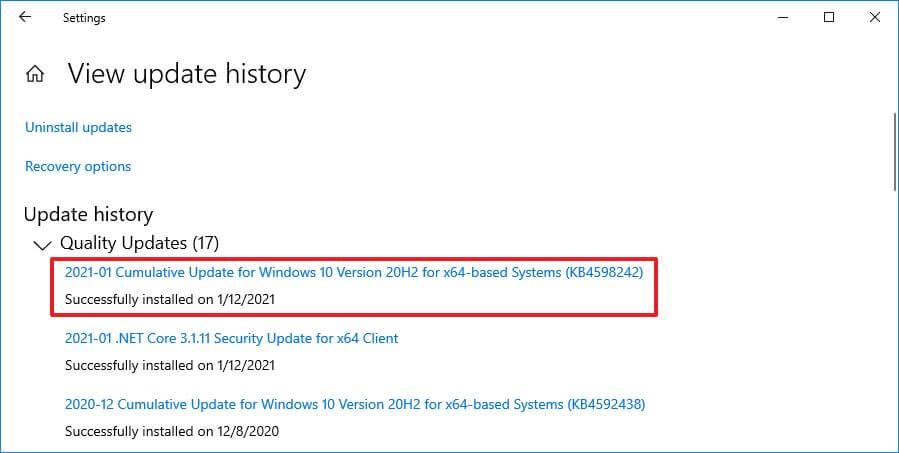
    – Click on the Update History option located on the right-hand side of the page. 

    – After opening it, click on Uninstall Updates at the top left corner of the white page. 

    – A new window will open, displaying all the OS’s recent updates. 

    – Select the update you would like to roll back when a pop-up confirmation window comes. 

    – Cross-check the chosen update you want to remove and click on Yes. 

    If you are getting an option for auto-restart, give the permission or go for manual restart to implement the changes. 

  2. How To Uninstall Windows 10 Update From Advanced Start-Up

    How to uninstall updates in Windows 10 and Windows 11

    Sometimes, uninstalling the updates from the Update History can be difficult, which is why there is another method you can opt for. 

    – Open Settings and go to Update & Security. Search for Update History, where all the recent updates can be seen. Copy the KB number present in the brackets right beside the update name. 

    – Close the window completely and again open Settings. Navigate to Windows & Security option.

    – When the subsequent page opens, click on “Recovery” mode on the lower left-hand side. 

    – In the Recovery Page, the second block will be for Advanced Start-up. Next, click on the “Restart Now” button.

    – Click the “Troubleshoot” button, where you will be given two options- Rest This PC and ed Options. 

    – Click the second option and go to Uninstall Updates page.

    – You will be given two options: uninstalling a quality update and the other for a feature update. 

    – Type the KB number in the search bar, and press enter if you aren’t sure. 

    – Once done, the pop-up window will ask for device restart. Allow the prompt option to implement the changes.

  3. How To Uninstall Updates In Windows 11

    How to uninstall updates in Windows 10 and Windows 11

    For reversing a feature update in Windows 11, follow the below-mentioned steps. 

    – Open the Settings window from the Windows button or by clicking Windows+I simultaneously. 

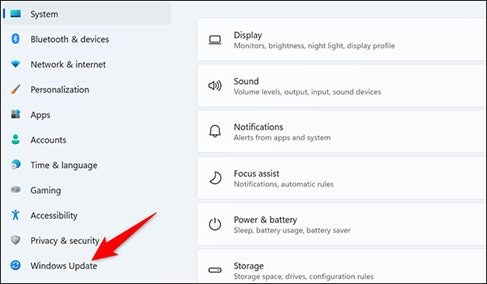
    Click on the Windows Update node from the left side and navigate to Update History.

    Navigate to the Related Settings block in the Update History page and click on Uninstall Update.

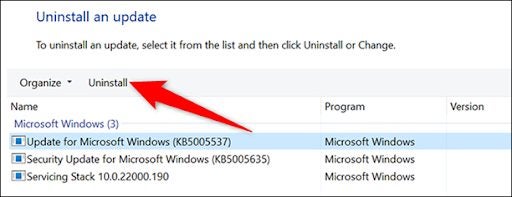
    A list of recent updates will be displayed. Click on the update you want to roll back and then the Uninstall option from the top.

    Select Yes from the prompt window and allow the device to take a restart. 

Updates are necessary evils that need to be handled smartly

For improving the performance and speed of the OS, it is essential to allow updates, be it for the build or features. However, sometimes, the updates can have an impact on other functionalities. This is why it’s necessary to handle them carefully.

You can easily roll back the updated feature and restore the previous version with the discussed steps. But before doing that, you have to identify what’s causing problems in your system. Perhaps you should also look if there’s a way to personalize your Windows 11 experience before removing it.

What are the best alternatives to WhatsApp in 2022?

WhatsApp is one of the most common social media platforms used by 90% of people worldwide. In fact, since the launch of this app, users have enjoyed a lot of perks, like calling people overseas without having to deal with any roaming charges, international issues, video calls, processing payments, etc. 

But recently, WhatsApp has had numerous issues like security updates, slowed speed, identity risks, and more. Perhaps this is why people are looking for alternate options to perform all tasks as of WhatsApp but in a much smoother and safer manner. Owing to this reason, we have listed here some of the best options you have in your hand as alternatives to WhatsApp

Snapchat 

Snapchat is one of the best platforms where you can chat with others, post status updates, make videos, edit photos, and so on. It is, in fact, almost like an alternative of WhatsApp and Instagram combined. Thanks to its social forum, everyone stays engaged without any issue.

What are the best alternatives to WhatsApp in 2022

Features of Snapchat

  1. Multi-Snap is suitable for sharing or editing multiple videos simultaneously, unlike WhatsApp, where you can edit one video at a time. 
  2. With the SnapMap, you will be able to locate your friends and their current positions on a real-time basis. 
  3. You can create your own story by adding pictures, videos, filters, texts, and other items like other social media. 
  4. Another amazing feature is the Geofilter which will help you add a filter on a particular location snap. 

Telegram

Telegram is not just a platform for chatting or calling users. Instead, it’s more like a compact social media platform where you can create groups, share movies, links to web series, documents, and so on. With all these remarkable features, it has become one of the best alternatives to WhatsApp. 

What are the best alternatives to WhatsApp in 2022

Features of Telegram

  1. You can create custom folders based on your requirements and store files and other multimedia content. 
  2. Auto downloading and auto-playing features are applicable for documents and multimedia contents, respectively. 
  3. Personal chats can be self-destructed for better security and privacy. 
  4. Editing of videos and photos is possible on the application itself. 

Skype 

Skype is mainly used from a business perspective, thanks to all the integrated features that make it quite feasible for such purposes. It is primarily known for allowing users to connect through voice or video calls seamlessly without any disruption. Like WhatsApp, it will enable you to arrange a group voice call. But it also helps in a group video call which is not possible with WhatsApp. This sole functionality has created a lot of differences. 

What are the best alternatives to WhatsApp in 2022

Features of Skype

  1. With the help of Skype, you can make presentations and even share the files with all other users without any security concerns. 
  2. If a meeting is arranged, you will customize the views as an organizer. For example, all the members can see what’s presented in the presentation view. In contrast, the compact view will help you see the participants. 
  3. Thanks to its polling feature, you can quickly check the presentation’s views or a meeting to understand the progress.
  4. Skype Broadcast feature will allow you to arrange conferences and webinars with international users. 

Viber

Viber is another fantastic message that will allow you to chat with others through text messages. One of its best features is the VoIP technology that will help you send voice records on the go over the internet. In addition, it will offer end-to-end encryption not only for the chats but also for any other shared multimedia and document.

What are the best alternatives to WhatsApp in 2022

Features of Viber

  1. Viber Out will help you make voice calls to international users who aren’t using the app at the nominal possible rates. 
  2. If one user accesses the account from multiple devices, the chats and other files will be encrypted on each device. 
  3. Viber features a wide range of in-built games, which is not something you can enjoy with WhatsApp. 
  4. It will help you voice call or video call with other users like WhatsApp and encrypt the events completely for improved security. 

Threema

Threema is known for its high-level security and privacy of user data, chats, shared multimedia, and documents, and more than WhatsApp is yet to provide to its users. It’s more of a messaging app to connect with others through chat only. Even though you won’t get options for video and voice calling, the rest features are impressive undoubtedly. 

What are the best alternatives to WhatsApp in 2022

Features of Threema

  1. You can send secured text and voice messages like WhatsApp using the in-built recorder. 
  2. After creating a group, no one other than the members will know who is present. 
  3. Threema has launched a web application added to your local system as the desktop app for convenient chatting. 
  4. Like WhatsApp, you can share multimedia and documents more privately and securely.

Signal

It is a cross-platform instant messaging service which is designed and developed by Signal Messenger LLC and Signal Technology FOundation. Millions of people use Signal on day to day basis to interact with their loved ones. It is interesting to note that Signal was the first iOS app that encrypted end-to-end voice calls for free.

Features of Signal

  1. State of the art encryption that keeps your messages secure
  2. Messages are delivered quickly even with poor internet connectivity
  3. Feel free as the app doesn’t feature advertisements and trackers
  4. Use an existing mobile number to secure connection with anyone
  5. Signal’s enhanced audio and video quality offers high-end communication

Your gateway to communication

WhatsApp might be popular, but it has several drawbacks; security and privacy are the top two. Therefore, if you want to explore other alternatives or enjoy high-level protection and encryption of files and chats, you can try any apps and increase your work productivity at the same time.

Here are also some WhatsApp alternatives for chatting with your friends and family.

Best Apps To Increase Work Productivity in 2022

Work productivity has become more relevant in 2022 as most companies around the world have completely shifted towards work from home. Moreover, with technological advancement, we are not in an era where a company can comfortably make a profit while having no office or headquarters.

Therefore, since everyone seems to be working from home, we have listed 10 apps to boost your work productivity.

Top 10 apps to increase work productivity in 2022

1. Gmail 

Gmail is a fantastic app for productivity that has a lot of professional use. However, if you are a working person, you just need to deal with many emails from work every day. Sorting them out of all the junk and spam mail is hectic and time-consuming work. However, if you use Gmail, it does it for free. 

Gmail is a free email service by Google, and it has several features that enable you to work more productively. One recent addition to their long list of features is the “Google Meet,” where you can have a video conference with up to 500 people at once. And this option is available on the Gmail app to easily use Gmail to create an online classroom if required. Plus, it is all for free! 

Best Apps To Increase Work Productivity in 2022

2. WPS Office

WPS Office is a lighter version of the Microsoft office, but that does not mean it lacks features. On the contrary, WPS Office has almost all the Microsoft office features. Moreover, the WPS office is smaller and can run on old laptops and mobile phones very efficiently. 

This app helps create documents, presentations, sheets, and other work-related documents very easily. You should know that you will require an internet connection to use this app as it is a cloud-based service. The good thing is that the app is free, and there is no subscription that you need to pay. 

Best Apps To Increase Work Productivity in 2022

3. Google Docs

Every writer had gone through a time when they forgot to save a document, and the battery went out. or the computer’s hard drive gets damaged, and all your saved documents just vanish. It leads to a devastating loss of hard work and time. But to ensure this never happens, you will have to upload all your documents to drive, and to be honest; this gets a little irritating. 

But with google docs, you can automatically write and save that document on your google drive account. It helps you save time on uploading each document from your pc to drive, and you can be more productive with your extra free time. Furthermore, with Google docs, you get almost every feature that you get with the Microsoft Word application.  

Best Apps To Increase Work Productivity in 2022

4. Whatsapp

Whatsapp is more than a simple messaging app after a few recent updates. Now WhatsApp is better equipped with features that can help you manage your business and employees. For example, you can do meetings on WhatsApp with eight people. 

In addition, you can use their payment system integrated with the app to pay your employees and make the process very efficient. Moreover, WhatsApp has many users, and it is possible that your team already uses WhatsApp, so it will be easier to do your work online and be more productive using Whatsapp

Best Apps To Increase Work Productivity in 2022

5. Canva 

Create new designs and videos quickly with Canva. This powerful tool lets you design several types of images and videos for your work. While You can do everything you can create on Canva on photoshop or other popular tools, Canva makes that process simple and easy to use. 

Even if you are a novice in the designing world, you can create a beautiful image using features like drag and create. Not only that, but you can also animate videos using Canva. So if you are a graphic designer, it is a must-have tool that works on both mobile and pc. 

Best Apps To Increase Work Productivity in 2022

6. Slack

Emails are formal and can be used as a way to communicate with your senior or junior. However, when you chat with your colleagues who are working on the same project, emailing them every minute is a bit awkward and inefficient. 

That is why Slack is so revolutionary. When talking to your teammates, you can use Slack, and it will simplify the work messages. With Slack, you can plan projects and organize chats according to topics or work. In addition, you can make calls and video calls among your teammates and more. 

Best Apps To Increase Work Productivity in 2022

7. Trello

Are you looking for a way to manage your team that works independently from their home location? Then, Trello is the one you are looking for. Trello lets you manage and increase the productivity of your employees. 

With this app, you can create work cards that include the information that one needs to complete the task. These cards help you by showing all the information in one place so that the employees do not need to waste time finding information related to the project from their supervisors or colleagues. 

Best Apps To Increase Work Productivity in 2022

8. Be Focused

Are you procrastinating and missing out on work? Not anymore. Be Focused is a truly revolutionary app for those who need a little push to get back on their work and finish on time. This app is especially for those who need little breaks during their hectic shifts. 

With this app, you can break up your working hours into 25 minutes shifts and five minute break time between each shift. You can even assign a task on a particular shift that you create and add notes to yourself. The best part is that the app is completely free to download and use. 

Best Apps To Increase Work Productivity in 2022

9. Google Calendar 

Do you also feel swamped with work and forget to join a meeting or miss an important date? It might make you wish you had a personal assistant who would manage your work and remind you of important dates and times. 

However, if you use Google Calendar, you will not need a personal assistant as it can do it all and more. For example, you can save important days like birthdays, client meeting dates, meeting times, add notes regarding meeting agendas, and more. 

Best Apps To Increase Work Productivity in 2022

10. Zapier

Imagine you are impressed by all the above-listed apps, and you decided to install them all. However, using them all will take up a lot of your time that you could have used in working. 

To counter this and increase your productivity Zapier has developed an app that lets you integrate all work productivity apps in a single app. From there, you can use all the features of the individual app that you connect with Zapier. You can read your messages, send mail, talk to clients, and more with Zapier. 

Best Apps To Increase Work Productivity in 2022

May you have a productive year!

In the end, we can conclude by saying that these apps, as mentioned above, are the best of the best in aiding your work productivity. In addition, we have mentioned the best apps that can assist various types of work and will help you be more productive. 
How to avoid scams On Valentine’s Day

Scammers are getting smarter day by day, and people fall victim to a scam by making simple mistakes like clicking on a malicious link on the internet. These scams intensify as Valentine’s Day closes in. The cyber thugs love desperate people, and during this special day, you will fall victim to a scam if you are either shopping desperately because you forgot that it’s Valentine’s day today or desperately looking for hookups.

So to avoid these scams on Valentine’s Day, you need to prep yourself with some tips and get to know about some common scams these days. Lets us start by analyzing popular V-Day scams. 

Some scams are so successful that scammers can’t get enough of them! Every year, they do the same old scam, and people still fall for it. So to stay safe this Valentine’s Day, you need to know about these common types and how to avoid them.

Scam 1: Fake Websites

Scammers set up fake websites that sell expensive gifts at a very discounted price, and they name them Valentine’s Day offers. Or they set up phony flower shop websites and promise to deliver flowers within an hour. These websites usually bait you with incredible deals on this special romantic day.

However, if you are desperate to find a suitable gift or fresh flowers for your loved one, you might fall for these websites and give away your banking details to them.

Solution

To avoid such scamming websites, check if the website mentions a physical shop and Google it before purchasing. You can also go to review websites like Yelp to query about their service. When you visit a fake shop website, scammers fill them with scripted comments and reviews. You can easily spot them by scrolling down and if you do, quickly close the tab. 

How to avoid scams On Valentine's Day

Scam 2: Email And Dating Apps

Emails and dating apps are two favorite spots for scammers to loot people online during Valentine’s week. If you have a dating app installed on your phone, there’s a high probability that you will get matched during or before Valentine’s Day. Moreover, there is no guarantee that this match is genuine or a scam without chatting with them. Usually, the scammer will start the conversation, and they will be enthusiastic about talking to you all the time. 

They will push you to keep talking and avoid any discussion that leads them to show you their face either online or offline. Then, they scam you by asking you to buy them a small gift that may cost you less than a few bucks. Usually, people think that where is the harm in spending a few dollars on getting hooked before valentines day. However, this is the real scam. The scammer will ask you to process the payment using a link sent by them, and when you do that, your credit card gets cloned. 

Solution

To avoid such scammers, it is advised to stay cautious, especially during Valentine’s week. Before starting any conversation, do thorough research on the person you see on any dating app by visiting their profile and searching them on social media. Confirm that their picture is genuine and not some stock image. Moreover, disagree with sending gifts online and do not click on any link they send. 

How to avoid scams On Valentine's Day

Tips to save yourself from Valentine’s Day scams

It is common for scammers to get more active during Valentine’s Day because people slip and make minor mistakes that cost them too much. Follow these tips below if you wish to stay clear of scammers.

Scammers usually scam you online because they can rip you off and vanish without a trace. The most common way of doing it would be phishing your credit card details or your bank login details. They do that by creating an exact copy of your bank’s website interface, and when you enter your login information, they record it and use it to transfer money into their bank account. 

As long as the amount is not alarming, the bank will not bother to contact you. So before you click on a link that leads to payment or login pages, place your cursor on the link and check where it leads as the URL will show up at the bottom of your screen. By reading the URL, you can get a clue about the link and where it will take you. Usually, a scammer’s URL will be full of random letters from the English alphabet. 

#2: Do not click on spam messages or notifications

Do not click on any fishy-looking SMS or notification that comes to your phone during Valentine’s week. Usually, the scammers will offer you unbelievable offers or coupons for an expensive restaurant where you always wanted to go. These scams usually bait you to click on the infested link and force you to make a small payment before you can get the promised coupons. Once you make a payment with them, the credit card details used at that time get stolen. 

#3: Stay away from online hookups lover scams

This scam is not so frequent, but it can be very damaging to someone. When it’s almost valentines day, and you don’t have a Valentine, most people would get desperate in this situation. They would sign up for a dating app and desperately try to hook up before the V-day. And scammers love this type of desperation as they can profit the most from it.

Scammers usually text you first and show interest in hooking up with you. These conversations usually end up them asking for your credit card details for making some payment. The only thing you can do is be vigilant and not share your banking details even if it feels true love!

How to avoid scams On Valentine's Day

Save your heart from stress on Valentine’s Day

After going through this article, you will be able to identify a scam if you encounter one quickly. You can help yourself and your loved one by sharing this information before valentines day—stay safe and a happy Valentine’s Day to you!

How to protect your online bank account from phishing attacks

If you still think that your bank account, emails, and statements are completely safe, time to get a reality check now! The increasing habit of online money transfers to friends and family via bank is gaining the attention of the fraudsters commencing phishing activities. From basic net banking to big business transactions, securing your online bank account is now possible with some expert ways unleashed below.

Are cybercriminals bothering you to retain bank account safety? Is it possible to avoid phishing attacks? Screening and evaluating the fraudulent activities of the scammers who are trying to unveil your credentials with a malicious intention is essential. Do you know about phishing? It’s a vulnerable way adopted by tech-savvy cybercrooks to procure money from individual accounts by stealing their private data and sensitive details.

What are phishing attacks?

It’s a gimmick played by sharp and shrewd minds to abstract your personal details like passwords, credentials, credit card data, and bank account details. Phishing refers to attacks made for a data breach to unlock your online wallets and drain away from the bankrolls with a matter of a few clicks. That can be a horrible nightmare one would never wish to face!

Have you ever received a skeptical mail or message validating a recent transaction or purchase? Clicking it takes you to a page where you are quickly asked to enter credentials and gain luring rewards or prizes. Beware! That’s a phishing trap, and it would merely nullify your savings, leaving you in disgust and agony.

When someone prompts you to add any credentials through an unsolicited call or email, get alarmed about a potential threat that might drain you away completely. Online banking is now like binging on your favorite show that can be done at the ease of your home couch.

It’s fascinating for cybercriminals to create mental illusions and deliberately steal information and data online. Impromptu swipes, confirmation emails, tricky messages, fake phone calls, and an array of other techniques indicate that you are in financial trouble.

Six ways to save an online bank account from phishing sttacks

Is it possible to minimize the odds of being a bank fraud victim? Certainly yes, with the proper vigilance and some expert tips slated down below.

  1. Use Strong Passwords

    This is your online bank account’s first and most crucial security layer. Hacking the password credentials can lead to a massive data breach, and hackers are pro in it. In addition, many cybercriminals optimize the dark web and other software tools to identify the account credentials. 

    Keeping simple passwords like mobile number, date of birth, kids name, or numerical order is readily detectable in the recent social media era. However, do you know that paraphrasing passwords leads to an account hack with different symbols or characters? So be very creative and think out-of-the-box combinations beyond the hackers’ sight.

  2. Go for Two-factor Authentication

    How to protect your online bank acccount from phising attacks

    How about shielding your bank account with another layer for better combat? Enabling the two-factor authentication adds up to the device’s security, thus obstructing the revelation of essential data. When bad guys try to syndicate combinations for iCloud accounts, this step fails them to reach your device or access private information. 

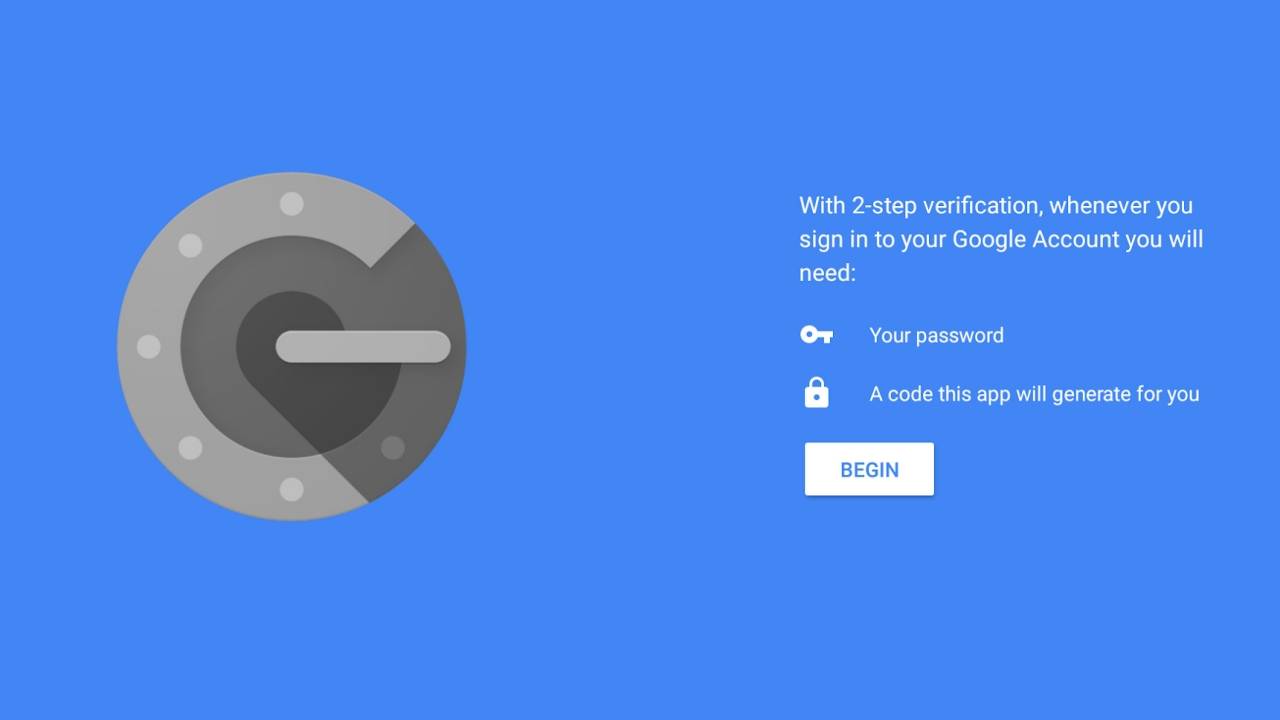
     Two-factor authentication is combined account security where the user cannot just access the data with passcode, password, fingerprint, or biometric logins. It also prompts you to add a one-time code sent to the registered mobile device or the smartphone. Though this is also not 100% effective, it can assure a better security level for your accounts.

  3. Invest in a Good Antimalware

    Do you keep the main door of your house open unlocked ever? No, right, and the same implies for the bank account security. Invaders try to seize the system through malicious software for stealing data or breaking the security layer with some viruses. 

     Phishing attacks are vulnerable and can occur with an account hack by retrieving data through the operating system. The release of any crucial data can reveal sensitive information that’s flagged as very important. Installation of good and reputed antimalware prevents cyber threats and keeps your account safe from such cyber predators to a great extent.

  4. Keep a Check on Bank Statements for Fraud Detection

    If you have bank accounts with reputed and government banks or credit card companies, they send regular notifications on expenses made through your account. Instant pop-up text appears on your mobile device indicating that someone might have succumbed to your account. 

    Suspicious purchase bills or fund transfers from weird locations and sources hint to you about the significant threat. You can stop it immediately with a prompt answer to the bank message and then review bank statements for complete data. Inculcate this practice to safeguard from them any major problem in the future. Get in touch with your banks to resolve any doubts or queries then and there.

  5. Avoid Using Public Wi-Fi Hotspot

    Carrying out financial transactions like trading, online shopping, or banking at the airport lounge or bank is pretty standard. However, this gives one more attempt to the cybercriminals to detect your credentials and make big hacks. 

     Using a device through Wi-Fi at hotels, coffee shops, or libraries is an everyday regime but avoid making transactions through such locations. Unless you have a trusted or secured network, transactions can attract many potential risks. Tapping calls and tracking crucial data is easily possible in this digital age at such sensitive spots. Prevention is the only way to stay very safe in such a scenario.

  6. Lock Your Devices

    Cybercriminals are pretty savvy in analyzing the ways to make phishing attacks on your bank accounts. Adding a solid passcode for your device would prevent strangers from intervening in your private data. Imagine if you mistakenly happen to leave your phone at the coffee shop and realize it after crossing a mile ahead? 

     A stranger can breach the privacy protocols and fetch all financial data within seconds, leading to easy bank frauds. This is avoidable if you have biometrics, sensors, fingerprints, and other multiple safety ways to secure devices and then codes for your banking apps. Multiple layers of authentication can result in a safe and secured financial data system.

Don’t let them Phish you out!

Cybercriminals are upscaling their frauds into multiple channels and getting smarter with technological advancements, leading to more scams. Do you wish to escape this phishing funnel with the alertness of mind and the proper safety measures? 

Follow the above ways to assure the safety of your bank account and be on the front foot to combat the ferocious minds of cybercriminals targeting your financial sanity. Rule out preventive techniques and ensure a safe environment for commencing your banking activities online.

How to Transfer Files from Windows 10 To Windows 11

Willing to update your PC with Windows 11? What about essential files and folders stored in Windows 10? Windows 11 version is out, and users will access it on most Pcs and laptops by the end of 2022.

However, data transfer from Windows 10 to Windows 11 might be challenging for many. So hang on with us to get acquainted with simple steps and safely secure all your files and folders in the new Windows version.

Is Data Transfer Possible from Windows 10 to Windows 11?

Yes, Microsoft allows this feasibility of transferring files and folders from Windows 10 to Windows 11 on your system, and that too without much hassle. If you upgrade to the new version or have recently bought a new PC, creating a new setup for Windows 11 is mandatory. You can accomplish this process without any hurdle with a couple of additional steps.

Tech-savvy users might also use an advanced software solution that facilitates file transfers with a single click. There are other varied methods like manually following every step using a USB Transfer cable or the hard drive for file transfers.

Transfer Files from Windows 10 to Windows 11

This is probably the best way to upgrade to the latest Windows version and a secured backup of all your essential data files. Using a wi-fi network or wired USB cable to connect two devices can help transfer files from one end to the other.

  1. Use a Software Program

    How to Transfer Files from Windows 10 To Windows 11

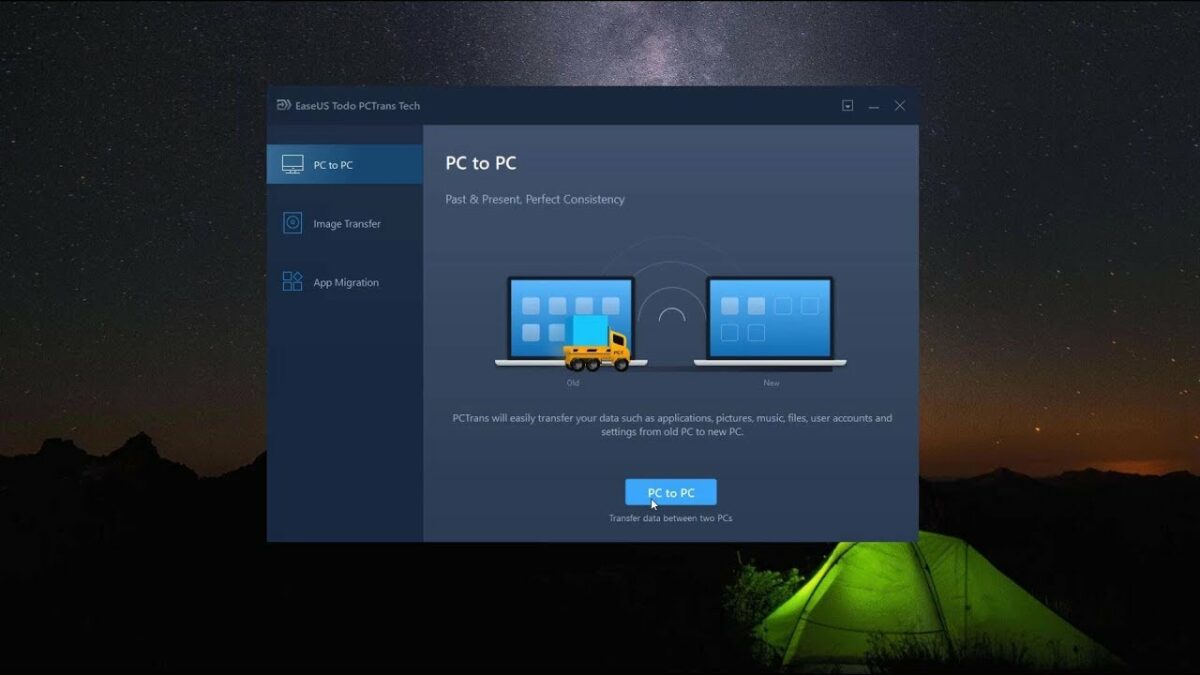
    A stable network connection and the latest software that helps transfer files from Windows 10 to Windows 11 are all you need for this. Utilize the standalone software for this purpose. While there might be a few glitches in its Free version, the Pro version comes with a step-wise process that aids in transferring data from the old PC to the new one.

    It is possible to transfer data to Windows 11, such as images, files, documents, apps, and any other thing you wish to restore. Data migration is a lengthy and arduous process, no matter how many software or tools you utilize. Good software can simplify the task with a one-click auto transfer of data from an old PC to the new one. Take a free trial for a couple of software to know about their features before you invest in them.

    Step 1- Install the software on both ends to start ‘PC to PC’ data transfer and continue.

    Step 2- Choose data transfer from the Old PC device to the new PC Device. Again, be careful with command selection.

    Step 3- Establish a PC connection between two devices with a LAN and the verification code. After selecting the right data transmission action, press ‘Continue’ to head up with the process. Identify the verification code for the targeted PC stated on the main screen. Switch on by clicking at tab for the connection verification.

    Step 4- Visit the ‘Files’ section and click on files and folders you choose to move.

    Step 5- Press the ‘Transfer’ tab to start with data transfer. Keep patience until the process completes, as big-size files might take some time.

  2. File Sharing Via Cloud Storage (OneDrive)

    How to Transfer Files from Windows 10 To Windows 11

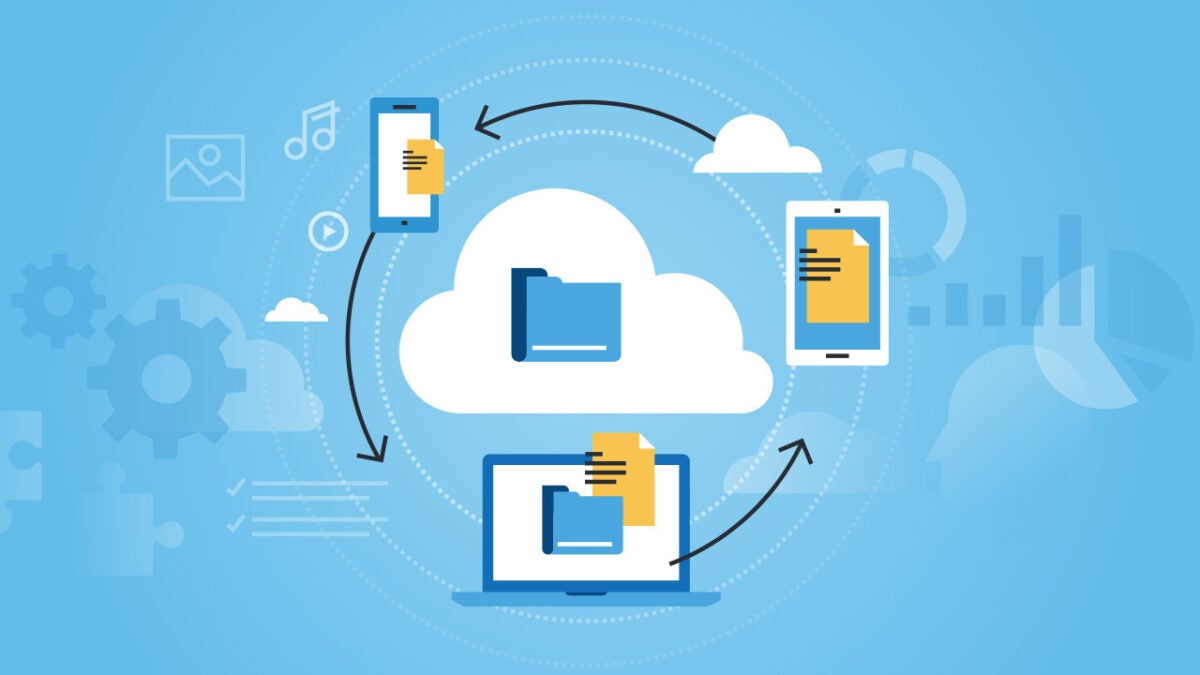
    Another way to transfer files from Windows 10 to Windows 11 is through Cloud storage. This option helps in the swift migration of photos, videos, files, and other information to the new PC.

    Steps to Transfer Files With Microsoft OneDrive:

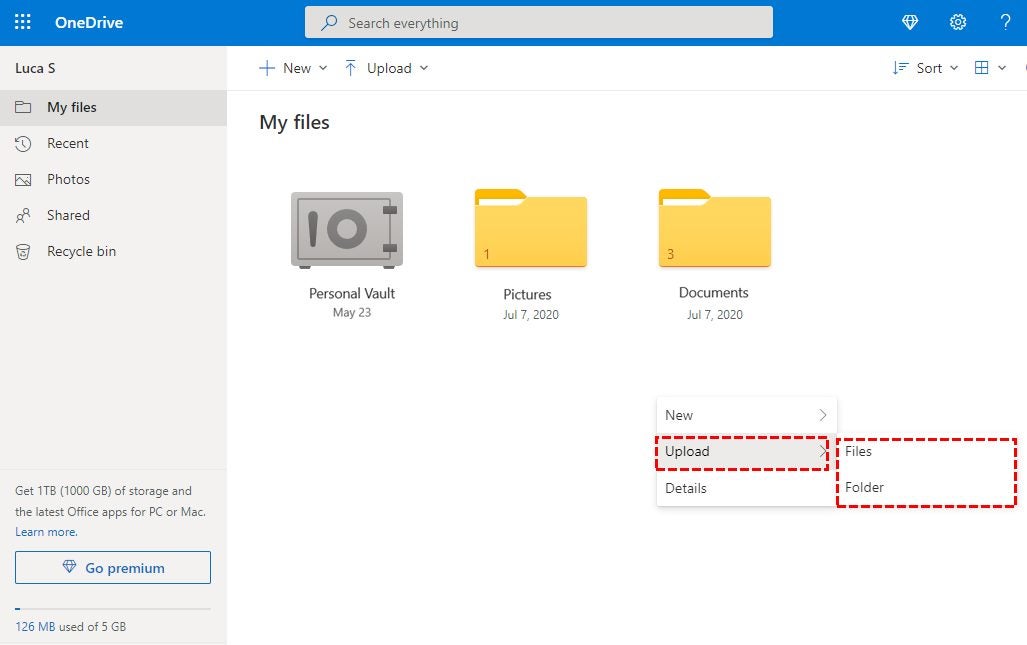
    Step 1- Install and begin Set up for OneDrive, a Free file hosting service by Microsoft that allows Cloud storage. For transferring files from one Pc to another, you might have to take its one-time subscription.

    Step 2- Next step is to sync all files with OneDrive via its official website or the app. click to ‘Upload’ and click files you want to transfer. Using File Explorer is also a good option for data transfer.

    Step 3- Install and complete the setup for OneDrive on your Windows 11 PC. Now you can allow receiving files from the other PC and download them to Windows 11.

    You are done with it!

  3. Using Email

    How to Transfer Files from Windows 10 To Windows 11

    Suppose you have marked a few essential files to transfer from Windows 10 PC to New Windows 11 Format. In that case, email transfer of selective files is also a good option. This is the safest alternative to complete data transfer from one Pc to another. 

    Users might find a few challenges in this process as emails are encrypted. In addition, there can also be a specific limitation for adding attachments depending on the file size of the email as there is a size restriction of up to 10 MB. Thus, going for PC to PC data transfer is a better alternative.

  4. Copy and Transfer Files with an External Hard Drive

    How to Transfer Files from Windows 10 To Windows 11

    Are you fretting about file transfers to Windows 11 without a network? Do not bother, as other alternatives can prove helpful in this context.

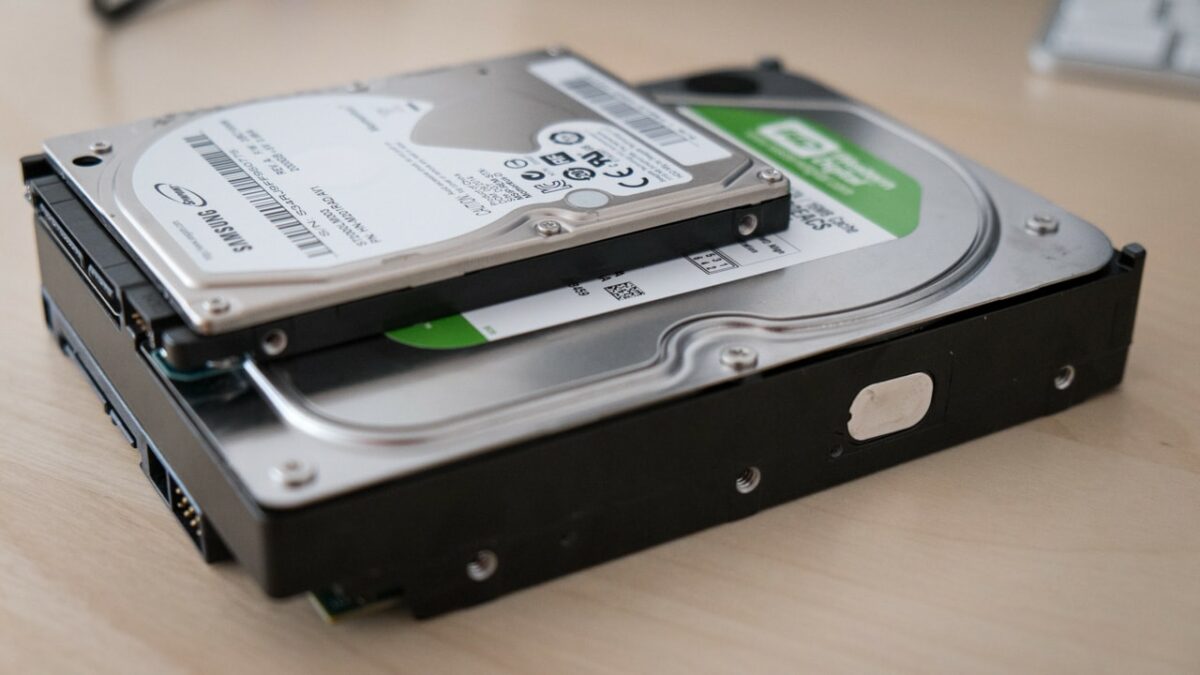
    An external hard drive or flash drive is an excellent option to complete the data migration. First, users can connect the external hard drive from Windows 10 PC and start copying files. Now again, connect the hard drive with Windows 11 PC and copy all required files to it. Besides, you have the complete data back up in an external source if some goof-up occurs.

Winding Up

Windows 11 had a successful launch, and there were concerns about it being compatible with Windows 10. However, it won’t be compatible with all Windows devices completely.

Suppose you are also looking to transfer data from the old Windows 10 PC to the Windows 11 PC. In that case, the above steps and tutorials might help you in the process. We recommend you do so soon, as there are plenty of new Windows 11 updates and features coming to the operating system.

How to use WhatsApp to be more productive – Tips & Tricks Unleashed

Are you frustrated with the myriad of WhatsApp notifications disrupting you now and then? Do you archive most of the WhatsApp chats? Billions of people are using this popular messaging yet are unaware of how productive it can be.

Time to take a reality check on how beneficial the wonder can be provided you streamline it to your advantage. Let’s show you how you can use WhatsApp to be more productive.
Is WhatsApp risky?

A few USPs of this app are end-to-end connectivity in a few seconds, quick loading, and encrypted chats. However, managing group chats and contact with family or friends can be tedious. Perhaps, a weekend party plan with your loved ones could drain out a significant chunk of your valuable time and ruin productivity with hundreds of notifications. 

That is why many companies hesitate to allow employees to use this app at the workplace. The absurd chain of WhatsApp Forwards, Quiche News, and First spreads can be a few other reasons for commotions in your work.


The technological expertise of this app can foster your business growth if you channelize it in the right direction. It is the world’s largest text communication channel, and imagine its impact to bring purpose and management to enterprise levels.

Professional use of WhatsApp to bolster better productivity

This app’s proper supervision and management can bring tremendous value to your entity. Empowering them with the steps and tips to use Whatsapp rightly is the need of the hour. Integrating a central mobile communication system is an excellent way to converse the positive of this app and reduce the risks or vulnerabilities to minimal.

  1. Share Newsletters Via WhatsApp

    How to Make Best Use of Whatsapp for Increasing Productivity

    Conventional use of newsletters was to track the employees’ timelines, product innovations, discussions, and updates on what’s new and latest additions to the entity. Owing to the work-related emails filing up the mailboxes, it’s hard to delve through the newsletters. Hence, a modern way is to share them through WhatsApp as it’s an easy way to reach out to the maximum employees with a single click. Attaching the newsletter copy or file in a company broadcast WhatsApp group could fetch their attention and motivate them to do better in their jobs.

  2. Utilize WhatsApp for Quick Decision-Making

    How to Make Best Use of Whatsapp for Increasing Productivity

    Some matters and concerns require immediate attention in every company. It’s a trend to communicate over WhatsApp groups rather than texting personally about an issue. How about taking employee insights here? This helps subordinates and managers secure the right directions relevant to issues and come up with solutions that need collective approvals. As everything is in writing here, this is a great place to keep records of discussions. It can help multi-tasking rather than sparing hours to sit in conference rooms over a minor issue. Faster conversations, quick solutions, and a better impression on company clients are now possible with this app.

  3. Group Messaging is an Asset

    How to Make Best Use of Whatsapp for Increasing Productivity

    Only a thorough professional can understand the value of time and how self-realization about time management can add value to the company. Group messaging is a popular WhatsApp feature often used for gossip and irrelevant discussions. Rather departments can have their individual groups headed by the Subject Matter Expert (SME), who highlights the issue and asks employees to pour in their relevant insights on all matters. Project leaders can minimize the decision-making time by asking employees for their input on the problem, thus helping them connect and participate in the internal issues of the organizations.

  4. Collect Employee Feedbacks

    How to Make Best Use of Whatsapp for Increasing Productivity

    Do you know that research suggests that 70% of the messaging on WhatsApp groups is subject to personal opinion on important or unimportant matters. The residue of this research indicates that this is a perfect platform to gather suggestions and feedback from the employees. You can converse with them about their experience in the company and encounter if they are facing any challenges with the workplace culture. They can also give accurate feedback on the specific issues that could result in a meaningful end result.

Seven ways to rescue from the buzzing WhatsApp chats

If switching back to the task after the WhatsApp chat is a roadblock you have faced for quite a long time, here are the quick ways to save yourself and control the time you spend on WhatsApp:

1. Keep Selective Broadcast List– It can be intruding to hang up on someone’s device with vague messages, and the best way is to limit your broadcast circle to limited contacts to avoid a two-way jam.

2. No Influencer in List– Respect your time by staying away from adding contacts in the WhatsApp list of influencers who have to develop networking by trailing messages to increase count.

3. Minimal WhatsApp Groups– Be the member of the groups that have only valuable text popping in. Groups with 50-100 members can be noisy, leading to hampered productivity at the end.

4. No Forwarded Messages Please– Do not waste your and others’ time by bugging devices with boring jokes or links that yield no meaning at all. Devote weekends for such activities and avoid spamming strictly.

5. Make Promotions– Use your wits right for marketing and promotion of your products. Personal contact helps build a better rapport. It could be a valuable insight to the users on the other end.

6. No Bad Grammar– People get used to texting acronyms and jargon for quick text senders. This could impact your professional conversational tone. Thus, stay formal, polite, and to the point in your text.

7. No ‘last Seen’ Business Please– Do not stalk over the ‘last seen’ or ‘last read’ time of others as someone is online does not mean that they are chatting. Respect time and focus on more important things and result-yielding in life.

What’s new in WhatsApp?

The latest addition to the WhatsApp power is the WhatsApp Archiver that further simplifies the issues related to compliance and regulation of this app. It helps in creating messages and communications through group messaging threads.

It is similar to the original Whatsapp application but augments the communication experience for the employees. You can use it to archive all marked chats and search, track or retrieve them whenever required. A detailed administration report can also be available with this system.

Make better use of your Whatsapp time!

WhatsApp is a backbencher in a class whose potential is least discovered and unexplored to bring into utility! While complaining about its annoying buzzes and quirky messages, you can flip to the other side that could be very productive and game-changing if used right.

An intelligent user demands excellence in technology, and WhatsApp never fails to show it out. All you need is a focus-centric approach towards utilizing most of this application and reaping maximum benefits of it in your professional life. Kudos to the Smart Technology!