How to use Photoshop for your iPhone

Photoshop Express is basically a lite version of Adobe Photoshop that you can use on your iPhone. You can edit a single photo or layer multiple images into collages or composites.

The app is full of filters and effects that use sliders to help you find exactly the right settings. You can also apply text, border, or sticker overlays to your images to make memes or add watermarks or captions. In this article, we’ll take a look at all the most exciting features of Photoshop in iPhone and show you how to perform some of the most common photo edits.
Adobe Photoshop FREE TRIAL
9
  1. Get familiar with the panels

    Photoshop Express is divided into three spaces. The Tools Panel is at the bottom, the Image Workspace displays in the middle, and the more technical Options Panel is at the top.

    When you open the app, the Options Panel shows icons like Edit, Mix, Collage, and Retouch. We’ll start with the Edit section, where you can apply effects and filters to a single photo.

  2. Load images through Edit option

    Click on Edit at the top and then tap the camera, plus sign, or globe icon in the bottom panel to load the image you want to edit. Once the picture from your camera, photo gallery, or network loads up, the Options Panel at the top will change to show you the Undo and Save buttons plus a few more.

    You’ll also see the Tools Panel at the bottom of the screen change to show you the most common editing tools. Tap any icon there and a secondary menu will appear just above the bottom menu. Each tool in this menu comes with a slider so you can adjust its intensity.

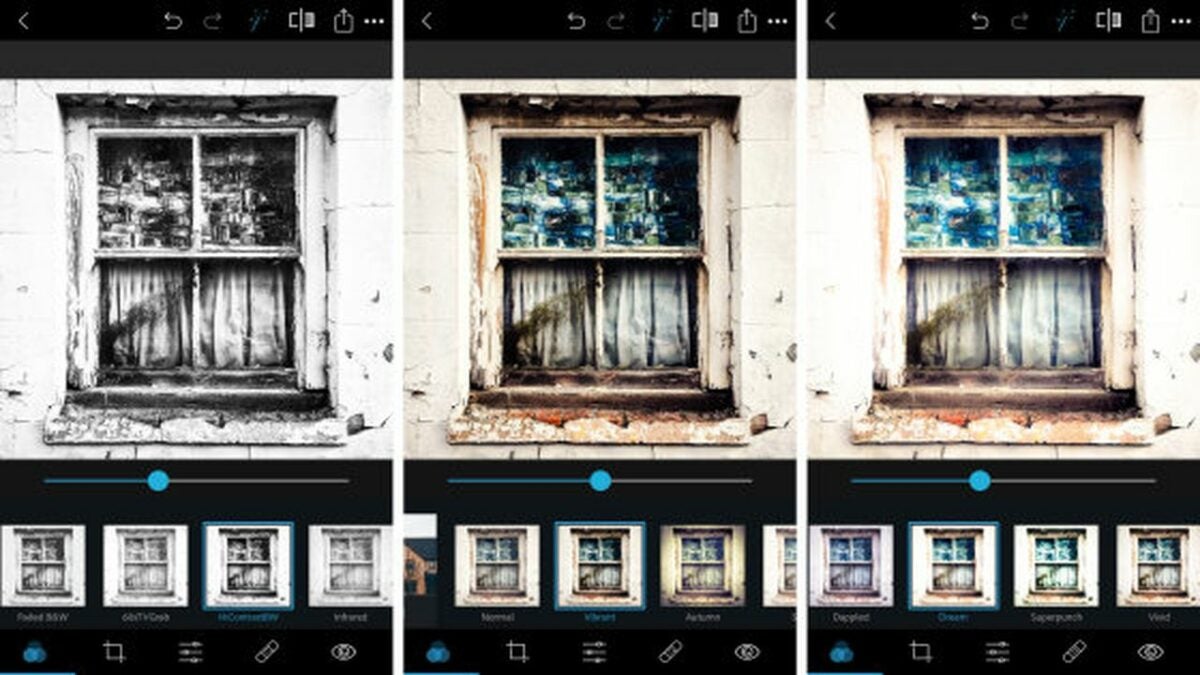
  3. Using filters via the Looks menu

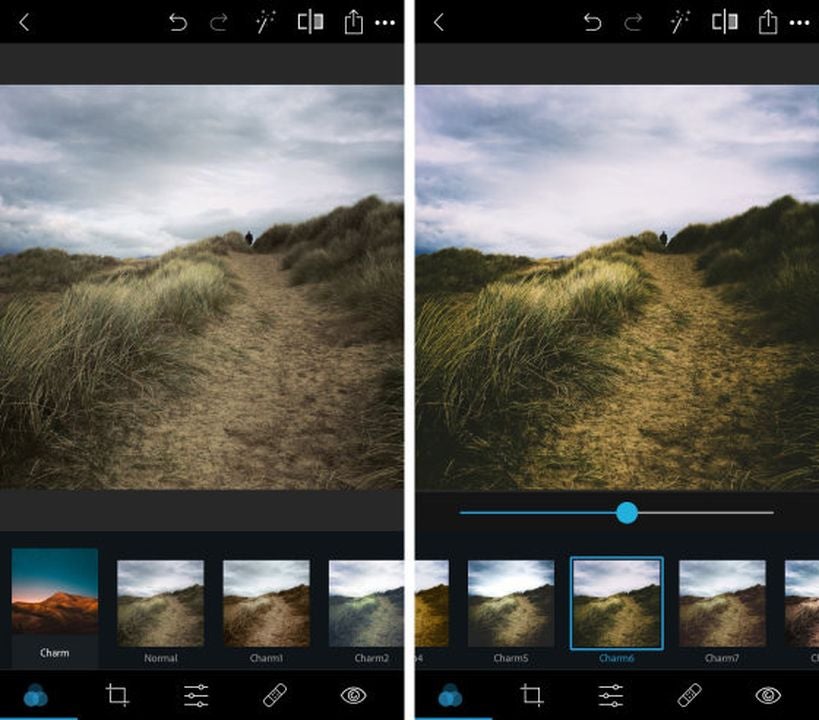
    The first icon in the bottom panel, showing three intertwined circles, pulls up the filter menu, which Photoshop Express calls Looks. The Looks are divided into categories like Nature, B&W, and Duo Tone.

    You’ll find plenty of individual filter options inside each category. The large thumbnail over each one will show you how your photo will look if you apply the filter.

  4. Access more effects through Light Leaks
    The Light Leaks icon in the bottom panel looks like two overlapping circles, one white and one black. This menu has an enormous selection of lens flares, raindrops, bokeh, and other fun lighting effects that can spice up your image. Pick one, and the AI will do most of the work. All you have to do is adjust the effect’s size using the slider.

  5. Modify size and fit

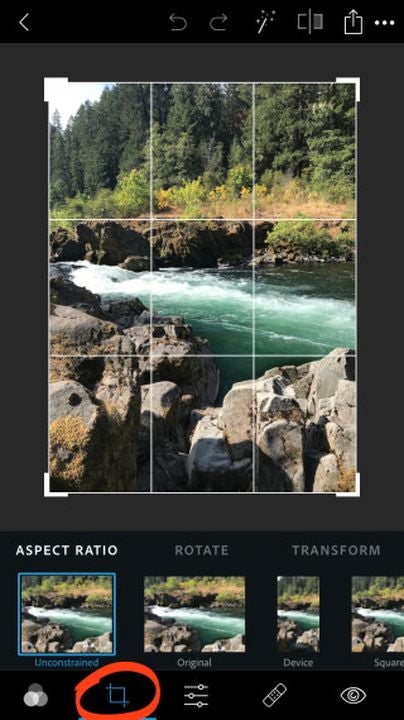
    To play around with your photo’s size and fit, tap the icon in the low panel showing two intersecting 90-degree angles. You can crop your picture, change the aspect ratio to adjust its artistic composition, straighten out the horizon, create an upside-down or mirrored version, or correct perspective issues using the Skew tool.

  6. Using adjustment tools

    The bottom toolbar’s next icon, showing two horizontal sliders, gives you access to the app’s adjustment tools. These include Light, Color, Effects, Details, and Blur.

    The Light menu lets you tweak your photo’s highlights, shadows, exposure, and contrast. The Color panel lets you adjust the temperature, tint, and saturation.

    In the Effects menu, you’ll find whimsical enhancements to bring out specific textures, fade colors, and add fog, grain, or vignette effects for an old-fashioned look. In the Detail category, you can sharpen your image and adjust the amount of noise. The Blur section lets you selectively add different kinds of blur effects to different parts of your pictures to help direct the viewers’ attention.

How to selectively adjust colors and brightness

The Adjustment workspace comes with an automatic selection tool that uses AI to identify specific features like the subject and the background. To selectively change the brightness or colors of a certain part of your photo, use the selection tool to target the problem area with a single tap, and then use the slider to tell the app how much of the effect to add.

Adding text

If you want to add some text, tap the T icon in the bottom panel, and use two fingers to draw a text box on your photo. Tap the pencil icon in the text box’s top left corner to type your message, or rotate, resize, or delete the box using the icons in the other corners. You can change the style, font, color, or alignment of your text in the secondary Tools menu that pops up at the bottom.
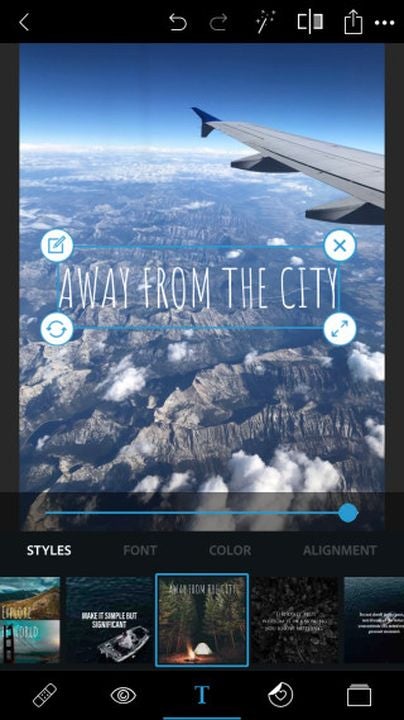
Adding text to an image in Photoshop Express

Adding stickers and borders

Beside the Text icon in the bottom panel is the Stickers icon, where you’ll see a tiny heart in a circle. The stickers are divided into convenient categories, and you can resize or rotate them using two fingers.

The Borders icon in the bottom panel looks like a square frame. This is where you can fade the edges of your image or use decorative outlines and frames to add style.

Combining multiple photos

To make a collage from multiple photos, select Collage from the Options Menu when you first open the app. Once you choose the photos you want to use, the app will show you its massive collection of collage templates so you can get creative. You can combine various photos on your iPhone, adjust the position and size of each photo in your collage, or even merge two images into a single image.
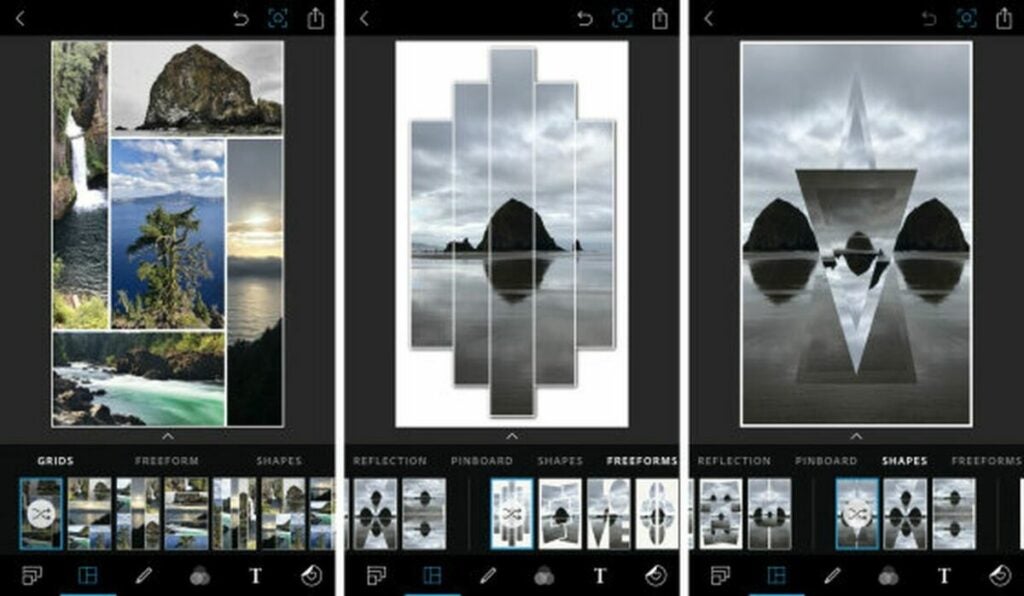
Combining multiple images in Photoshop Express

Mixing images

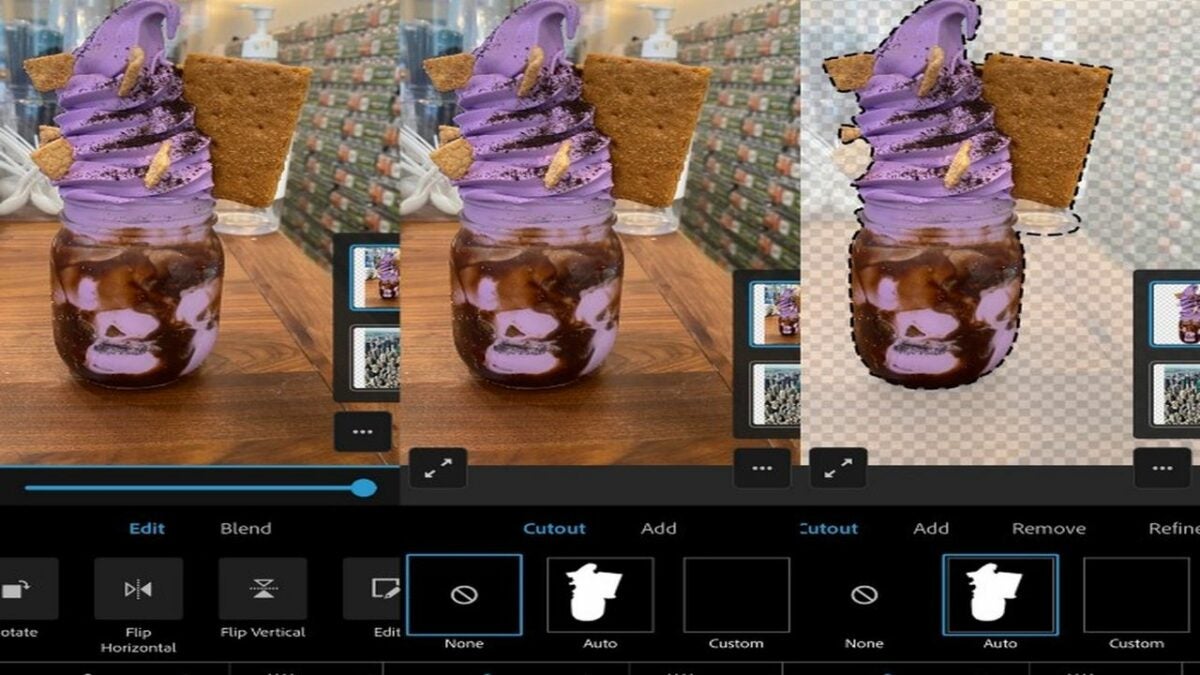
The Mix workspace allows you to layer multiple images on top of each other. You can add a person to a photo on your iPhone using the Cutout tool from its bottom panel. The tool comes with a Manual Mode and an Auto Mode that uses an algorithm to let you select people or objects from one image with a single tap and then place them over a background from another image.

Retouching facial features

The Retouch workspace is designed for touching up facial features and skin. In its bottom panel, the Smooth Skin icon, shaped like a water droplet, uses AI to find relevant areas of skin and smooth them out as little or as much as you want. The Face tool lets you change the dimensions, angles, and contours of your whole head at once or just specific facial features, like your bottom lip or nose.

The neighboring Caricature tool is like an exaggerated version of the Face tool. It tweaks specific facial features to make you look like a cartoon. You’ll also find also a familiar tool, Liquify, from the desktop version, which lets you reshape parts of your photo with artistic twirls, smudges, and swells.

The icon showing an adhesive bandage is a smart Healing tool. It works like the Content Aware tool in the desktop Photoshop app, with a special algorithmic focus on facial blemishes.

For instance, to remove an unwanted freckle:

  • Start by using two fingers to zoom in on the freckle.
  • Adjust the fader to set the size of the spot you want to remove.
  • Tap on the spot to automatically and intuitively replace it with the app’s best guess of pixel colors from the surrounding area.
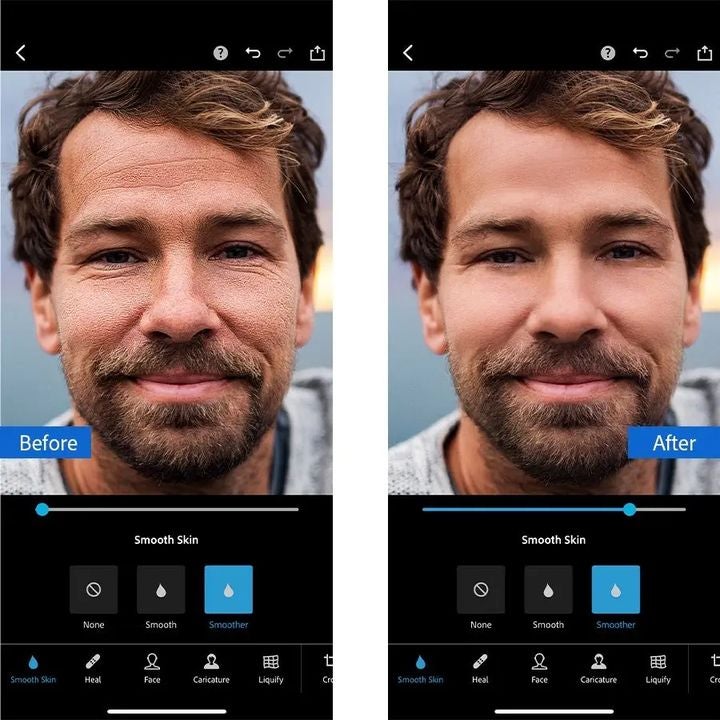
Retouching facial features in Photoshop Express

Using Photoshop with your iPhone is easier than ever

The menu systems in Photoshop Express may seem a bit cluttered, but that’s because the app is stuffed full of features. These include all the features from the late Adobe iPhone apps Photoshop Mix and Photoshop Fix, which were discontinued in 2021.
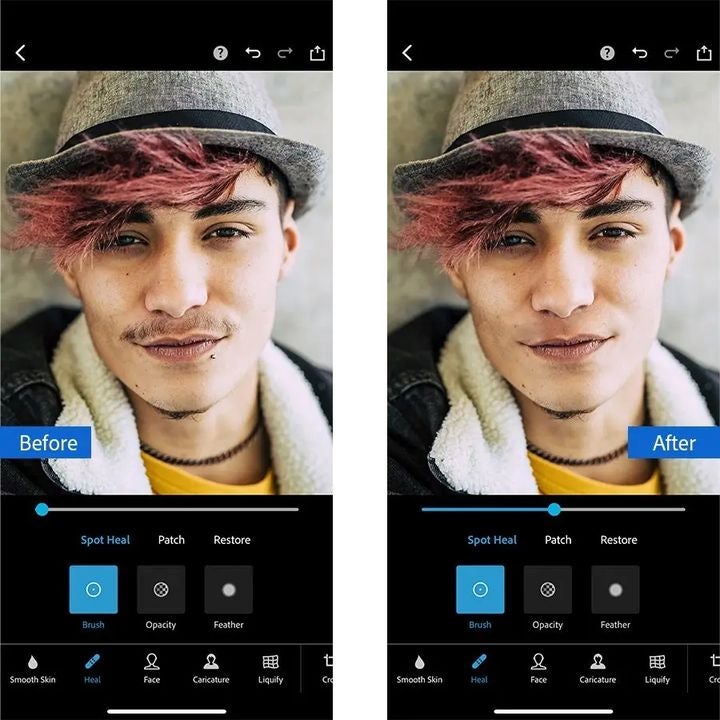
Accessing more retouching features in Photoshop Express

Photoshop Express is free for basic use, and there’s also a subscription option and in-app purchases if you need more advanced editing.

Start making masterpieces. with Adobe Photoshop FREE TRIAL
9

How to use Acrobat Pro DC highlight effects to grab a reader’s attention

Due to their versatility in displaying text, pictures, links, and more, PDFs are among the most popular types of shareable documents.

Highlighting text in a PDF is a great way to better display or point out important information. Keep reading to learn a few tricks in Acrobat Pro DC to make your highlighted text as bright and noticeable as possible.

Adobe Acrobat DC Buy Now
  1. Select and highlight a text excerpt

    Acrobat Pro DC allows you to highlight any text in any document that allows modifications. If your highlight tool is greyed out, make sure your PDF contains actual text, not just a scanned picture of text, and isn’t marked as read-only.

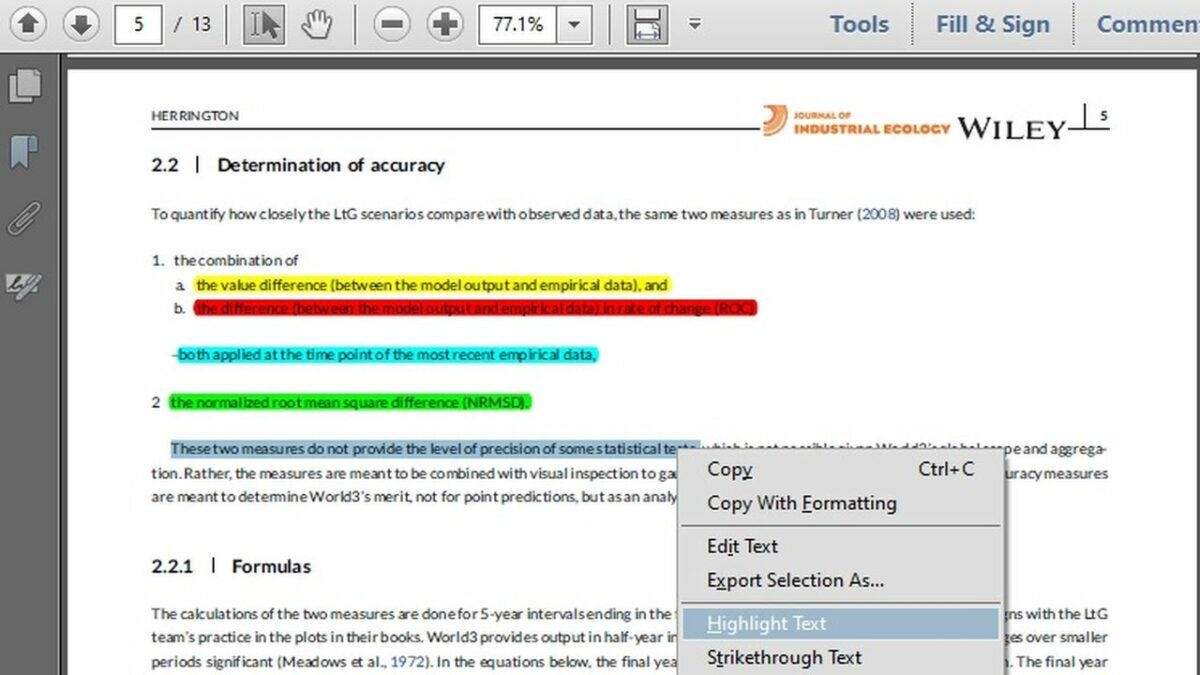
    Start by highlighting an excerpt that you want to call your readers’ attention to. Click on the selection tool in the toolbar at the top of the app. It looks like an arrow beside a cursor. You can find it just to the left of the hand tool.

    Using the selection tool, select the text you want to highlight. Right-click on the selected text, and press H or click on Highlight Text. You should see a colored box appear behind and around your text selection. The default highlight color is yellow.

  2. How to change the Acrobat Pro DC highlight color

    One of the best ways to make your highlights as obvious as possible is to choose a color that highly contrasts both the selected text’s color and the document’s background color. Yellow or red can be great options for highlighting black text on a white background.

    If your text or page color doesn’t contrast well with the default highlight color, you’ll need to choose a different shade. You can change the color of one specific highlight at a time, change all past highlights to a different color, or make all future highlights a different color by changing the default highlighting color.

  3. Changing the color of one highlight

    – Right-click on the highlighted portion of the text.

    – Press P, or click on Properties in the drop-down menu.

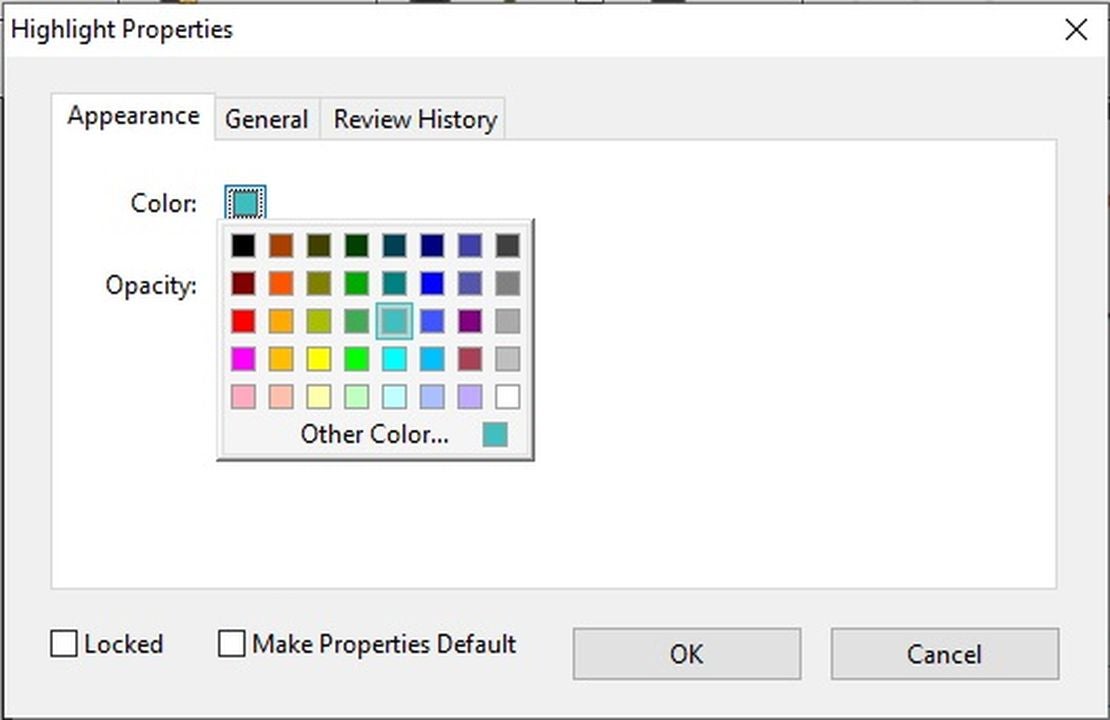
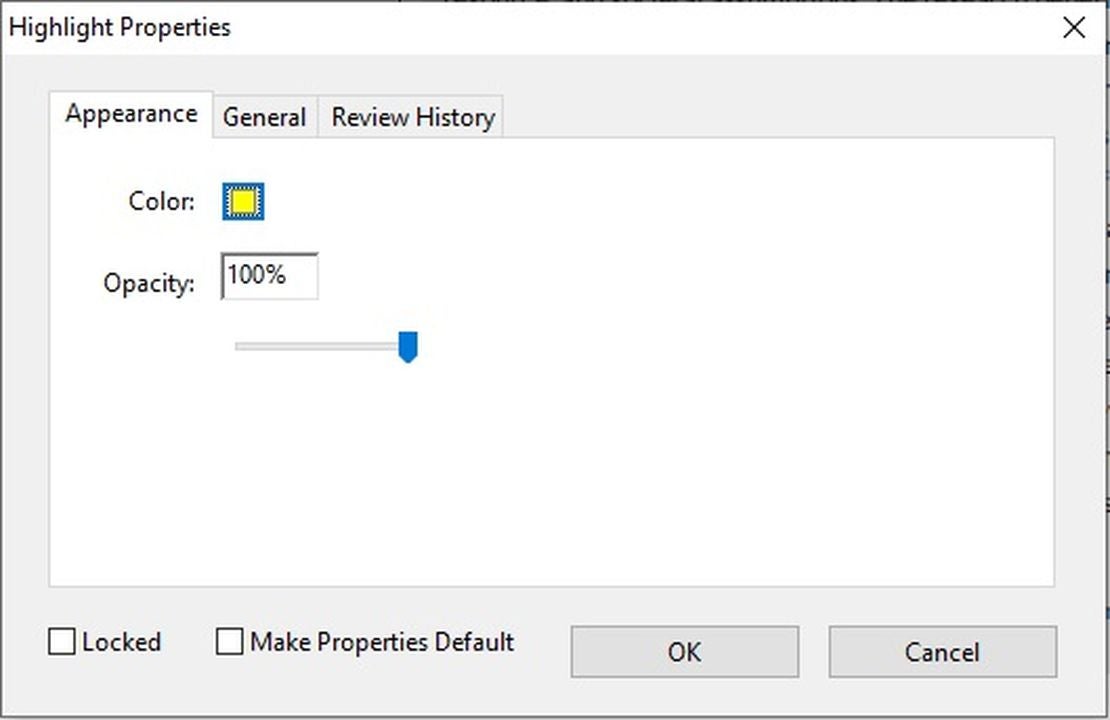
    – In the Appearance tab of the Highlight Properties window that pops up, click on the box marked Color.

    – Choose a highlight color that contrasts well with your text and background.

    – Click OK.


  4. Changing the color of all existing highlights

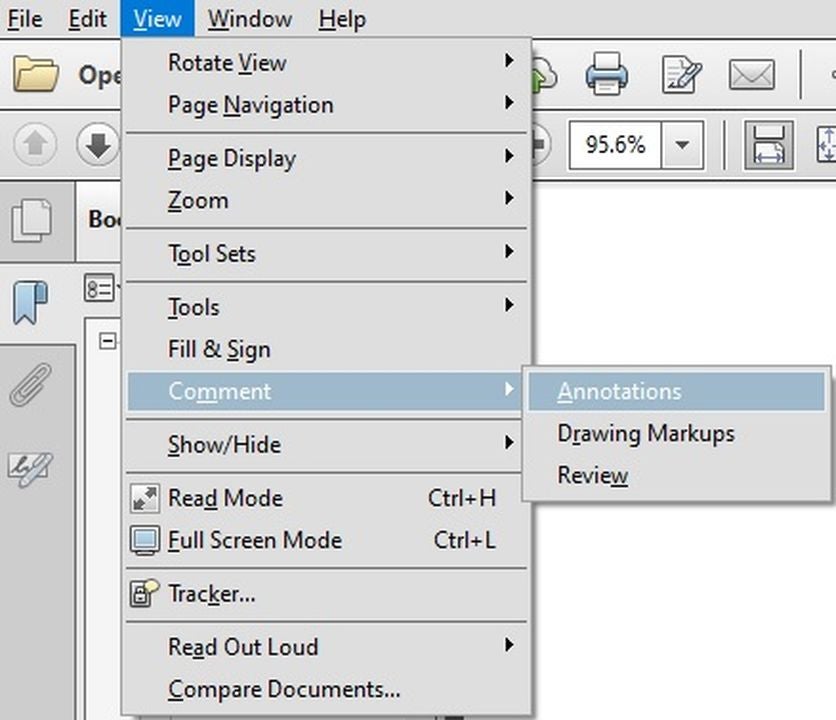
    – Click on the View menu in the top toolbar.

    – In the View menu, click on Comments and then Annotations to open the Annotations sidebar.

    – In the Annotations sidebar on the right of your screen, under the Comments List tab, you’ll see a list of highlighted sections. When you select one, it will turn yellow in the sidebar, and an animated selection border will appear around the highlighted text in your PDF.

    – Click on the first highlight, and then scroll down to the bottom. Press Shift while you click on the last highlight in the list. This will select all the highlights in your document. You should see them turn yellow in your sidebar.

    – Right click on any of the highlights, and select Properties from the drop-down menu. The Highlight Properties menu will pop up.

    – If your PDF contains highlights with more than one color, you’ll see a question mark in the Color box. Click on the Color box, and choose a high-contrast color. All your existing highlights will immediately change to that color.

    – Click OK to keep the change.


  5. Changing the default color for all future highlights

    – Right-click on any single highlight, and click on Properties to call up the Highlights Properties menu. If you have multiple highlights selected, the Default box will not appear.

    – At the bottom center of the Highlight Properties menu, you’ll see a box labeled Make Properties Default. Select the box, and press OK.

    – Your existing highlights will keep their own colors, but now any new highlights you create will show your new default color.

  6. How to get the brightest highlights with Acrobat Pro DC

    In the Highlight Properties menu, you’ll also see a slider to adjust the opacity of your highlight. The more opacity, the brighter and more noticeable your highlight will be, so we recommend you leave it at 100%.

Some versions of Adobe Acrobat let you change the size, thickness, and placement of your highlights, which can make them stand out even more.

If you’re ready to try out these tips, download Acrobat Pro DC and start highlighting today.

Adobe Acrobat. Discover all the things your PDF can do. Start for Free.

Is Acrobat still the best app for PDF documents?

Adobe Acrobat has been with us since 1993 when it simultaneously landed on our radars alongside the very thing it was created to support: PDF documents. And in that time, Adobe and Acrobat have seen a lot of changes.

But whether those changes have come in the form of branding, pricing, bundles, or versions — one thing has remained consistent: it was then and remains today the bar against which all other PDF editors are measured (and often fall short).

What is Adobe Acrobat?

Not long after the successful launch of Photoshop, the world was introduced to the Adobe Acrobat PDF. Adobe Acrobat is a software program used to – among other things – create, view, edit, preview, and print PDF documents. PDF stands for portable document format, and it was the first of its kind to enable the transfer of any type of file to any machine (even – especially – those previously incompatible) while preserving the look of the original file. Dr. John Warnock, one of Adobe’s founders, had the idea while dreaming about the notion of a paperless office. He said in 1991 that such a tool would change the way information is managed, and he was right.

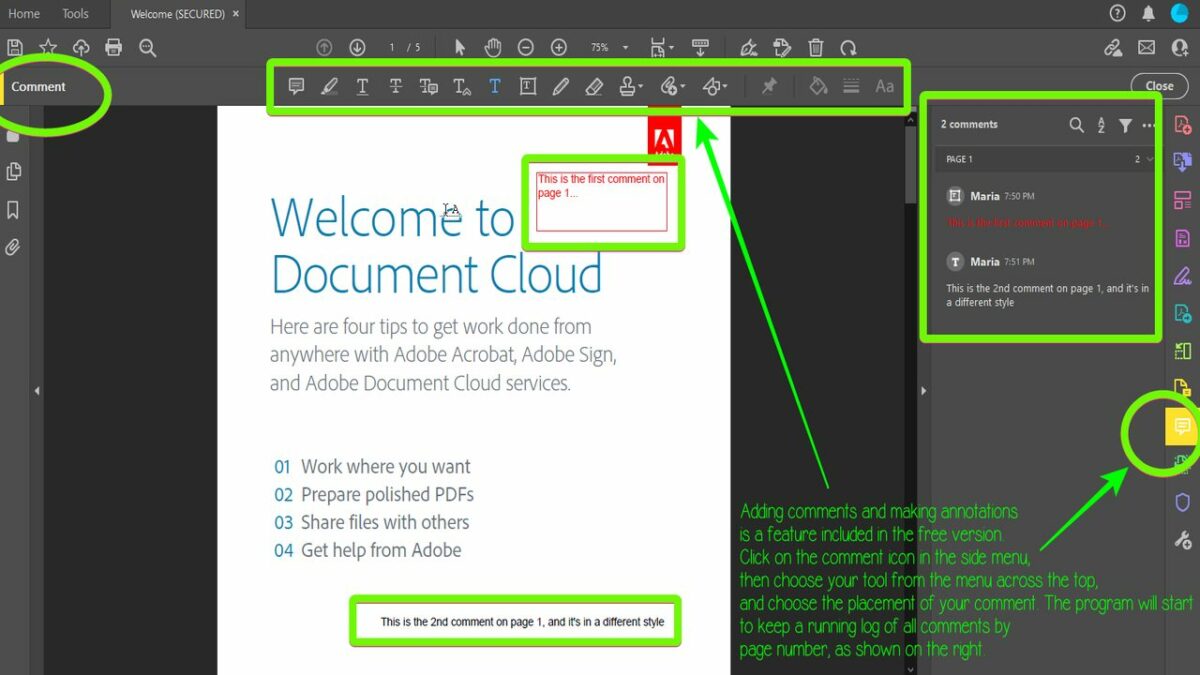
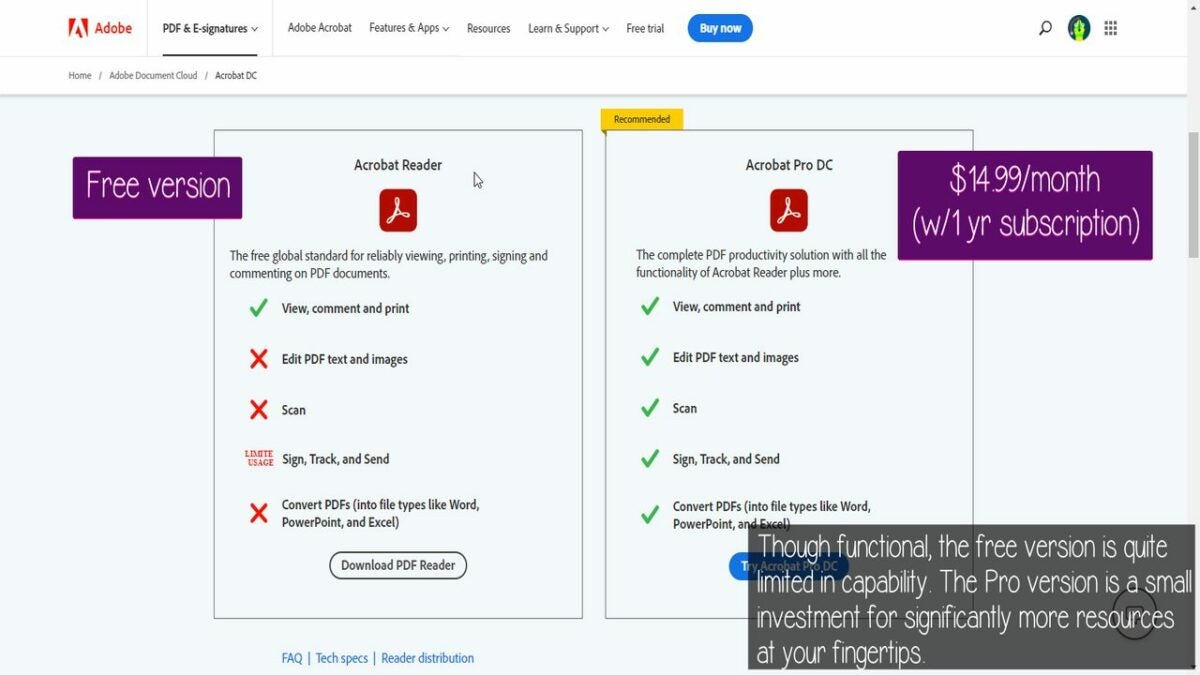
As is often the case these days, there’s a free version and at least one paid version (two, in this case). Adobe Acrobat Reader DC is the free version that enables viewing, printing, signing, and note-making. The DC in the name stands for “document cloud,” which is the free service from Adobe for storing, sharing, and accessing PDF documents in the cloud from any device, in any location, at any time.

Acrobat offers two paid packages for those needing a few more bells and whistles. A step up to either Adobe Acrobat Standard DC ($12.99/month) or Pro DC ($14.99/month, and both require year-long commitments) is well worth the cost due to the added functionality and usability over the free version. Note: the monthly prices do increase if the subscription is less than one year.

To pay or not to pay

While one could theoretically get by with the free Adobe Acrobat Reader DC, upgrading to at least the standard package provides access to a number of useful features that the free Acrobat Reader doesn’t have. Some of those are the ability to password-protect PDFs and forms, support for encrypted PDFs, the ability to add tags and bookmarks to PDFs, and offline features such as automatic integration with the cloud. Password protection is a noteworthy upgrade because Adobe Acrobat DC lets users password-protect PDFs with basic wireframes like shapes or texts that can be hidden behind passwords in order to control access to them and avoid unauthorized changes of any sort.

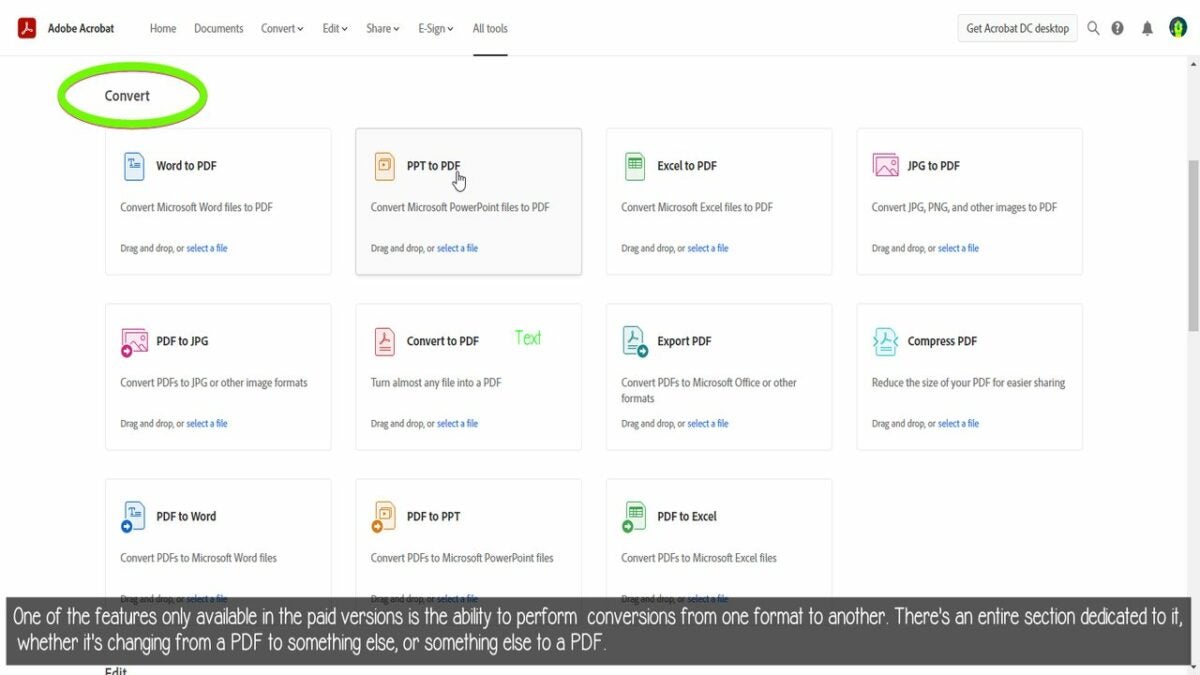
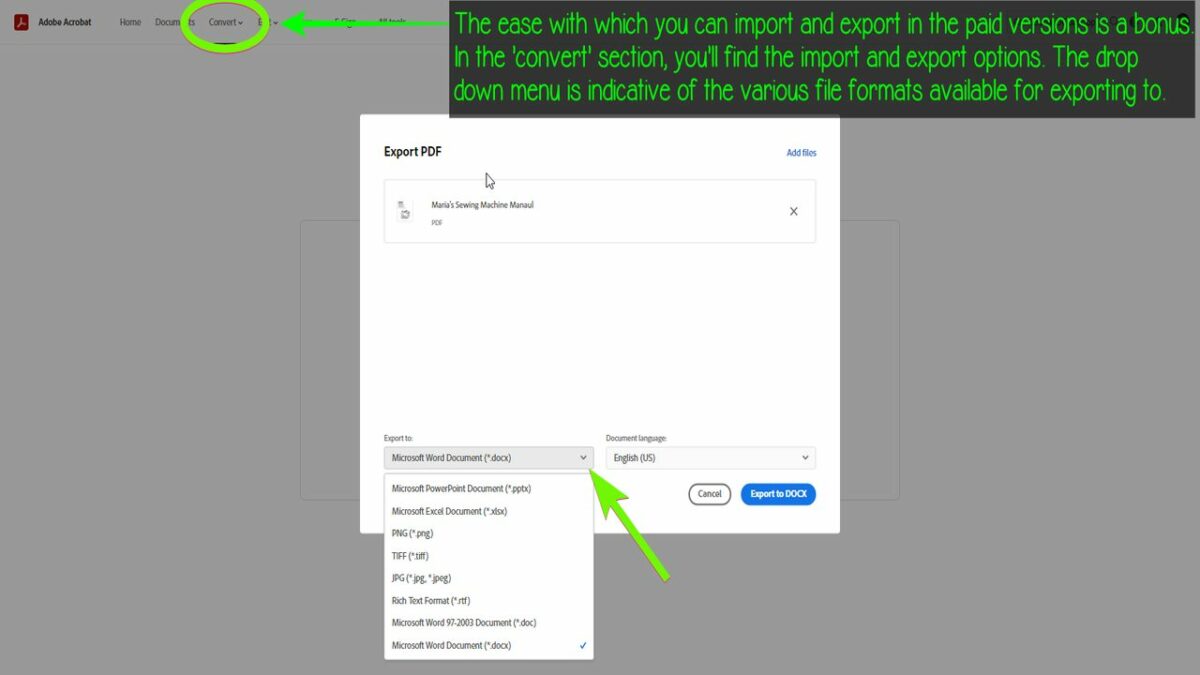
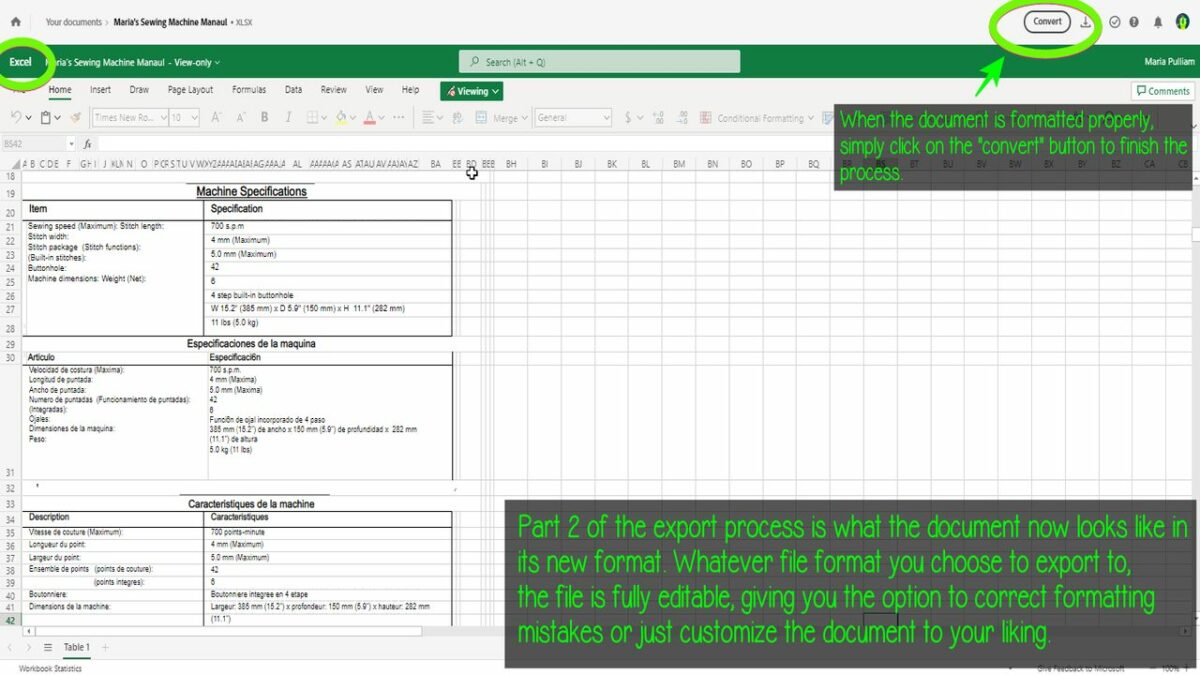
Exporting and importing are also big features included in the paid packages. Users can export forms into Word or other compatible software seamlessly and quickly. The importing feature will also allow text from a variety of different sources but only the exact text with any attributions is imported.

The forms feature lets users create a template form to allow them to easily repeat the same field data over and over again, even when multiple users are involved in filling out the forms. This makes them very suitable for email marketing campaigns or information gathering on specific prospects likely to need such things as surveys, questionnaires, or forms for various websites.

Lastly, there’s the attachments function. Using the attachments capability within documents allows attachments stored back in Acrobat to be edited and viewed as if they were part of the original main document, creating a file within an Acrobat PDF that can also have additional information linked to it. This capability gives users endless possibilities in terms of being able to exchange files with others via email or even Dropbox-like systems where other artists may need access but are not on Adobe’s cloud system, thus facilitating collaboration.

Paid plan comparison: standard or pro?

In our opinion, it’s a good decision to upgrade to a paid package. The question is, which one? Right off the bat, both paid plans come with two cool features: Adobe Acrobat PDF Pack and Adobe Acrobat Export PDF.

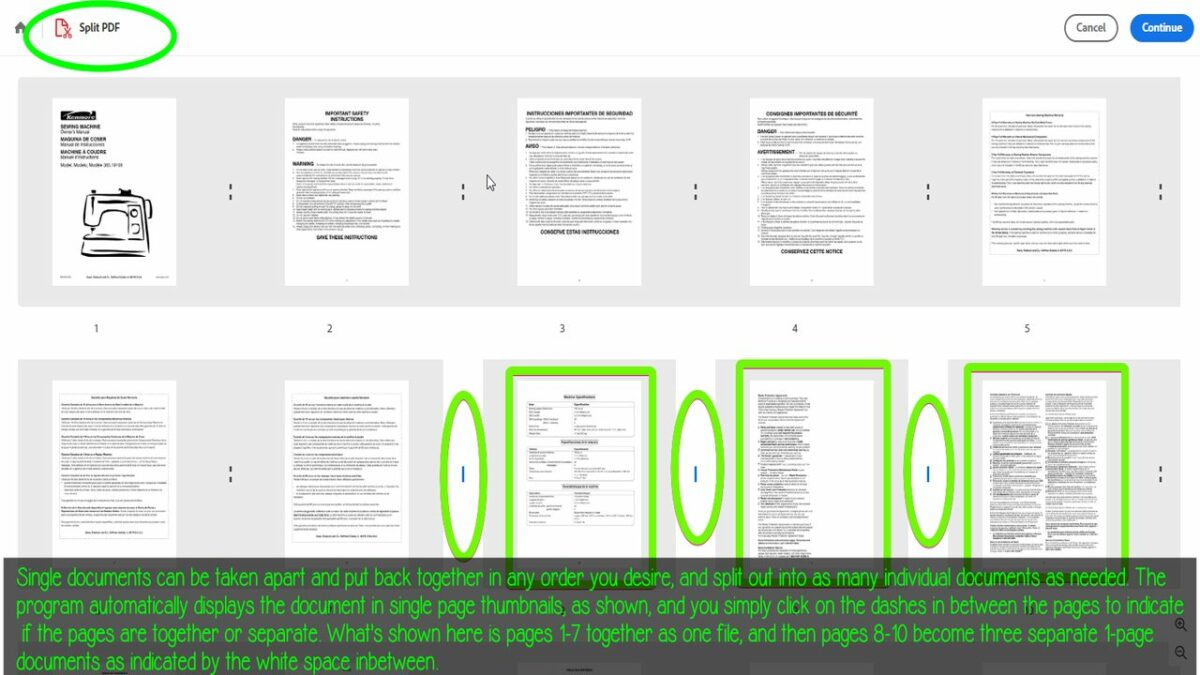
Adobe Acrobat PDF Pack is a bundle of Adobe Acrobat online services. With it, you can easily create, combine, organize, sign, and send PDF files online. You can also convert PDF files into editable Word or Excel files.

Adobe Acrobat Export PDF is an Adobe Document Cloud service that lets you reuse valuable content stored in PDF files. Instead of retyping the information, you can use your Export PDF subscription to turn PDF files into editable Microsoft Word, Excel, and RTF (rich text format) documents.

While these are included in both paid options, Adobe still tries to make the choice easy for you. The standard plan was designed with the personal user in mind, and it comes with an extensive toolkit for document management. It allows converting any file into a PDF format, editing, sharing, and signing documents. Similarly, just like its Creative Cloud Express counterpart it contains numerous templates, flexible settings for document security, and provides access to Box, Dropbox, Google Drive, and Microsoft OneDrive accounts. Let’s not forget the ultra-convenient cloud access.

The pro plan features intuitive interfacing just as the standard plan does, but was designed for professionals and offices. That said, it’s only a $2/month difference to enjoy the satisfying rich functionality that the pro plan adds to the features within the standard plan. This version can optimize PDFs; add numbering, audio files, and various objects to a document; create technical PDF files in Autodesk, AutoCAD, or Visio; and perhaps most noteworthy of all, it is compatible with both Windows and Mac.

What about the other guys?

Believe it or not, Adobe isn’t the only option when it comes to PDF editors. There are quite a few alternatives, some less in price or even free. But the main advantage of Adobe Acrobat is something other PDF creation tools cannot match, and that is its universal compatibility.

This means that it can be used to create and edit various types of PDF files, including zipped and encrypted documents. There is also an extensive range of features which includes the ability to create multiple document types, add annotations or form fields, annotate pages using your mouse, adjust font size settings, and fix different kinds of typographic errors like serifs or kerning pairs. It can open any file format that is supported by Adobe Reader (most common formats are included) and can also edit any document file on your computer prepared with a previous version of Acrobat Reader.

Another advantage of using Adobe Acrobat over other PDF creation tools is that it can seamlessly create files for various devices. For example, you can use the program to convert documents into different file formats so they are compatible with certain mobile phones or tablets, or edit and format them in a way best suited for e-publishing purposes on modern website platforms such as Google Docs.

So, although alternatives do exist, their functionality is limited compared with the real thing. This is especially true when it comes to speed, accuracy, and versatility. These are what Adobe Acrobat is known for, and they are part of why Adobe Acrobat remains in a class of its own.

The verdict? Go pro.

Adobe invented the PDF game, and they’re tough to beat at it. It is generally considered the best desktop publishing software because it has a wide range of features and capabilities, as well as an extensive and user-friendly interface. It also offers many advanced editing and printing features, making it a versatile tool for creating high-quality documents. There are many reasons it’s still the industry-standard desktop publishing software for creating rich, interactive documents, and is still in use today among graphic designers who need to handle revisions by using multiple browsers with each new project. Simply put, Adobe Acrobat automatically converts your file into several formats for printing so you don’t have to worry about all those pesky PDFs that require a plug-in and licensing.

The final verdict? It’s still the best, and the $14.99 per month for the Pro DC package is well worth it. It is a robust document processing application, and while it may not be the cheapest option, it makes up for that with incredibly fast and adaptable tools to make your life and work that much easier. If you are looking for an application to create your own websites, provide more specialized services, or do some other digital document-storage task that requires more than the basic features of Adobe Reader, then Acrobat Pro is a clear-cut winner. This often–imitated but never–duplicated workhorse performs well across the board, offers advanced tools to assist in processing files faster and more accurately, and is still reasonably priced. It is available on a wide range of platforms, including Windows, Mac, and Linux. Try it out yourself, with the free version, Adobe Acrobat Reader DC, and see if it is worth upgrading to one of the paid tiers.

Pros

  • Acrobat is still the original, industry-standard for PDFs
  • Seamless importing and exporting in the paid version
  • Versatile printing options

Cons

  • Free version is missing some important features
  • Pro DC package is pricey

Master these Adobe Illustrator basics to build any type of object

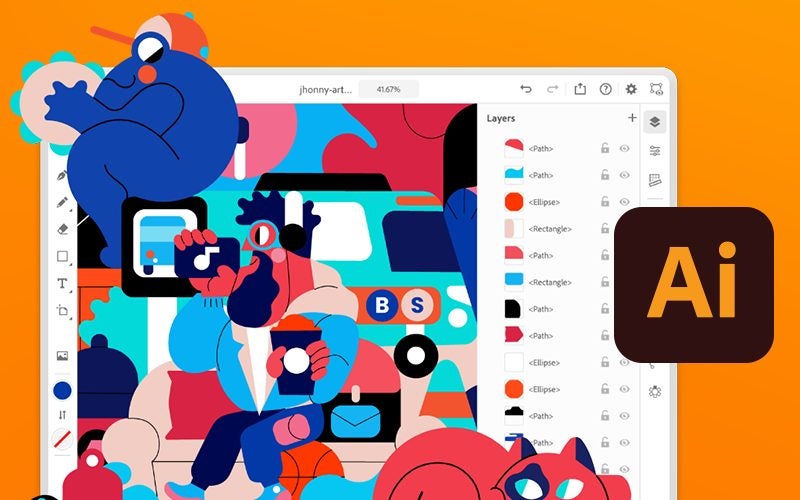
Graphic designers use Adobe Illustrator to create vector graphics. The program’s intuitive interface provides a user-friendly environment with helpful tutorials for both beginners and seasoned professionals. With Illustrator, you can create everything from icons to logos.

Adobe Illustrator offers various tools that are important for designers. Once you understand the basics of selection, shape builder, and other tools, you can create, modify, and combine all types of objects in Adobe Illustrator.

How to build objects with simple vector shapes

When it comes to making logos, icons, and other objects, designers often have a great concept but are unsure of where to begin. The best place to start is with basic shapes. The Adobe Illustrator shape tool can create circles, squares, rectangles, polygons, stars, and much more. Follow these steps to get started in object creation.

  1. Create a shape

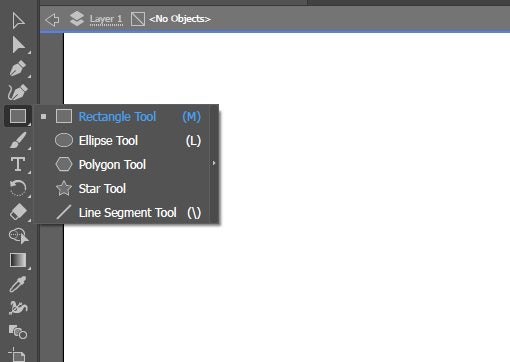
    – The easiest way to create an object in Adobe Illustrator is to use the shape tool. To create a shape, first select the rectangle tool; you’ll find it about five icons down on your in your Toolbar on the left of the screen.

    – If you left-click and hold on the rectangle tool, you’ll see options for rectangle, ellipse, polygon, star, and line segment tool appear as well. Select the shape you wish to create.

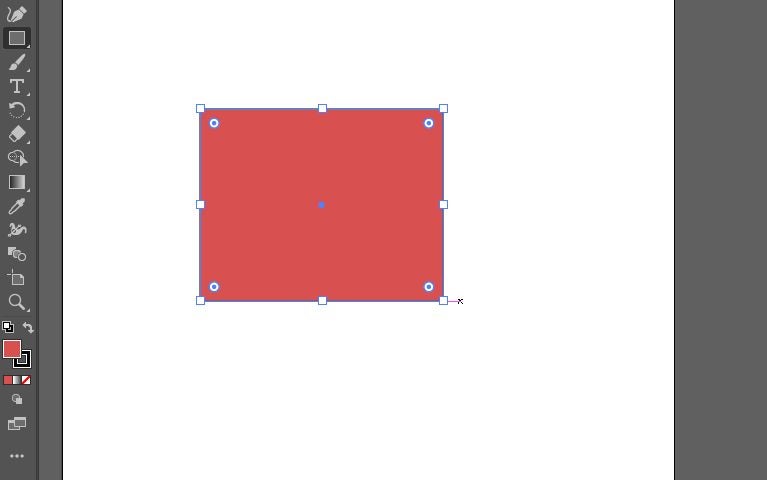
    – Click into the artboard where you want to create the shape. Click and hold the left mouse button to adjust the size of your shape. When you let go of the click, your shape will be created.

    – Add color and an outline to your shape by selecting the fill and stroke tool (the two-box icon) near the bottom of your Toolbar. When you double-click this icon, the color picker will appear. Tip: Hover your cursor over any icon in the Toolbar to find out what that tool is.

  2. Move and resize shapes via the box handles

    – After you’ve placed the shape, you can move and modify it. You’ll do this with the bounding box handles that surround your shape.

    – Select and hold the middle point to move your shape. You can also rotate the shape by clicking away from any handle.

    – To resize, click and drag any of the box handles. If you hold shift while doing this, you’ll constrain proportions. To constrain proportions from the center point while resizing, hold shift and option (MacOS) or alt (Windows).

    • With the off-center box handle, you can create rounded points in your shape.
  3. Creating new shapes with more or fewer points

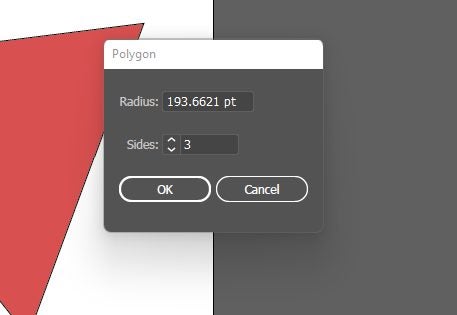
    – To create some shapes, such as a triangle, you’ll need to change the number of sides or points in your polygon. You can do this via the polygon tool.

    – With the polygon tool selected, left-click into the artboard once. A polygon window will appear. You can change the number of sides from here.

    • Another method is to change your shape dynamically by dragging the side widget.
  4. Use the selection tool and shape builder tool to combine

    – If you make multiple shapes, you may want to readjust the different objects individually. To do this, use the selection tool, which is the top arrow in the toolbox. Simply click an object to select it.

    – You can also use the selection tool to select multiple objects. To do this, click off the shapes in your artboard; hold down the left click and drag to create a marquee that highlights all the objects you want to select.

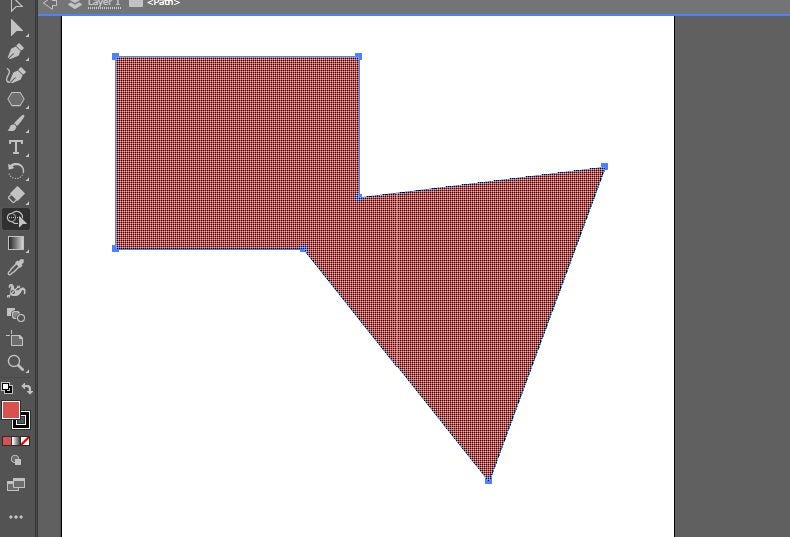
    – Try using the selection tool to move objects on top of each other. This is the first step to combining objects, an important method for designers.

    • To combine shapes, you must first select all the overlapping shapes. Using the shape builder tool, drag a line through all the shapes you want to combine.
  5. Use the shape builder tool to break shapes apart

    – The shape builder tool can also break apart united objects and act as a cookie cutter. To do this, first use the selection tool to select the united shape.

    – Next, select the shape builder tool. This tool automatically functions as an additive tool. To change the function to subtractive, press option (MacOS) or alt (Windows). You’ll see the plus under your cursor change to a minus.

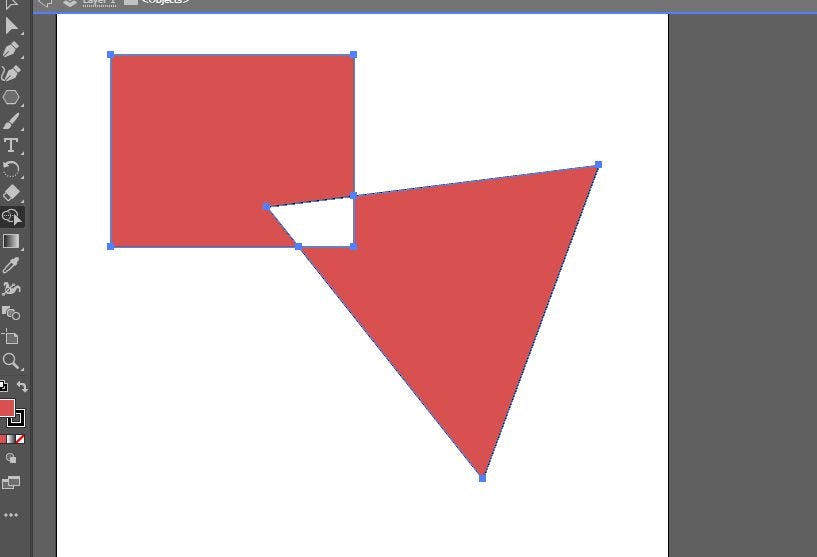
    • With the subtractive function enabled, click on any part of the shape you want to punch out. For example, you can punch out the overlapping space between two objects.

Continue to experiment with Adobe Illustrator

There are certainly many different ways to build objects in Illustrator. However, the above instructions cover the basics you can use to help build any type of object. Don’t be afraid to experiment and combine different methods to build objects in Illustrator.

Your guide to Adobe Creative Cloud Express (formerly Adobe Spark)

Creative entrepreneurs need fast yet effective ways to share their work with the world. Thankfully, Adobe kept the needs of the Creator Economy in mind when it introduced Creative Cloud Express in 2021. Formerly known as Adobe Spark, this free online design platform simplifies the process of creating professional-quality graphics, videos, logos, web pages, and more.   

Social media influencers, bloggers, vloggers, writers, photographers, and content-creating freelancers can all get a lot out of Adobe Creative Cloud Express. The app is designed for creatives of every experience and skill level. To get the most out of Creative Cloud Express, however, you’ll need to understand its tools and features.

Adobe Creative Cloud Express START FOR FREE
9

Using Adobe Creative Cloud Express’ best features

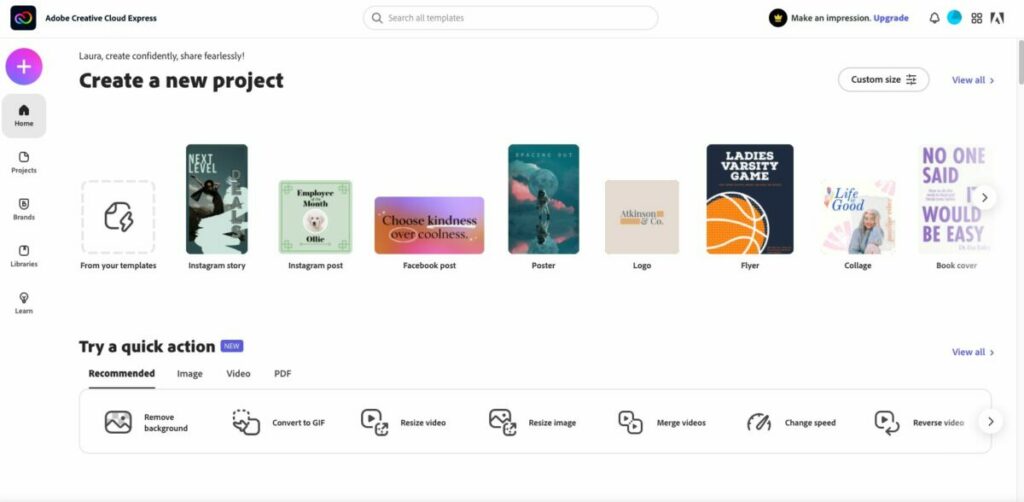
After you download and install Creative Cloud Express, sign in (or create a new) Adobe account. It’s best to explore the sidebar and get familiar with the different pages within the platform. If you’ve ever used Spark, it will look very familiar. Clicking the plus sign in the upper right corner will display all the best Creative cloud features, separated by columns for Create new and Quick actions.

Graphics and design

One of the benefits of Adobe Creative Cloud Express is its wealth of graphic design features. And with easy-to-use tools for adjusting colors, adding filters, and manipulating images–even novice graphic designers can create stunning visuals. The key to getting the most out of Creative Cloud Express is to take advantage of the templates

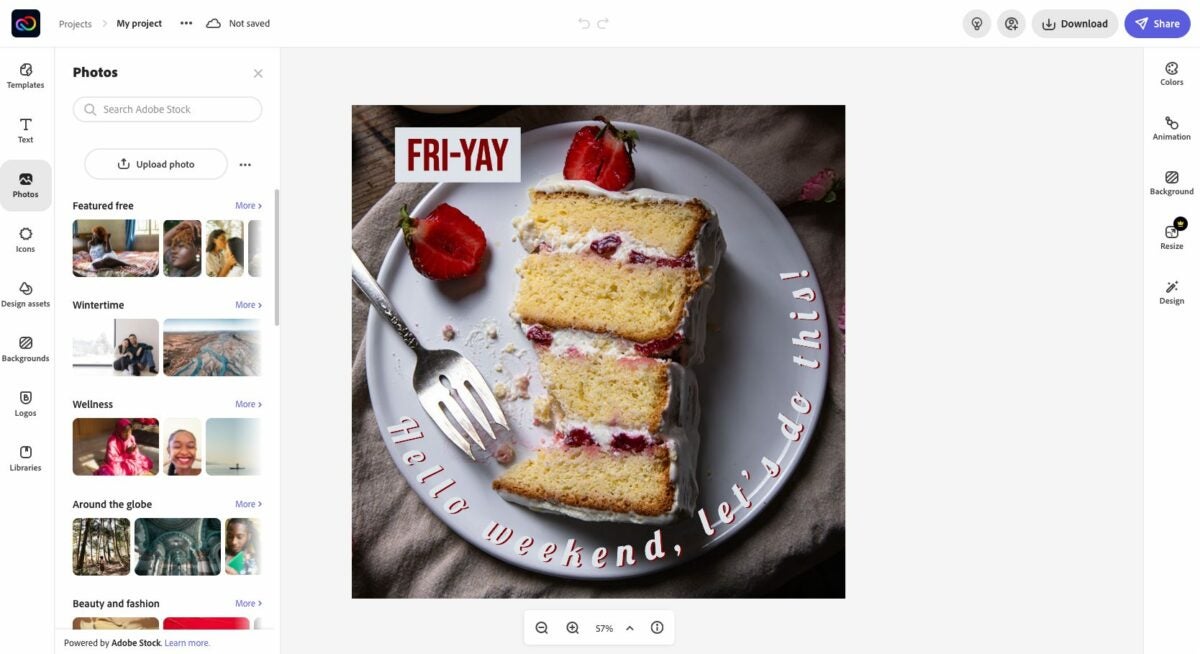
The platform has a massive library with thousands of templates. These professionally designed selections come preloaded with optimal colors, fonts, and more. Whether you’re creating a social media post, flyer, or logo, you’ll find a good starting point in the various library categories. Using the easily customizable templates is preferable to starting fresh with a blank canvas.

Web page design

Adobe Creative Cloud Express also offers a wide range of features that simplify the web page design process. With customizable templates, drag-and-drop elements, and integrated social media sharing tools, it’s easy to create beautiful web pages that represent your brand or personal blog. If you’re new to making a web page, start by selecting one of the provided themes. You’ll see different options like Crisp, Whimsy, and Vintage to match the tone you’re looking for. 

If you already have photos and video to add to your page, Creative Cloud Express has upload options that integrate with pre-set formatting and sizing features. The platform also makes it easy to find and add royalty-free content. The free photos option will search the databases of Flickr and Pixabay. There are also video embed features that make it easy to add YouTube videos to your page.

Adobe Sensei

Adobe Sensei is the artificial intelligence and machine learning technology used by Adobe. It powers a number of features in Adobe Creative Cloud Express, including quick actions. With quick actions, you can easily create a design or video in just a few clicks. All you need to do is select one of the many templates offered on the platform, make some simple edits, and your creation will be ready to share with the world. 

Extra features

There are additional noteworthy features to consider. First is full ContentCal integration. ContentCal is a content calendar built specifically for creatives to help plan, publish, and measure the success of content marketing initiatives. With ContentCal’s integration with Adobe Creative Cloud Express, you can add designs and videos to your content calendar and publish them directly to social media or other channels.

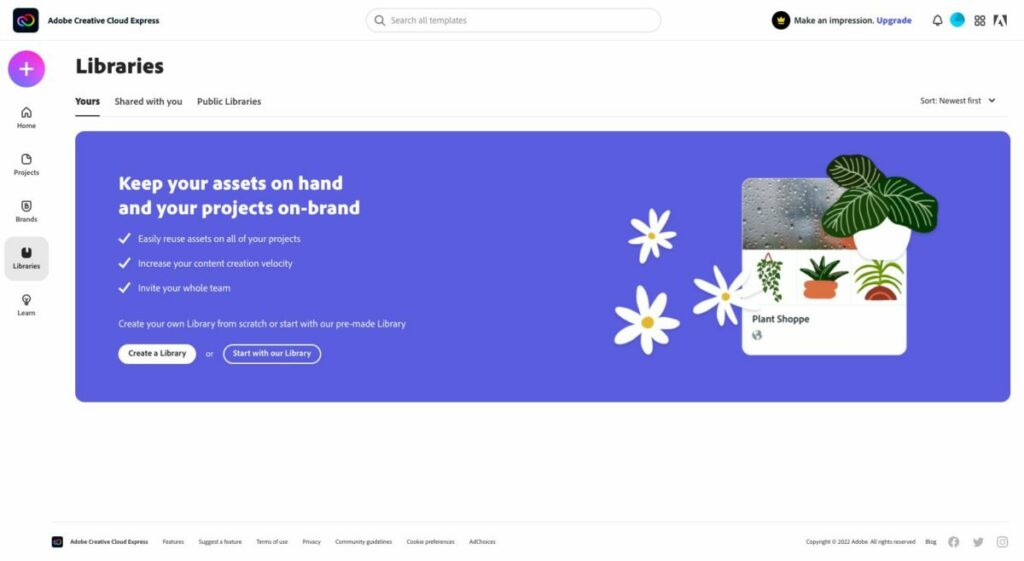
There’s also seamless integration with Creative Cloud Library, a desktop application that lets you access and share your creative assets — such as brushes, fonts, color themes, images, and videos — across Adobe Creative Suite applications. You can also use it to create libraries of projects for easy reuse. 

While the intuitive interface is easy to use, there’s help if you get stuck and don’t know how to proceed. The Adobe Creative Cloud Express User Guide is packed with resources, knowledge, and links. Here you can search by topic, interact with experienced creatives within the community, and live chat directly with someone from Adobe’s customer support team. 

Note: A paid subscription is technically required to chat with a live agent, and although they remind you of that during the connection process, you will still be connected to a live agent whether you have a paid plan or not. The User Guide is accessible at any time from within the platform.

Adobe Creative Cloud Express cost: is it free?

There is no cost for the Creative Cloud Express base app. However, there are upgrade options to unlock more features. If you want to stick with the free version, you’ll get the following for both web and mobile devices: 

  • 1,000+ templates, graphic design assets, and fonts by Adobe
  • Limited access to the Adobe Stock royalty-free image library
  • Base-level editing and photo effect features, which include removing background and animate
  • Up to 2GB of storage

The $9.99 per month premium plan (note: Canva is $12.95) gets you all of that plus:

  • Extra premium-level templates and design features
  • The full collection of royalty-free Adobe Stock photos (more than 160 million)
  • More than 20,000 Adobe Fonts
  • Additional features such as refine cutout, resize, and graphic groups
  • One-tap feature for adding your brand content, fonts, colors, and logo
  • The ability to convert and export to and from PDFs and other file types
  • Users can manage all templates and assets via the Creative Cloud Libraries
  • Up to 100GB of storage

The Creative Cloud Express membership also gives you access to the premium features within Adobe Premiere Rush, Adobe Photoshop Express, Adobe Spark Video, and Adobe Spark Page.

Creativity all around

So there you have it: an overview of what Adobe Creative Cloud Express can do for creatives of all experience levels. Whether you’re looking to start a blog, create graphics for social media, or make professional-quality videos, Adobe Creative Cloud Express has you covered.

Top 5 of Adobe Creative Cloud apps

When it comes to Adobe Creative Cloud, there are plenty of apps integrated with it that you can use. You can use them for videos, photo editing, web, UX, design, and so much more! There’s a massive community that you can join to learn how to become an impressive creator.

Adobe is known for bringing the latest and greatest in digital artwork technology. Their Creative Cloud suite is no exception, bringing together some of the best Adobe desktop apps in one big cloud that syncs seamlessly across your devices.

Here are the top five Adobe Creative Cloud desktop apps (please note that Adobe Acrobat is not mentioned here because it is a part of the Adobe Document Cloud suite).

Photoshop

Adobe Photoshop is the industry standard for digital graphics and image editing and is, by far, the most popular Adobe Creative Cloud desktop app. With capabilities that extend beyond images to include web and graphics design, it’s no wonder that it’s been the go-to software for generations of artists and designers.

It’s worth noting that Photoshop is a raster-based program; it does not export vector files. That said, it can be used to create vector files. Plus, it has a “create vector mask” feature that you can use to vectorize raster images. In both cases, you can save the work as EPS files, which you can then open up in…

Illustrator

The vector-based counterpart to raster-based Photoshop, Adobe Illustrator still reigns supreme as a versatile tool to create any kind of 2D graphics from print material to infographics for the web. With amazing native features such as symbols, image trace, the ability to open and work with AI files, and even converting text into curves — as well as features that Photoshop does not have, like layer comps and an artboard tool — Illustrator is a powerhouse for creators of all levels. It also offers the best third-party support. Just check out their plug-in page to see what we’re talking about.

InDesign

Adobe’s go-to for social media content is now InDesign. It’s the ideal tool for social media content creators. With its easy-to-use drag and drop interface, exporting assets for social media has never been easier. Also, with built-in features like creating animated GIFs and QR codes, you can create engaging and interactive content that will stand out from the rest. InDesign is perfect for creating digital or print publications, presentations, and even simple flyers and posters as well.

Dreamweaver

One of the oldest Adobe desktop apps, Dreamweaver has been a mainstay in web design and development for over two decades. While it may be somewhat complicated to get started with, if you’re looking for a powerful WYSIWYG editor with incredible control and customization options, it’s the way to go. The latest release of Dreamweaver takes it even further with modern code editing tools that aren’t too different from a desktop text editor, plus some very helpful new features for coding.

Even if you’re not a web developer but you want to learn how to build websites, you can use Dreamweaver to see your code side by side with your design work.

Portfolio

Now that you’ve used Photoshop, InDesign, Dreamweaver, and Illustrator to create beautiful work, where are you going to organize and store it all? With Adobe Portfolio, of course! Built into the Adobe Creative Cloud, Portfolio is a quick and easy way to create a portfolio website that will house your best work, with the option to share it on social media. Portfolio is an all-in-one solution for showcasing designs, writing, videos, and more. You can even connect it to your Behance account to get extra exposure.

Check out the Creative Cloud All Apps plan

With the top five Adobe Creative Cloud desktop apps, you have everything you could ever need to be a creative genius. Whether you’re looking for an industry-standard image editor, a top-of-the-line web development tool, or a no-fuss way to share your best work with others, Adobe Creative Cloud has you covered.

These are just five of the apps offered in Adobe’s Creative Cloud suite. If you want even more designing capabilities, look at the Creative Cloud All Apps plan, which provides licensing for all 20-plus Creative Cloud apps.