Creative Cloud Express is a powerful online tool for customizing image files and creating media templates. It is similar to Photoshop, but there is no download or installation required. Instead, you can use an Adobe account to upload the images you wish to work on.
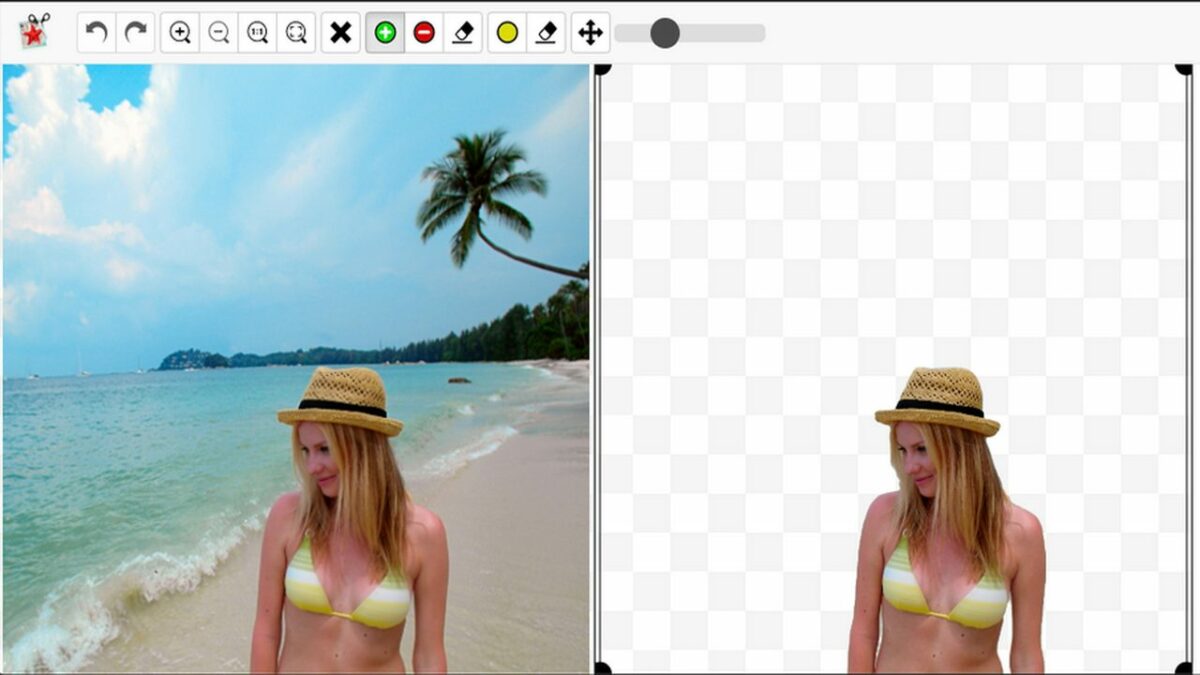
One of the handiest features of Creative Cloud Express is the option to remove the background from your images. Transparent background images can make your creative projects really stand out. The best part is you will not need any specific skills to get the job done. All you need is a few minutes to follow the six simple steps described below.
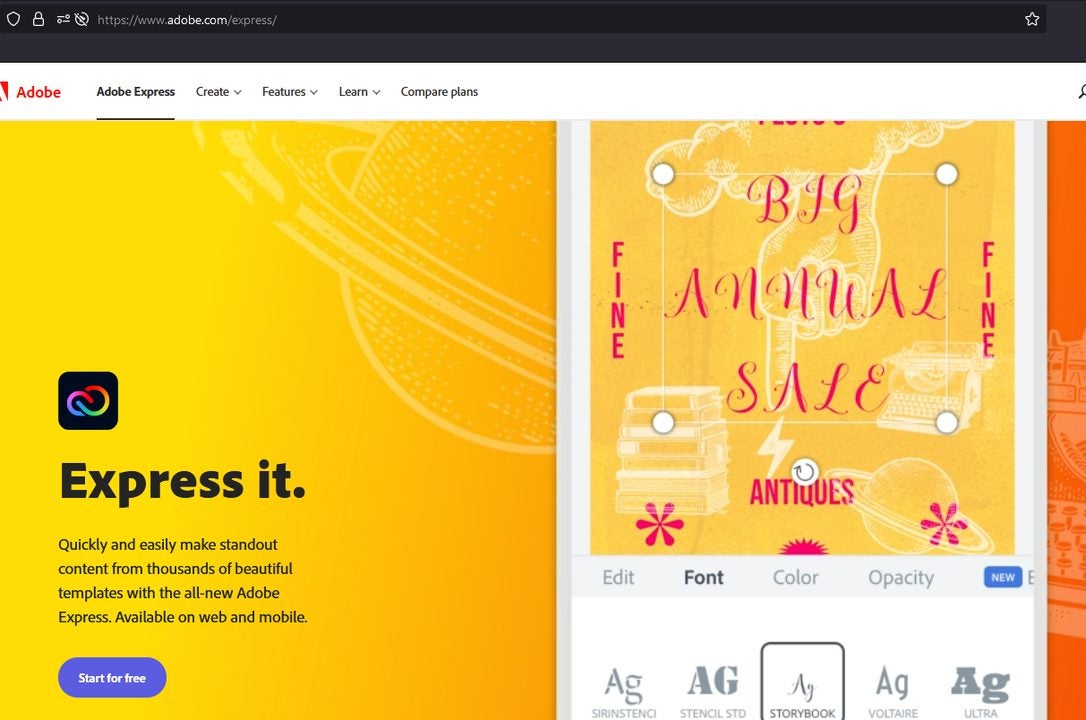
The first step is to log in with your account at Adobe.com. You may also create a free account if you are new to the service.
Enable the remove backgrounds editor
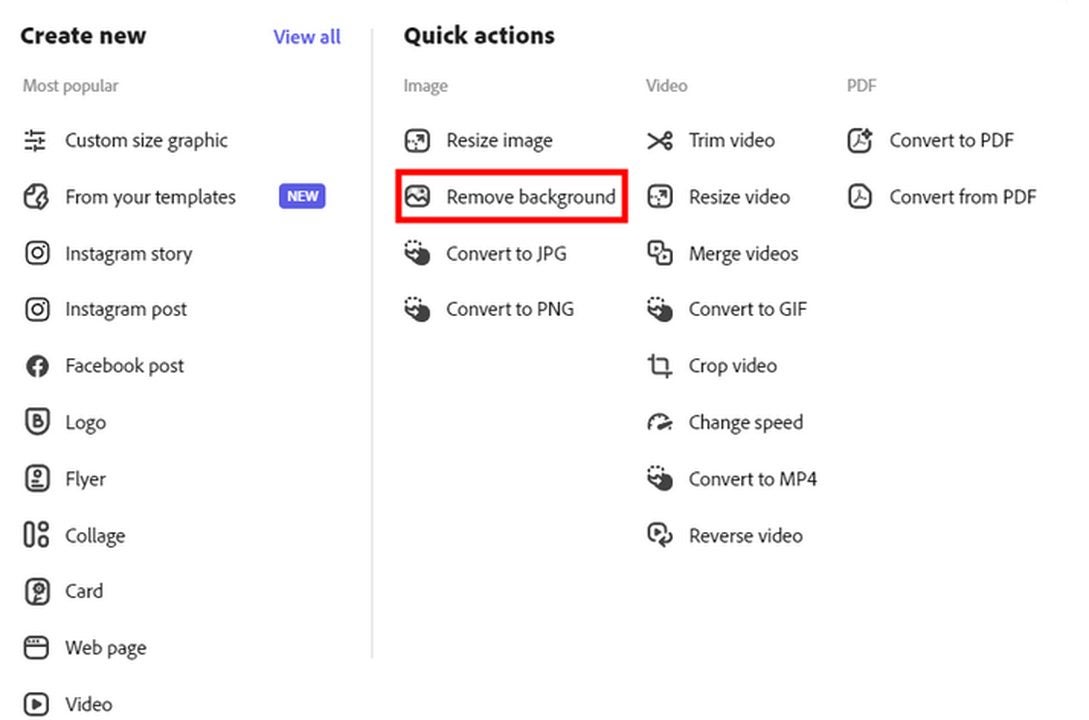
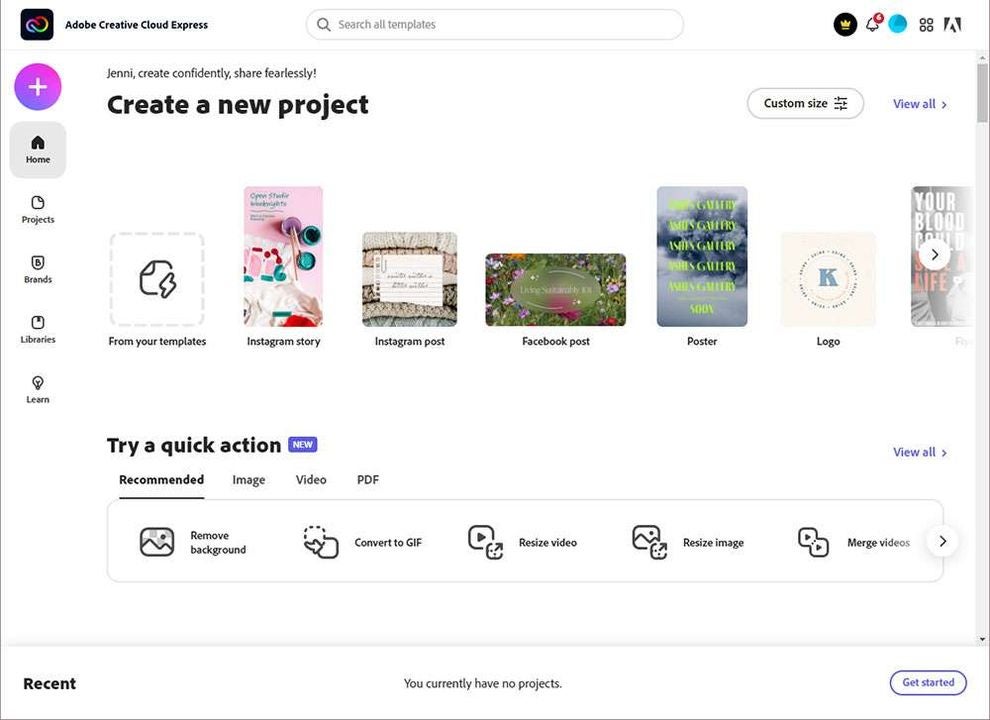
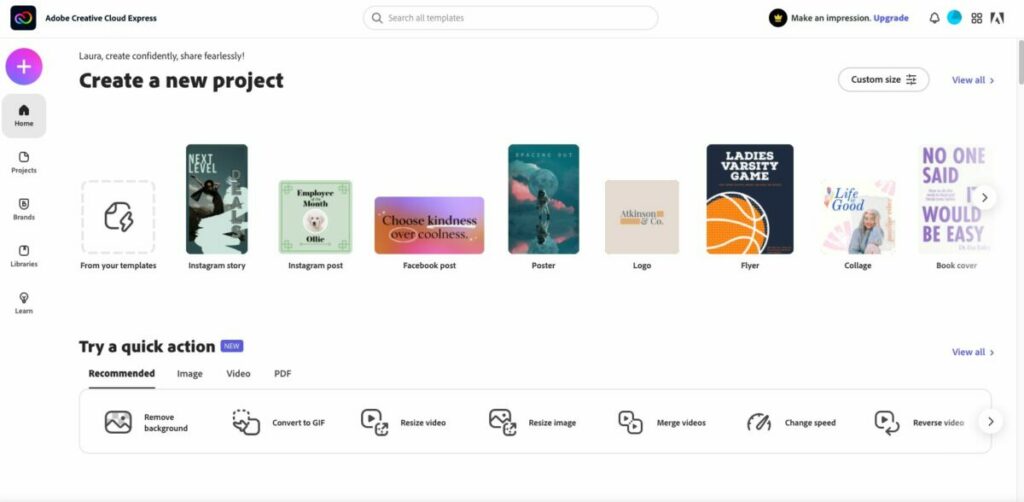
The remove background feature is available entirely online. This means you are not required to download the optional background removal software. Only do this if you anticipate removing backgrounds away from your internet connection. You will need to access the quick actions menu to find the appropriate editing tool. To do this, click the + icon on the main page after logging in. On the list of options to your right, select remove background.
Uploading your image
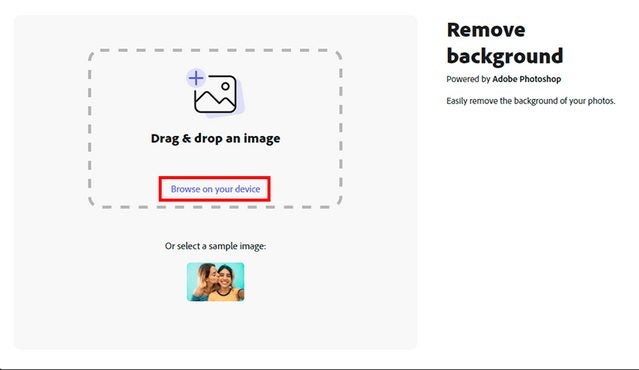
Once the image preview window appears on your screen, click the browse on your device link to open the file browser. In the browser, select which photo you want to remove the background from. Alternatively, you may also drag and drop your image into the window if you already have a file browser or flash drive open.
Allow the auto-processor to work
One of the most convenient aspects of the background removal process is that it is completely automated by Creative Cloud Express. Just sit back and let the magic happen. You will have the option to customize the look of your image in a moment.
Save or share the altered image
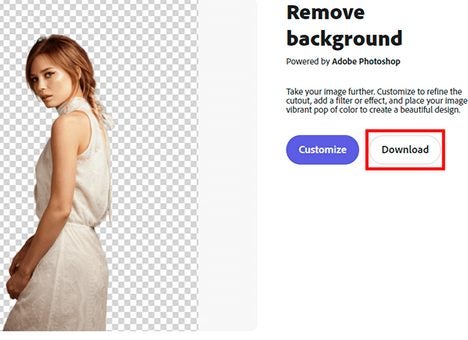
Once the automated background removal process is complete, you have the option of saving the image and then sending it to an external source. You can save the image directly to the current device as a PNG file by clicking the large download button. The new image will appear in your downloads folder in the file browser. If you wish to customize your image first, move on to the next step, and finish it up before clicking the download button.
Add custom flair and refine your image
When previewing your altered image, click the customize button to gain access to a series of new options. If you already downloaded your image by mistake, you could access the same features by selecting start creating from the main menu.
With your image selected on the create/customize screen, you have numerous options at your disposal. You can create text and choose from numerous fonts or colors. You can convert the image into social media posts, thumbnails, wallpapers, and many other media design formats. Choose from Adobe’s range of templates or pick individual design elements to get started. Should you download other images from around the web, you can incorporate them into your designs as well.
Take your images to the next level
The longer you use Creative Cloud Express, the more familiar you will become with the wide range of services on offer. It truly is a one-stop shop for all your creative design ideas. As you become increasingly serious about your creative output, you may wish to check out our Creative Cloud Express expert review. We will explain everything, including the other options on the market. It is always wise to learn more about the range of options available to creatives across the web.
If you own a small business, you know how important online marketing is. You’re probably no less aware of how much time and energy goes into formatting high-definition videos and designing polished-looking graphics that will attract people to your Instagram.
In late-2021, Adobe launched Creative Cloud Express. It’s the replacement product for Adobe’s now-defunct Spark, an accessible and easy-to-use design application for beginners and creative professionals alike. The company’s latest suite of freemium, cloud-based design tools helps small business owners and influencers streamline their social media advertising plans in no time at virtually no cost.
Getting started with Adobe Creative Cloud Express
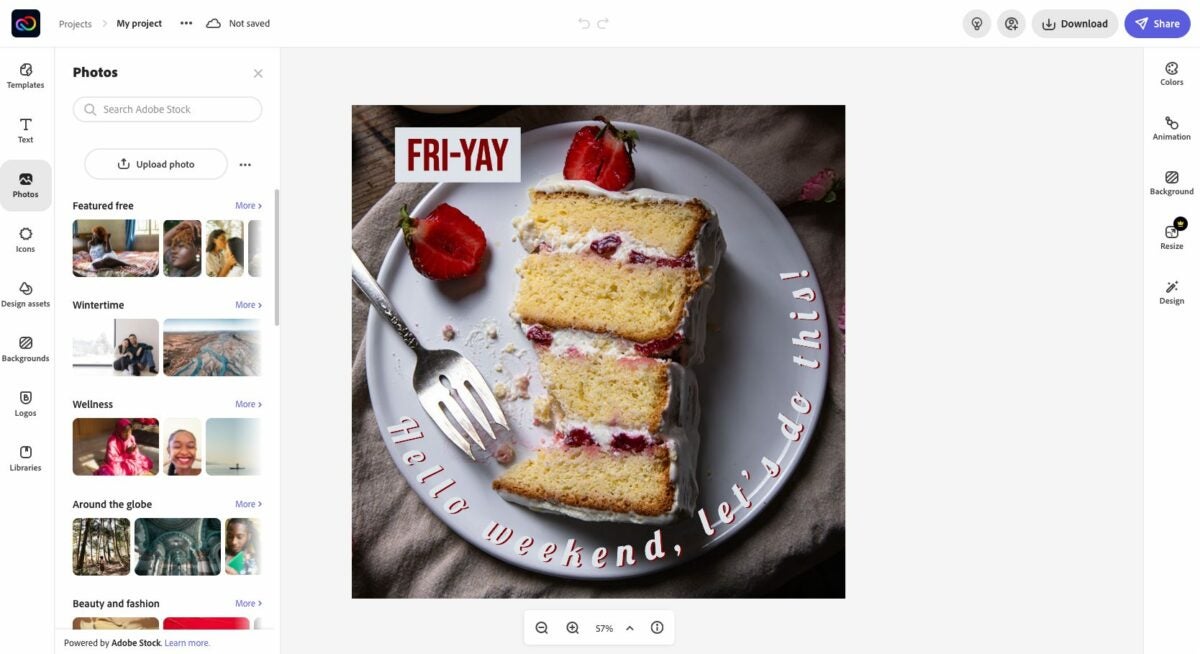
Creative Cloud Express is a template-based application that offers subscribers a myriad free of templates, original fonts, and access to a vast library of royalty-free stock images from Adobe. Perhaps the strongest appeal to using Adobe Express for Instagram is that, unlike dedicated design apps, the software gives you so much complimentary material to work with, making content creation a breeze.
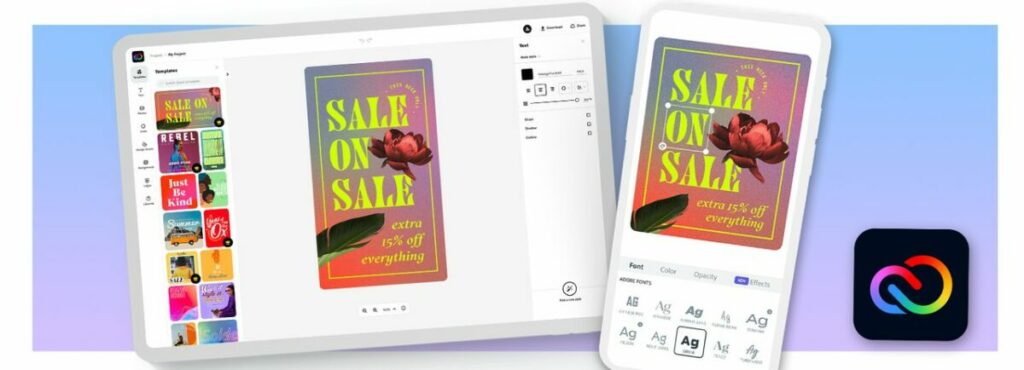
You can use Adobe Express with a PC or mobile device, and the freemium edition comes with a healthy 2GB of storage. In this article, we take a detailed look at how the gratis version of Creative Cloud Express can take your Instagram business profile to new heights after just a few minutes of seamless effort.
Sign up and choose your Instagram template
If you have an existing Adobe Creative Cloud account, use your credentials to access the app. If not, create a new profile. The app asks you to respond to a few prompts about its intended use after downloading it. This information helps the program decide which templates will be most effective for your purposes. Adobe Express even goes so far as to assess your current skill level with design apps to determine how much direction to give you.
After navigating to the primary dashboard, choose one of the Instagram-specific templates to launch your project. If you’ve been worried about designing intricate graphics for your brand on Instagram, you’ll notice straight away how simple Creative Cloud Express makes things with its no-frills design concepts. Content on platforms like Instagram holds a low shelf life. It makes little sense to spend too much time consternating over your Instagram marketing materials.
Adobe Express supplies the necessary tools to hold viewer attention with clean and professionally designed templates. Streamlined access to the suite of original material means you can budget your time accordingly, even automating postings while offline with the Content scheduler. Creative Cloud Express provides simple but effective visual templates to kickstart user engagement with your page.
Explore your branding options
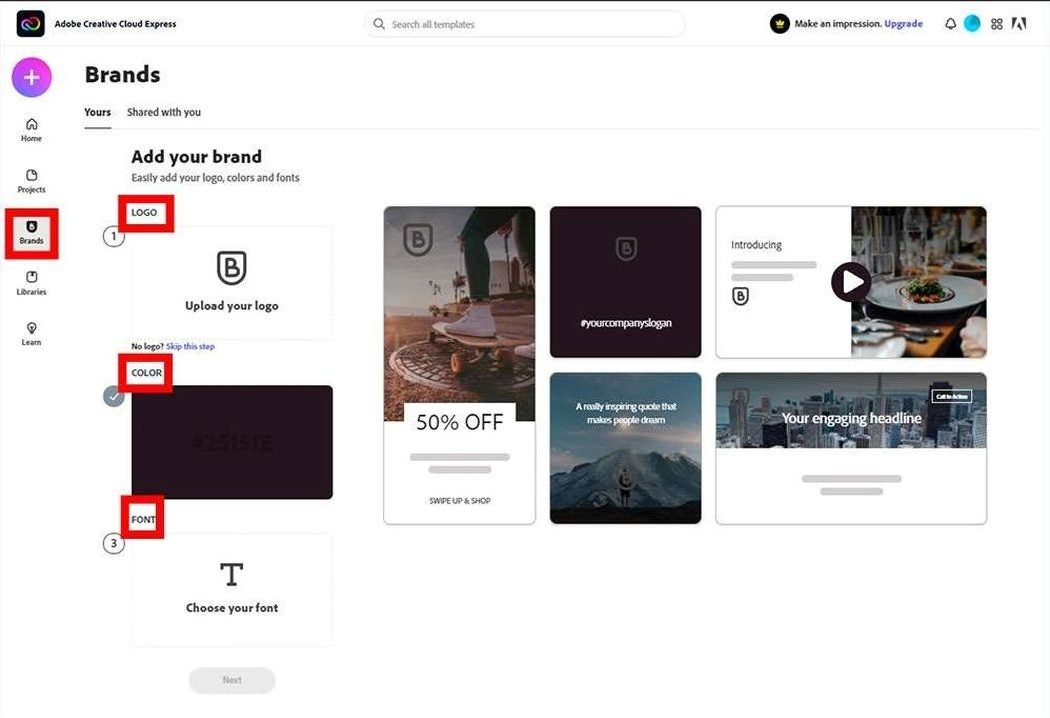
While Adobe Express is template-based for ease of use, your images are highly customizable. The Add your brand option allows you to upload your company logo. You can then further develop your brand image by adding customized text, different colored backgrounds, and pre-designed templates through a basic layering process.
Choose from several design categories, including sales and promotion, events, lifestyle, and seasonal. After you’ve uploaded your logo and selected your preferred template, click the Edit text placeholder on the right. This tool allows you to change the placeholder text and incorporate your own unique marketing message. Edit text lets you change the font color and size, add shadow, and alter the font style. The application yields a multitude of accessible and complete templates, yet they are each customizable enough to help ensure you stay on brand.
Create a dynamic Instagram story
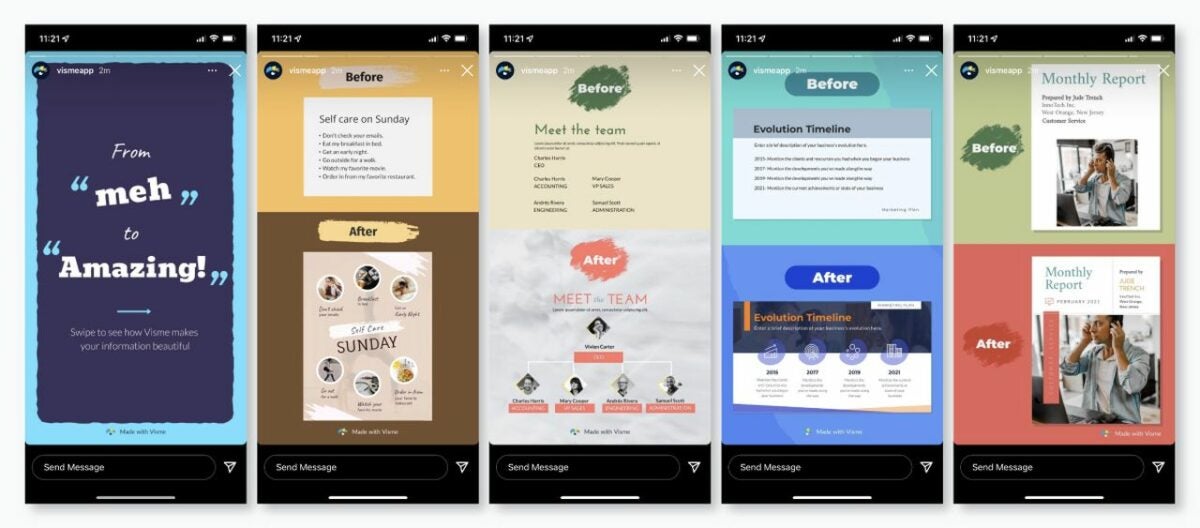
Upon mastering basic still image creation with Adobe Express templates, try making an animated Instagram story using a few slightly more advanced features in the application. Start by returning to the dashboard and clicking on Projects from the top left menu. Selecting the purple + sign instigates a new project and reveals an array of options.
Click Instagram story. This brings up several preset template options again. Choose your preferred template and use the layers to apply various elements to your image. You’ll discover countless design elements to draw from in the dashboard. The Background option from the right-hand menu allows you to apply borders while Adobe uses its Sensei machine-learning to resize your content as the background changes.
A quick glance at using Creative Cloud Express for Instagram
Adobe Express is simple to use, requiring no previous experience, but even professional designers are impressed by its versatility. Adobe offers generous access to its impressive library of stock images, and you should find yourself rather hard-pressed to maximize your freemium creative options before hitting the paywall. To learn more about this app’s features, read through our guide to Creative Cloud Express.
Adobe introduced Creative Cloud Express, its graphic design application for Windows, Android, and iOS, in December 2021. The app offers seasoned creative professionals and beginners a way to generate social sharing content quickly via a drag-and-drop interface. As users became acclimated with the software, they noticed it lacked an integrated social media scheduling tool — a feature Adobe launched on May 11, 2022.
To better align the software with direct competition like Canva, Adobe is introducing content planning scheduling to Creative Cloud Express subscribers. Adobe Express caters to social media content creators and advertising professionals, and this tool enables them to release their materials on a scheduled basis directly from the app. Without this integrated function, Creative Cloud Express users would have to pay for a standalone social media scheduling tool or move on to a competitor like Canva Pro.
Express’ content scheduler will simplify social media posting
The introduction of a content scheduler to Adobe Express follows the company’s recent initiative to draw upon and converge their powerful dedicated apps like Photoshop and Illustrator to form a comprehensive visual communications platform. The content scheduler will let Creative Cloud Express customers design, schedule in advance, and post their original media content to the most popular sharing platforms, including Facebook, Instagram, Twitter, and YouTube.
At the time of this writing, it’s unclear if the new content scheduler will be restricted to Instagram Business accounts only, which is how the feature is offered in Canva Pro. This new convenient feature does, however, bring the software’s media design and distribution tools under one subscription. The addition of content scheduling, a much-anticipated bonus for Creative Cloud Express subscribers, takes Adobe’s promise to deliver an accessible and well-streamlined workflow one step further.
By launching its new content scheduling and planning feature, Adobe Express lets subscribers time the release of their images without continually monitoring their devices or signing up for another software product. Creative Cloud Express has already proven to be an impressive source of inspiration for social content design. The newly integrated multi-platform sharing capabilities under a centralized hub should thrill current subscribers.
E-commerce now reigns as the new normal, and small businesses and digital advertisers need simple, inexpensive creative solutions to help target niche audiences and market their products quickly. Adobe has stepped up to meet the burgeoning demand for a fast and easy-to-use design product in its largely template-based Creative Cloud Express, the graphic design software company’s revamped version of Adobe Spark.
Initially released in December of 2021, Adobe Creative Cloud Express (also known as Adobe Express and CC Express) utilizes simple drag-and-drop technology within a unified task-based app that works with mobile devices and PCs. The software enables non-designers to swiftly generate polished, original multimedia content for their social sharing accounts. Digital marketers like Creative Cloud Express as an affordable solution for creating marketing materials like brand logos and web banners.
One of the latest additions to Adobe’s renowned assemblage of digital design apps, Creative Cloud Express is an inexpensive, user-friendly alternative to competitors like Canva, PicsArt, and the software company’s own Illustrator. While many claim Adobe Express is just a rebranded update to Spark, developers at Adobe have implemented several noteworthy changes.
Here are the features Adobe added to CC Express in April 2022:
Color palette creator: This feature generates palettes with suggested color combinations.
Font recommendations: Under More Fonts, there’s a tool for suggested font pairings.
Mobile video quick actions: These include quick actions for cropping, video speed, and more.
Generate QR Code quick action: This tool simplifies the process of creating QR codes through Adobe.
Convert to SVG quick action: This tool now supports SVG along with other file formats.
With these additions, Creative Cloud Express finds a comparatively wider audience than Spark and other content creation tools like Photoshop Express and Premiere Rush. The app is not, however, aimed at seasoned creative professionals who can render original design results with traditional tools like Illustrator. Instead, Adobe Express adopts several core features from multiple dedicated applications from Adobe and their AI tools to make the software more accessible and easier to use.
Adobe Express is made for fast design solutions
Adobe Express is an optimal design solution for students, online advertisers, and small business owners who routinely create anything from social media posts to promotional videos and self-branded logos. The software retains its simple interface by utilizing a template-first approach that is far more intuitive and simple to access than the individual creative apps discoverable in Adobe’s full Creative Suite.
Adobe’s extensive library of drag-and-drop templates and Sensei machine-learning technology translate to a well-streamlined user experience for beginners with little to no design experience. The general idea behind the app is that it is the perfect tool for people trying their hand at graphic design for the first time and small business owners who want to avoid the extra overhead of a professional design service. Moreover, the continuous access to Adobe’s updated Creative Cloud libraries and the suite’s collaborative and sharing features are among the app’s several top advantages.
How does Adobe Creative Express work?
Adobe developed Creative Cloud Express to be quick and easy to start using, even if it is your first time trying graphic design software. It is a web-based application, and all you need to launch the program is a desktop PC or mobile device and a stable internet connection. Before you get going, you must create an Adobe account to access the freemium edition or sign in to your existing profile. The app delivers itself via the Cloud, and you can access mobile versions of Adobe Express that replicate the web edition of the software.
While Adobe express is a template-based app, you can tailor it for your specific design needs. Some templates are laid out for Instagram stories, while others lend themselves best toward materials like YouTube thumbnails and advertising fliers. By clicking Show All, you can reveal the available categories. Housed within the specified categories is an impressive library of template options associated with the type of media you wish to create.
If you’re working with the free but limited version of Adobe Express, you will notice the Adobe premium template offerings mixed in with the free samples. The welcome filter allows you to separate the two products easily, however. As you grow more comfortable with the software, it’s easy to create your own templates from scratch and save them. But most users find that the advanced features in Creative Express tend to negate the general purpose of the app, which is to help speed the creative process along. If you do feel like indulging your creative senses, the app allows you to customize existing templates for a more original design.
Customizing your creations
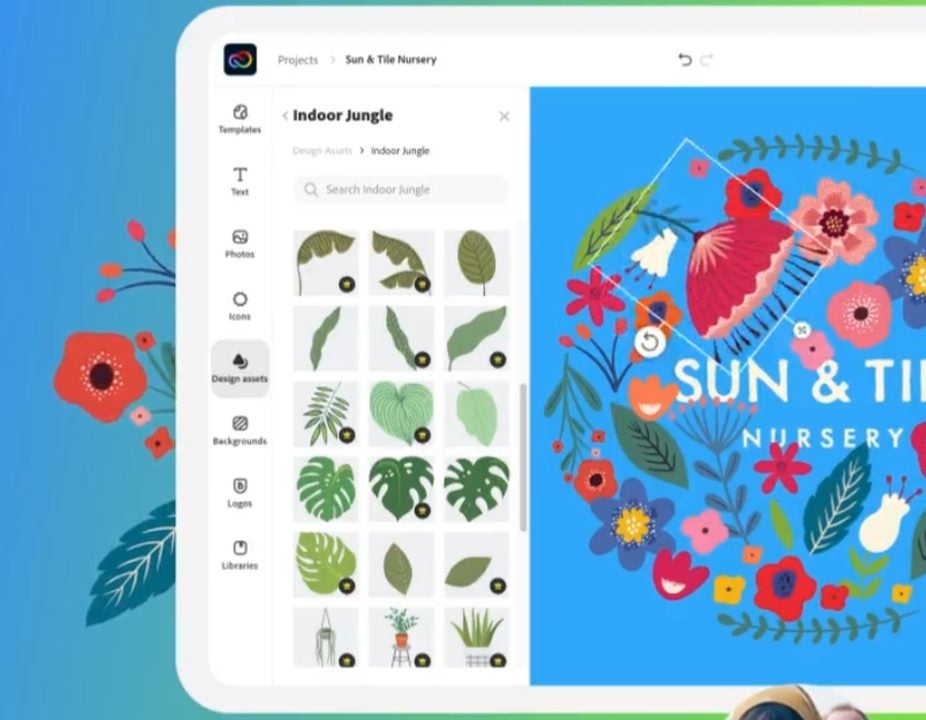
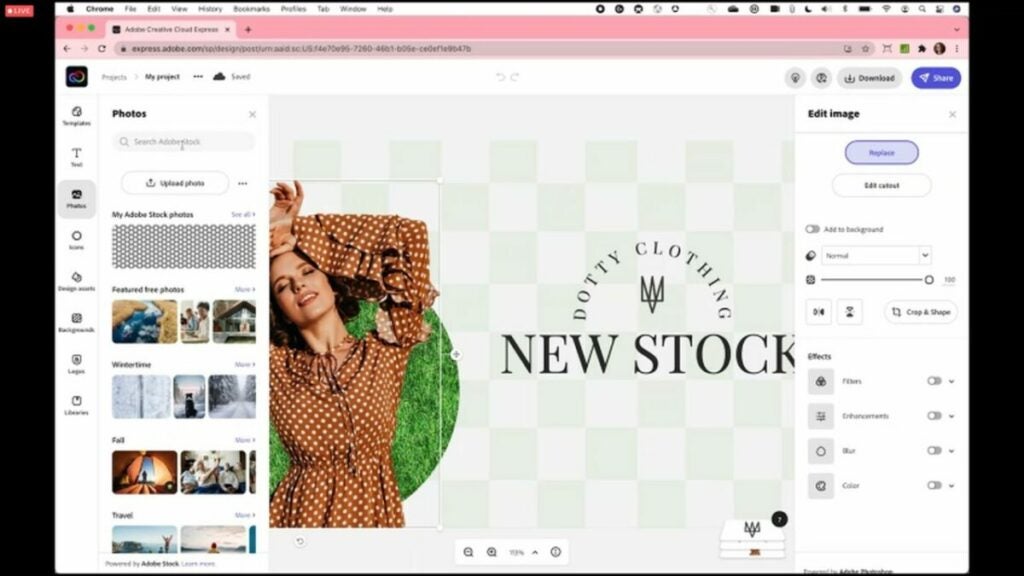
Once you’re in the app, you’ll find a well-organized editing space. Off to the left, there are a set of graphics that you can add to your design image. This section contains text tools, Adobe Stock images, a vast selection of black and white icons, backgrounds, and more features. Off to the right of your display are the pre-set color palettes, several layout options, and all the necessary tools to bring your design to life. The middle of the page gives an accurate preview of your work in progress.
After you select the object you are working on, the right side of your workspace displays an Edit Image sidebar. This advanced menu feature gives you the option to remove the background from your canvas automatically, an impressive function usually reserved for more heavyweight applications like Illustrator or Photoshop. Not unlike those two apps, you may have to work with it, and the success of the edit depends upon factors like high image contrast and the type of background you have.
Edit Image also lets you play with functions like image opacity, cropping and masking, and other rudimentary digital photo edits like background blur, color filters, and general image enhancements. When you click on a text field, a set of text editing tools automatically replaces your current sidebar display. While limited compared to the Adobe professional software design packages and apps, this toolset is sufficient for making sharp-looking edits quickly.
As with Photoshop, its more advanced counterpart, image editing in Adobe Express assembles your projects in layers. The process is ostensibly more simplified in the sense that you’re just arranging objects on top of each other. You can, however, track the sequences of edits in layers at the lower right of your canvas and rearrange them according to your desired results.
Is Creative Cloud Express just for beginners?
As you can see, Adobe’s Creative Cloud Express accomplishes a lot with a rather limited toolset. It’s not just forstudents and entry-level creatives interested in familiarizing themselves with basic design software. While the app is undeniably a great starting point for beginners, its powerful image and photo enhancement features allow you to pull off Illustrator and Photoshop-like projects in a fraction of the time.
The creative expediency of Adobe Express is a fantastic value-add for experienced design professionals who work with visual images in high volumes and need to deliver their messages quickly. Professional tools like Illustrator and Photoshop lend themselves well to virtually limitless invention, but most digital marketing agencies, for instance, simply don’t have the time or resources to build a unique vision with every post.
For those who don’t obsess over the deeper elements of their multimedia content, Creative Cloud Express offers a capable and effective set of editing tools and design templates. Some functions like undoing edits and object selection may not be as accessible and accurate as more robust creative applications from Adobe, but Adobe Express is undoubtedly the most affordable product for generating professional-looking multimedia content quickly and with minimal effort overall.
An excellent value for the money
Creative Cloud Express won’t replace professional design tools like Illustrator and Photoshop, but it’s a hugely accessible app for beginners and an outstanding tool for busy creative professionals who need to turn polished Web content around quickly. Enjoy Creative Cloud Express for Web Apps at no cost today. Looking for Adobe Express alternatives? Check out our guide to using Canva.
Pros
Practical and powerful image editing
Free version provides 2GB of storage
Affordable, professional-grade graphics
Template-based for faster workflows
Easy-to-use, comprehensive software
An affordable option for beginners
Powerful social media creation tool
Access to Adobe Stock Images and template library
Compatible with most major social sharing platforms
Creative entrepreneurs need fast yet effective ways to share their work with the world. Thankfully, Adobe kept the needs of the Creator Economy in mind when it introduced Creative Cloud Express in 2021. Formerly known as Adobe Spark, this free online design platform simplifies the process of creating professional-quality graphics, videos, logos, web pages, and more.
Social media influencers, bloggers, vloggers, writers, photographers, and content-creating freelancers can all get a lot out of Adobe Creative Cloud Express. The app is designed for creatives of every experience and skill level. To get the most out of Creative Cloud Express, however, you’ll need to understand its tools and features.
After you download and install Creative Cloud Express, sign in (or create a new) Adobe account. It’s best to explore the sidebar and get familiar with the different pages within the platform. If you’ve ever used Spark, it will look very familiar. Clicking the plus sign in the upper right corner will display all the best Creative cloud features, separated by columns for Create new and Quick actions.
Graphics and design
One of the benefits of Adobe Creative Cloud Express is its wealth of graphic design features. And with easy-to-use tools for adjusting colors, adding filters, and manipulating images–even novice graphic designers can create stunning visuals. The key to getting the most out of Creative Cloud Express is to take advantage of the templates.
The platform has a massive library with thousands of templates. These professionally designed selections come preloaded with optimal colors, fonts, and more. Whether you’re creating a social media post, flyer, or logo, you’ll find a good starting point in the various library categories. Using the easily customizable templates is preferable to starting fresh with a blank canvas.
Web page design
Adobe Creative Cloud Express also offers a wide range of features that simplify the web page design process. With customizable templates, drag-and-dropelements, and integrated social media sharing tools, it’s easy to create beautiful web pages that represent your brand or personal blog. If you’re new to making a web page, start by selecting one of the provided themes. You’ll see different options like Crisp, Whimsy, and Vintage to match the tone you’re looking for.
If you already have photos and video to add to your page, Creative Cloud Express has upload options that integrate with pre-set formatting and sizing features. The platform also makes it easy to find and add royalty-free content. The free photos option will search the databases of Flickr and Pixabay. There are also video embed features that make it easy to add YouTube videos to your page.
Adobe Sensei
Adobe Sensei is the artificial intelligence and machine learning technology used by Adobe. It powers a number of features in Adobe Creative Cloud Express, including quick actions. With quick actions, you can easily create a design or video in just a few clicks. All you need to do is select one of the many templates offered on the platform, make some simple edits, and your creation will be ready to share with the world.
Extra features
There are additional noteworthy features to consider. First is full ContentCal integration. ContentCal is a content calendar built specifically for creatives to help plan, publish, and measure the success of content marketing initiatives. With ContentCal’s integration with Adobe Creative Cloud Express, you can add designs and videos to your content calendar and publish them directly to social media or other channels.
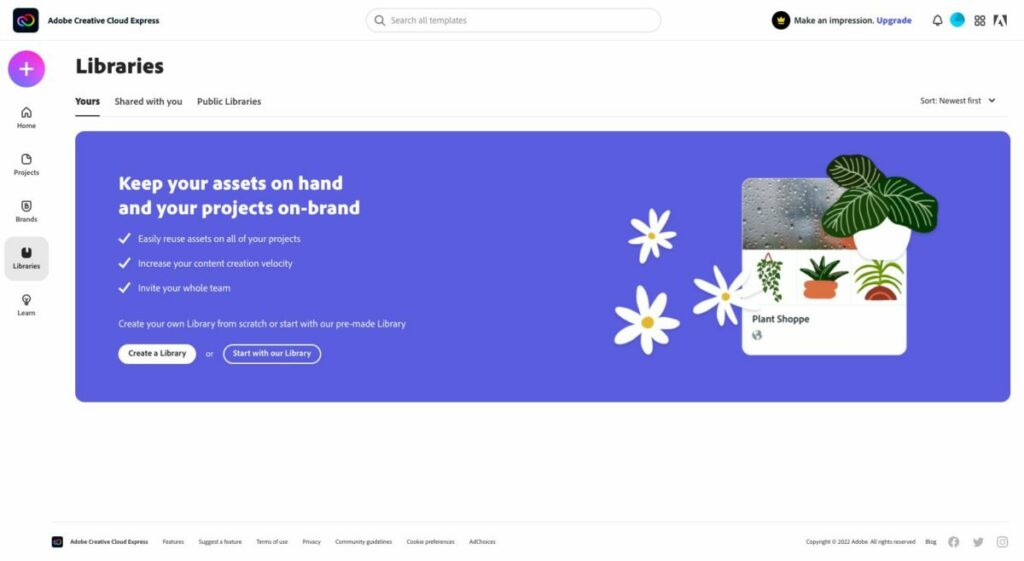
There’s also seamless integration with Creative Cloud Library, a desktop application that lets you access and share your creative assets — such as brushes, fonts, color themes, images, and videos — across Adobe Creative Suite applications. You can also use it to create libraries of projects for easy reuse.
While the intuitive interface is easy to use, there’s help if you get stuck and don’t know how to proceed. The Adobe Creative Cloud Express User Guide is packed with resources, knowledge, and links. Here you can search by topic, interact with experienced creatives within the community, and live chat directly with someone from Adobe’s customer support team.
Note: A paid subscription is technically required to chat with a live agent, and although they remind you of that during the connection process, you will still be connected to a live agent whether you have a paid plan or not. The User Guide is accessible at any time from within the platform.
Adobe Creative Cloud Express cost: is it free?
There is no cost for the Creative Cloud Express base app. However, there are upgrade options to unlock more features. If you want to stick with the free version, you’ll get the following for both web and mobile devices:
1,000+ templates, graphic design assets, and fonts by Adobe
Limited access to the Adobe Stock royalty-free image library
Base-level editing and photo effect features, which include removing background and animate
Up to 2GB of storage
The $9.99 per month premium plan (note: Canva is $12.95) gets you all of that plus:
Extra premium-level templates and design features
The full collection of royalty-free Adobe Stock photos (more than 160 million)
More than 20,000 Adobe Fonts
Additional features such as refine cutout, resize, and graphic groups
One-tap feature for adding your brand content, fonts, colors, and logo
The ability to convert and export to and from PDFs and other file types
Users can manage all templates and assets via the Creative Cloud Libraries
Up to 100GB of storage
The Creative Cloud Express membership also gives you access to the premium features within Adobe Premiere Rush, Adobe Photoshop Express, Adobe Spark Video, and Adobe Spark Page.
Creativity all around
So there you have it: an overview of what Adobe Creative Cloud Express can do for creatives of all experience levels. Whether you’re looking to start a blog, create graphics for social media, or make professional-quality videos, Adobe Creative Cloud Express has you covered.