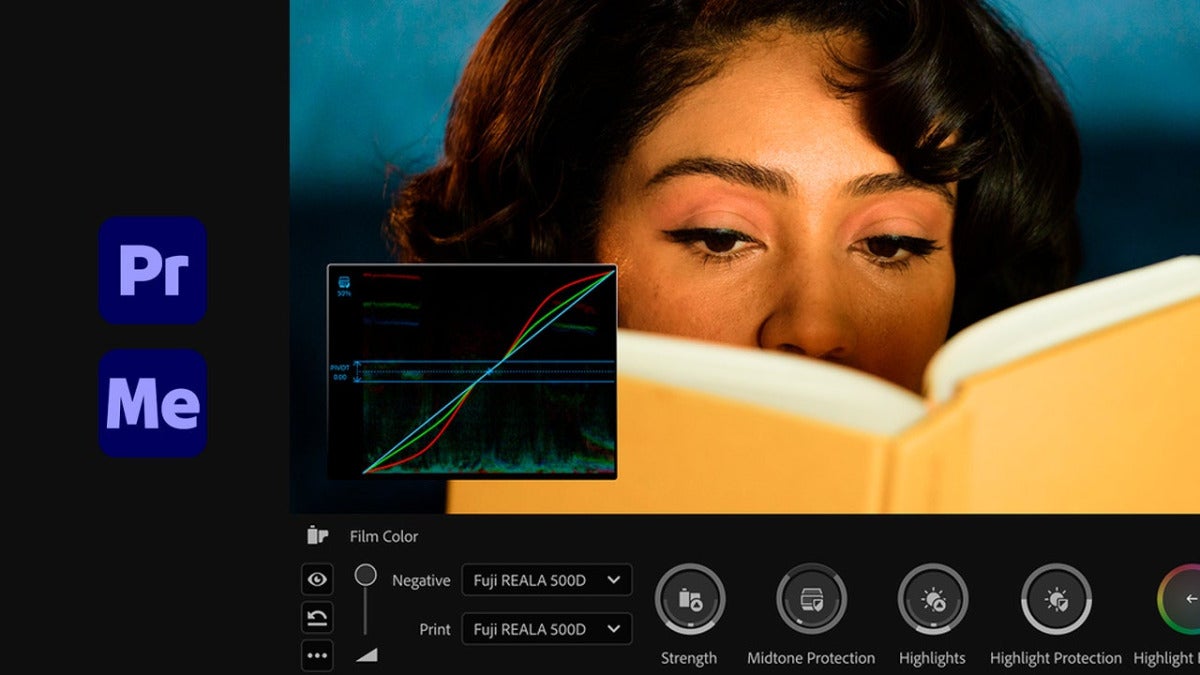
In our view, Adobe Media Encoder is the best video compression software in 2026. There are plenty of reasons, starting with how closely it works with two other titans of the Adobe suite: Adobe Premiere and Adobe After Effects.

Below, we compare it with the main alternatives, both free and paid, so that shrinking your files without sacrificing quality isn't a headache for anyone.
What is the best video compression software in 2026?
Without a doubt, our first recommendation is Adobe Media Encoder. Adobe's encoding and transcoding app is built by creatives, for creatives, and it shows in many of its features.
Perhaps the most striking feature, and the one we use most, is that it can run in the background while we work in Adobe Premiere or Adobe After Effects. We send the export to Media Encoder and carry on editing or creating effects without interrupting our workflow.
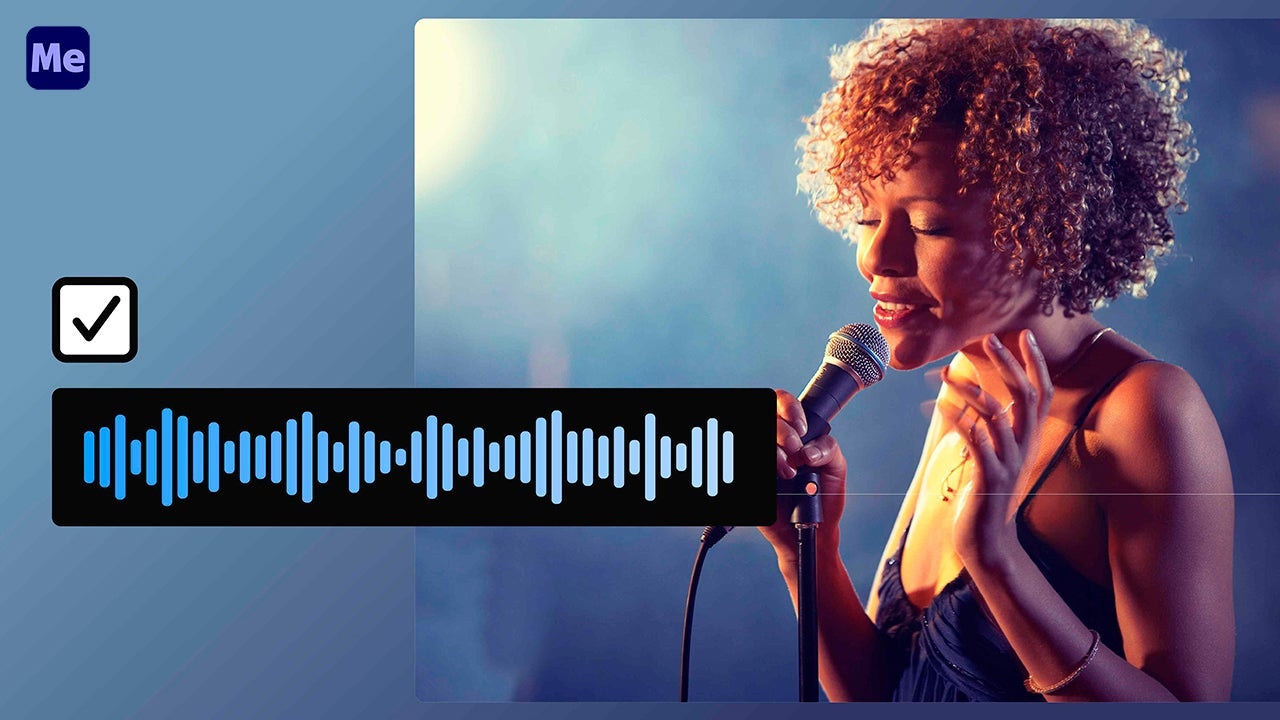
Touches like this show how well Adobe understands the way video editors actually work. Premiere can export on its own, of course, but that ties up the app until the export finishes. When you can't afford to stop editing, Media Encoder is the answer.
There are other video compression programs worth considering:
- HandBrake: free and open source, with easy-to-use presets. Its main limitation is output, since it only exports to MP4, MKV and WebM.
- Shutter Encoder: also free, and it supports many more formats. Its developer funds it through optional donations.
- DaVinci Resolve: the free version is surprisingly complete and exports up to 4K at 60 fps without a watermark. DaVinci Resolve Studio, a one-time $295 purchase, raises that ceiling to 32K at 120 fps. It's designed more for editing than for compression as such.
- FFmpeg: free, open source and command-line only. It covers almost every codec, but we only recommend it for the more technically minded.
- Clideo: our pick among online compressors. It works in the browser, but the free version adds a watermark to exports and limits uploads to 500 MB per file. A paid Pro plan removes both limits.
Is Adobe Media Encoder free or included with Premiere?
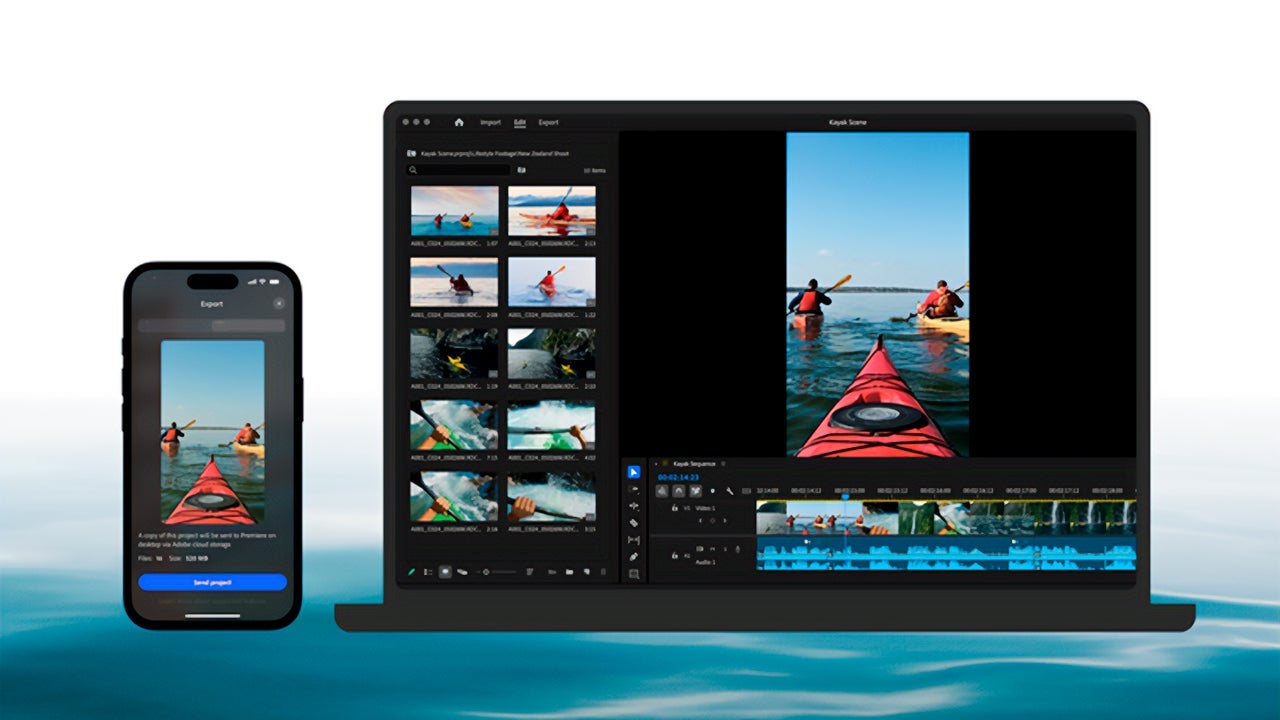
Adobe Media Encoder isn't sold separately. It comes included with Adobe Premiere, Adobe After Effects and Creative Cloud Pro, and you can try it free for seven days from Adobe's website without having Premiere installed.
If you already edit in Premiere, you have Media Encoder too. Even so, our recommendation is Creative Cloud Pro, because it adds more than 20 Adobe apps to the same subscription. Here's how the two options compare:
- Adobe Premiere: $22.99 a month (annual plan, billed monthly), with Media Encoder included.
- Creative Cloud Pro: regularly $69.99 a month on the same plan. It gives you access to more than 20 apps, including Adobe Premiere, After Effects and Media Encoder, as well as Adobe Firefly's creative AI. Promotional discounts are sometimes available, so it's worth checking before you subscribe.
How can I compress a video without losing quality?
Before touching any settings, ask yourself what the video is for. YouTube, for example, re-encodes everything you upload, so exporting far above its recommended upload settings only gives you a heavier file and a longer upload, with little or no visible gain.
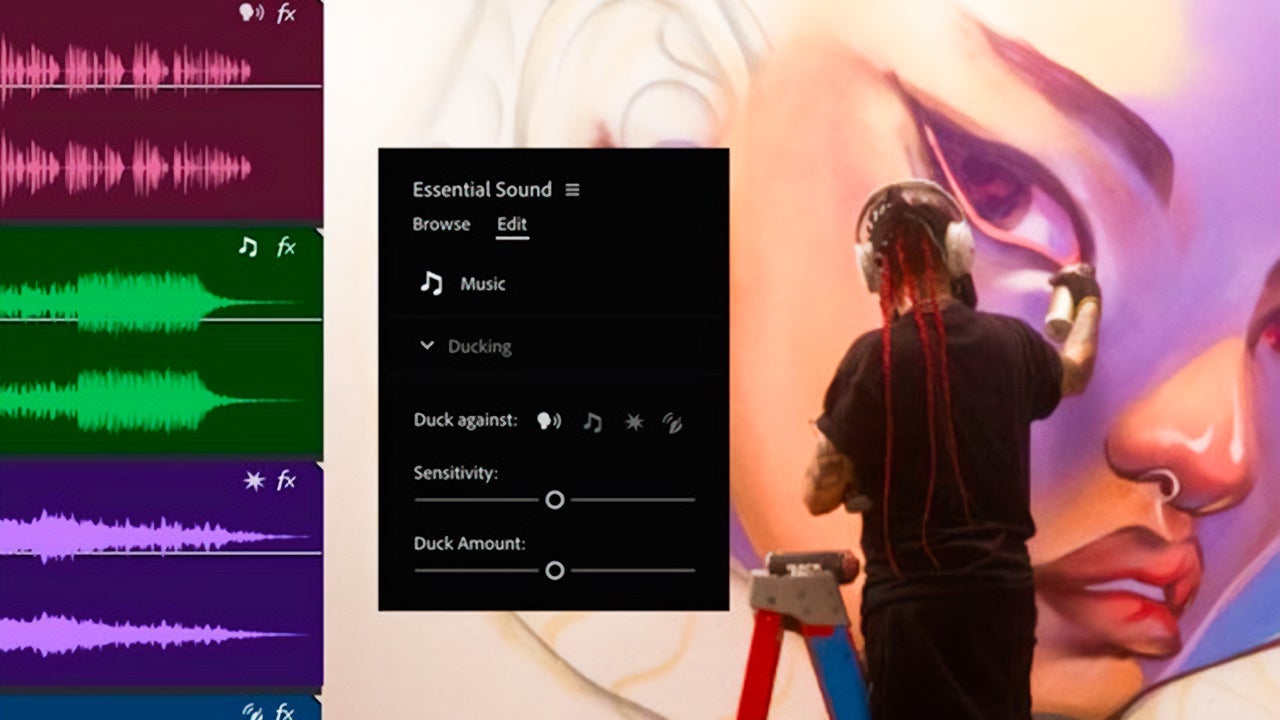
This is where Adobe Media Encoder comes in. Compressing without visible quality loss is about matching resolution, frame rate and bitrate to the destination, and Media Encoder lets you adjust all three before exporting.
How can I compress a 4K video for YouTube, email or WhatsApp?
The right settings depend on where the video will end up, and Media Encoder includes a wide range of presets to make that choice easier. For YouTube, you can keep 4K and use a matching preset. For email or WhatsApp, where file size limits are much tighter, dropping to 1080p or 720p and lowering the bitrate is usually the quickest way to fit.
Presets (predefined settings) give us ready-made configurations so that the work of compressing the video is done in a matter of seconds. And yes, don't worry: you can also change a preset's values; you'll just have what you need as a starting point.
Which video codec should I use: H.264, HEVC or AV1?
Which codec you should use depends on where you're going to publish the video, since not every platform or device plays every codec equally well.
For most cases, our pick is H.264. It's the safe option, compatible with practically every social network, website and device. HEVC (H.265) offers similar quality at smaller file sizes but isn't supported everywhere, while AV1 is more efficient still, though it takes longer to encode and older devices may not play it.
Adobe Premiere is developed in collaboration with leading camera makers such as Sony, Canon, Panasonic, Nikon, ARRI and RED, and it can edit many of their formats natively, without transcoding first. That compatibility carries over to Adobe Media Encoder when it's time to export. Adobe also works with NVIDIA, Microsoft and Apple so that encoding runs reliably and makes efficient use of your computer's hardware.

Why choose Adobe Media Encoder for video compression?
If you want reliable compression with plenty of presets, two-pass encoding, support for most formats and the freedom to keep editing while it works, Adobe Media Encoder is the program for you.
Built by creatives, for creatives, Media Encoder reflects decades of Adobe working alongside video professionals and listening to what they need. All that's left is to give it enough time to get the most out of it.
Prices, subscription plans, product features, availability, credit allowances and usage limits are subject to change. Please check the relevant provider’s website for the latest details before purchasing or subscribing.
