Enhance gameplay by installing mods for Euro Truck Simulator 2

Euro Truck Simulator 2 initially launched in 2012, but there have been plenty of DLC packs since then. What started in the UK has eventually stretched into France, Germany, Poland, and so many other European countries. ETS2 is so well loved by the gaming community that many developers have made mods to improve some game mechanics and add items.
Euro Truck Simulator 2 DOWNLOAD

If you’re like me, you’ve probably never modded a game in your life, as you prefer the original version. However, you may have stumbled upon a mod that looks quite interesting. If it’s your first time, here’s a details guide on how to install mods for Euro Truck Simulator 2 and where you can find them.

What do Euro Truck Simulator 2 mods do to the game?

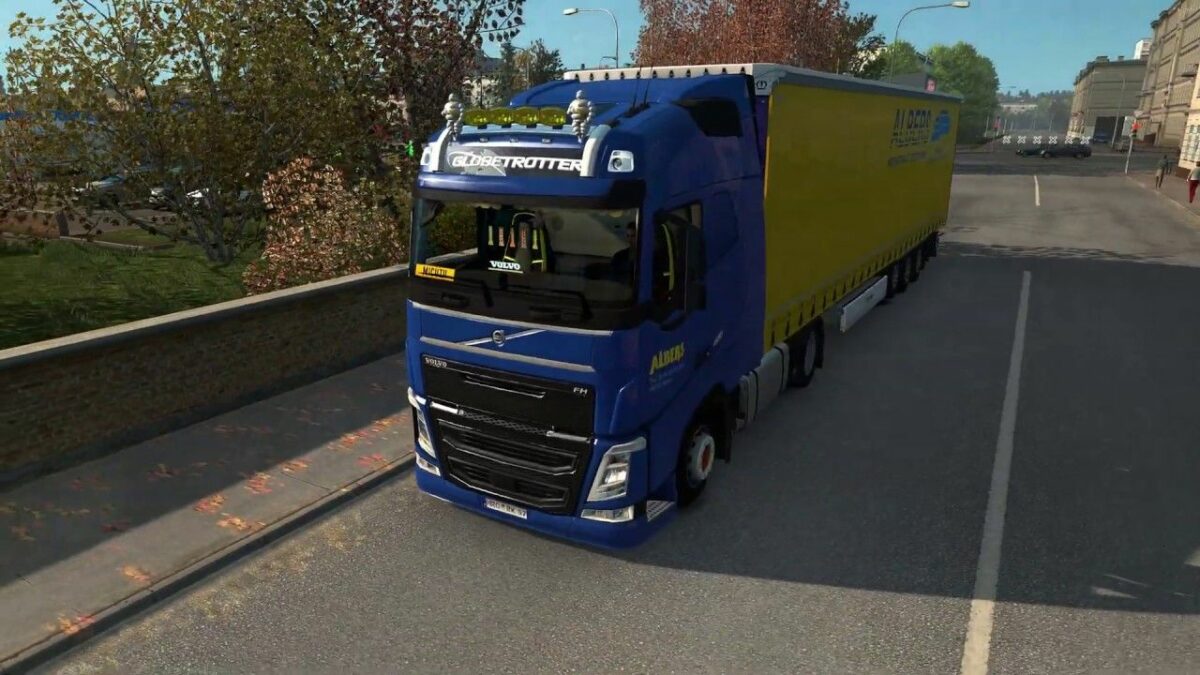
Like most mods, the ones for ETS2 change the way you play the game or add items not available in the original version. For instance, you’ll find new trucks and vehicle customization parts, or perhaps some skins. Others add local radio stations when you enter a new city or country. There are also improvement mods that upgrade visuals, sound, or movements for more realism.

Where to locate and download mods?

There are a few locations where you can find Euro Truck Simulator 2 mods. The official method that works the best is via the Steam Workshop, which we’ll explain in the step-by-step guide below. 

There are also websites that collect ETS2 mods that you can download and install, such as https://ets2.lt. Softonic also has a few mods you can try out:

How to mod the ultimate trucking game, Euro Truck Simulator 2

Once you’ve found the mod you like, here are the steps to install mods for Euro Truck Simulator 2.

  1. Open ETS2 and Manage Profile

    How to install mods on Euro Truck Simulator 2

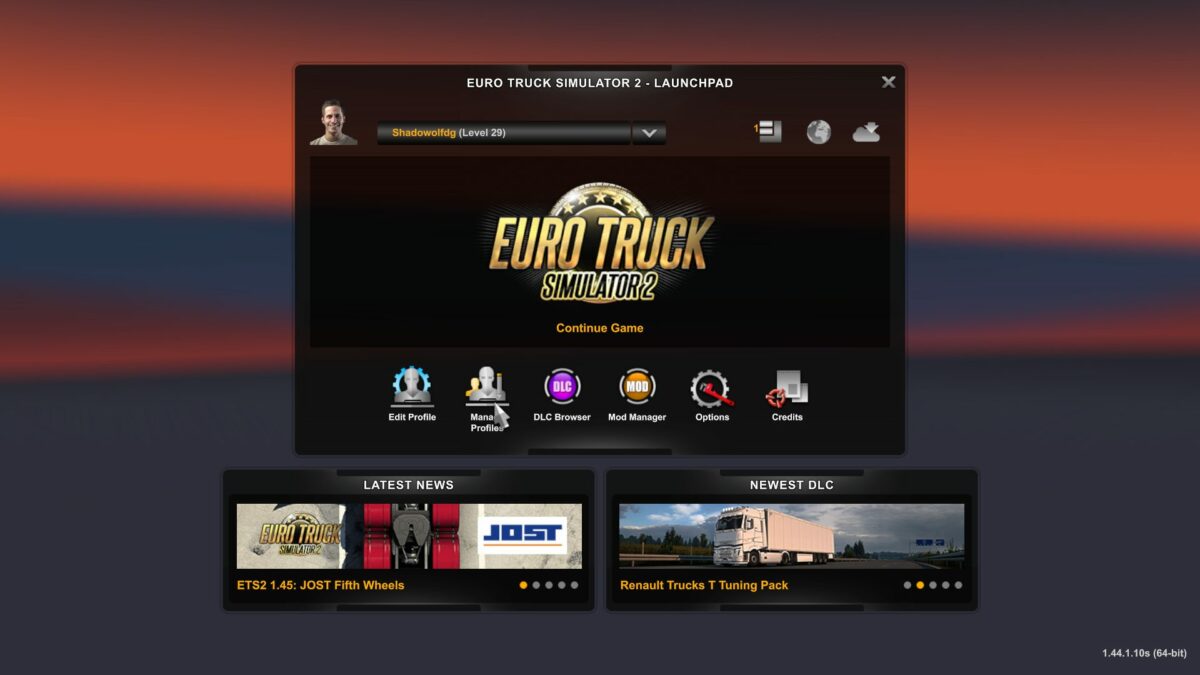
    The first step you’ll need to take is opening Euro Truck Simulator 2 from your Steam platform. Wait for the game to load, and then look at the options underneath your profile. You’ll see Edit Profile and Manage Profile. You’ll need to click on the second one.

  2. Open the Mod Manager

    How to install mods on Euro Truck Simulator 2

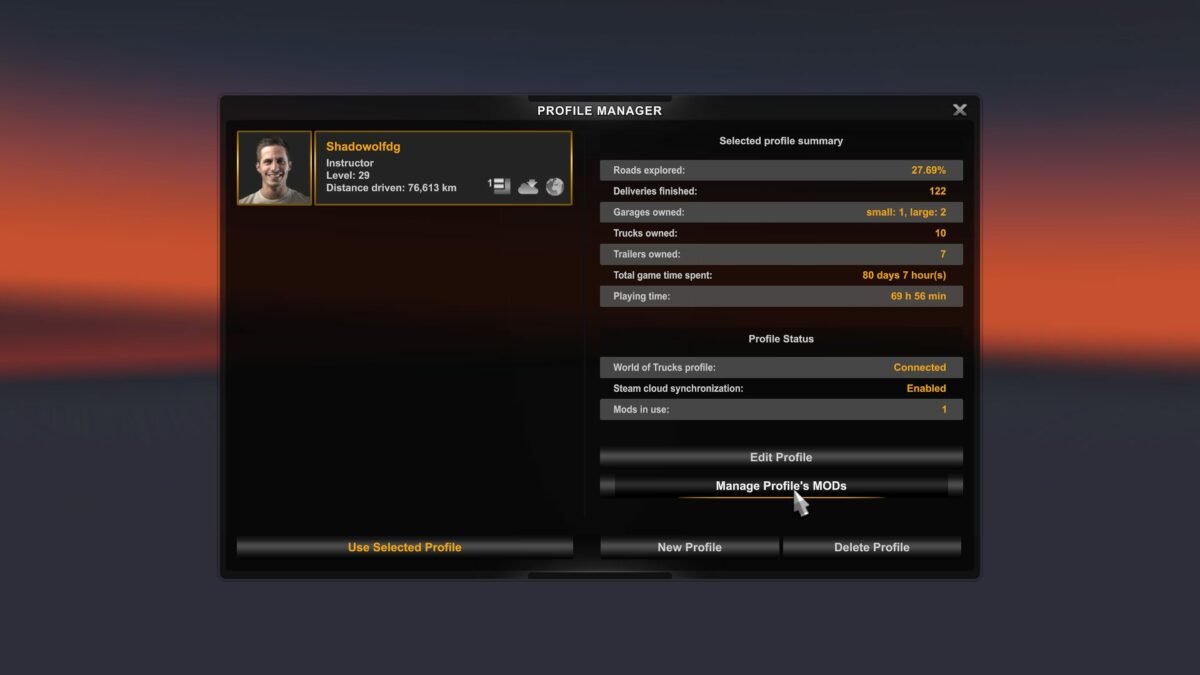
    With your profile open, you’ll see a few buttons on the side. The one you’ll aim for is Manage Profile’s MODS. Just above that, you can actually see if you have any mods available at the moment.

  3. Click on Steam Workshop

    How to install mods on Euro Truck Simulator 2

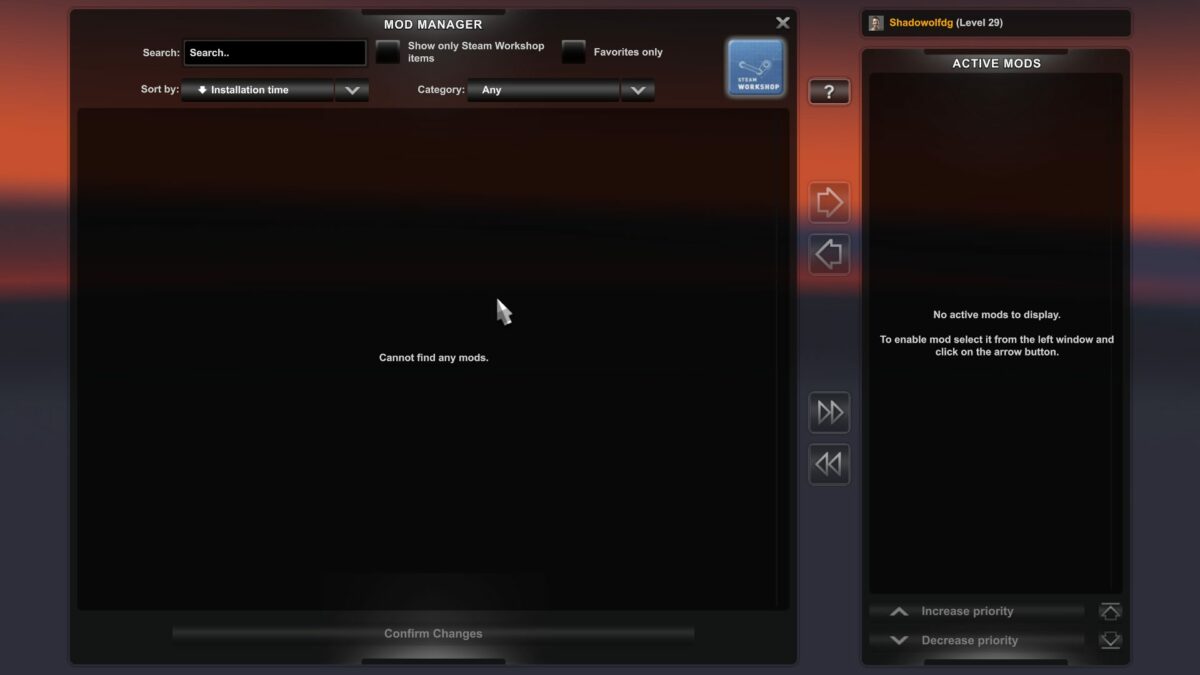
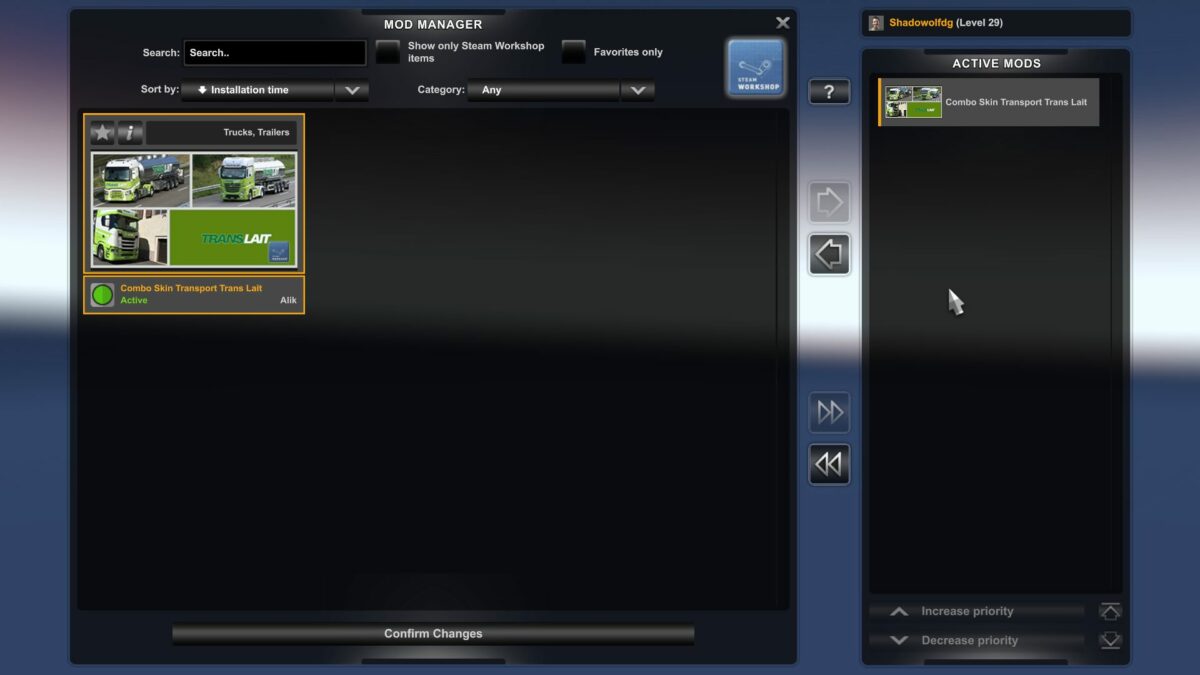
    You’ve now entered the Euro Truck Simulator 2 mod manager. If this is your first time installing a mod, this space should be empty. Take a look at the top right corner of the screen. You’ll see a Steam Workshop logo. Click on it to head directly to the ETS2 mod store.

  4. Subscribe to a mod

    How to install mods on Euro Truck Simulator 2

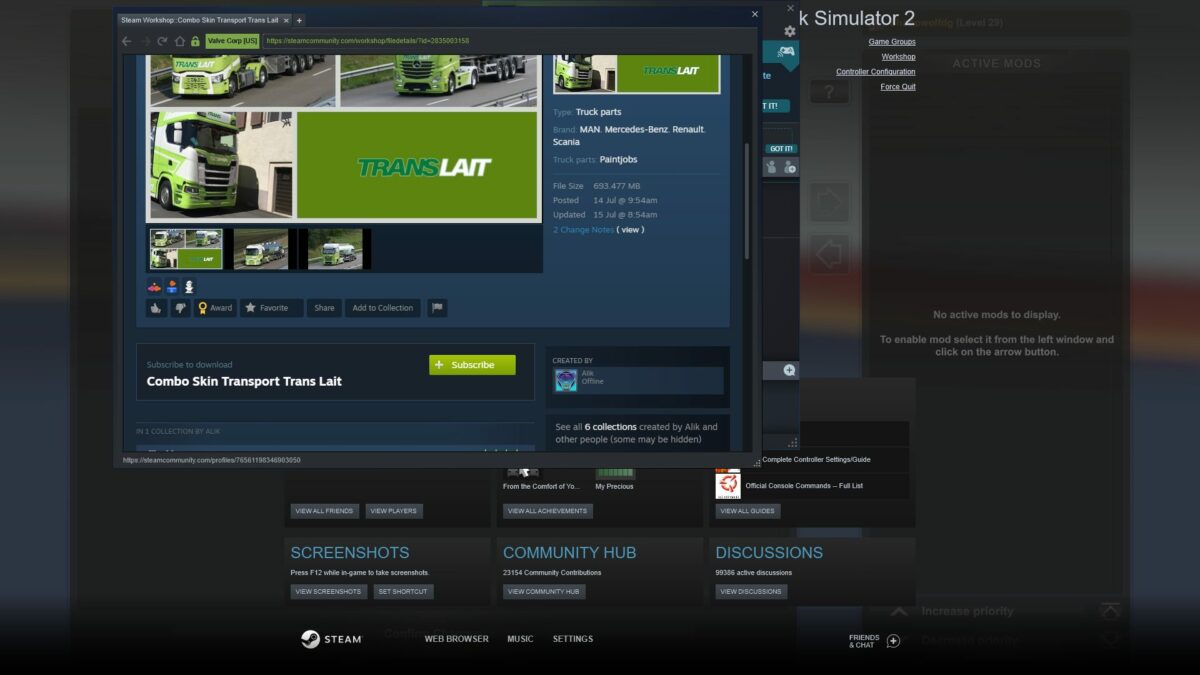
    You’ve landed on the haven for Euro Truck Simulator 3 mods. You’ll see various categories, such as popular or hottest, as well as a few select skins and vehicles. These are recommended mods that work well with ETS2. When you’ve found the one you like, simply click on the Subscribe button. A message will appear telling you the mod has been added.

  5. Activate and confirm changes

    How to install mods on Euro Truck Simulator 2

    When you’re done adding all the ETS2 mods you want, head back to the Mod Manager. You’ll need to select them in the window on the left, then click on the arrow in the center. Once done, click on Confirm Changes at the bottom. You can now play with your new mods. If you ever want to remove them, head back to the Mod Manager and deactivate them.

Alternative way to install mods on Euro Truck Simulator 2

The above way is the recommended method for installing mods for Euro Truck Simulator 2. However, you may come across mods not available on the Steam Workshop that you like, such as those mentioned from Softonic. The steps to follow are completely different, and you’ll need to know how to extract files and find folders.

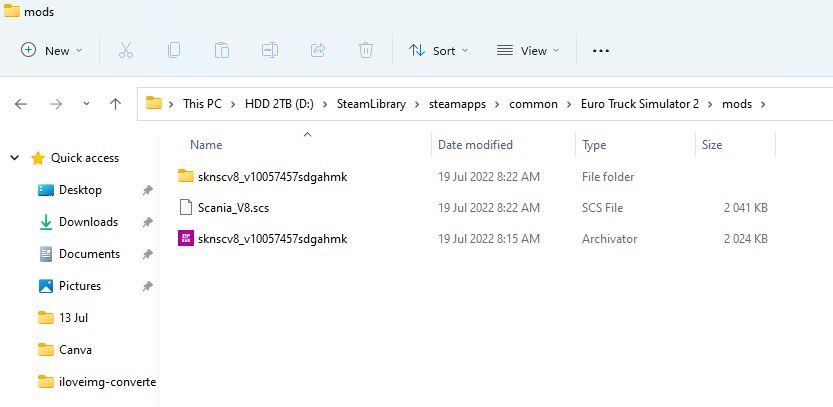
  • Go into Steam, right-click on the game, select Properties, head to Local Files, and click on the file location.
  • Create a mod folder if there isn’t one present.
  • Move the downloaded zip mod folder to your ETS2 mod folder.
  • Extract files to the new mod folder
How to install mods on Euro Truck Simulator 2

Enabling or activating the downloaded mods

You can now open Euro Truck Simulator 2 and head to the Mod Manager as explained in the steps earlier. If you did it right, you’ll see the new downloaded mod available for you to activate. Feel free to select it and enable it.

Why is my ETS2 mod not working?

There may be a chance that the Euro Truck Simulator 2 mod you downloaded and installed isn’t showing. That means the mod isn’t compatible with the latest version of ETS2, or the mod file is faulty. That’s why I prefer the Steam Workshop method, but it’s still worth a try. All that will happen is you’ll delete the mod file that doesn’t work.

Can you play ETS2 with mods online?

Yes, the developer of Euro Truck Simulator 2 permits using mods even in the online mode. Of course, it needs to be compatible with the online version so that it doesn’t cause any issues with the server or network. Some mods are primarily designed for the multiplayer version, especially if you join a convoy or virtual trucking company (VTC).
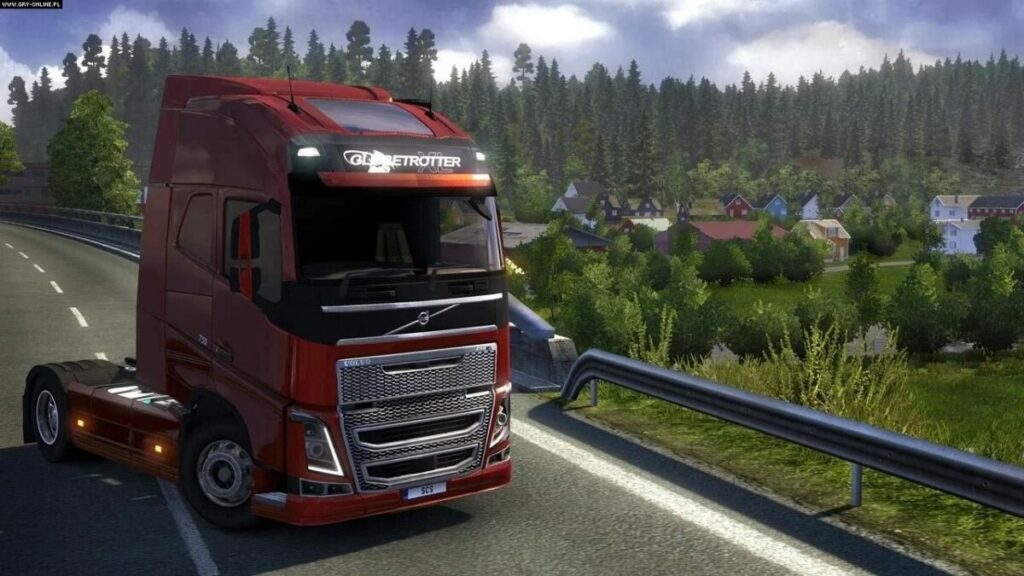
How to install mods on Euro Truck Simulator 2

Be sure you check the mod manuals

Some ETS2 mods are trickier to install than the ways mentioned above. Sometimes, you’ll find a mod manual you can read within the downloaded folder or on the Steam Workshop. It will guide you in any additional steps you need to take for the mod to work properly. It might even contain details for connecting to a VTC server, which is essential for logging trucking jobs.
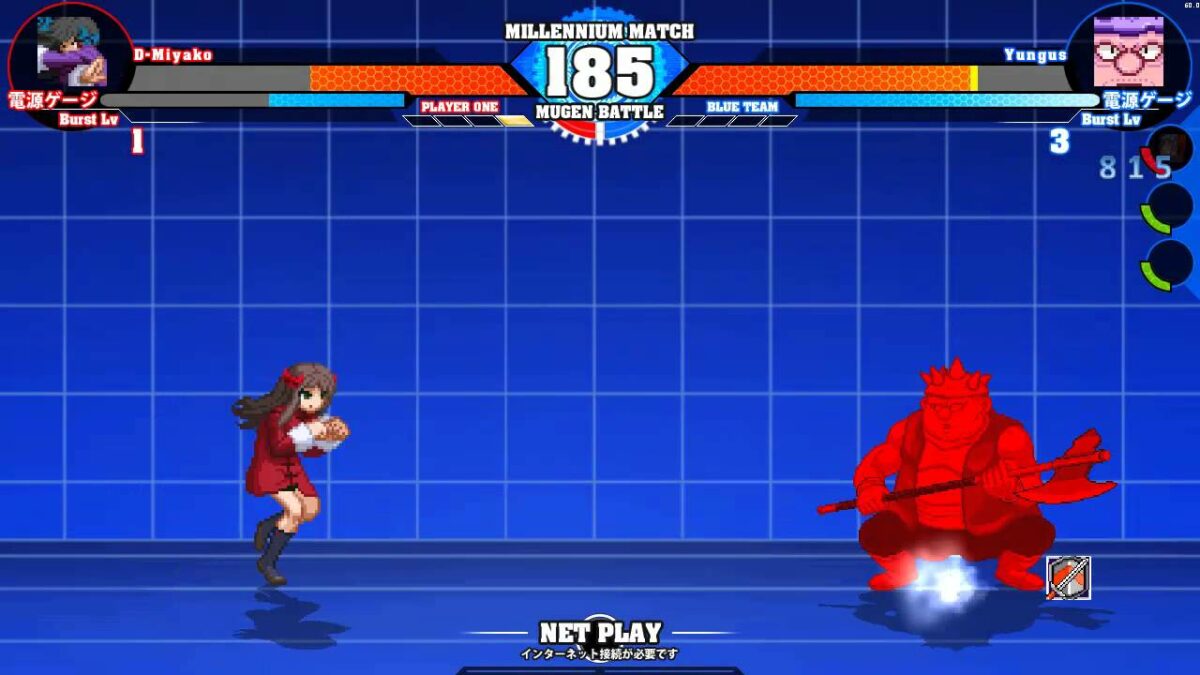
How to create your games with MUGEN in 4 easy steps

MUGEN (stylized as M.U.G.E.N) is a free game engine that is decades old but still going strong because people or groups of fans can use it to design their own games. The name MUGEN is derived from Japanese, meaning infinite or unlimited, and that describes the incredible variety of games people have created using it. It started as a shooting game developed by a company called Elecbyte, changed course, and became a fighting game. Years of work by fans have since produced an amazing array of games on MUGEN.

People have for instance pitted well-known superheroes like Goku, Superman, Donkey Kong, and Zangief against each other to see who will win a very entertaining fight. The application is free as are the third-party tools you can download and use to create your own characters and get them to play games of your invention. You can even get your characters to make specific moves by using specific buttons to control them.

Getting started

So you like games and you’re interested in the retro phenomenon that is MUGEN and decided to see what it’s all about. What do you do next? Here’s a guide to how you set it up and get started.

  1. Download MUGEN

    How to create your games with MUGEN

    Download. You can safely download MUGEN for free? and create a MUGEN directory on your device.

  2. Get a screen pack

    How to create your games with MUGEN

    MUGEN screen packs are freely available on the internet. Find one, download it, and unzip it if needed. Put all the files in a new folder in your directory.

  3. Get characters

    How to create your games with MUGEN

    Download a ZIP or RAR file of MUGEN characters, extract the files you want from the hundreds of characters available into a characters folder, and put it in your directory.

  4. Assign stages and complete game

    How to create your games with MUGEN

    A MUGEN stage has two files;?one has the extension .def and the other the extension .sff. Move both files to a stages folder in your MUGEN directory. Save the select.def file.rnrnStart making up your games and playing. And if you get stuck or need advice anywhere along the way there is a huge, thriving community out there to help you. There are also videos, tutorials, characters to download, and lots more.

Language and system requirements

MUGEN is a free 2D fighting game engine. A large and enthusiastic community has created thousands of fighters, original and drawn from fiction. It’s written in C, and it originally used the Allegro library. To run MUGEN, you need a fast processor and 4 GB of RAM, a video card with 512 MB of RAM, and a sound card.

Downloading and installing MUGEN

MUGEN is special because its community of fans has used it to produce a lot of original content. Because of this, there are many versions of MUGEN. None of them look the same because they have been created by many different people and groups. All versions can be downloaded from many different sites on the internet, or you can just examine them and decide which one you want to download. You can install it on Windows PCs, Macs, Linux, Android smartphones, PS4, Xbox, Nintendo Switch, and PS5.

Read the Readme file

Before installing the software, have a good look at the Readme file as this will explain installation clearly. You can access the MUGEN catalog on the official site if you want to learn more about updates to the software or download them. Even if you have no experience or knowledge of development, you’ll be able to use MUGEN easily. There are many tutorials and online forums where you can find and download content and use it to create your own games.

Customizing MUGEN

People who have created content by using the MUGEN game engine are called authors. Anyone can use the platform to create characters, skins, and games. You can import characters from other engines and tweak them as well. A very enthusiastic and large community of fans has also used the engine to produce lots of original content, which is available to everyone. There are many versions of MUGEN, and none look the same because of customization.

Why should you get MUGEN?

If you’re a games fan, you’ve probably heard of MUGEN. Although it was created way back in 1999, it’s still very much alive and kicking and has millions of enthusiastic fans around the world who continue to develop exciting new games and characters for it every day. Doing that is not for everyone.

It takes time and effort to make up a new game and the characters and stages that go with it. If that’s your inclination, great. If it’s not, you can still access all the characters, games, and stages other individuals and teams have created. They are freely available to everyone and even better, completely free.