Your Android tablet has a lot of potential. In this Android Guide, ‘What can I do with my tablet?’, we explain how you can fully exploit all of its functions. In this installment, we’ll go through the best applications for reading books, news and magazines on your tablet.
If you’ve recently become the proud owner of a new Android tablet, you’ve probably already been using it to surf the internet or check your email, without knowing about all the great functions you can use it for.
Your tablet actually has many different uses, some you may not even realize. If you’ve read our article explaining how to recognize your tablet’s operating system and you have an Android tablet, then you’re ready to discover how to harness the full potential of your device.
In this first installment of the guide, we’ll show you how to read on your Android tablet. Whether you like to read a good book before bed, or the morning newspaper at breakfast or during your commute, the beauty of the tablet is that you really can take easily use it anywhere.
We’ll have a look at apps that will enhance you reading experience, like saving interesting articles to read later on, others for downloading books (ebooks) and managing your library, and apps for reading the news and the most interesting articles on the web.
Pocket : Read more and read later
Reading on a tablet isn’t exactly the same as reading a physical book. The brightness of the screen can tire the eyes, and the layout of web pages isn’t always oriented to facilitate reading articles. In fact, they can sometimes be a real jumble of text, links and images that complicate reading, or are simply not well adapted to your tablet screen.
Occasionaly, you may come accross some news or an interesting articles that you don’t have time to read at the moment, but would like to save to read later on.
Luckily, there are apps which are specifically designed to improve reading on web pages, formatting them in a clean visual, taking away advertising and elements that disturb the view, and adapting it to the device screen. The same applications also let you save articles and web content to read at any time of the day.
Pocket is one of the first (and probably best) applications with the “read it later” function. It’s also a great tool for simplifying and cleaning up web pages for easy reading on the device you’re using. Here’s how to use Pocket.
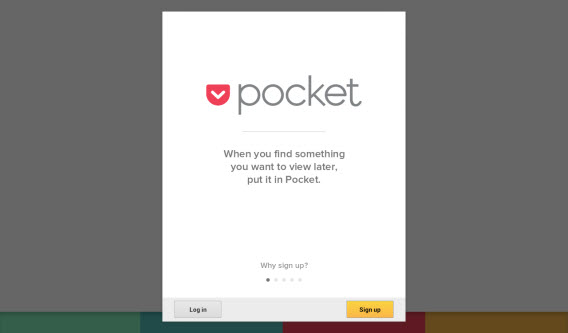
1. The first step is to download Pocket for Android on your tablet. Once you’ve installed and opened the app, you need to create an account. Enter your email, choose a username and password, and click Sign up.
2. Next, close the application and look for an article online that interests you. One idea is to go to your Facebook account and open a link that a friend has shared on your wall, or open the browser on your device and go to the ‘Features’ section of Softonic and click on an article that interests you.
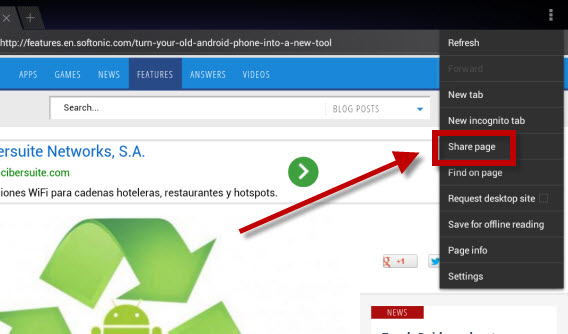
3. Then, press the share button on your browser. The location of this varies depending on the browser you use and your version of Android. If you’re using the default, the button’s probably in the upper right corner. Tap on Share page.
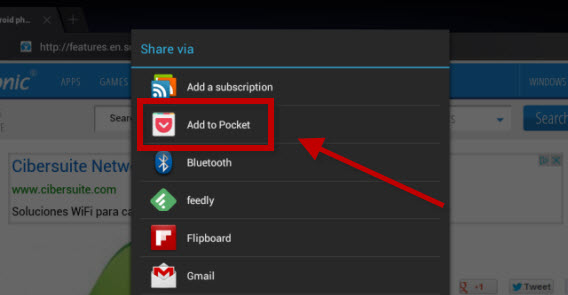
 4. Pocket will be among the various applications that you can use to share the article. Tap on the icon.
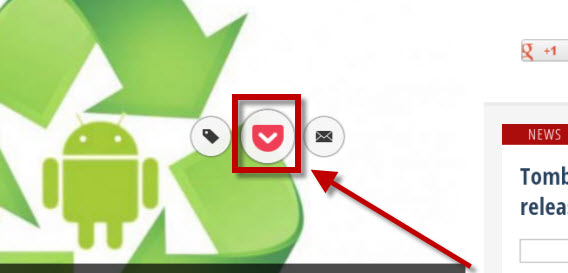
 5. You’ll see the icon for Pocket in the center of the page notifying you that the item has been saved in the app. Press the icon to go directly to Pocket.
 6. Once you’re in the app, you’ll see a thumbnail of the article with the title and the picture. To view it, just tap above it, and voila, the item will appear for you, nice and clean.
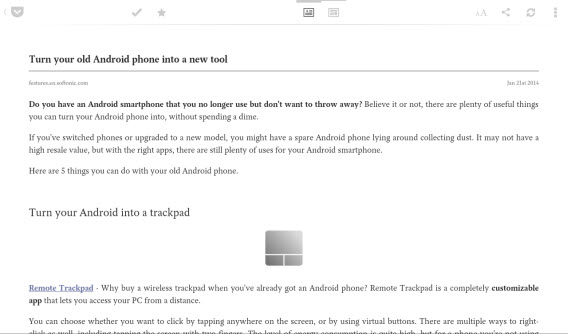 Now you can read the content easily, whenever you want, with a page that’s perfectly adapted to your tablet screen. In addition, pressing the button at the top right with the two “A“s will allow you to edit the reading settings (such as font size or background color).

If you tap on the icons at the top center of the screen, you can change between the original layout and the adapted layout.
To take advantage of Pocket at its best, the best idea is to install the plugin on your browser. This lets you save the articles that interest you, even when you’re using your home or work computer, and then read them on your tablet at your leisure.
There are other similar applications like Instapaper or Readability, but Pocket definitely has the edge, thanks to its organization of more structured and visual content, highlighting content, and immediately synchronizing the items you saved.
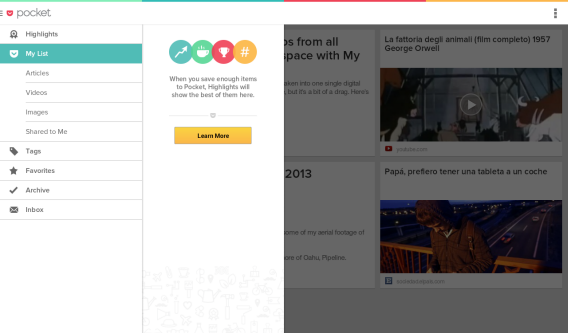
Now you can read the articles you want at any time and in a format that’s much more pleasing to the eyes.
Download, read and organize your electronic books (ebooks)
If you’re a big fan of hard copy books, getting used to reading digitally can be a difficult task. It’s only after years of family and friends gushing over the convenience of having an entire library in a portable and lightweight format, bragging about how much money you can save, and pointing out the lack of maintenance required, can some potential nostaligic bookworms be persuaded.
If you’re someone who’s reluctant to abandon classic books in favor of electronic format, it’s good to know that there are a few apps out there that can help you change your mind, ones that let you download books (many of them free), help you organize your collection, and, most importantly perhaps, improve your reading experience on tablets.
Wattpad: the app that gives you access to thousands of books

Rather than being an app to improve reading, Wattpad is a huge library powered by a community of overactive readers. It has more than 10 million stories and free books to download with the aim of entertaining and helping you explore the infinite world of book, anytime and anywhere. It’s an app that’ll please both bookworms and the once-in-a-while readers among us.
N.B. Wattpad only works if you’re connected to the internet. If you want to read offline, we advise you to skip ahead to the next section.
1. To start viewing ebooks, download Wattpad for Android on your tablet. Again, once you’ve install the app, you’ll need to create an account or, if you have one, login. If you don’t already have one, click Sign up and follow the instructions in the app.
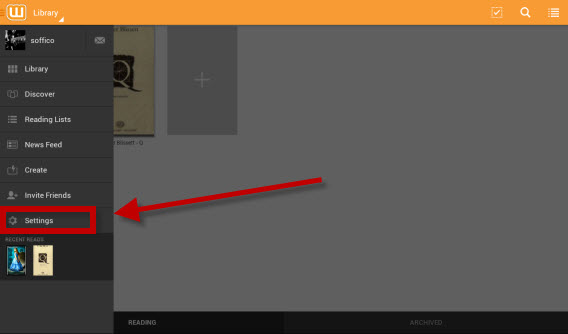
 2. Once you’ve chosen your favorite topics, the next thing to do is to select your language. In fact, if you don’t choose your language settings, you won’t be able to find books and stories written in your language. To do that, click on the icon on the top left-hand corner of Wattpad and press Settings.
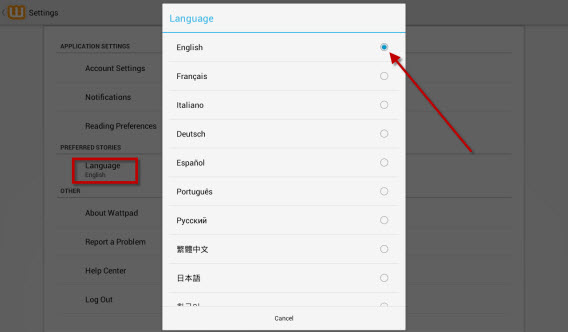
 3. Then, tap on the Language item and select your language.
 4. Now, go back and tap on the rectangle icon with the “+” in the center of the page. On the next screen, you can choose your first book. Just choose one of the ones you see on the list or explore the different categories at the bottom of the page.
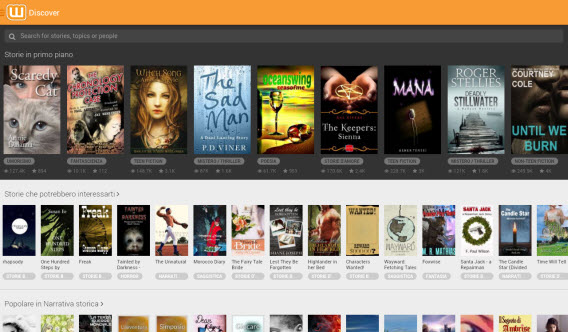 If you want to search for a specific title, just start to type the title in the address bar and then press Enter or choose one of the ones that appear in the pull-down menu.
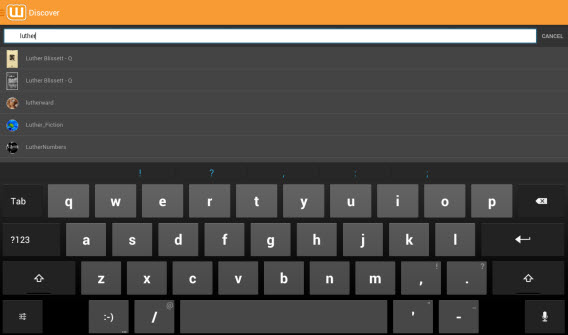
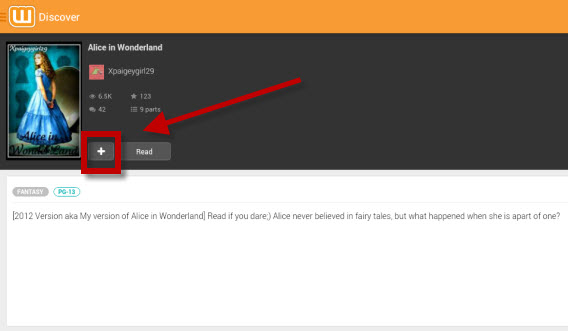
5. When you select the title you want to add to your digital library, just press the icon with the “+” symbol to add it to your personal collection.
 6. To read the ebook, just go to your library by clicking the icon in the top left-hand corner of Wattpad and then clicking Library. In the middle of the screen, you’ll see the list all your books. Tap on one of these and start reading.

Wattpad is not the best application for reading books; it only works with those downloaded using the app and only if you’re connected to the internet. To read books offline that you’ve downloaded in PDF format and ePUB, there’s an app that’s simple to use and feature rich, called Moon+ Reader.
Moon+ Reader the app for reading your ebooks like they’re books
Moon+ Reader is an app that really enhances the reading experience on your tablet. It’s also an app to download books, but stands out as perhaps the best ereader.
Moon+ Reader has a lot of options when choosing how to display the contents of your ebook, and the details are customizable, including the color of the background and the font used for the text. It also has 10 default themes including one for night time reading, so as not to disturb those around you, and allows you to sync your books on Dropbox to make them accessible everywhere. Let’s see how to import books to read.
1. First, you need to download Moon+ Reader for Androidon your tablet. The free version does not support PDF, so if you want to read books or articles in this format, we recommend you download the paid version of Moon+ Reader Pro.
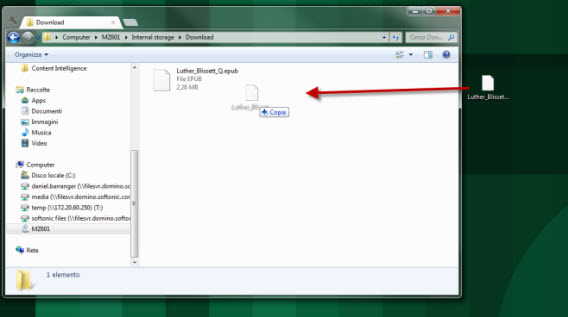
2. To read, you must first add the ebook to your library. You can do this by downloading it online (even using the same app) or by adding it directly to your device off of your PC. To get it onto your tablet, connect your tablet to your PC and transfer the file of the book into the Downloads folder of the device, as in the image.
 3. Then, open Moon+ Reader on your tablet and, in the main screen of the app, press the SD card icon with the words My Files.
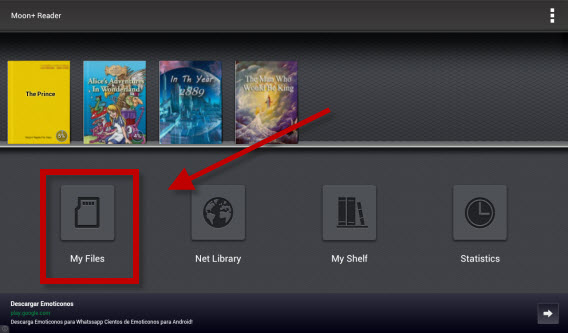 4. After that, tap the arrow icon in the upper right to get to the parent folder /sdcard (step 2) and then tap on the Downloads folder.
 5. Here, you’ll find the book already loaded. All that’s left to do is to add it to your library and start reading.
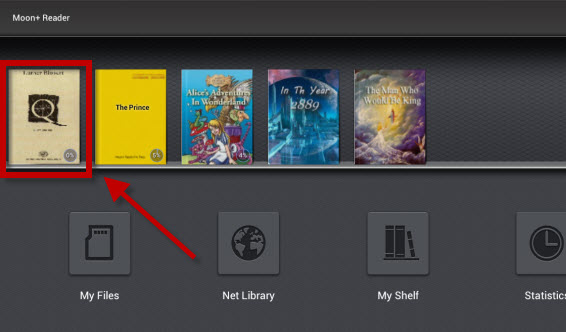
The great thing about Moon+ Reader is that it presents the book in a format that is not only easy to look at, thanks to a striped, gray background, but also has predefined modes, including several for night time reading. In addition, you can change many of the settings, like your progress through the book, to the indent at the start of a paragraph.
6. Once you’ve opened the book, you can change the settings by tapping the center of the page when you’re in reading mode, and then then on the wheel icon at the bottom right.

7. This will bring up a menu, where you can adjust the layout and settings as you like.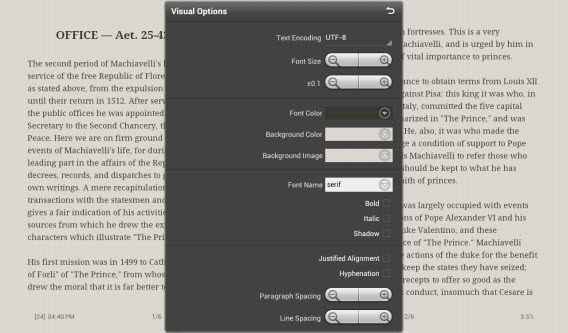
While both Wattpad and Moon+ Reader are great apps, you may prefer reading the bestsellers just recently released in bookstores. If this is the case, the Amazon Kindle app is the perfect app for you.
Kindle: For buying books on Amazon and for owners of the Kindle ereader
The Amazon app for buying and reading ebooks is not the best on the market in terms of usability and comfort, but it does offer a higher level of security than other ebook stores.
The disadvantage of the app is that in order to download any content, you must have an Amazon account and then make the download via a redirect to the store, through the browser on your tablet. It also doesn’t let you import your ebooks to the app, so if you already have some, you’ll need to manage them with another app, such as Moon+ Reader.
The reading options themselves, on the other hand, are actually quite good. In fact, if you’re a fan of Amazon and you also have a Kindle e-reader, this app is perfect for you, since it also syncs with the ebook reader. But first, let’s see how to buy books.
1.Download Amazon Kindle for your Android tablet. Install the app, open it and then press the Store icon in the top right hand corner of the screen.
2. The app redirects you to your browser, specifically to the Amazon website where you can buy a book or download one for free. To do this, you’ll need to register, or log into your Amazon account.
3. Once you’ve downloaded the title, it will appear in your collection.
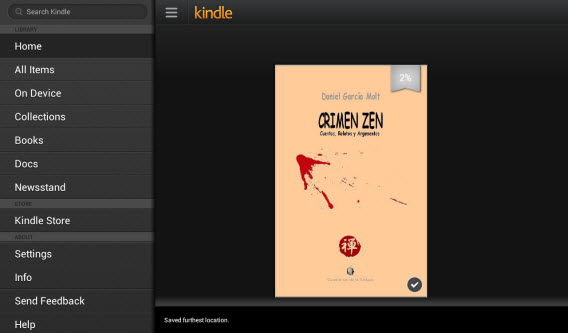
So, now that you know how to save articles, download books and read them on your tablet, it’s time to create your own custom magazine!
Flipboard: your tablet magazine and newspaper
The great thing about Android tablets is that they are full of reading apps of all kinds, not just for books, but for magazines and newspapers too. But it’s not only RSS feeds that will collect interesting articles for you.
There are applications that let you read news in your favorite newspapers, read stories published by your contacts on Facebook and Twitter, and even apps that will learn the types of content that interests you. A great app for this? Flipboard.

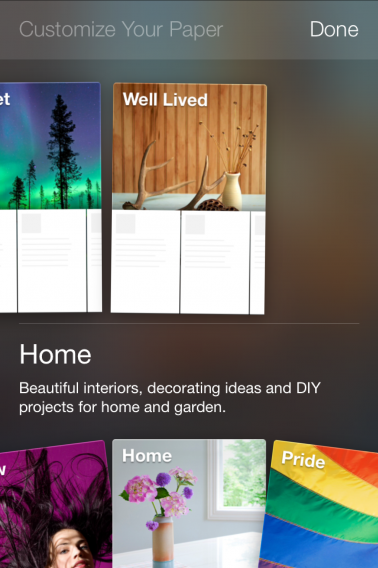
It’s the most famous, and perhaps the best, custom magazine on the market, according to user opinions. Select your interests using a list of tiles which are catagorized into broad topics.
Flipboard also lets you connect to Facebook and Twitter (and 10 other social networks) to present you with the news and the articles laid out elegantly in timelines, letting you read them comfortably and browse at your fingertips, without having to be catapulted between applications. Here’s how to set up the app to make it your own personalized magazine.
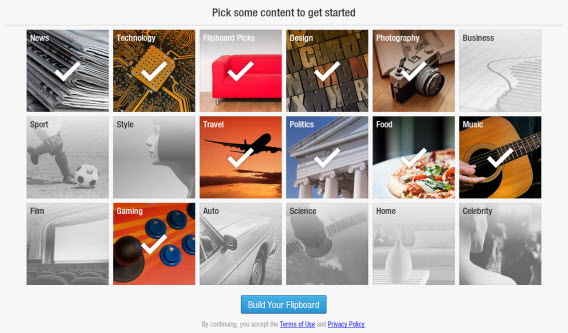
1. Download Flipboard for your Android tablet. Once you open the app, you’ll be asked to choose your favorite topics to begin creating the magazine. Press the thumbnail of the themes that interest you to highlight them and then tap Build Your Flipboard.
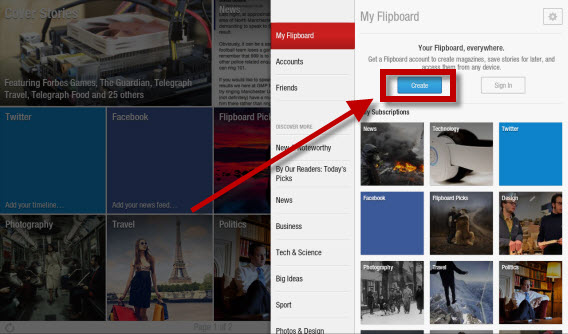
 2. Choose whether to create an account. It’s not mandatory, and you can use Flipboard even without one, but in order to access your magazine using other devices and to synchronize magazines, catalogs and social network accounts, then you have to create one. To create an account, press down on Flipboard Accounts, and then click Create Account. Fill out the form and then tap on Create Account.
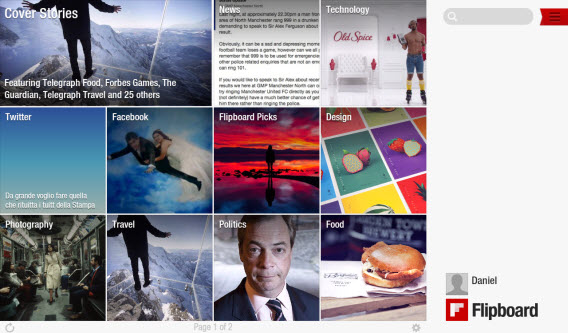
3. Clicking on the Twitter and Facebook thumbnail lets you access the social networking timeline. If you log in using your credentials, you’ll see news posted by people that you follow, as well as your friends, directly in Flipboard in a magazine style.
Reading is just one of a thousand possible uses of your tablet …
In this installment of our guide to help you discover the full potential of your Android tablet, we saw how you can use it to read articles, books, magazines and news. There is no shortage of apps to do this, and through the use of one (or many) of these apps, you’ll be able to browse your favorite pages comfortably, whether lying in bed or sitting on the train.
But the possibilities offered by your Android tablet don’t stop there! In the next chapter of our Android tablet series, we’ll see how you can organize your work, sync notes, your calendar and transfer files to the cloud to make them accessible anywhere.
What do you read on your Android tablet?



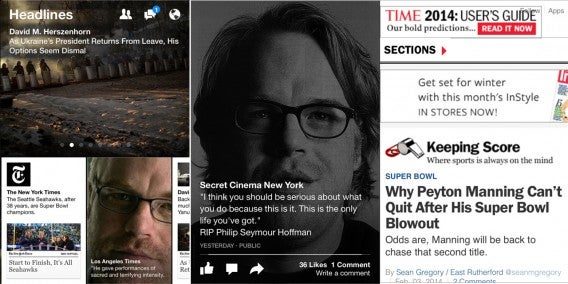
 Flipboard is still a better reading experience