The situation is not looking good for Pinterest stocks. The photo-sharing platform has reported missed earnings and zero user growth during the platform’s most recent quarter. As has become a trend among other tech companies, Pinterest attributes its poor performance to the pandemic, a decline in search engine traffic, TikTok’s rise, and broader macroeconomic uncertainty.
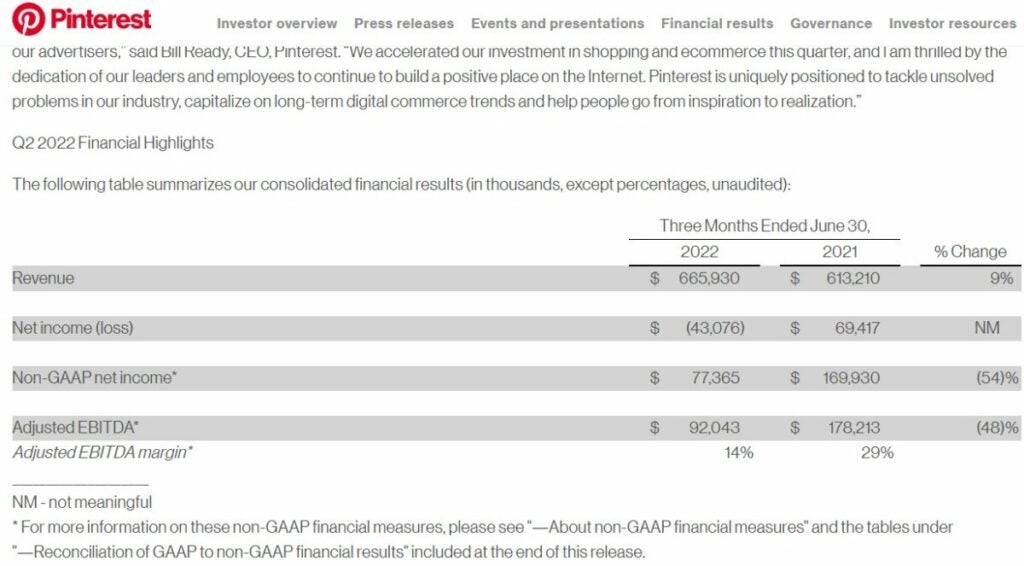
Pinterest isn’t alone, however. Both Meta and SnapChat underwhelmed predictions and projections in terms of stock price. Unfortunately, Pinterest’s Q2 results are well below Wall Street’s estimates which were at $667 million. In reality, the company reported revenue being up 9% yearly, having only reached $665 million. In the words of the Wall Street Journal, this is the lowest revenue growth in the last two years. Additionally, the company reported a net loss of $43.1 million and adjusted earnings of 11 cents per share, down from 18 cents.
Moreover, it warned investors that revenue growth for the third quarter would be in ‘mid single digits’. At the same time, analysts had previously predicted that the company would see revenue growth of around 12.7%.
The number of monthly active users remained flat at 433 million, down 5% from the previous quarter. Even so, it was one of the few rays of hope amid otherwise troubling news, since analysts had predicted a bigger drop to 431 million. According to Pinterest’s letter to shareholders, “work still needs to be done” to grow its users, particularly in mature markets such as the U.S., Canada, and Europe.
TikTok represents a broader shift in the market to video as a lead-in to e-commerce transactions, while Pinterest is primarily an image-based bookmarking service.
‘Recommendation media’ also replaces traditional social networks with creator-filled feeds that are driven by algorithms, rather than posts from friends. In an attempt to navigate this change, Pinterest has offered video creation tools to creators. This is reflected in the fact that 10% of the time spent on the platform is now spent watching videos.
According to the company’s analysts, it expects operating expenses to increase in Q3 by a low double-digit percentage as a result of a mid-September to October launch of a new global branding campaign. In addition, the company plans to continue investing in native content and creator initiatives.
If this is your first exposure to the world of Pinterest, here’s a comprehensive guide on what it is and how it works.
Curious about Pinterest? Here’s how to start using the super-popular site.
When it comes to boosting creativity and sharing ideas, it’s challenging to find a better app than Pinterest. Many businesses and freelancers are using it for their own sites, while others are pinning URLs for others with similar interests to read.
You may be wondering what Pinterest is and how to use it, or what does Pinterest do? We’ll show you how it works and some excellent tips for making boards and sharing them.
What is Pinterest and what is it used for?
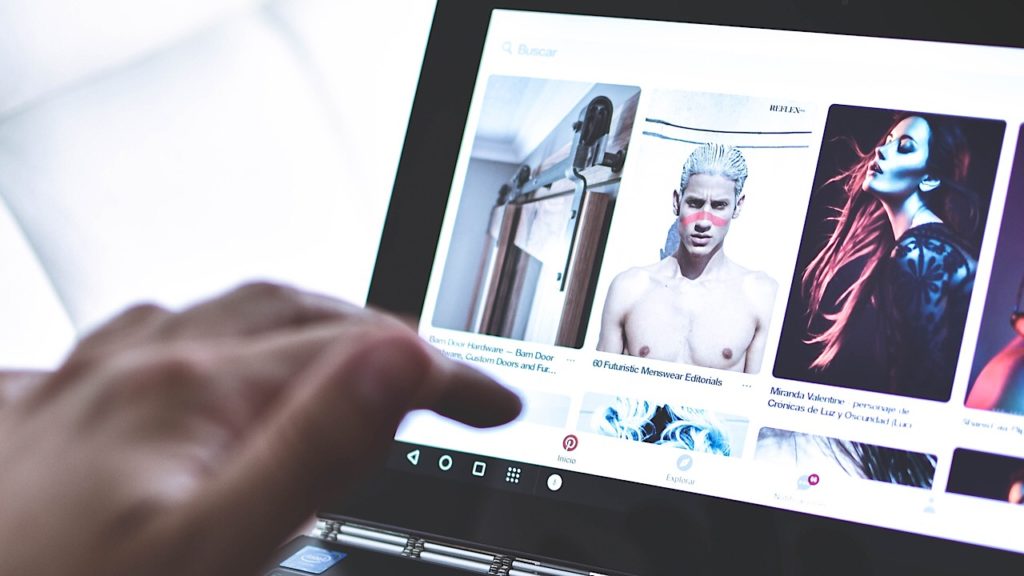
In essence, Pinterest stands for pinning interests to a board. It’s like a discovery channel that uses visual and text elements for inspiration and creativity. When you find a site or idea you like, you can quickly save it to your Pinterest channel for your followers to follow.
Pinterest is one of the easiest social media platforms available. It’s mostly used by people that want to share online content, such as music, recipes, lyrics, and so on. You’ll also find it ideal for organizing your ideas and thoughts on one page.
How does Pinterest work?
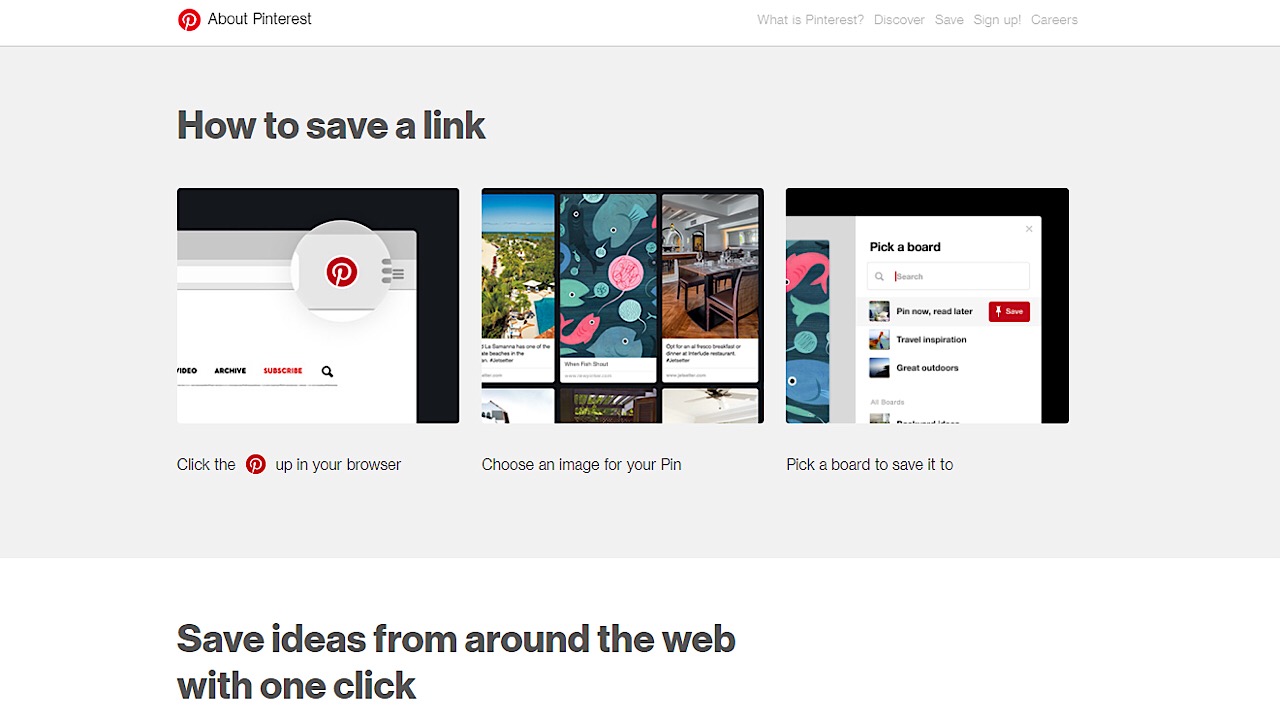
All you need to do is enter a site with ideas that you like and pin the link to a board. These categories help to separate content so it’s easier for your followers to read and view. If you add the Pinterest extension to your browser, it’s as simple as clicking on the Pinterest logo for a quick save.
What is the purpose of Pinterest?
The primary purpose behind Pinterest is storing ideas and visual content that you can save on boards. There are millions of online pages you can store, and it acts as a shortcut on your channel. Anyone following special hashtags or topics will see your pin appear on their daily feed. They can also follow your boards.
Tutorial and tips: starting on Pinterest
Now that you have a better idea of what Pinterest is, we’ll share some tips on how to use it. There are a few easy steps to get started, after which you can get pinning away!
Creating your profile
After entering your email address and creating a password, you’ll enter more basic information like your gender, preferred language and country.
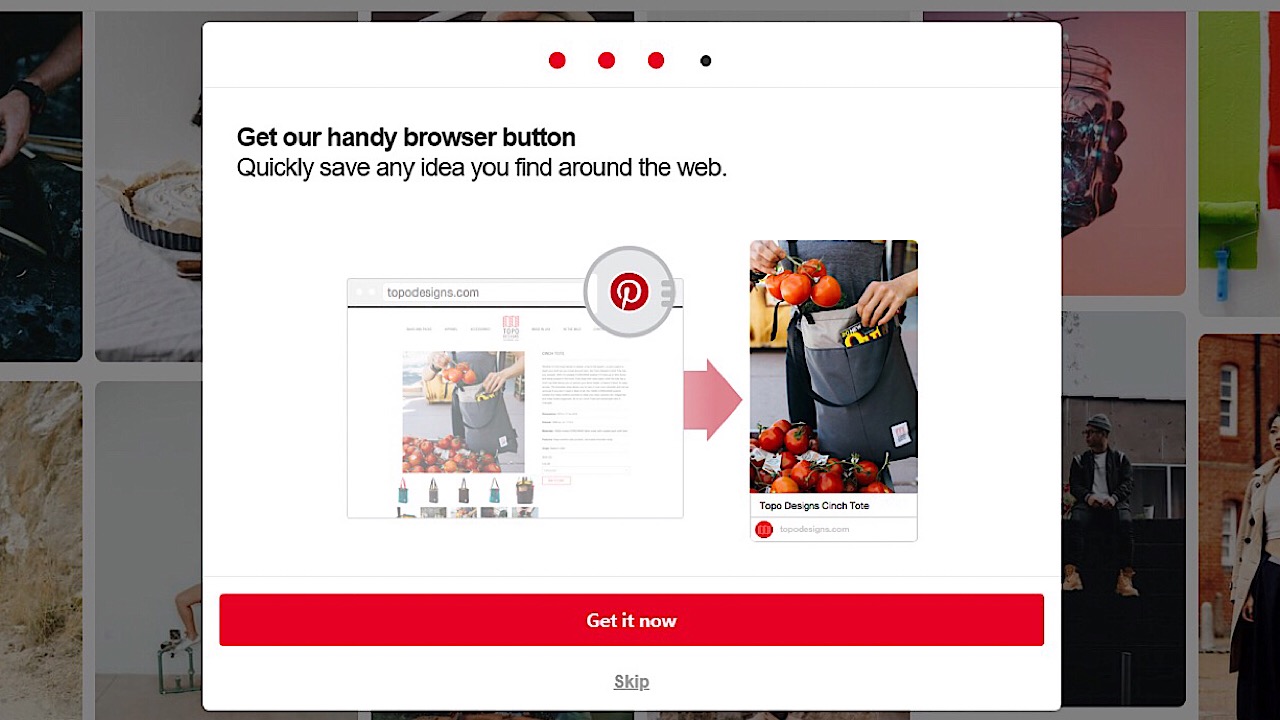
You’ll then be prompted to install the browser button. This button allows you to save things to your Pinterest account that you see while browsing online outside of Pinterest.
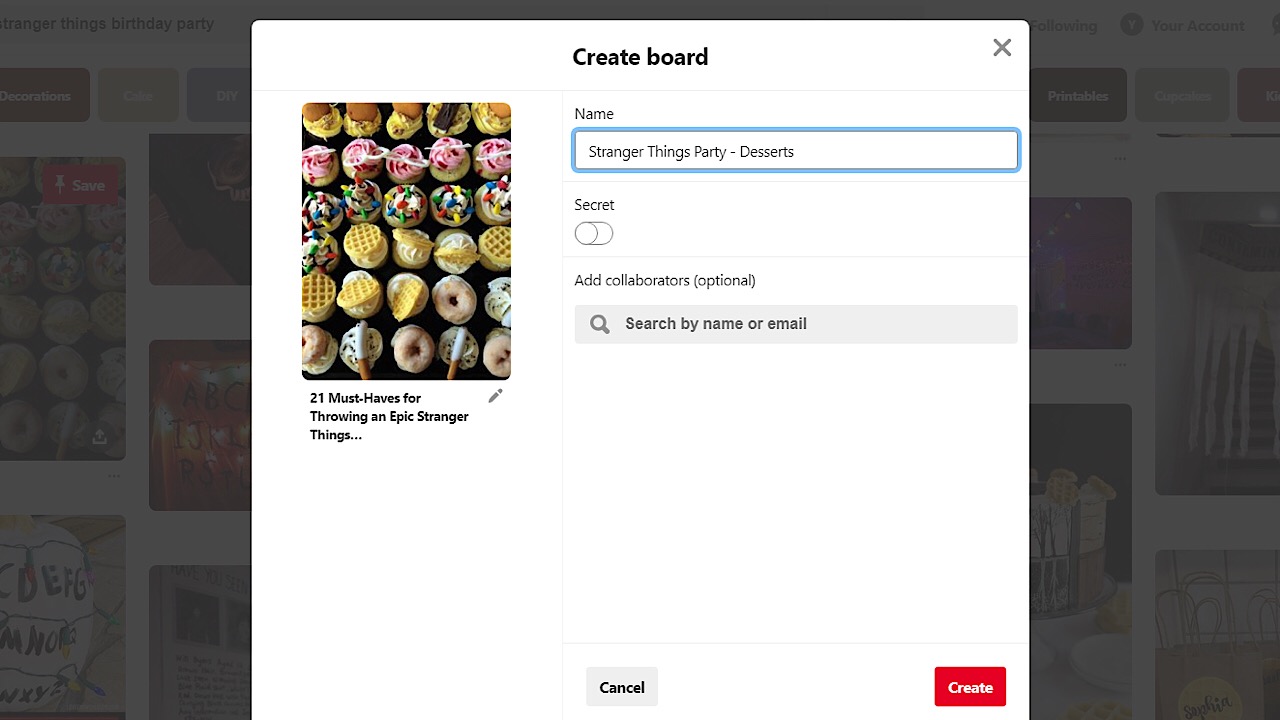
Imagine that you’re planning a birthday party for a friend and while browsing the web, you come across an awesome layout for a dessert table. With the browser button, you’ll be able to save the link to this page to a Pinterest board full of ideas for the party that you can come back to and reference later, so we definitely recommend installing it. Once installed, a little Pinterest icon will show up in your browser’s toolbar for you to click whenever you want to save a webpage, and another page will open that explains how to save a link.
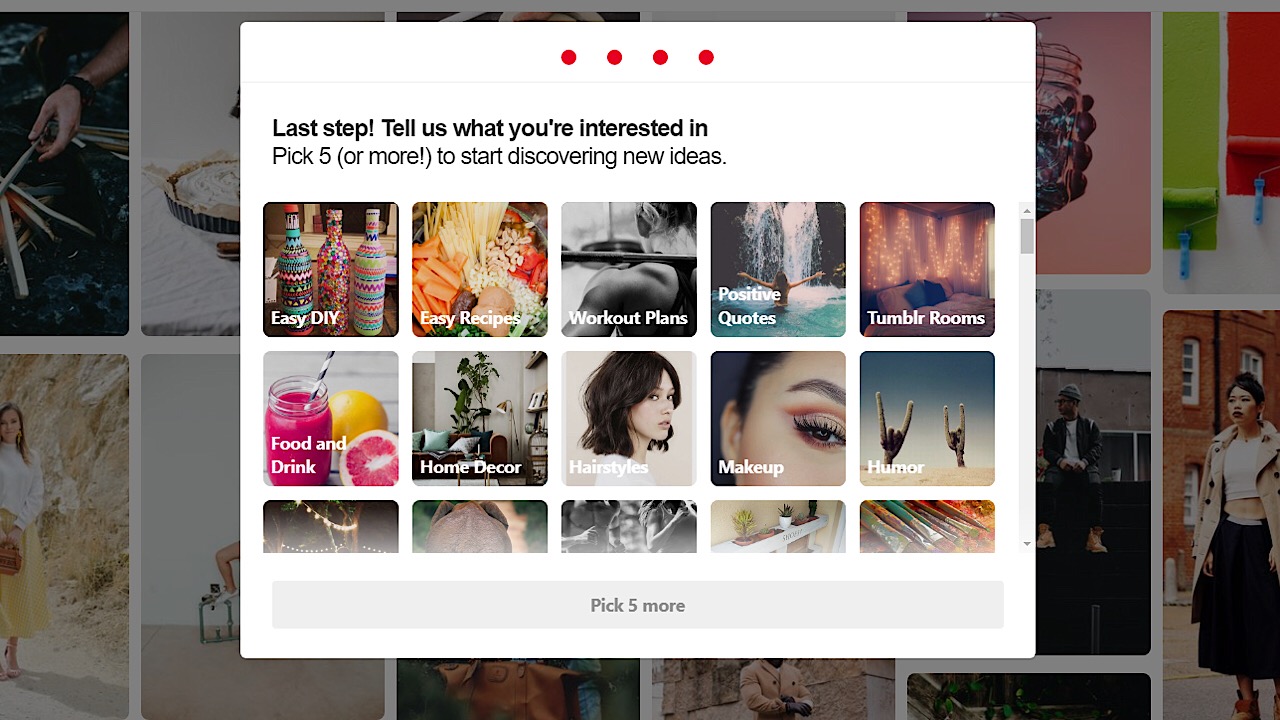
Before Pinterest cuts you loose to get sucked into the black hole of architecture designs and Etsy wedding dresses, they ask you to choose a few things that you like in order to get an idea of what to display on your feed. You can choose as many as you like, and the cool part is that whenever you search for something, Pinterest will remember and curate more pins like it.
Customizing your profile
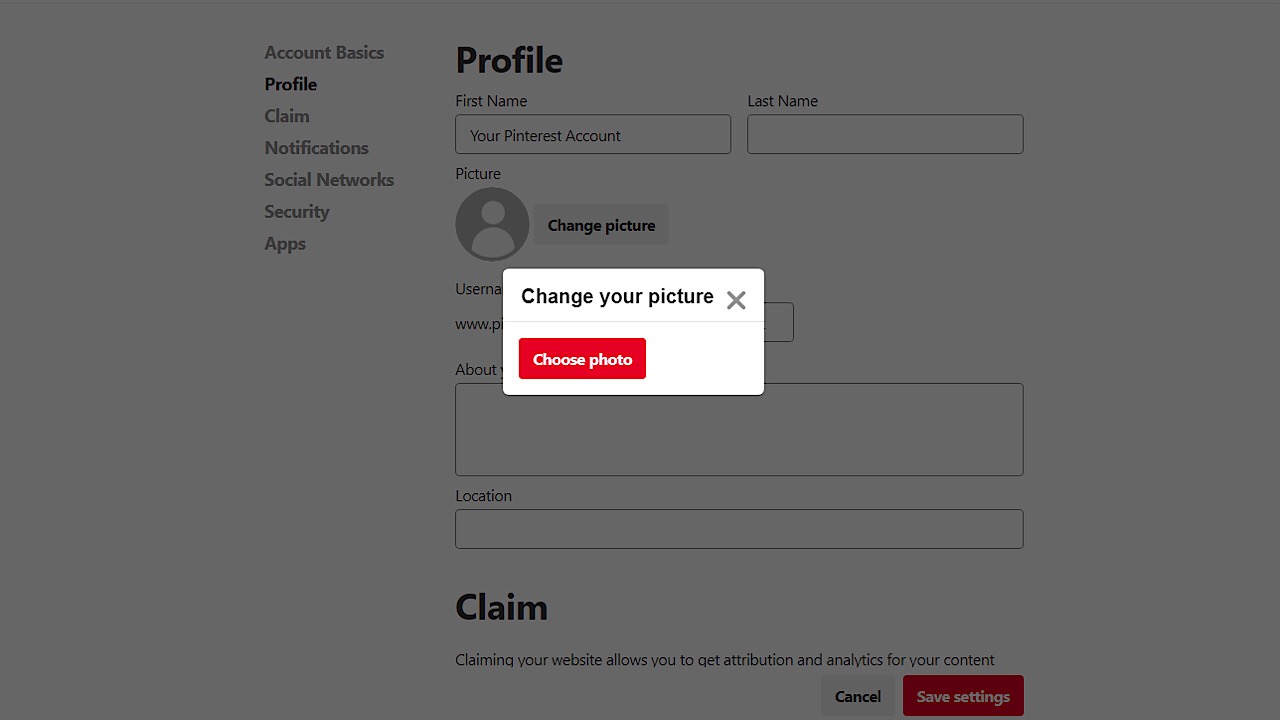
Pinterest will save your name as the email address you use to sign up, so to change this, just click the three grey dots in the upper right-hand corner of your web page, then click on ‘edit settings.’ Under ‘profile’ you can change your name, add a photo, and a biography.
You can also navigate to other areas where you can also edit your email address, password, and privacy settings. For example, if someone were to Google workout tips and you don’t want your fitness board to show up, you can toggle that option off.
What is a pin on Pinterest?
Pins work like bookmarks to other sites where you found interesting information or images. If people are looking for specific content, they can search for topics, and the results may show your pin. You can also use pins to link to your site and share your latest products.
What is a board in Pinterest?
When you want to separate your pins into categories, you create Pinterest boards. It helps organize your content and thoughts in a more efficient way that people can more easily follow. It’s especially helpful for businesses that have different types of products to showcase across various industries.
Socializing on Pinterest
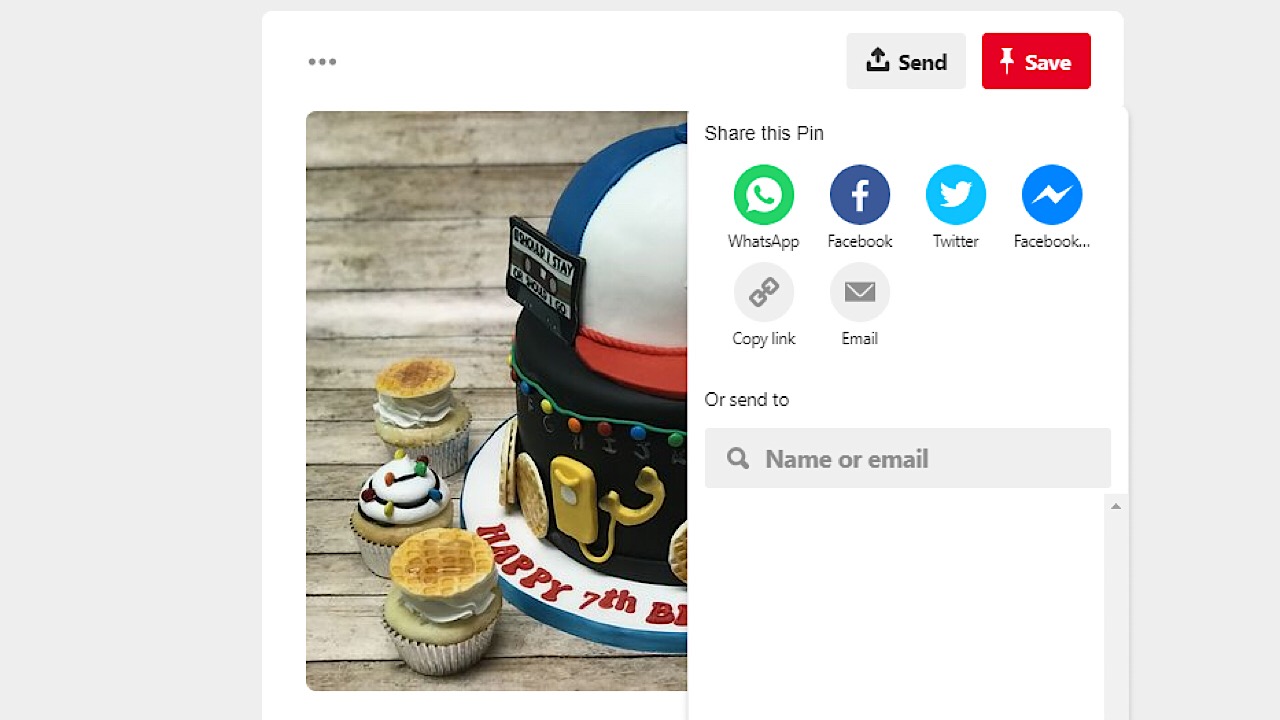
Another great feature is that you can share pins or entire boards to people that don’t have Pinterest accounts. Just click on a pin, and click on the icon with an arrow pointing up. Then you can send it to someone directly by email, or you can post it on social media accounts.
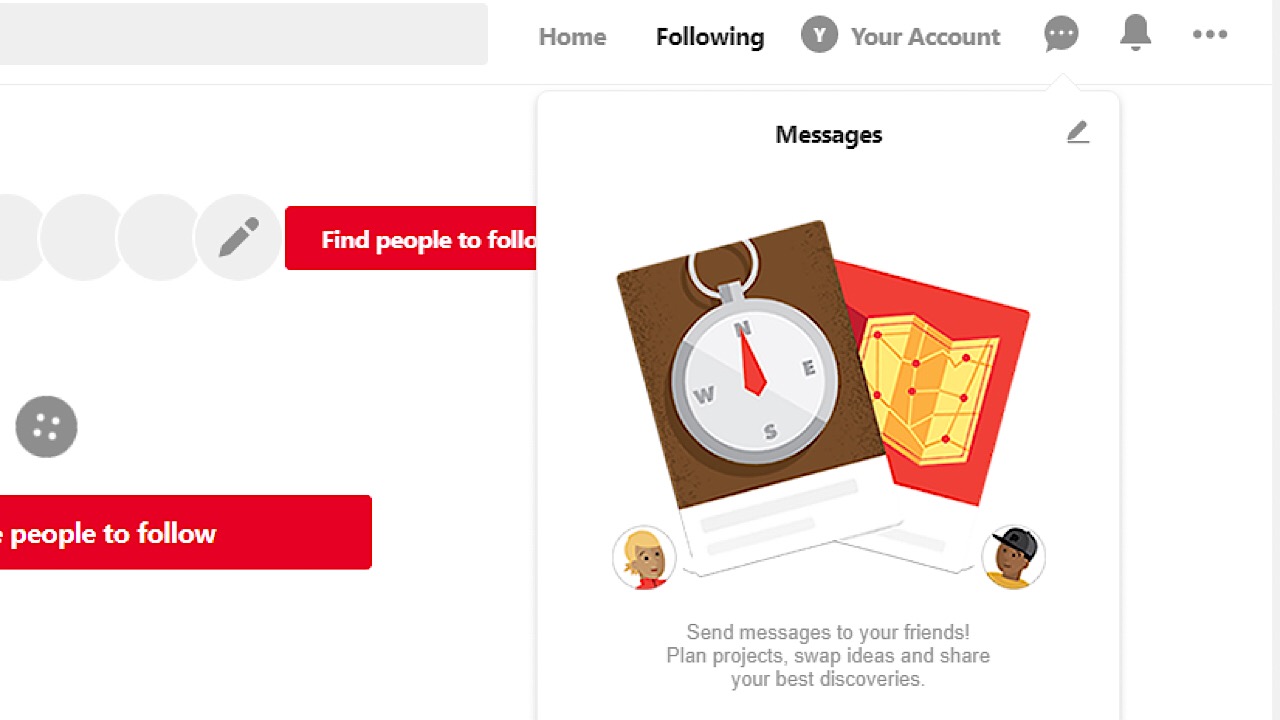
If you’d like to chat with a friend who does have an account, you can use the messaging box.
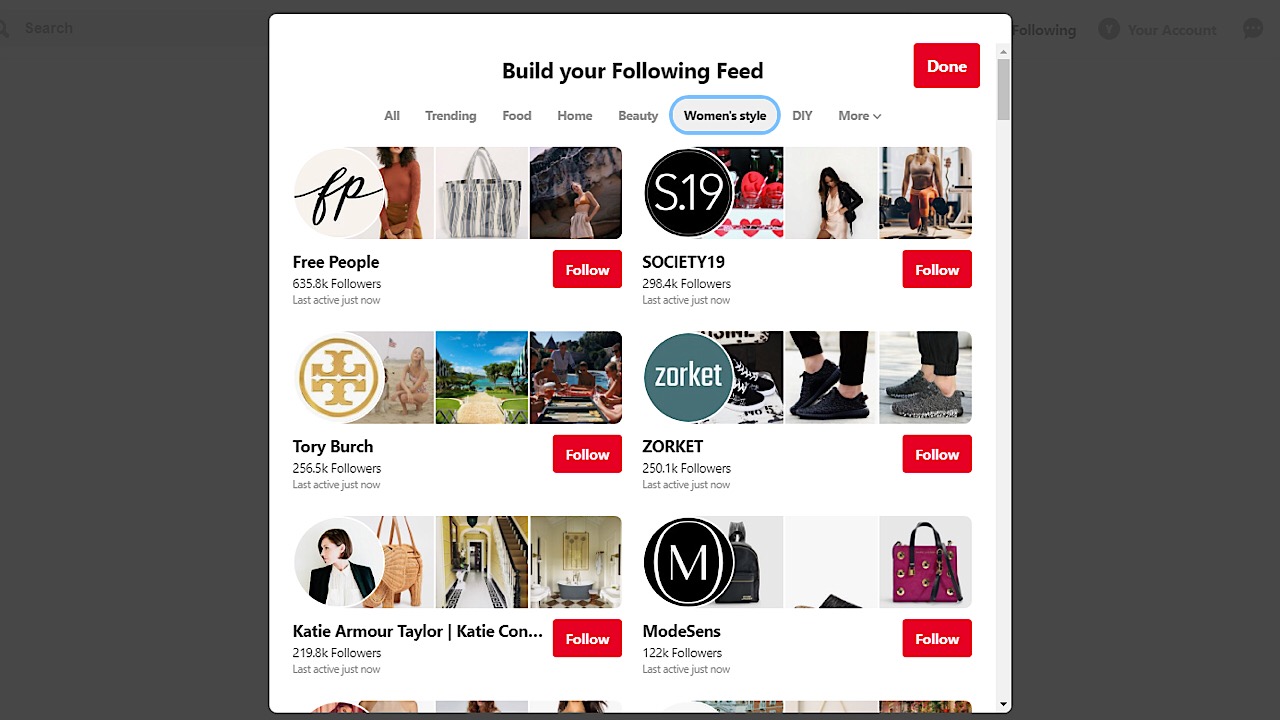
Some of your favorite bloggers and companies have Pinterest boards! If you’d like to follow their boards, you can search their name in the search bar. You can also click on the ‘following’ button on the top right corner of the page and follow Pinterest boards by category and see what popular boards are currently trending.
Pinterest for businesses
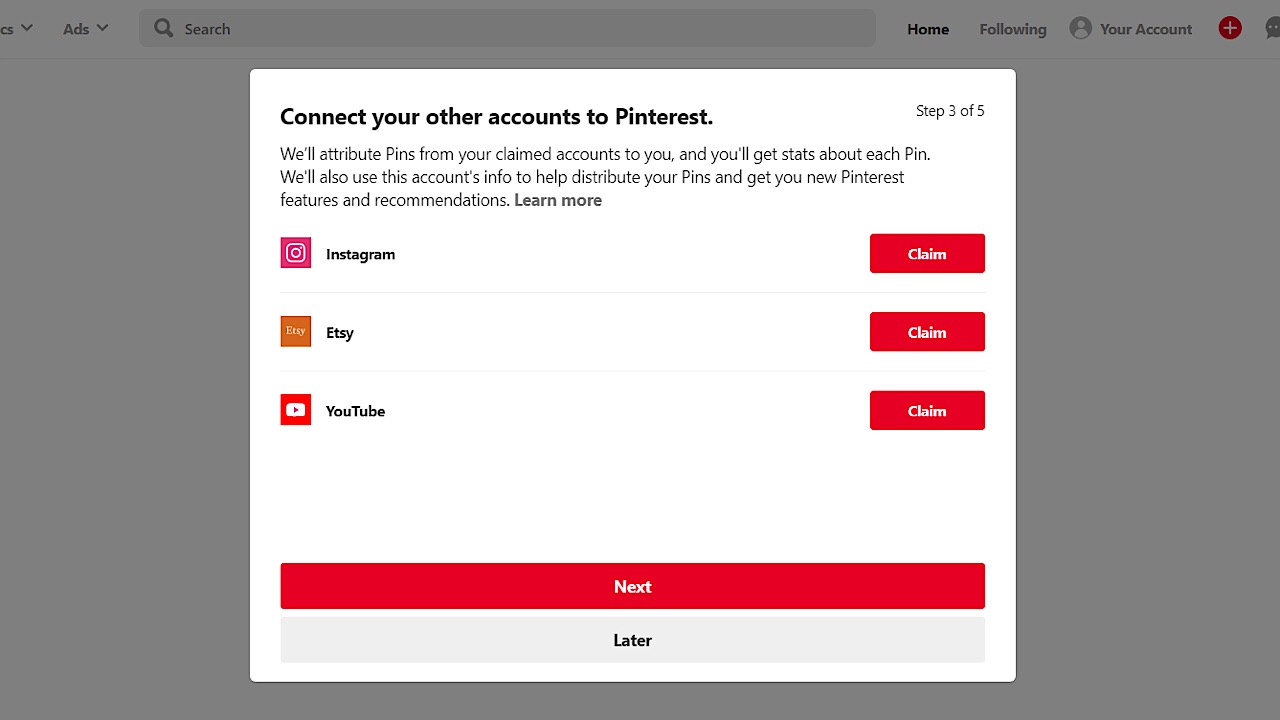
If you’re a blogger, Pinterest is a great way to gain more exposure by upgrading to a free business account. You just link your blog, connect your social media accounts, and when someone saves one of the pins you’ve created from any of your posts you can see how much traffic that each post is getting.
You can also consult with a Pinterest ad team to help you create ads to expand your reach even further.
Whether it be professionally or just as a fun thing to do in your spare time, Pinterest has something for everyone. A world of video game memes and obscure fruit art awaits, so, what are you waiting for?
We’ve all been in a creative slump. When you stare at your computer, tools, or utensils, wondering where you muse is hiding. It’s easy to spend an hour or two like that, frozen by inertia, until something clicks and you snap out of it.
The worst thing you can do is let a creative block overwhelm you. Look for help if you can’t solve your problem within 15 minutes. When you’re scratching your head for inspiration and all that falls out is a few hairs, it’s time to attack things from a different angle…
Pinterest is a free visual bookmarking tool for anything you find online. It works the same as a corkboard – the kind you would’ve used at home or at school to pin notices and other scraps useful info. From recipes to workouts, you can “pin” internet pages, images, text, news stories, factsheets, infographics, and much more to your own individual boards.
Pinterest isn’t just a handy organizational tool, but an oasis of inspiration when your creative juices dry up. So here are 5 tips for using Pinterest to boost your creativity.
5 tips for using Pinterest to boost creativity
1. Learn new things by pinning all your educational resources on one board
When you’re stuck in a creative rut, it might be because you don’t know how to take your project to the next level. You might lack the technical skill to get you there. In this case, you can use Pinterest to organize all your educational resources into one handy board. That means whenever you get stuck, you’ll have a quick reference guide to what is possible, and a list of resources to teach you how.
It’s also a great way of reminding yourself just how far you can take your project, whatever it might be, instead of settling for something simply because you lack the expertise to develop it further. And it can give you new ideas and perspectives on familiar topics.
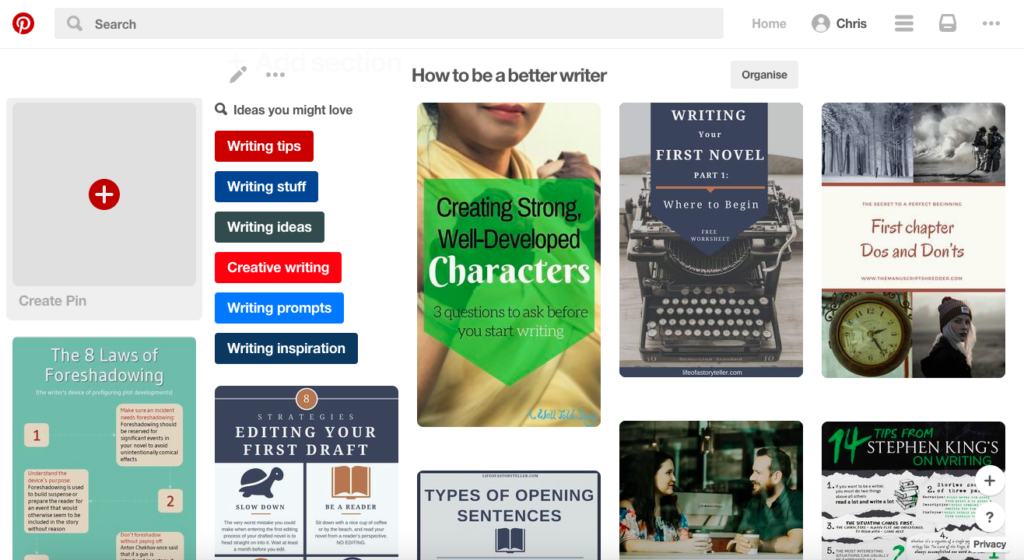
How a board entitled “How to be a better writer” might look
2. Follow people with the same interests as you for inspiration
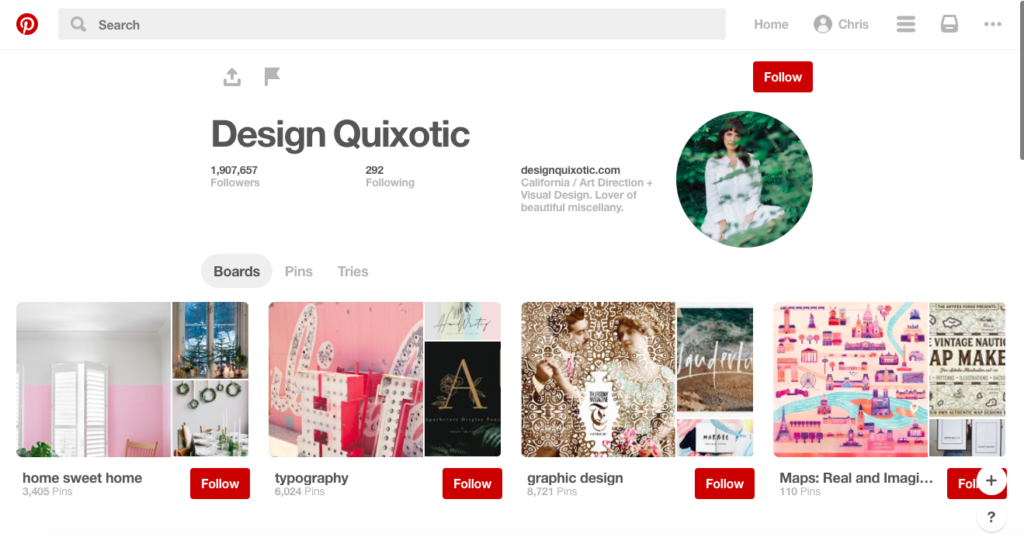
Sharing your boards with others can attract millions of followers, all of whom might inspire you to create something special
Note: I say “inspiration” and not “copying.” Of course, if it’s a recipe idea to use at home, go nuts. Or anything that’s kept strictly private. But for something you’re creating for public consumption, it’s better to use others’ boards to spark your own twists on community ideas, than to copy them. Better yet, pin your new creations to your own board, and you could find yourself with leagues of your own followers.
Lots of thought leaders and innovators have their own Pinterest feeds, and a good start would be thinking of whom you most admire then searching for them by name. Next, try looking for like-minded people under specific category feeds. Finally, you can even check out who’s following you and follow them back.
Finally, if you’re not all that keen on following individuals, follow boards instead. Searching for boards is easier, and you get all the inspirational content for your chosen board without worrying about who created it.
3. Showcase your own work for feedback
Ask for critiques to know if you’re heading in the right direction
Part of the creative process is finding out what works and what doesn’t. Feedback from others is a great way of refining your projects and testing out new ideas. With Pinterest, you can create boards for newly created projects or works-in-progress, and see what people think of them.
Pinterest dropped its “like” button a while back, but the comments box is still there. And if you’d like to keep things private, create secret boards and invite others to view and critique. If you’ve already got a critique circle, drop them an email with a link to your board. Gather feedback from their comments, or ask them to reply to your email. Either way, it’s a great way to get feedback on your portfolio, and allows you to collate your critiques in a simple, easy-to-organize way.
4. Organize resources into themes for your next big project
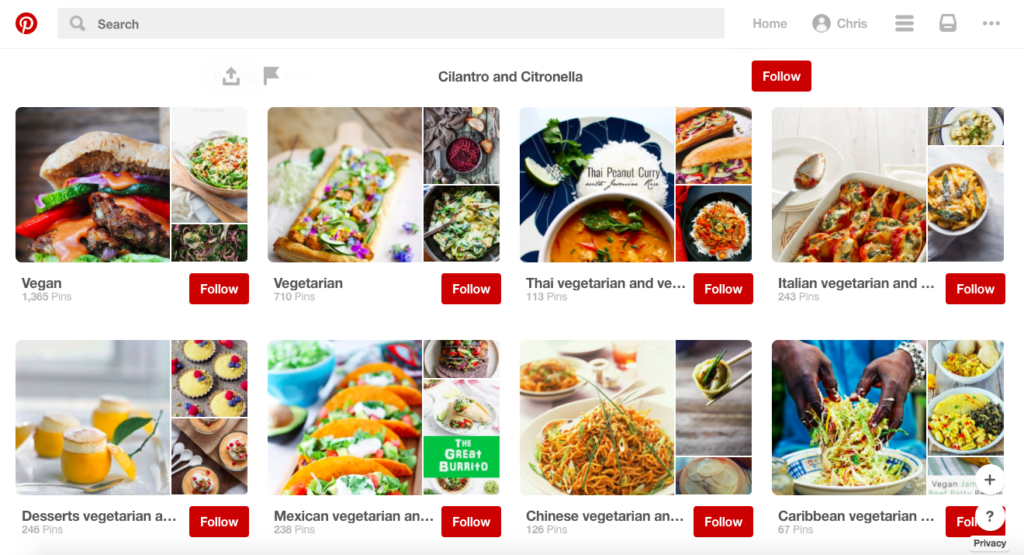
Thematic boards can inspire your next meal
Collecting things online with Pinterest is really easy, and can spark new creative directions. But Pinterest also lets you develop your ideas along different themes, letting you focus on specific aspects of a new project.
Consider interior design, for example. You might want to collect color schemes for different rooms and arrange them in boards for showing your client later. Or if you’re a jewelry designer, perhaps you want to arrange inspiration by type, creating boards for bracelets, necklaces, and rings.
Organizing your resources this way is a little like mind-mapping, which is a powerful tool for creativity and developing ideas. Your vocation is the center, the boards are the surrounding bubbles. Imagine you’ve decided to invent a new dish for an upcoming party, but you’re not sure what to do. If you’ve arranged your boards into different themes, such as starters, main dishes, and desserts, you’ll find inspiration much faster – the same goes if you’d arranged them by ingredient (fruits, veg, and meat, for example).
5. Decide what you want to create and a list of actions to achieve it
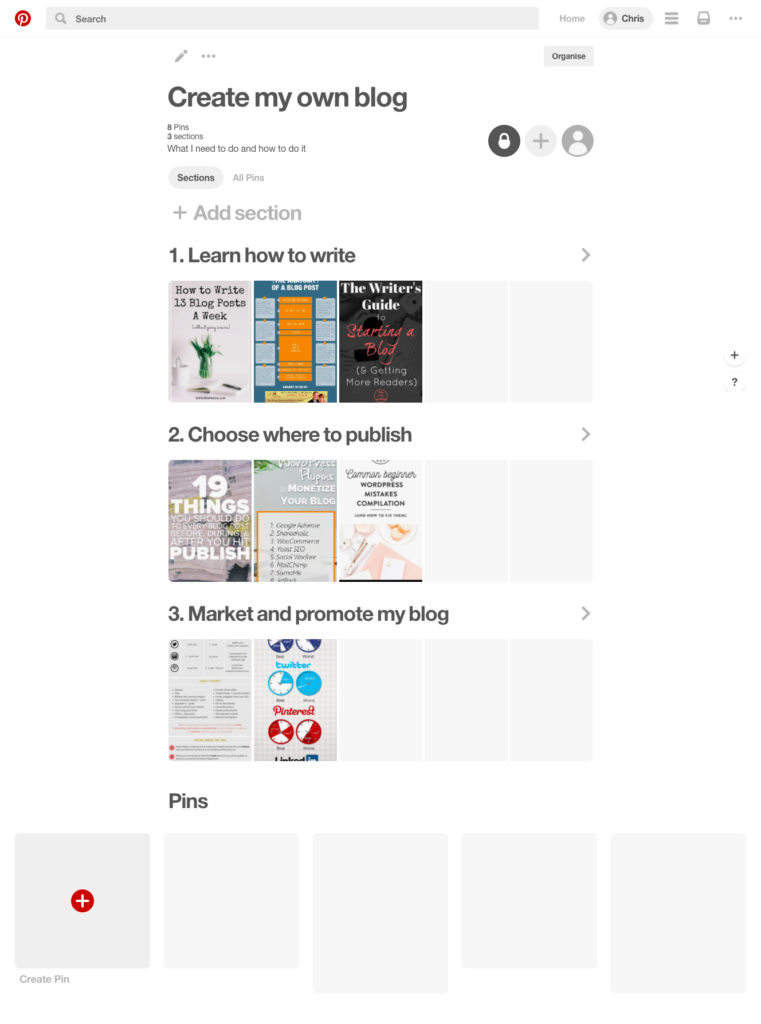
Although you can’t create Post-it note-like things in Pinterest, you can add text in interesting ways. One way is by creating a new board with different sections. Why would you want to do this? Because it lets you create your own to-do list for specific goals.
In the example above, the goal is to write my own blog. So, I create a new board called “Create my own blog.” Then, I create different sections with each step I need to take in order to be successful. Within each section are my pins. Each pin is another resource for helping me achieve the goal outlined in the section heading.
What’s great about this is puts everything you need to achieve your goal at your fingertips. It’s all in one place. No more trawling the internet while you work, you can separate your research and production time by arranging it all on Pinterest first. Then all you have to do is follow your plan.
Pinterest offers something unique in the saturated social media field. For one, the social aspect is optional, you can treat it like a virtual corkboard if you want and leave it at that. But for creatives, it’s a powerful weapon against the funk of inertia – spending time scrolling and pinning isn’t time wasted, but time well spent. At best, you’re inspired to new creations, at worst you’ve got a collection of useful resources and an insight into the things that make you tick.
Pinterest is experimenting with a ‘News‘ feed in its iOS app. This list is a feed of Facebook friends’ activity, as well as the Pinners and boards you follow.
The idea behind the News feed is to let you see what other people are pinning, and perhaps allow you to discover more through the app. While this means that your activity may appear on friends’ news feeds, the things you pin to secret boards will of course not. Only the things you pin publicly will be available in the News feed.
Pinterest is testing this feature, which is why it hasn’t been rolled out to other platforms yet, and will continue to do so for the next few weeks. The company is asking for feedback from users during this time.
Pinterest is giving users a sneak peak at an upcoming feature called “Interests.” Interests will be a new homepage that curates content around the topics you’ve pinned about the most.
Pinterest’s recommendations look and feel similarly to Flipboard’s curated “Cover Stories” feature, where it mixes your story sources as well as suggested stories from Flipboard’s staff. If you have a ton of pins about travel, expect your Interests homepage to feature more travel stories and photos.
Interests is Pinterest’s attempt to make exploring content on the site easier. Currently, users have to navigate to specific sections of the site to see recommended pins for that category. With Interests, pins from all categories in which you’re active will be displayed.
To try out the new Interests homepage yourself, simply visit Pinterest and click on the “Preview! Explore Interest” button in the categories menu. The company has not provided a specific date when Interests will officially roll out.
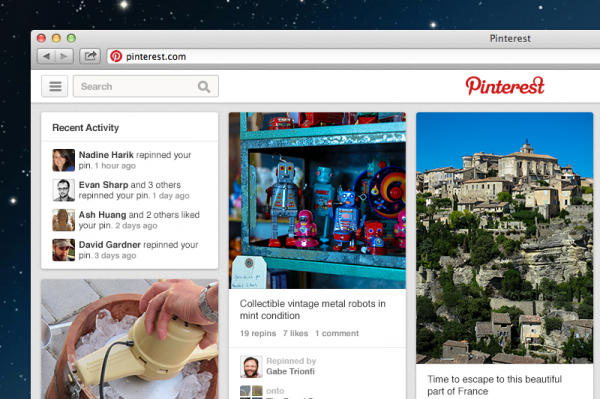
Pinterestis getting a face-lift. The increasingly popular social network for collecting the things you love announced its new look in a blog post today. Lead Product Designer Jason Wilson explained how testing and feedback began in January, and now everyone can see the results as they are rolled out.
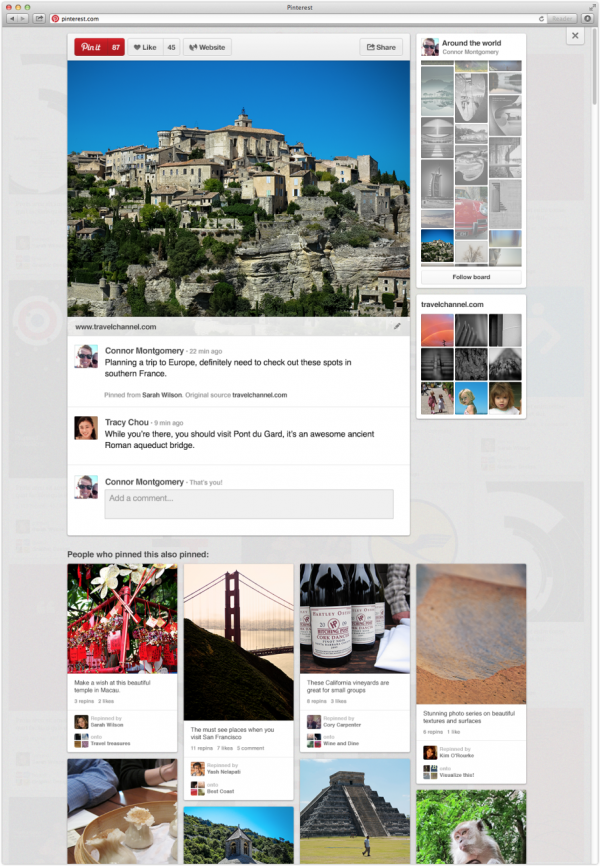
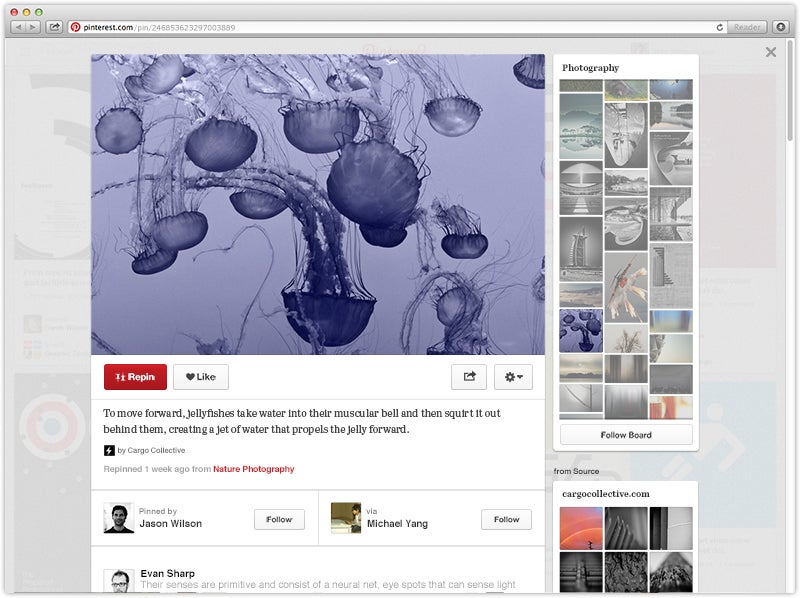
The new layout makes using the Pinterest homepage easier. You can now browse Pins from the same board, Pins from the same source and People who pinned this also pinned’. These are all designed to make discovery even easier on Pinterest.
According to the blog post, one of the aims of the redesign is to stop you losing your place when you’re exploring.
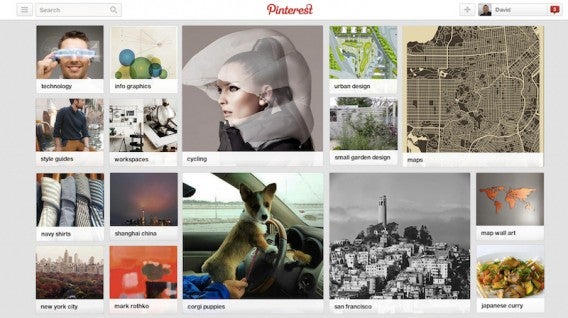
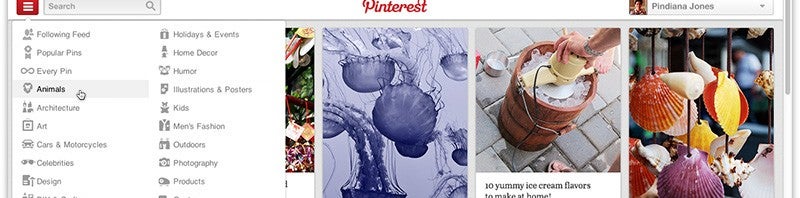
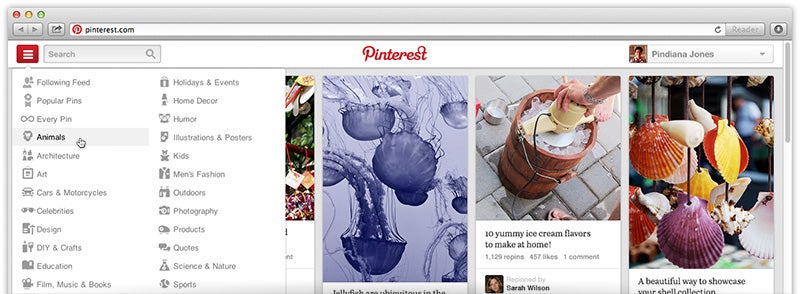
Pinterest is updating its web interface for easier navigation and a better layout for displaying information. The most notable interface change is the sidebar, which has been updated to make navigating the different categories and other boards more visible.
This will make discovery much easier. The current interface has categories and other boards in a section at the top of the page, but its drop-down menus are often forgotten about.
The other big change to Pinterest is the layout of its boards. Boards will be bigger, allowing for a better visual experience as well as providing more room to display more detailed information. The update to the look of the boards also helps to aid discovery. Users will be able to see pins from the same board, who has repinned the board, and related pins.
Last but not least, Pinterest is working on improving the overall performance of the site. The updates will only be rolled out to a small group of users “over the coming weeks.” Users who want to help Pinterest test out the new layout have to sign up here. All you have to enter is your user name and email address to request access to the new layout.
There are a lot of great photos online, and Pinterest aims to be the place where you save all the online images you like. Never lose a picture you enjoyed somewhere on the internet again!
Pinterest is a social photo sharing service that lets you create folders to organize content you find online. Called pinboards, these folders can be tailored directly to your interests and even organized into more specific sub-categories to make them searchable to other users.
You can easily add images you find online to your pinboards, either manually or in Chrome with a one-click add-on. Alternatively, you can also upload images saved on your computer directly to the site. Just be sure to add a link back to the original source or credit the author by name if possible. If you find something you like within Pinterest’s website itself, there’s a feature that lets you “Repin” an image and add it directly to the pinboard of your choice. In this way, Pinterest is a kind of hybrid between photo sharing website We Heart It and microblogging platform Tumblr that allows users to reblog other peoples’ pictures and posts. Simply liking an image, as well as commenting, is also possible.
Currently, Pinterest is an invite-only service. That said, I requested an invite and it took about a week to receive notice back that I could create an account and join. You can log into Pinterest via either your Facebook or Twitter account once you’ve received an invite, which makes sharing even easier. There’s also an app for the service available for iPhone. Even without an invite, you can freely browse the public pinboards that have already been posted up by other users, making it well worth a look.