Putting on a podcast while doing a mundane task, like tidying up your house or walking, is more common than you might think. Now, thanks to one of the new features of Adobe Acrobat, you can make the most of that time in an even more productive way.
And indeed, Acrobat allows us to generate podcasts from a document. This is especially useful if, for example, you are a student and want to review your materials at any time. Below, we explain step by step how to generate your own podcasts from Adobe Acrobat.

How to transform your documents into podcasts from your PC
If you are working from a PC, you will first need to access Adobe Acrobat from your browser. Log in with your username and password. Then, go to the Tools section and look for the Turn your files into podcasts option using the navigation arrows on the sides.
By clicking on it, a new dialog box will appear where you will need to drag your document and upload it. From here, you can also access your files uploaded to the cloud if you need to.
Next, you will have to choose between the options of Highlights podcast and Deep dive podcast. The first will help you listen to a summary of the most important points, while the second is much more in-depth and detailed.
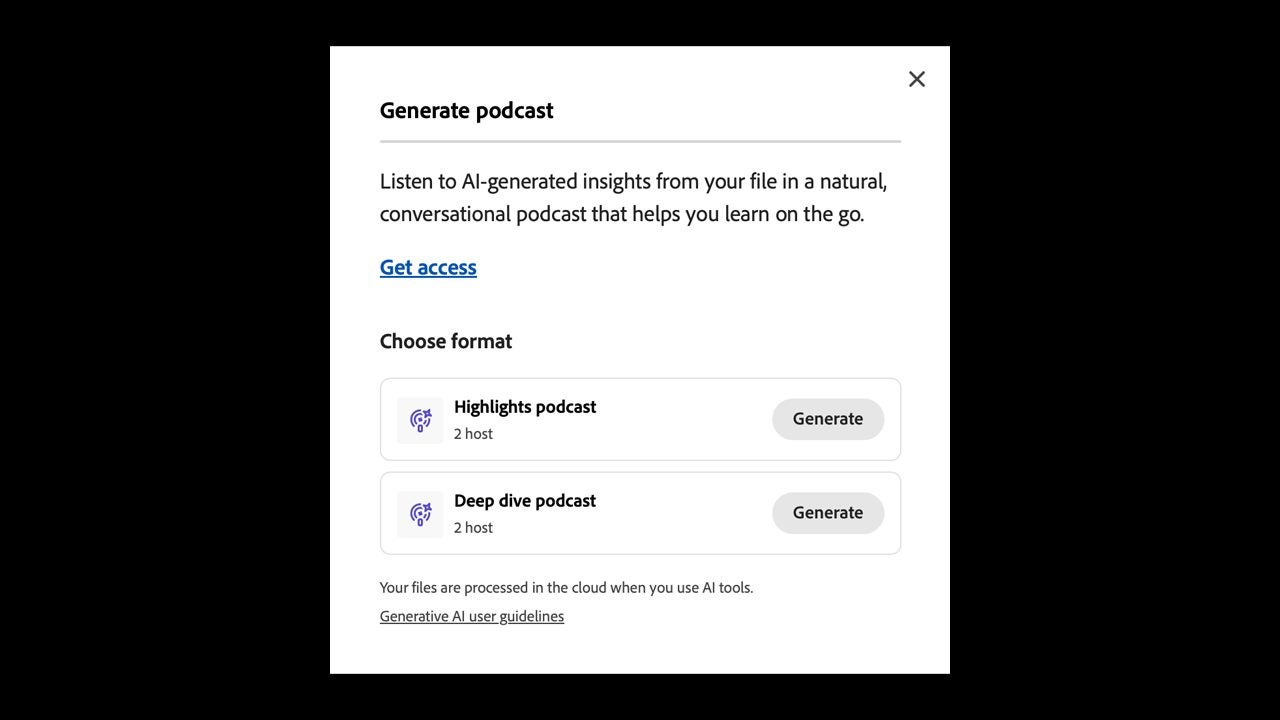
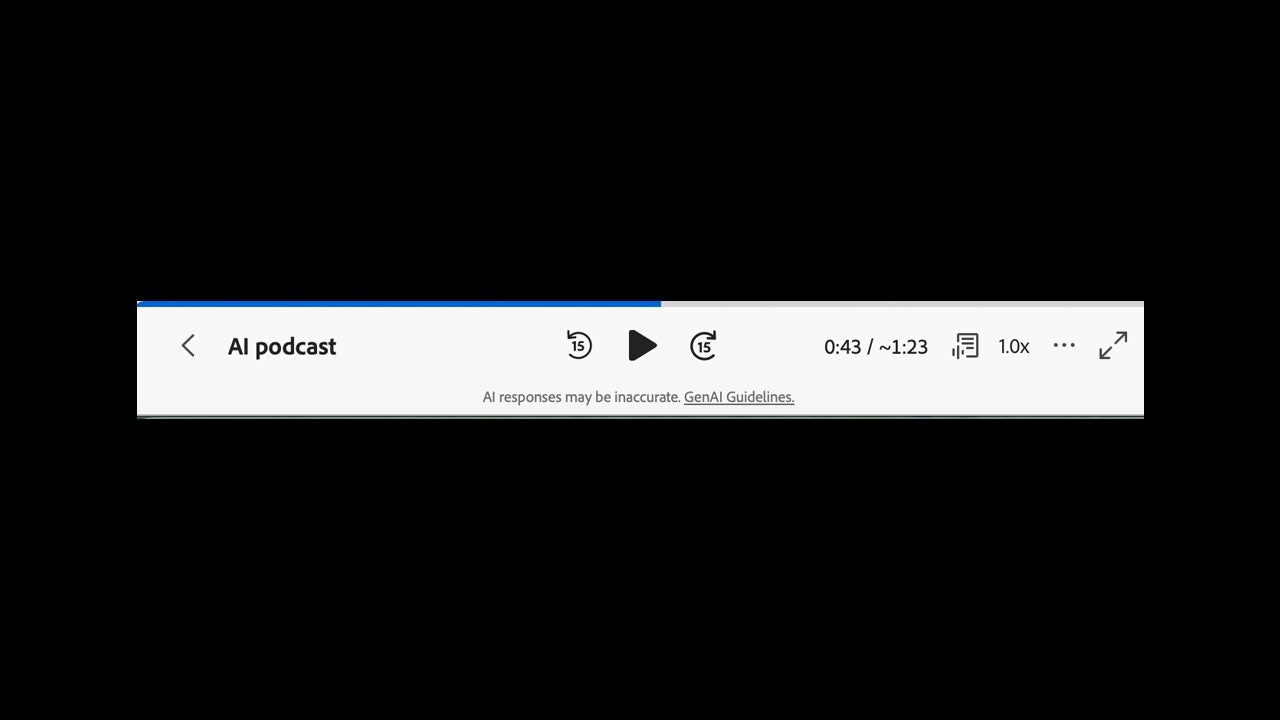
After choosing, you will have to wait a few moments for Acrobat to analyze the document and produce the audio. When finished, you will see a playback bar just below, with the Play button ready for you to listen to your podcast.
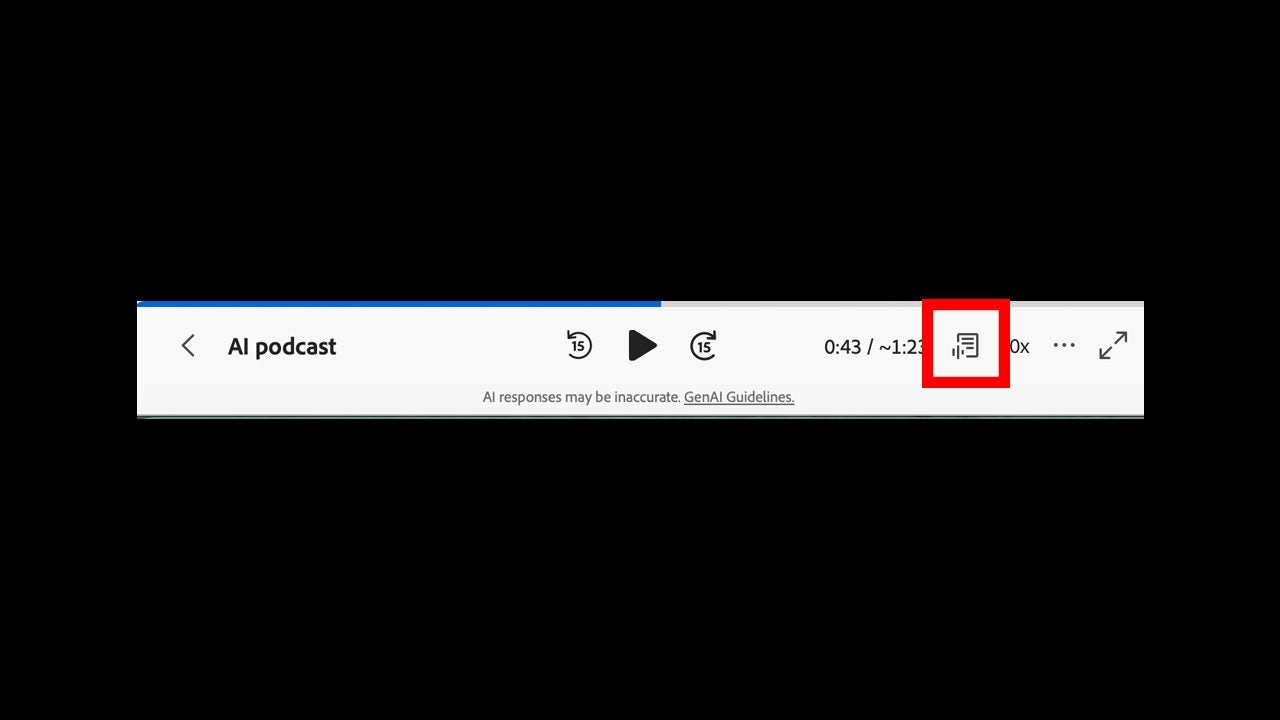
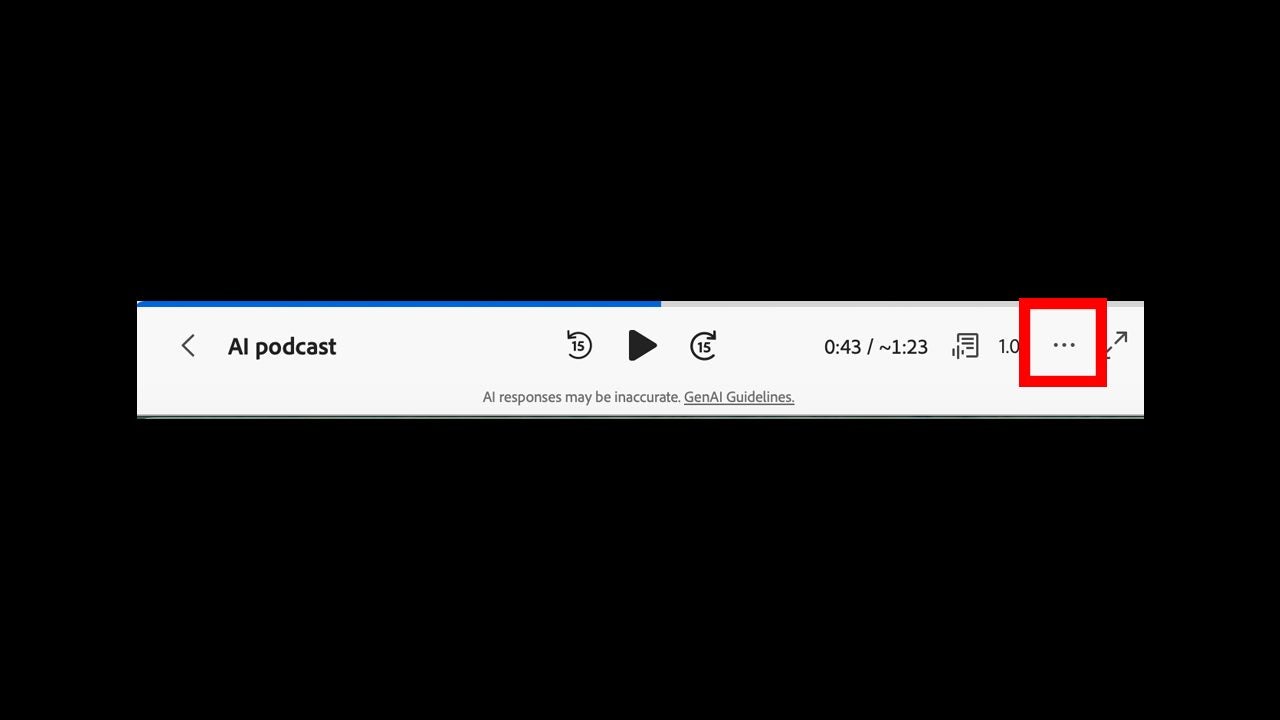
If you want to see the podcast transcript, simply click on the Expand to view Transcript. Next to it, you will also see the speed controls, in case you want the speakers to talk faster.
And if you want to remove the podcast controls, simply click on More options (the three ellipsis) > Close & hide.
At the moment, the podcast generation feature has a small limitation: it can only generate audio in English, French, and German. However, other features like Generative Summary, PDF Spaces, or Generate presentation are compatible with additional languages, such as Spanish, Portuguese, Italian, and Japanese.
How to transform your documents into podcasts from your mobile or tablet
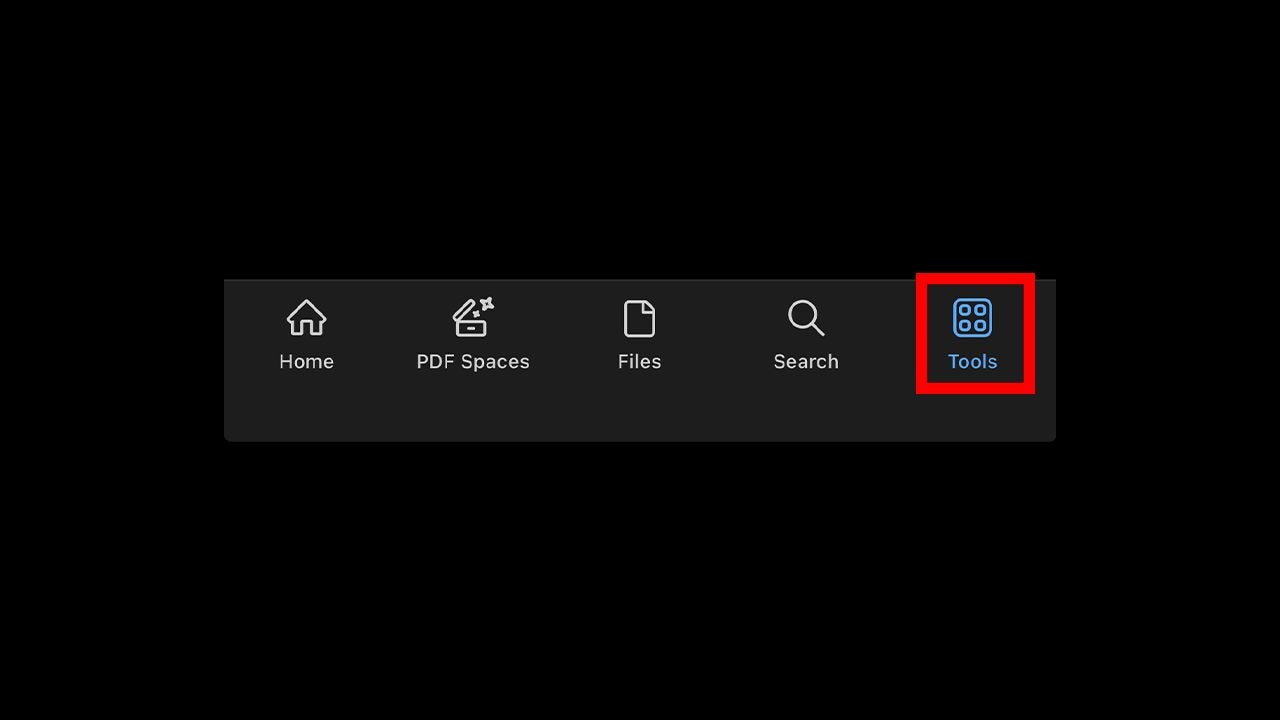
Fortunately, the podcast generation is also available in the mobile versions of Adobe Acrobat. If you already have the app, go in and head to the Tools section located in the bottom bar.
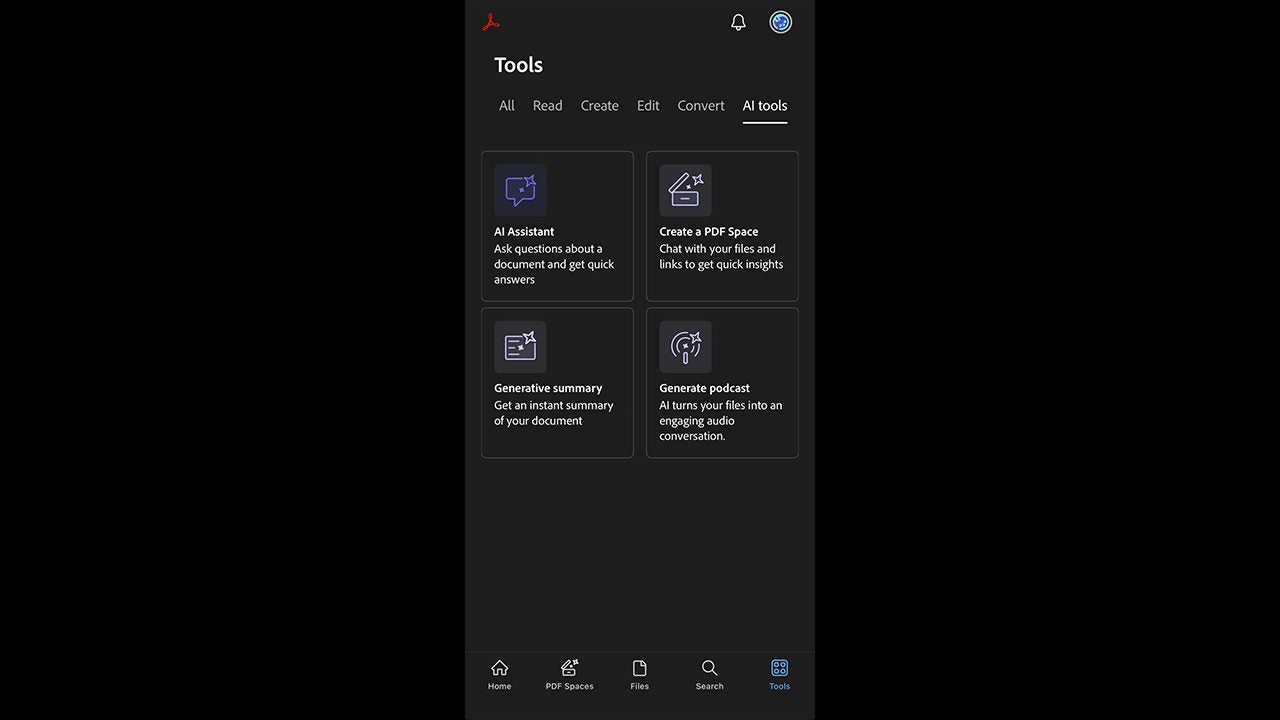
You will see a series of sections, but the one we are interested in is the one on the far right, AI Tools. There you will see the option to Generate podcast.
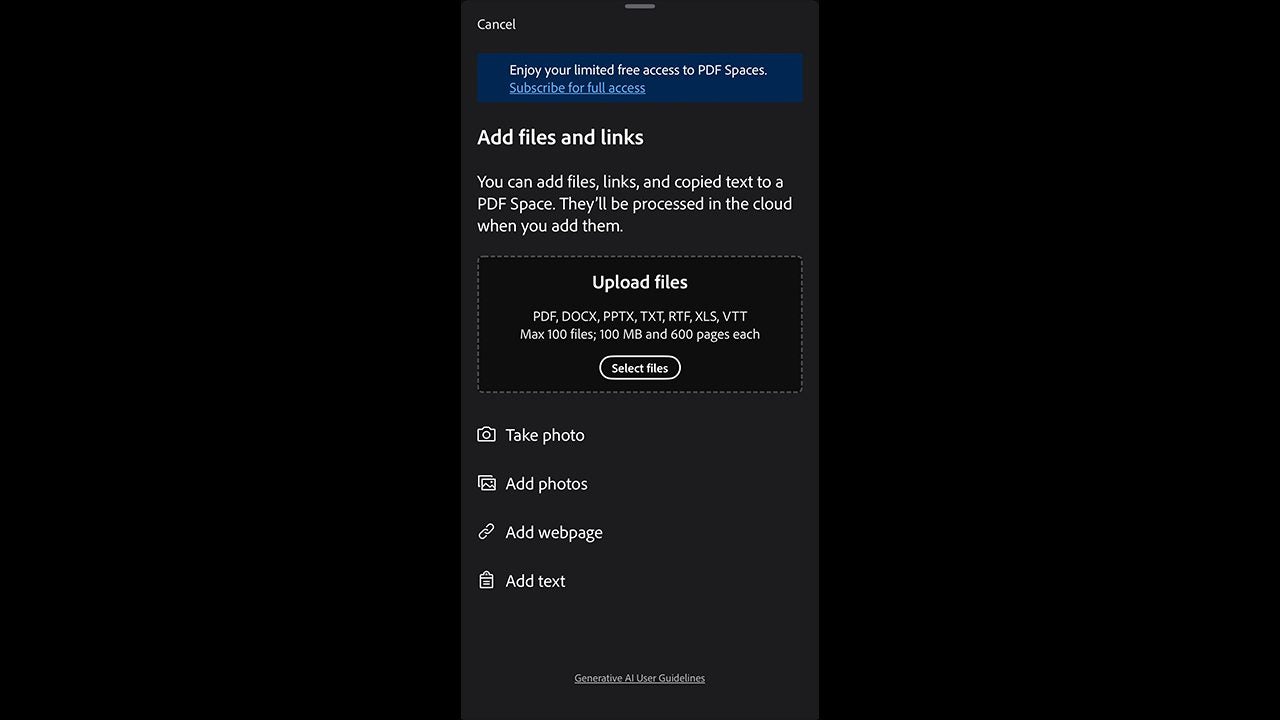
Next, you will be able to upload the files you need to the application. Here you can take or add photos, web pages, texts, PDFs, and more.
Now you will have to wait for Adobe to analyze the document. Sometimes it will do it very quickly, but at other times it may take a little longer. When it’s done, you will be able to listen to the automatically generated podcast.
Can I create podcasts with Adobe Acrobat for free?
The answer to this question is a bit complex. Is it free to generate a podcast with Adobe Acrobat? The official answer would be no, but there are some ways to do it for free.
If you want to try features like podcast generation, you have the option to access a 7-day free trial. During that period, you can use the podcast feature at no additional cost.
On the other hand, all Acrobat users receive a limited number of free queries for AI Assistant, but once they run out, you need to subscribe to continue using it (including podcast generation).
