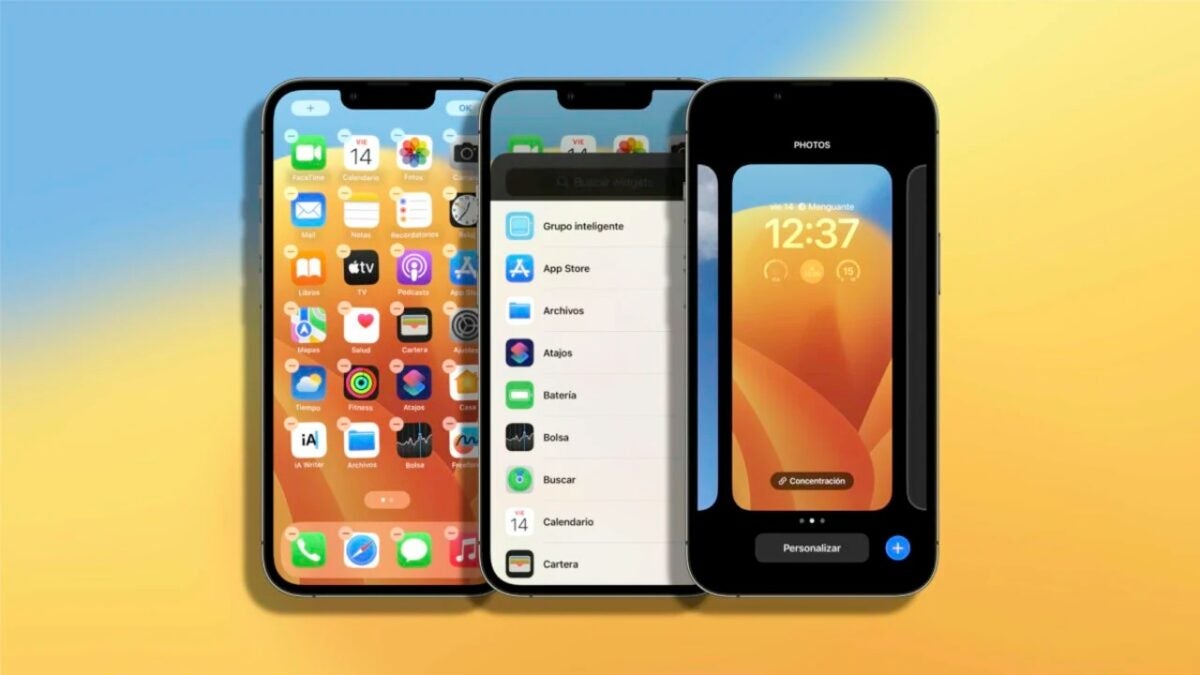
The home screen of our iPhone is the first thing we see when we unlock the device and a point of reference as we move between applications and services. Therefore, it is important that its appearance is to our liking and at the same time its organization is practical. Fortunately, Apple offers us a good amount of options for us to achieve exactly that: customize the home screen of our iPhone and make it unique.
How to change the wallpaper
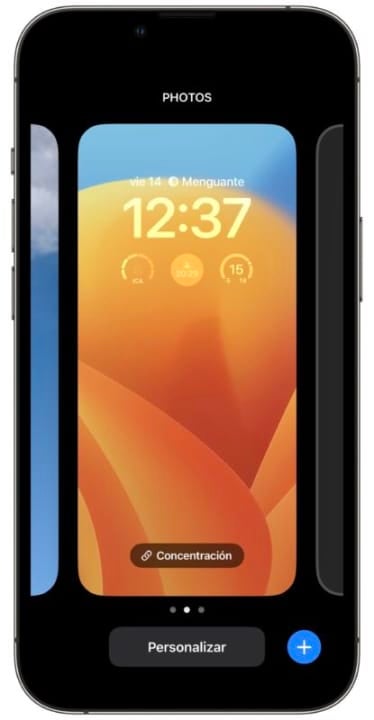
One of the easiest ways to customize our iPhone is to change the wallpaper. We can choose from Apple’s default images or use our own photos. To change the wallpaper, here are the steps to follow:
- Without unlocking our iPhone, we press and hold on the screen.
- Touch the blue “+” at the bottom right.
- We choose from one of the backgrounds offered to us or tap on Photos at the top to choose the images.
- We search for and select the photo we are interested in.
- Click on Add.
- If we want to disable blurring for the home screen, we tap on Customize home screen then on Blur and then on OK. Otherwise, click on Set background pair.
- Click on the new background to exit the configuration.
How to use widgets to customize the home screen
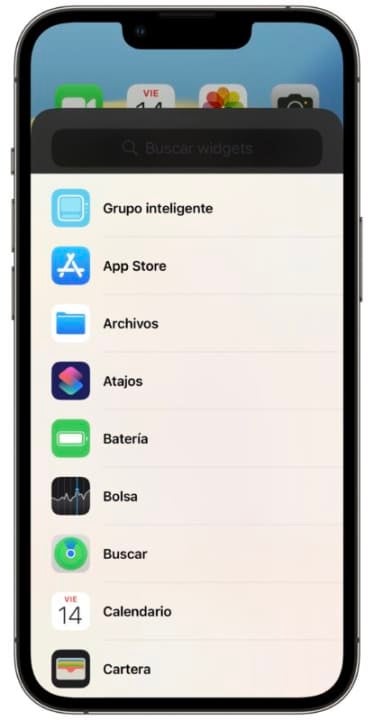
Widgets are a great way to add useful information and customization to our home screen. With iOS 14 and later, we can add widgets of different sizes and from various apps. To add a widget, these are the steps to follow:
- We press and hold an empty area of the home screen until the apps start moving.
- Tap the “+” icon in the upper left corner of the screen.
- Find and select the widget you want to add.
- Choose the size of the widget and tap “Add widget”.
- Drag the widget to the desired position and tap OK in the upper right corner.

There are also third-party applications such as Widgetsmith and Color Widgets that allow us to further customize widgets, creating specific widgets depending on what we are looking for. With these applications, we can change the appearance of the widgets, such as the background color, font and style while choosing what is displayed in them.
How to organize applications in folders and app pages
Another very important way to customize the home screen is to organize applications into folders and pages according to our preferences. We can group similar applications into folders and organize the home screen pages according to the frequency of use, the theme or even the color of the applications. To create folders and organize apps, we will follow these steps:
- We press and hold the icon of an application until the applications start moving.
- Drag the icon of an application over another to create a folder.
- To add more applications to the folder, drag them into the folder.
- Touch the folder to open it and then touch the folder title to rename it.
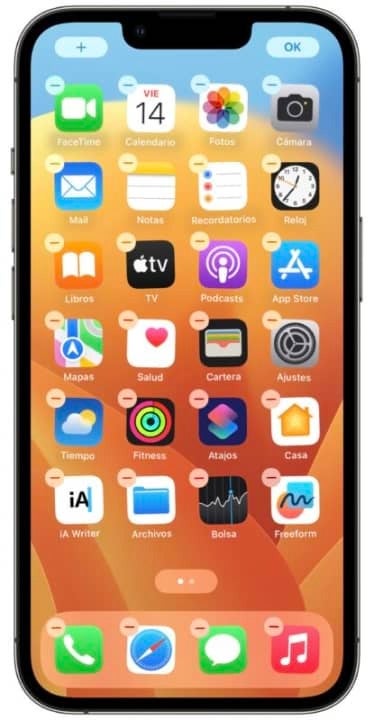
Meanwhile, to organize the home screen pages, we simply drag and drop the applications and folders on the different pages. Remember that we can use two hands to move, so while with one finger we hold the application, with the other we scroll through the pages.
How to hide applications that we do not use
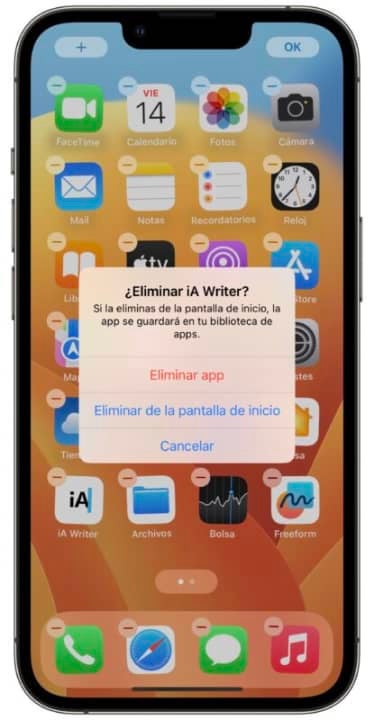
To finish with the customization, we can hide the applications that we do not use so much. Just as we can hide photos and videos in the Photos app, thanks to the App Library, we don’t have to have all the apps on our iPhone visible on the home page. The steps to hide apps are as simple as this:
- We press and hold an app icon until the apps start moving.
- Tap the “-” button in the upper left corner of the app you want to hide.
- Tap on Remove from home screen.
Along with these 14 hidden iOS settings and features to get the most out of the iPhone, customizing the home screen of our phone is essential for the device to be to our liking and adapt well to the use that we are going to give it. Changing the wallpaper, adding custom widgets, organizing apps into folders and hiding those we don’t use are some of the ways we can achieve this. Simple ways to find the most suitable design and functionality.
Some of the links added in the article are part of affiliate campaigns and may represent benefits for Softonic.
