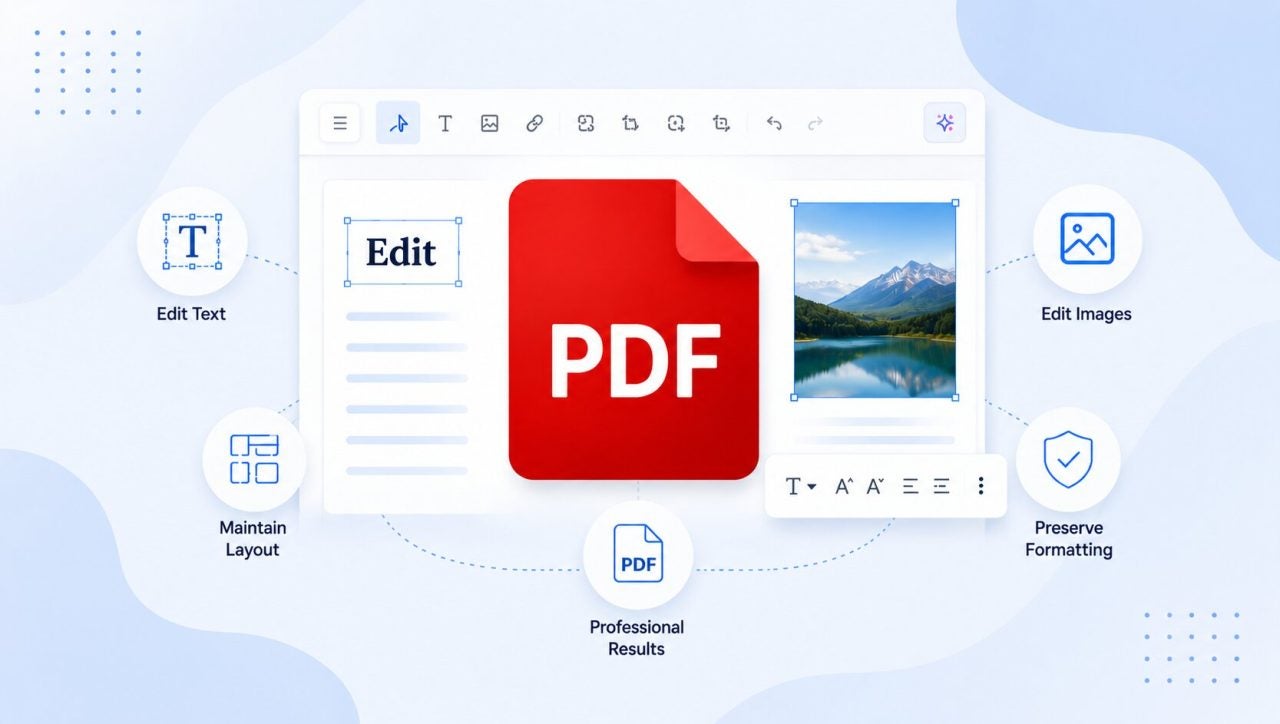
We have all been there: A contract with a typo, a proposal with the wrong price, maybe even a logo that needs to be changed quickly before it goes out to a client. Or maybe you are dealing with a form that you thought was finished, right up until someone points out that it can not be filled out digitally.

What makes PDFs strong is they look the same on various devices. PDF is codified as ISO 32000 and is made for ensuring a page looks like it is supposed to. The tradeoff is that this same rigidity makes editing PDF more dangerous than editing a normal document file.
You just need to change a PDF, not “reboil” a file to be able to remould it.
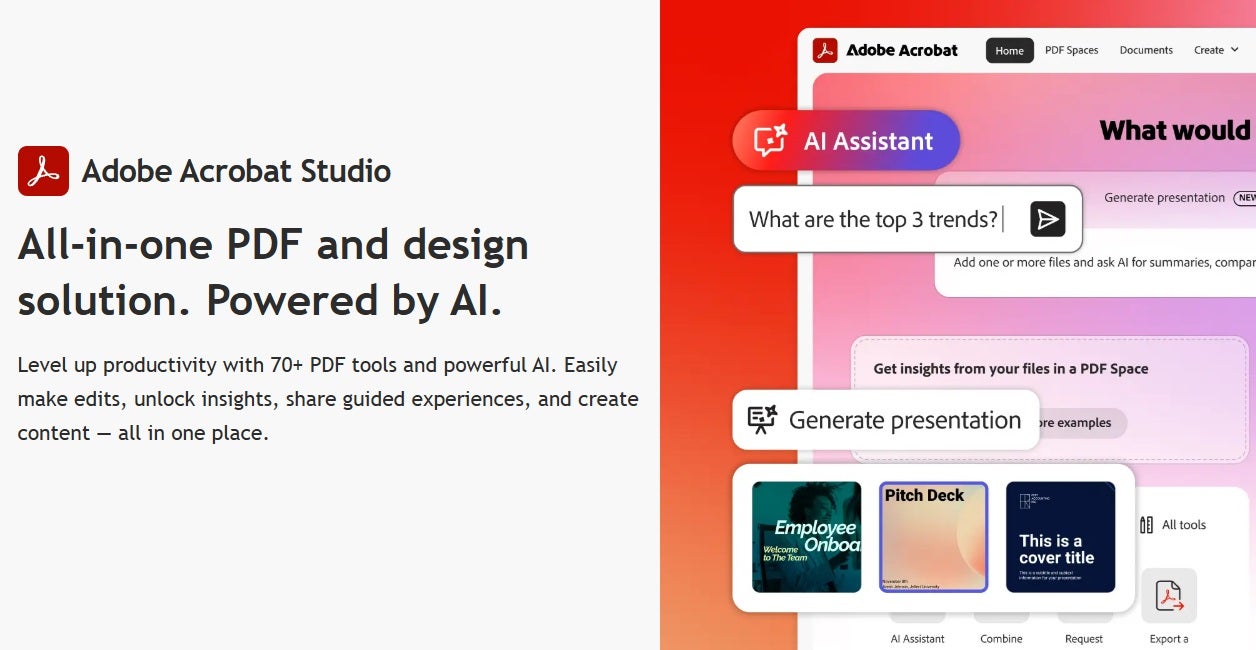
The better way to edit a PDF safely is to first figure out which kind of document you have, then make the right kind of change based on a tool that will offer you direct PDF editing. Adobe Acrobat Studio works here and allows for editing text and images, as well as bringing together Acrobat Pro, AI Assistant, PDF Spaces, and Adobe Express Premium to do wider PDF work.
Why PDF Formatting Breaks
PDFs are not word-processing documents. They can describe the way a page should look, rather than behaving as a live document in which just by adding new text you would make all the other text move neatly down the page. A fixed layout is why PDFs are fantastic when you want to be sure the person you’re sharing it with will see exactly what you want, but pretty inconvenient if you want to change them.
A layout breaking usually stems from the same root issues. Replacing a sentence? It goes over the original text box. Font not found? The app might swap in a different one. Those stack up into spacing issues and line jumps. Moving an image? That won’t reflow text and adjust the layout around when moved.
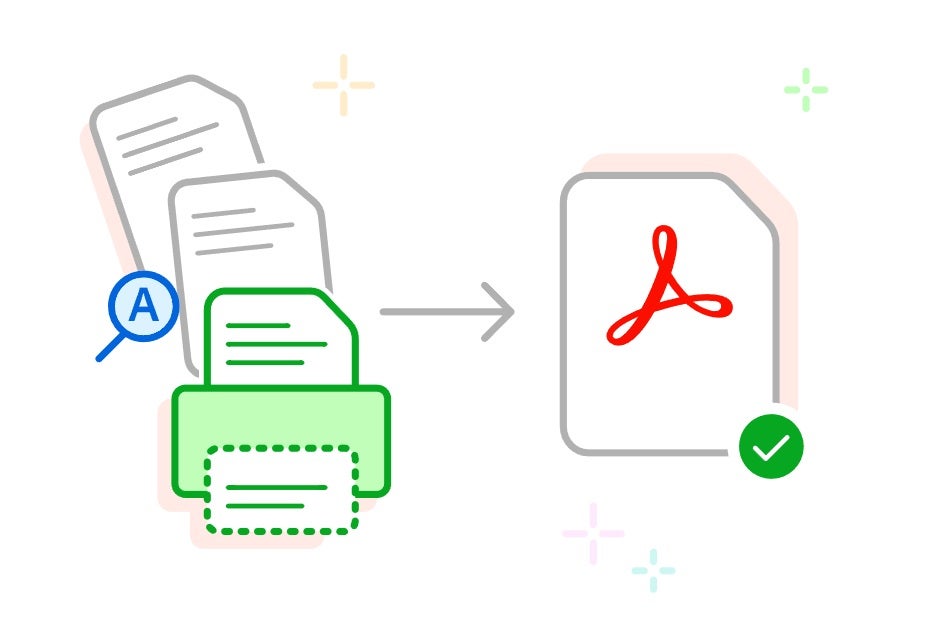
Last but not least are scanned PDFs. The page looks like text to you, but the file is actually treating each page as an image because it’s not actually text. OCR is needed to turn those images of words into actual “typed” text.
With Adobe Acrobat Studio, it can help you to add, delete, replace and format content in a PDF. Sometimes, convoluted layouts might need a design revisit, but in most cases you can handle changes in seconds or minutes, not hours.
How to Edit Text in a PDF Without Retyping the Whole Thing
Sensible PDF editing begins with you, not the software. Before starting, we recommend you to check on whether or not directly editing is a good idea. Also, remember that having a source file is always best.
Open the PDF in Acrobat Studio and then ask yourself the follow:
- Can I select any text? If you use the select tool and you drag on text, does it highlight and split into boxes, or does it grab entire blocks or images instead?
- Is this document scanned? Does the page appear to be an image or photo of text instead of actual text?
- Does this file have a password or is it restricted?
- Is the edit I want to make small like a typo or am I trying to change the layout of the text?
Selectable text is good news. That means you can freely edit the text, while scanned pages will require OCR (Optical Character Recognition) as an extra step to do so. OCR is possible and will render text searchable or editable but it should really be proofread.
When your PDF in question is locked or signed, you can be prevented from editing it. There’s no way around that except for asking for one without a password, an unsigned copy, or the original source file that exported the PDF.
The last question is the most important. Are you trying to fix a typo, a bit of a text here and there, or change the text layout?
You can absolutely add, replace, delete, and correct text. You can also change fonts, typeface, and text size. That gives you more control than a number of PDF tools, because you are editing the PDF content itself rather than adding comments on top.
However, go in with healthy expectations. PDF text often can only reflow inside its original text block boundary. It won’t, for example, automatically push content down a page like in a Word doc. So, after every edit, zoom out a bit and inspect the whole page, not just the sentence you modified.
This type of editing works well for dates, names, prices, short legal corrections, administrative details, brochure copy updates, and job titles. And the best part is that it can take literal seconds when a job is small and precise.
How to Replace and Edit Images, Logos, and Visual Elements in a PDF
Let’s say your company logo changed or a product image was updated, those are great examples where you can easily swap in a new one. You could also move a chart that’s too close to nearby text or resize a photo.
Those are the practical examples, but the image tools that Acrobat provides allow you to insert, replace, move, rotate, resize, crop and delete image content.
Your process should be the same each time. You select an image, use one of the tools, and check the surrounding layout.
As Adobe Express is integrated inside Acrobat and Firefly along with it. That means there are options to tidy up an image and adjust it via text prompts. You may want to remove a busy background, for example, or change the lighting. Once you’re happy with the results, save or export the updated PDF.
If you’re replacing an image then use a similar size replacement image when you can. Keeping the same aspect ratio is important so the new image does not look stretched or squeezed. Also, if a PDF becomes heavy after the image swap, perhaps consider a lighter image or compress it before sending.
The capabilities within Acrobat for tweaking images are powerful, however if you are looking for a full suite of image retouching tools then use the original design file or a dedicated image editor like Adobe Photoshop first. Once you’re done, simply replace the finished image back into the PDF.
Convert Scanned PDFs to Editable Text Using OCR
Usually a scanned PDF looks like a normal document, but acts more like a photo. You see the words but the computer is not really treating them as text. That is why, when you try to click on a sentence, it sometimes selects the whole image rather than text.
OCR fixes that by “reading” the scan and transforming it to text and not just lines. You can run OCR on a PDF in Acrobat and convert it to a format that can be edited like a Doc file.
If you’re the unfortunate recipient of an old contract, archived invoice, government form, or red tape from HR, you will want to avoid retyping. And that’s the sensible thing to do. Who wants to manually retype a ten page document because a scanner was used?
For better results, make sure the scan is as clean as possible or ask for a cleaner scan if it isn’t. If text is blurry, pages are skewed, contrast is poor, or writing is irregular, the OCR may not succeed.
Once you’ve done the OCR, save the text copy so that you can compare side by side with the scanned PDF. Doing so will flush out any errors, especially for important details like names, numbers, addresses, totals, dates and legal clauses. If you notice any errors, you’ve got the text editing tools on hand we mentioned earlier to address them.
Make Static PDFs Easier to Fill and Sign
Sometimes editing a PDF is about making it more usable, not changing the actual content:
- An application form with no fillable fields
- A client agreement missing signature lines
- A vendor form that needs to be dated, signed, and initialized.
They’re all files you might receive and that, if you don’t treat them first, you’ll be forced to print or sign manually.
In these cases you can make a PDF into a fillable form by adding fields and signatures, and prepare it to be e-signed.
That’s possible in Acrobat, but check your set up. Examine the field names you’ve given, the size of the fields, order and spacing before sending.
Acrobat can also send documents for e-signature from both desktop and web. That minimizes lost signatures, approval delays, and those times where three people print the same document for no reason.
How to Edit a PDF on Mac Without Relying on Preview
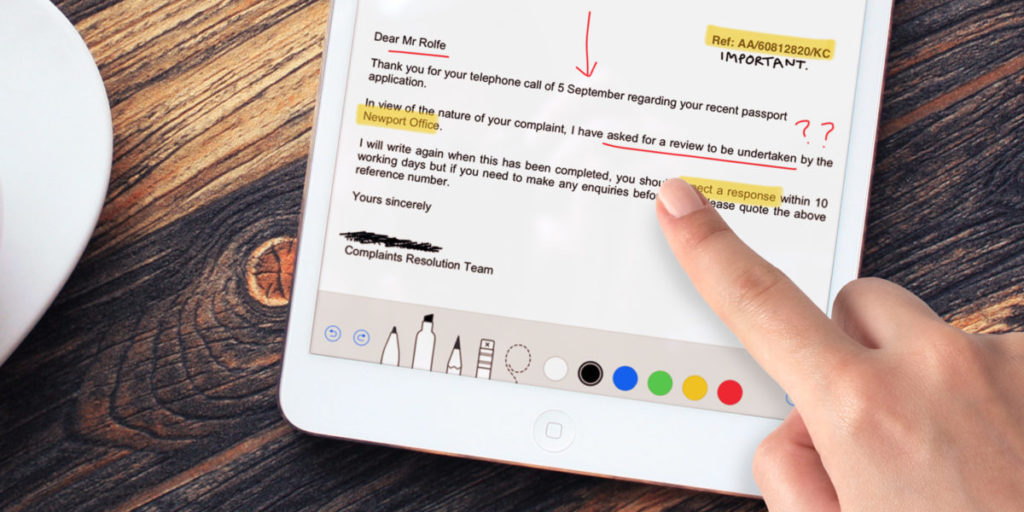
If you are wondering how to edit a PDF on a Mac, you will probably first open the file in Preview. Logically, it makes sense as it is quick, simple, and built into the OS. But keep in mind it is not a true PDF text editor.
Apple states that Preview allows annotating PDFs, filling out forms, and adding signatures, but you cannot modify the preexisting written content of a PDF within it. Open it when you want to highlight things, add notes, do a simple form, sign a document, or reshuffle pages.
Use Acrobat Studio when you need to change the document itself. This includes editing existing text, replacing images, running OCR on scanned files, preparing fillable forms, sending documents for e-signature, and working across desktop, browser, and mobile where available.
If you want to know when to use Preview or Acrobat Studio, just follow this simple rule: use Preview when you need to mark up. Use Acrobat Studio when you need to edit. Preview opens PDFs beautifully, but opening a file is not the same as being able to change its bones.
Use AI for Quicker PDF Edits and Document Cleanup
AI can make a difference in working with PDFs when you need to find, organize, repeat, or summarize supported data and actions. It is not instant-fix magic but it is definitely helpful when it saves you a few clicks.
Adobe says Acrobat AI Assistant can perform PDF tasks from natural-language prompts. It can figure out what you are wanting to do, select the right supported tool, and carry out actions without you digging around in the menus.
Some possible prompts you can try could be:
- “Find every mention of the old product name.”
- “Move the pricing page before the terms.”
- “Remove blank pages.”
- “Compress this file before I send it.”
- “Add a watermark to pricing pages.”
As a whole, Adobe offers your own personal AI Assistant that will aid you editing your PDFs in just a few seconds.
Know When Not to Edit the PDF Directly
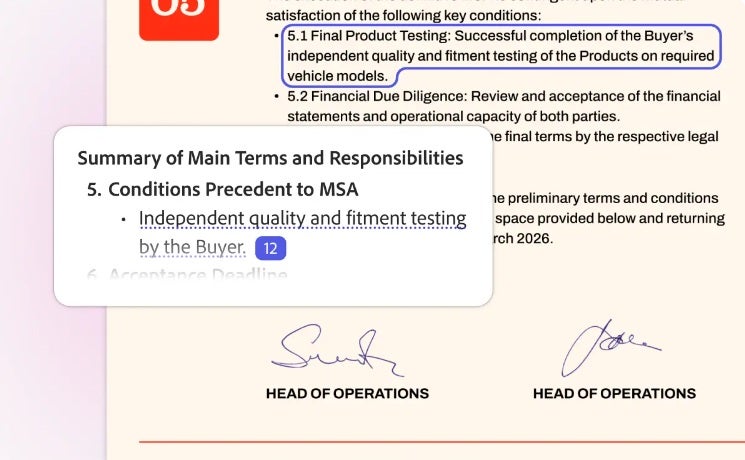
Sometimes, the safest PDF edit is not to edit the PDF at all. This is especially true when you’re making major changes, preserving complex layouts, or working with legal documents that require exact formatting.
This rule is important if the PDF was created in professional design software, where every line break matters or where compliance or accessibility tags matter. The same applies if the document has been digitally signed, locked, or requires editing permissions.
Why does this matter? Forcing edits in these PDF files will probably trigger control issues, formatting errors and ultimately, unnecessary complications.
Keep in mind no single PDF editing problem has the same solution. The best approach depends on the document and the changes you need to make, so use common sense before you start editing.
Edit PDFs with Adobe Acrobat Studio
If PDF edits are a part of your usual work, then Adobe Acrobat Studio will provide a much larger arsenal than a basic viewer or a simple markup tool. It is developed for editing text, replacing images, OCR on scanned PDFs, building fillable forms, sending documents for e-signature, and using AI Assistant to edit and organize supported actions.
