Skip to content

Softonic English

Just another Softonic Sites site

How to Improve and Sharpen a Blurry Photo in Photoshop

Let’s be honest: a pricey phone with a great camera won’t stop you from ending up with blurry shots. Shaky hands, low light, a split-second of movement, any of these can turn a good moment into a detail-free memory. The good news is that Adobe Photoshop can fix most of these problems with the right approach.

Adobe Photoshop
Adobe Photoshop DOWNLOAD

What Photos Can You Actually Fix in Photoshop?

Before diving in, it helps to know which photos are worth the effort. It all comes down to the type of blur you’re dealing with.

Images with light motion blur respond best to correction. The classic shaky-hand shot, where everything looks just slightly out of focus, can improve a lot.

Low-resolution images also benefit from Photoshop‘s AI tools, which can rebuild textures and recover a surprising amount of sharpness. Photos with noise or heavy compression are also worth trying (anything you’ve downloaded from a social media chat, for instance).

What you can’t easily save are photos with extreme blur, the kind that’s nearly deformed or where you mostly see smudges. Even AI won’t get you far there. Push it too hard and it’ll start inventing details rather than recovering them.

Here are the main tools inside Photoshop to rescue most of your photos.

Use Smart Sharpen

Smart Sharpen is one of the most effective tools for dealing with soft or blurry images. With your photo open in Photoshop, go to Filter > Sharpen > Smart Sharpen. You’ll see three main controls: Amount, which sets how intense the sharpening is; Radius, which determines how far the effect spreads from edges; and Reduce Noise, which tones down any grain the sharpening introduces.
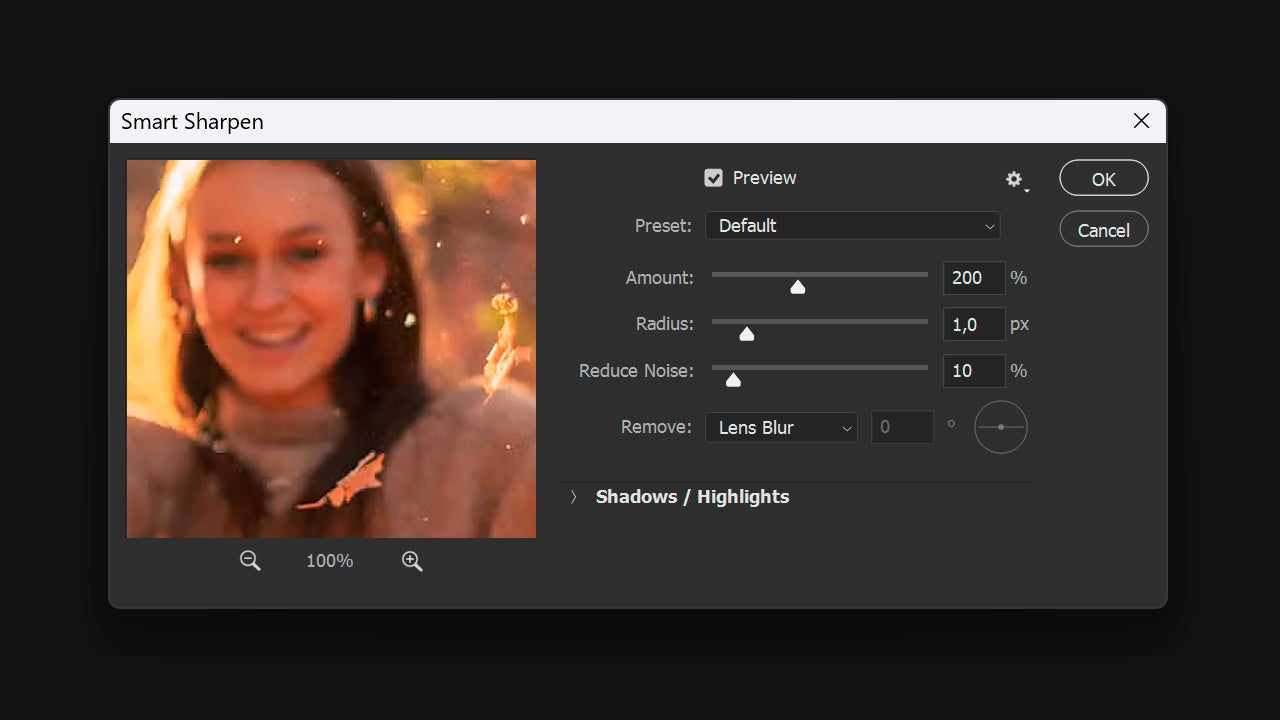
In the Remove drop-down, you choose which type of blur to eliminate. Out-of-focus blur and motion blur aren’t the same thing, and the tool handles each differently. For motion-blurred shots in particular, Smart Sharpen delivers excellent results. That said, don’t go overboard with the sliders. Push them too far and you’ll end up with an artificial halo effect that looks worse than the original.

Reduce the Noise

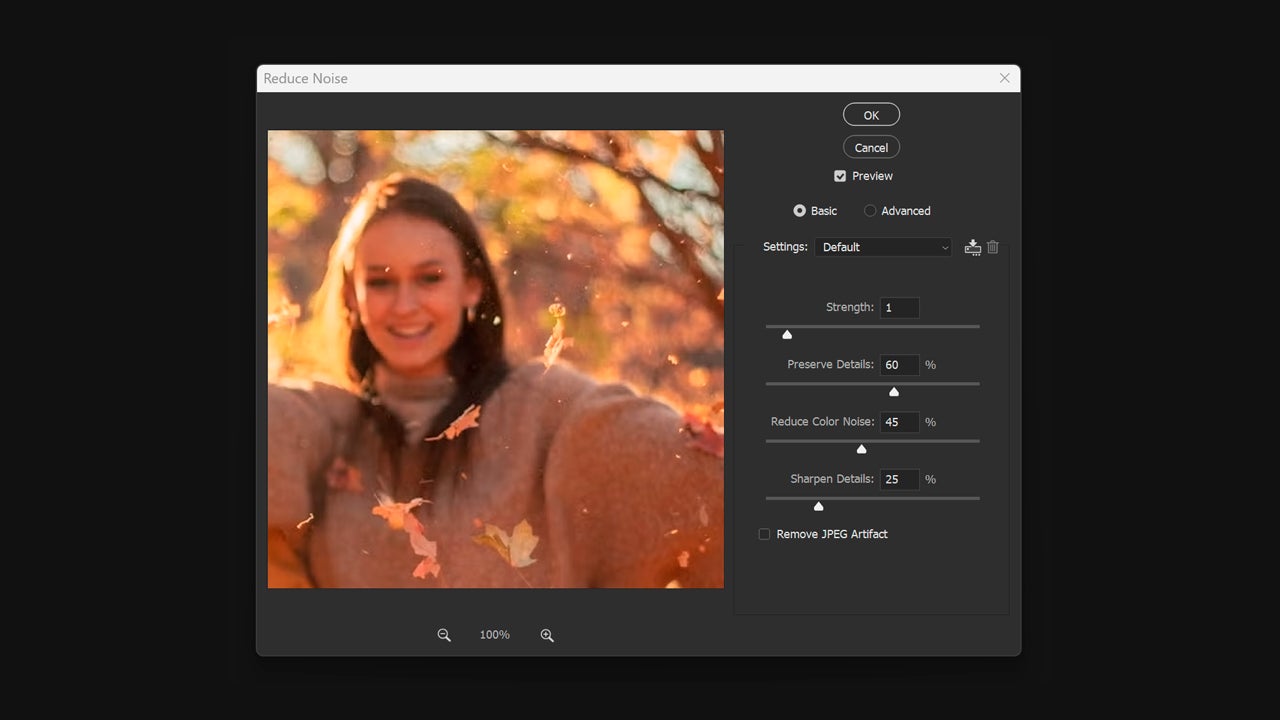
If your photos have too much noise, you can smooth things out quite a bit. This tends to happen when shooting in low-light conditions, and it makes images look less sharp than they actually are.

Open your image in Photoshop and go to Filter > Noise > Reduce Noise. Work the Strength, Reduce Color Noise, and other sliders until you’re happy with the result. Make sure the Preview checkbox is on so you can see exactly what each adjustment does in real time.
Improve Your Images with Generative Upscale

Photoshop has some genuinely powerful AI tools, and Generative Upscale is one of the most useful for resolution problems. It lets you enlarge low-resolution images while keeping the detail intact, which is a lifesaver for old photos that never looked great or any downloaded image that’s too small to work with.

With your image open, click Image > Generative Upscale. You’ll need to choose the scale (2x or 4x) and which AI model to use. Firefly Upscaler is built specifically to restore low-res images. Topaz Gigapixel focuses on preserving fine detail and handles a wide range of photos well. Topaz Bloom takes a more creative approach, adding texture where there wasn’t much to begin with.
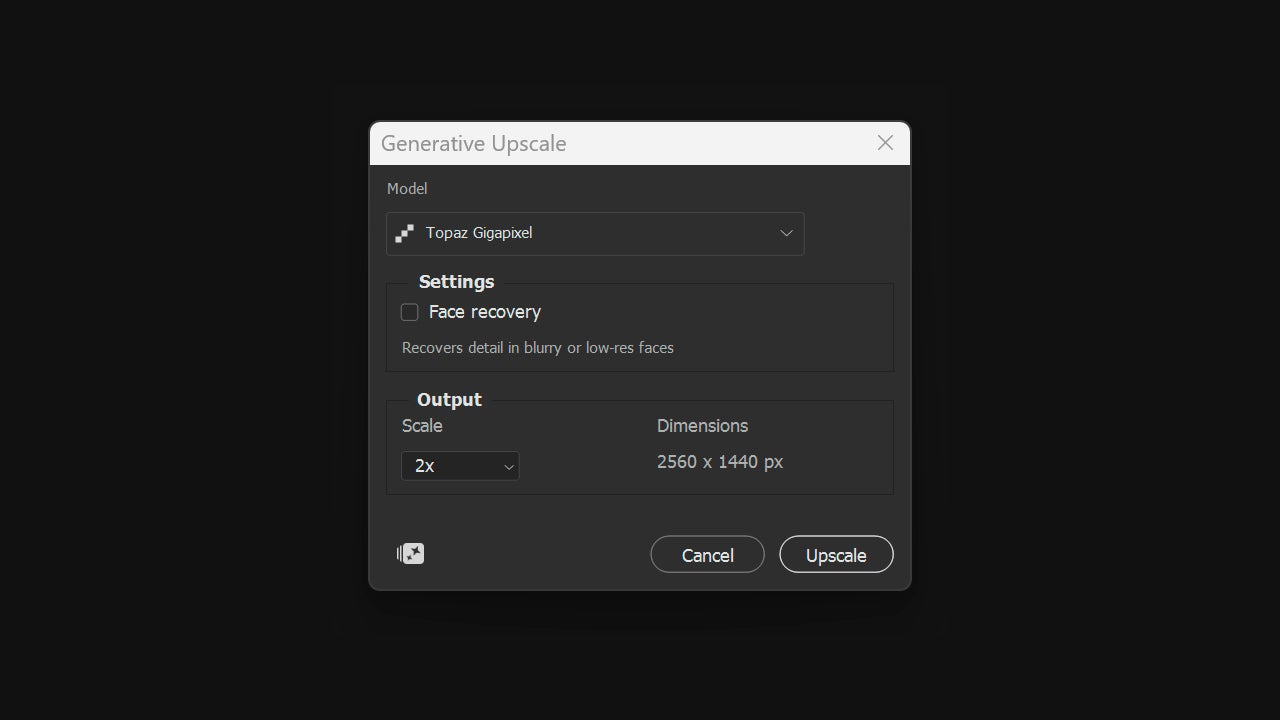
For most photos, Topaz Gigapixel is the one to go with. In most situations, it delivers sharp, natural-looking results with plenty of detail.

Photoshop or Lightroom: When to Use Each

You might be wondering whether Lightroom could work better for some of this. Both tools have their place. It really comes down to what you need.

Lightroom shines when you’re making general adjustments across a large batch of photos at once. It’s the go-to for photographers who want to fix exposure, color, and basic corrections quickly, without getting into complex edits.
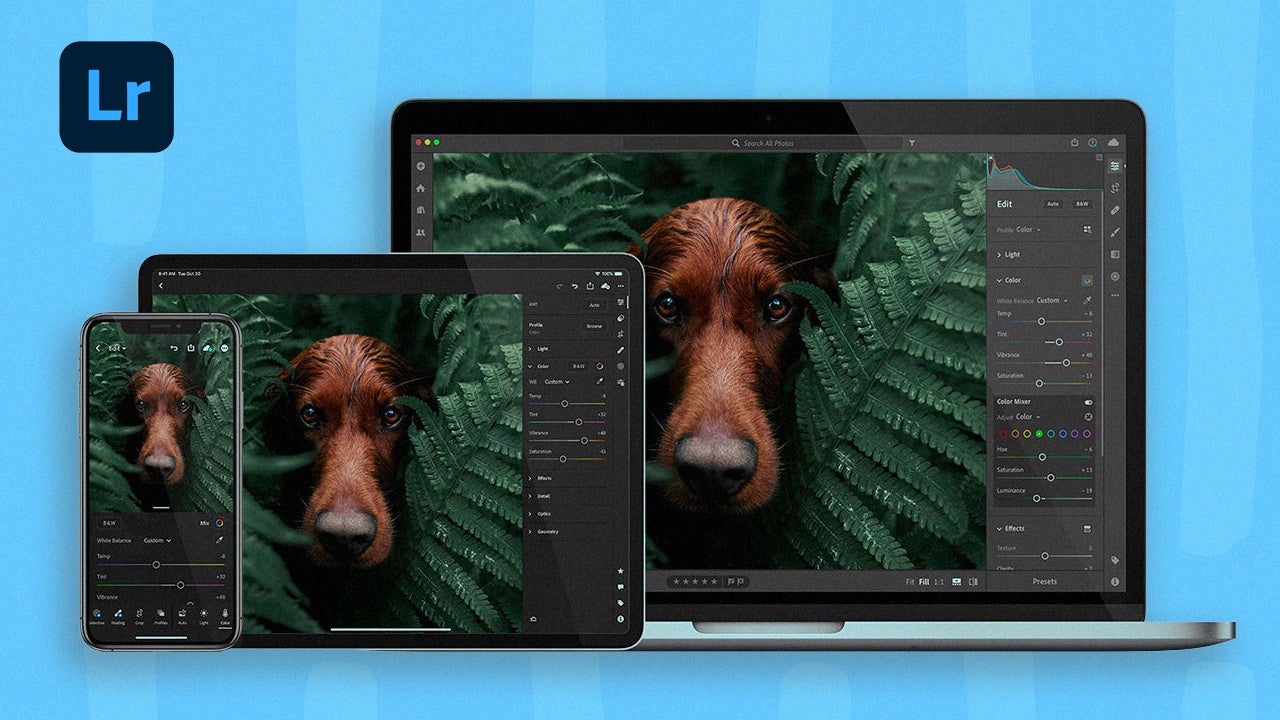
Photoshop is a lot more involved. It’s the right choice for compositing, very specific corrections, and the targeted fixes we’ve covered in this guide. That said, you don’t have to pick just one. Try handling the basic adjustments in Lightroom first, then bring the image into Photoshop for the detail work. You’ll get the best of both.

Adobe Photoshop
Adobe Photoshop DOWNLOAD

Author: María López

{ "de-DE": "Künstler aus Berufung und Technikliebhaber. Seit ich denken kann, habe ich gerne an allen möglichen Gadgets herumgebastelt.", "en-US": "Artist by vocation and technology lover. I have liked to tinker with all kinds of gadgets for as long as I can remember.", "es-ES": "Artista de vocación y amante de la tecnología. Me ha gustado cacharrear con todo tipo de gadgets desde que tengo uso de razón.", "fr-FR": "Artiste de vocation et amateur de technologie. J'aime bricoler avec toutes sortes de gadgets depuis que j'ai l'usage de la raison.", "it-IT": "", "ja-JP": "", "nl-NL": "", "pl-PL": "", "pt-BR": "", "social": { "email": "", "facebook": "", "twitter": "", "linkedin": "" } } View all posts by María López

Author María LópezPosted on May 29, 2026May 29, 2026Categories News

Post navigation

Previous Previous post: Nicolas Cage is the most unique and suggestive Spider-Man we have ever seen
Next Next post: How to Edit Videos for YouTube and TikTok with Adobe Premiere Pro

Recent Posts

  • Not only 'Backrooms': 5 other Internet phenomena that had movies (even if they weren't very good)
  • Spider-Noir no fue el único superhéroe de cine negro: Marvel tenía todo un universo noir que ya ha sido olvidado
  • Lorcana has a new expansion that focuses on one important thing: your hype for Toy Story 5
  • If you want a Steam Deck, it will now cost you 200 euros more
  • The new James Bond game sells over one and a half million copies in its first 24 hours

Archives

  • May 2026
  • April 2026
  • March 2026
  • February 2026
  • January 2026
  • December 2025
  • November 2025
  • October 2025
  • September 2025
  • August 2025
  • July 2025
  • June 2025
  • May 2025
  • April 2025
  • March 2025
  • February 2025
  • January 2025
  • December 2024
  • November 2024
  • October 2024
  • September 2024
  • August 2024
  • July 2024
  • June 2024
  • May 2024
  • April 2024
  • March 2024
  • February 2024
  • January 2024
  • December 2023
  • November 2023
  • October 2023
  • September 2023
  • August 2023
  • July 2023
  • June 2023
  • May 2023
  • April 2023
  • March 2023
  • February 2023
  • January 2023
  • December 2022
  • November 2022
  • October 2022
  • September 2022
  • August 2022
  • July 2022
  • June 2022
  • May 2022
  • April 2022
  • March 2022
  • February 2022
  • January 2022
  • December 2021
  • November 2021
  • October 2021
  • September 2021
  • August 2021
  • July 2021
  • June 2021
  • May 2021
  • April 2021
  • March 2021
  • February 2021
  • January 2021
  • December 2020
  • November 2020
  • October 2020
  • September 2020
  • August 2020
  • July 2020
  • June 2020
  • May 2020
  • April 2020
  • March 2020
  • February 2020
  • January 2020
  • December 2019
  • November 2019
  • October 2019
  • September 2019
  • August 2019
  • July 2019
  • June 2019
  • May 2019
  • April 2019
  • March 2019
  • February 2019
  • January 2019
  • December 2018
  • November 2018
  • October 2018
  • September 2018
  • August 2018
  • July 2018
  • June 2018
  • May 2018
  • April 2018
  • March 2018
  • February 2018
  • January 2018
  • December 2017
  • November 2017
  • October 2017
  • September 2017
  • August 2017
  • July 2017
  • June 2017
  • May 2017
  • April 2017
  • March 2017
  • February 2017
  • January 2017
  • December 2016
  • November 2016
  • October 2016
  • September 2016
  • August 2016
  • July 2016
  • June 2016
  • May 2016
  • April 2016
  • March 2016
  • February 2016
  • January 2016
  • December 2015
  • November 2015
  • October 2015
  • September 2015
  • August 2015
  • July 2015
  • June 2015
  • May 2015
  • April 2015
  • March 2015
  • February 2015
  • January 2015
  • December 2014
  • November 2014
  • October 2014
  • September 2014
  • August 2014
  • July 2014
  • June 2014
  • May 2014
  • April 2014
  • March 2014
  • February 2014
  • January 2014
  • December 2013
  • November 2013
  • October 2013
  • September 2013
  • August 2013
  • July 2013
  • June 2013
  • May 2013
  • April 2013
  • March 2013
  • February 2013
  • January 2013
  • December 2012
  • November 2012
  • October 2012
  • September 2012
  • August 2012
  • July 2012
  • June 2012
  • May 2012
  • April 2012
  • March 2012
  • February 2012
  • January 2012
  • December 2011
  • November 2011
  • October 2011
  • September 2011
  • August 2011
  • July 2011
  • June 2011
  • May 2011
  • April 2011
  • March 2011
  • February 2011
  • January 2011
  • December 2010
  • November 2010
  • October 2010
  • September 2010
  • August 2010
  • July 2010
  • June 2010
  • May 2010
  • April 2010
  • March 2010
  • February 2010
  • January 2010
  • December 2009
  • November 2009
  • October 2009
  • September 2009
  • August 2009
  • July 2009
  • June 2009
  • May 2009
  • April 2009
  • March 2009
  • February 2009
  • January 2009
  • December 2008
  • November 2008
  • October 2008
  • September 2008
  • August 2008
  • July 2008
  • June 2008
  • May 2008
  • April 2008
  • March 2008
  • February 2008
  • January 2008
  • December 2007
  • November 2007
  • October 2007
  • September 2007
  • August 2007
  • July 2007
  • June 2007
  • May 2007
  • April 2007
  • March 2007
  • February 2007
  • January 2007
  • December 2006
  • November 2006
  • September 2006
  • August 2006
  • June 2006
  • May 2006
  • July 2001
  • January 2001
  • November 2000
  • September 2000
  • August 2000
  • July 2000
  • April 2000
  • March 2000

Categories

  • Affiliate post
  • Expert Review
  • Gaming
  • Guides
  • How to
  • Legacy how To
  • News
  • Noticias
  • Software>Security
  • Sponsored
  • Trucos y Consejos
  • Uncategorized
  • Windows software

Meta

  • Log in
  • Entries feed
  • Comments feed
  • WordPress.org
Softonic English Proudly powered by WordPress