 The new beta version of Google Chrome, released this week, gives you more control over protecting your privacy while you’re browsing the web. The browser already has an incognito mode that stops other people coming onto your computer and seeing what content you’ve been looking at. Now the new Privacy section in Chrome allows you to control the level of access web sites have to your computer.
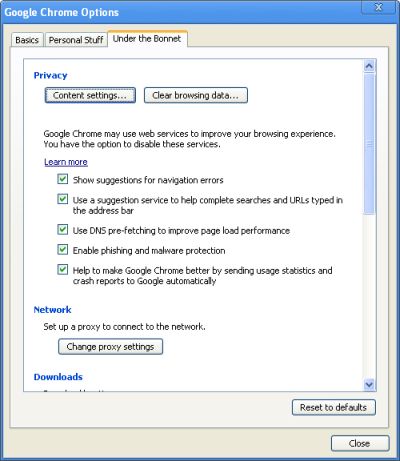
To access these settings you need to select Options from Chrome’s settings menu (the spanner icon in the top-right of the program). Click on the Under the Hood tab and you’ll see the Privacy section at the top of the window. Click Content Settings to continue.
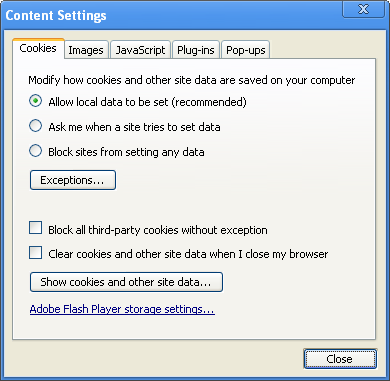
The Cookies section, which opens in this pop-up menu, lets you control how cookies are saved on your machine. You can ask Chrome to notify you every time a site tries to access your data, or choose to completely block sites from setting any data. This latter setting isn’t recommended though, because it can spoil your experience of certain sites. Thankfully, you can define exceptions, meaning that your favorite sites or sites you trust can still access and set data. If you want to see a list of all the cookies stored in your browser then click Show cookies and other site data.
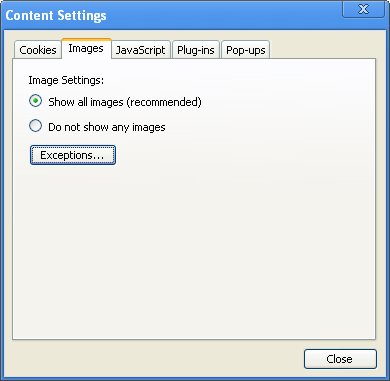
If, for any reason, you don’t want images showing up on web pages, then click on the Images tab and select Do not show any images. Again, you can define exceptions to this rule, if you choose. The same principal applies to JavaScript, plug-ins, and pop-ups, all of which you can block or allow (or block all except those you want to allow).
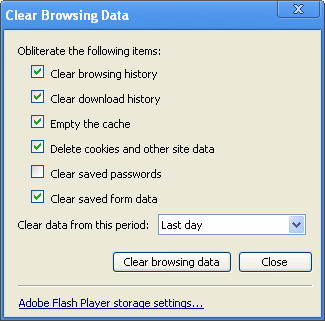
Another useful feature of the privacy settings in Chrome is the option to Clear browser data. This gives you control over the data you wish to remove, including browsing history, download history, cache, cookies, and saved passwords. You just need to check/uncheck the things you want removed or kept.
Comments are closed.