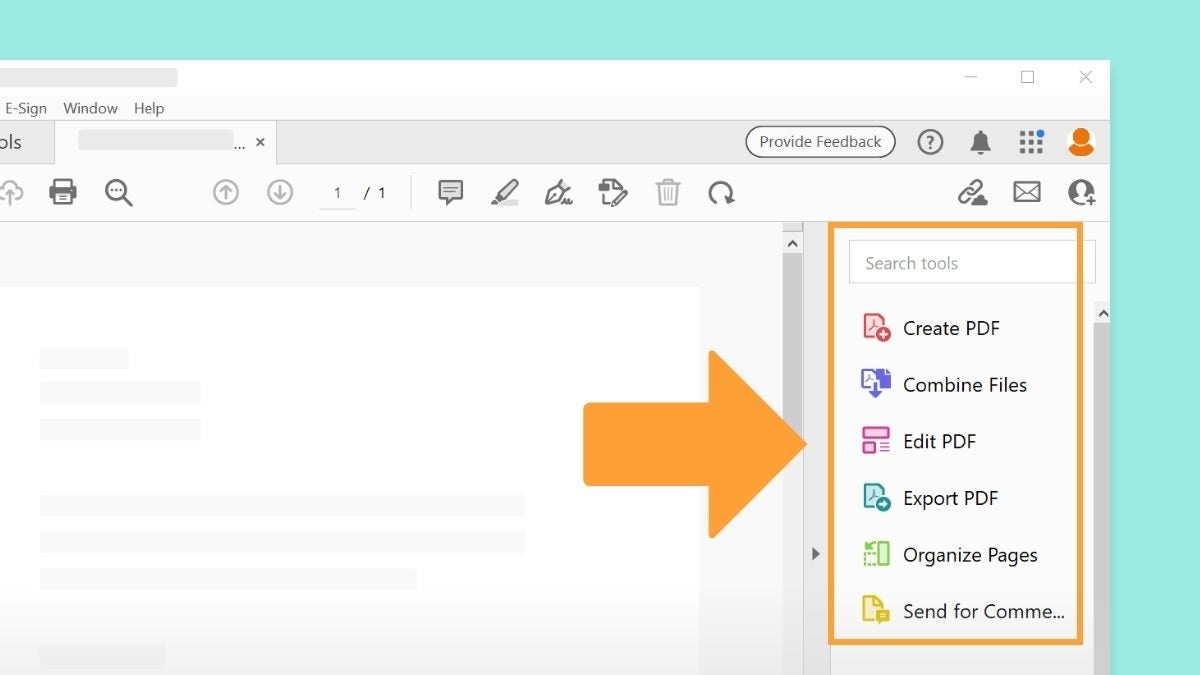
Skip to content

Softonic English

Just another Softonic Sites site

How to review a 200-page proposal more quickly with Adobe Acrobat Pro and AI-based document assistance

The arrival of a document with hundreds of pages can be quite overwhelming, especially if you have a deadline to review it. Fortunately, we have many programs to tackle situations like this, and one of them is Adobe Acrobat. With Adobe Acrobat and its new AI assistant, you can save yourself many hours of reading and focus on the most important parts of your document. If you want to know how you can do it yourself, here we explain it step by step. How to tackle a large document in three steps Before you start, you will need to understand your document. To begin, you can use the function […]

The arrival of a hundreds-page document can be quite overwhelming, especially if you have a deadline to review it. Fortunately, we have many programs to tackle situations like this, and one of them is Adobe Acrobat.

With Adobe Acrobat and its new AI assistant, you can save yourself many hours of reading and focus on the most important parts of your document. If you want to know how you can do it yourself, we explain it to you step by step.

Adobe Acrobat
Adobe Acrobat DOWNLOAD

How to tackle a large document in three steps

Before you start, you will need to understand your document. To begin, you can use the generative summary feature. Here, Acrobat generates a brief summary of the document explaining what it is about and how it is organized.

  • To do this, open the file you want to summarize with Adobe Acrobat on your computer.
  • Click on the Generative summary button, as shown in the image.
  • You can also use the Ask AI Assistant feature by selecting the button located in the upper right corner.
  • When you do this, ask the assistant to summarize the document. You will also see that one of the default questions is Summarize this document, so click on it to do it quickly.

If you have accessed Adobe Acrobat from the browser, follow these steps:

  • Drag the document to the Adobe Acrobat page.
  • As before, click on the Generative summary button.
  • You will also have the Ask AI Assistant feature available here to ask it to make a summary for you.

How to search for information in the document

Now that we have the summary, we can get a general idea of what the text is about. However, this is still insufficient if we want to address it in more depth. With the context provided by the summary, we can use the Ask AI Assistant function to help us find more specific information.

You can use the suggestions proposed by the Assistant itself or use your own questions, which is much more advisable. Here you should ask with a clear objective and always requesting references from the pages. A good prompt, for example, is not “summarize the contract in a few words,” but “list all payment conditions and indicate on which pages they appear.”

When the Assistant responds, click on the citations to verify that all the information is correct. Each response from the Assistant includes linked citations; click on each of them to have Acrobat take you to the paragraph they belong to.

Mark the important

When a quote seems interesting or important to you, you can always leave a comment to mark it and look for it later. To leave comments, go to the floating toolbar you will see on your right and click on the Add a comment. symbol. Then, select the part of the text you want to comment on.
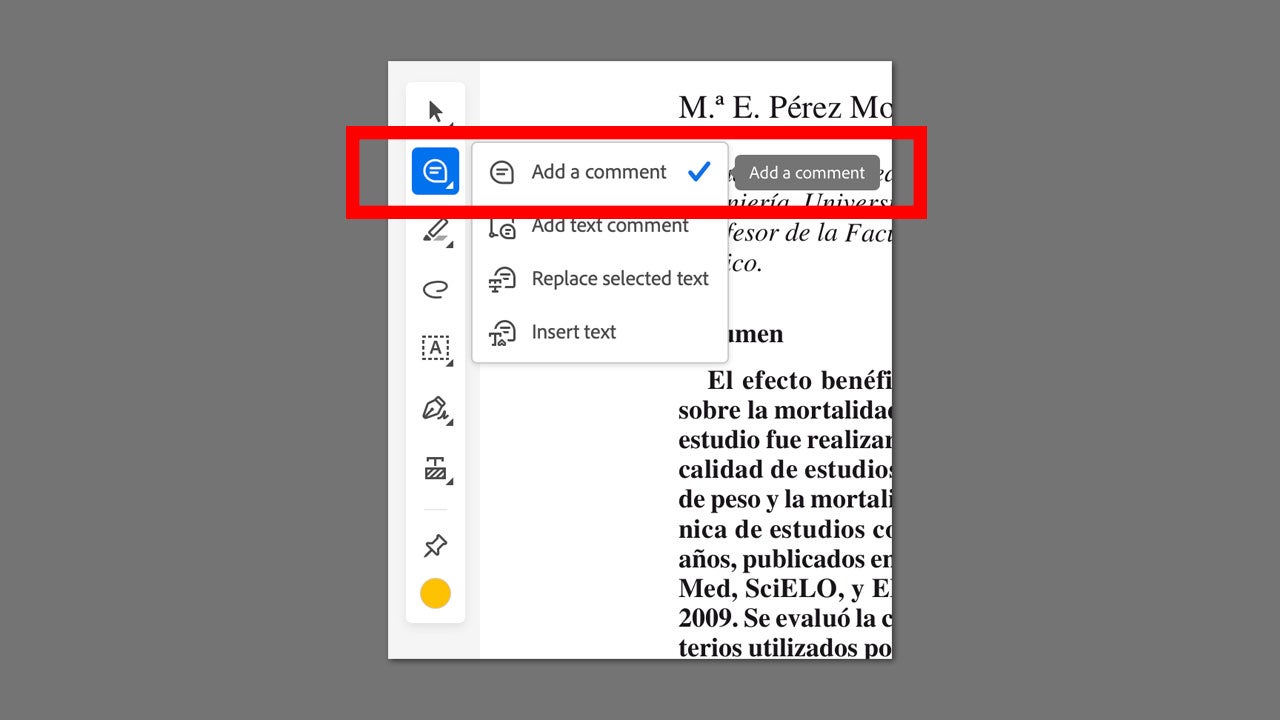
Use different colors to organize yourself and know what each note is for. In addition to leaving comments, you can also highlight keywords if you ask the AI Assistant.
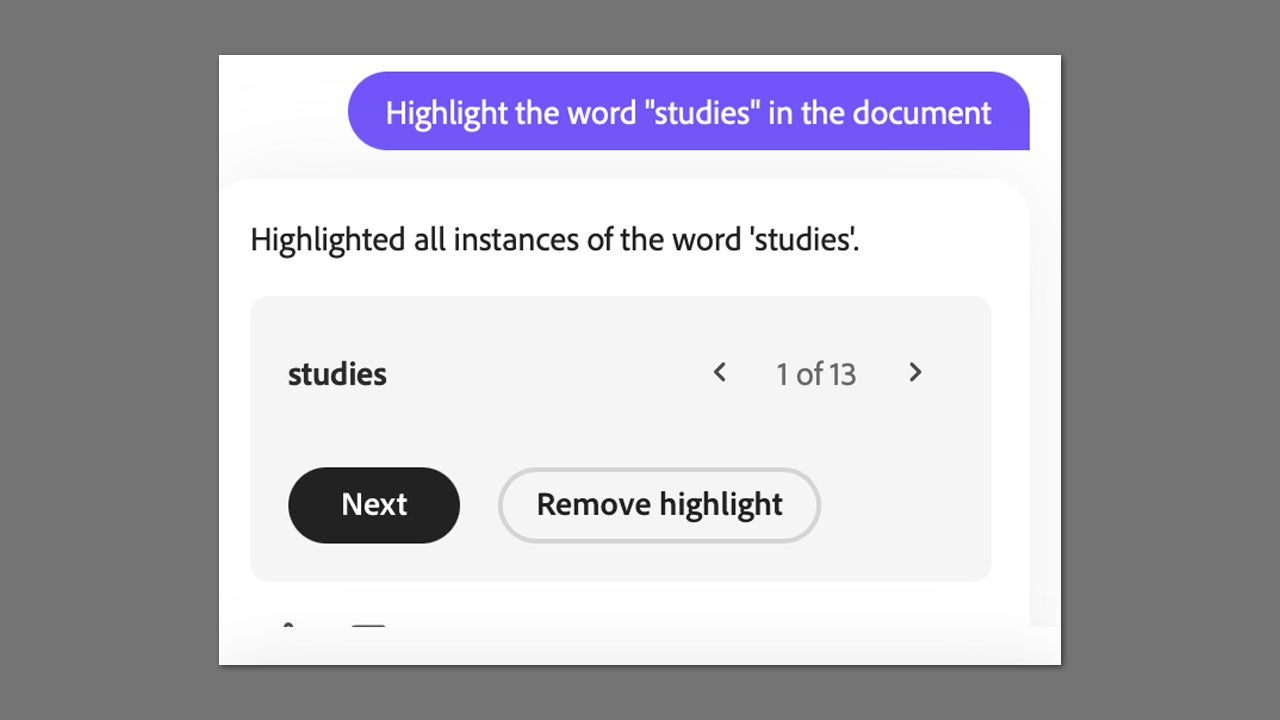
When finished, open the comments panel and there you will see a list of all the marks you have left throughout the document.

Extract unnecessary pages

In certain cases, you may need to remove pages to keep only the most important ones.

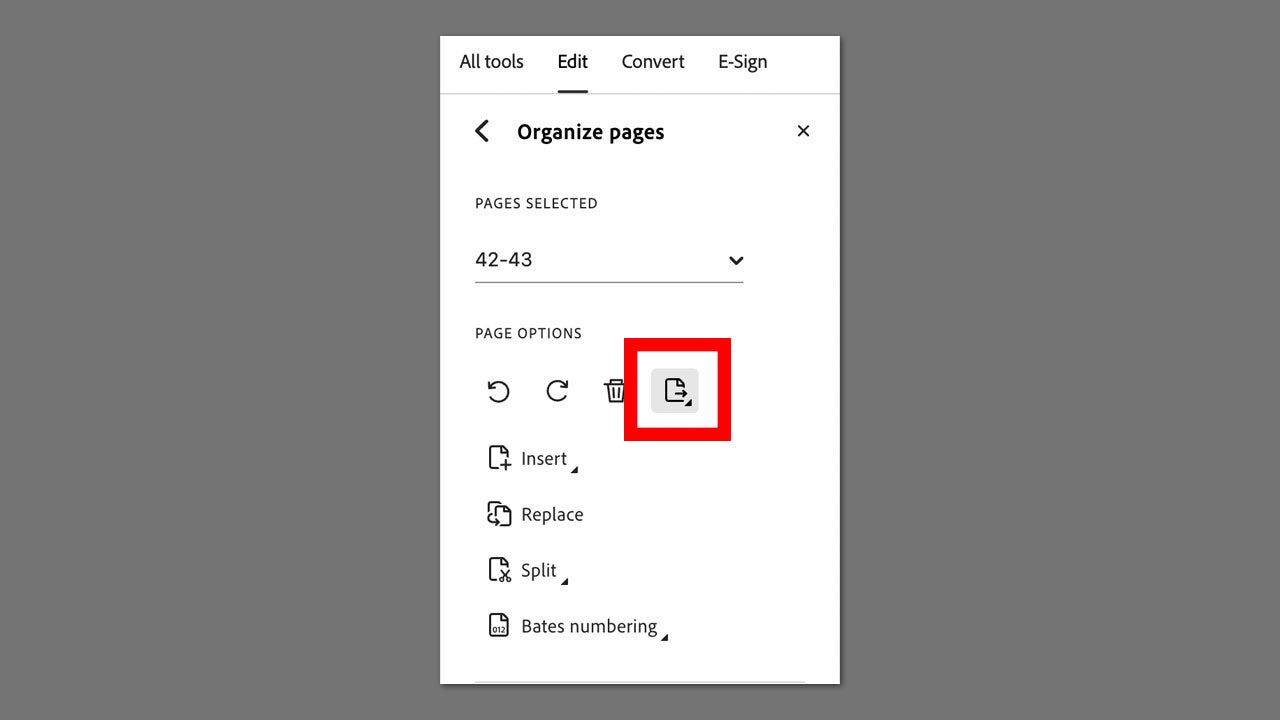
  • Go to Edit > Organize pages (if you are using Adobe Acrobat in the browser) or to All tools > Organize pages (if you are using the desktop version).
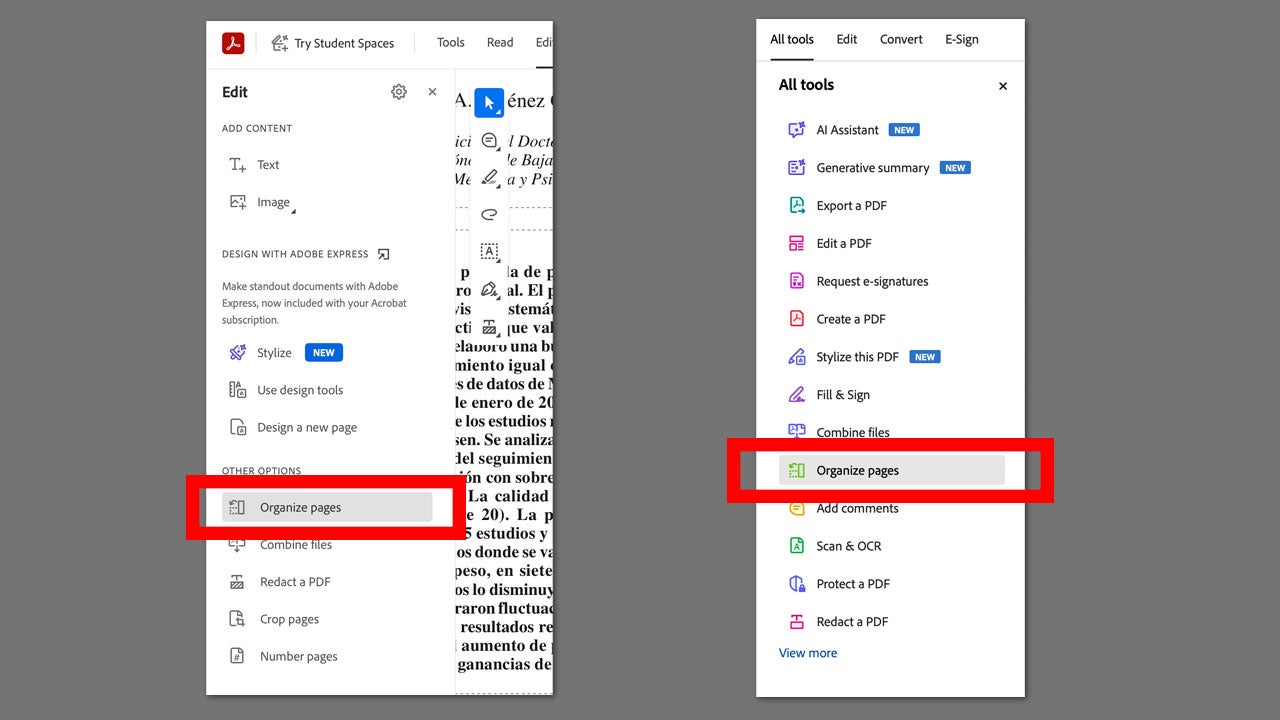
  • Next, you will see the pages of the document individually. From here, select the ones you want to delete and click on the trash symbol to permanently delete them.
  • You can also split the content of the document to create a new one by selecting the pages and clicking on Split. Then, select Extract pages.
PDF Spaces: the solution for those with many documents

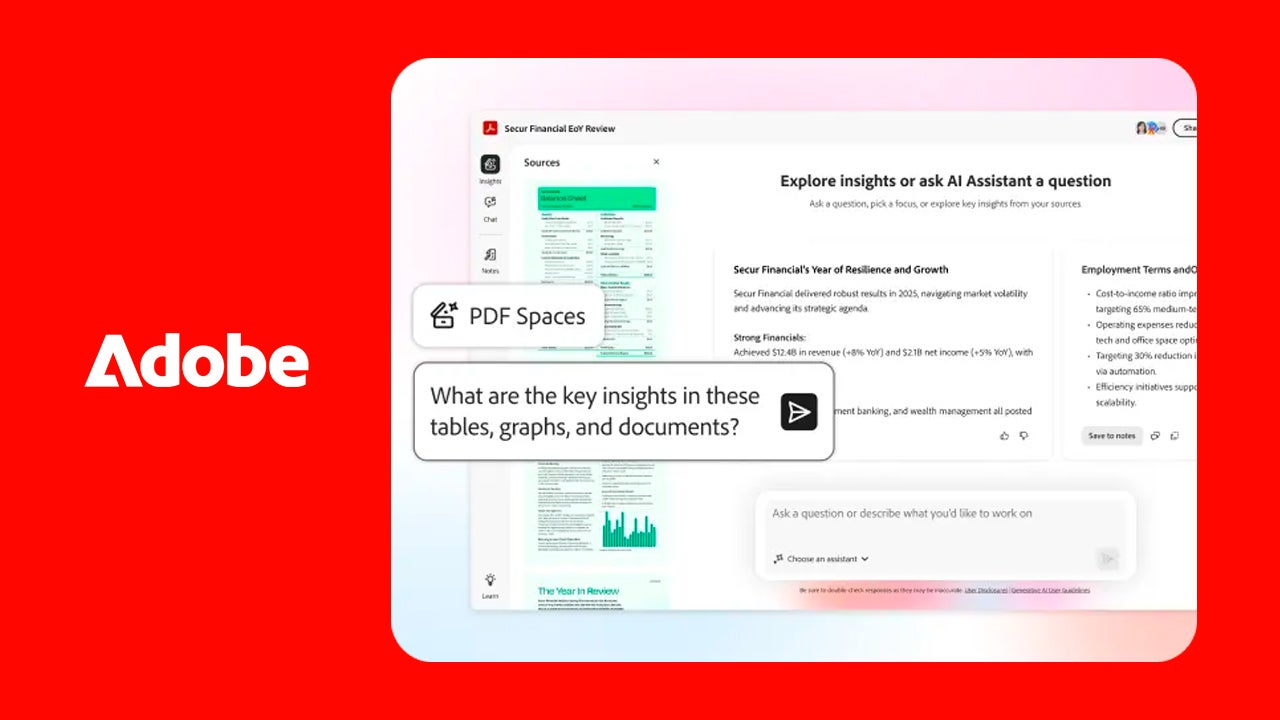
If you work daily with a large number of files (whether they are Excels, Word documents, or PDFs), the best thing you can do is use the PDF Spaces function. It is a place where you can gather notes, transcriptions, web links, and documents, without having to have all your things scattered around.

This space allows you to share it with others and control who can view, comment, or add files. Additionally, it also lets you summarize, compare documents, or generate new material, all from one place.

  • To create a PDF Space, you just need to open Adobe Acrobat from your browser and go to the Student Spaces/PDF Spaces tab.
  • Once there, click on Create a PDF Space. Finally, you just need to start adding your files by dragging them.
  • PDF Spaces also has an integrated AI Assistant, so you can use it to ask about your documents, create summaries, and more.
Adobe Acrobat
Adobe Acrobat DOWNLOAD

Author: María López

{ "de-DE": "Künstler aus Berufung und Technikliebhaber. Seit ich denken kann, habe ich gerne an allen möglichen Gadgets herumgebastelt.", "en-US": "Artist by vocation and technology lover. I have liked to tinker with all kinds of gadgets for as long as I can remember.", "es-ES": "Artista de vocación y amante de la tecnología. Me ha gustado cacharrear con todo tipo de gadgets desde que tengo uso de razón.", "fr-FR": "Artiste de vocation et amateur de technologie. J'aime bricoler avec toutes sortes de gadgets depuis que j'ai l'usage de la raison.", "it-IT": "", "ja-JP": "", "nl-NL": "", "pl-PL": "", "pt-BR": "", "social": { "email": "", "facebook": "", "twitter": "", "linkedin": "" } } View all posts by María López

Author María LópezPosted on September 16, 2026September 16, 2026Categories News

Post navigation

Previous Previous post: Absolute Green Arrow #5 is out now: a Dark Knight Returns tribute
Next Next post: Zack Snyder insists that he isn’t a fascist, and that he made “the gayest movie in history”

Recent Posts

  • If your Mac doesn’t have speakers you can always use the trackpad, yes, you read that right
  • Anthropic launches a feature to create Mac and Windows apps in any conversation: one click and you’re done
  • Meta Muse slips into Instagram DMs: now we can organize our collections, itineraries and shopping lists, among other things
  • Masters of the Universe debuts big on Prime Video: 1.17 billion minutes
  • ChatGPT rolls out GPT-6.2 Sol with sharper image understanding

Archives

  • November 2026
  • October 2026
  • September 2026
  • August 2026
  • July 2026
  • June 2026
  • May 2026
  • April 2026
  • March 2026
  • February 2026
  • January 2026
  • December 2025
  • November 2025
  • October 2025
  • September 2025
  • August 2025
  • July 2025
  • June 2025
  • May 2025
  • April 2025
  • March 2025
  • February 2025
  • January 2025
  • December 2024
  • November 2024
  • October 2024
  • September 2024
  • August 2024
  • July 2024
  • June 2024
  • May 2024
  • April 2024
  • March 2024
  • February 2024
  • January 2024
  • December 2023
  • November 2023
  • October 2023
  • September 2023
  • August 2023
  • July 2023
  • June 2023
  • May 2023
  • April 2023
  • March 2023
  • February 2023
  • January 2023
  • December 2022
  • November 2022
  • October 2022
  • September 2022
  • August 2022
  • July 2022
  • June 2022
  • May 2022
  • April 2022
  • March 2022
  • February 2022
  • January 2022
  • December 2021
  • November 2021
  • October 2021
  • September 2021
  • August 2021
  • July 2021
  • June 2021
  • May 2021
  • April 2021
  • March 2021
  • February 2021
  • January 2021
  • December 2020
  • November 2020
  • October 2020
  • September 2020
  • August 2020
  • July 2020
  • June 2020
  • May 2020
  • April 2020
  • March 2020
  • February 2020
  • January 2020
  • December 2019
  • November 2019
  • October 2019
  • September 2019
  • August 2019
  • July 2019
  • June 2019
  • May 2019
  • April 2019
  • March 2019
  • February 2019
  • January 2019
  • December 2018
  • November 2018
  • October 2018
  • September 2018
  • August 2018
  • July 2018
  • June 2018
  • May 2018
  • April 2018
  • March 2018
  • February 2018
  • January 2018
  • December 2017
  • November 2017
  • October 2017
  • September 2017
  • August 2017
  • July 2017
  • June 2017
  • May 2017
  • April 2017
  • March 2017
  • February 2017
  • January 2017
  • December 2016
  • November 2016
  • October 2016
  • September 2016
  • August 2016
  • July 2016
  • June 2016
  • May 2016
  • April 2016
  • March 2016
  • February 2016
  • January 2016
  • December 2015
  • November 2015
  • October 2015
  • September 2015
  • August 2015
  • July 2015
  • June 2015
  • May 2015
  • April 2015
  • March 2015
  • February 2015
  • January 2015
  • December 2014
  • November 2014
  • October 2014
  • September 2014
  • August 2014
  • July 2014
  • June 2014
  • May 2014
  • April 2014
  • March 2014
  • February 2014
  • January 2014
  • December 2013
  • November 2013
  • October 2013
  • September 2013
  • August 2013
  • July 2013
  • June 2013
  • May 2013
  • April 2013
  • March 2013
  • February 2013
  • January 2013
  • December 2012
  • November 2012
  • October 2012
  • September 2012
  • August 2012
  • July 2012
  • June 2012
  • May 2012
  • April 2012
  • March 2012
  • February 2012
  • January 2012
  • December 2011
  • November 2011
  • October 2011
  • September 2011
  • August 2011
  • July 2011
  • June 2011
  • May 2011
  • April 2011
  • March 2011
  • February 2011
  • January 2011
  • December 2010
  • November 2010
  • October 2010
  • September 2010
  • August 2010
  • July 2010
  • June 2010
  • May 2010
  • April 2010
  • March 2010
  • February 2010
  • January 2010
  • December 2009
  • November 2009
  • October 2009
  • September 2009
  • August 2009
  • July 2009
  • June 2009
  • May 2009
  • April 2009
  • March 2009
  • February 2009
  • January 2009
  • December 2008
  • November 2008
  • October 2008
  • September 2008
  • August 2008
  • July 2008
  • June 2008
  • May 2008
  • April 2008
  • March 2008
  • February 2008
  • January 2008
  • December 2007
  • November 2007
  • October 2007
  • September 2007
  • August 2007
  • July 2007
  • June 2007
  • May 2007
  • April 2007
  • March 2007
  • February 2007
  • January 2007
  • December 2006
  • November 2006
  • September 2006
  • August 2006
  • June 2006
  • May 2006
  • July 2001
  • January 2001
  • November 2000
  • September 2000
  • August 2000
  • July 2000
  • April 2000
  • March 2000

Categories

  • Affiliate post
  • Expert Review
  • Gaming
  • Guides
  • How to
  • Legacy how To
  • News
  • Noticias
  • Software>Security
  • Sponsored
  • Trucos y Consejos
  • Uncategorized
  • Windows software

Meta

  • Log in
  • Entries feed
  • Comments feed
  • WordPress.org
Softonic English Proudly powered by WordPress