Skip to content

Softonic English

Just another Softonic Sites site

Rescuing lost memories: using Generative Upscale technology to prepare old family photos for printing

It is likely that, on more than one occasion, you have had to work with images of low resolution and almost nonexistent quality. We know that dealing with this type of image can be time-consuming, but fortunately, Adobe Photoshop integrates a “solution” to tackle this problem. We are referring to its Generative Upscale feature. In this article, we will explain step by step how to use this function easily so you can quickly improve your photographs and images. Additionally, we will also tell you how to prepare them for printing. What is Generative Upscale? Generative Upscale is a feature integrated into Adobe Photoshop that […]

It is likely that, on more than one occasion, you have had to work with low-resolution images and almost nonexistent quality. We know that dealing with this type of image can be time-consuming, but fortunately, Adobe Photoshop integrates a “solution” to tackle this problem.

We are referring to its feature Generative Upscale. In this article, we will explain step by step how to use this function easily so you can quickly enhance your photographs and images. Additionally, we will also tell you how to prepare them for printing.

https://adobe.prf.hn/click/camref:1101lr4vs/creativeref:1100l130405/pubref:sponsored25article31
https://adobe.prf.hn/click/camref:1101lr4vs/creativeref:1100l130405/pubref:sponsored25article31 DOWNLOAD

What is Generative Upscale?

Generative Upscale is an integrated feature in Adobe Photoshop that allows you to increase the resolution and visual quality of any image through artificial intelligence. This makes blurry or pixelated images regain sharpness and improve in detail with quite good results.

How to apply Generative Upscale to your images

Using this function is much easier than you think. You just have to follow these steps:

  • Open your image in Photoshop: Start Adobe Photoshop in its beta version and open the image you want to enhance. To do this, simply go to File > Open, and select your image. You can also drag it directly into Adobe Photoshop.
    • Through the beta versions of Adobe programs, you can access the latest features available before they are included in the official version.
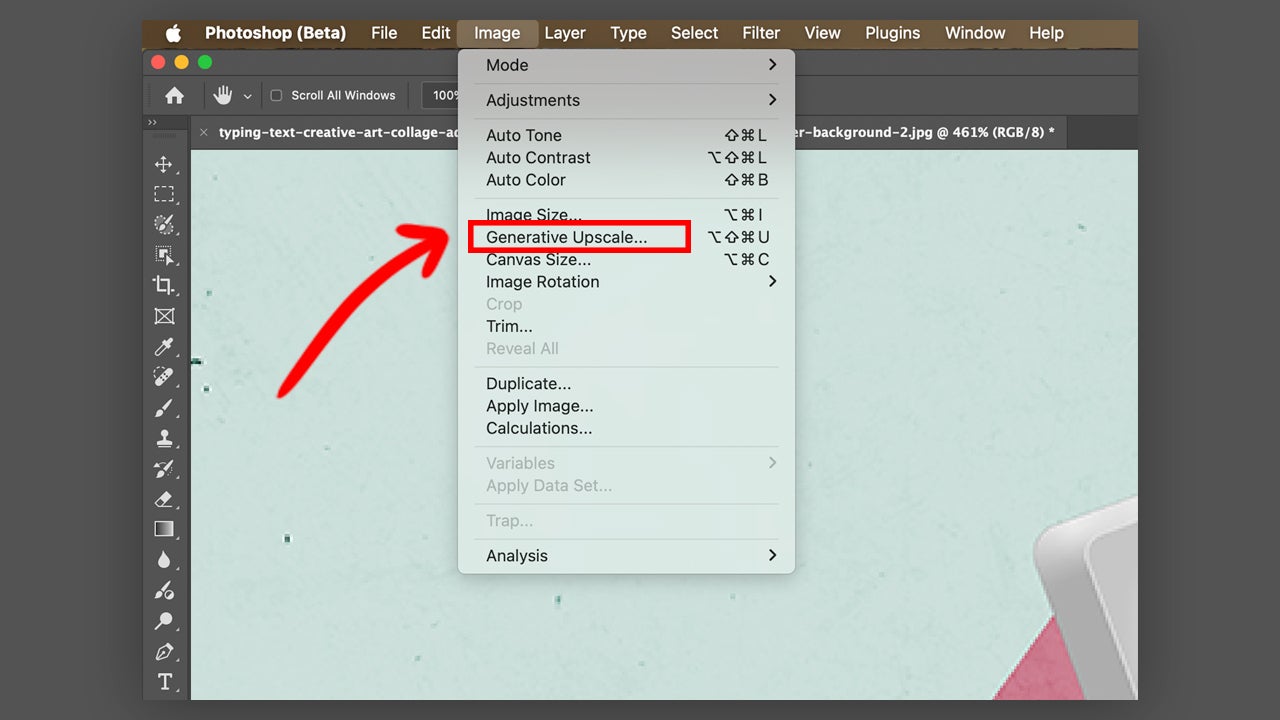
  • Access Generative Upscale: Go to the options menu and select Image > Generative Upscale.
  • Adjust the quality settings: By clicking on Generative Upscale, a window will open where you can select from different scales. Specifically, the options that will be shown to you are 2x, 3x, and 4x. Next to it, you will see what the dimensions of the resulting image would be according to the scale you choose. Once you decide on one, click on Upscale.
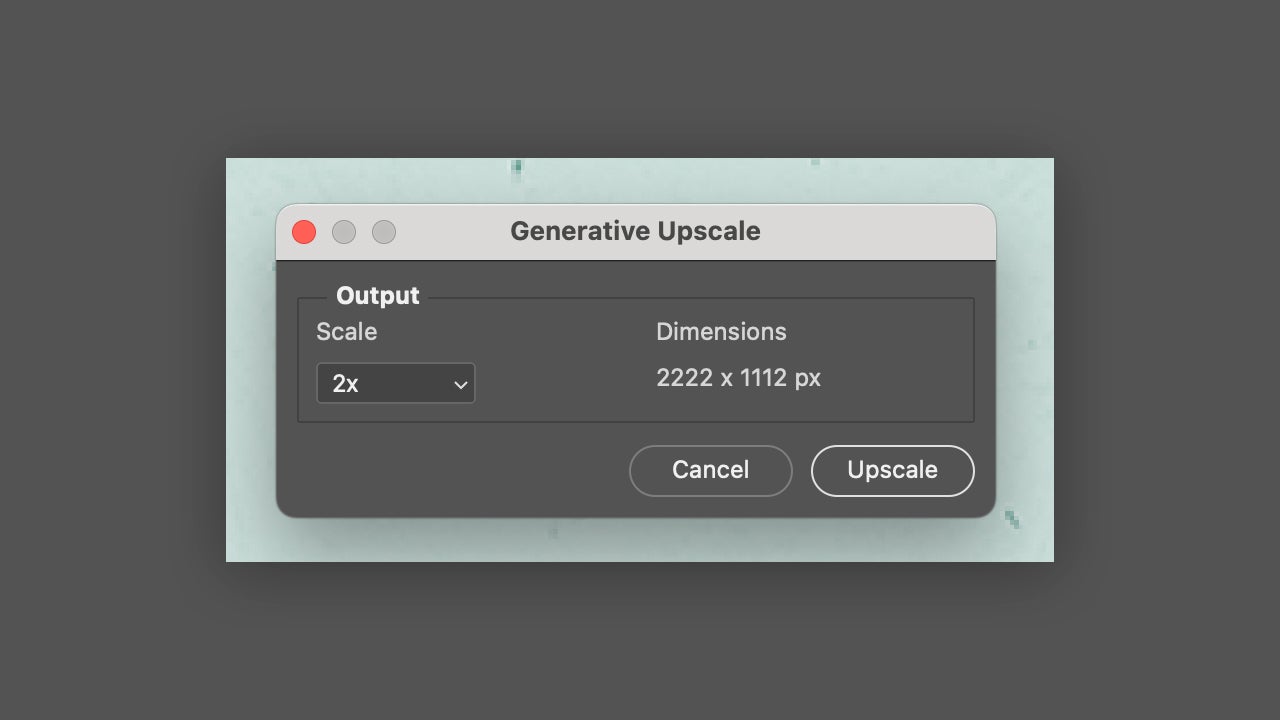
  • Limited options: As we are dealing with a beta version, the options are limited. For the final result, both the height and width of the image must be less than 4096 pixels. Photoshop itself will notify you if the limit is exceeded.
  • Check the result: By clicking on Upscale, Photoshop will generate a new document with the enhanced image and a changed name. Observe the result and repeat the process if you want to try with other scales.
  • Save your image: Once you are satisfied with the image, save your image in the desired format from File > Save As…

Prepare your image for printing

Although Generative Upscale helps us increase the resolution of an image, we still have a couple of extra steps if what we want is to prepare it for printing. For this, you can use Photoshop in its beta version or also the official one.

  • Open your image: As mentioned, open your image in Photoshop. Remember that you can do this from File > Open Image or by dragging it directly into the program.
  • Change the image size: Go to Image > Image Size. Here make sure that the chain icon is activated; this will keep the image ratio stable.
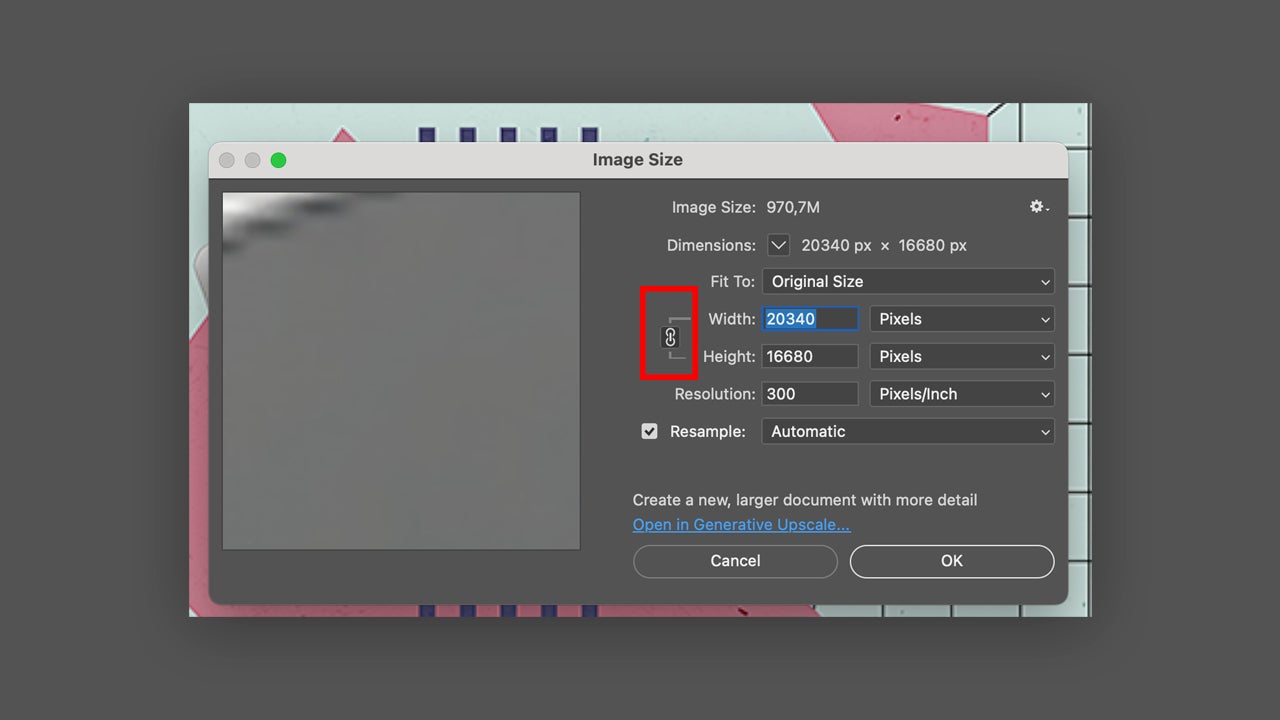
  • Enter the new size: Adjust the size to the type of print you want to make. Keep in mind that one of the most important aspects is the resolution: it should be at least 300 pixels per inch. This will ensure that the print comes out correctly. You can change it directly in the Resolution section.
  • Activate Resample: Keep the Resample box checked and set it to Automatic. Then, activate Scale Styles, which can be found by clicking on the gear icon at the top right. Finally, click OK to finish.

Tips for Getting Better Results

  • Use original images of the best possible quality: This will help you start with a good foundation. If the image is of very poor quality, the results are likely not to be as good as you expect.
  • Try different settings until you find the result you like the most: Don’t settle for the first result if you don’t like it at all. Keep trying different scales until you find the one that best suits what you’re looking for.
  • Combine Generative Upscale with other Photoshop tools: Your images will look much better if you combine the results of Generative Upscale with other adjustments like noise reduction or sharpening. This will also make everything look much more professional.

Why use Generative Upscale?

The main advantage is its incredible ease of use and the speed at which you achieve professional results, even without being an expert in photo editing. Additionally, you can use Generative Upscale to enhance old images, photographs taken with low-resolution cameras, or even improve image captures.

Adobe Photoshop
Adobe Photoshop DOWNLOAD

Author: María López

{ "de-DE": "Künstler aus Berufung und Technikliebhaber. Seit ich denken kann, habe ich gerne an allen möglichen Gadgets herumgebastelt.", "en-US": "Artist by vocation and technology lover. I have liked to tinker with all kinds of gadgets for as long as I can remember.", "es-ES": "Artista de vocación y amante de la tecnología. Me ha gustado cacharrear con todo tipo de gadgets desde que tengo uso de razón.", "fr-FR": "Artiste de vocation et amateur de technologie. J'aime bricoler avec toutes sortes de gadgets depuis que j'ai l'usage de la raison.", "it-IT": "", "ja-JP": "", "nl-NL": "", "pl-PL": "", "pt-BR": "", "social": { "email": "", "facebook": "", "twitter": "", "linkedin": "" } } View all posts by María López

Author María LópezPosted on August 7, 2025August 7, 2025Categories News

Post navigation

Previous Previous post: Discover how CTV is transforming local marketing
Next Next post: The alarming rise of VexTrio and its sophisticated cybercrime network

Recent Posts

  • Apple confirms October 28 “Pro and Tell” event: new Macs may arrive a day early
  • Quentin Tarantino westerns hit Prime Video: Django and The Hateful Eight
  • Google Flights updates holiday guide: Thanksgiving deals fade, Christmas fares hit a sweet spot
  • James Webb may have spotted the earliest giant black holes yet
  • The Dark Knight Trilogy is leaving Netflix UK: watch it by November 7

Archives

  • October 2026
  • September 2026
  • August 2026
  • July 2026
  • June 2026
  • May 2026
  • April 2026
  • March 2026
  • February 2026
  • January 2026
  • December 2025
  • November 2025
  • October 2025
  • September 2025
  • August 2025
  • July 2025
  • June 2025
  • May 2025
  • April 2025
  • March 2025
  • February 2025
  • January 2025
  • December 2024
  • November 2024
  • October 2024
  • September 2024
  • August 2024
  • July 2024
  • June 2024
  • May 2024
  • April 2024
  • March 2024
  • February 2024
  • January 2024
  • December 2023
  • November 2023
  • October 2023
  • September 2023
  • August 2023
  • July 2023
  • June 2023
  • May 2023
  • April 2023
  • March 2023
  • February 2023
  • January 2023
  • December 2022
  • November 2022
  • October 2022
  • September 2022
  • August 2022
  • July 2022
  • June 2022
  • May 2022
  • April 2022
  • March 2022
  • February 2022
  • January 2022
  • December 2021
  • November 2021
  • October 2021
  • September 2021
  • August 2021
  • July 2021
  • June 2021
  • May 2021
  • April 2021
  • March 2021
  • February 2021
  • January 2021
  • December 2020
  • November 2020
  • October 2020
  • September 2020
  • August 2020
  • July 2020
  • June 2020
  • May 2020
  • April 2020
  • March 2020
  • February 2020
  • January 2020
  • December 2019
  • November 2019
  • October 2019
  • September 2019
  • August 2019
  • July 2019
  • June 2019
  • May 2019
  • April 2019
  • March 2019
  • February 2019
  • January 2019
  • December 2018
  • November 2018
  • October 2018
  • September 2018
  • August 2018
  • July 2018
  • June 2018
  • May 2018
  • April 2018
  • March 2018
  • February 2018
  • January 2018
  • December 2017
  • November 2017
  • October 2017
  • September 2017
  • August 2017
  • July 2017
  • June 2017
  • May 2017
  • April 2017
  • March 2017
  • February 2017
  • January 2017
  • December 2016
  • November 2016
  • October 2016
  • September 2016
  • August 2016
  • July 2016
  • June 2016
  • May 2016
  • April 2016
  • March 2016
  • February 2016
  • January 2016
  • December 2015
  • November 2015
  • October 2015
  • September 2015
  • August 2015
  • July 2015
  • June 2015
  • May 2015
  • April 2015
  • March 2015
  • February 2015
  • January 2015
  • December 2014
  • November 2014
  • October 2014
  • September 2014
  • August 2014
  • July 2014
  • June 2014
  • May 2014
  • April 2014
  • March 2014
  • February 2014
  • January 2014
  • December 2013
  • November 2013
  • October 2013
  • September 2013
  • August 2013
  • July 2013
  • June 2013
  • May 2013
  • April 2013
  • March 2013
  • February 2013
  • January 2013
  • December 2012
  • November 2012
  • October 2012
  • September 2012
  • August 2012
  • July 2012
  • June 2012
  • May 2012
  • April 2012
  • March 2012
  • February 2012
  • January 2012
  • December 2011
  • November 2011
  • October 2011
  • September 2011
  • August 2011
  • July 2011
  • June 2011
  • May 2011
  • April 2011
  • March 2011
  • February 2011
  • January 2011
  • December 2010
  • November 2010
  • October 2010
  • September 2010
  • August 2010
  • July 2010
  • June 2010
  • May 2010
  • April 2010
  • March 2010
  • February 2010
  • January 2010
  • December 2009
  • November 2009
  • October 2009
  • September 2009
  • August 2009
  • July 2009
  • June 2009
  • May 2009
  • April 2009
  • March 2009
  • February 2009
  • January 2009
  • December 2008
  • November 2008
  • October 2008
  • September 2008
  • August 2008
  • July 2008
  • June 2008
  • May 2008
  • April 2008
  • March 2008
  • February 2008
  • January 2008
  • December 2007
  • November 2007
  • October 2007
  • September 2007
  • August 2007
  • July 2007
  • June 2007
  • May 2007
  • April 2007
  • March 2007
  • February 2007
  • January 2007
  • December 2006
  • November 2006
  • September 2006
  • August 2006
  • June 2006
  • May 2006
  • July 2001
  • January 2001
  • November 2000
  • September 2000
  • August 2000
  • July 2000
  • April 2000
  • March 2000

Categories

  • Affiliate post
  • Expert Review
  • Gaming
  • Guides
  • How to
  • Legacy how To
  • News
  • Noticias
  • Software>Security
  • Sponsored
  • Trucos y Consejos
  • Uncategorized
  • Windows software

Meta

  • Log in
  • Entries feed
  • Comments feed
  • WordPress.org
Softonic English Proudly powered by WordPress