Google defends itself against criticism for the default option of its Find My Device network

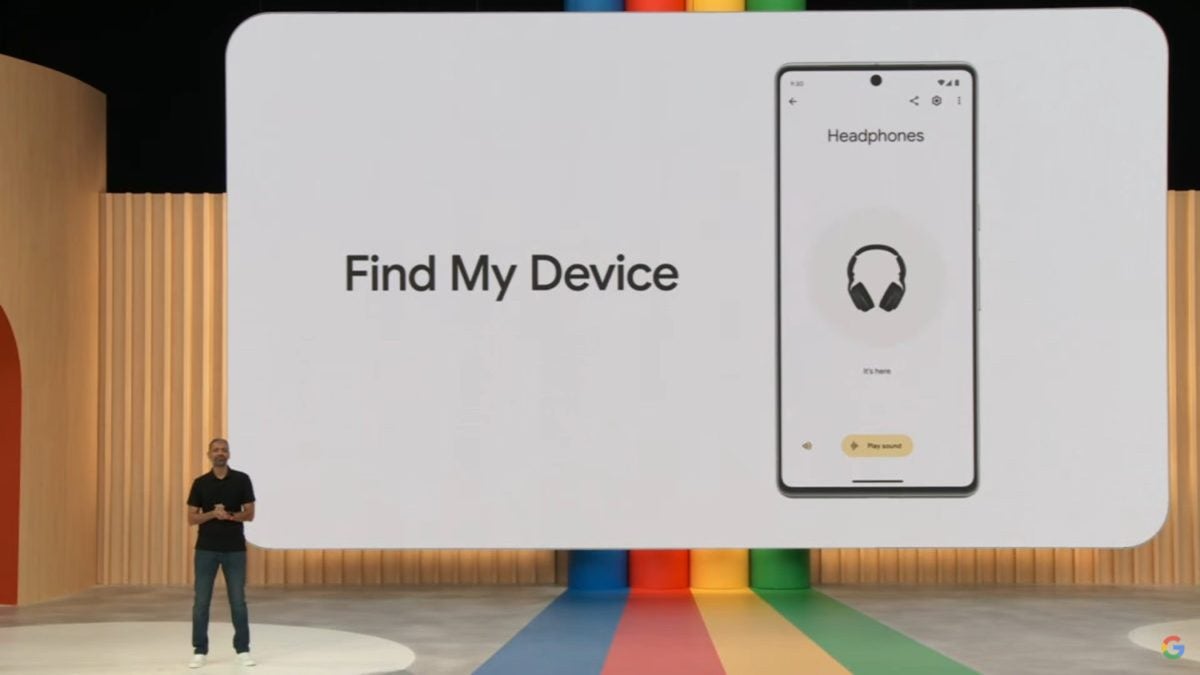
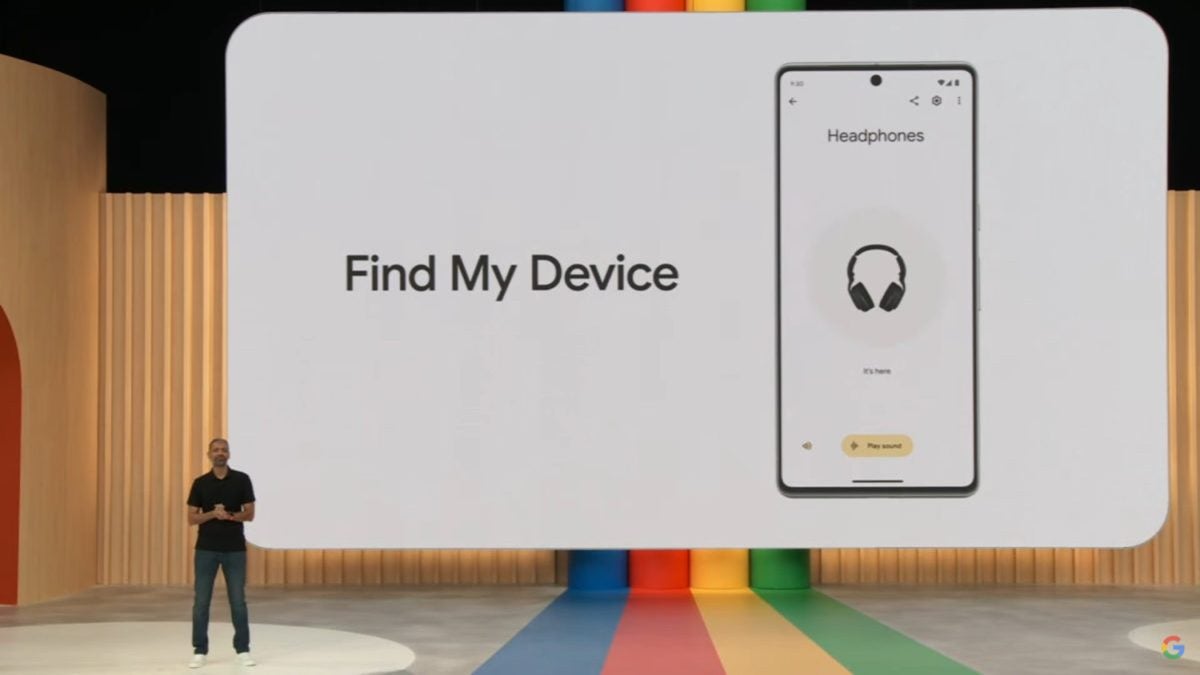
Google has come to the defense of the default setting in its Find My Device network, stating that it is a “key difference” compared to other location networks. The default setting for FMD, “With network, only in high-traffic areas”, requires multiple Android devices to detect an object before sharing its location, but users have found this setting ineffective in practice, as many trackers are not accurately located.

Find My Device DOWNLOAD

In response to the criticism, Google assures on a support page that this measure offers “pioneering security protection”, making it difficult to track unwanted locations, such as the user’s home. Among other protections, the company highlights that it does not contribute with crowdsourcing location reports near the user’s home if the address has been saved in their Google account, and that it limits the speed and quantity of location reports.

However, Google acknowledges that this may affect the detection of Bluetooth trackers in low-traffic areas and encourages users to enable the “With network in all areas” setting. This option allows a single device to send the location of a found tracker, thus improving FMD’s ability to find lost objects in sparsely populated areas.

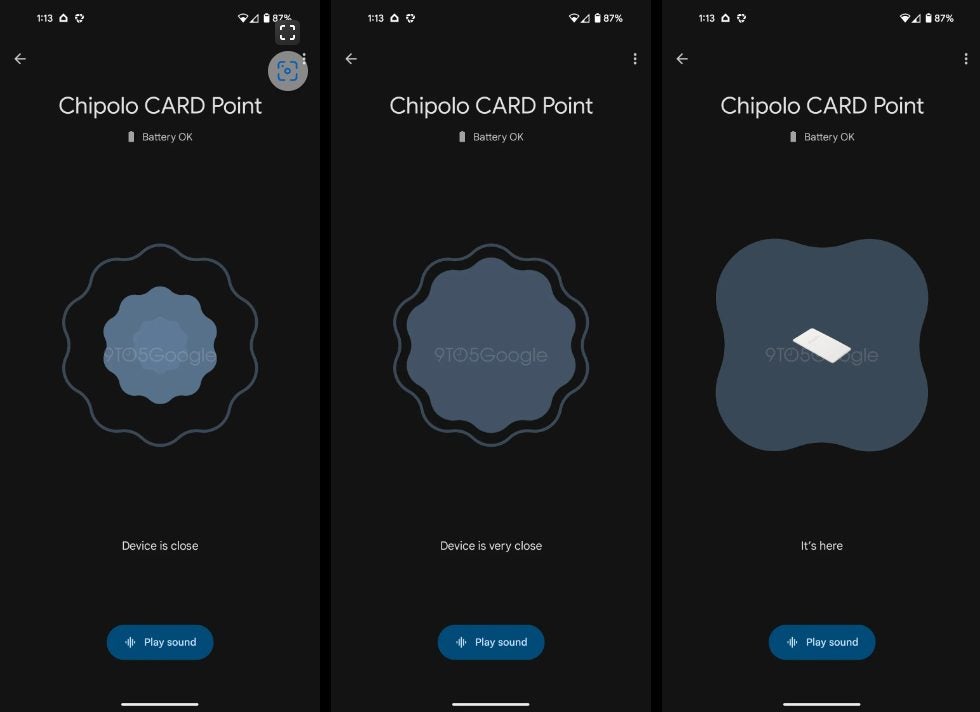
Current operation of the ‘Find My Device’ app – 9to5Google

In the coming weeks, Google will release a series of improvements to the Find My Device network that will optimize the speed and ability to locate lost objects. The company is confident that accuracy will increase as more people join the network.

Find My Device DOWNLOAD

Soon you’ll be able to find your Android device with augmented reality

The ‘Find My Device’ (Find My Device) app, designed for helping you find your lost or stolen Android phone, is evolving with new features. Until now, the app has used Bluetooth and other nearby devices to locate devices, but it didn’t offer precise directional tracking. This seems to be changing, because a new update suggests the future incorporation of advanced augmented reality (AR) features and support for ultra-wideband (UWB) technology.

Find My Device DOWNLOAD

The website 9to5Google discovered evidence in version v3.1.078-1 of the app that Google plans to include directional tracking functionality. Several lines of code in the app reveal that ‘Find My Device’ will require Google Play Services for augmented reality, which will allow cameras on Android devices to overlay AR graphics to help locate objects. This feature is already used by Samsung in its SmartThings app to track SmartTags.

Additionally, Android Authority has found references to the use of UWB and the necessary libraries for this functionality in some code contained in the latest update, although it’s not yet activated in the application. The integration of UWB promises to significantly improve tracking accuracy. While current Bluetooth trackers wouldn’t benefit much from these improvements, devices equipped with UWB, like those designed by Samsung and Apple, will be able to take advantage of the new directional capabilities.

Current operation of the ‘Find My Device’ application – 9to5Google

In addition to AR and UWB support, the ‘Find My Device’ update also refers to a feature called ‘Location History’. This will allow users to see the “last known location” of an accessory, a resource that already exists in a basic form, though this update appears to offer more detailed control, including the ability to disable this feature when not needed.

Finally, the update also includes improvements in the wording and clarity of the descriptions, making it easier for users to understand certain functions.

Find My Device DOWNLOAD

Android Device Manager app now available

Google released Android Device Manager back in August but only for the web. Today, Google released Android Device Manager for Android, letting users track and secure their devices using the app.

The app works similarly to Apple’s Find My iPhone app, which also lets you track, ring, lock, and remotely wipe your devices. If you misplace your phone, simply enable the ringer to find it. If your device is stolen, you can change the device PIN remotely as well as track its location. If you cannot recover your lost or stolen device, you can wipe the device to protect your data.

Android Device Manager for Android

While the web app works just fine, having an app to track your devices on the go is very handy. You can even switch accounts to track different devices for different accounts.

Android Device Manager scales to different sized screens, including tablets, so the UI should adapt to every screen resolution. It’s also much snappier to use the Android app than the web version.

Be sure to check out our guide about how to recover your lost or stolen Android device using Android Device Manager.

Download Android Device Manager

RELATED STORIES

How to: use remote lock in Android Device Manager

Android Device Manager already allowed you to locate your lost Android device when it launched last month. Now you can feel extra secure with the ability to lock your Android remotely, which is a great means of keeping potential thieves from accessing your personal data. Android Device Manager is a part of Google Play Services, supported on Android 2.2 and higher. The feature now enables you to change the lock screen to a passcode for extra security if you lose your device.

Allow remote lock

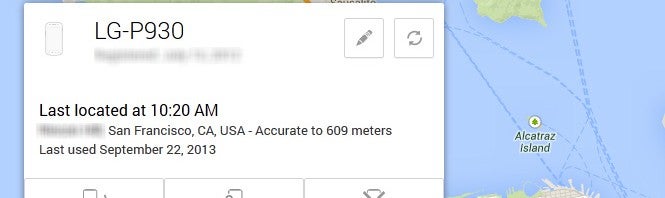
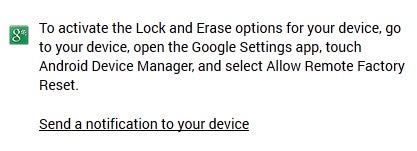
First head over to the Android Device Manager website and sign into your Google account. The new “Lock” and “Erase” functions will be inaccessible. You will see a message stating they can be enabled through your Android device. You can also send a notification to your device.

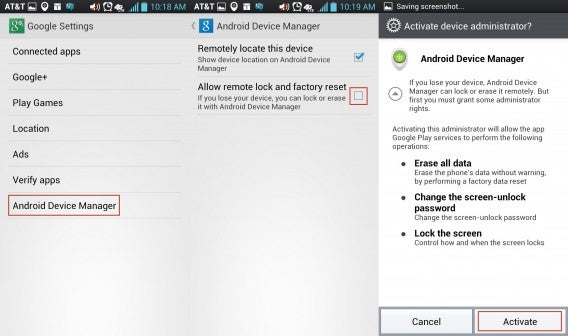
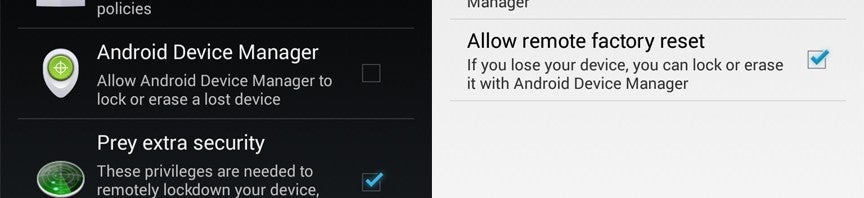
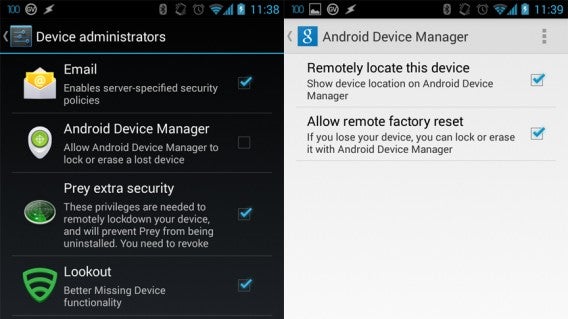
On your Android access the “Google Settings” app. At the bottom select “Android Device Manager,” and on the next menu toggle on “Allow remote lock and factory reset.” Read over what this functionality allows and if you’re satisfied select “Activate”.

remote device on Android

Remote lock

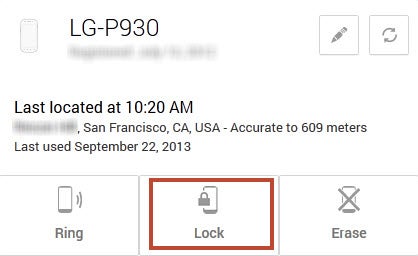
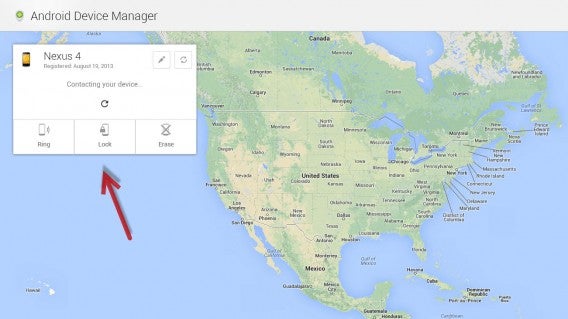
Back on the web you now have the ability to lock your device. There is also the option to erase the device, though that is only for extreme measures like if your device is stolen. This is a full factory reset that erases all data.

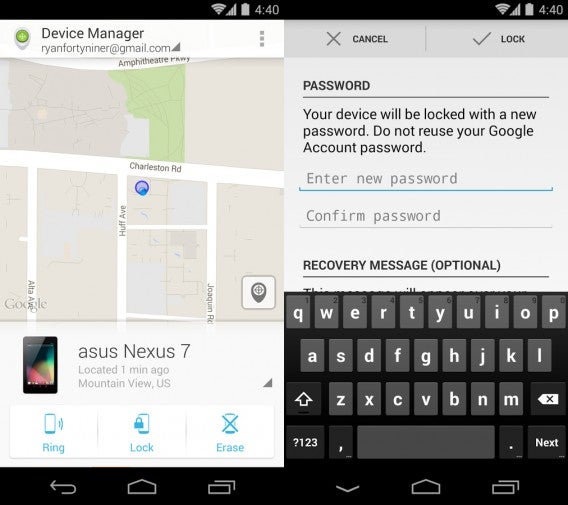
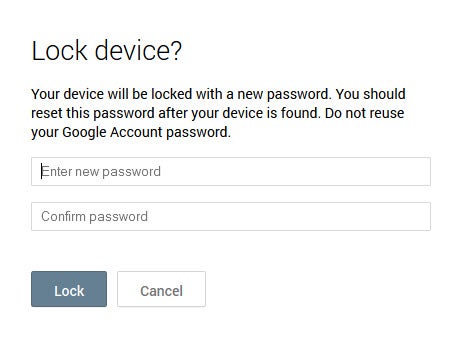
Selecting “Lock” will let you enter in a new password for your device. It’s recommended to reset your password after locating your device. What’s convenient is that this password will override your current lock method, such as pattern, PIN, or Face unlock. The override is an excellent feature so that previous methods to unlock the device will not work anymore.

Unlocking your device

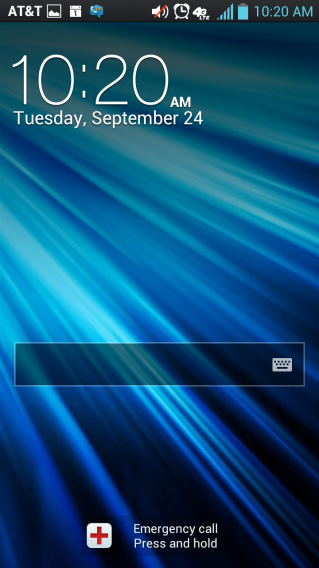
When you’ve found your device enter the password and you’ll regain full access. Remember to either reset your password or change the type of lock screen through the “Settings” menu.

Android Device Manager is an extra means of keeping your Android device secured, but it isn’t without some pratfalls.  It can’t communicate with a device that is off, out of coverage area, or has already been factory reset. It’s much more important to be as secure as possible prior to losing your device. Consider setting up two-step verification for your Google account and other services. It’s also a good idea to control app data, set up Google security alerts on your phone, or know why encryption is so important.

Android Device Manager can now remotely lock your device

A minor update to Google’s Android Device Manager has been pushed out today. Users who enable the service will be better protected now with the ability to remotely lock a device. In order to activate this feature, you’ll have to give Android Device Manager permission to manage your phone. You can find the setting in the app called “Google Settings.”

android device manager

Previously, ADM only allowed users to remotely ring or erase a device. Now users will see a third button to lock a device. The implementation of remote lock is impressively secure; ADM will be able to override any password you currently have on your device so a device can’t be unlocked without that new passcode.

If your phone is off or in airplane mode, ADM will trigger the remote lock as soon as the device connects to the internet. ADM will even black out your screen to make sure no one can get to any sensitive information you may have.

Still, none of this will matter if you don’t have your Google Account secured. To prevent hackers from gaining access to your account, make sure to enable two-factor authentication if you haven’t already.

[Source: Android Police ]

Use Android Device Manager to locate your device

Until recently, there was no official way to locate a lost or stolen Android phone. Fortunately, Google launched Android Device Manager. In the article below, I’ll explain how quick and easy it is to configure and use Android Device Manager to locate your Android device.

What is Device Manager?

Android Device Manager is a service through which you can locate your lost or stolen Android phone or tablet using maps. Once located, you can send a request for the device to either make a sound, or remotely wipe all data from the device.

What are the requirements?

Android Device Manager works on any device with Android 2.2 or higher; there’s no need to install any app or update the operating system.

If your device is connected to your Google account or you use Google Play, you’ll automatically be able to use this function.

Using Device Manager

Follow these 5 easy steps to find your Android device.

1. Log in to your Google Account

You can log into your Google Account at android.com/DeviceManager, where your linked devices will automatically be recognized.

2. Choose the device you wish to locate

If you have more than one Android device, choose which one you wish to locate by clicking on the arrow to the right of the device name.
3. Wait while your device is located

Depending on the situation, Google may take more or less time to locate your device, especially if you are in transit or in an area where cell phone service is unstable.

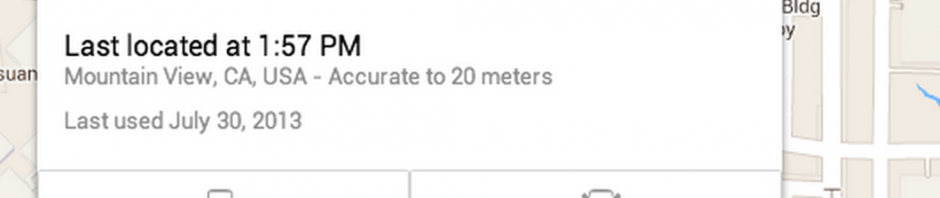
Once found, your device’s location is indicated with a blue dot on the map, as well as an estimate of the location’s accuracy. To update the map, click the arrow icon.

4. Send a tone or delete the device’s data

If the device is near your current location or is somewhere secure, Android Device Manager can send a sound notification to your phone or tablet to play at full volume for five minutes, even if the device is on silent or vibrate.

Alternatively, if you’ve enabled the remote wipe options in Google, you can remotely delete all the data stored on the device, including photos, contacts, emails and apps, with a simple click of the ‘Erase Device’ button.

5. Contact the authorities

If you think your Android device has fallen into the wrong hands, contact the appropriate authorities and file a report.

When doesn’t it work?

A Wi-fi connection is necessary to locate the device on the map. If there’s no internet connection, the device can’t communicate with Google and Android Device Manager won’t be able to locate it. If you have GPS enabled, the accuracy of its location will be even greater.

Device Manager also won’t work if:

  • The tablet or phone is turned off or out of the coverage area
  • The device has been reset to its factory settings


To ensure that your device can be located, you should activate two options in your Google Settings. Go to Security > Device Manager and enable both available options.

You can also go to Google Settings > Location and enable ‘Access the location’.

If you want alternatives, try…

Are you going to use Android Device Manager?

Original article written by Fabrizio Ferri-Benedetti for Softonic ES.
Android Device Manager available now, finds your device remotely

Last week, Google announced Android Device Manager, which lets you track your lost or stolen phone. The feature finally goes live today and you probably won’t notice since Android updates the settings automatically. You’ll have to enable Android Device Manager on your device in order for it to be tracked.

If you’ve ever used Apple’s Find My Phone feature, Android Device Manager will immediately feel familiar. The interface is similar, with a list of your devices showing up to the left. The majority of the screen is taken up by the map where you can locate your Android device. Your device will have to be powered on and have the ability to communicate to the internet in order for it to work.

android settings

If you want Android Device Manager to have the ability to wipe your phone, you’ll have to give it permission to do so in the Google Settings app. This works similarly to Lookout Security’s implementation.

While there are third-party apps that provided these features to Android users previously, it’s nice to see that Google is implementing it as part of the operating system, making it available to most Android users.

To find out how to find your lost or stolen phone, check out our guide here.

Source: Android Device Manager

Google announces Android Device Manager, finds your lost Android phone

Catching up to Apple’s Find My Phone feature, Google has announced it plans to release the Android Device Manager app to let you track your lost or stolen phone. If you’ve ever used Apple’s Find My Phone feature, you’ll feel right at home using Android Device Manager.

The new app and service will allow you to use the website or app on another Android device to locate your lost or stolen Android device. You can even enable the ringer on your device if you’ve misplaced it in your home. This means you’ll never have to worry about finding your phone that’s on silent.

In addition to locating your Android device, Android Device Manager also has the ability to wipe your phone of all personal data if you’ve had it stolen. Many times, the data on your phone is worth more than the device itself. Google has your back and will wipe your device and stop your information from getting into the wrong hands.

Google does not yet have a solid release date for the app or service, only saying that it “will be available later this month.” You’ll need an Android device running Android 2.2 and up so that shouldn’t be a problem for most people. Once the service rolls out, all you have to do is sign into your Google Account.

Source: Official Android Blog