Make a fun GIF in Canva

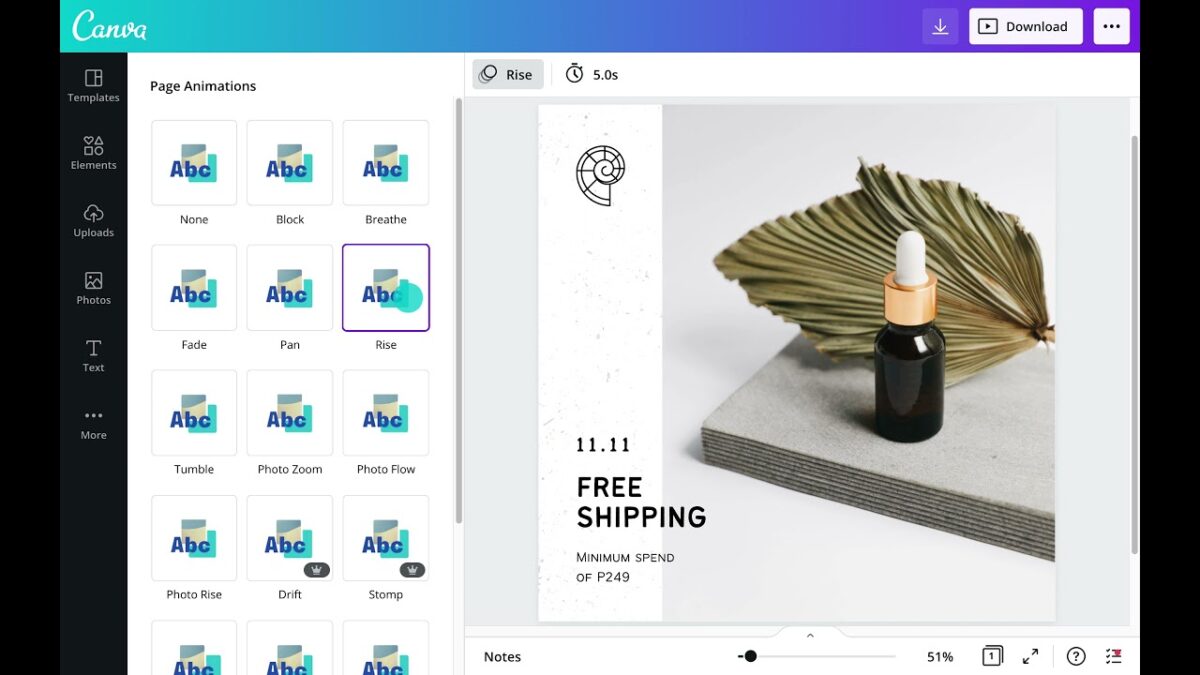
Most of you know precisely what a GIF is and has used it on social media messages and pages. Some of you might use it in your email correspondence, but whatever your choice of sharing them, we are here to help you create your own GIFs with Canva just like more than 85 million monthly active users in 190 countries are doing. 
Design for everyone FREE TRIAL

The bonus of a GIF is that they are compressed files that make them simpler to share than videos. If this is not a great reason to start creating personal GIFs, then we don’t know what is. So with further ado, here are your step-by-step guide to start creating GIFs in Canva today!

How to make a GIF in Canva

  1. What GIF do you want to make?

    How to make a GIF in Canva

    You can’t just sign into Canva and have a lift-off. Come on, now be realistic. We all know you need to work towards a goal. So think about where you want to use your GIF and message. Next, sign into your Canva account or get started by creating a free account.

  2. Choose a Canva template

    How to make a GIF in Canva

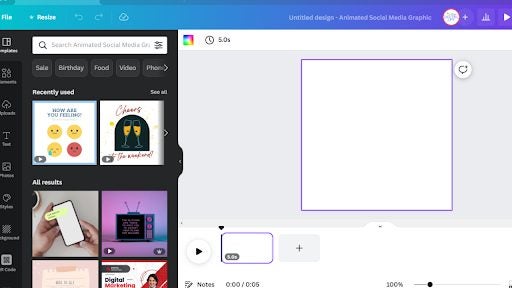
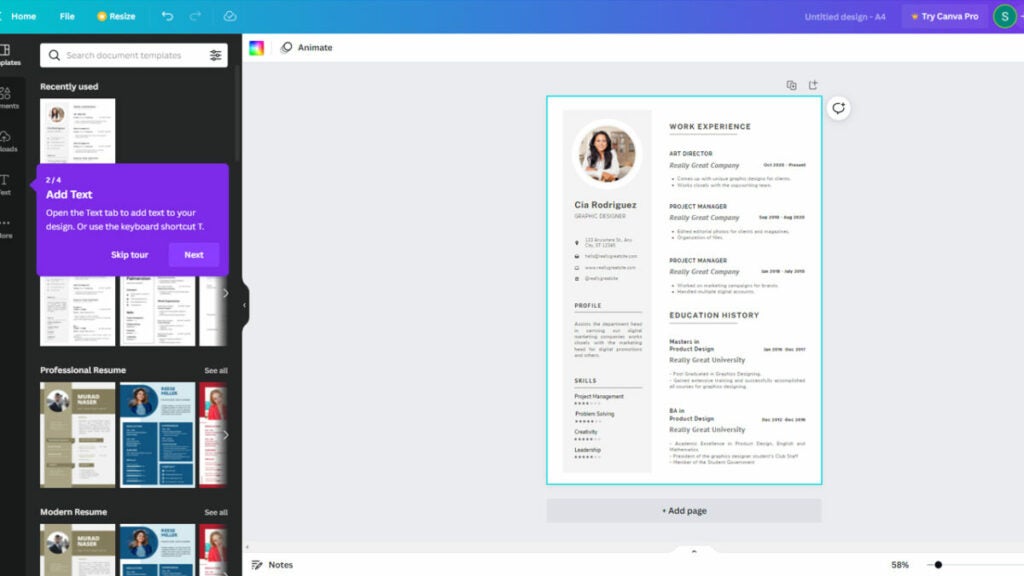
    Canva has an extensive template library on the left side on the interface. Start browsing the templates and decide which one is closest to your design goal. You can edit it to the design you want, but it is easier when you have a guide to give you a visual idea of what you will get. Once you have your template loaded, let’s get started.

  3. Design your GIF

    How to make a GIF in Canva

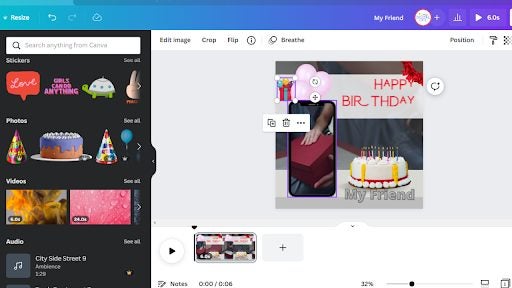
    Now the fun part begins. You can now click on the text box and choose a different font, change the font size, shape and color to your preference. You can also click on the different elements and images (located on the left side of the banner).

  4. Save your design

    How to make a GIF in Canva

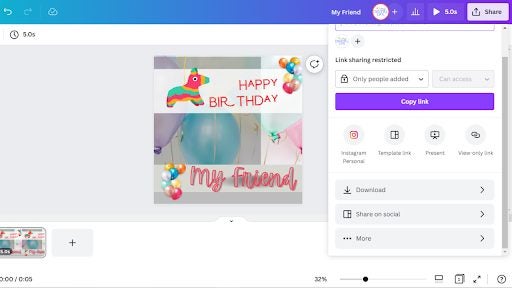
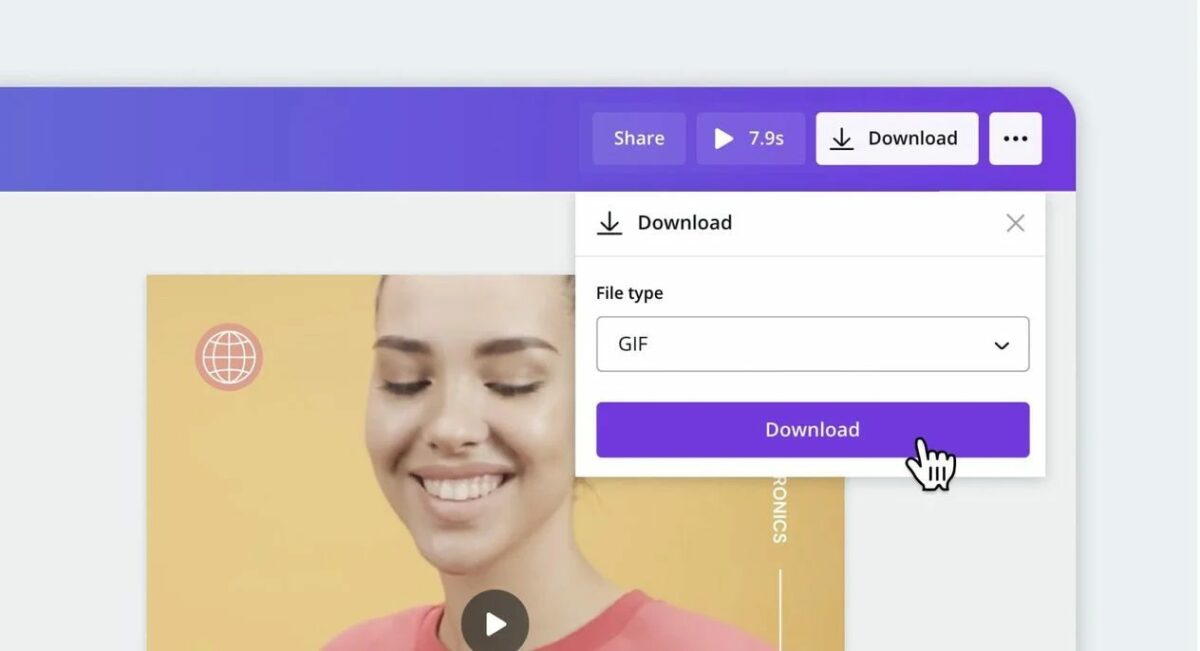
    Once you have played around with all the features that Canva offers and are happy with your end product, you can save and share your design. To do so, click on the share button on the top right corner, which will give you the following options: copy link, download, or share on social.

    If you copy the link, you will only be sharing your project link, which is not beneficial for your GIF sharing. But when you choose the download option, you can save it on your pc or phone (depending on which app you used for this design). If you choose to share on social media, you will be sharing it on your social media, but remember, you need to have a linked social media account.

  5. Share your design

    How to make a GIF in Canva

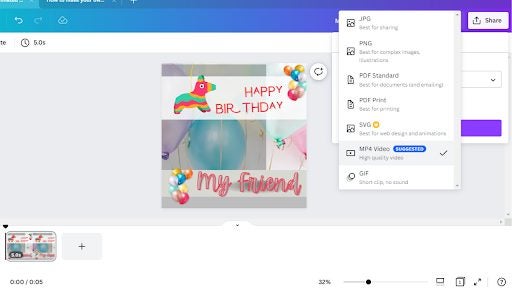
    When you click on the download button, you will have another list of options for saving your Canva GIF design for the best quality. It is recommended that you save your GIF in MP4 Video. Once you have made your choice, you can successfully save your file. The fun part is that you are ready to share your GIF once you have saved it! 

    Once your GIF is saved, you can share it via email or text messages and impress your friends and family with personalized GIFs. It is a beautiful tool to make a special occasion a little more unique and send fun holiday GIFs to show those close to you how much you care about them.

It is all in the GIF

Canva is a magnificent user-friendly design tool that you can use in all aspects of your life, promoting your business, creating brand awareness, or even creating personal invitations for special occasions. You can even make a business logo with Canva

A bonus is that you can have the Canva app on your computer or your smartphone. You can choose between a free or Pro account. The free account has limited design features but offers a great template library to choose from, and Pro is obviously limitless! We hope this guide will inspire you to create many more awesome Canva designs.

Design invitations from scratch with Canva

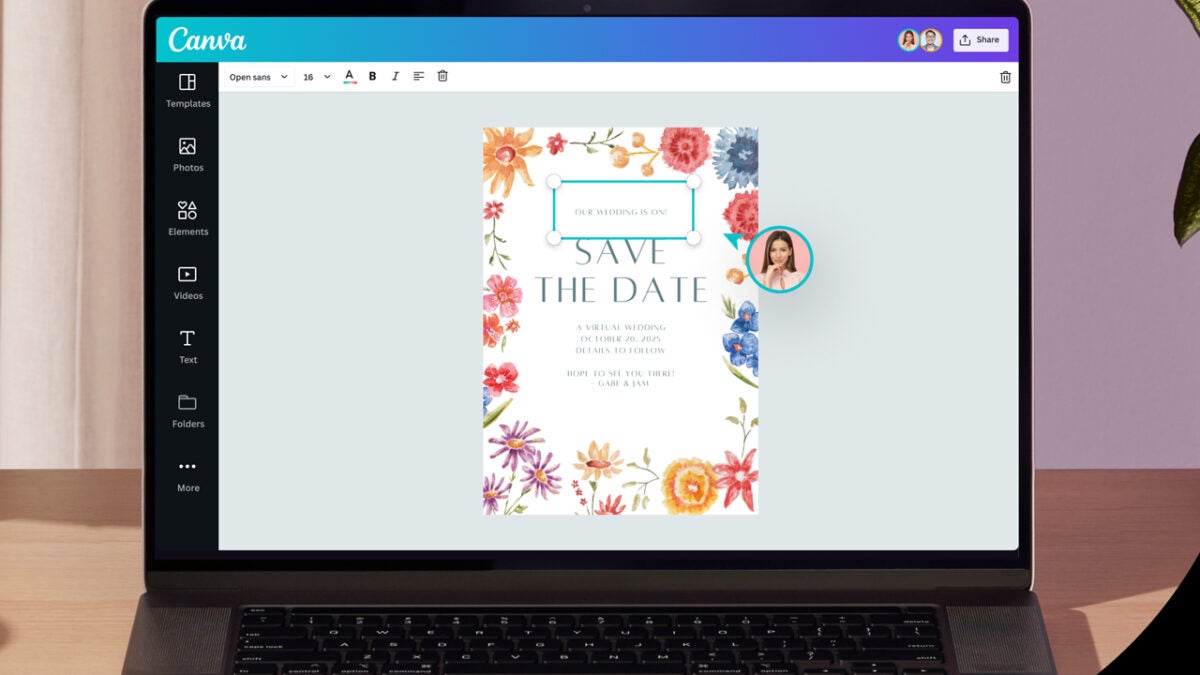
Planning your wedding can be exciting and terrifying all at once. But with that exciting event comes significant financial expenses in planning your big day! The good news is that you can create gorgeous Canva wedding invitations without being a professional graphic designer. It’s an intensely popular platform with over 85 million monthly active users in 190 countries.

Design for everyone FREE TRIAL

Your wedding invitation is the first glimpse of what your guests can expect on your special day, and you want your guests excited to attend the wedding! Without further ado, here are a few simple steps to create a Canva invitation from scratch.

Design invitations from scratch with Canva

  1. Create a Canva account

    Canva is a great tool for designing invitations from scratch

    If you don’t already have an account, you will need to create a Canva account. You can sign up for free or a paid Pro version, which will offer you more add-ons, but the free account still offers impressive features. You can also try Pro for free on the 30-day trial period, leaving you a month to get creative.

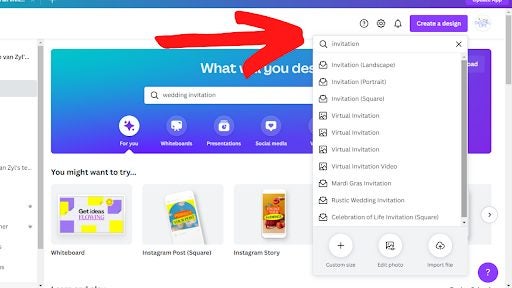
    Now you can start with your wedding invitation by selecting the ‘Create Design’ button, and if you don’t see the invitation on the drop-down menu, you can search ‘Invitation.’

  2. Create a design

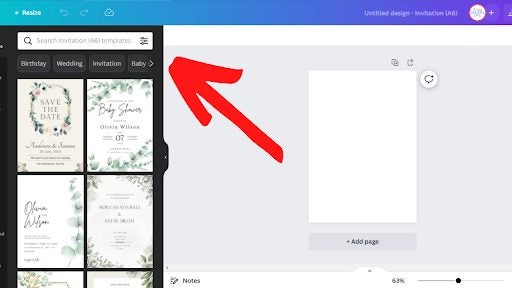
    You now have a clean canvas that you can start from scratch to design a Canva invitation that’s fitting for your wedding theme. What we love about this designing tool is the various template featured on the left side, and above the templates, you can choose what Canva invitation you would like to create.

  3. Personalize your invitation

    Canva is a great tool for designing invitations from scratch

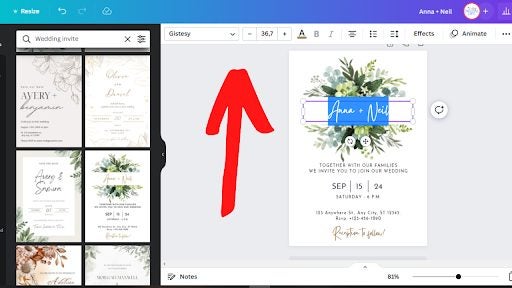
    Once you find a Canva wedding invitation template that you want to use, you can start with editing. You can click on each text box to make the necessary changes. If you want to change the font, text color and font size, you can make these changes at the top banner.

  4. Finishing up your design

    Canva is a great tool for designing invitations from scratch

    If you are happy with your design and want to finish the final print, you can do it in these three easy steps:

    • On the top right corner, click on the ‘Share’ button, which will open more options to follow.
    • Scroll down and click the ‘Download’ button, which will give you more options with a dropdown menu.
    • In the dropdown menu, you can opt for the JPG or PNG options if you will be sending the invitations via a social media app. Alternatively, you can choose PDF for print to give to your printing company of choice.
    • Once you have downloaded your design, you can save it and, if need be, send your PDF to the printers or load it on a USB and personally take it to the printers.

    Canva is an easy-to-use designing tool that makes creating invitations from scratch a breeze. They have an extensive template library, and you can get even more creative as you become more comfortable with the designing application. 

    The design tool offers over 22 900 invitation templates and can design anything from birthday invitations to graduation invitations. Canva features invitations for any occasion you can think of!

The solution to any invitation

It doesn’t matter what occasion you are planning — you will need to send invitations. But most of us (even if we aren’t on a tight budget) know that having a party or hosting an event can get expensive. The financial expectations from the venue to the decor and not even considering the catering could leave you overwhelmed. 

The last thing you want to stress is extra costs for invitations from hiring a graphic designer and the printing costs after that. That is why you can rest assured that with Canva, you will be able to save costs on your invitations.

If you are still unsure of how Canva works and how you can benefit from this designing tool, you may like to read: What is Canva and how it works. Remember, you can use a few invitational templates with the free version, but there are plenty more available with Canva Pro. It may be worth checking out the free trial to test its powerful capabilities.

When it comes to Instagram, there’s no better tool than Canva

If you want to boost your business or brand, Canva is one of your most popular, boasting more than 85 million monthly active users in 190 countries. Instagram marketing is an excellent platform for entrepreneurs and influencers to grow their brands organically. Canva’s instinctive Instagram post creator is a great way to keep your Instagram feed updated with posts that match your brand awareness campaign. You can even share your post to your Instagram account without leaving the Canva dashboard.

Design for everyone FREE TRIAL

Storytelling is another part of human nature, from campfire get-togethers to bedtime stories for children. But storytelling has also changed drastically from paperback to social platform. You can use Instagram stories to test new content and ideas. Let us look at how to use Canva for Instagram posts and stories.

How to make Instagram posts in Canva

  1. Launch Canva and select your post template

    How to use canva for instagram

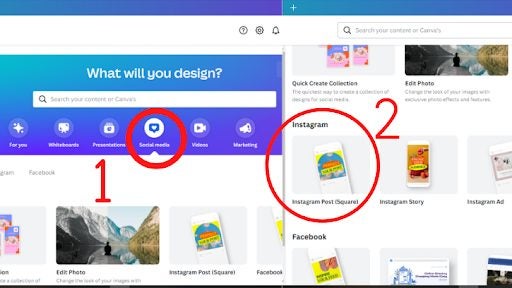
    Open the Canva app and then choose social media, which will list all the social media options to choose from. You will see the Instagram Post in the second row.

    You will see a collection of ready-made, professionally designed post templates. You can then filter your search by style, color, or theme.

  2. Personalize your Instagram design

    How to use canva for instagram

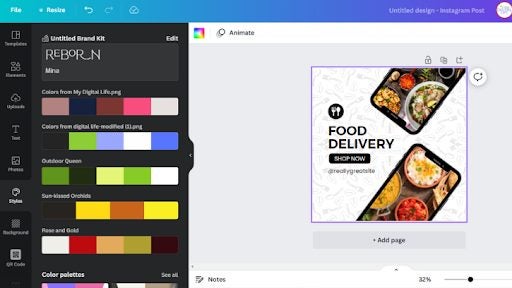
    You can choose any template and make the design yours by choosing different colors and font styles, modifying elements, and customizing the text. It is simple to upload photos or use Canva’s extensive library for vectors, audio, videos, and stock images.

  3. Experiment with different features

    How to use canva for instagram

    Use photo-editing tools to touch up images or enhance pictures by adding filters. Get creative with page transitions, animated stickers, and text.

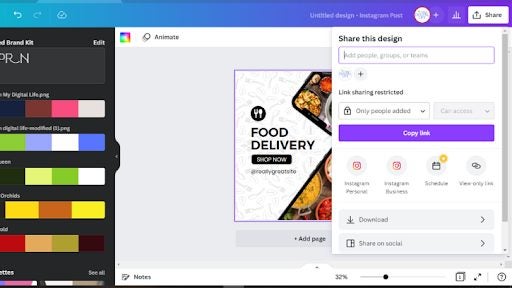
    Now you are good to go. Just hit the share button, and you can download the design in high-resolution PNG, JPG or MP4. If you prefer to share it directly on Instagram, you can do so from the editor. If you opt for Canva Pro, you can schedule your content for later.

Manage your Canva Instagram posts

Build your brand or business by showing your followers your commitment through producing engaging and inspiring content. Organize your feed to promote your style guide and brand. Use Instagram posts to showcase your services and products. 

Make free Instagram posts with Canva’s easy-to-use templates. Create brand awareness with Canva’s eye-catching and creative design elements. Share fresh and creative ideas with followers with their beginner-friendly and intuitive post creator.

What is the best time to post on Instagram in 2022?

  • Monday is 12:00 PM
  • Tuesday is 9:00 AM
  • Wednesday is 11:00 AM
  • Thursday is 12:00 PM
  • Friday is 2:00 PM
  • Saturday is 9:00 AM
  • Sunday is 7:00 PM

Create a Story on Instagram using Canva

Although you can use Instagram’s in-app story builder, you should consider Canva Instagram Stories templated for a professional look. Canva simplifies making batch-produced content which is a great time-saver. Here is a simple step-by-step guide on how to use Canva to create inspiring and engaging Instagram stories.

  • Open the Instagram Story Maker, or you can choose custom dimensions. The standard size is 1920 pixels tall and 1080 pixels wide.
  • Select a template to customize or create your own design.
  • Choose an image from Canva’s image library or upload a photo from your gallery.
  • Once you are happy with your image placement, you can adjust the filters and colors to match your brand.
  • Alternatively, you can edit or add elements like frames, icons, shapes, texts, charts, and lines to the design.
  • If you have completed your design, you can tap on the download icon on your mobile app or the share button on your desktop.
  • You also have the option to share on social media platforms, email, or text messages directly from Canva.
How to use canva for instagram

Add GIFs to Instagram Stories

When Instagram partnered with GIPHY in 2018, it created a library filled with GIF designs. You can add GIFs to your Instagram story when you tap the sticker icon. You can search for any GIF in the search bar.
Although GIFs are amusing, you can use them strategically to grab your follower’s attention through highlighted texts or C-T-A (call to action).

Add links to your Instagram Story

In the past, there was a “swipe up” feature to add links to your stories; however, you had to have more than 10,000 followers and a verified account. But times have changed, and Instagram has rolled out link stickers to replace the old feature making it available to everyone now!

To add links, tap the link sticker and add your preferred destination URL, whether you want to highlight your new article, blog post, or product page.

Add music to Instagram Stories

Thanks to Facebook’s partnerships, you can find almost every major record label to use when you create your Instagram stories. Keep in mind that it is a feature only available in some countries. To add music to your story, select the music sticker and search for songs by genre, name, or mood. Once done, don’t forget the “sound on” GIF or sticker.

Create your own professional email signature design in Canva

Professionals overlook the importance of email signatures, yet they provide essential information. Most business communication and interactions are via email; your email signature is your digital business card that shares your information and even social media links. You can also make it look unique with Canva.

Canva DOWNLOAD

Keep your email signature informative, professional, and simple when you consider creating your own. Ultimately it is all about the information, but that doesn’t mean it has to be plain and boring. We are here to guide you in creating the best email signatures using Canva’s easy-to-use designs.
How do email signatures on Canva work?

You can sign up with Canva using your Google account, Facebook login, or email. Once you have created a free account, you can choose what you will use it for. With plenty of virtual email signature templates, you can pick a design and make the necessary changes to personalize it to your needs.

Choose your email signature template

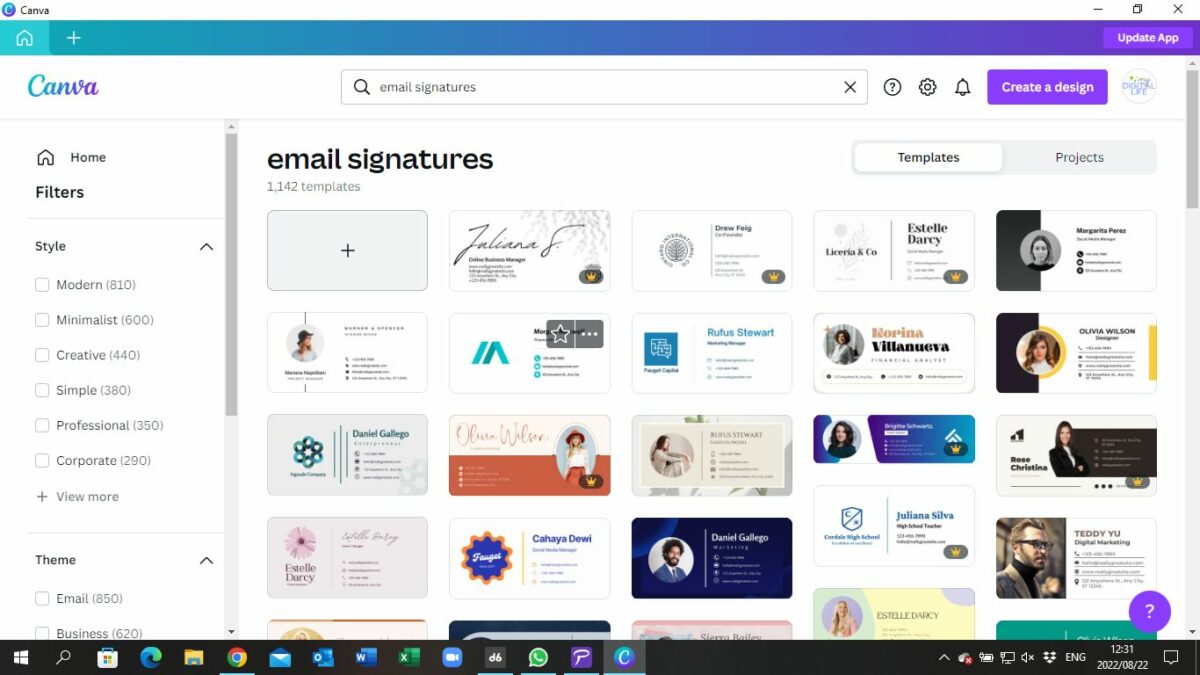
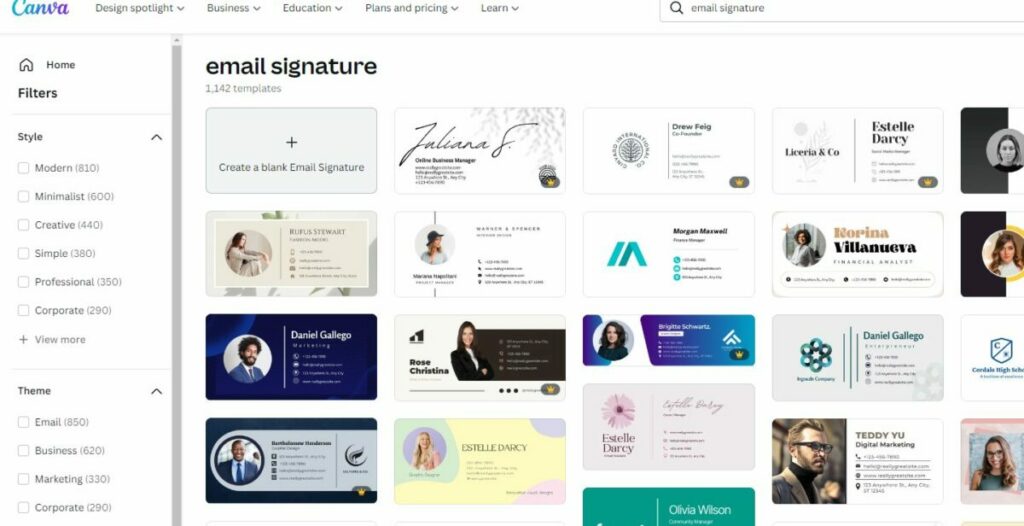
To make the email signature, you can search for email signatures that will offer you all the templates. You can choose the style you want for your signature on the left, and the main templates you can customize on the right. Clicking on your choice will show you a toolbar with editing options, reacting as you make things minimal and straightforward.

What information to include?

A fundamental mistake people tend to make with email signatures is including too much information. Don’t use your signature as a mini-autobiography; include the necessary information and stick to your brand’s style guide. Here are a few essential details you should have on your email signature:

  • Your name and surname
  • Job title | Designation
  • Professional photo
  • Business name
  • Website and email account
  • Clickable social media icons

Although this is vital information to include, it will be dependent if it applies to you or your business needs!

How to create a custom design email signature in Canva

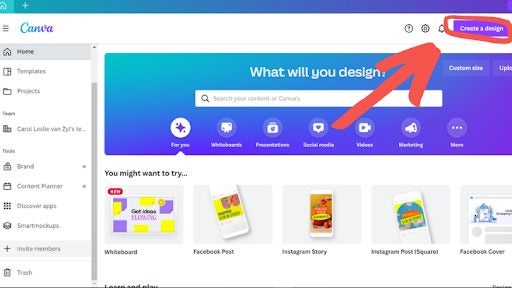
  1. A new design

    Create your own professional email signature design in Canva

    Create a new design on Canva’s homepage using the Create a Design button.

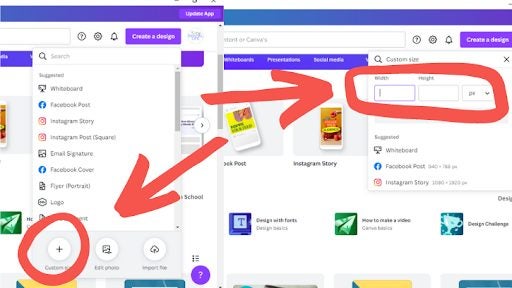
  2. Custom size

    Create your own professional email signature design in Canva

    Select Custom Dimension and use this measurement: 500 x 200 px. Professional signatures range from 70-200 px in height to 300-600 px in width.

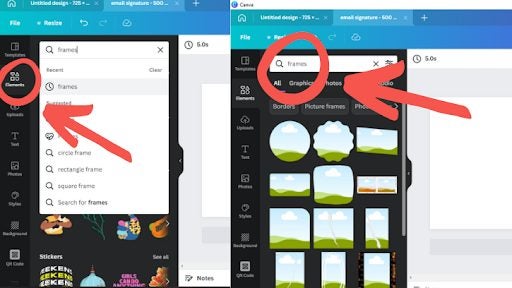
  3. Setting the frame

    Create your own professional email signature design in Canva

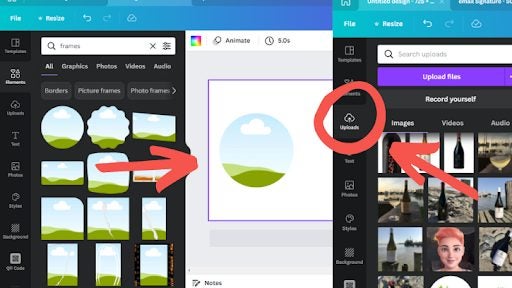
    Once on the editor page, head to Elements and click the Frames category. If you can’t find it, use the search option. Select the frame you would like to use. Typically round frames are used to give a sophisticated look.

  4. Adding photos

    Create your own professional email signature design in Canva

    You can add your frame to your design and resize and position it to where you want it on your signature template. You can then add your photo by using the Upload tab. Once you have uploaded your photo, click on it and drag it towards the frame.

  5. Adding details and links

    Create your own professional email signature design in Canva

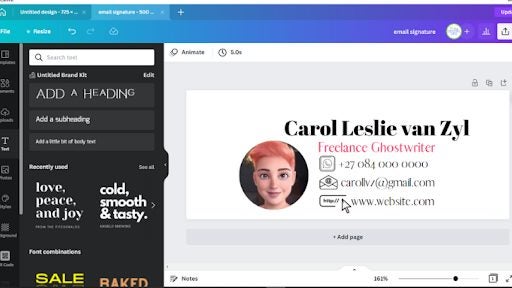
    Add text boxes by tapping the Text tab on the side panel menu. Use the heading box for your name and the subheading for your designation, business name, and contact details. Edit the text boxes by typing your name, business, and contact details.

    Once completed, save the email signature as a PNG file. Make your signature more professional by clicking on the Transparent Background box.

How to set up your Canva email signature in Gmail

It is as simple as 1…2…3 

  • Go to your Gmail settings. Find it in the top right corner.
  • Go to the Signature section and choose the “Create New” signature option.
  • Upload your signature file.
  • Press Enter, and you are all good to go!

How to set up your Canva email signature in Outlook

Again this is pretty straightforward. Just follow these simple steps:

  • Open Outlook and select Settings.
  • Open the email and scroll to the bottom to find the signature button.
  • Click Signature and upload your signature.
  • Press Save.
Canva email sig

What is the difference between Canva Free and Canva Pro?

Elements & Photos

Free: Limited free creative design elements and photos. But you can upload your photos or purchase more.

Pro: There are a lot of free stock elements and photos. 

Templates

Free: has over 8,000 templates.

Pro: has over 20,000 templates.

Fonts

Free: There are Fonts to use, but you can’t upload your own.

Pro: You get a lot of fonts and can upload your own.

Folders

Free: You get three folders for your designs and no folders for uploaded photos. 

Pro: Unlimited folders for your designs and folders for photos.  You can mix your designs and photos in one folder with recent updates.

Resizing

Free: No resize options exist, but you can copy and paste between two different sizes. 

Pro: There is the handy Custom Resize Function and Magic Resize function.

Transparent Backgrounds

You can save PNGs with a transparent background with a Canva Pro subscription only.

Time To Get Creative with Canva!

Email signatures are essential to your professional identity and provide valuable links and information to your email recipients. So, get creative and have fun with Canva’s accessible design elements, and if you are still a little uncertain, you might be interested in reading this feature on how to create professional designs with Canva.

Enhance marketing by making an infographic on Canva

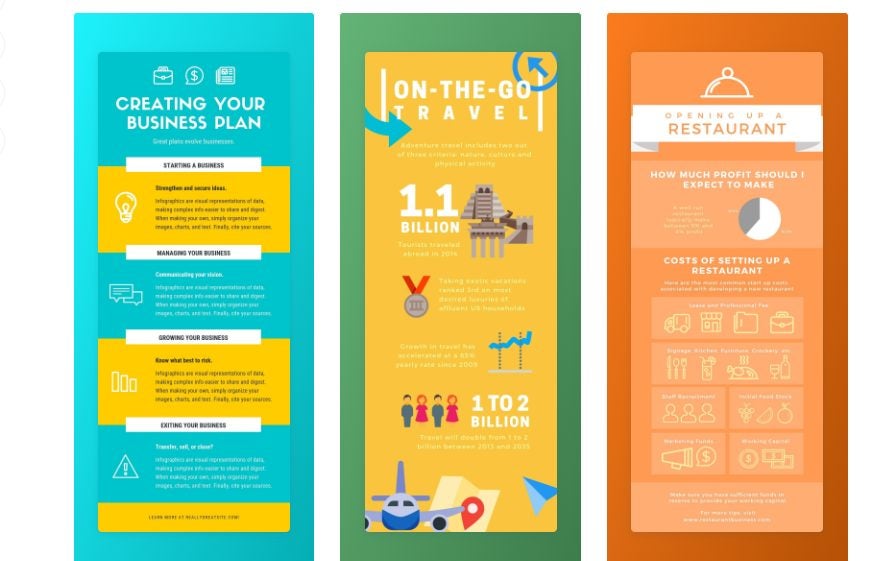
When it comes to marketing your products or telling a story in a visual way that’s appealing to the eye, few tools work better than a Canva infographic. You can quickly organize your content, and it gives you the stimulus to be creative. However, we understand that it may be daunting if you’ve never used this feature before.

Design for everyone FREE TRIAL

You don’t need to be an expert to learn how to make an infographic on Canva with its templates. There are a few basic steps you can use, and after that, let your creative mind run wild. Learn how more than 85 million monthly active users in 190 countries are doing the same thing!

How to make an exciting Canva infographic

  1. Select a topic or category

    making an infographic on Canva

    Before you plunge headfirst into making a Canva infographic, you need to decide how you’re going to approach it. The topic or type has a key role to play in which template you’ll aim for. For example, are you wanting to show the results of a survey? Perhaps you want to show a timeline for your business or products.

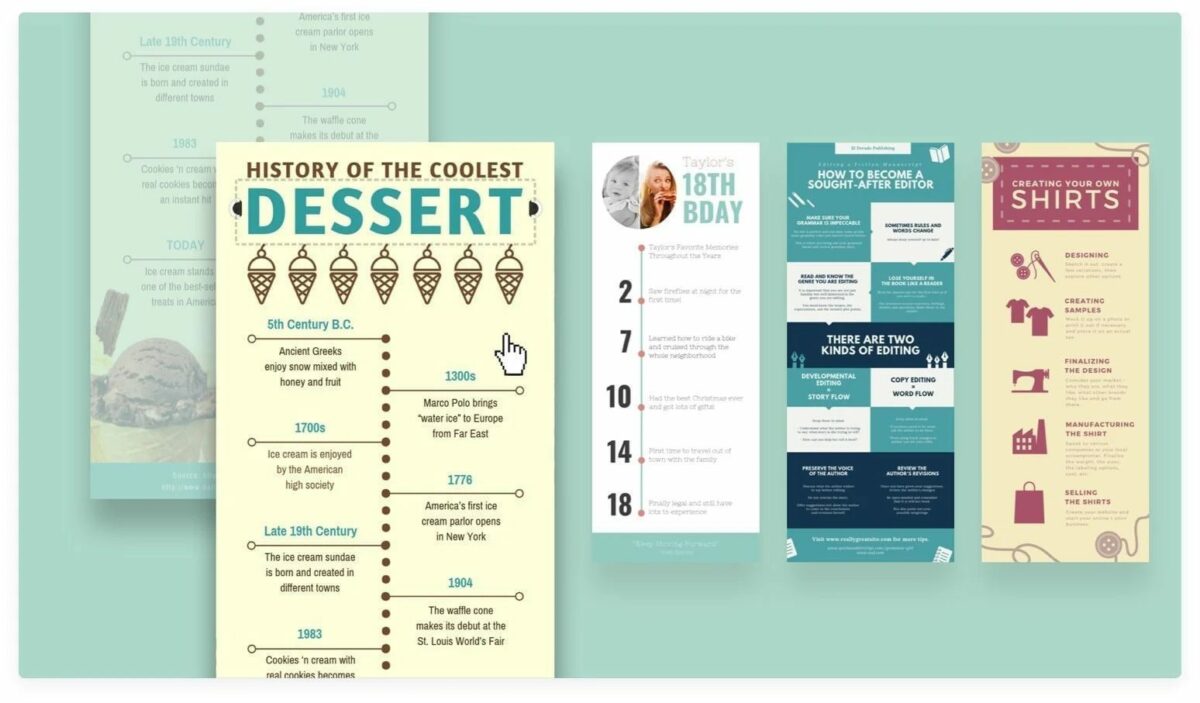
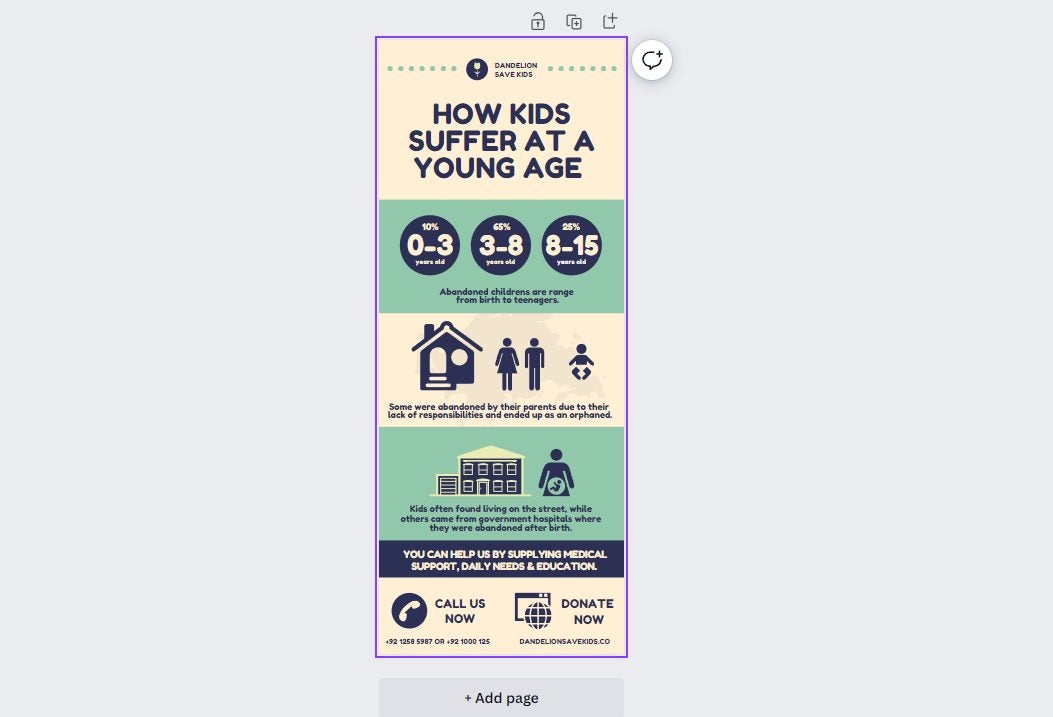
    Another type of Canva infographic template that may benefit your business is an annual report or the results of a campaign. The Charity template is a good example of how you can present statistics in a fun and educational way. You can also look at the Volleyball history infographic template to view how a timeline is done.

  2. Design a layout

    making an infographic on Canva

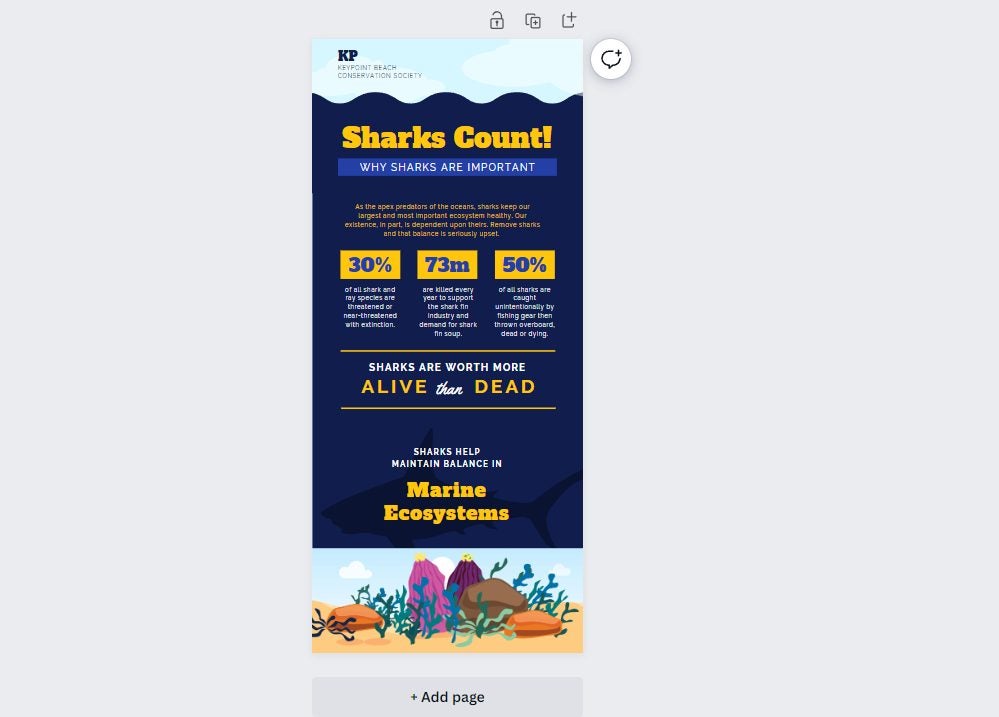
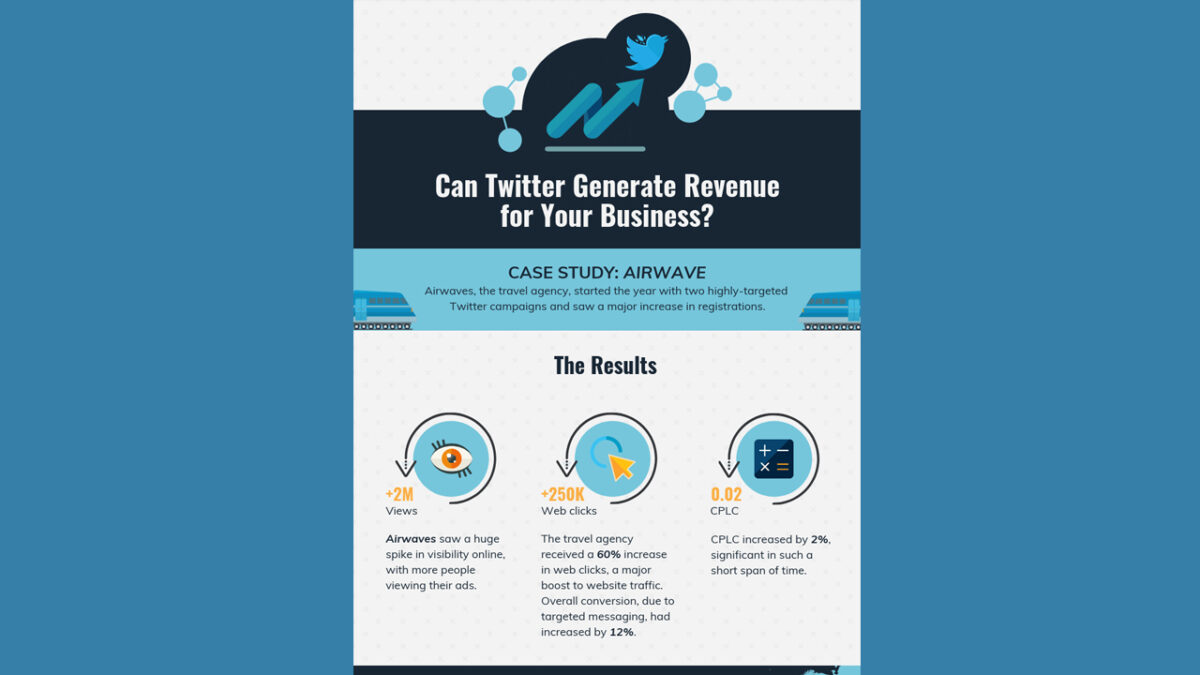
    While the Canva infographic templates give you a basis to work on, you still need to decide on the layout you want for your content. Some companies choose one that has a heavy focus on text, such as the Twitter Business template. The Charity template mentioned in the first step has more of a visual appeal, while the Shark Marine Conservation template has the best of both worlds.

    Twitter Business Canva Infographic

    It all depends on how much information you need to share with your audience and in what way you want to do so. If there are rich details you don’t want to lose, then the text-heavy option is the way to go. Should you feel that the infographic is too dull and you just want to share stats, you can opt for a more visual layout. Either way, Canva has several templates to meet your requirements!

  3. Organize the content

    making an infographic on Canva

    Have you ever visited a web page with loads of detail and text, and your eyes were drawn to big words with bright colors? This effect is called visual hierarchy. Simply placing the information on a Canva infographic isn’t going to do you or your audience any favors. 

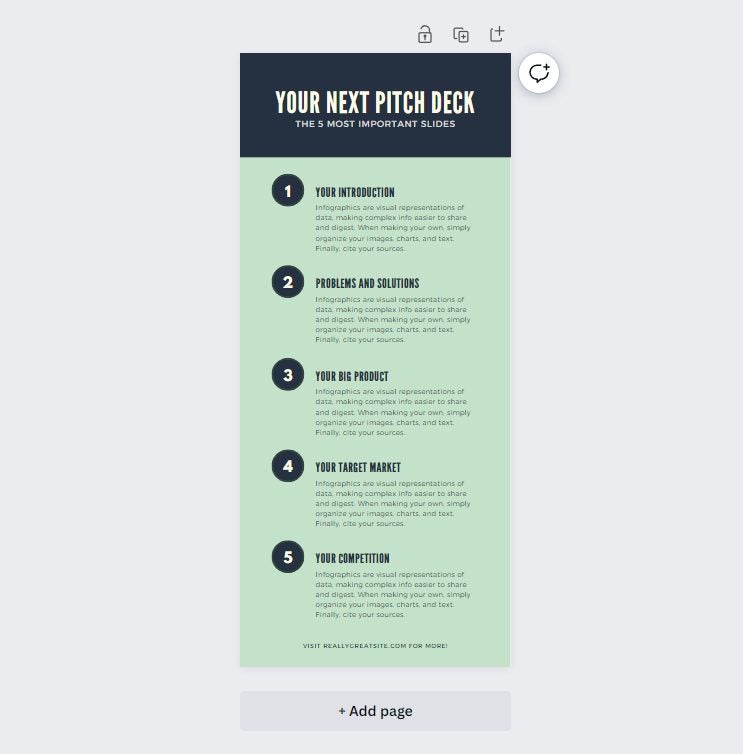
    The best approach is to choose which of your content needs to stand out from the others. Look at this Brown Pitch Deck Canva infographic template, as an example. Notice how the headings stand out in various sizes, showing you what to focus on. If you want to know more information about a specific point, you can read the paragraph below.

    It helps when your audience is looking for something specific. Their eyes can scan the text to find the top points. You can also work on different color ranges, such as red, green, or blue. If there’s a specific color theme that matches your brand, it’s best to aim for that.

  4. Design the visuals

    making an infographic on Canva

    Can you see how well your Canva infographic is shaping up now, thanks to these outstanding templates?! You’re almost at the finish line. All that’s left now is to take all the aforementioned steps and design the visuals that will complement the data.

    The first aspect to consider here is what visual elements you need to include. For example, you can aim for charts, icons, graphs, smiley faces, graphical titles, or even custom images. 

    Next, you’ll want to decide on an exquisite font, which Canva has loads of. You need to strike a balance by capturing the audience’s attention without confusing them with text they can’t read. The font also needs to match the tone, as you can’t have comical text for a serious presentation. 

    Finally, don’t forget to add images. Canva has an extensive library of images that you can choose from, but you shouldn’t overdo it. Remember, an infographic has limited space, and you need to use it wisely.

  5. Sharing your infographic

    making an infographic on Canva

    You’re now all set to share your Canva infographic with the world! Once you’ve saved it, you can share it on any social media platform that accepts images in that format. If you’re going to post to Instagram, you may want to aim for a landscape infographic, instead. 

    It’s all up to you to make your infographic pop as much as possible. To help you get there, you have the remarkable tools that Canva has to offer.

10 creative ideas for business cards using Canva

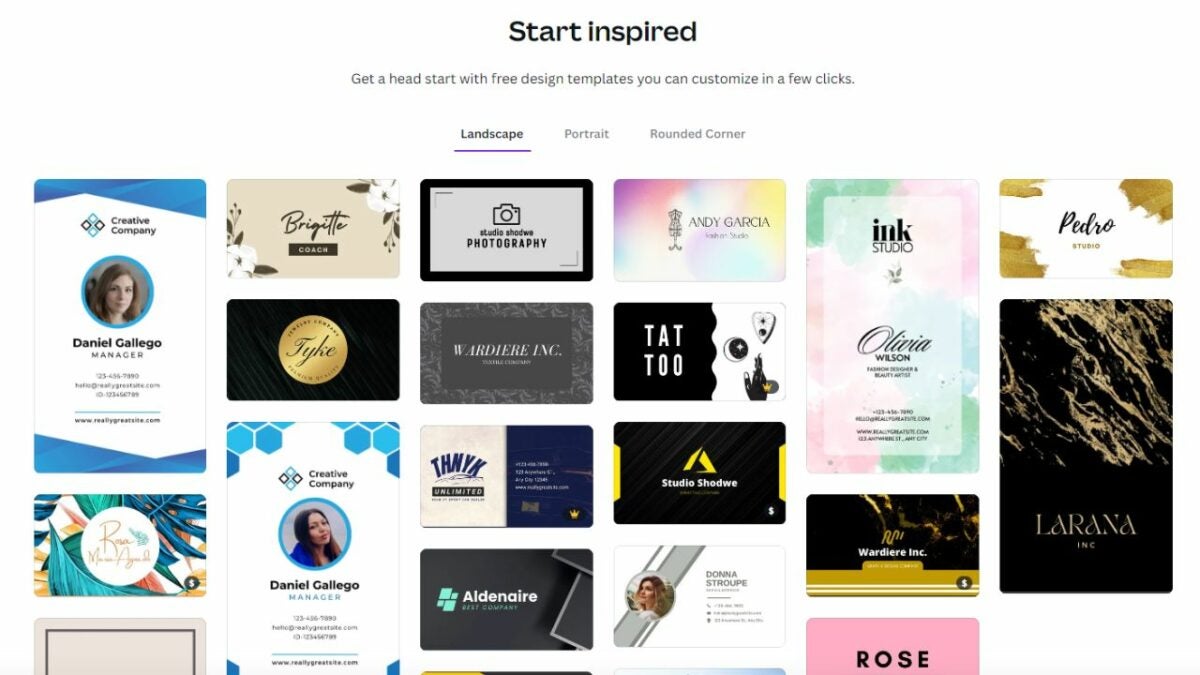
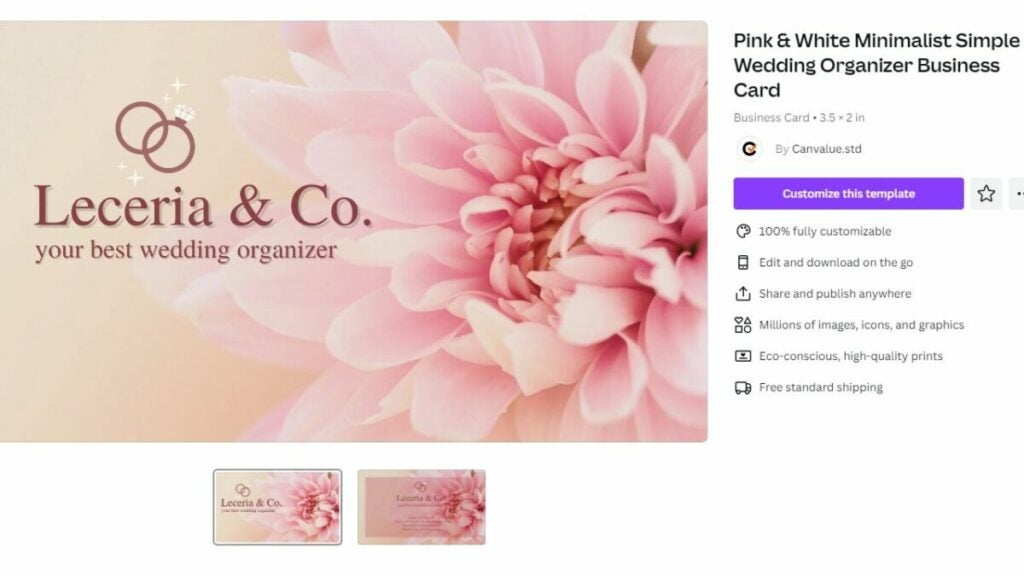
Business cards are just as important for branding and marketing yourself as they are for giving information. To stand out from the crowd, use Canva to create a custom design like the over 85 million monthly users in 190 countries. There are a variety of Canva business card templates and customization options, so you can design the perfect business card for your needs. If you haven’t tried Canva yet, subscribe to Canva to get started!

Design for everyone FREE TRIAL

Once you have your Canva account ready to go, explore these awesome ideas for appealing, interesting business cards.

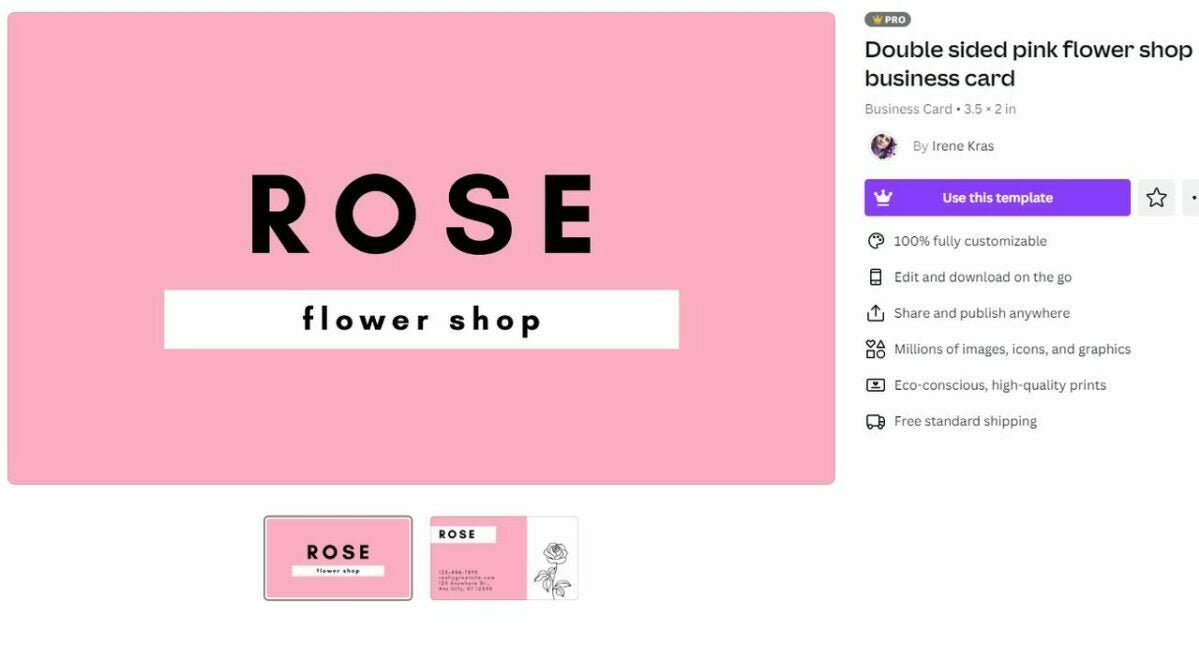
Maximalist card designs

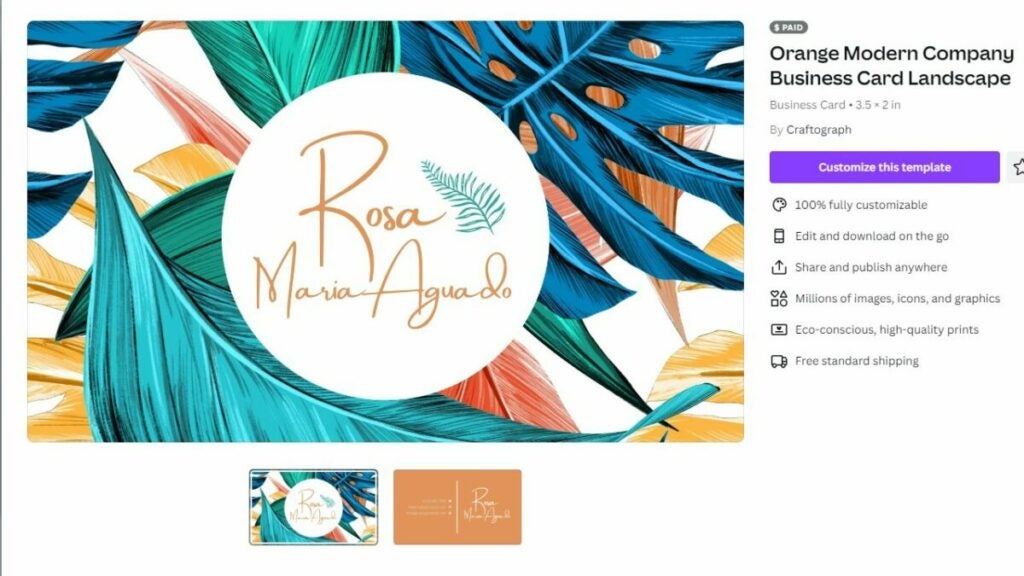
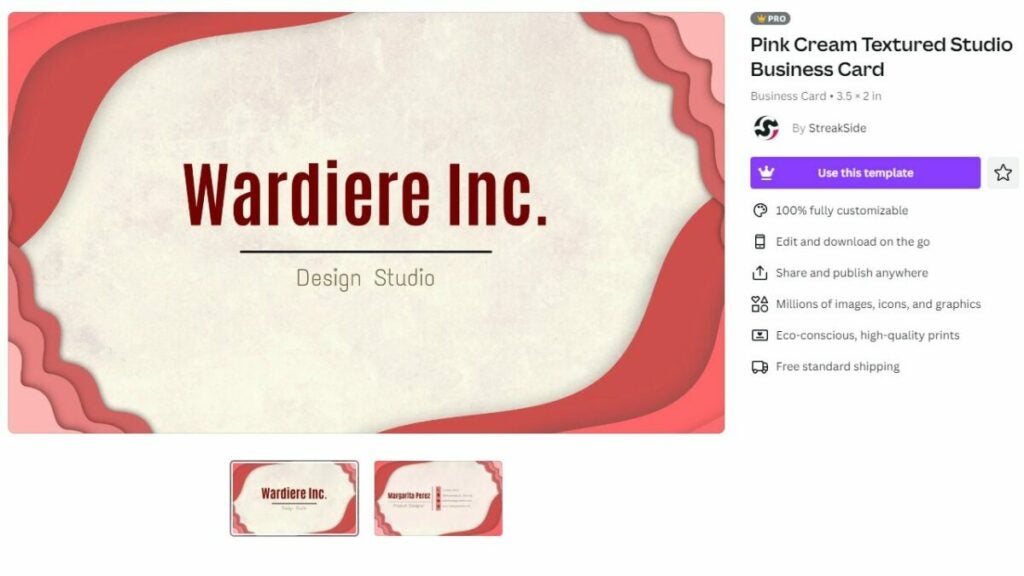
Lately, there’s been a growing trend for maximalist designs. This style is based on more-is-more boldness. Canva’s premade borders and graphics make it easy to add fun prints, colors, and shapes to your card. Canva business card designs with busy styles tend to work best in more creative, free-spirited industries.
Try maximalist design

Business cards with a logo

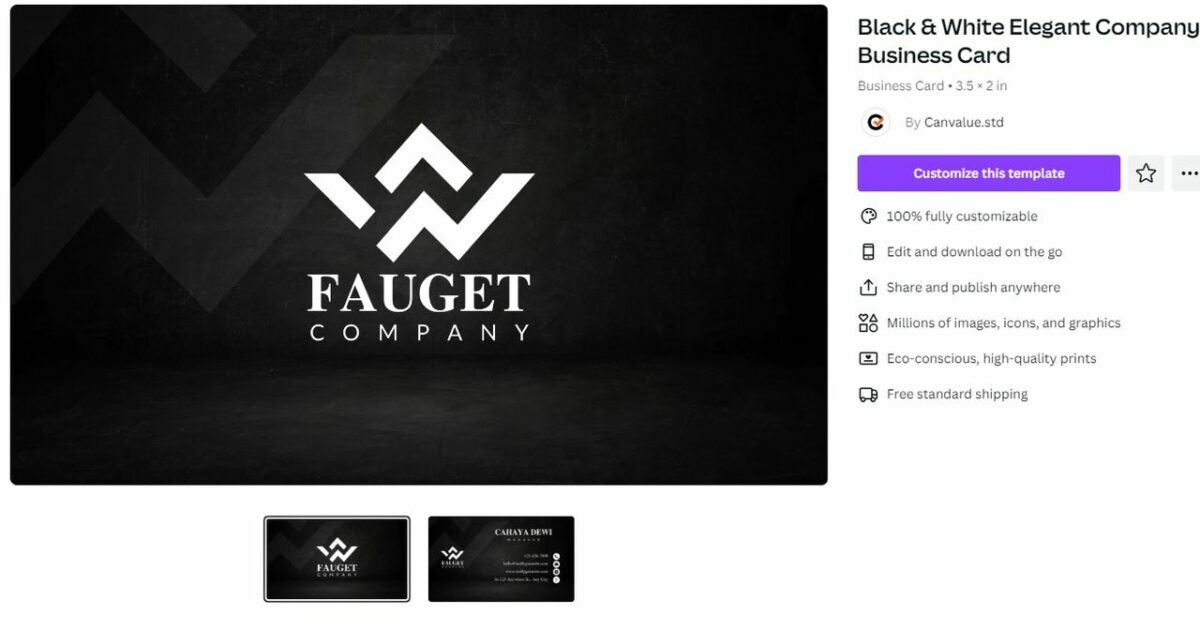
A logo on your business card will highlight your professionalism — whether you manage a team of employees or are building up a side gig. Since Canva has a lot of graphics you can add to a card, this is a great spot to get creative. You can pick a logo that references your business or make a fun monogram with your initials.

Make your own logo

Cards with creative typography

The font you choose has a big impact on your card. Consider upgrading to an option that adds interesting shapes to your lines of text. We love the look of a single letter that’s turned into a similarly-shaped object. Another interesting option is using Canva’s layers to add an underlying pattern behind an initial.

Try some fun text

3D business cards

Make your business card pop with a 3D shape. Canva has quite a few ways to incorporate 3D design into a business card. You can create templates that work with textured cardstock or fabricate a design that folds up into a 3D shape. This is a great way to literally stand out to clients.

Find designs that look great on textured paper

Peel and stick cards

Your business card doesn’t have to be a stiff square of cardstock. Try using Canva’s sticker designs to make a peel-and-stick version of your business card. This is ideal for industries that are youthful and playful. Just make sure that the card still contains your essential contact information after the sticker image is removed.

Print your card on a sticker

Simple card designs

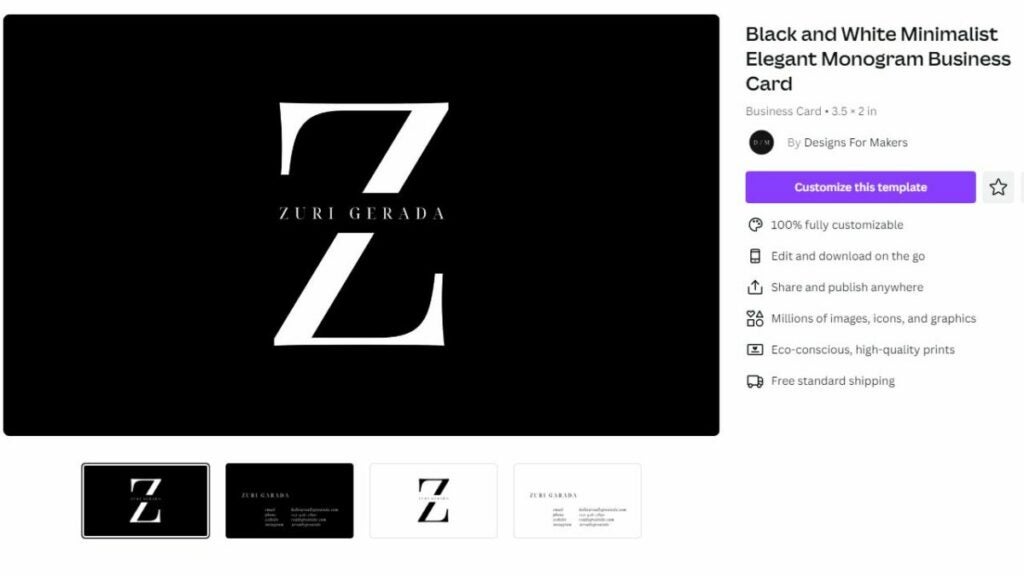
While maximalism is great, there’s also something to be said for less is more. A Canva business card with a simple background and a few clean lines of text can be very impactful. To add some visual interest, print on high-quality paper or use Canva’s printing services to add metallic foil to your text. These styles work especially well if you work in a more conservative or formal environment.

Make a minimalist design

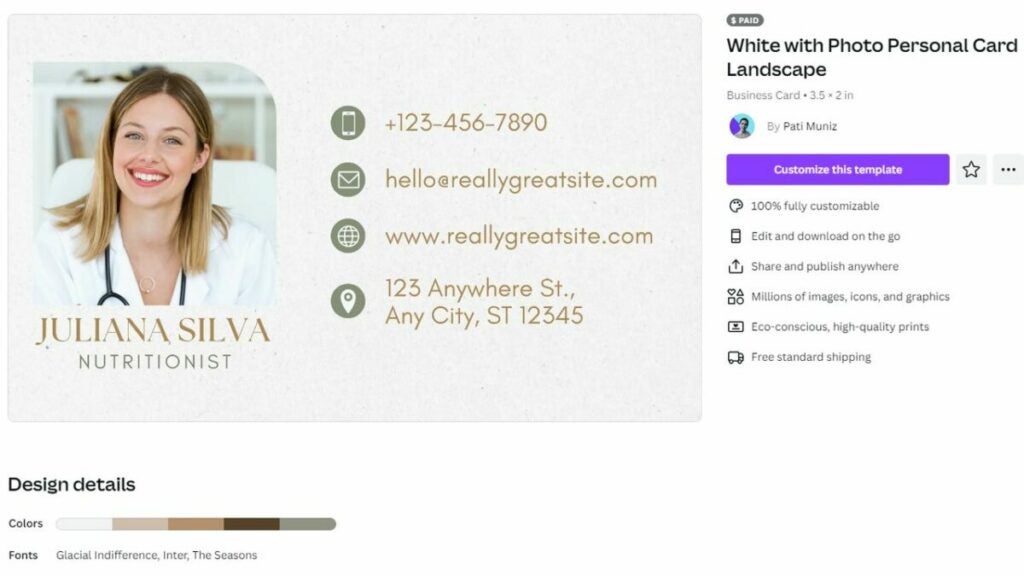
Business cards with photos

Canva allows you to upload your own photographs, which is a great way to accent your business card. Including a small portrait can help potential contacts put a face to your name. You can also use photos that display your products or projects.

Add a photo

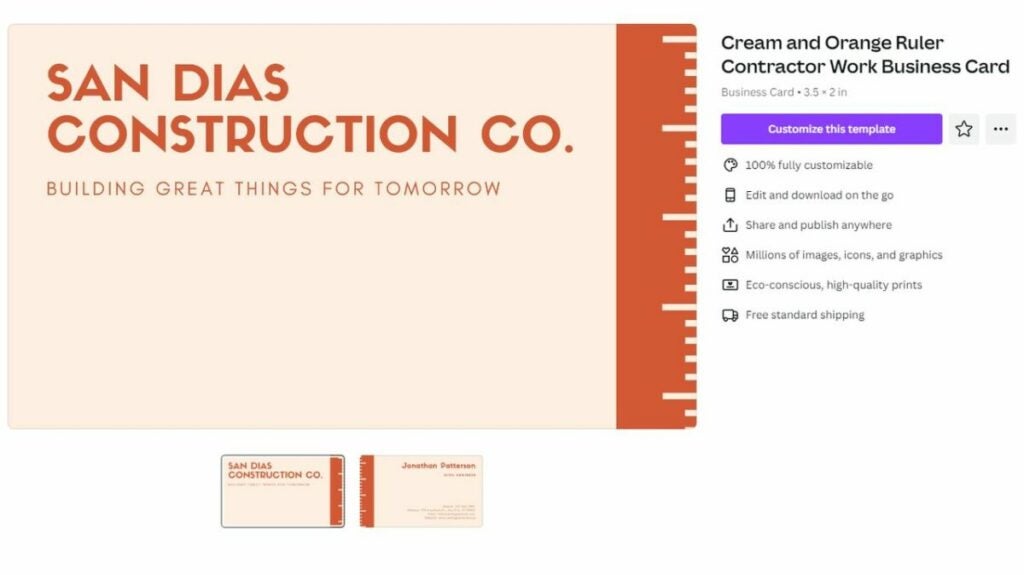
Themed business cards

Consider ways you can turn your Canva business card into an item that references your passion. For example, a hairdresser could have a card that holds bobby pins or a contractor may have a card that doubles as a ruler. Think of a small way your card could add actual value to a customer’s life.

Create a card that helps your customers

Business cards with fun slogans

A creative business card can be about more than just the card’s look. Try playing around with words and finding an interesting slogan or motto to add to your card. This design feature really makes your card pop. For best results, pick something short and catchy that looks great along the top or side of your Canva business card template

Add a slogan

Card designs with unique shapes

A business card with a unique oval or oblong shape can add a touch of individuality to the design. You can also add some fun with shapes that refer to your career such as a round record if you’re a DJ or a band-aid if you work in healthcare. Cutting these cards by hand can be tricky though, so you might want to try Canva’s printing services.

Whether you want your business card to be fun, formal, smart, or artsy, Canva can help. This versatile design program makes it easy to get professional, stylish results. Ready to try out our awesome business card ideas? Subscribe to Canva now to explore all their great business card designs.
Start your free trial Subscribe Now

Using Canva to create a professional logo in minutes

One of Canva’s popular uses is creating unique logo designs. If you’re looking to create a Canva logo for your business or need to update your current logo, this platform is a great place to start! With over 85 million monthly active users in 190 countries, the simple tool makes it easy to create professional-looking, high-quality logos without knowing complex graphic design principles and software. Canva isn’t just a logo maker; you can use it to make all the branded content for your business using your new logo.
Design for everyone FREE TRIAL

In this article, we’ll be looking at how to use Canva to create a professional logo that you can use to identify your brand easily. Keep reading to discover how easy it is to create an exciting logo with this outstanding program in minutes!

Why are logos important?

A logo is important for any business. It represents your entire brand and what you stand for. Think about some of the most iconic logos in the world, such as the Apple or Nike logos. Just seeing the logo (as simple as they appear), you immediately know who the brand is. That’s how powerful a well-designed logo can be. 

How to make your business logo with Canva

Tips for creating a professional logo

Let’s share some of our top logo-creating tips to ensure any logo you create is professional and visually stunning. 

  • Start with a clear understanding of your brand and what you want to portray
  • Use the right colors for your brand
  • Make it iconic by featuring an image that represents your brand
  • Choose the right file format for different uses
  • Keep it simple, and don’t add too many elements
  • Don’t be afraid to add personality to your design as long as it stays on brand
  • Think outside the box and use your creativity to create something unique

Benefits of using the Canva Logo Maker to personalize your brand

If you’re holding off on your business idea because having a logo designed is expensive, then Canva is the ideal solution. Canva makes it simple to create a professional logo and other branded content in minutes. With many templates to choose from, inspiration is never far away. You can also easily modify the templates by dragging and dropping in new elements to make them unique. 

While the program is free to use, upgrading to the pro version gives you access to more features, such as pro templates, images, and more. The best feature of the pro version when it comes to designing logos is that you can download them with a transparent background.

This means you can place your logo over anything, including images or colored backgrounds, without having the white box clashing with the background. No need to put your business ideas on hold with a powerful graphic design tool like Canva in your back pocket.

How to make your business logo with Canva

How to make your business logo with Canva in 5 simple steps?

Are you ready to make your business logo now? Follow these exciting steps to get started with one of the top design programs, Canva.

  1. Open Canva

    How to make your business logo with Canva

    Start off by opening Canva in your browser and logging in to your account. Canva can also be used on Android and iOS through the Canva app.

  2. Choose a template

    How to make your business logo with Canva

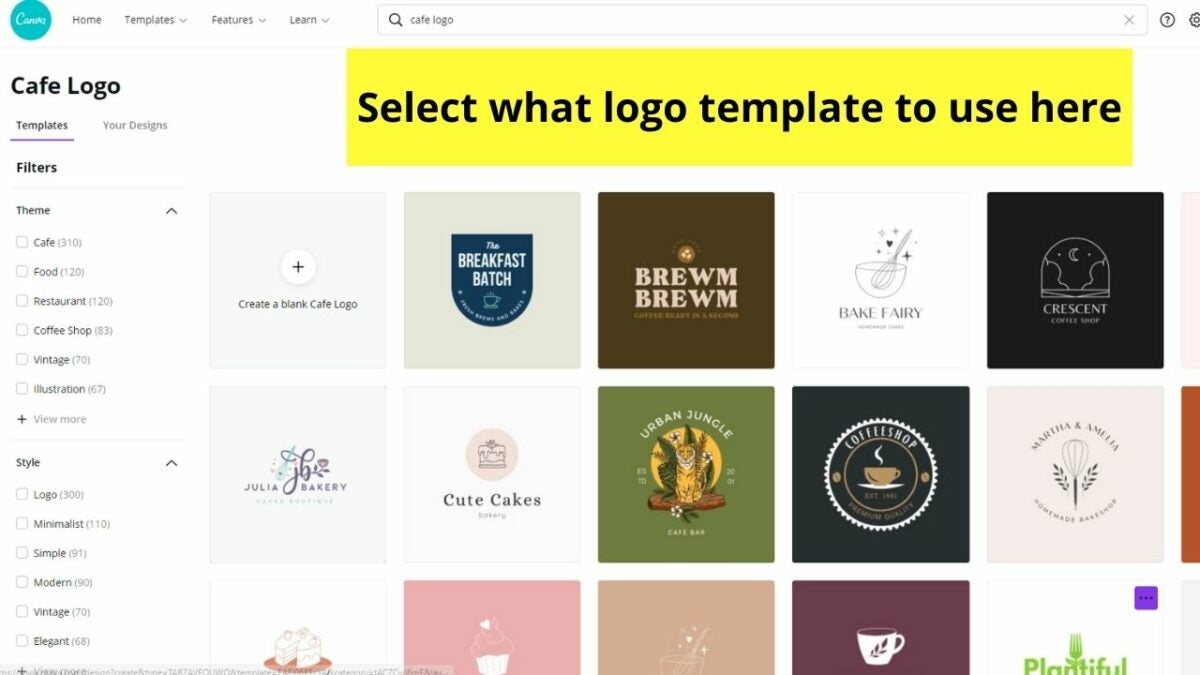
    On the home screen, you’ll be asked what you want to do. Type in ‘logo’ to see all the templates available. Scroll through these templates until you find one that suits your brand.

  3. Customize your design

    How to make your business logo with Canva

    You want your logo to be unique, so you want to adjust your chosen template. Add your business name by clicking on the appropriate text box and typing. You can add more text boxes if you need from the tool panel on the left. Click on any of the elements and then click on the rainbow button at the top of your workspace to change the color to match your brand. You can also change the font by clicking on the text box, and in the top panel, choose a new font.

  4. Add some unique flair

    How to make your business logo with Canva

    Once the basics are there, you can add some unique flair to your logo to make it even more remarkable. Choose from the many available elements in the tool panel on the left. Here you’ll find shapes and images to add to your logo. You can simply drag and drop them into place and resize the element by dragging the resize corners.

  5. Download, print, and use your new logo

    How to make your business logo with Canva

    Once you’re happy with your logo, you can download it in various formats to start using it immediately. There are a range of different formats you can choose from depending if you want to use the logo digitally or print it. Each format also clearly describes what they’re used for.

Making stickers on Canva in 5 easy steps

Did you know Canva lets you design and print your own custom stickers? With Canva original stickers, you’re able to do everything from labeling food to marketing your small business. Though making stickers on Canva isn’t super complex, it does take a little time to learn how to use the program. Don’t worry, though. Once you get the hang of things, the process is simple.

Discover Canva DOWNLOAD

If you’re interested in learning how to make a sticker on Canva, all you need to do is follow these steps.

  1. Launch the Canva program

    Launch the sticker design program

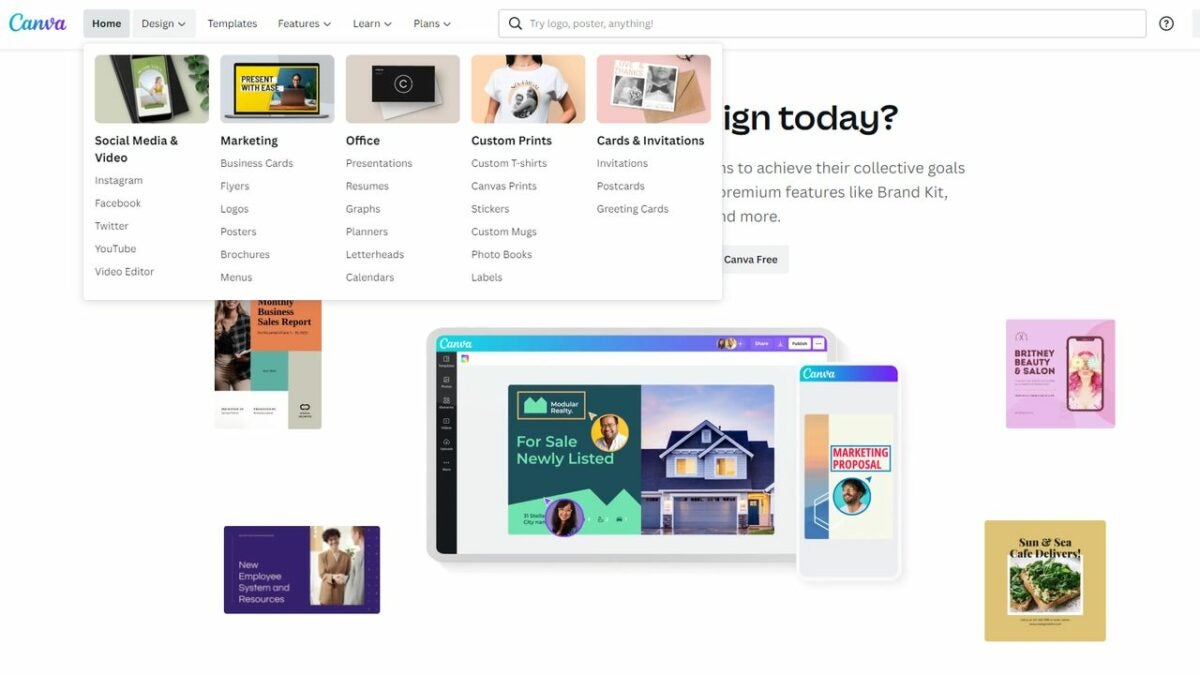
    Start by launching Canva. Canva does have a free website version you are able to use for basic designs. However, we find it a little easier to use the downloadable version when making stickers. It has more features than the base website. You have the option of launching the program from your desktop or using the app version of it. To enter the sticker design area, click the Design tab and select Stickers from the drop-down menu.
  2. Explore the Canva templates

    Pick a premade template

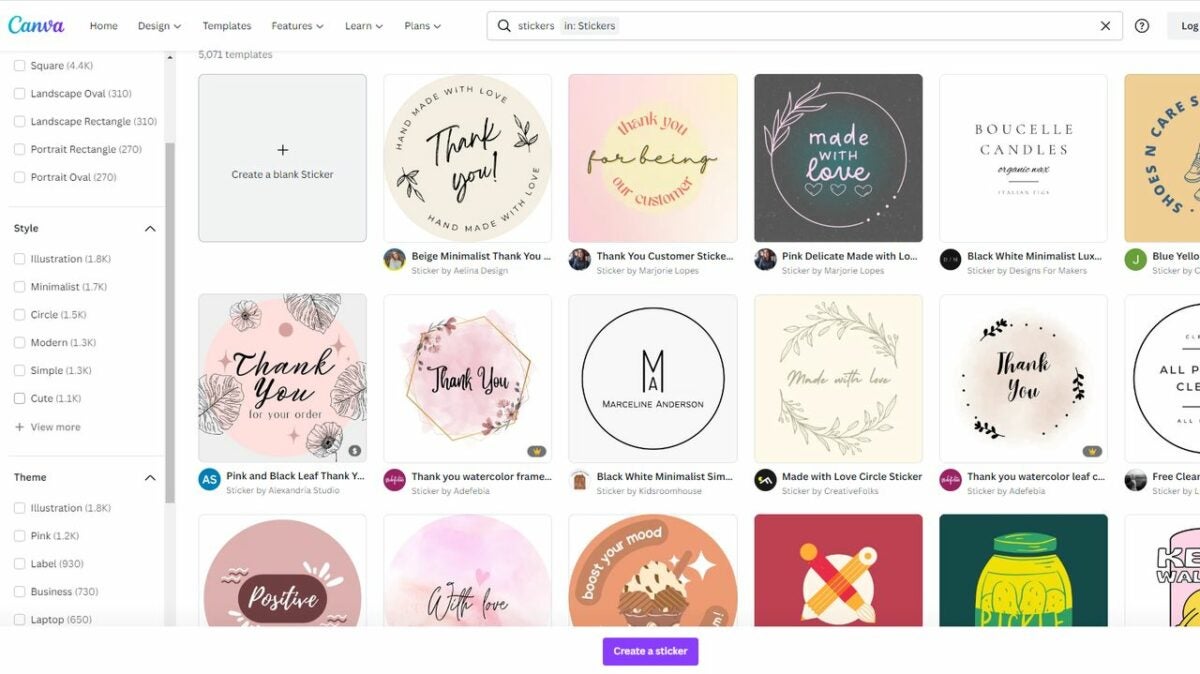
    Most users start by looking at Canva templates. You are able to filter these templates based on things like size, style, theme, and shape. The great thing about the templates is that they’re perfectly sized for printing. When you work with a template, it guarantees the end results look fantastic. Even if you want original stickers, looking at templates is often a great place to start. Canva lets you adjust a template’s colors and various design elements. Even if you start with a very commonplace template, you are able to customize it to create something unique.

  3. Create your own unique design

    Create your own custom design

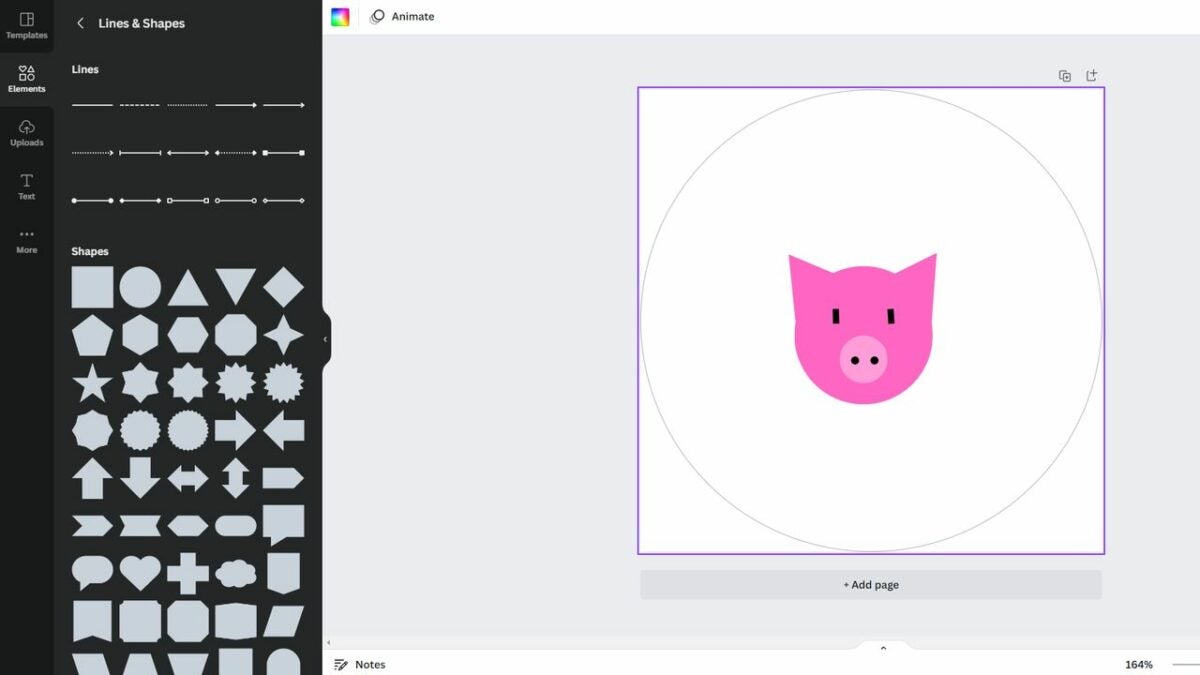
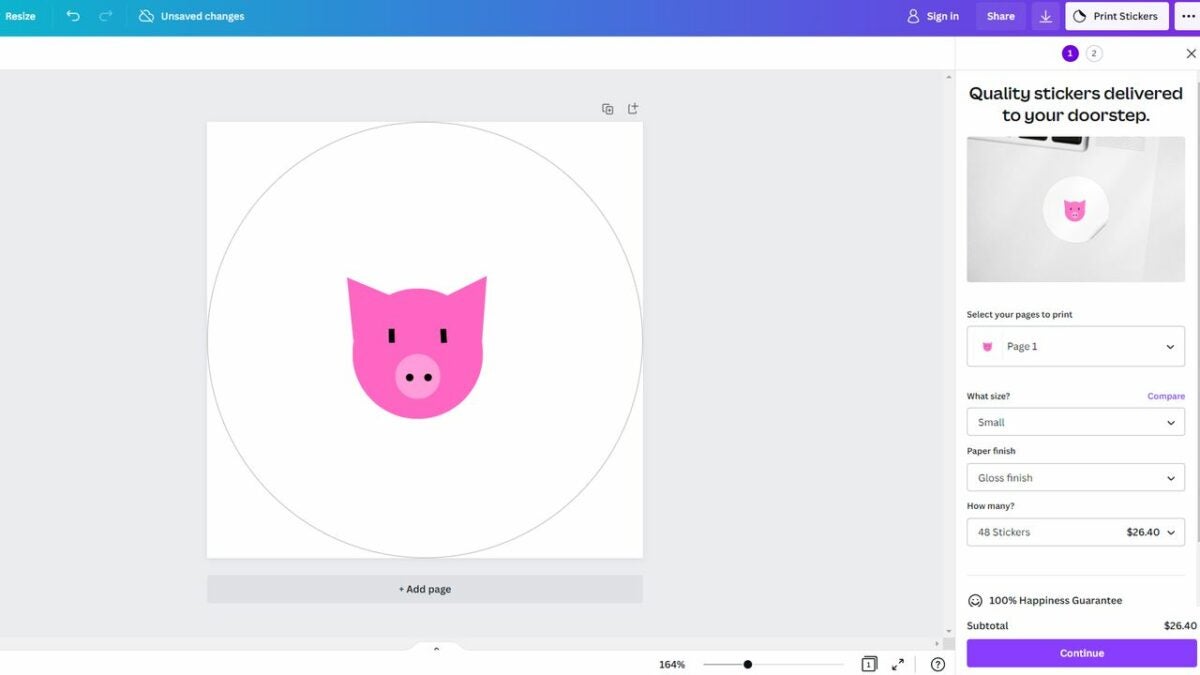
    Canva also gives you the option of designing from scratch. You begin by choosing a base shape, like Canva circle stickers, and then adding your own design. Canva allows you to customize everything from color to text to style. Check the “Elements” tab on the right to find a variety of cute graphics and basic shapes and lines. You have the option of using the basic lines and shapes to draw custom art if you don’t see any graphics you like. For example, you could create a pig by combining a few pink circles, triangles, and dots.

    Canva also allows you to upload photos, generate QR codes, and add interesting borders to the edge of your sticker sheet.

  4. Get to know the Canva interface

    Find many ways to edit your design with shortcuts

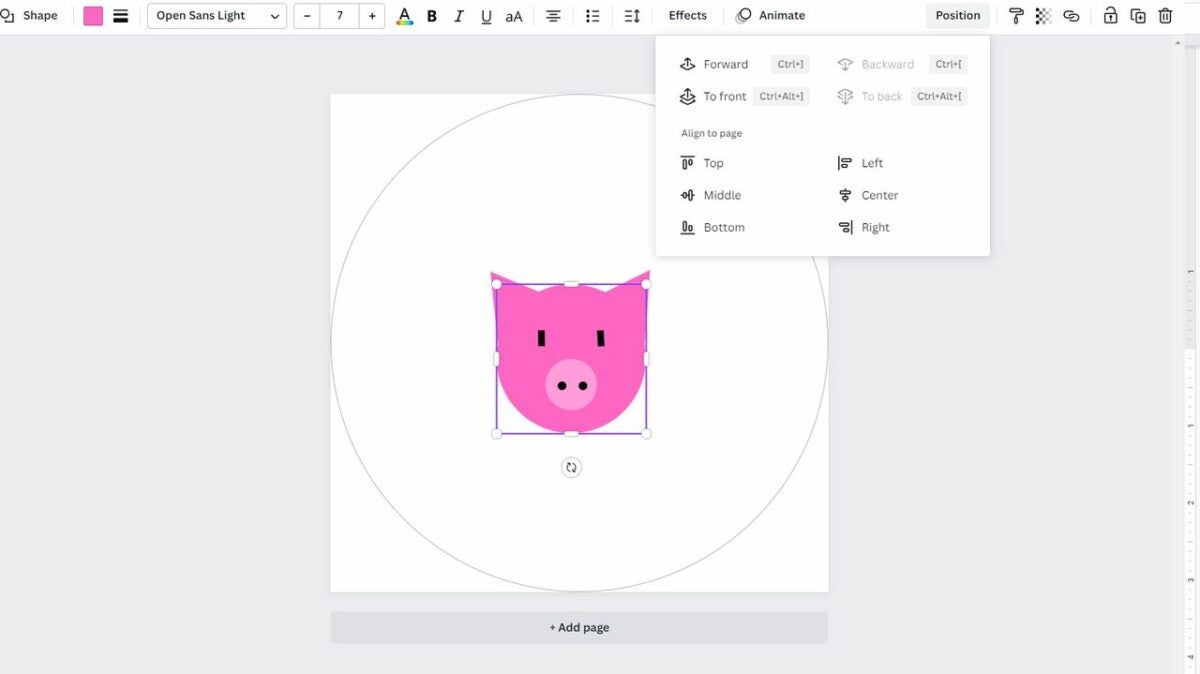
    Canva lets you shape and position elements however you want, so take some time to explore the interface. Clicking on an individual element opens up a menu where you are able to do things like orient an element to the middle, lock an element in place or adjust transparency. The Position option makes it easy to put an element in front of or behind other design elements. When working with Canva, don’t forget about helpful keyboard shortcuts that allow you to adjust things quickly.

    • Shift + arrow keys: Move an element 10 pixels in your selected direction
    • Esc: Deselect an element
    • Ctrl/Cmd + C: Copy an element or text box
    • Ctrl/Cmd + V: Paste an element or text box
    • Ctrl/Cmd + Z: Undo an action
    • Ctrl/Cmd + Z + Shift: Redo an action
    • Ctrl/Cmd + G: Group elements together
    • Ctrl/Cmd + D: Duplicate an element
    • Shift + click: Resize an element proportionally
  5. Print your stickers

    Order printed stickers directly from Canva

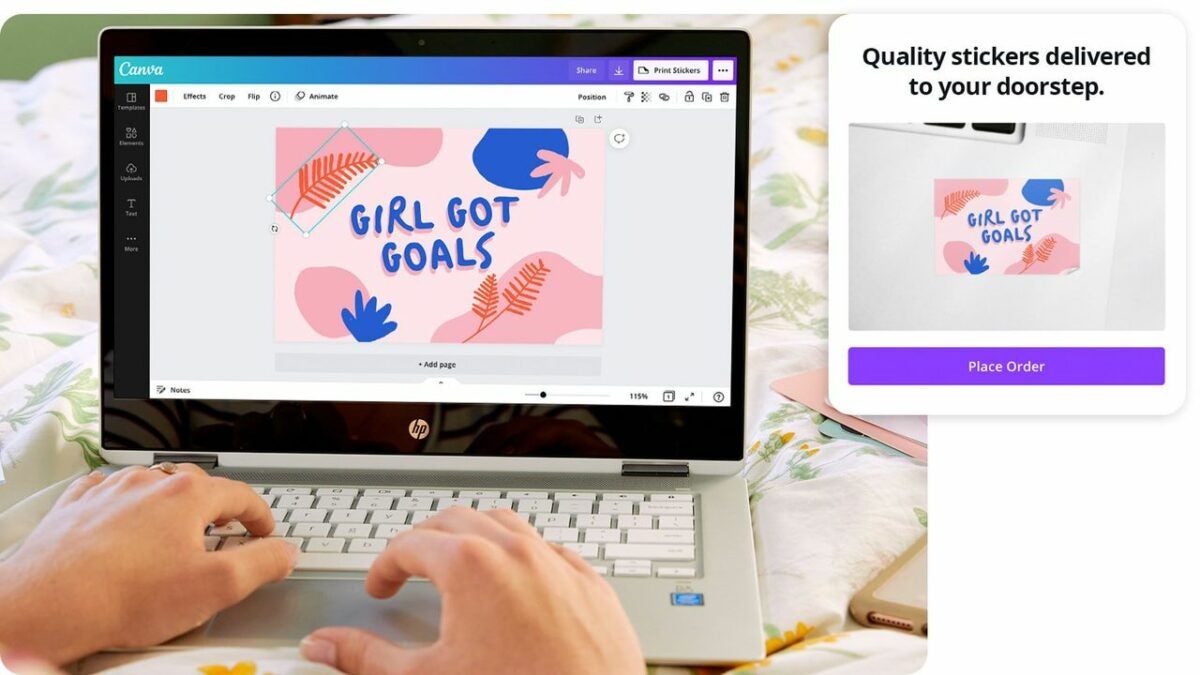
    When you’re satisfied with your sticker shape, it’s time to print. You have a few different printing options. If you have a printer at home that works with sticker paper, download your Canva design. Make sure you carefully select the download size so that you get a design that works with your intended sticker design. You also have the option to let Canva deal with the printing for you. Look in the upper right corner for the Print Stickers button. This lets you order stickers straight from Canva. You select your size, finish, and sticker count, and Canva will ship the finished product straight to you.
Enjoy a variety of techniques for making stickers

Ultimately, making stickers on Canva is a fun way to design the perfect sticker for your situation. The process is as simple or as complex as you want. Some people like to design Canva original stickers from scratch while others add their own text to a premade template. Either way, you’re sure to get great results. Ready to make your own awesome stickers? Download the Canva app now or explore our blog for more graphic design topics.

Create the ultimate resume and covering letter with Canva

Whether you’re fresh out of school or have several years of employment under the belt, looking for a new job can be daunting for most people. There’s the fear of rejection, especially with so many out there applying for the same positions. If you want to stand out from the crowd, you need a resume that reflects your skills in the best possible way.

When it comes to first impressions, nothing works better than a beautiful application that catches the eye. We’ll show you how you can create a resume on Canva with an assortment of templates and designs.

Canva TRY IT NOW
9

The importance of an excellent resume

There are two main purposes of a resume. The first is to show your potential employer who you are while the second showcases the skills you have that will benefit the company. When the interviewer received over a hundred applications, you can be assured that they’ll spend as little time as possible working through each one looking at key points.

In essence, the resume is a marketing campaign for you and what you offer. If you just have a bland document with no proper outline or incorrect grammar, the reader will quickly yawn and move on. You need to find a way to quickly highlight your skillset and how you can be an asset.

Create the ultimate resume and covering letter with Canva

Design elements for your resume and covering letter

Including your personal information and experience are only some aspects of an outstanding resume. What you’ll want is a design that draws focus on the elements you want the interviewer to see first. To this end, you can look into various resume layouts on Canva that will suit your needs:

  • Traditional: straightforward design that’s easy to skim for the essential information
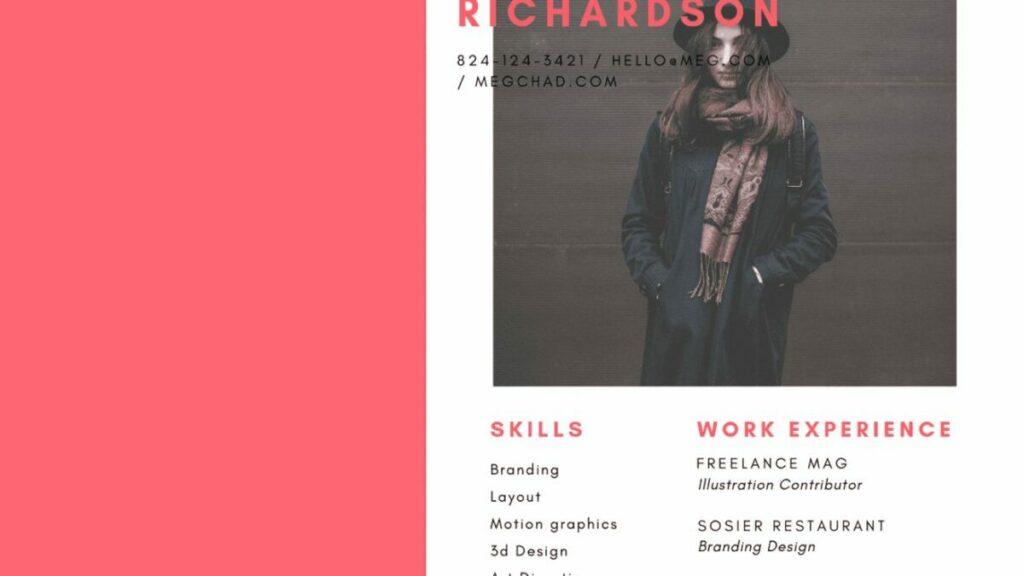
  • Graphics: when applying for marketing and creative industries, you can add some color and themes
  • Photographic: images can be added if you want to show how you look or some of your work

Using Canva templates for professional designs

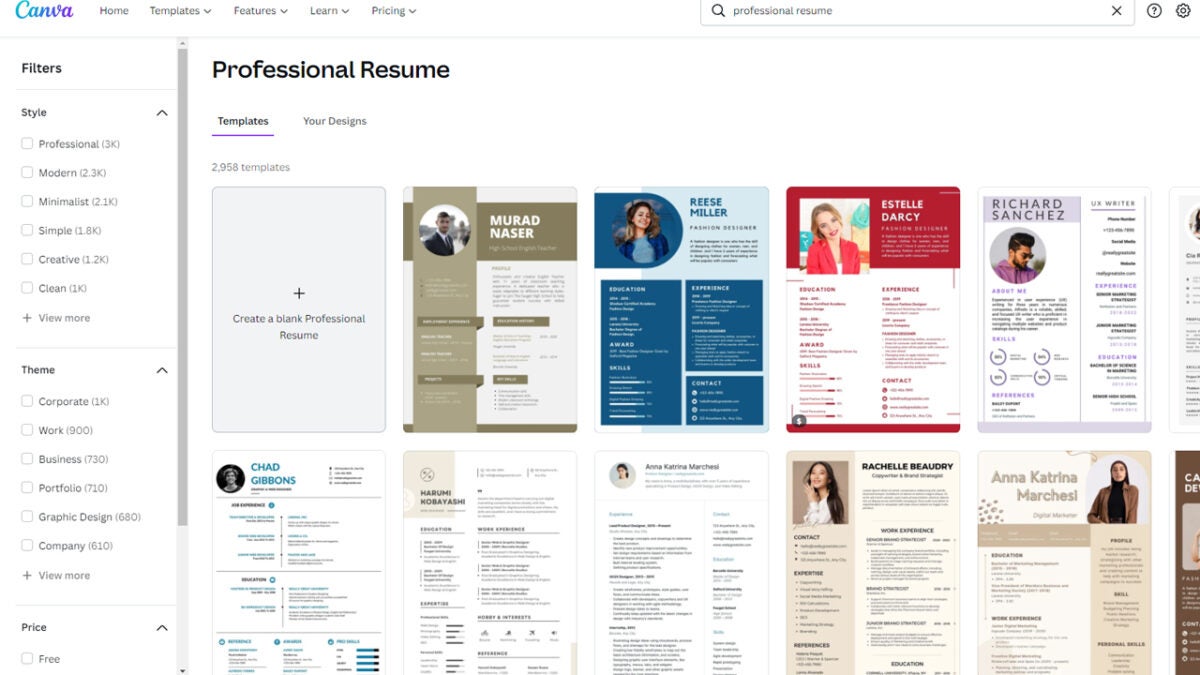
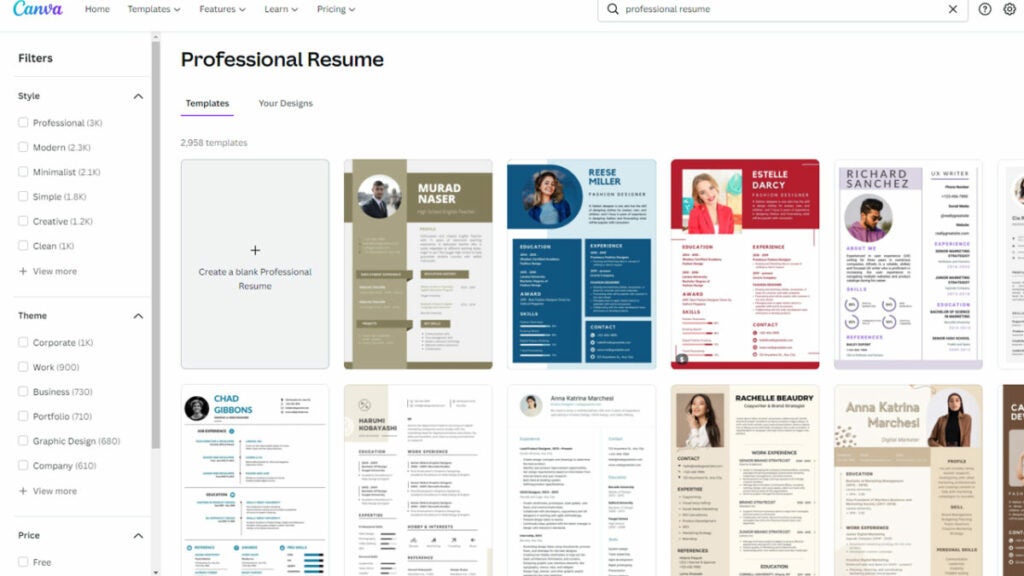
No matter which industry you’re applying for, you can find an appropriate resume and cover letter design on Canva. There’s a search bar where you can look at what templates are available, showcasing the best layouts for professional CVs. The only work you’ll need to put into it is the information the interviewer is looking for.

You don’t need to settle for using the Canva templates as they are. There’s plenty of functionality on the program to quickly edit any of the outline styles. It’s a much better approach than creating a resume from scratch for hours wondering which colors and design elements to use.

Create the ultimate resume and covering letter with Canva

Choosing the resume format

Once you’ve selected the design and template, you still need to work on a format. You may think that format is the same as an outline, but it’s a completely different element. Here, you’ll decide in what order you’ll present your information that will drive home why the company should hire you.

Many people aim for a chronological format that shows your work history and how you’ve progressed from your first job. There’s also a functional resume where you tailor specific elements to the interview and work requirements. You can also combine these formats into a new design that uses the best of both types. These are only a few examples.

How to create a resume on Canva

There are two ways you can create a resume on Canva using the elements mentioned above. The first is searching for templates, selecting one, and altering the format to suit your needs. We recommend the second technique that uses the resume design wizard.

Once you start the Canva resume wizard, you’ll see a new window with a blank page. You’ll follow the steps that appear on screen, but here are some tips:

  1. Select a template from the left pane
  2. Edit the text to include your information
  3. Add font combinations or colors to attract attention
  4. Insert media elements like videos or photos where needed
  5. You can also add a frame if appropriate for the industry
  6. If you’re sending a digital resume you can add audio
  7. Name and save your resume
Create the ultimate resume and covering letter with Canva

Impress others with your outstanding skills

Creating the ultimate resume doesn’t need to take you all day if you have the right tools. There are many applications that let you do so from scratch, but few have the powerful design templates and utilities that Canva does. They’re easy to use, and you can see the visual impression as you work on the document.

The best part of using Canva for your resume is that you can tailor the format, layout, and design for the company’s industry. It shows them that you paid attention to the job advertisement and what you can do if you join forces with them. Of course, there’s more to Canva than just crafting resumes, so make sure to check out all the other features and templates.

Create your CV with Canva TRY IT NOW
9

What is CANVA and how it works

Millions of people worldwide use Canva because it makes it easy to create quality material. There are many tutorials both within Canva, and on the internet, so you’ll never be at a loss if you need help or guidance on a project.

Discover Canva CONSULT

Let’s show you what Canva is and how it works.

What is Canva?

Canva is an online design tool that makes it possible for anyone with no design experience to create a vast range of attractive items from logos, social media posts, brochures, posters, and calendars to certificates and magazine covers.

It’s a great way to unleash your creativity because Canva offers extensive resources to help you do so. There are thousands of templates, images, and fonts at your disposal. You can even upload your own photos and use them in your design

What is CANVA and how it works

Getting started

You can sign up to Canva by entering your email address and choosing a password or using a Google or social media account. You can start with a free personal account to check out and learn the program and later choose one of the other available options if you need them:

  • The Free option offers everything you’ll need to make your own designs.
  • The Pro version costs $9.99 a month. It contains more resources like templates, graphics, and photos. It allows you to create your own templates and upload your own fonts.
  • The Enterprise option costs $30 a month and is for corporate users. It offers group resources and unlimited cloud storage.

Once you’ve signed up, Canva will present a demonstration to show new users some basic information about the program. You can put your name, username, website, and email address in your profile if you want to. You can choose to remain private and select only specific designs to make public.

What is CANVA and how it works

How CANVA works

The best way to see how Canva works is to create your first design.

  1. Select a template

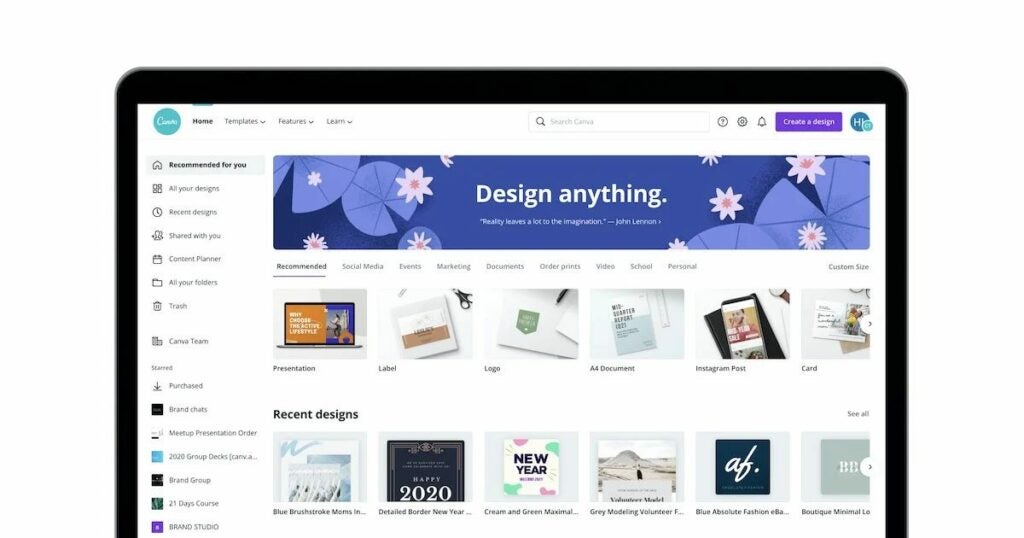
    You’ll find templates on the Canva home page, arranged according to category:
    Under Social Media, you can choose from Instagram Story, Instagram Post, Facebook Post, Facebook Cover, Twitter Post, and Pinterest Graphic.
    Under Personal, you can select Invitation, Card, Resume, Postcard, Planner, and T-shirt. Under Business, there’s Presentation, Website, Logo, Business Card, Invoice, and Proposal.

    Under Marketing, you’ll find Poster, Flyer, Infographic, Brochure, Newsletter, and Menu. Under Education, there’s Lesson Plan, Worksheet, Certificate, Storyboard, Bookmark, and Class schedule.

  2. Add elements

    Here are some elements you can add:

    Graphics and Vectors: Shapes, frames, stickers, or icon, add character to a template.

    Stock Images: Canva has millions of images for you to use, or you can upload your own photos.Color Palettes: Most templates have a color palette.

    Fonts: Chosen by Canva’s designers.

    Page Layouts: There will be several layout options for you to use.

  3. Create your design

    On Canva’s screen, you’ll see different versions of your template. Select the one you want. Now make the design your own by changing the background color, modifying the layout, and changing the text. Remember that you can customize every element you use in your design to suit your own preferences. Play around and experiment until you like the way your project looks. That’s it. You’ve created your first design.

  4. Export it

    You can post your design on social media sites like Twitter, Instagram, or Facebook, save it as a JPG or PG file on your PC, print it, or send it to Presentation Mode.

Size matters

It’s essential to make your design the right size for where you want to send it. All the platforms require specific formats. It’s best to find out what they are and use them so that you don’t end up with photos obscured by text or vice versa. Here are some examples of required dimensions:

  • Cover Photo for Facebook: 851 x 315
  • Header for Twitter: 1500 x 500
  • Channel Art for Youtube: 2560 x 1440
What is CANVA and how it works

What makes Canva stand out?

Canva is extremely popular in more than 190 countries. It has 30 million active users and more are joining up every day. Its best feature is that anyone can use it to design whatever they want to without any training or knowledge of design.

Everything is set up to make the process painless, including a vast library of resources at your fingertips. You can use it on a PC or a mobile phone or tablet, and it has an entirely free version. You also retain ownership of all your designs in Canva.

Painting a new canvas

If you want to bring out your inner designer or just make your social media posts livelier or your letters more interesting, you can’t go wrong by using Canva. You get access to vast resources to help with your design, and it need not cost you a cent. The program has an intuitive interface, so it’s also fun and easy to use.