
How to save a web page to Evernote

Save that site and come back when you have more time.

Evernote

Have you ever stumbled upon a fantastic web page and wished you could save it? Well, in just a few easy steps you can do just that in the note-taking app Evernote. Just make sure you follow the instructions for your specific phone.

How to save a web page to Evernote

Saving a Web Page on iPhone

First, you will need to tap the iOS sharing button – it looks like a square with an arrow pointing up.

Once you’ve done that, tap the More button. This will allow you to edit your sharing options.

After you’ve done that, you can tap the Evernote switch to make it active. By tapping the switch, you’ll add Evernote as a sharing extension in the future. Once you’ve done so, tap the Done button to close the share options panel.
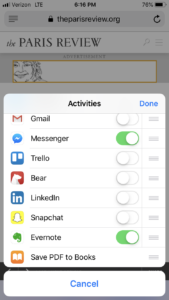
After you have closed the share options panel, Evernote will now appear in the list of apps your device can share to. If you want Evernote to appear higher up on that list, you can simply tap and drag Evernote to move it to the front of the list.

Just click the Evernote icon and the web page is clipped and shared to Evernote in the background. You have the option of selecting a notebook to save the clipped note to in Evernote.

Saving a Web Page on Android

In your browser, select the Share… option from the options menu on your Android device. (If you’re having trouble finding the options menu on your Android, remember it is typically represented by three small vertical dots). Finally, you can select Evernote from the list of sharing options.
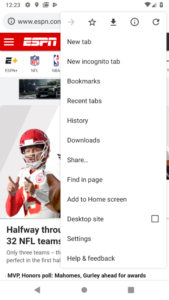
For Android, unless you choose otherwise, web pages will be saved as full articles to the default notebook. If you want to change the destination notebook, add tags, or save only the URL, tap the elephant button that appears after you share to Evernote.

Once you’ve added the share option to your device, saving a web page to Evernote is easier than ever!


Evernote 6.0 for Android released with a new design

According to Evernote, its Android version is its fastest growing app. Now you can download Evernote 6.0, which has an all new design and some new features.

The biggest new feature is probably the new Note button. It’s a green plus symbol that floats on the screen like a Facebook Chat Head. When you tap it, the range of note options is revealed – text, camera, attachment, reminder, audio, or handwriting.

The other more notable feature is web clips. When you want to save a webpage in Evernote, select the Share option in your browser and choose Evernote.You can then tap the Elephant button to choose a notebook or add tags to your clipping. Evernote’s notebook sharing has been simplified, and its search function has been beefed up to make finding your notes easier.

Download Evernote for Android.

Related Stories

13 apps that every student should have

16 must-have apps for every teacher

The best email app for Android – Sam’s choice

Follow Jonathan on Twitter: @jonathanriggall

Evernote competitor Springpad shutting down June 25th

Productivity app Springpad will be shutting down its service on June 25th. The company has not stated why its closing its doors but it is likely due to tough competition from apps like Evernote and Google Docs.

Springpad’s app featured a Pinterest-like board where you can create reminders, lists, and notes. The app worked well and received positive reviews. Still, it was no match for Evernote’s marketing and app integration.

Springpad users will have until June 25th to export their data, after which all information will be erased. The company will also be releasing an export tool in the coming days to make saving your data easy.

“We are very sorry to let you know that Springpad will be shutting down on June 25th. At that point Springpad.com will no longer be available, all online and sync features of the mobile apps will stop working, and your personal data will no longer be stored on our servers.”

Users look for alternatives can check out Evernote, Google Keep, Google Docs, and Wunderlist (my personal choice for to-dos).

Source: Springpad

Via: The Verge

Follow Lewis on Twitter @lewisleong

RELATED STORIES

SwiftKey Note brings predictive keyboard to iOS with Evernote integration

SwiftKey Note for iOS has been officially released, bringing the popular Android keyboard to Apple’s mobile operating system. The app is also tightly integrated with Evernote so you can save all of your notes using Evernote’s service. SwiftKey Note also learns how you type and what you type by scanning your archive of Evernote notes. Users can specify how far back SwiftKey Note is allowed to scan Evernote notes, from a single day to an entire year.

SwiftKey Note for iOS combined

Missing from the app is the rumored gesture keyboard feature that’s present in SwiftKey for Android. While it’s sad to see this feature omitted, SwiftKey’s predictive keyboard should allow users to type much faster without having to worry about being as accurate as the default iOS keyboard requires. While iOS’s default keyboard is good, it certainly lacks the more advance features of keyboard replacements like SwiftKey for Android.

Since Apple’s operating system won’t allow third-party keyboard apps to replace the stock keyboard, SwiftKey Note is the closest keyboard replacement iOS users have without jailbreaking.

SwiftKey Note is free and out now in the App Store.

Download SwiftKey Note for iOS

Source: iTunes

Via: PCMag

RELATED STORIES

Feedly Pro brings article search, Evernote support, and more

Feedly, one of the most popular replacements for Google Reader, is coming out with a Pro version, which brings Evernote support, article search, https, and premium support. Article search has been one of the most requested features of Feedly users. The ability to search for any article you’ve read can be a life saver if you’re looking for a particular story you didn’t save.

Those who love Evernote will also want to check out Feedly Pro as it will allow you to save any story to Evernote with a single click. For non-pro users, you’re limited to sharing to social networks like Google+, Facebook, Twitter, and LinkedIn. There’s also an option to save stories for later but you can only access them within the Feedly web app or mobile apps. It would be nice if Feedly could include support for Pocket and Instapaper in a future update.

Last but not least, Pro users can rest easy knowing transmissions are encrypted with https. Pro users also get the perk of being put first in line for support issues.

Feedly Pro will debut sometime in the fall for $5 per month or $45 for a year. The company released an early “limited edition” purchase, which gave users a lifetime subscription to Feedly Pro for $99. The limited edition has since sold out so users will have to wait until Feedly Pro launches.

Source: Feedly

Evernote working on two-factor authentication after recent hack

evernote logoEvernote was hacked over the weekend, exposing users emails, usernames, and encrypted passwords. Although the stolen passwords were encrypted, Evernote erred on the side of caution and required all of its users to change their passwords. The company has remained very transparent by sending out a detailed email about the attack immediately after it happened.

Today, the company has announced that it is hard at work to get a two-factor authentication system for its service. Evernote spokeswoman, Ronda Scott, wrote to Information Week saying the company was already “planning to roll out optional two-factor authentication to all of our users later this year. We are accelerating those plans now.”

Two-factor authentication is a log in system where you need two ways to prove your identity. An email or text message sent with a randomize code could be part of that two-factor authentication system. This follows in the footsteps of companies like Google, Dropbox, and Facebook, who already have this type of security system in place. Twitter has considered implementing this system for its service, but has yet to announce any concrete plans.

Although a two-factor authentication system won’t prevent Evernote’s servers from being hacked, it will make it much more difficult for hackers to gain access to users’ accounts.

If you haven’t changed your Evernote password yet, you will be asked to do so when you try to log in on the web or mobile app.

Source: Information Week

How to download and update to Evernote 5

Update: There is now a direct download for Evernote 5 available.

Evernote is one of the most popular free productivity apps for Mac and the long-awaited release of version 5 introduces a 100 new features for users to enjoy.

As yet, there is no direct download for Evernote 5.0 but you can upgrade by following these simple instructions:

Continue reading “How to download and update to Evernote 5”

Evernote update adds Note Links

Evernote is an application that lets you capture, store and sync anything on multiple devices. It’s one of the best note-taking apps out there, and the latest update brings even more to this already feature-rich app.

The biggest new development is Note Links. Now, when you have created a note, right clicking it will allow you choose a ‘Copy Note Link’ option. This Note Link is copied into your clipboard, and then can be included pretty much anywhere you like. This link, when clicked, will open your Evernote note, which is pretty cool! You can put these links in your calendar, in to-do lists and more.

There are other, smaller improvements to Evernote, which you can explore on their blog, or by downloading the app, which is available for both Mac and Windows!

EverNote vs. Springpad – battle of the note taking apps!

One of the hardest programs to track down is a good note-taking app. This seems weird, as there are a bunch of them out there. Even so, some just don’t make the grade – they’re ugly, awkward and sometimes really make it hard to jot down information when you’re on the go.

EverNote and Springpad are considered by many to be two of the best. Both have smartphone and online versions, so we’re evaluating them on their performance across devices and platforms, since accessibility is a major concern when it comes to note-taking apps.

Both score really highly in their Softonic reviews, so it’s not surprising that you might be finding it hard to choose. The best way is to install both and test them, but if you’re short on time – or motivation – we’re here to do it for you!

Registration and sign-up

In the sign-up stakes, these apps are almost neck and neck. The sign ups are pretty much as painless as you get – email address, password and you’re in. SpringPad does slightly better than EverNote – you don’t need a username and there’s no security CAPCHA, cutting out two steps and winning it this round.

Result – Springpad, but only just!

Available platforms

The availability of platforms is crucial for a note taking application. The aim is that no matter where you are or what you’re doing, adding a note is as easy and fast as possible. Looking at our two applications, it’s pretty obvious that Evernote comes out on top.

This application is available for pretty much anything you can imagine – Online, Windows, Mac, iPad, iPhone, iPod Touch, Android, BlackBerry, Palm Pre, Palm Pixi, Windows Mobile and even a Windows, Mac and Linux compatible Firefox extension, for including online information in the click of a mouse button.

Springpad doesn’t skimp, but it’s not quite as impressive. It’s available online and for Android, iPhone and iPad. There’s no desktop version, and if you have any smartphone other than Android/iPhone, you’ll miss out.

Result – Evernote, by a mile!

Continue reading “EverNote vs. Springpad – battle of the note taking apps!”