How to save battery on your Android

Don’t get caught with a dead battery. Try these tips!

draining batteries

Have you noticed your Android smartphone battery isn’t lasting as long as it used to? There are many reasons your Android phone could be draining the battery more quickly than usual. These include problems with your Wi-Fi network or Bluetooth connection, excessive screen brightness, aggressive haptic feedback wasteful widgets, and more. There’s no need to worry though because we’re with some great battery saver tips that will go way beyond only using your phone charger when your device is in airplane mode, turning off auto-brightness, and limiting your location services. They’re all great by the way and should not be overlooked, it’s just we’re going to go a little deeper into battery optimization to help you save battery life much easier.

We’re focusing these tips today on Android battery use and Android apps but many of these features will also work on Apple iPhones too. If you want iPhone specific information, however, click the link below.
How to save battery on your Android

1. Target the most wasteful apps

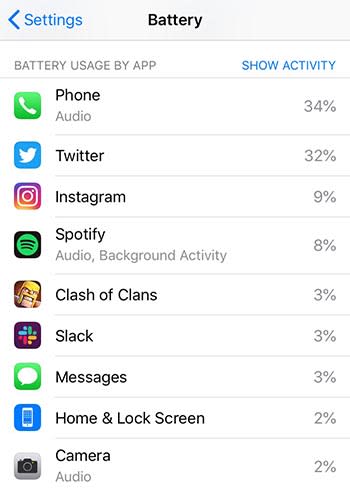
Not all apps use the same amount of battery. To find out which specific apps are sucking up the most battery, you can go to your phone’s Settings and then select Battery. This will show you an organized breakdown of which third-party apps use your phone’s battery. The applications and features that consume the most power will be at the top of the list, while the apps that use the least will be at the bottom. You’ll likely find that Facebook, Messenger, social media apps in general, Google Assistant, and Google Maps will be having the biggest effect on your Android phone’s battery life.

If you see an application or feature you never (or rarely) use at the top of the list, you should uninstall the app. Getting rid of those battery hogs is a great way to ensure your battery will last longer.
2. Utilize power-saving mode

Did you know that Android phones now have a built-in power mode that optimizes your battery pack to use less power? This power-saving mode limits all your phone’s background features that eat into your power bank. Although your phone use will be limited, the battery drain will be much lower than it would otherwise. If you know you will need your phone later in the day to make a call, try turning on the power saving mode to ensure your battery will last.

3. Adjust the brightness

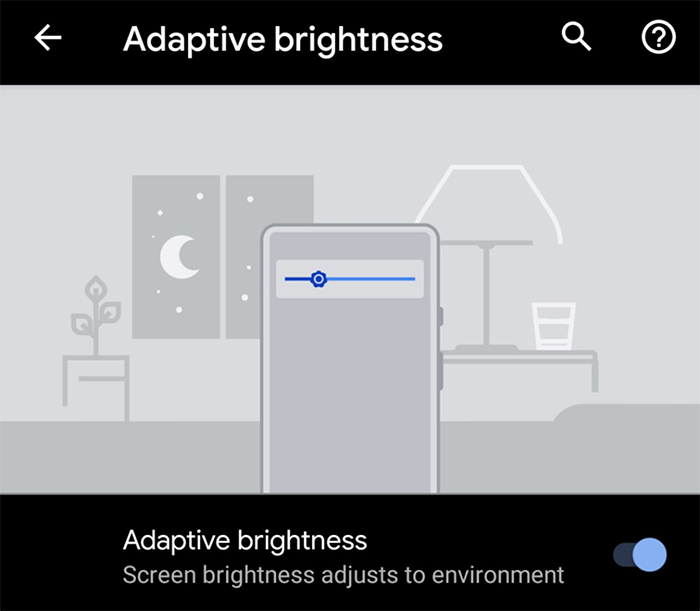
One common culprit for eating up battery power is your Android device’s screen brightness. Particularly, the adaptive brightness setting. You would be surprised at how much you can improve your battery life simply by turning down your phone’s brightness. Open your phone, go to settings, disable adaptive brightness, and then manually lower the brightness. Again, if you do this whenever you think your battery won’t make it home, you’ll be much likely to have power by the end of the day.
4. Update your apps

Did you know that outdated versions of apps actually use more of your battery? Ensuring all your apps are up to date can save hours of battery life. To make sure your phone is always up to date, turn on auto-update for all of your applications. To see if any apps need updating, go to Google Play, hit the menu key, and go to My Apps.

5. Consider Lite apps

Many app developers offer “lite” versions of their programs. These are usually designed for people who live in areas where the wireless networks aren’t as strong, but that means there’s less drag on your data and fewer background processes eating up your battery. FacebookInstagram, and Spotify are just some of the popular apps with a lite version.

There’s no need to struggle with a phone that’s constantly dying. If the battery life on your Android isn’t lasting as long as you think it should, try these battery-saving solutions.


3 great iPhone apps for learning a new skill

Turn your iPhone into a powerful learning tool with these great apps.

learning apps

Playing games on your phone can be a fun way to pass the time, but sometimes, you need something more. Why not learn a new skill in your free time? Whether you just want to challenge yourself or become the best you that you can be, the following iPhone apps will help you to do exactly that as you develop some new skills.

3 great iPhone apps for learning a new skill

Mind Tools Download Free ►
7
This app will help you develop essential career-related skills, such as management, problem solving, time management, and leadership skills. Mind Tools includes a variety of videos, articles, and other resources to help you build these crucial skills. You’ll be able to choose from a list of skills you want to develop, create a learning plan, create goals, and track your progress. It’s important to note that this is a subscription service; Mind Tools offers both standard and premium monthly subscriptions. But with more than 27 million users per year, we promise this is worth a shot.
The Great Courses Plus download free ►
8
This iPhone app allows you to have all of Great Courses’ lectures and lessons with you at all times. That way, you’ll never miss a chance to learn a new skill when you have free time. With Great Courses, you don’t have exams or a strict schedule. You’re free to access all of the info whenever you want — and however you want, through audio or video — and you can learn at your own pace. Although the app is free to download, you must purchase the courses.
Elevate Brain Training Download Free ►
8
In the digital age, this app is more important than ever. This brain-training app will help you to improve a variety of skills that may have deteriorated thanks to technology. With Elevate, you can work on improving your focus, processing speed, math skills, memory, and speaking abilities (among others) through personalized training programs. You’ll also be able to track your performance, and as you improve, the tasks and games will become harder. Elevate comes in both free and subscription versions.

Who says you have to pick just one of the above apps? Download all three to start learning a variety of new skills today.

5 great apps for reading the news on your phone

Stay informed with these great additions to your phone.

reading news

It can be hard to stay up to date on the latest news, not only in your own country, but worldwide. If you’re only getting your news from friends or acquaintances on Facebook, you may not be getting the whole picture — or worse, you may be reading fake news. But reading the news from trustworthy sources doesn’t have to be a time-consuming or overwhelming task. Simply download one of the news apps below to see all of the latest headlines worldwide. Best of all, all of the following apps are free to download and use.

5 best apps for reading the news on your phone

Microsoft News DOWNLOAD FREE ►
7
Microsoft News is not just for Windows — it’s available for your PC, Android, iPhone, and beyond. The news app was redesigned last summer and now offers a sleeker, more intuitive experience. Microsoft News will introduce you to new global sources that you may have never heard of before, along with stories from all of the sources you rely on. It's easy to personalize your news experience according to your interests, too. You can also browse the local news of another city (so you can stay up to date while traveling) and set up breaking news alerts for the subjects you care about most.
Google News & Weather DOWNLOAD FREE ►
8
This is one of the most recommended news apps for a reason: it’s easy to use, customizable, and has a minimalistic design. You’ll only get news from credible sources, so there’s no need to worry about reading a fake story. With this app, you can read the news from a variety of sources, and choose which topics or industries are most relevant to you. If you’re feeling overwhelmed by reading all of the latest news, you can choose to receive briefings solely on the stories you care about. There’s also the option of subscribing to your favorite news sources through the app to make the whole experience more seamless.
This is a top-rated news app that’s available on a variety of platforms. Unlike the other news apps mentioned, Feedly is more focused on presenting you with all of the latest content that you’re interested in, not just news articles. With Feedly, you can follow the latest news from YouTube channels, blogs, keywords, companies, etc. You can learn everything you need to know, professionally or privately, without having to visit a dozen different websites. All you have to do is choose the sites or subjects you’re interested in. Or use their search feature to discover new sites and topics you should check out if you’re in need of inspiration.
Inoreader Download Free ►
9
With Inoreader, you can customize your content feed, switch platforms with ease, search for and save articles, easily share content with social media management platforms, and save articles to third-party apps like Pocket or Evernote, among others. Although this app is available for free, you also have the option of upgrading to their Pro plan for an annual fee. Their Pro plan includes advanced search features, article translations, push notifications, an offline reading mode, and filtering options.
SmartNews: Breaking News Headlines Download Free ►
9
This app will make sure that you stay informed on the latest global headlines from the top publishers around the world. There are many different options for how you can consume the news too. You can customize your feed, activate “smart mode” for an easier reading experience, download the latest news to read offline, and receive breaking news headlines. SmartNews has more than 30 million users worldwide.

Staying up to date on the news doesn’t have to be overwhelming. Sometimes it’s just a matter of trial and error until you find an app that fits your needs. If you’re in need of a new news app, try out some of the above to see which one works best for you.

How to create an ad campaign on Facebook

Here’s how to use Facebook ads to get more eyeballs on your work.

facebook ad manager

Are you ready to generate more likes, shares, or views? Or do you want to sell your product? Whatever reason you have, if you want to reach a lot of people who are already interested in what you have to offer, creating an ad campaign on Facebook will help you reach your goal.

How to create an ad campaign on Facebook

Ready? Find your business’s Ads Manager and then go to “ad creation” or click the “Create” button to create an ad with Guided Creation. This option will provide you with a step-by-step guide for creating ads. If you’d rather not have step-by-step instructions, switch over to Quick Creation.

8

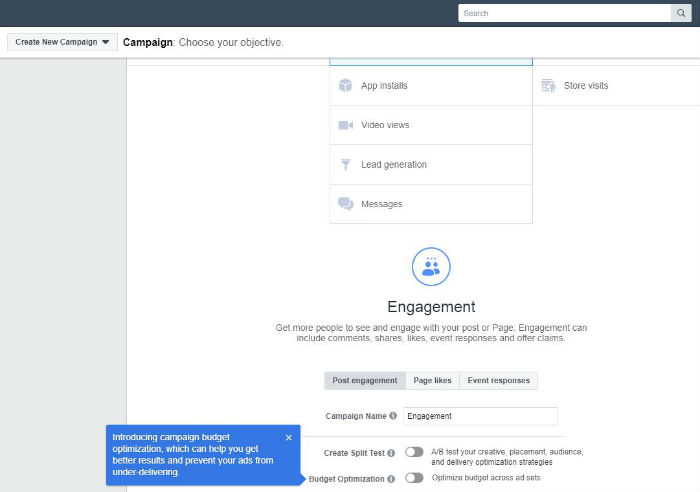
As you can see in the screenshot below, Facebook offers plenty of options for creating a campaign and choosing an objective.

What’s your marketing objective?

What is the purpose of your Facebook advertising? What do you want out of Facebook advertising? Do you want to gain fans, achieve brand recognition, get video views, or one of the other options presented?

Pick one of the options. It will define the type of ad you will make. If you don’t know what the different options are, simply click on each one, and a summary will appear. Decide what sort of result you want and click it.

It’s all about your audience

The new screen contains heaps of options. It may seem overwhelming at first, but we will break it down one section at a time.

Name your ad something memorable

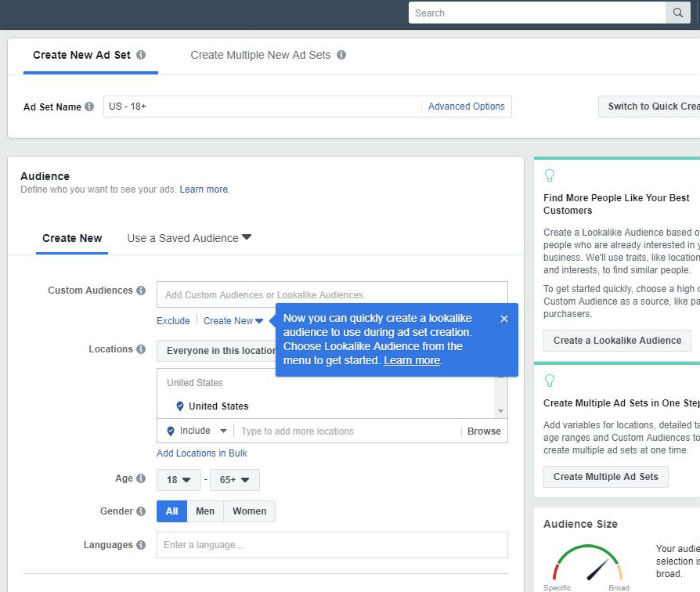
Think about your audience. Who are the people most interested in your message? Tailor your audience in terms of location, gender, age, and then some.

Under the “Detailed Targeting” section of your audience, include interests or demographics that people interested in your message may also share on Facebook. What kind of apps would they use? What sort of pages would they already engage with?

Choose your budget

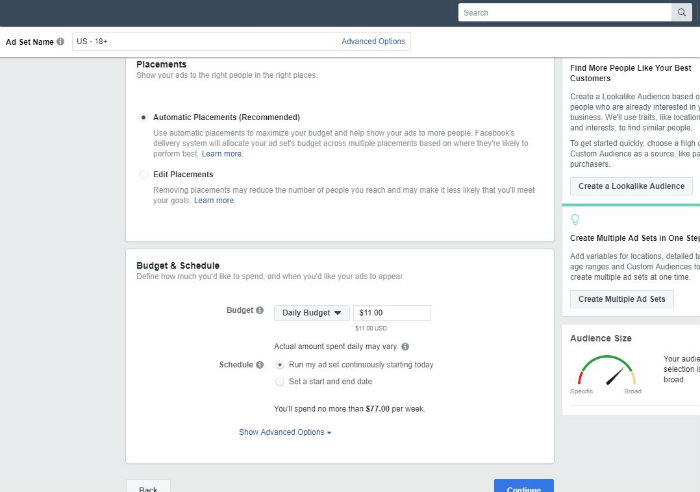
How much money do you want to spend on your ad campaign? Decide your daily amount and then figure out if you would like to set a start and end date for your ad. You may choose to run your ad continuously — just don’t forget about it. You can also optimize your ad delivery and choose how you want people to see your ads, and select an ad format. When you finish here, add text or a call-to-action button, among other options, to improve your ad.

If you are happy with your selections, click “Confirm” to stick your ad in the queue to run. You will be able to check out its performance from your dashboard later. To run another ad, repeat the process.

Facebook ads made simple

And that’s all there is to it. Creating an ad in Facebook is easy and gets results — if you put in the time to tweak it your audience.

Learn all about Facebook’s next big thing right here.

3 great Android apps for learning a new skill

Fire up your Android and learn something new today!

Your Android can be used for more than social media and texting friends. Did you know that there are many amazing Android apps that can teach you a new skill in a fun way? Here are some of our favorite apps for learning a new skill.

3 great Android apps for learning a new skill

Android

Duolingo: Learn Languages Free download free ►
7
Do you have an international trip coming up? Wish you could learn a new language so you can speak with the locals on your vacation? Duolingo is an Android app that will teach you a new language in a fun and simple way. Duolingo has dozens of languages available so you can start learning multiple languages right away. The best thing about Duolingo is that it's completely free, so you can focus on learning a new language without breaking the bank!
LinkedIn Learning DOWNLOAD FREE
7
Everyone knows that technology is king these days. However, not many people actually know how to code. With LinkedIn Learning, you can learn to code from the comfort of your phone. LinkedIn Learning can also teach you how to design and create a website from scratch, build a mobile app, develop leadership skills, or even teach you Microsoft Office skills, among many others. The app has many amazing free courses, but you can also buy additional courses with a monthly or annual subscription plan.
With the Amazon Kindle app, the learning possibilities are endless. Amazon Kindle has thousands of how-to and self-help books. There are books to teach you how to create a budget for yourself or even how to start a garden. No matter what you want to learn, Amazon Kindle probably has a book on the subject. You can download this app for any of your Android devices, no Kindle required.

With so many amazing app choices it can be difficult to know which one you want to get started with. Why not download all three and start learning some new skills today?

5 lines of basic HTML that everyone should know

A little coding knowledge can really help you online.

We’re more reliant on computers than ever before, whether that’s for work, play, or our latest Netflix binge. That means we should know a little more about how they function, in case anything goes wrong or we just want a better grasp of how things work. If you’re looking to improve your computer knowledge, the following are 5 lines of basic HTML code that you — and everyone you know — should learn.

5 lines of basic HTML that everyone should know

coding

1. Add headings for readability

There are six different heading options to choose from. To create a heading, you pick one of the heading tag options and place it around your text. For example, if you wanted to create a really big heading, you would use the tag <h1>, followed by the text you want to use as a heading, followed by </h1>. As the numbers go up, the size of the heading goes down, so H1 is the largest, H2 is smaller, H3 is smaller than that, etc. Knowing how to use various headings is especially important if you’re a content creator or social media manager, because headings play a big role in search engine optimization (SEO).

2. Text with hyperlinks

Although Microsoft Word and Google Docs makes this look super easy now, the code for a link is slightly more complicated than highlighting your keywords and adding a hyperlink to the text. To add a link to your text with HTML, you’ll want to use the code: <a href=” “> </a>. For example, the code would look something like this: <a href=”[paste URL here]“>[Text you want to be linked]</a>.

3. Break up text with paragraphs

This is a simple but useful tag to know. It will help you to quickly structure your page for readability. Here you’ll use the code: <p> </p>. Insert the text in between, like this: <p> [Text for your paragraph] </p>.

4. Make a bullet point list

Sometimes, you just want to make (and read) a quick, get-to-the-point list. That’s where bullet points come in. To make a list, simply use the code:

<ul>

<li>[First point]</li>

<li>[Second point]</li>

<li>[Third point]</li>

</ul>

5. Include images for mass appeal

The most popular blog posts and articles today include images. Although this code is slightly more complicated, the gist of it is: <img src=” ” alt=” ” style=”width:500px;height:600px;”>. (That code will constrain the image to 500 pixels in width ant 600 pixels in height.)

Next, you’ll add links and texts, or alter the size of the image to fit your needs: <img src=”[link to image here]” alt=“[use text to describe image]” style=”width:300px;height:300px;”>. In this case, the width and height numbers would constrain this image to a 300 pixel square.

The “alt” section is used for SEO purposes, making this another great piece of code to know for anyone who works online.

If you’re looking to learn more basic code, consider taking a few online classes with CodeAcademy or Udemy. It’s guaranteed to come in handy no matter your field — as long as you use a computer, that is!

3 applications you should add to your Google sidebar

Google offers some powerful tools inside its various programs. Here’s how to make the most of them.

google suite

Maybe you didn’t notice this, but whenever you’re in a Google program like Gmail, Docs, or Sheets, there’s a little sidebar to the right with several applications to integrate the full Google suite of products. If you don’t see it, click the little arrow in the lower right corner of your screen.

google side panelOnce you’ve clicked it, you may see these three applications on the right side of your screen: Google Calendar, Google Keep, and Tasks.
google sidebar

You can add more apps by clicking the plus button below those three.

add-ons

The apps available will depend on the program you’re using. Here are the highlights of some of your options.

3 applications you should add to your Google sidebar

1. Google Duo

With just one tap, you can open a high-quality video call with any of your Google contacts. This is a great addition to your Google sidebar if you need to telecommute for work or if your family and friends live in another city. With Google Duo, you have the ease of being able to video chat any time you want. There’s even a feature called Knock-Knock that lets you see the person who’s calling you before you answer the call.

Google Duo Download Free
7

2. Google Keep

This is a great application for people who want to keep their thoughts organized. Google Keep should already be pre-installed in your Google sidebar, but if not, it’s a worthwhile add. It lets you easily create lists and notes. You can even add photos and audio clips. Need to make a grocery list? You can quickly open Google Keep and create a list of everything you want to pick up from the store.

Google Keep Download Free ►
8

3. Google Express

With Google Express, you can buy anything you need at the push of a button. With hundreds of brands and stores available to choose from, Google Express is a great way to do your online shopping. Supported brands include Target, Costco, Sephora, and many other favorites. Adding this application to your Google sidebar will let you quickly shop online for groceries, electronics, and more.

Google Shopping Express download free ►
10

Adding applications to your Google sidebar can be a great way to streamline your online activities. Add these applications now and get started today!

How to link a bank account in PayPal

paypal

PayPal is an easy and safe way to purchase things online. Make it even faster by linking your bank account to your PayPal account. In a couple of steps and a couple of days, you can easily pay for items online via your bank.

How to link a bank account in PayPal

To get started, head over to PayPal and sign in. Click “Wallet” at the top of the screen.

paypal menu

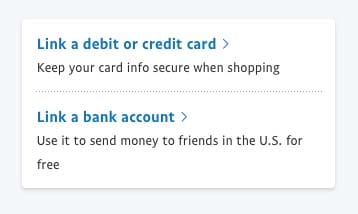
Here you can “Link a debit or credit card” or “Link a bank account.” In this case, we’ll click the bank option.

paypal link

Now, choose your bank from the list:

paypal banksIs your bank missing? Click “I have a different bank” if you don’t see yours listed. If that’s the case, enter in your routing and bank account number at the prompt to connect your bank and PayPal.

If your bank is on the list, choose it. Some banks will let you instantly connect by using your bank login information. You would use your user ID and the password for your online bank account, not your PayPal login information, for instant confirmation.

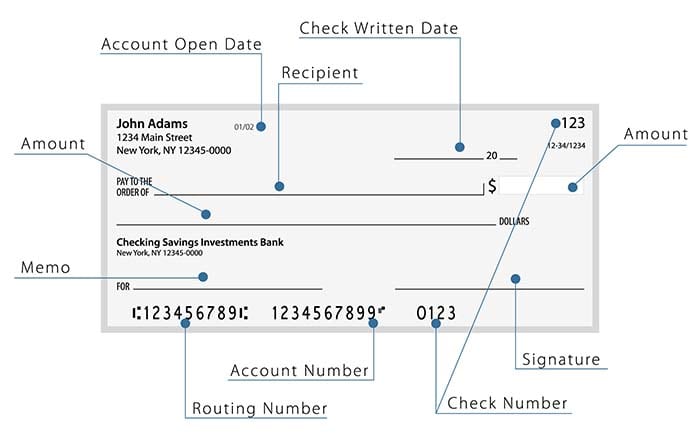
Otherwise, select “Checking” or “Savings,” and enter in your account number and your bank’s routing number. If you have a check lying around, here’s where to find those numbers:

check image

The routing number contains nine numbers. Double check the numbers you entered. Then, select “Agree and Link.”

In a couple of days, take a look at your bank statement. You should find two small deposit amounts that range between $.01-$.99. Then, you will see a third amount that has added the numbers and withdrawn it. To connect your bank and PayPal, you must enter in the two deposit amounts.

If your bank has only deposited one lump sum from PayPal, you will need to call PayPal to confirm the information or you can turn to instant confirmation and input your info.

If you have two separate deposit amounts, click on “Wallet” at the top of the PayPal page. Choose the bank you want to confirm. Next, carefully enter the exact amount deposited into your account. Submit the information.

Is your bank confirmed? If not, PayPal shares a few things to keep in mind when linking accounts.

  • The bank account must be a U.S. bank.
  • The bank account can’t be linked to more than one account at a time.
  • The bank account can’t be linked if it has already been linked to 3 previous PayPal accounts.
  • The name on the bank account must match the name on the PayPal account.

Your accounts, connected

Connecting your bank account to PayPal is a simple way to streamline your online shopping. There’s no reason not to get your accounts connected.

What to do if your iPhone won’t hold a charge

iPhone dying too fast? These could be the reasons.

So, your iPhone has suddenly stopped holding a charge and you’re not sure what changed or what to do. Don’t panic! This doesn’t necessarily mean you have malware or that you need to drop $1,000 on a new iPhone. There are many other possibilities that could explain why your phone might be dying quickly.

What to do if your iPhone won’t hold a charge

iphone charging

1. A software update could be to blame

New software updates can be much more demanding on newer and older phones alike. If you were used to using your phone without much battery drain, but you’re suddenly seeing your charge rapidly disappear — especially if your phone is dying while you’re not using it — it could be because of a new software update. Check out Apple’s support forums to see if other users are having the same problem with the update. If this is the problem, you may have to wait until Apple corrects the issue.

Conversely, you may also be experiencing battery issues if you don’t update your phone regularly. Although you may seemingly have more battery issues with phone updates, you should update your phone regularly. Doing so could jeopardize your phone’s health and security.

2. Which apps do you use?

If you love to bounce between Facebook, Instagram, and Google Maps, this could be the reason your phone battery is quickly draining. Or, maybe the new version of your favorite app is too demanding for your phone. If you’re a huge fan of AR or VR, those could also be the culprit.

Go to your phone’s settings and click on Battery to see which apps are using up your battery the most.

phone battery

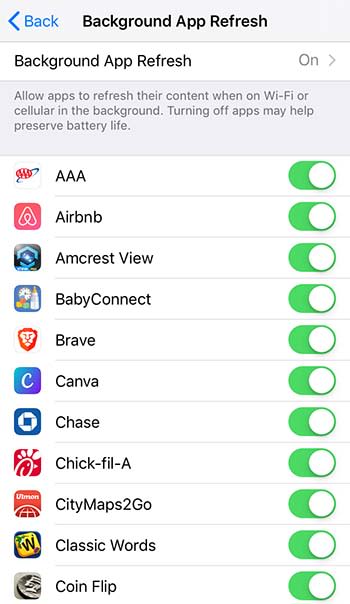
While in your settings, you should also go to General > Background App Refresh to see if you have too many apps refreshing while you’re not using them.

background appsYou may also want to see if too many apps are accessing your location (Settings > Privacy > Location Services), or if your screen brightness is too high. Note: Depending on your phone model, some of these might be in a different location in your phone’s settings.
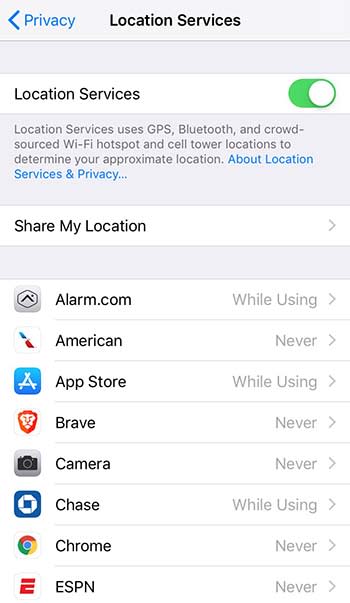
location services

3. How old is your phone?

Do you have one of the latest iPhone models, or is your iPhone a few years old? It’s not unusual for a brand new iPhone to experience some initial battery drainage, but if this lasts longer than a few days, another issue may be at play. Regardless of age, if your phone isn’t holding a charge for more than an hour or so, that’s a problem.

It’s normal for any phone to stop holding a charge over time, especially after a year or two. Instead of going 24 hours between charges, you might have to charge it every 10 or 12 hours, depending on usage. Nonetheless, you may experience more battery drain issues with models older than the iPhone 7.

4. You could have a bad or old battery

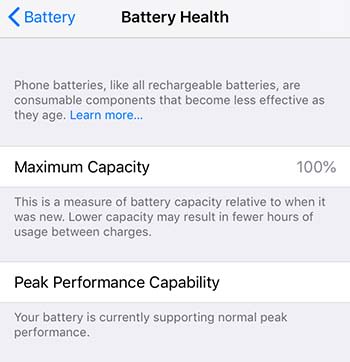
If you’ve tested the above and your battery is still not holding a charge for a reasonable amount of time, then you might have an old or failing battery. If you just bought a new or refurbished model within the last few months, your phone’s battery should not be dying within a few hours. (Still, you need to consider your usage.) This could mean that you’ve got a bad battery. If your phone is under warranty, you can replace it for free. To check your battery health, go to Settings > Battery > Battery Health.

iphone battery

If your phone is two or three years old and it’s not holding a charge, your battery may be finally reaching the end of its lifespan. But that doesn’t mean you have to buy a new iPhone. Battery replacements, even out of warranty, are much more affordable than buying a new phone. Costs currently range from $49 to $69.

5. You’ve damaged your phone recently

While the newer iPhone models are water resistant for a certain amount of time and up to a certain depth, older iPhone models might experience battery issues if exposed to water. Try putting your phone in a bag of rice to draw the water out, and see how it functions after.

Additionally, if you recently exposed your phone to extreme hot or cold temperatures, this can also affect your phone’s battery life. If you left your phone out in the sun on a very hot day, and it won’t hold a charge when at a normal operating temperature, it might have irreversible damage. You’ll need to replace it.

How to add Google Analytics to your WordPress site

Google Analytics can reveal a lot about your audience. Here’s how to add it to your Wordpress site.

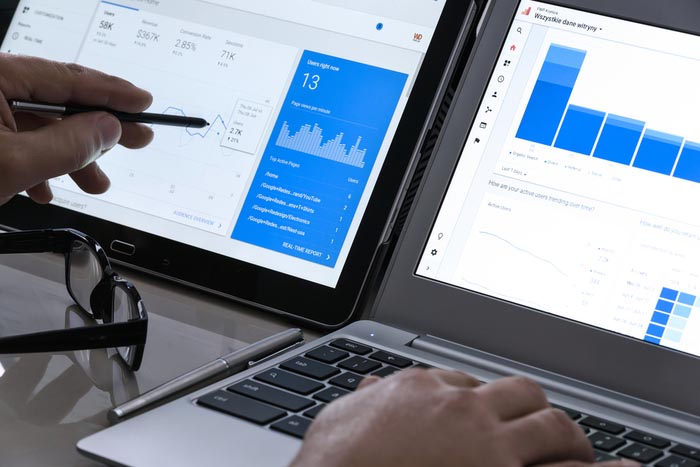
Google Analytics may not be the only web analytics software, but it is one of the most popular. It’s also a great way to see exactly how your website is doing. Once installed, you can instantly see which posts are the most popular, how long people spend on your site, and where they came from. Then you can duplicate your efforts to draw in more readers.

But you can’t dig deep into your site until you install Google Analytics. Depending on your website, there are multiple ways to install the code.

How to add Google Analytics to your WordPress site

google analytics

Installing Google Analytics

1. First, you need to create a property in Google Analytics. You will have to have a separate property for each website you own. This makes sense because you want to track the specific info from each site separately. You wouldn’t want all of that information jumbled together.

2. When that’s finished, head into your admin account. Choose the account you need from the account column. Then, choose the property you want from the property column.

3. Under the Property section, you will see an area termed Tracking Info and then Tracking Code. Click on it to reveal your tracking code. Your tracking ID will appear at the top of the page. Copy it.

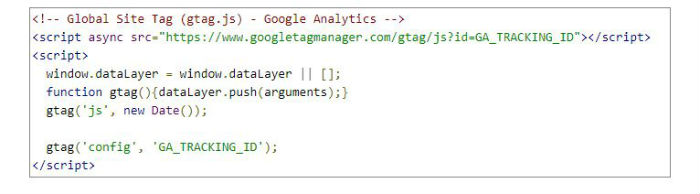
4. Your tracking ID will look similar to this but you will replace the general GA_TRACKING_ID with your own code. This code will go after the <head> tag on each and every page of your website.

5. If you use WordPress, paste the Google Analytics Tracking Code before the closing </head> tag in your header.php file. Use your child theme so you don’t need to reinstall the code after every WordPress update.

Or, you can visit the WordPress Customization tab from your dashboard. Visit Appearance, then Customize. This section offers a live preview of your changes. It also typically provides space to install header and footer codes.

You will look for Header/Footer Scripts under Theme Settings. Just remember your Google Analytics code belongs in the header.

6. To see if your code is working correctly, jump over to the Real-Time reports in your Google Analytics dashboard.

Your website analytics

If it isn’t working, try again. You may have neglected to copy over the whole code or you may have installed the code in the wrong place. Ensure the tracking ID code is copied correctly, then double check the placement.

Once your code is installed, you will have more insight into your website than you ever thought possible. If you use a Mac, take a look at these blogging widgets for hassle-free ways to keep your website populated.