How Do I Fix My GS Auto Clicker Not Working With 4 Solutions

As with most software, sometimes errors can occur when you are using GS Auto Clicker. It is important to note that some games don’t allow you to use auto clickers as it is seen as cheating. So if your auto clicker works fine in other applications, but doesn’t work in your game, check to see if the games allow auto clickers. 

If GS Auto Clicker doesn’t work in different applications, then you might be experiencing a real error. Let’s take a look at how you can fix your GS Auto Clicker if it’s not working.

  1. Restart Computer

    How Do I Fix My GS Auto Clicker Not Working

    If you are experiencing any software issues, it is good to restart your computer first and see if the problem persists. If this solves the problem, great! If not, you can try the next solution.

  2. Run Gs Auto Clicker as Administrator

    How Do I Fix My GS Auto Clicker Not Working

    Sometimes running a program as an Administrator can help to solve many different problems. To run the program as the Administrator, you right-click on the program icon and then click on ‘Run as Administrator’.

  3. Update Your Gs Auto Clicker

    How Do I Fix My GS Auto Clicker Not Working

    Check to make sure that you have the latest version of the auto clicker installed on your computer. Outdated software can cause many different issues on your computer. If your software is outdated, you will need to install the latest version.

  4. Uninstall and Reinstall Gs Auto Clicker
    How Do I Fix My GS Auto Clicker Not Working

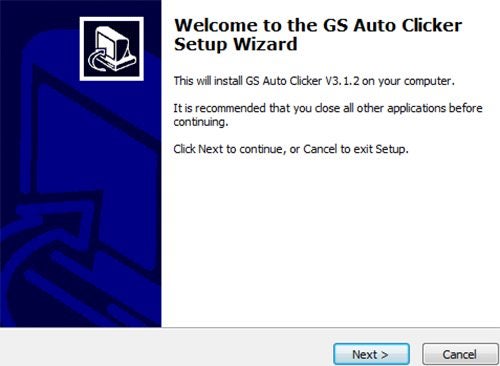
    If the problem persists, then you may need to uninstall GS Auto Clicker from your computer. Once it has been completely uninstalled, you can reinstall the clicker and solve the issue of the program not working.

Fix Your Gs Auto Clicker Quickly and Easily

By implementing the following solutions, you can get your GS Auto Clicker back to a working condition so that you can continue automating your clicking.

How to Get Gs Auto Clicker to Hold Down Left Mouse In 3 Steps

GS Auto Clicker is easy to use and set up any way that you need with a very simple design. Do you need to click on various areas of the screen repeatedly? Or perhaps only in one spot, but multiple times? Or do you need to click and hold the left mouse button?

GS Auto Clicker can help you set all these options to streamline your clicking. Let’s look at how you can set your auto clicker to hold down the left mouse button.

  1. Click ‘Options’

    How to Get Gs Auto Clicker to Hold Down Left Mouse

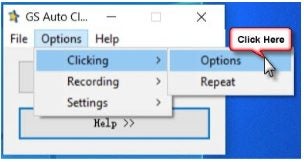
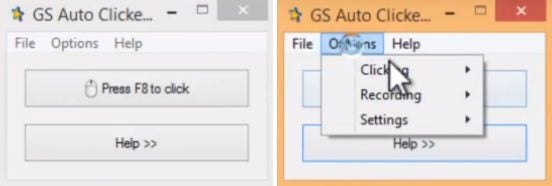
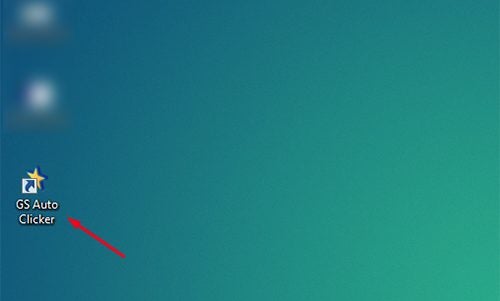
    Launch the auto clicker program on your computer by double-clicking on the icon on your desktop. Alternatively, you can also click on the program from your start menu. In the top menu of GS Auto Clicker, click on the ‘Options’ tab.

  2. Choose ‘Clicking’

    How to Get Gs Auto Clicker to Hold Down Left Mouse

    In the drop-down list that opens, click ‘Clicking’ from among the options given. Now choose ‘Options’ once more for the list provided.

  3. Set Click Type to ‘Hold Down’

    How to Get Gs Auto Clicker to Hold Down Left Mouse

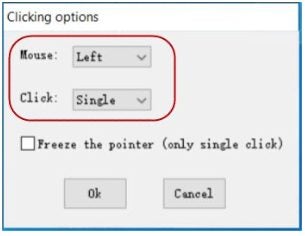
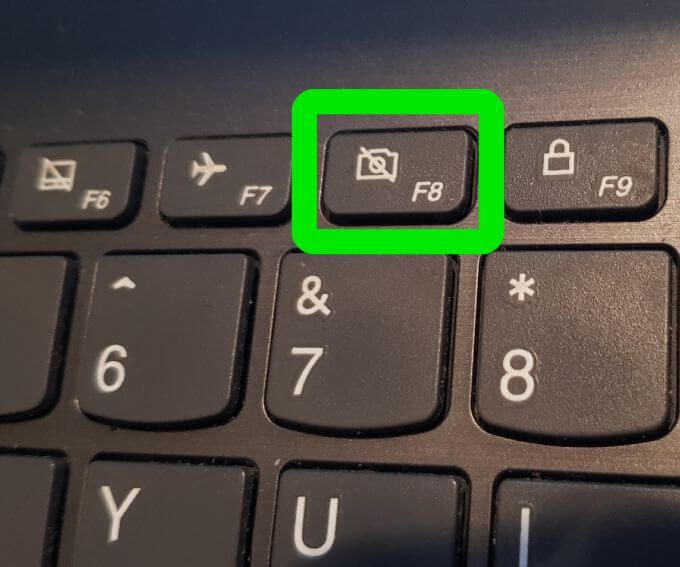
    In the new window that opens, set the click type from ‘Single’, which is the default, to ‘Hold Down’. Now when you press the hotkey, which is F8 by default, the program will click and hold down the mouse pointer. By pressing the hotkey again, you will release the clicker.

Using Auto Clickers to Automate Medial Work

When you use an auto clicker, it can make the mundane task of repetitive clicking bearable. By setting various options within GS Auto Clicker, you can easily choose to click multiple times or multiple areas of the screen or even click and hold down the mouse button.

How to Uninstall GS Auto Clicker in 2 Easy Ways

There’s no telling how helpful GS Auto Clicker can be for specific jobs and actions. Still, using it might cause strange errors, especially if you’ve tested its limits or put weird multi-step clicking combinations.

In this case, the only thing you can do to fix the glitches is to uninstall the application. This article focuses on two methods that will help you to get rid of all the residue files of the program.

  1. Use the Windows Add/Remove functionality

    How to uninstall GS Auto Clicker

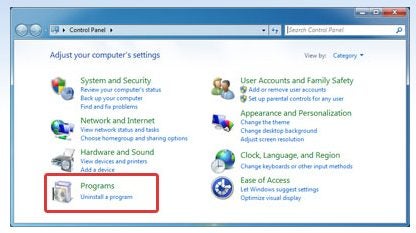
    All operating systems, including Windows, have an install/uninstall option built-in. You can accomplish deleting the auto clicker by accessing the Control Panel. Follow these instructions for success:

    – Click “Start”

    – Navigate and click “Control Panel”

    – Find the application

    – Click Change/Remove

    • Go through all the prompts on the screen
  2. Use the program’s uninstaller

    How to uninstall GS Auto Clicker

    An alternative option to remove the application is to use the built-in file system.

    – Access the application from the “Start” menu

    – Open the program folder and click the uninstaller to initiate the process

    – Follow prompts of the “Uninstaller Wizard”

Do a thorough registry cleanup

You might still have a use for this program later, but if it’s slowing down your computer and causing Windows to crash, a thorough cleanup is in order. Access “Registry Editor” and delete all the files manually. If you still need GS AutoClicker, you can always reinstall it.

How to Turn Off GS Auto Clicker in 4 Steps

GS Auto Clicker is very useful when you need to do repetitive clicking, such as when you are installing multiple programs or in some games. However, you may be wondering how to turn off the clicker when you are done?

Let’s look at how you can stop the clicker when you are done with your repetitive work.

  1. Check/Set the Hotkey

    How to Turn Off GS Auto Clicker

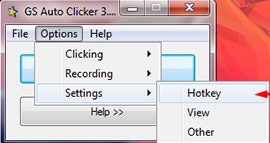
    You will first need to launch the program as you stop the clicker from within the program itself. The default hotkey to use with this program is F8. You can change this from within the settings by taking the following steps:

    – Click on ‘Options’

    – Click ‘Settings’

     -Click on ‘Hotkey

    Choose which hotkey to use by pressing the keyboard shortcut you prefer

  2. Use Auto Clicker

    How to Turn Off GS Auto Clicker

    Now that you know what the hotkey is, all you need to do is press the hotkey, for example, F8, if using default settings. This will start clicking if you’ve set multiple clicks.

  3. Stop the Auto Clicker

    How to Turn Off GS Auto Clicker

    If you want to stop the clicker, all you do is press the hotkey again; if using the default settings, that would be F8.

Click With Ease and Stop at the Press of a Button

Using GS Auto Clicker is easy, and all it takes is a few simple hotkeys to start and stop the clicker. Why not try using this type of clicker now and experience the ease of clicking automation.

How to Multi Select With GS Auto Clicker in 3 Simple Steps

GS Auto Clicker is popular automation software that allows you to automate your clicking without manually clicking on the computer mouse.

You may be wondering how you can set GS Auto Clicker to multi-select specific points on your screen? Let’s take a look at how you can set up that function within the program.

  1. Launch the Program

    How to Multi Select With GS Auto Clicker

    Launch the auto clicker by double-clicking on the icon on your desktop. Alternatively, you can also select the program from your program menu when clicking on ‘Start’. In the program window, click on ‘Options’ in the menu bar at the top of the window.

  2. Go to ‘Recordings’ and Then Select ‘Multiple Clicks’

    How to Multi Select With GS Auto Clicker

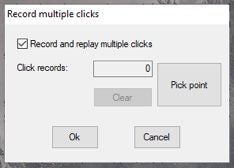
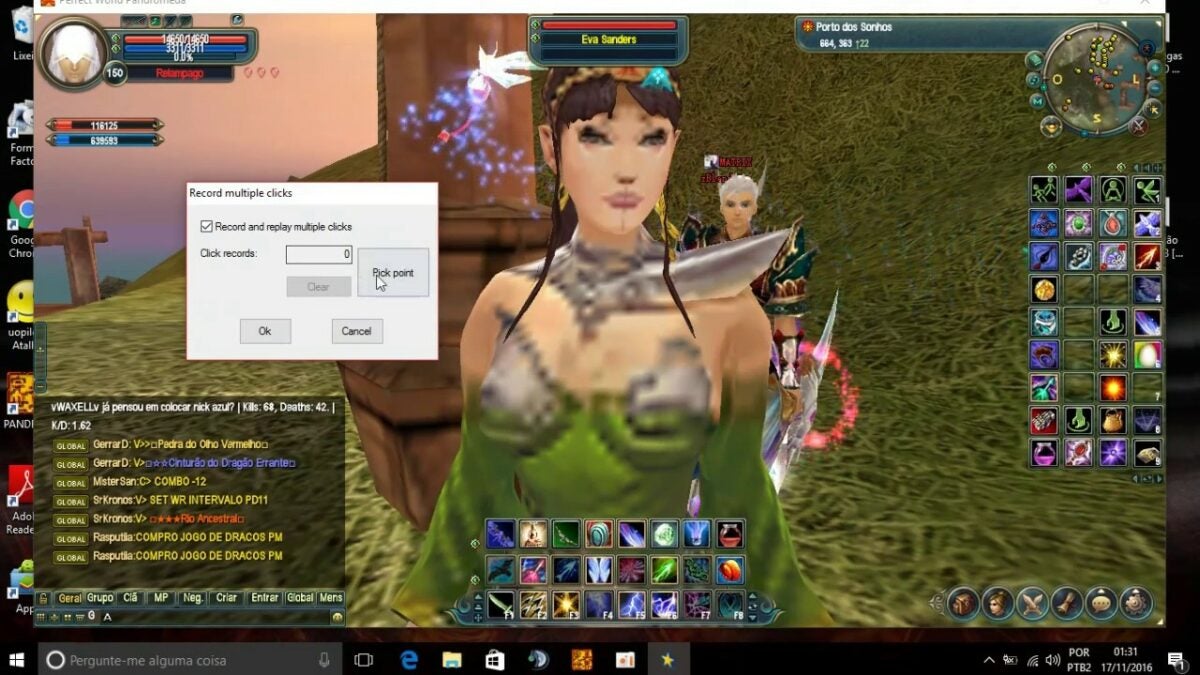
    In the drop-down list that appears, click on ‘Recordings’ and then on ‘Multiple Clicks’. This will take you to a new window where you will record the multiple areas on the screen you wish to select. The first option in the new window has a checkbox titled ‘Record and Replay Multiple Clicks’, make sure that this option is selected.

  3. Set Pickpoints

    How to Multi Select With GS Auto Clicker

    Now click on the ‘Pickpoint’ option and move the mouse cursor to the area on the screen you wish to select. Click with the mouse to record this pickpoint. Repeat the process until you’ve selected all the areas on the screen that you need. Press ‘Ok’ when you are done to save this macro or recording. 

    Now you can press F8 on your keyboard (or your hotkey if you changed it) to run the recorded macro you have set up.

Easily Set Multiple Select Options

With GS Auto Clicker, not only can you automate your clicking, but you can also easily set a macro to click and select multiple areas on your screen as you wish.

How to Make GS Auto Clicker Click Fastest in 2 Easy Steps

Whether you’re a gamer that needs to perform hundreds of repetitive clicks on the mouse button or someone whose work is connected with repetitive patterns, GS Auto Clicker can help you out. 

This autoclicker program is an excellent find that Reddit nerds and gamers are swearing their lives on. It has a sweet and simple interface that makes interaction with it a breeze. Let’s see how below.

  1. Access the “Clicking” menu

    How to make GS Auto Clicker click fastest

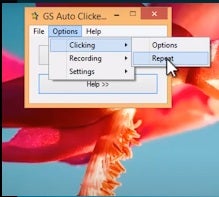
    There are just three menu options in this program, and all the clicker functionality is embedded in the “Options” tab. Click it to access the “Clicking” menu from the drop-down.

  2. Modify the interval

    How to make GS Auto Clicker click fastest

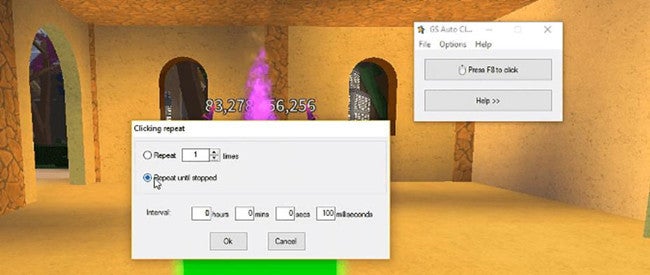
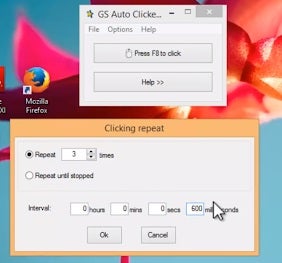
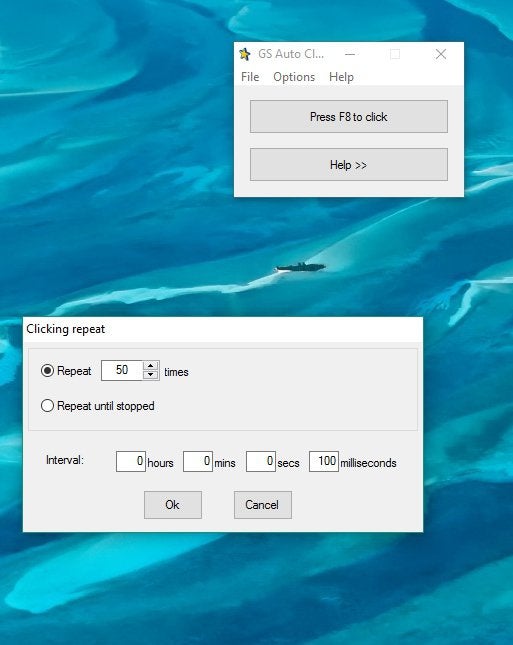
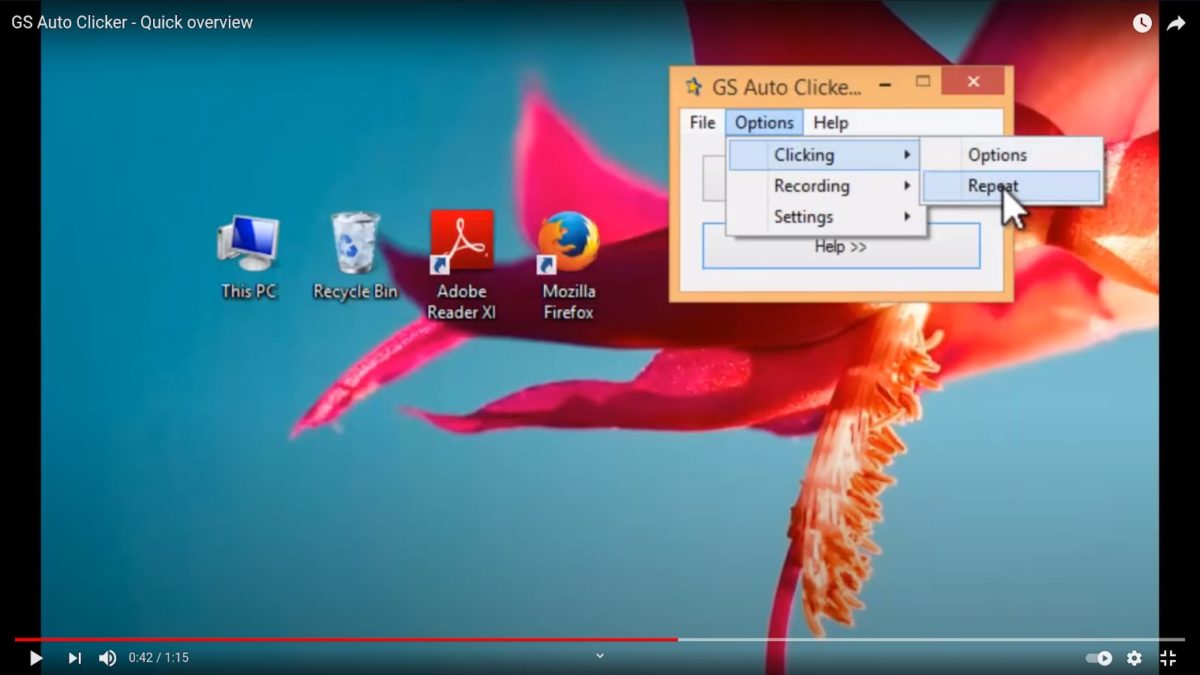
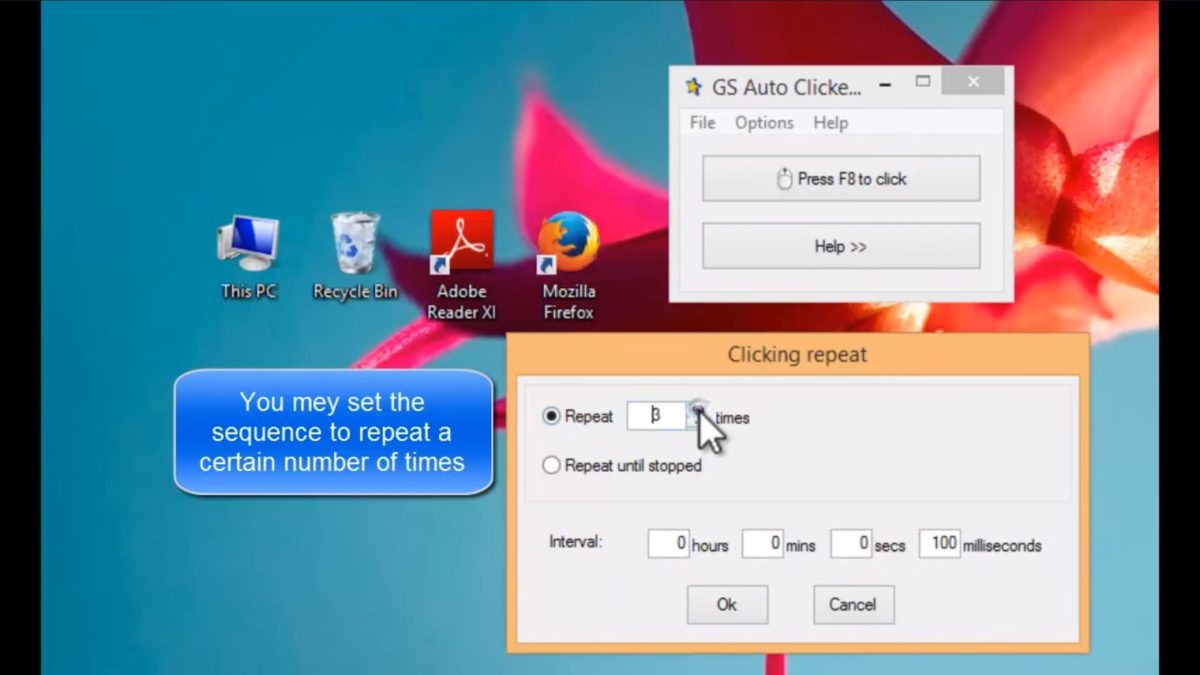
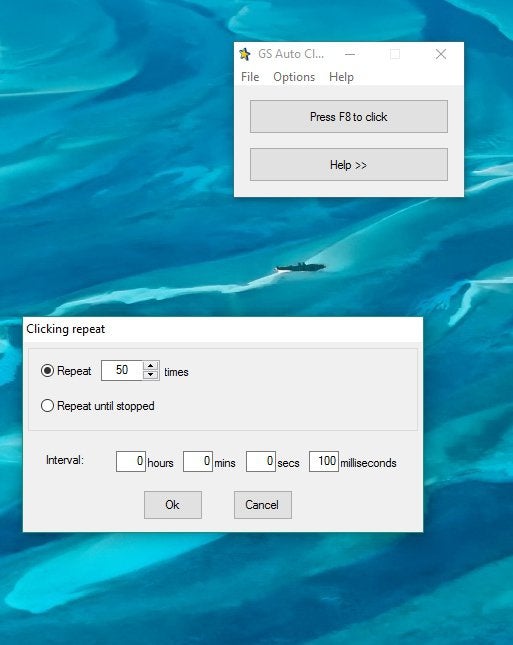
    Once you hover on it, another sub-menu will open on the side, showing you two options. Choose the second one, “Repeat.” A window will open containing the number of repetitions and the interval in hours, minutes, seconds, and milliseconds. For the fastest clicking, input a high number and click “Ok.”

Test the limits!

Here is when you can let the numbers get crazy high. Make the program sweat by inputting the highest number it allows you to and watch your mouse go mad. Good luck catching the clicks!

How to Increase Clicks in GS Auto Clicker in 3 Fast Steps

As you might know, GS Auto Clicker is a useful tool that clicks for you in a preset sequence. Depending on your intent, you can make the program click on multiple coordinates on your screen and repeat the loop as many times as you need. 

This article will help you figure out how to make it go through the same sequence multiple times.

  1. Open the program and select “Options”

    How to increase clicks in GS Auto Clicker

    Go to navigation, find the application, and click it to open the interface. At the top of the window, in the main program menu, you’ll see “Options.” Click it to open the drop-down menu.

  2. Navigate to “Repeat”

    How to increase clicks in GS Auto Clicker

    When you hover over the first choice on the top, “Clicking,” two selections will open in the sub-menu. Select “Repeat.” It’ll open a window where you can select the number of times and the interval. It also offers an option of repeating until stopped manually.

  3. Set the number of reps

    How to increase clicks in GS Auto Clicker

    Use the arrows near the number to increase it or just input it. Once you select how many times the loop should go through, click okay.

Sit back and relax!

In addition to complicated patterns, the program gives some rest to your hands while it clicks the mouse button as many times as you want.

How to Do Keyboard Macros GS Auto Clicker in 2 Fast Steps

GS Auto Clicker is a very convenient application for those who have to do repetitive tasks that include mouse clicks. However, it can be tricky working with the current keyboard macros if you don’t know how.

This article will teach you how to find and change the default hotkey on your program.

  1. Open the application

    How to do keyboard macros GS Auto Clicker

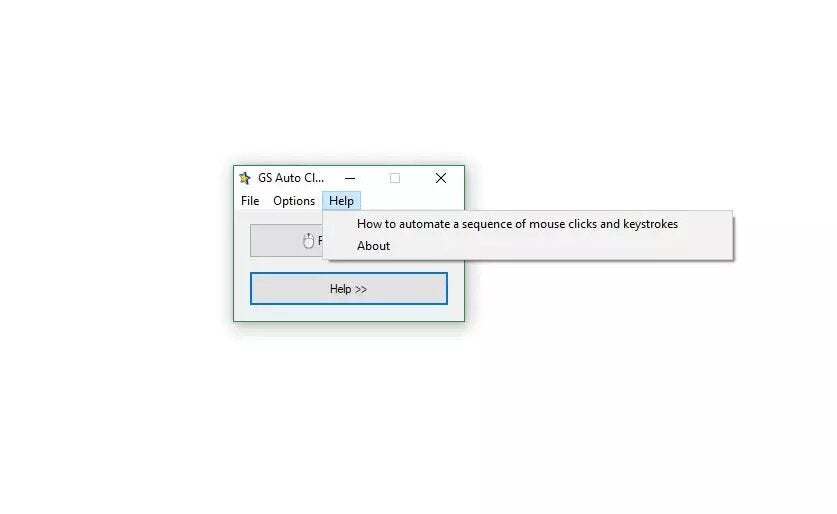
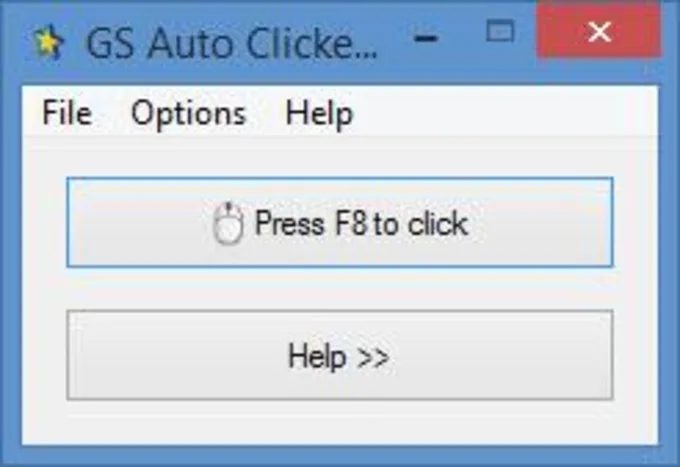
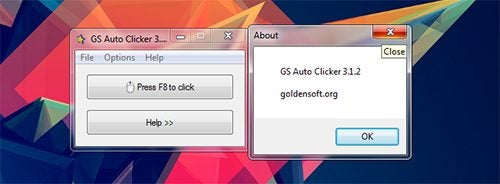
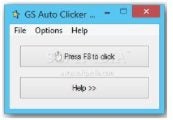
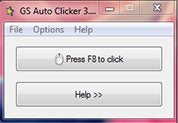
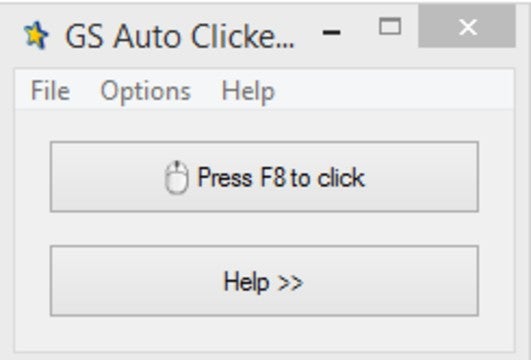
    If you already have the program installed, navigate to the program icon and double click it to open. You’ll see a straightforward interface with only three menu items and two buttons. One of them shows the default hotkey (F8) you can use to initiate the app’s functionality.

  2. Navigate to the Hotkey menu

    How to do keyboard macros GS Auto Clicker

    On the main menu line, choose the “Options” dropdown element, go to “Settings”, and click hotkey. Once you do that, another window will open, prompting you to set your function key. Whatever you choose, it will replace the original F8. After setting it, click OK.

Use the new key during your next loop

The new key will do all the same functions as the original one, so you can use it next time you need to run the saved mouse clicker script. Ensure that the key is free from any other functionality not to confuse the operating system.

How to Install GS Auto Clicker in 4 Easy Steps

GS Auto Clicker is a useful task automation software that enables you to save your computer mouse from repetitive wear and tear. This type of program is ideal for users who use a mouse often and within regular intervals, such as gamers who need to click to gain points continuously.

The program has been developed for Windows computers, and you may be wondering how you can install this program so that you can start saving your mouse and increase your clicking efficiency.

  1. Download GS Auto Clicker

    How to Install GS Auto Clicker

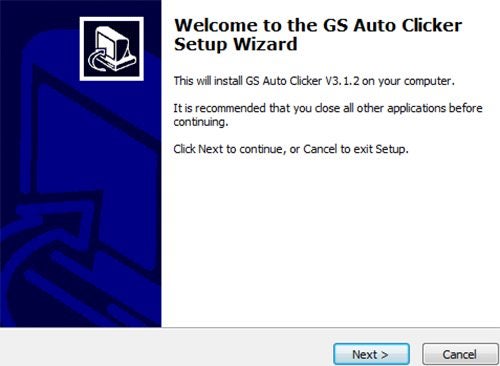
    First, you will need to download GS Auto Clicker from a reputable website, such as Softonic. In your download folder, you will find the executable file for the program. Double-click to automatically start the installation wizard.

  2. Click ‘Next’ in the Installer

    How to Install GS Auto Clicker

    – Click ‘Next on the installation wizard window to start with the installation process. 

    – Then you will have to click ‘Next’ again on the ‘Destination Location’ window. 

    – And again on the ‘Select Start Menu Folder’ window. 

    And finally, for the last time on the ‘Select Additional Tasks’ windows, you can choose to have a desktop icon for the program installed.

  3. Click on ‘Install’

    How to Install GS Auto Clicker

    Click on the ‘Install’ button and wait for the program to finish installing on your Windows computer.  When it is done, you will get an option to launch the program at the end of the installation. Click ‘Finish’ to complete the process.

Install an Auto Clicker to Increase Your Clicking Productivity

Installing GS Auto Clicker is easy to do and will increase your clicking efficiency while also sparing your mouse from constant wear-and-tear. 

How to Use GS Auto Clicker in 3 Easy Steps

GS Auto clicker is a useful app that allows users to set an auto clicker feature when needed and frees up their hands and computer mouse when having to do a lot of clicking. This can be very useful when playing games or when you need to do repetitive clicking when installing games or accepting friends requests on Facebook. 

The program is available on Windows computers, but how does it work?

  1. Have GS Clicker Downloaded and Installed on Your Computer

    How to Use GS Auto Clicker

    First off, you need to ensure that you have the program downloaded and installed on your computer. If you are stuck on the installation process, you can refer to our guide on installing GS Auto Clicker. Launch the program by double-clicking on the program on your desktop.

  2. Navigate to Another Program

    How to Use GS Auto Clicker

    Now you can navigate to another program or game, and when you want to start auto-clicking, you can hover with the mouse and press F8 (default) to start using the auto clicker.

  3. Change the Hotkey

    How to Use GS Auto Clicker

    If you want to use another hotkey and not the default F8, you can easily change that. 

    – Click on ‘Options’ and then ‘Settings.’

    – Next, choose ‘Hotkey.’

    • Now press any other button you want to use and click on ‘Ok’ to set it.

Start Using GS Auto-Clicker and Click More Efficiently

Whether you are gaming, sending multiple invites or accepting friends requests, you don’t need to wear out your hands and computer mouse anymore. With GS Auto Clicker, you can start clicking automatically with just the press of a keyboard key.