iOS 8 will include an iPhoto to Photos migration tool

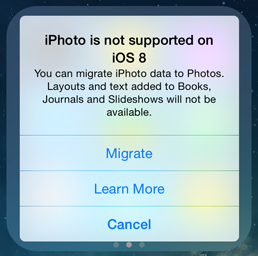
Apple is preparing iPhone users for the discontinuation of iPhoto with a new migration tool. Those who are running the developer preview of iOS 8 are receiving a warning message that iPhoto is not supported and offers the option to migrate to Photos. There’s also a “Learn More” link, which appears to be dead at the moment.

iPhoto warning - credit 9to5MacApple warns text added to Books, Journals and Slideshows in iPhoto may not function properly after migration. Photos will most likely discontinue these features in favor of a simplified photo editing experience. iPhoto has grown bloated and slow over the years, languishing with infrequent updates.

The new Photos app has yet to appear in the iOS 8 or OS X Yosemite beta so we don’t know know well the app works yet. Apple will most likely streamline Photos to be a lightweight photo editor, stripping it of unnecessary features. The facial recognition software present in iPhoto may disappear too.

Apple is also discontinuing its professional photograph app, Aperture. The company is working with Adobe to create a migration tool to Adobe’s Lightroom program.

Apple hasn’t nailed down a specific release date for the Photos app, only saying it’ll come “early next year.”

Source: 9to5Mac

RELATED STORIES

comiXology goes DRM-free, lets you keep your comics forever

Google Maps Explore feature takes on Yelp and Foursquare

Beatbuddy music adventure game coming to iOS in September

Instagram accidentally leaks ad for Bolt, its Snapchat competitor

Modern Combat 5: Blackout available on multiple platforms

Follow Lewis on Twitter: @lewisleong

Apple to kill Aperture and iPhoto

Many wondered what would happen to iPhoto after Apple announced its new Photos app for OS X Yosemite. Today, TechCrunch reports Apple is planning on killing iPhoto and Aperture in favor Photos.

“With the introduction of the new Photos app and iCloud Photo Library, enabling you to safely store all of your photos in iCloud and access them from anywhere, there will be no new development of Aperture…When Photos for OS X ships next year, users will be able to migrate their existing Aperture libraries to Photos for OS X,” said an Apple spokesperson.

It makes sense for Apple to replace iPhoto with Photos but killing off Aperture will surely upset professional photographers. From the brief preview of Photos during Apple’s WWDC event, it appears Photos bridges the gap between casual and pro-level editing features. The switch will undoubtedly upset photographers who have invested their time and money into Aperture.

Aperture will be updated to work in OS X Yosemite but development will stop. Apple is even working with Adobe to help Aperture users migrate to Lightroom.

Even though Aperture is dead, Apple wants to reassure pro users that Logic Pro and Final Cut Pro are sticking around.

Source: TechCrunch

Follow Lewis on Twitter @lewisleong

RELATED STORIES

5 alternatives to iPhoto

People who like iPhoto are few and far between: it’s heavy going, slow to use, and has a habit of ‘appropriating’ any photos that you use it with. It’s good to know, so, that there are some good alternatives out there!

The OS X operating system offers a rich default software package. In fact, it meets virtually every basic need the average computer user has, all without needing to install additional programs.

But, nestling amid an array of good programs such as Safari, Mail and GarageBand, you’ll also find Apple’s Achilles Heel – iPhoto.

That said, it’s not a complete disaster, it’s simply not up to the standard of its fellow apps. And it never really has been.

So, even if you do love iPhoto, here are 5 alternatives that might just be worth a look.

Aperture, a complete and professional package

apertureAperture is iPhoto’s big sister. It’s not a simple program to use, but it is targeted at a professional audience. It has a lot to offer, both from the point of view of managing your library, as well as touching up images.

The non-destructive editing allows high level, accurate operations. If you come from an iPhoto background then importing the old library is easy. The two programs are able to communicate with each other perfectly – this means they’re both able to use a shared library.
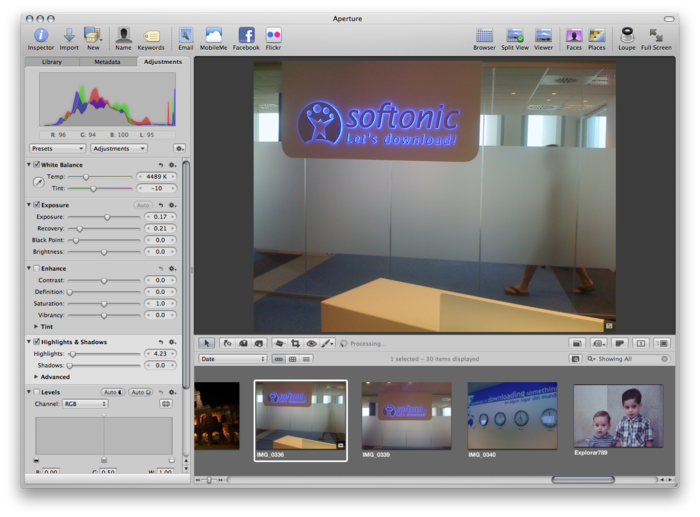
Aperture

Aperture lets you create presentations, organize your photos using faces and places (like iPhoto) and it’s optimized for retina displays. It’s the right choice for those who are serious about working with their photos, but for everyone else, it’s might be overkill.

Lyn, a paragon of virtue

LynLyn is one of the various programs available for managing digital photos that’s better suited to the Mac platform.

It has everything you need: a user-configurable explorer, geotagging, metadata management (essential for professionals), a non-destructive editor, batch processing and excellent sharing options.

Not only that, but it’s also compatible with iPhoto, Aperture, and Lightroom libraries, so the transition from using one of these programs to using Lyn is trouble-free. The interface isn’t as esthetically appealing as that of Aperture, for example, but it’s clean and easily navigable.
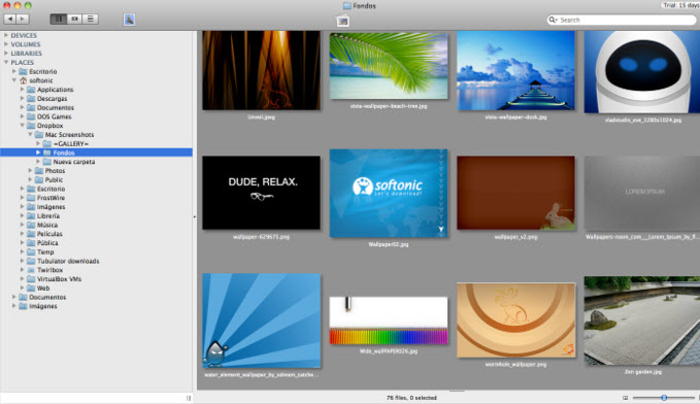
Lyn

The program is lightweight but supports all popular formats, including JPEG, TIFF, JPEG 2000, PNG, TGA, RAW, HDR, OpenEXR, PPM and animated GIFs. The complete list of compatible formats can be found on the publisher’s website.

It’s perfect for anyone who wants to have their user photo library ordered like a professional (although it doesn’t of course provide such a rich collection of tools as Aperture does).

Picasa, a great free solution

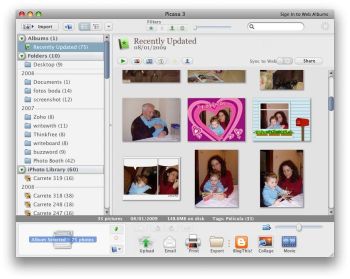
picasaWhen it comes to managing images on your computer, then Picasa is unbeatable. Importing the images is a fully automated process: all you have to do is choose whether the application should search for photos in certain specific folders or on the whole of your Mac, and then sit back and wait.

The system puts the photos in chronological order, but once the scan has finished, you can create folders, use tags, categorize by collection and share your Picasa Web Albums. You can also create collaborative albums.
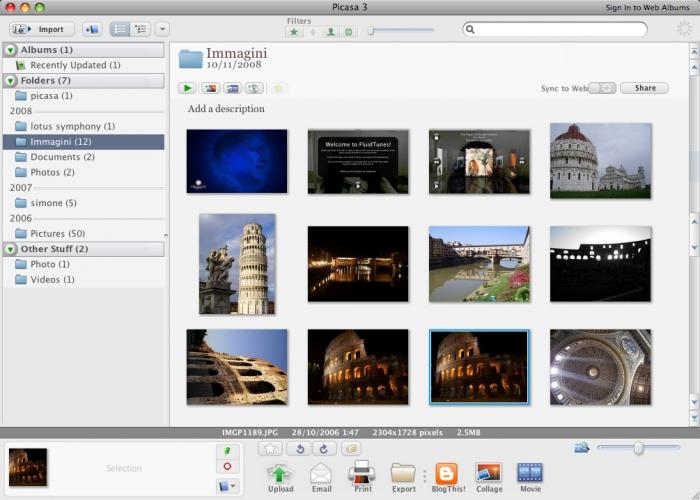
picasa

Picasa also offers some basic tools for touching up images as well as some other effects – the quality is ok, but nothing special. The interface is a bit confusing, but remains functional. It’s the right choice for those that don’t want to waste any time and who don’t need anything too elaborate. It supports the RAW format offered by many cameras.

Lightroom – Photoshop’s deputy

adobe-photoshop-lightroomAdobe has managed to infuse the power of Photoshop into Lightroom, merging the simplicity and sense of logic that you’d expect from a high-level photo management application.

The editing tools are very advanced. Worthy of particular mention are Upright, which straightens skewed images with a single click, and the Advanced Touch-up Brush, which works in a similar way to the Clone stamp tool in Photoshop, correcting imperfections and mistakes, but in a far more automated way.
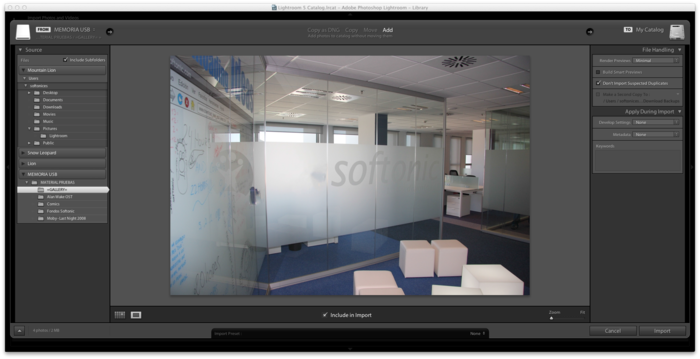
Adobe Photoshop Lightroom

Another very nice feature is the ability to turn color photos into black and white photos. The photo undergoes a process that’s more than simple desaturation, which would leave the shot flat and without character; instead, Lightroom lets you to add data via eight color channels. The result is an intense black and white photo that exudes vibrancy.

The application runs well, even when dealing with very large photo libraries, it supports geotagging and lets you create beautiful albums from templates. It’s a professional tool, but less complicated than Aperture. A little gem.

Pixa the bold

PixaThe Pixa interface is in true Mac style, and is well organized thanks to a predominantly automated workflow that allows you to add images to your library or share them in a few simple clicks.

The Auto-tagging feature saves the tedious job of tagging photos in order to find them easily, because it automatically adds attributes to the images. The Live folder, however, is a smart folder that lets you group your photos how you want to, but without moving them from their original locations on your Mac.
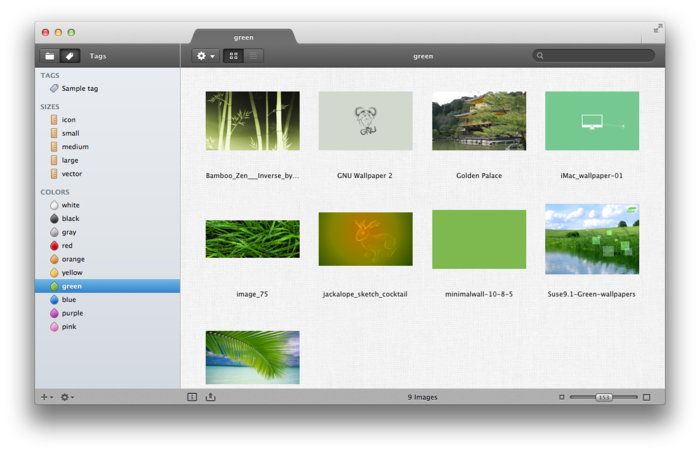
Pixa

Exporting using the conversion presets makes it very easy to share images. Pixa is a program that’s perhaps less rich than the previous ones we’ve discussed, but it has more original features. It’s one for the more daring among you!

What do you think of iPhoto? Can you suggest any other alternatives?

iWork, iMovie, iPhoto for iOS now free

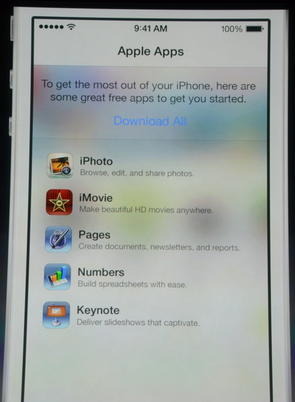
Apple revealed today that iWork for iOS, along with iMovie and iPhoto, will be bundled for free with every iOS device at its press conference at Apple’s Cupertino campus. Apple’s productivity suite finally gets integrated into iOS but its up against some stiff competition from Google’s Drive and Microsoft’s Office Mobile. With iWork for iOS, users can access Pages, Numbers, and Keynote for free.

iWorks-iMovie-y-iPhoto

iWork’s interface appears to be unchanged, still featuring skeuomorphic design, which are digital representations of physical materials like leather and brushed aluminum. It’s a bit disappointing that iWork hasn’t undergone the same redesign of iOS 7.

In the cloud, iWork for iCloud will remain in beta but will also feature a complete redesign to match iOS 7. This redesign comes as no surprise as Apple experimented with the flat iOS styled icons for iWork for iCloud, which was released after Apple’s Worldwide Developers Conference in June of this year.

There’s no word from Apple about when or which devices will be eligible for the free suite of apps but we’ll update this post as soon as we find out.

UPDATE: The post previously mentioned that Garageband was free but it is actually iMovie that is free. The article has been changed to reflect this.


MORE COVERAGE


iMovie, iPhoto and GarageBand for iOS receive minor updates

Apple’s core multimedia editing tools for iOS have been updated just ahead of its September 10th iPhone event. iMovie, iPhoto and GarageBand have all received minor updates to improve performance, stability and “compatibility issues.”


  • Download iMovie for iOS
  • Download iPhoto for iOS
  • Download GarageBand for iOS

  • While the changelogs for each of the programs are very short, it’s safe to assume that these apps have been updated in preparation for Apple’s iOS 7, which will likely debut at the same time as the new iPhone on September 10th. iOS 7 will introduce a completely new look for the aging operating system, with a new Notification Center, feature packed camera, iTunes Radio, better multitasking, and more. You can check out everything you need to know about iOS 7 right here.

    Source: MacRumors

    Apple updates iPhoto, Aperture, and Java

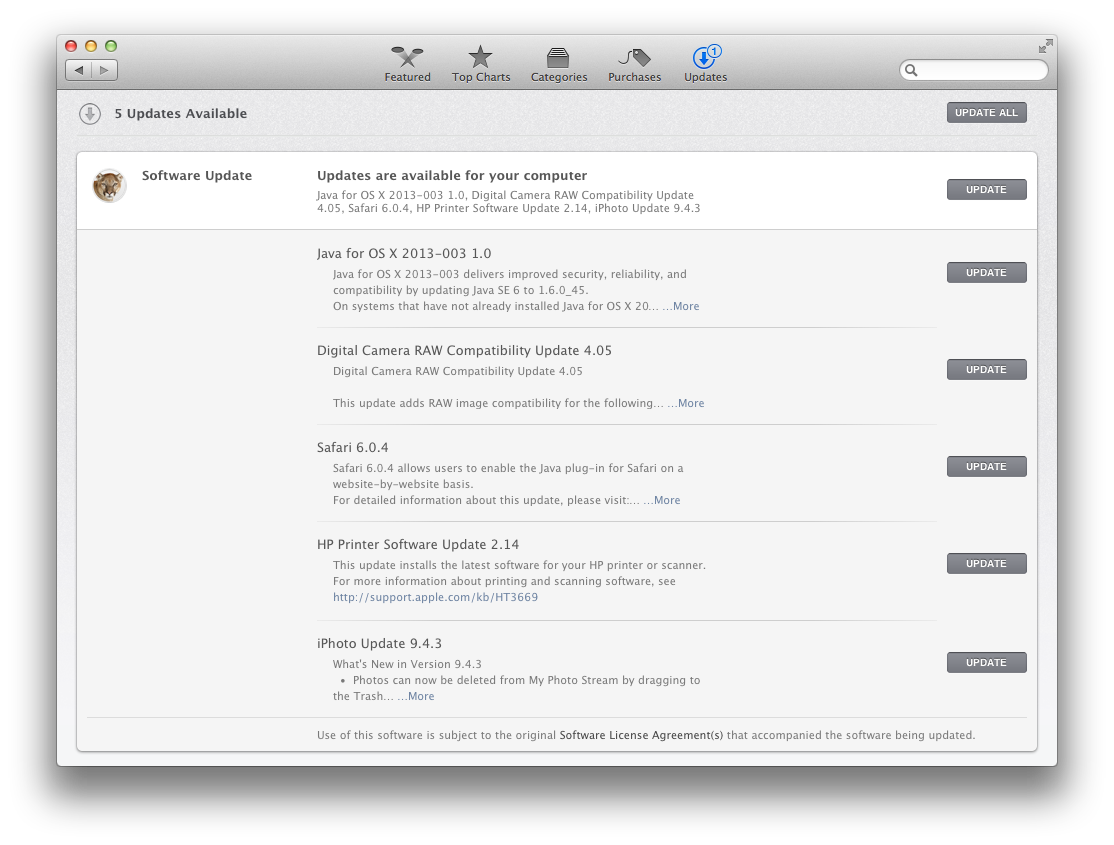
    vYesterday Apple released a slew of updates for its Mac operating system, which includes improvements to iPhoto, Aperture, and Java. While there isn’t much exciting news from the issued updates, they will bring about some much needed bug fixes.

    Aperture 3.4.4 now supports RAW images from the Nikon P7700 camera and will properly display photos that have thumbnail names longer than 250 characters. iPhoto 9.4.3 brings increased compatibility with OS X Mountain Lion. Apple has fixed a bug where rotating photos shared to Photo Stream would cause the program to crash. Photos can now be deleted from the Photo Stream as well.

    The update to Java includes security fixes for Java SE6. Java has been a huge security risk for both Macs and PCs alike, but most users don’t need Java any more anyway.

    apple updates

    Safari also received an update that lets users enable the Java plug-in on a site-to-site basis.

    Last but not least, there are a bunch of driver and software updates for Canon, HP, and Epson printers.

    To get the latest updates, go to your Mac and launch the Mac App Store. You will be notified if you have any updates available. It’s a a huge download so you’re going to want to plug in your laptops.

    For a full changelog, check out the Apple source link below.

    Source: Macworld | Apple

    Does Picasa spell the end for iPhoto?

    Could Picasa knock iPhoto into touch?Now that Picasa has finally arrived on Mac the end is surely nigh for iPhoto.

    And good riddance as far as I’m concerned. I’ve never liked iPhoto, mainly because it takes so long to import photos and videos. Picasa on the other hand does it in less than half the time. In addition, what I really love about Picasa is that it makes publishing to the web a pleasure – unlike iPhoto which required the Picasa uploader plugin to upload photos from it to iPhoto.

    The way iPhoto takes photo imports as an “event” and just lumps them into one big collection also irks me. As John P. points out:

    I hate any sort of application that unnecessarily forces it’s users into a proprietary closed platform. And right off the bat, iPhoto does this (just like freakin iTunes!). You see, when you import photos into an iPhoto library it basically takes all of your individual pictures and lumps them into a giant ball, from which the average users can no longer extract them without great pain!

    Fortunately, Picasa has included a useful “Import from iPhoto” option that allows you to liberate your photos from the greasy clutches of iPhoto.

    There a few reasons why I’ll keep iPhoto on my Mac though. One is purely practical because it’s integrated with both iMovie and iDVD when it comes to adding photos to DVD edits or DVD menus. The other main reason is that I like the slideshows that iPhoto creates with a selection of different soundtracks and camera panning effects, although the music soon becomes irritating once you’ve seen a hundred slideshows. I’ll also concede that there are a few features in the new iPhoto, released as part of iLife 09 that will enhance iPhoto’s appeal such as facial recognition, GPS location for photos and integration with Facebook.

    However, Picasa’s simplicity, speed and web publishing integration mean that it will take a lot more than that for iPhoto to win me back. Now if only Google made computers too…

    From iPhoto to Aperture or Lightroom

    Apple iPhotoA month ago we talked about how to work with Adobe Bridge and iPhoto. As promised, today we will see how to transfer all your pictures from iPhoto to Aperture or Adobe Lightroom. This is not as easy as it could seem and the process can take a while, especially if you have been storing your pictures in iPhoto for a while. I believe the transition is worth it though if you are getting more serious about photography. Both Apple’s Aperture and Adobe’s Lightroom have more options for working with RAW files, and have much more advanced editing tools than iPhoto could ever serve up. The two applications can also handle much larger photo libraries.

    Aperture, just like iPhoto, is an Apple product, so transfering photos from one app to the other is a cinch. In Aperture simply choose File>Import>iPhoto Library. All the pictures will be stored in an iPhoto Library folder in your Projects. Aperture saves rolls as different projects, however it will not recognize smart albums.

    Transferring images from iPhoto to Adobe Lightroom is a little more tricky. If you try importing directly from the Apple software you risk ending up with a mess of original images, modified images and thumbnails. What’s more you will probably lose tags entered in iPhoto. What you need to do is get hold of a program called PictureSync. First open iPhoto, then PictureSync. Then select the pictures to import from iPhoto. In PictureSync press open, then File>Save Annotations. Drag your selection from iPhoto to Lightroom. Only the pictures you selected and their metadata will be taken into account.

    So there you have it. Obviously importing pictures from iPhoto to Aperture is easier, but it isn’t too much of a hassle sending them to Lightroom either, except that you’ll need to use an extra application. I would recommend not switching to often between programs though, as you always risk losing some of your data. If you’ve found an application that you like working with, try to stick with it.

    Can you work with both iPhoto and Adobe Bridge?

    Adobe BridgeEven though up till now all my pictures have been stored in iPhoto, I’ve gotten to a point where I can’t stand working with the application anymore. I find it too slow and too limited in terms of editing. I’m also not satisfied with the way you can organize and store your photos. The easiest solution would simply be to switch to Adobe Lightroom or Apple Aperture, but I’m waiting for a new Mac to do that. This is why I’ve gotten around to using Adobe Bridge, until I choose a more advanced solution. Now Adobe Bridge is never meant to replace any of the previously mentioned photo management apps. It doesn’t store pictures, but only displays them in multiple ways. As the name mentions, it also works as a bridge with all other Adobe applications, and you can quickly access specific functions in them, like merging to HDR in Adobe Photoshop.

    I’m not ready to export all my pictures from iPhoto and save them in new folders in the Pictures folder of my Mac, so is there a way for Adobe Bridge and iPhoto to coexist? You can try but it is a little risky. The iPhoto library is a little complex and you can easily get lost in it. To access pictures stored in iPhoto, go to Library>Pictures>iPhoto Library and choose the folder with the date the pictures were taken at. If that doesn’t work you can also try this way. One thing to get right though is to select the correct pictures to edit.

    iPhotoAs this forum discussion does well to explain, iPhoto saves photos in three folders: Originals, Modified and Data. Originals stores all the pictures imported from your camera, Modified has the pictures with your edits done in iPhoto, such as cropping or rotating, and Data contains thumbnails. Depending on how you work, you’ll choose to work with either the originals or modified, but try to stay consistent, or you’ll end up not knowing which ones are which. I prefer only working on the modified photos, that way I always keep the originals (for backup reasons), and they also already include any changes done in iPhoto. One really important thing to keep in mind though is to never, ever, move or delete pictures from your iPhoto libraries. You’ll risk messing up the iPhoto library structure and losing pictures.

    Ultimately though, to the question, can you work with both iPhoto and Adobe Bridge, I’d say no. As said before the iPhoto library structure is complex and you’ll end up corrupting it. If you’ve gotten to this point, you’re simply better off switching to Adobe Lightroom or Apple Aperture in the long run. If like me you can’t do that for now, you’re safer choosing between iPhoto or Adobe Bridge. I’m choosing Bridge. In the future, we’ll compare how to import pictures from iPhoto to Lightroom and Aperture and choose which one is easier.