How to solve the “macOS could not be installed” failure

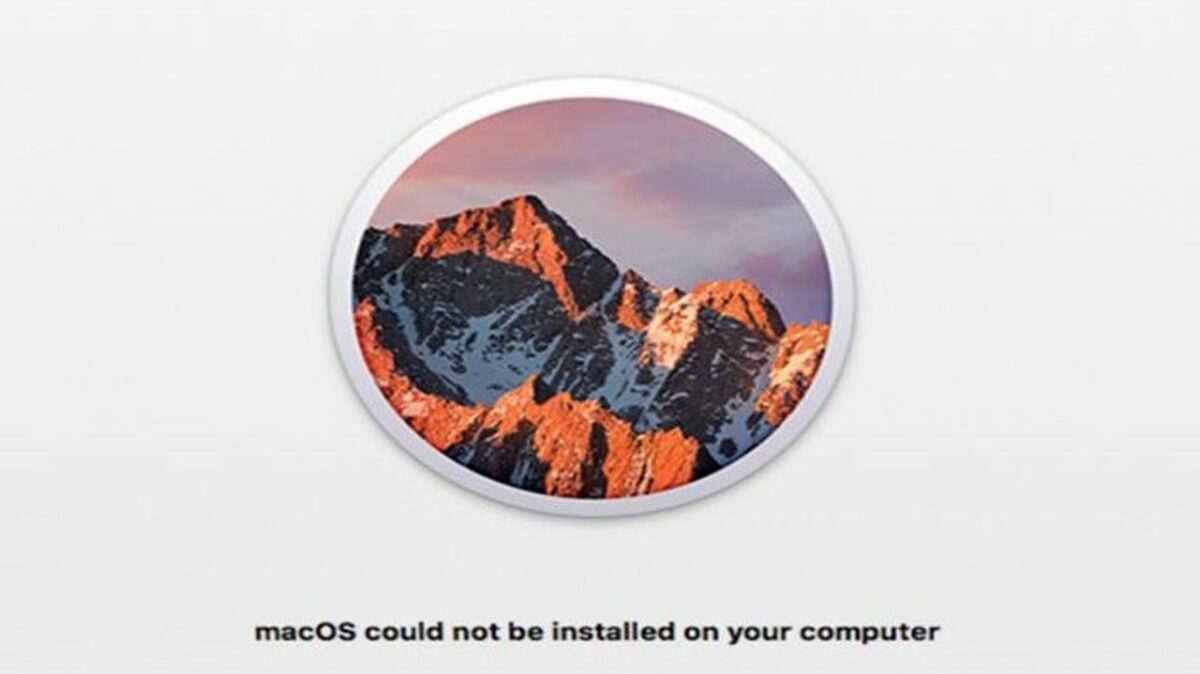
It’s definitely stressful to see a giant Mac install failed error message flashing when you turn on your computer. However, there’s no need to panic. Error codes like the “macOS could not be installed on your computer” just mean something went a little wrong during your macOS Monterey update or installation.

macOS Monterey Download

Fixing an error when installing macOS is typically as simple as doing a little troubleshooting. Follow these steps to identify the installation failed mac OS problem and figure out how to fix it.

  1. Restart your computer

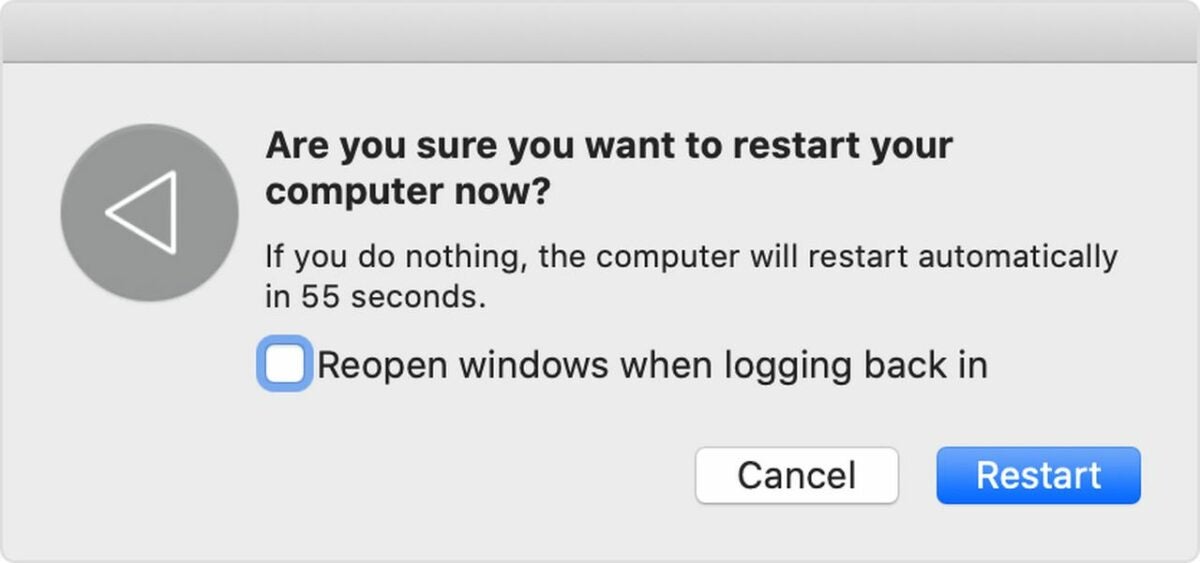
    A Mac screen asks the user to confirm a restart

    Any time you get an error when installing macOS, the first thing you should do is restart your computer. In the majority of cases, restarting allows the installer to try again and correctly install the OS.

    Restarting the computer is usually as simple as clicking the Restart button at the bottom of the error screen or using the normal power menu restart option. When your computer won’t let you try either of these options, press and hold the power button to manually restart.

  2. Launch safe mode on your computer

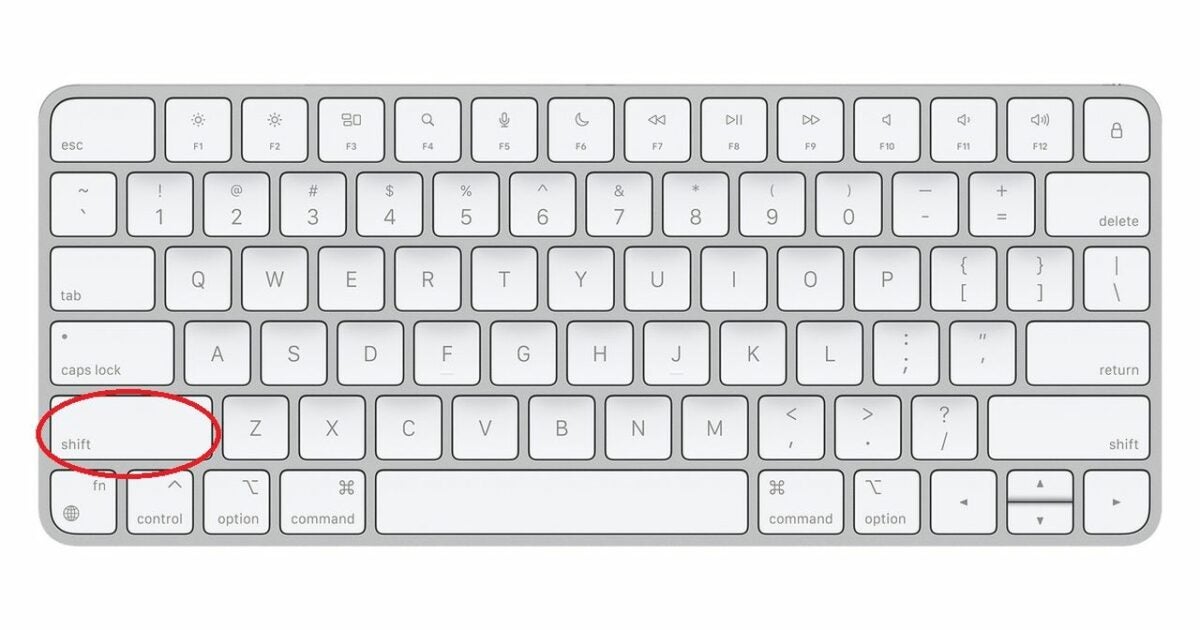
    A Mac keyboard with a circle on the shift key

    The “macOS could not be installed” error often prevents you from restarting your computer normally. To get around this problem, start your computer in safe mode.

    Do this by pressing and holding the Shift key while the computer powers on. Holding Shift until the login window appears will launch safe mode. This gives you a chance to tinker around with settings without installation attempts getting in your way.

  3. Check to see if you have enough storage
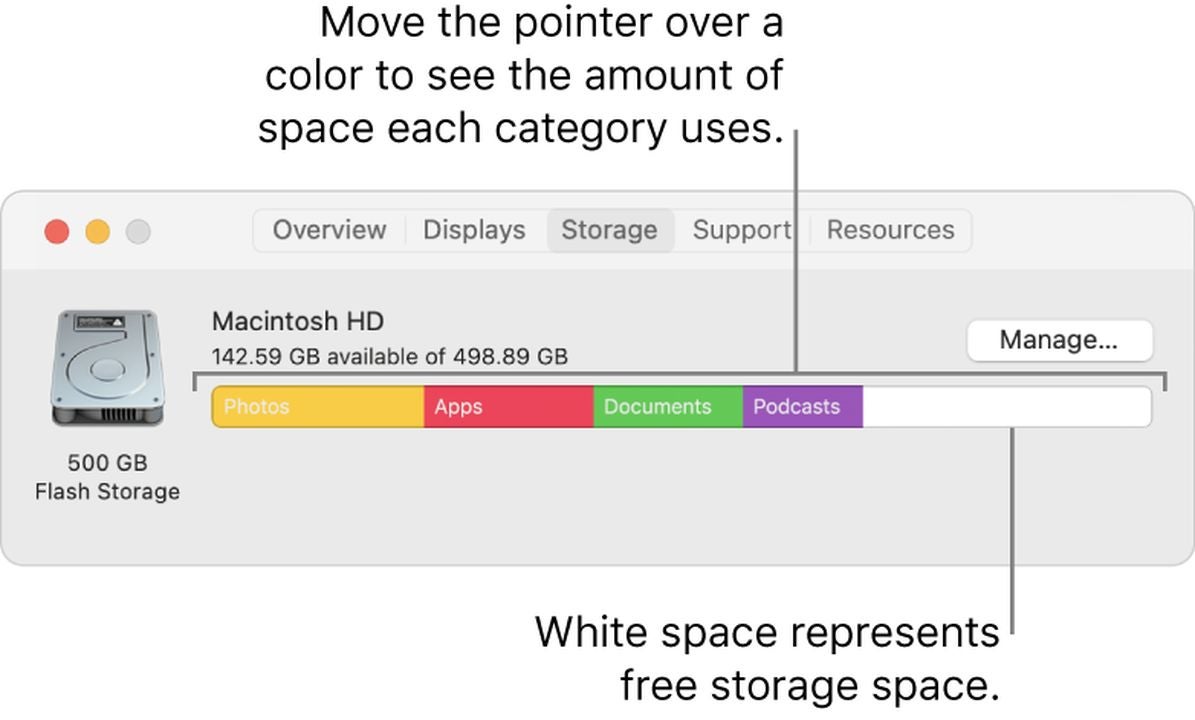
    Use storage management to clear space

    One of the most common reasons for an installation failed Mac OS error is a lack of hard drive space. If your computer can’t fully download the new OS version, it can’t install it properly.

    Most users need around 20GB of free storage. To check the space on your computer, open the Apple menu, click About This Mac and then Storage. If necessary, use the Manage Storage function to clear space.

  4. Make sure your computer’s time and date are correct
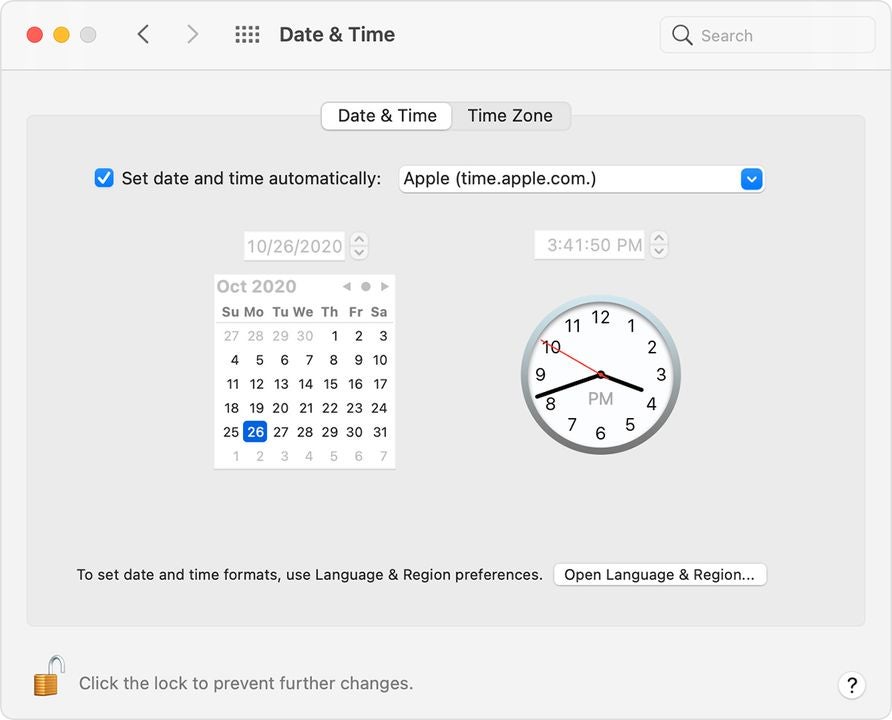
    A Mac screen displays the date and time

    Due to the way Mac designs their OS, it’s necessary for your computer to have the correct date and time. If your computer is using a time or date that doesn’t match reality, the contradiction gets in the way of the installation.

    Go to System Preferences and select the Date & Time option. Then click the Set date and time automatically option to bring your computer up to sync with local time.

  5. Download a fresh copy of your macOS installer
    A pink and purple macOS Monterey icon on a white background

    Many errors when installing macOS are due to a corrupt installer. If basic fixes aren’t working, go ahead and delete your installer. Once you get rid of the possibly-corrupt files, download a new copy.

    Depending on the OS you prefer, download from Apple’s website or the Apple App Store. Give the new copy a try. If it still won’t install, this indicates the problem is with the computer itself.

  6. Clear NVRAM and PRAM

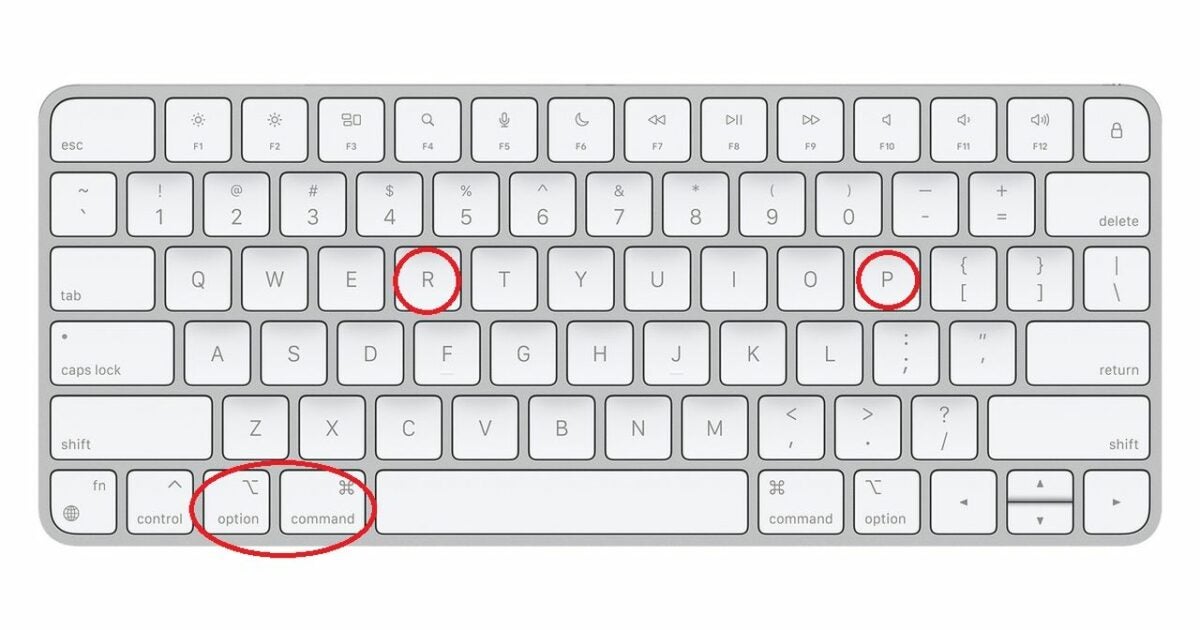
    A Mac keyboard with several keys circled

    The NVRAM and PRAM are the part of your computer that stores things like volume settings. Resetting them will get rid of any little issues that are causing the “Mac install failed” error.

    To do this, restart the Mac while holding the Option, CMD, P and R keys. The computer will make a second startup noise to let you know the NVRAM and PRAM are reset.

  7. Restore your computer from a backup drive
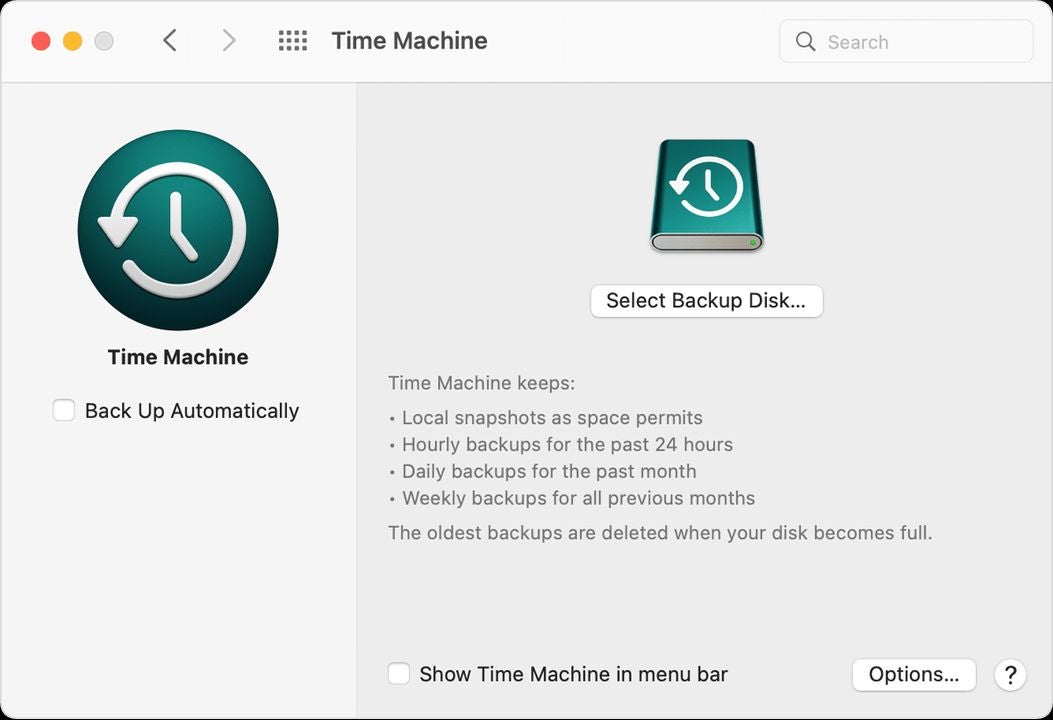
    Mac's Time Machine feature displays backup options

    Hopefully, you use Time Machine to regularly back up your computer. If not, make sure you upload all essential data to another storage device, because this technique will erase all pictures, documents, and other files.

    Once your data is secure, launch Recovery Mode on your computer. Select an earlier version of your computer and try installing macOS from there. This helps you work around recent errors and restore your computer to a functional version.

Final thoughts on troubleshooting Mac errors

By taking a few simple steps to tweak your settings, it’s usually possible to get your computer running again. Have more questions about troubleshooting the macOS? Check out our guide on how to fix lagging Mac apps.

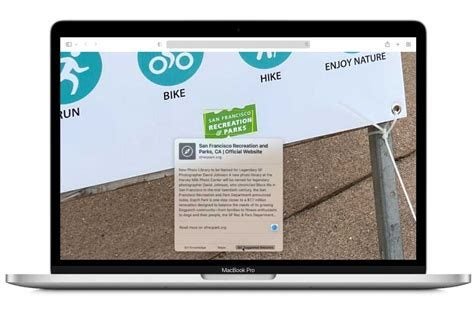
How to use Live Text in macOS Monterey

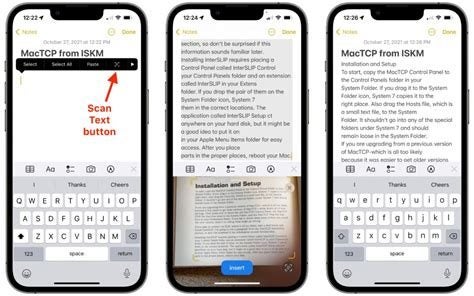
The latest Apple desktop computer operating system, macOS Monterey, introduced many exciting new features. One of the most useful is Live Text, the Apple version of OCR (Optical Character Recognition)

macOS Monterey DOWNLOAD

Instead of writing down the text, you find on a picture, note, or screenshot, you can copy and paste, translate, share, and save it on your clipboard. Live Text can recognize any type of text, including places, numbers, and addresses. This quick guide will show you how to use Live Text in macOS Monterey.

Where can you use Live Text?

To run Live Text on your Mac computer, you will have to have an Apple silicone chip and be running macOS Monterey. That is the operating system it was designed and introduced for, but you can also use it on an iPhone or iPad that runs iOS 15 or iPadOS 15.

Live Chat also works with Apple apps like Photos, Quick Look, Preview, and Safari, although not all features might be available in the search engine. 

How to use Live Text in macOS Monterey

Here’s how to get texts from images. You can copy it and then place it elsewhere.

  1. Open image with text

    How to use Live Text in macOS Monterey

    Launch the app you want to use and open an image with text.

  2. Move cursor

    How to use Live Text in macOS Monterey

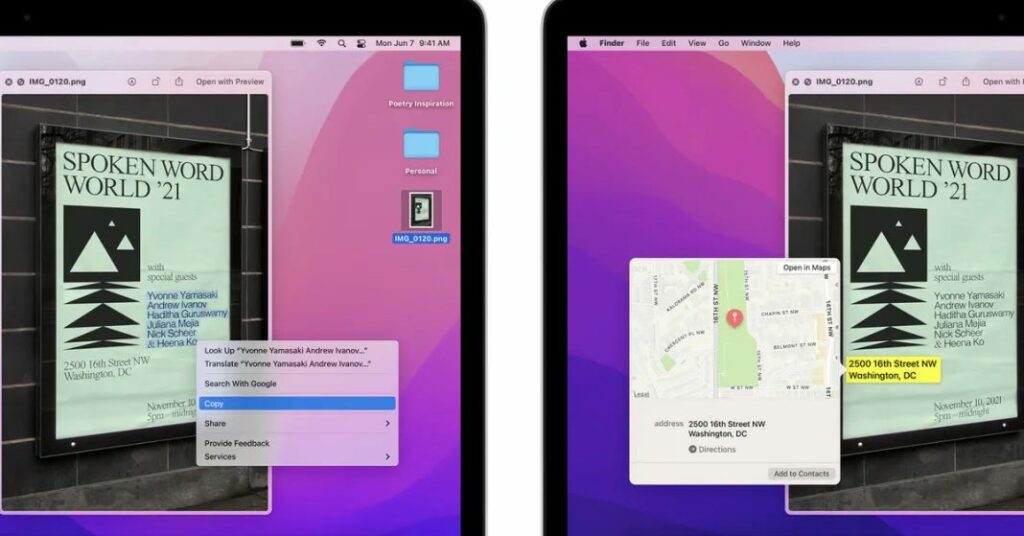
    Place your cursor above the text in the image. The cursor will switch to the text selection tool. If you want to select a word, double-click. To select the whole sentence, triple-click on it. To make your selection manually, drag the cursor over the whole paragraph or as much text as you want to copy.

  3. Access Context options

    How to use Live Text in macOS Monterey

    Right-click or Control-click to open the Context menu, where you can access options for what to do with the text you have selected, like Copy or Look Up and Share.

What Live Text can do for you on macOS Monterey

Live Text gives you many options for easily getting texts from images. Here are some of them:

Copy text from photos

Press Command+C or right-click on the text and select Copy. Open the desired destination and paste it. If you have enabled the Mac Universal Clipboard, you can even paste the text onto an iPhone or iPad.

Drag and drop text between Mac apps 

You can drag the text you have selected from an image and drop it into another supported app or text field. You can even drop the text on the desktop, and Mac will create a .txt file for it. However, if your text is in Safari, you can’t drag it to another app but will have to copy and paste it manually. You can drag and drop text and photos across apps on your iPhone using iOS 15

How to use Live Text in macOS Monterey

Look up text from images with Live Text 

When you right-click on the text, the Context menu will pop up. There you can Select Look Up “text” to learn more about it. Siri knowledge, Siri suggested websites, dictionaries, news, and movies can pop up to help you learn more about the text you have selected. 

Translate text in images in macOS Monterey

From the Context menu, select Translate “text”. The translation, in the system’s default language, will pop up in a new window. If you want to change the language in which the text will appear, you can click the drop-down icon and change it to one of the other languages available.

How to use Live Text in macOS Monterey

Search the web for selected text 

You can also search the web using Safari to find more about the text you have selected from the image. Select Search with Google from the Context menu. A Safari tab with search results will open immediately.

Share the text in images with others

You can message or email the text you have selected to someone or save it to Notes or Reminders. Select Share from the Context menu and select the preferred option. 

How to use Live Text in macOS Monterey

Make a call, or send an email

If the image has a number, postal address, email ID, or website, you can add it to your contacts, call it, text, get directions, send an email, or visit the website. You don’t even have to select the text to do this. You can take the cursor near it and click the down arrow that will appear. Click it, and the Context menu will show where you can select what you want to do.

Speak the selected text in macOS Monterey

Safari mixes its default Speech feature with Live Text. It can then convert the selected text to speech. From the Context menu, choose Speech and select Start Speaking

How to use Live Text in macOS Monterey

Live Text makes text easier to work with

Apple’s Live Text removes all the hassle of getting texts from images. With the new feature, you can save or use the texts in many ways afterward, which is bound to become a very popular feature among the many offered by Apple’s versatile new operating system, macOS Monterey.

What Is MacOS Monterey and How to Use It?

MacOS 12 Monterey is the latest version of the Mac operating system. This version was released on 25 October 2021, and despite being smaller than the previous version, macOS Big Sur, it still has many useful features.

Along with the new features, there are also many optimizations for existing functions of the operating system (OS). This includes widened capabilities for the FaceTime app, and even the Messages app has seen improvements.

It is important to note that with the release of the macOS Monterey version, Apple will no longer offer support for older Mac models released between 2013 – 2015.

What is macos monterey, how to use it

What Is MacOS Monterey?

MacOS Monterey is the newest operating system. It has been designed to work seamlessly across all Apple products. It is more customizable than previous versions and lets users share content across iOS and iPad like never before. 

Apple was reported saying that this latest version will provide users with new ways to connect, get more done and work seamlessly across all Apple devices.

What Are the Main Features of macOS Monterey?

Now that we’ve covered what macOS Monterey is, let’s look at some of the new features released in this version.

Universal Control

This is probably one of the most significant new features to be released. This feature was not available with the initial release of Monterey as it was still in beta, but we look forward to testing out this feature.

This feature will allow a single mouse, keypad, or keyboard to be used across multiple Apple devices. Users will also be able to drag files from one device to another with their chosen mouse. This feature is meant to increase productivity and let users work with fewer interruptions. 

Airplay for iMac

This new feature will let you stream what is on your Mac to any other Apple devices, such as Apple TV, iPhone, or iPad. This means you can stream series, movies, or games from your Mac to your other devices seamlessly.

iOS Shortcuts App

Shortcuts were originally available on iOS and iPadOS 13, but the app is coming to macOS Monterey as well. You will then be able to use pre-installed shortcuts, or you can access the ones that you’ve already created on your iPhone or iPad.

This will allow you to also use shortcuts to communicate with your smart household products such as the Apple TV or smart kettle. You can also create new shortcuts to improve your workflow directly on your Mac.

Focus Mode

This feature is excellent for anyone who tends to get distracted easily or if you work from home. Focus mode lets you set up profiles on your Mac, where you limit the notifications and alerts that come through. This way, you can ignore the minor disturbances when you need to concentrate on specific tasks. Once you enable focus mode, it will also trigger other linked Apple devices like your iPhone and iPad.

There are preset modes already set up. These include ‘Do Not Disturb,’ ‘Commuting,’ ‘Driving,’ ‘Personal,’ ‘Sleep,’ and ‘Work.’ You are also able to create your own profiles. There is also a setting that will notify anyone in Messages that you have Focus Mode on if they try to contact you during this time.

Shared With You

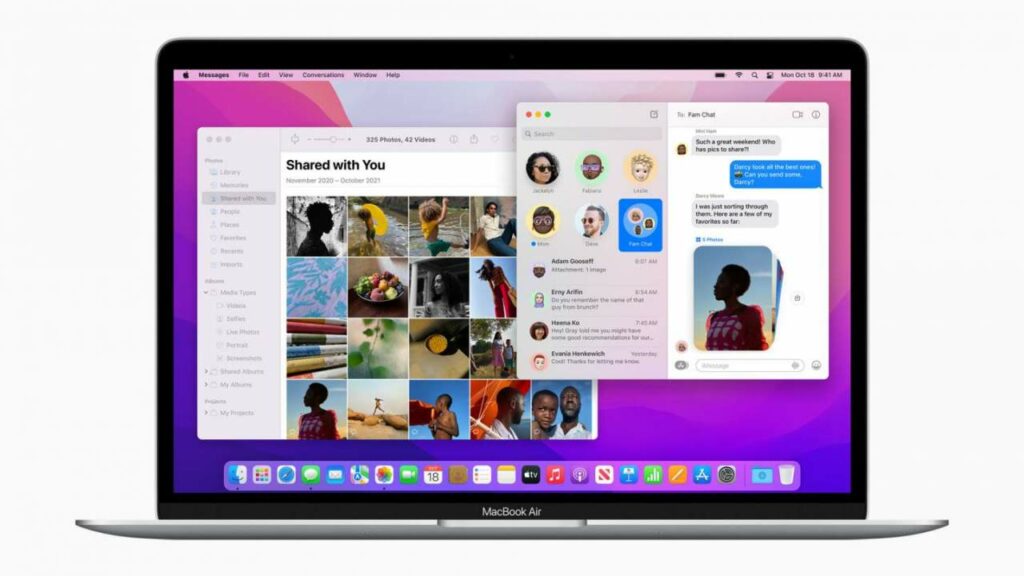
This is a new way to organize all the photos, images, and links sent to you. When you open Apple-specific apps like Messages, Photos, Safari, Apple Music, and Apple News, you will see a new spot called ‘Shared With You.’ This is where all these files will live.

You can now easily access and search for these files. They will also include the details of who sent it to you and the date you received it, making it even more convenient to find the files you are looking for.

Quick Note

Now you can easily access your Quick Notes by just pressing the ‘Globe’ + ‘Q’ key or clicking in the bottom right corner of the screen. With these notes, you can drop links, photos, files, and more. 

You can also add other people to a specific note, similar to how Google Docs works. These people would then be able to make changes and adjustments to the note that is visible in real-time.

Safari Tab Groups

Aside from the other small improvements made to the Safari browser. Some of these include seeing more of the webpage as you scroll, the tab taking up the color of the webpage you are on, and simplifying where you find the toolbar and search field.

Aside from this, Safari can also group tabs. This is ideal if you work on multiple projects and need to navigate between them without losing your current tabs.

Live Text

This feature makes use of on-device machine learning to detect any text in photos. Once the text has been detected, you can copy and paste it into your Quick Notes or Messages. The feature will also identify phone numbers and ask if you want to call the number.

The feature will also identify website addresses and prompt you to open any links or websites shared. The feature will also identify addresses and prompt you to open your maps to the address.

What is macos monterey, how to use it

What Devices Support macOS Monterey?

This latest version, macOS 12 Monterey, is available on the following Apple devices:

  • MacBook Pro (2016 and newer)
  • MacBook (2016 and newer)
  • MacBook Air (2018 and newer)
  • iMac (2017 and newer)
  • iMac (5K Retina, 27-inch, late 2015)
  • iMac Pro
  • Mac mini (2018 and newer)
  • Mac Pro
  • iPad Pro
  • iPad Air (third generation and newer)
  • iPad (sixth generation and newer)
  • iPad mini (fifth generation and newer

When and Where Can You Get macOS Monterey?

As we mentioned, MacOS Monterey was officially released on 25 October. This is also a free release, so if you have a Mac computer that supports this version, you can download and install it for free. You can download MacOS Monterey.

If you update from the Mac Sierra version or newer, you will need about 26 GB of available storage to install Monterey. If you are trying to update a version older than Sierra, we recommend having at least 44 GB of free space.

More Tips and Tricks for Using the macOS

If you want to learn how to use the Mac operating system like a pro, here are some more guides to help you learn the ins and outs of Mac.

What is macos monterey, how to use it

Final Thoughts

The release of macOS Monterey is exciting as it is the biggest release since Big Sur in November 2020. Although there aren’t quite as many new features as its predecessor, the features we did get are good ones. They are ideal for improving productivity and workflow as well as integrating seamlessly with other Apple devices.