The top 7 most useful features of Notepad++

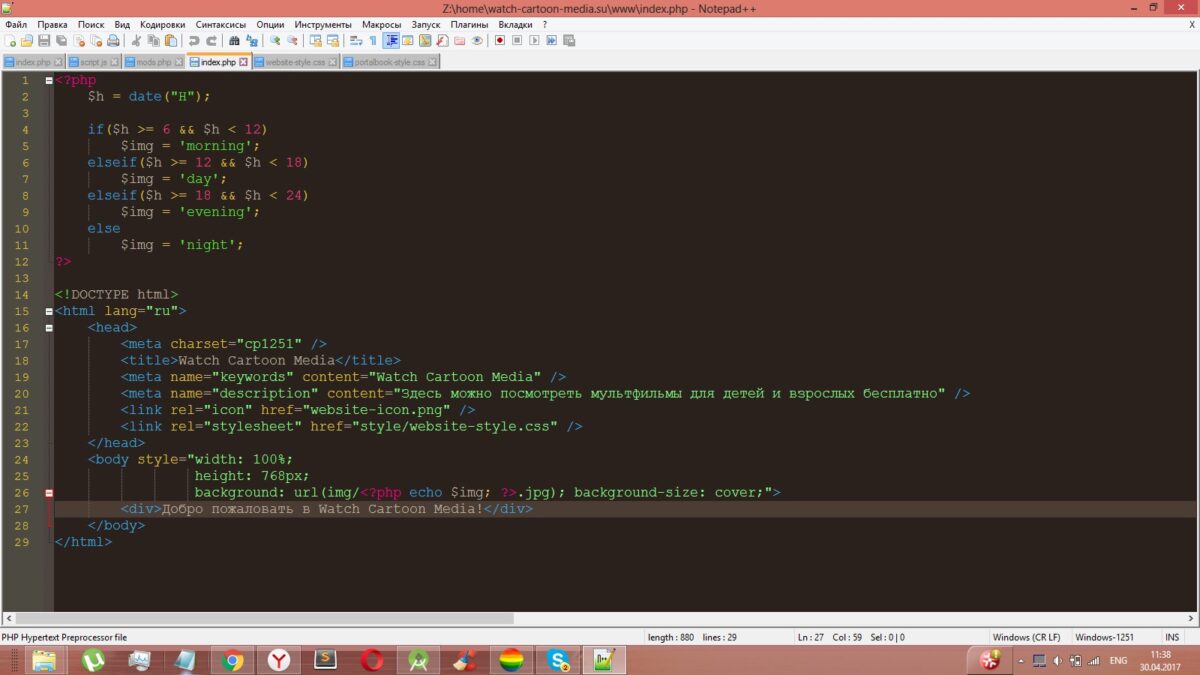
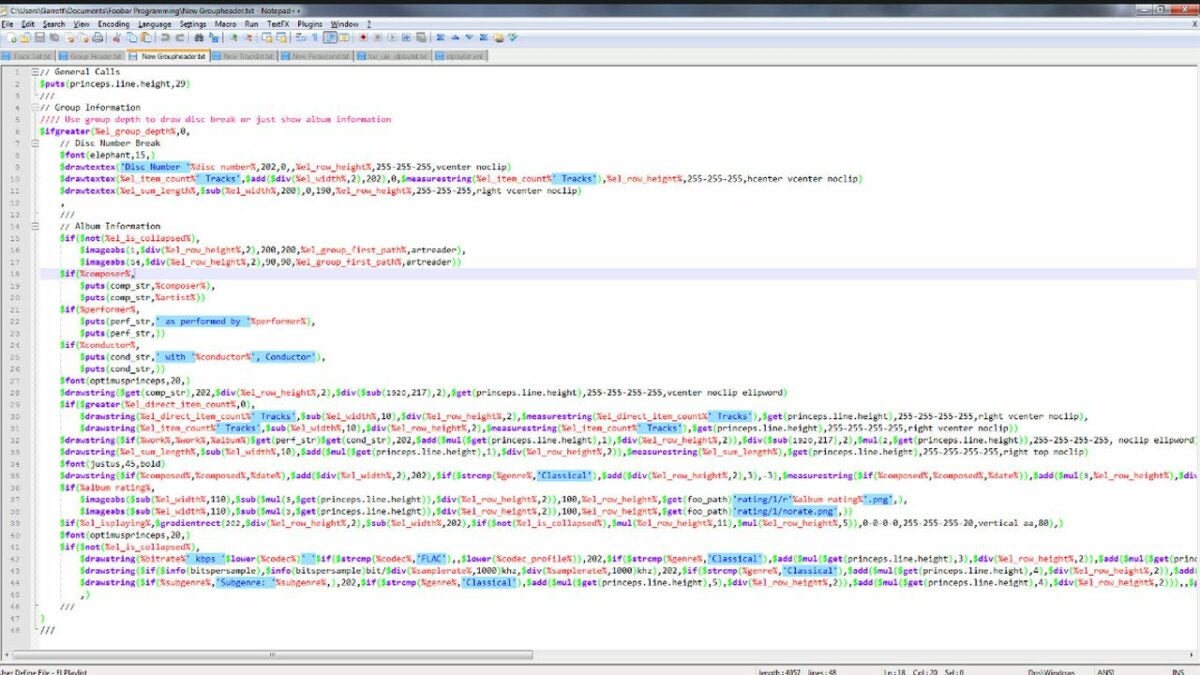
Notepad++ is a completely free source code editor that doubles as a replacement for the Notepad software that comes standard on Windows. The added functionality of Notepad++ makes it a worthy upgrade and a powerful source code editing solution. To showcase why this software is so useful, here are the seven best features available in Notepad++.

Notepad++ Download

Targeted browser launching

When testing code for web development projects, it is common practice to have a specific browser in mind. Notepad++ allows you to set which browser your code will launch in at runtime, all in just one click. Hover over the Run tab at the top of the screen, and select run from Firefox, Chrome, or your supported browser of choice. Clicking your desired option will run the code within seconds.
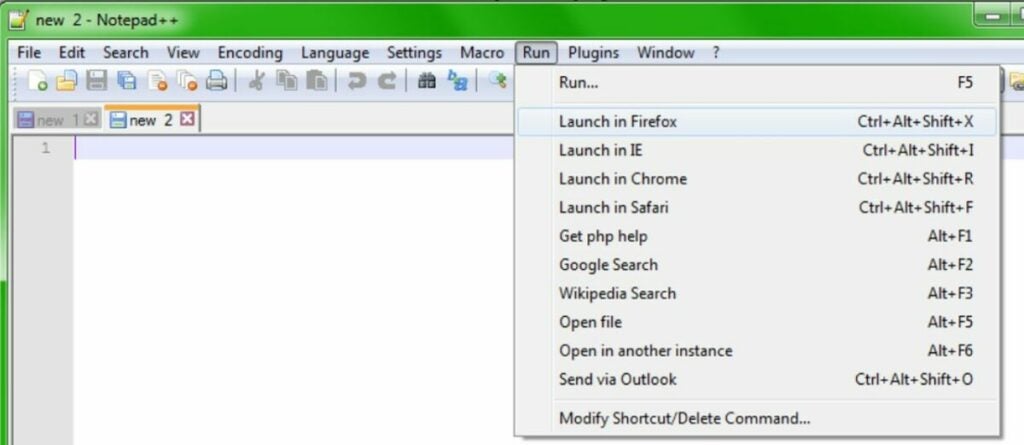
Launch into a specific browser with just one click

Automate work with macros

Next up is the ability to automate simple tasks with macro commands. Macros allow you to record your mouse or keyboard input and repeat it later with an automated script. You can record new loops and play old ones from the macros menu located in the same top section where the run menu is located. Simple tasks such as reformatting text can be completely automated with the proper macro.
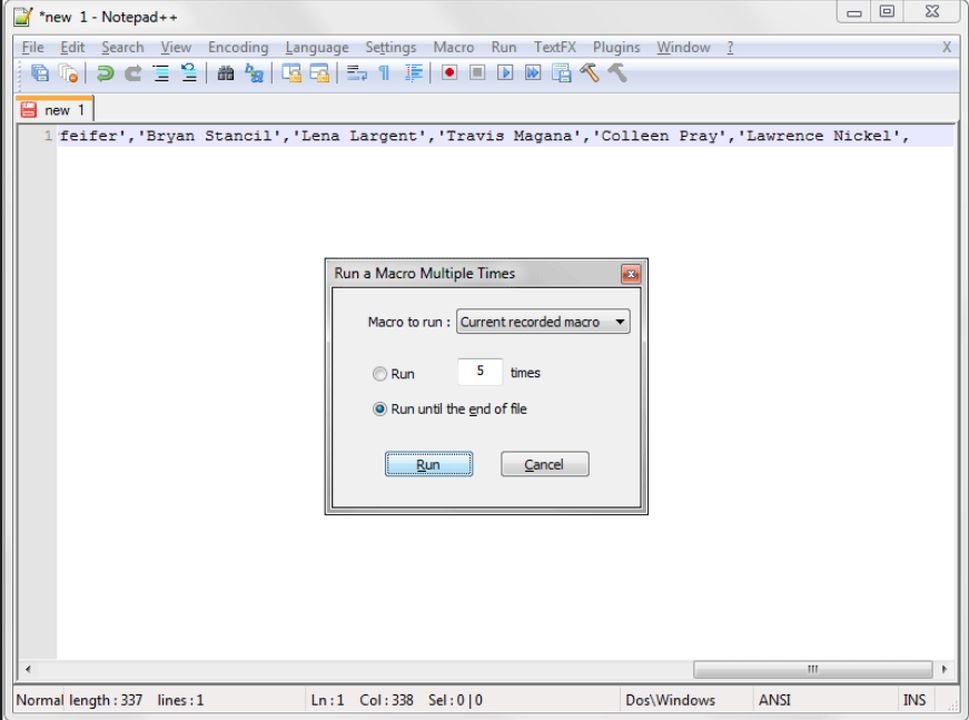
Run macros to save time and energy on simple tasks

Customize or create your theme

When using an app for extended periods, the inclination to customize the experience grows stronger. Notepad++ has many preset themes to choose from and even allows you to create your own. Just write the code, and save the file in .xml format. Then, you can import your file with the style configurator menu pictured above. The style configurator is also where you can change colors and select the premade theme templates that come with Notepad++.
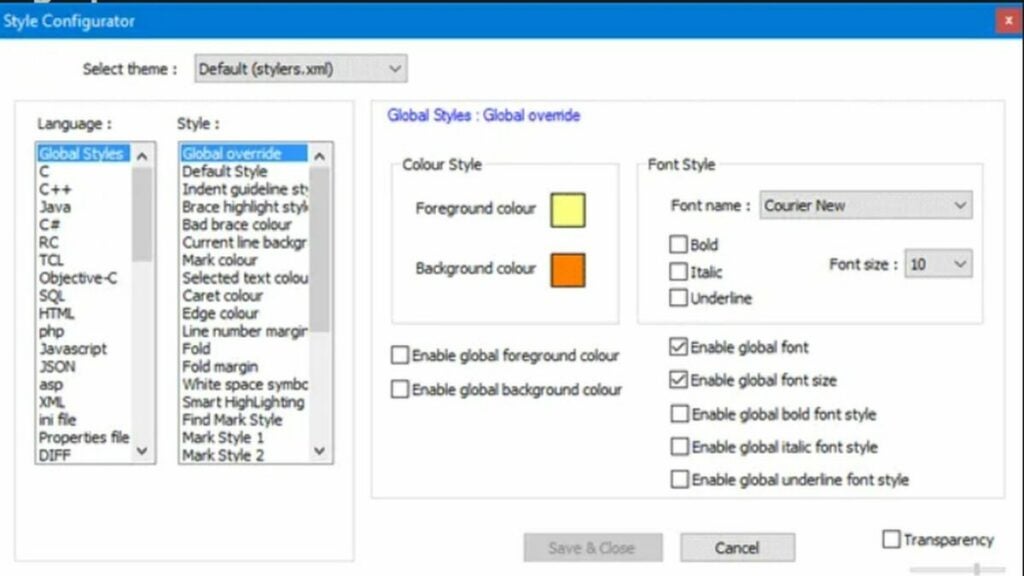
Customize the look of your software with created themes

Folder as a workspace

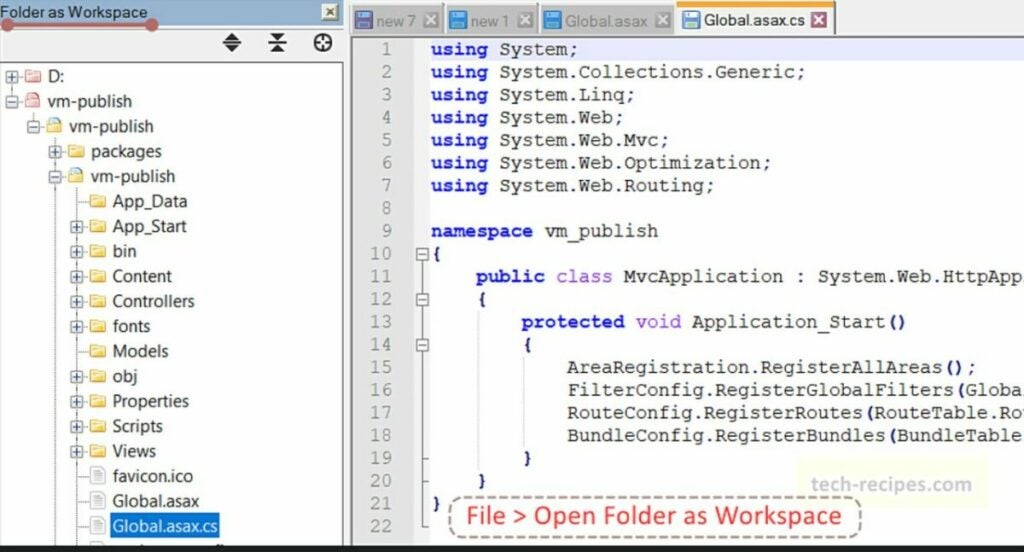
When developing large projects, you often have dozens of files to sort through that all belong to the same workflow. The folder as workspace feature allows you to view each item in a folder simultaneously with a specialized tree view. This allows you to stay organized and quickly navigate between the various files that comprise your project. With a folder selected, click File and open folder as workspace to enable this feature.

View everything in a project folder simultaneously

Find words and strings across multiple documents

Sometimes, you need to address errors that span multiple files. You can search for the relevant spot in each file where your targeted string is located. First, hit Ctrl + F to open the find menu. Type in your desired string and click the find all in all open documents button to search. Keep in mind that you must have all documents that you wish to check already open for this to work.
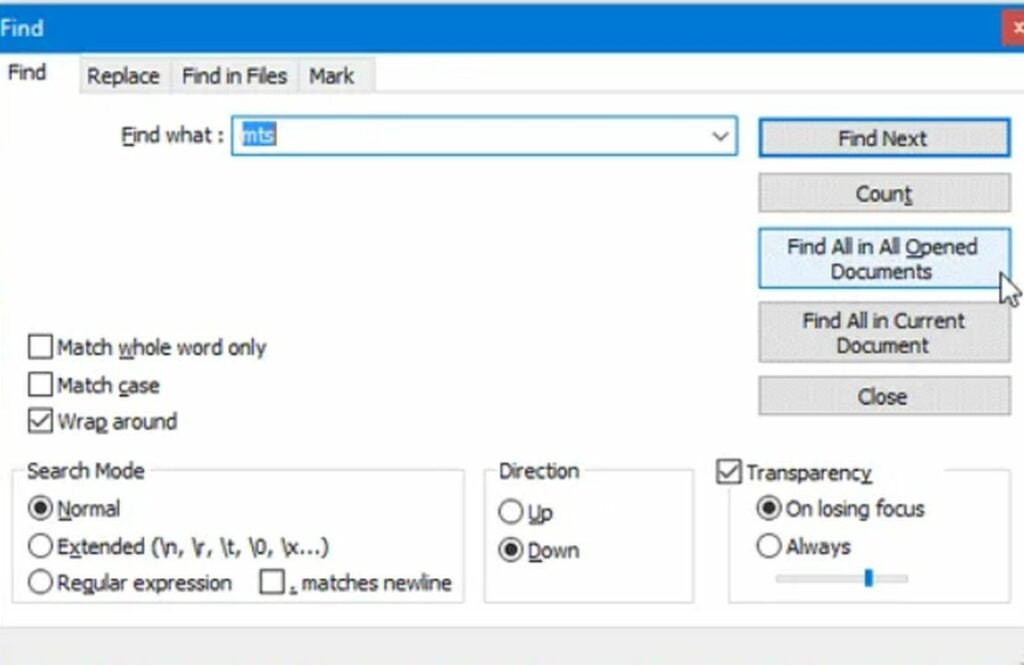
Find unique character strings across all of your files

Replace words and strings across multiple documents

In addition to just searching for strings, you can also replace them across multiple documents. This is perfect for when you rename a function or parameter. You can make changes across all instances at once without risking typos in different areas. To do this, hit Ctrl + H with all relevant documents open. Type your string into the field, and click the “replace all in all open documents” button to apply the edit. You can then save all the edited documents with the shortcut, Ctrl + Shift + S.

Replace strings in multiple files at once

Compare two versions of the same file

You can compare two versions of the same file for easy editing. With a file open, right-click and select clone to other view from the dropdown menu. This lets you choose previously saved versions of the file to view side-by-side for comparison and bug hunting.
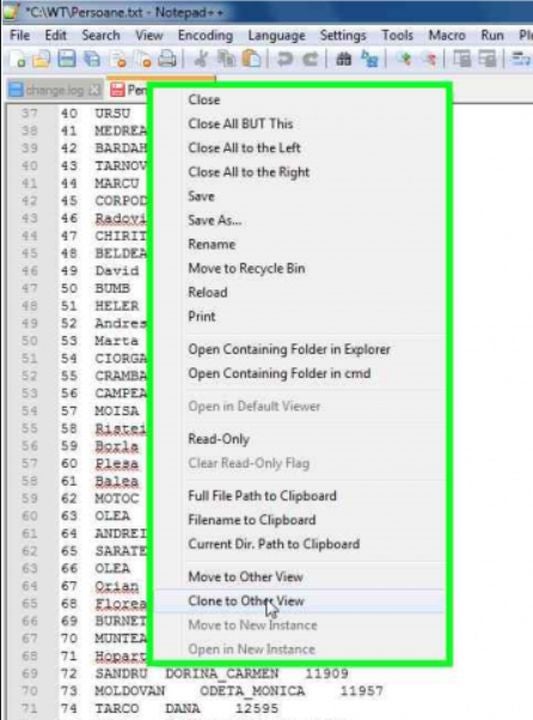
View a side-by-side comparison of two versions of the same file

This is just a sample of what Notepad++ can do

The robust feature set of Notepad++ does not stop with the seven useful features listed above. There is so much more for advanced users to dive into. For instance, the automerge feature. This article explains how to condense multiple data points into a single line of code and save loads of time.
How to use Automerge on NotePad++

Notepad++ is a Powerful Text Editor, ideal for creating plain text files and editing plain text. It’s mostly used to write code for programming. Although it seems similar to a Word Processor, such as Microsoft Word and Google Docs, it isn’t one.

Notepad++ DOWNLOAD

Word processors offer different fonts, text colors, and other features to make your documents look good. But code must be written in plain text and be able to handle many coding languages, like HTML, JavaScript, CSS, PHP, Python, and Ruby. For that, you need a Text Editor, especially when working out how to use automerge on Notepad++.

Why use Automerge on Notepad++ 

Notepad++ is not new. That it’s still around and millions of people download it speaks volumes for how useful the code editor is to have stood the test of time. It has multiple features that simplify coding, including syntax highlighting and folding, search/replace, multi-document editing, PCRE (Perl Compatible Regular Expression) auto-completion, zoom in and zoom out, macro recording and playback, WYSIWYG printing, bookmarks, and more. 

The issue comes in when you have different lines of data that you want to merge into one line of code so you don’t waste time. The Automerge feature assists in this regard, but you may need to play around with programming to get it right. It’s almost similar to using a function in Excel to bring data from a range of cells into one block.

Using Automerge on NotePad++

  1. Install a plugin

    How to use Automerge on NotePad++

    The automerge feature in Notepad++ remains the same in the upgrades. The Notepad++ text editor supports plugins for various features, including automerging two or more texts. The plugin is called Combine. Download the plugin and copy the combine.dll file to the Notepad++ Plugins folder. Restart Notepad++

  2. Merge files

    How to use Automerge on NotePad++

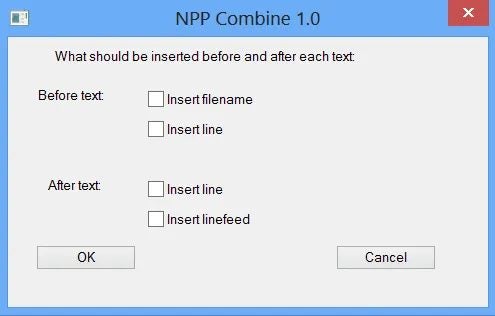
    The plugin works on all open files in Notepad++, so only open the files you want to combine. Open the files you want to merge in Notepad++. Click on Plugins-> Combine-> Start. It opens a pop-up, as shown below.

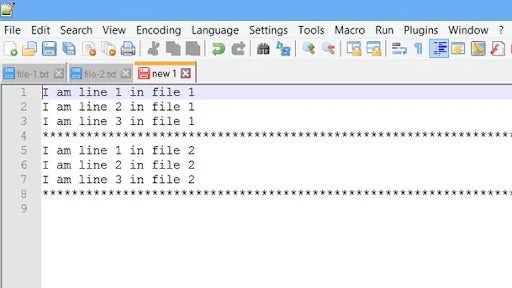
    Once they are merged, you’ll see the content in the new window.

Alternatives to Notepad++ for Mac users

You can run macOS on your Apple Mac devices by using Wine or VMware, but many people have found alternatives that they prefer to use instead. Among them are Mac applications Brackets, Textmate, Atom, and Sublime Text

Be sure to our complete guide for the best alternatives to Notepad++ on Windows.

Best 5 alternatives to NotePad++ on Windows READ MORE

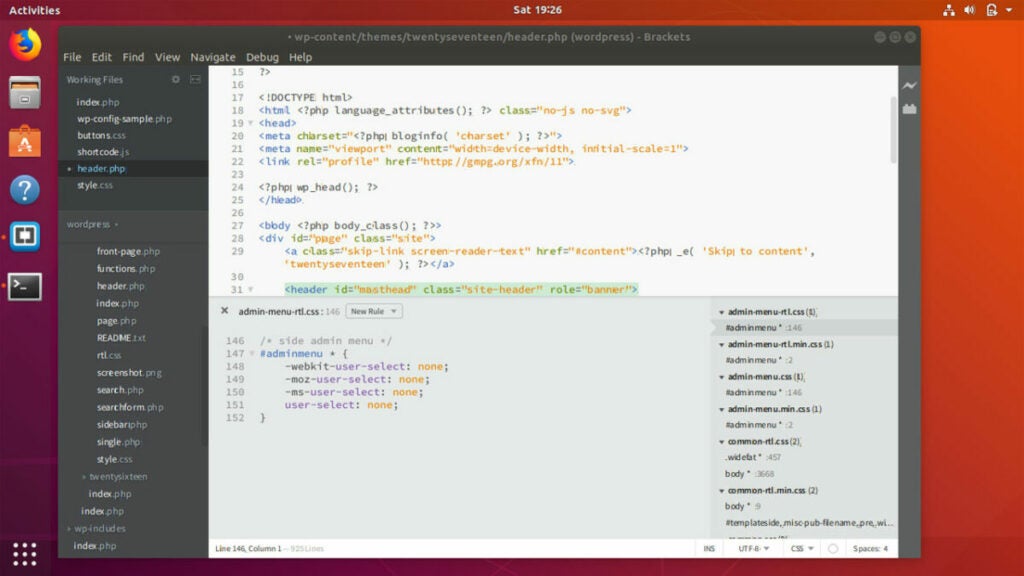
Brackets

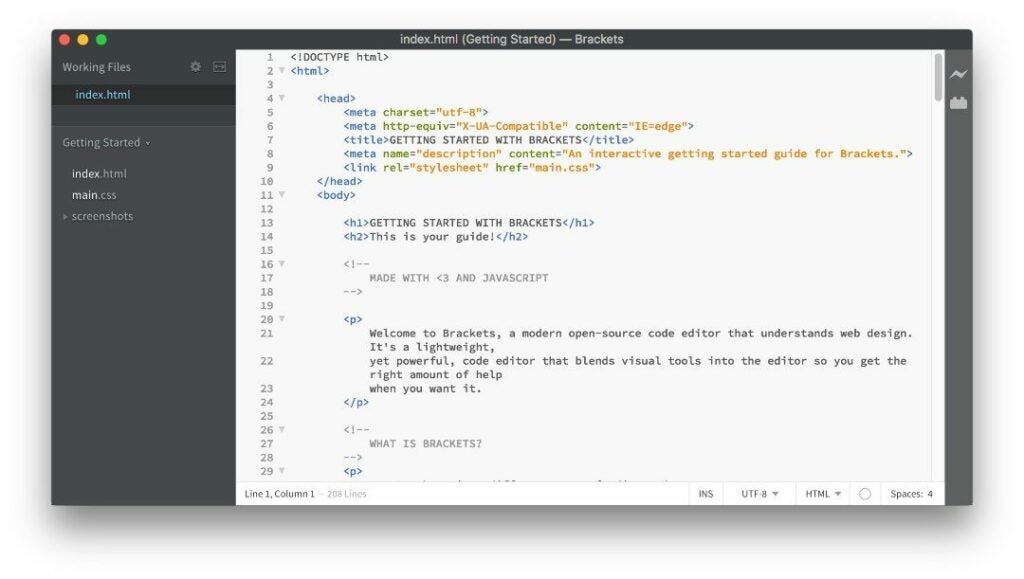
Brackets is a modern, open-source, free text editor popular with web developers. It’s very lightweight, so it runs very well even on older Macs. With its live preview, you can see changes to HTML and CSS files so that you can work on your code without pop-ups interrupting you.

Brackets DOWNLOAD
How to use Automerge on NotePad++

Textmate

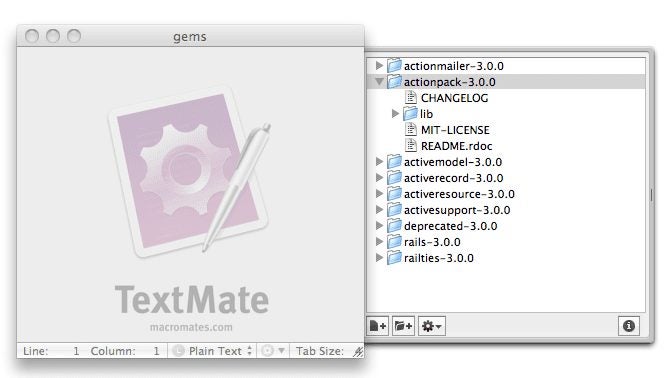
Textmate has many features, including searching and replacing text, auto-indenting, clipboard history, foldable code blocks, and allowing users to work easily with multiple files. Textmate also has macros, snippets, and a scoping system,

Textmate DOWNLOAD
How to use Automerge on NotePad++

Sublime Text

Sublime Text runs on macOS, Windows, and Linux. It supports split editing, customizable key bindings, menus, snippets, macros, and completions. You can download it for free, but you must buy a license to carry on using it. Despite this, it’s very popular with users across all operating systems.

Sublime Text DOWNLOAD
How to use Automerge on NotePad++

Atom

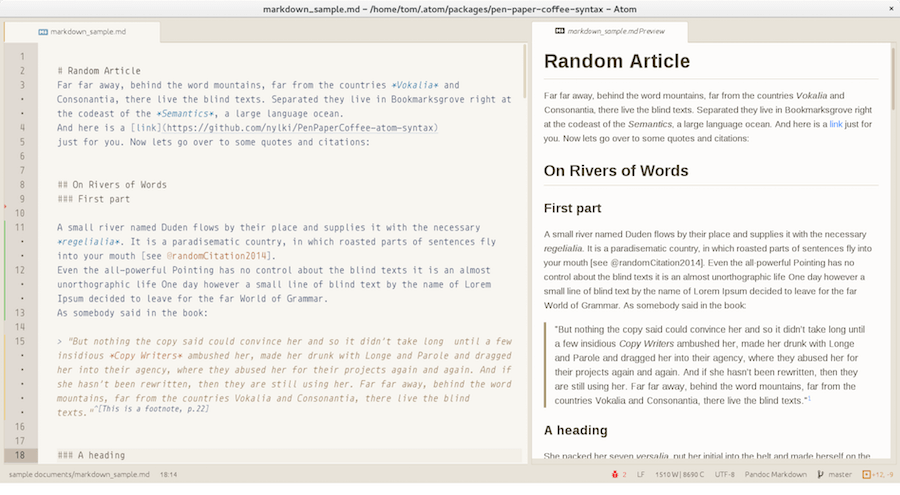
Atom has a big following when it comes to text editing. You can download it and all its customizable features from the Mac Store and use it to edit anything. You can even export your copy from it as pure HTML and then paste it into a document or blog post. 

Atom DOWNLOAD

Notepad++ offers a lot 

Notepad++ is free, open-source software released way back in 2003 by Don Ho. It’s written in C++ (hence the plus signs in its title.) Based on the editing component Scintilla, it was written for Windows but can be used on Mac operating systems. Its primarily used for writing code, and its library contains many features that assist code writing and editing, including error indicators, line numbering, and markers that serve as code breakpoints.

Because it’s free, has many unique features, and supports 84 languages, Notepad++ has been voted as the most-used text editor globally. Of 26,086 survey respondents on Stack Overflow worldwide, 34.7 percent said they used it daily.

Best 5 alternatives to NotePad++

Coding programs and games can be challenging, especially for beginners. Not only do you have to work out where to place specific pieces of code, but highlighting syntaxes in different formats is also helpful. It’s better if you have a program like NotePad++ that makes it easier and more efficient for you as a developer.

Notepad++ DOWNLOAD

While the open-source code and text editor is free and supplies several functions, it does have limitations. There are plenty of alternatives to NotePad++ that may suit the industry you’re working in better. Let’s take a look at them and what sets them apart.

What is NotePad++?

NotePad++ is a C++ code editor available in an open-source environment. You won’t have to pay to use it, which is why you’ll only find limited functionality available. Still, it’s served its purpose for more than 20 years, with amateurs and experts alike using it.

It has a plain text editor design with code-editing capabilities. When you insert new codes, NotePad++ will highlight syntax for various formats, such as JavaScript, PHP, J, CSS, and HTML. If you try it out and you notice it’s missing some advanced features you need, it’s time to look for an alternative.

Top alternatives to NotePad++

The list below contains a combination of free and paid alternatives to NotePad++. We leave it to your discretion which one will work best for you. If you end up with a paid program, we suggest you try a demo or trial first to ensure it gives you the functionality you need for your project.

UltraEdit

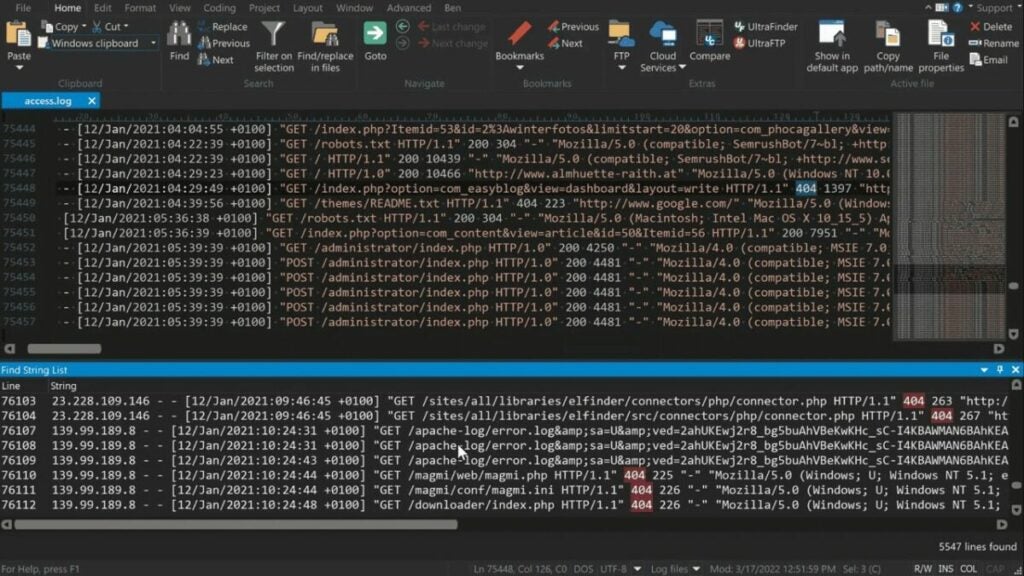
One of the top advantages of UltraEdit over NotePad++ is that it has a massive library of programming languages. It can also handle huge files without issue, which means you can easily code 4GB documents. The find and replace tool helps you quickly make changes to your code when there’s a large change request.

UltraEdit also lets you work in plain text when you’re not using any of the programming languages. You’ll find it easy to deal with macros or scripting, which is helpful when creating mods for games. Some other features include the auto-completion of codes, theme editing, advanced sorting of files, and the ability to encrypt and decrypt files.

UltraEdit DOWNLOAD
Best 5 alternatives to NotePad++

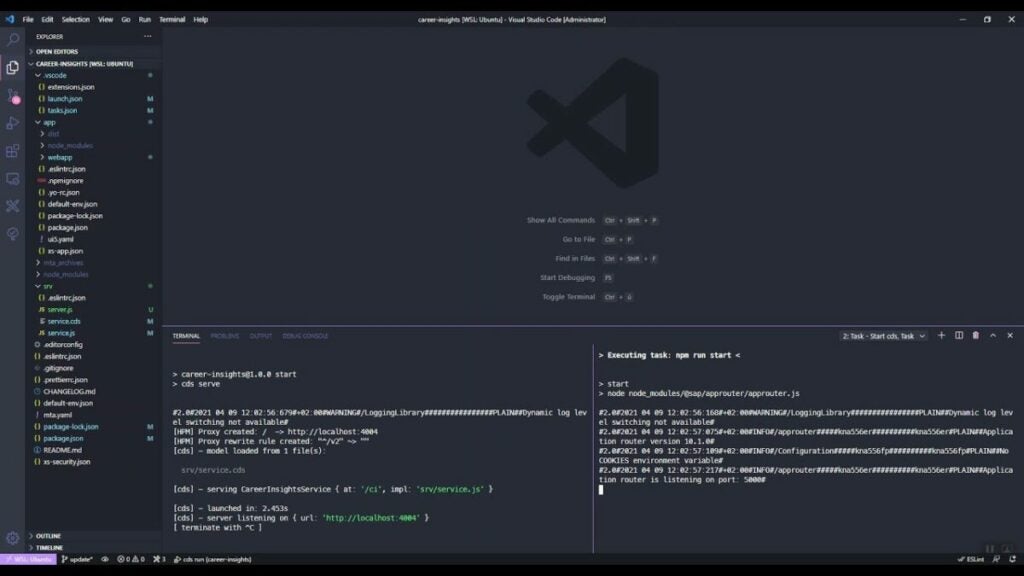
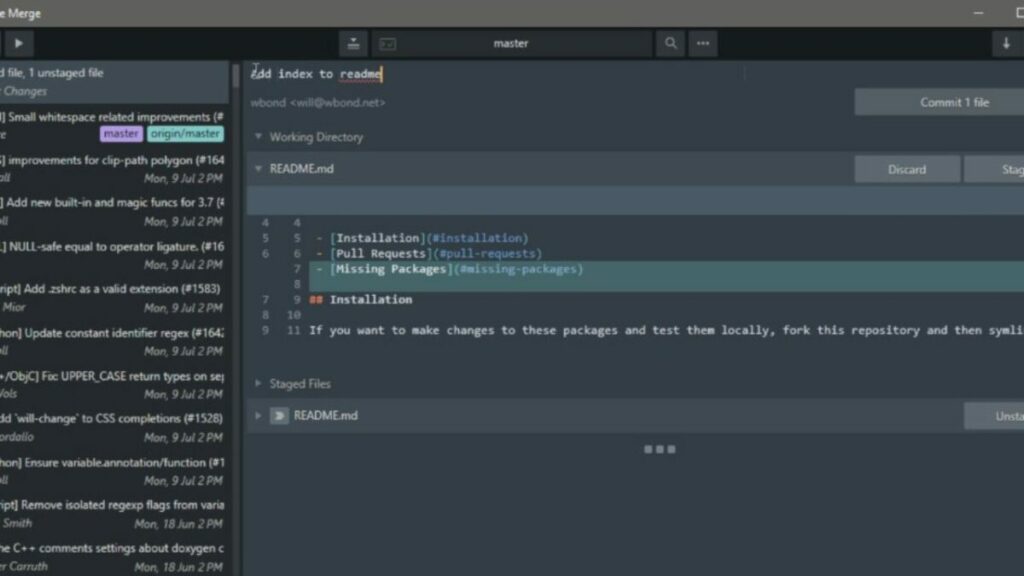
Atom

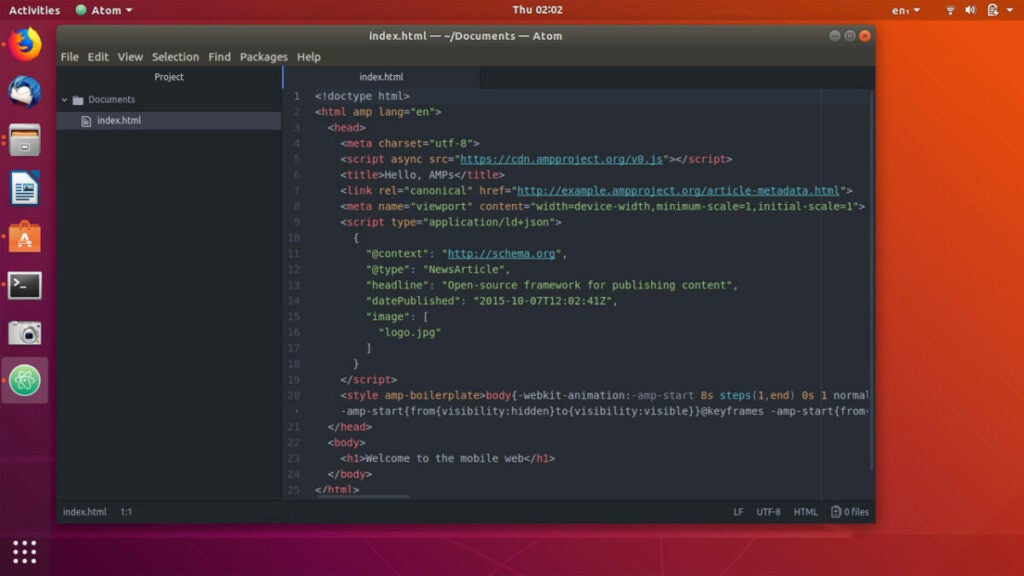
Atom looks at coding from a different perspective than NotePad++. It’s a desktop application you can use to alter or create your own text editor. It mostly uses C++ as the basis, but it also works on Windows with Node.JS integration, JavaScript, and HTML. Due to its ability to configure text editing tools, many consider it a hackable program.

Another ability that sets it as one of the top alternatives to NotePad++ is that you can change interfaces and themes on Windows with it. You’ll need extensive knowledge and skills to deal with debugging issues, though.  

Atom DOWNLOAD
Best 5 alternatives to NotePad++

Visual Studio Code

When it comes to popular names in the programming world, Visual Studio Code is certainly near the top of the list. I’ve actually spent extensive months working with codes on the text editor when coding for games I prepared for Unreal Engine 4. Its predictive text is outstanding, and the interface is exceptional for beginners and professionals alike.

One of the top features that makes it the ideal alternative to NotePad++ is that you can switch tabs and editors with ease. You can work on various functions simultaneously without having to open a secondary or tertiary program in the background. The dark theme and different colors for codes make it appealing to the eye, which is great when working on codes for several hours.

Visual Studio Code DOWNLOAD
Best 5 alternatives to NotePad++

Sublime Text

While Sublime Text allows for sophisticated programming, the user interface has a minimalistic design so you don’t become lost or overwhelmed in your code. As with Visual Studio Code, you can open different tabs to work on separate documents simultaneously

You’ll almost have every programming language at your disposal, adding the likes of Python, PHP,  and SQL as alternatives to what NotePad++ offers. When it comes to syntax highlighting, it’s one of the most advanced forms we’ve seen from the others on this list. Overall, every function is designed to make your coding life easier.

Sublime Text DOWNLOAD
Best 5 alternatives to NotePad++

Brackets

While not as complex or sophisticated as Sublime Text or Visual Studio Code, Brackets still stands as a viable alternative to NotePad++. It works on your browser so that you don’t need to install massive files or programs. You’ll mostly find front-end developers or website designers using it.

What makes it stand out is that Brackets merges several visual tools and cues to quickly help you during coding. It has a clean interface that makes it easy to find functions when you’re in a hurry. Since you’re working on a browser, you can quickly see a live preview of your work.

Brackets DOWNLOAD
Best 5 alternatives to NotePad++

What are the disadvantages of Notepad++?

Why would you be looking for an alternative to NotePad++? Well, there are some disadvantages, some of which we’ve already listed. One of the most significant ones is that it only caters to Windows platforms, so it’s not multi-platform like the others.

If you’re a beginner at coding, there are not many aids to show you your errors. That means you’ll spend a lot of time more time debugging than you need to. It also made the programming look confusing at first. Visual Studio Code stands out in our minds as the best alternative for the advanced user interface.

Finally, NotePad++ looks outdated when compared to many of the listed alternatives. Sadly, there’s no way to integrate it with the plain text NotePad you’ll find as a default app on Windows devices, which would have been a nice touch. 

Possibly the end of an era

With more than 20 years of existence, NotePad++ is losing face to the more advanced code editors available today. Sure, it’s still useful and many beginners may enjoy what it has to offer. It’s certainly handy if alternatives like Visual Studio Code look intimidating. However, we can’t recommend it over any of the options we’ve listed above.