There are high hopes forthe Ubuntu Phone: users of the well-known PC platform are hoping for a quick and seamless integration between desktop and mobile phones. Unfortunately, the reality is very different. Today, Ubuntu Phone is still relatively unknown, but its showing at Mobile World Congress leads us to believe that this might change very soon.
During today’s events at MWC, we had the opportunity to talk with developers from Canonical, who make Ubuntu Mobile. Here’s what we learned:
Project Ubuntu for smartphones hopes to see quicker development thanks to two partners who have agreed to install the operating system on their phones: BQ and Meizu.
The Ubuntu app store is continuously growing. Developers can already upload programs written in HTML 5, and the company has reached out to leading developers, like Instagram, although it’s still too early to tell which major apps will be available.
By the end of the year, the mobile and PC operating systems will look exactly the same.
Ubuntu Phone will be updated the same way as the PC system. This will help avoid fragmentation, like we’ve seen in other systems (e.g. Android).
Canonical works with many mobile networks around the world, which will lead to better visibility of their phones, although its still unknown which markets it’ll tap.
The Ubuntu booth at MWC also gave attendees the opportunity to test out the OS on their own Nexus 4’s. After downloading and installing the OS, you can choose to run your phone on either Ubuntu or Android operating systems.
It seems as if there’s still a lot of work to be done with the Ubuntu OS. Nevertheless, it already has a well-known name, easily recognizable brand, and good connections with phone manufacturers and mobile carriers.
What’s missing? Definitely some more interesting apps.
The Ubuntu Forums site suffered a hacking attack that has resulted in all usernames, passwords, and email addresses being taken. While the passwords were encrypted, if you use the same password on another service, you should change your password on that service as soon as possible.
The site is still down at the time of writing. The problem was discovered on Saturday, and the site was taken offline just four minutes later! Currently there is a splash page in place, while the hack is investigated. It’s surprising to see an Ubuntu site being hacked – it’s not the kind of huge faceless corporation that a group like Anonymous would attack, for example.
Whatever the reasons for the attack, Canonical, the organization that leads the Ubuntu project, has to be commended for it’s fast and open response to the attack. It is very clear about what has been compromised, and what its users should do to protect themselves.
Like the Apple Developer Program hack, this story highlights the importance of having a different password for the different services you use. Remembering so many passwords can be daunting, which is why many of us don’t bother. Luckily there are apps that can help – 1Password or LastPass are both excellent ways to manage multiple passwords safely.
Firefox OS and Ubuntu Phone have captured most of the headlines at the Mobile World Congress 2013. We already knew a bit about each but the Barcelona show has seen both platforms step into the limelight.
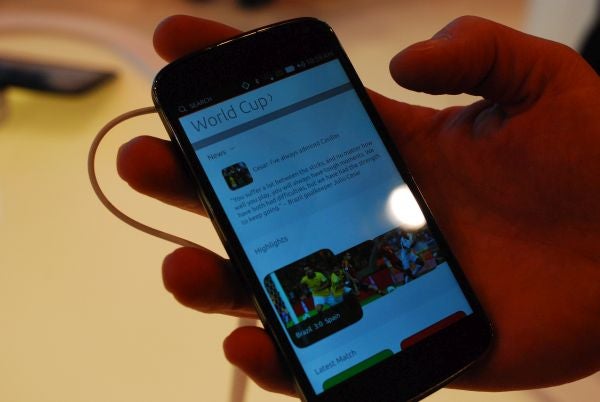
The developer preview of Canonical’s Ubuntu Touch OS was released last week and now we’ve finally got a hands on demonstration of how it works. Canonical gave a demo at their booth at Mobile World Congress in Barcelona, Spain.
For an early developer preview, the software seems to be fluid and functional. The core applications all seem polished, although it’s hard to tell without getting our hands directly on the OS. The most impressive thing about Ubuntu Touch is the ability to multitask. You can run a phone style app in a little column while running another app behind it or to the side. This feature mimics Windows 8’s Snap feature.
Ubuntu Touch still has a long way to go in order to be a viable competitor in the mobile OS market. Canonical still hasn’t shown off any 3rd party applications, which it will need to succeed. The projected release of the final software is in early 2014, which is quite a long way in the future. Can Ubuntu succeed in this crowded space? Watch the video and decide for yourself.
As Canonical promised, the developer preview for Ubuntu Touch is available to download and install right now. Ubuntu Touch only works with a handful of Nexus devices at this point (excluding the Sprint and Verizon Galaxy Nexus). If you have a Nexus device, you can try out Ubuntu’s mobile operating system for yourself. A word of warning though, this is a very early developer preview so bugs are going to be plenty. Canonical also includes instructions on how to restore Android onto your device after you’re done testing it.
You’ll want to check carefully if your device supports the software. The binaries available are for the Galaxy Nexus (GSM unlocked ‘maguro’ version only), Nexus 4 ‘mako,’ Nexus 7 ‘grouper,’ and Nexus 10 ‘manta.’ The installation is a bit complicated and inexperienced users may brick their devices. If you haven’t unlocked or rooted your device before, you’ll want to learn how to do that before installing Ubuntu Touch.
While you wait for the operating system to install, check out the video below to see what features you can look forward to.
At this point there aren’t many apps to test with Ubuntu Touch but you’ll be able to try out the core Ubuntu experience. Hit the source links below to download Ubuntu Touch and for instructions on how to install it.
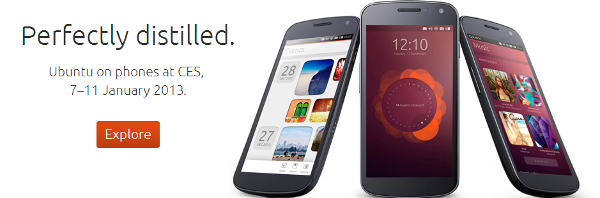
This Thursday Canonical will release its first developer preview of its Ubuntu for Phone operating system. Canonical has also confirmed that it will be launching a tablet optimized version of Ubuntu the same day.
The developer preview will work on a limited selection of phones, which includes the Galaxy Nexus, Nexus 4, Nexus 7, and Nexus 10. With this release Canonical hopes to attract developers to its platform to create enough applications for its October 2013 software launch (hardware will launch in Q1 of 2014).
With a tablet optimized version of Ubuntu, Canonical is setting the stage for a complete Ubuntu ecosystem from the TV to tablets. Interface elements of Ubuntu for phones will make its way onto the tablet version as well, but will feature powerful multitasking and a tablet optimized experience. Ubuntu for tablets will be able to run two applications simultaneously by swiping in from the right. This looks strikingly familiar to Windows 8’s “Split View” implementation that allows Modern UI apps to be run in a side bar. Continue reading “Ubuntu for Phones developer preview launching February 21st, will include tablet version “
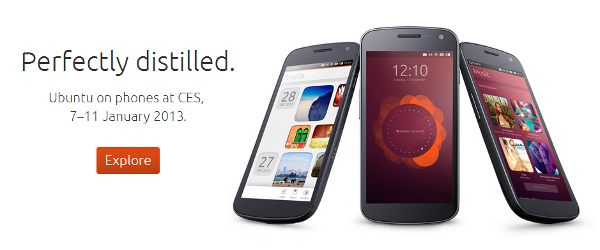
Today Canonical, the company behind the Ubuntu operating system has announced its mobile operating system. Simply called Ubuntu for phones, the mobile OS is the final step in creating a cohesive ecosystem for Ubuntu users. Ubuntu users will now be greeted with the same minimalist and intuitive experience on their phones.
While the new operating system looks promising, it is up against stiff competition with iOS and Android dominating mobile. Mozilla also has yet to release their Firefox OS for mobile devices. While both Ubuntu and Firefox OS support HTML5 based apps, only Ubuntu will support natively coded applications for their operating system. Ubuntu for phones also touts its ability to be secure enough for enterprise and easy to use enough for consumers.
Ubuntu is a Linux operating system built on the idea that software should be free. It includes thousands of software applications covering everything from word processing, email, programming languages, spreadsheet applications to games. There are three editions: Ubuntu Desktop for PCs, Ubuntu Server for the cloud and servers, and Ubuntu Core for embedded environments.
Canonical Ltd sponsors the Ubuntu Project. The company will not charge license fees for Ubuntu, now or in the future. Ubuntu is closely related to Debian, the framework for Linux Mint, Knoppix, Xandros, and Ubuntu. Debian is a volunteer project that develops and maintains a GNU/Linux operating system. It is completely committed to free software and has over 1,000 developers worldwide who help in their free time and many more contributors and volunteers.
Let’s take a closer look at what Ubuntu is and how to install and use it.
What is Ubuntu?
The ideas behind Linux Ubuntu are set out in the Ubuntu Manifesto. These include that it must be free, usable by people with disabilities and offered in local languages. It also says people should be able to customize their software whenever they want to. Ubuntu is committed to open-source software and its development. It encourages people to use it, improve it if they can, and share it. New releases are available every six months. There are long-term support releases every two years.
How to install Ubuntu on your PC
Your PC or laptop will need at least 25GB of storage space to download and install Ubuntu, as well as a flash drive with a minimum of 8GB of storage, although 12GB will be better.
Step 1: Download ISO
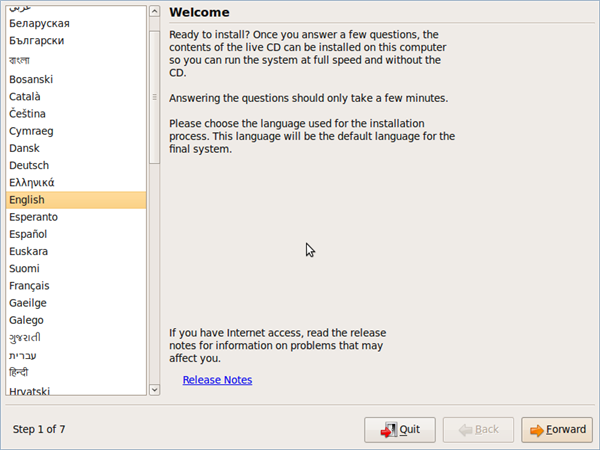
Write your downloaded ISO to a USB stick to create the installation media. This is different from copying the ISO, and you’ll have to use the software. BalenaEtcher works well as it can run on Windows, Linux and Mac.
Step 2: Use a USB stick
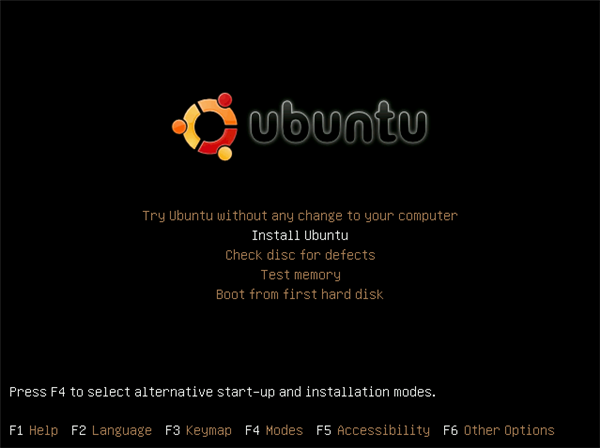
Insert the USB flash drive you want to use to install Ubuntu. Restart or boot your computer or laptop. It should recognize the installation media. If it doesn’t, hold F12 while starting up and choose the USB device from the boot menu. You can also use Escape, F2 and F10. You should see a welcome screen.
Step 3: Choose Installation
Choose between Normal installation and Minimal installation. You’ll be prompted to download third-party software and updates. You will be asked to connect to the internet if you’re not connected already.
Step 4: Encrypt device
If you want to encrypt your device for security, go to Advanced features > Use LVM with the new Ubuntu installation >
Step 5: Create login
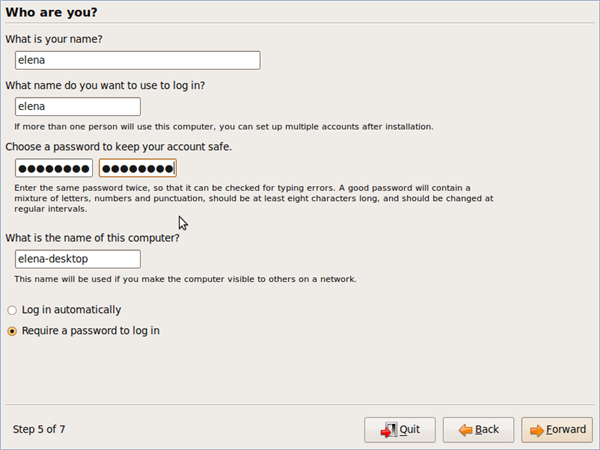
Now create your login details. Enter your name and that of your device as it will show on the network. Create a username and password.
Step 6: Watch slideshow
You’ll see a slideshow while Ubuntu installs. Afterwards, it’s a good idea to update your system. Ubuntu also notifies you when new updates are available.
How to use Ubuntu
Now that you know what Ubuntu is and how to install it, let’s take a look at some of the features and how to use it.
Step 1: Navigate the Ubuntu Desktop
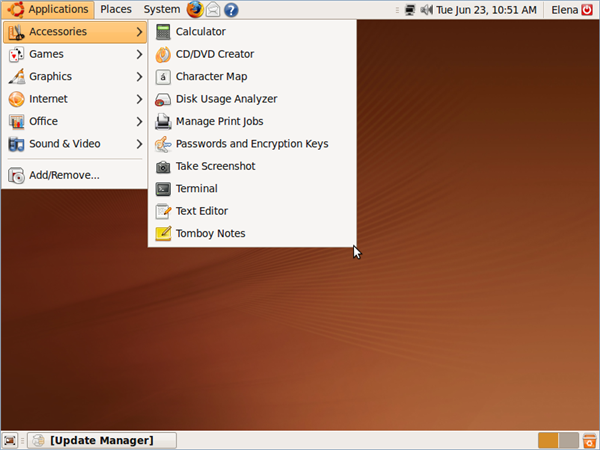
You’ll see a panel at the top of the screen as well as a quick launch bar on the left. Every icon on the launch bar will take you to places like the software center, web browser, file manager and the office suite. The Applications icon displays a list of installed apps. Select the one you want to open.
Step 2: Connect to the Internet
Clicking on the Network icon on the top panel displays a list of wireless networks. Select the one you want to use, then type in the security key. A router using an Ethernet cable will connect you automatically. The default browser with Ubuntu is Firefox. You can use any other browser if you’d prefer.
Step 3: Create documents, presentations, drawings and spreadsheets
Ubuntu’s default office suite is LibreOffice. You’ll find the icons in the quick launch bar for word processing (Libre Office Writer), drawings (Libre Office Draw), spreadsheets (Libre Office Calc) and presentations (Libre Impress).
Step 4: Manage Photos or View Images
Ubuntu has several apps for managing, viewing and editing images. Shotwell is a photo manager. Eye of Gnome is a basic image viewer that allows you to look at photos in a folder.
Step 5: Listen to music
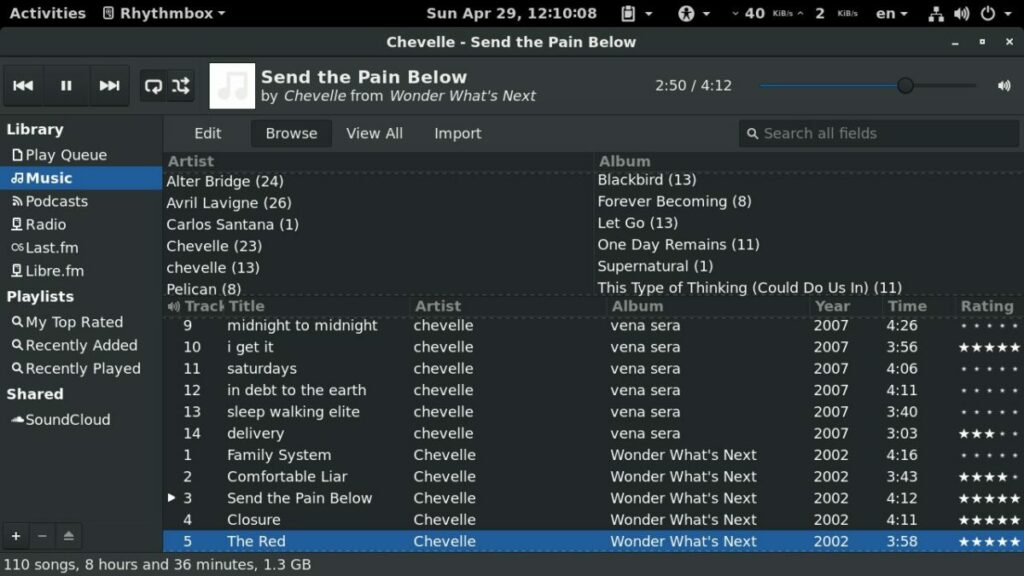
Ubuntu’s default audio package is Rhythmbox. It can import music from folders, connect to external media devices, create and edit playlists, and listen to online radio stations.
Step 6: Watch Videos
Ubuntu’s default video package is GNOME Videos, but you can also use other video players like VLC and Kodi on Ubuntu.
Step 7: Install Software
You use Ubuntu Software to install software. You can use it to install Synaptic, which provides a strong base for installing more software. Another way to install software is by using apt-get from the command line. You can also get Linux software from repositories that hold software you can install. Repositories are stored on servers called mirrors.
Step 8: Install NVIDIA drivers
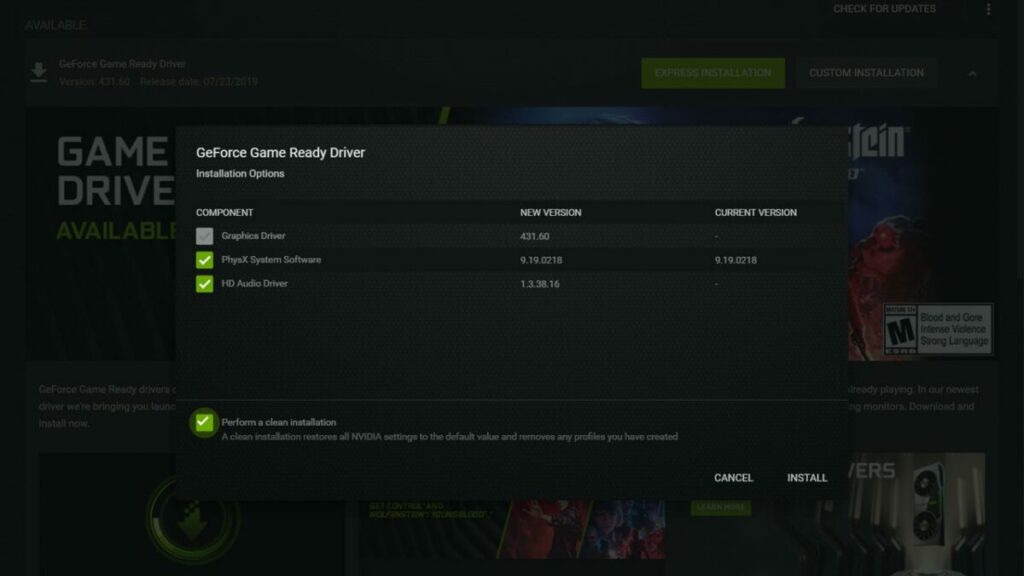
If you have a NVIDIA card, you’ll need the latest drivers for it to work on Ubuntu. There’s a great PPA repository to help get you what you need for your graphics card.
Step 9: Use popular packages
You might be surprised to learn that you can install many popular packages on Linux, including Skype, Dropbox, Spotify, Minecraft and many others, even if they’re from Microsoft.
Step 10: Customize Ubuntu
Ubuntu uses the GNOME desktop, which is not as easy to customize as other Linux desktops. However, you can do basic things such as change the wallpaper. But you can make your desktop your own by using GNOME extensions and themes.
Summary
Linux is becoming an increasingly popular operating system because people are attracted to its ethos of supporting free software. It’s also a very good platform that provides everything you need. It’s easy to use after you get to know your way around it.
If you like Ubuntu but don’t dare to switch operating systems yet, Ubuntu XP is the perfect solution for you. This package includes anything you need to make Windows XP look like Ubuntu without actually changing the OS. Customize your visual style, wallpaper, icons, cursors, logon screens and even Firefox skin and get a brighter, more colorful Windows!
Time to order another bag of nails for Microsoft’s coffin? Perhaps. Today sees the launch of Ubuntu’s latest iteration, 7.10 AKA Gutsy Gibbon. Ubuntu has become increasingly popular of late with boosts from such sources as Dell, who now sell Linux-equipped computers.
The latest version of Ubuntu is packed with new features aimed at strengthening its position as the most popular of Linux flavours. Its graphical environment, Gnome, has been upgraded to offer superior performance (and loads of eye candy). Other improvements and additions include fast user switching, desktop search, better support for video in Firefox and improved security and encryption.
As always, Ubuntu is completely free and can be downloaded immediately. We recommend using the Torrent links, to keep the strain off individual servers. Whether you’re a seasoned user upgrading or a newbie who’s ready to take the plunge: now’s the time! Get it while it’s hot.
![MWC 2013: Ubuntu Touch OS hands on [video]](https://articles-img.sftcdn.net/auto-mapping-folder/sites/3/2013/02/Softonic-na-MobileWorld-Congress-20132-200x198.jpg)

![Ubuntu Touch developer preview available now [video]](https://articles-img.sftcdn.net/auto-mapping-folder/sites/3/2013/01/ubuntu-icon-200x198.png)
![Ubuntu for Phones developer preview launching February 21st, will include tablet version [video]](https://articles-img.sftcdn.net/auto-mapping-folder/sites/3/2013/02/tablet-multi-tasking-600x198.png)
 If you like Ubuntu but don’t dare to switch operating systems yet, Ubuntu XP is the perfect solution for you. This package includes anything you need to make Windows XP look like Ubuntu without actually changing the OS. Customize your visual style, wallpaper, icons, cursors, logon screens and even Firefox skin and get a brighter, more colorful Windows!
 Time to order another bag of nails for Microsoft’s coffin? Perhaps. Today sees the launch of Ubuntu’s latest iteration, 7.10 AKA Gutsy Gibbon. Ubuntu has become increasingly popular of late with boosts from such sources as Dell, who now