How to make a playlist and automix in Virtual DJ in 5 simple steps

Virtual DJ is an excellent tool for anyone who enjoys creating playlists, mixing songs or being creative with other artists’ work. Whether you’re someone who loves creating personalized playlists for your birthday parties or family get-togethers, or if you’re a professional DJ performing in front of a live audience, using tools like Virtual DJ can be a real blessing.
Virtual DJ DOWNLOAD

But how can you create flawless playlists without any dead air? Nobody wants to be enjoying the music just for it to stop because the song has a dragged-out outro or because the next song has an unusually long intro. Join us as we take a look at how to create a playlist using automix features in Virtual DJ.

Why would you want to use an Automix feature in Virtual DJ?

The automix feature in Virtual DJ is a great tool. It allows you to adjust and manipulate how the songs follow each other. This is essential to avoid long gaps of dead air between the different songs. Virtual DJ has many mixing options available, and all you need to do is add the tracks, choose your mixing option, and the program does all the rest.

This is especially useful if you need a quick bathroom break or have audience members requesting specific songs. It leaves you free to address those needs without having to worry about selecting and mixing the next song. 

The automix options on Virtual DJ include:

  • Smart: Let’s Virtual DJ make the best decision based on the optimal mix point.
  • Fade (remove intro/outro): Fade while also removing the intro and outro of the current and upcoming songs.
  • Fade (remove silence): Fade while also removing any dead air.
  • Fade (remove nothing): It just fades without removing anything from the song.
  • None: Make no transitional changes.

5 Steps to making a playlist and automix in Virtual DJ

  1. Launch Virtual DJ

    How to make a playlist and automix in Virtual DJ

    First, you’ll need to launch your version of the program on your chosen device.

  2. Add your songs or playlist to the automix pane
    How to make a playlist and automix in Virtual DJ

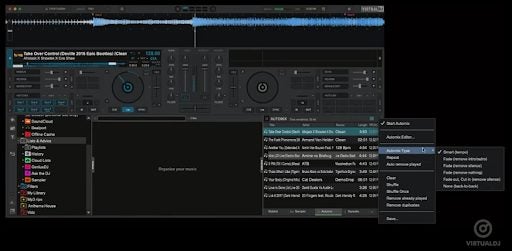
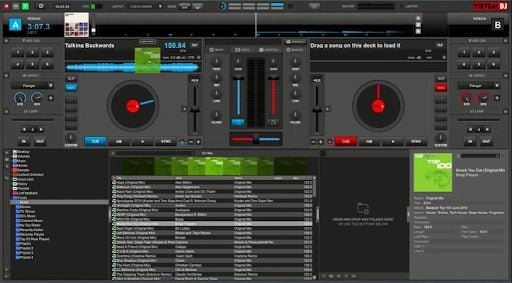
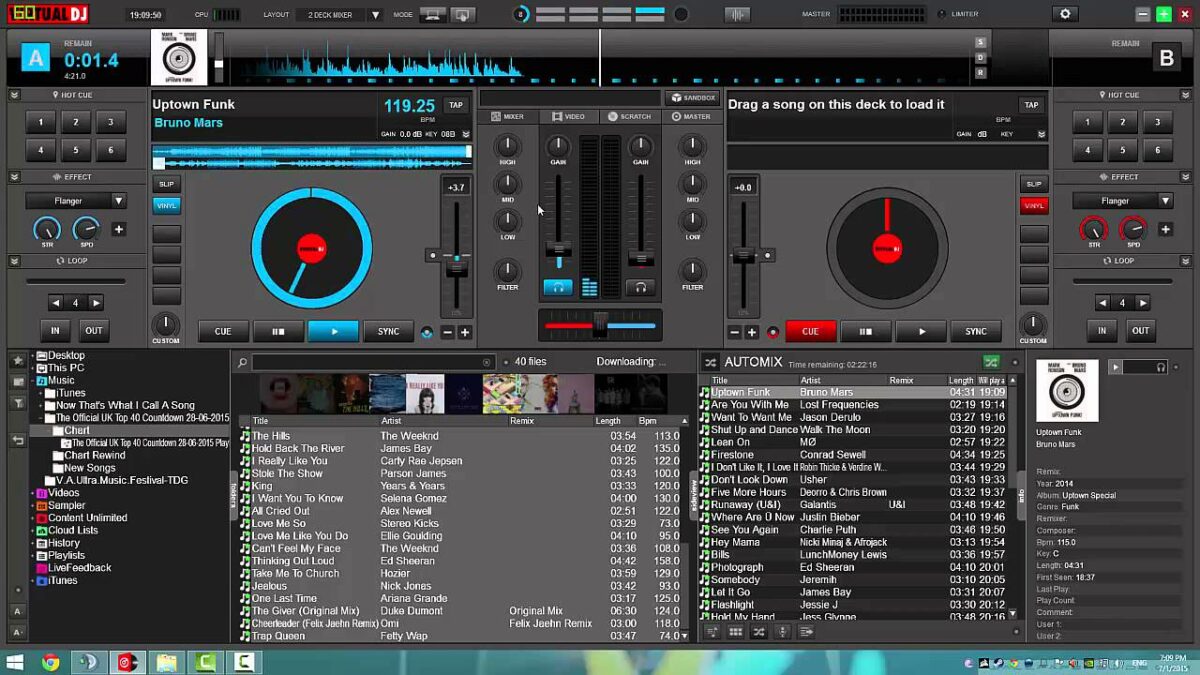
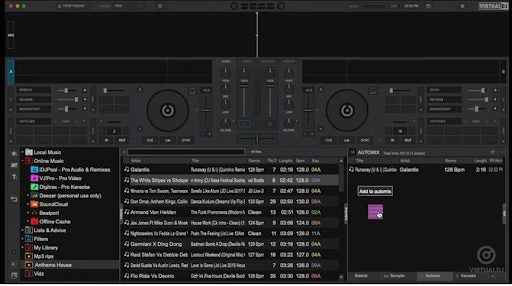
    If you’ve already added songs to the library, they’ll appear on the left side of the screen, below the decks. To the right of the screen, you’ll see the ‘Sidelist’. At the bottom of this pane, you’ll see more options. Click on ‘Automix’ to open the pane. Now, drag the songs from the library over to the automix pane.

  3. Choose your automix function

    How to make a playlist and automix in Virtual DJ

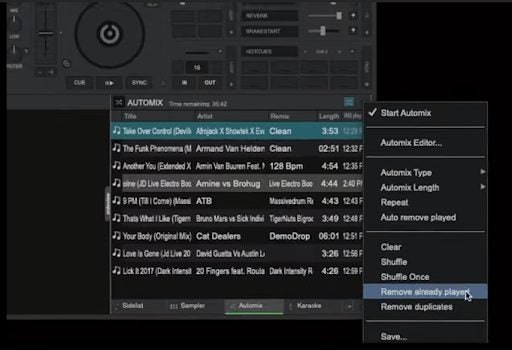
    Once all the songs you require for your playlist have been added to the automix pane, you need to access your automix settings by clicking on the small circle icon to the top-right of the pane (next to the shuffle icon). A drop-down menu will open. Navigate to ‘Automix Options’ and then choose the best feature for your needs.

    Tip: If you’re unsure which option to choose, going with the ‘Smart’ feature is a good option, as the program will then determine the best ways to mix the songs.

  4. Make individual adjustments where necessary
    How to make a playlist and automix in Virtual DJ

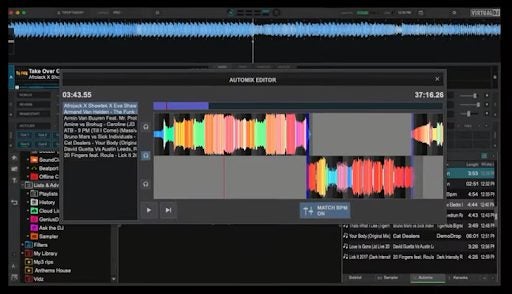
    If you want to make more individual adjustments, you can click on the circle icon again to access the automix settings. Now you can choose ‘Automix Editor’, and it will open a new window showing the soundwaves of the current and upcoming song. Here you can edit the fades to your liking by simply dragging the sliders.

    Tip: You can also use the automix settings to remove any duplicate tracks from your list or to remove songs that have already been played.

  5. Save as a playlist

    How to make a playlist and automix in Virtual DJ

    Once you’re happy with the songs included in your list and you’ve added all the mixing touches to ensure the list is perfect, you can save it as a playlist so you can use it again. To do this, click on the circle icon again to access your automix settings. Navigate to the bottom of the list and click on ‘Save’. Add a name to your playlist and click on ‘Save’ to complete the process.

    Tip: you can also add multiple playlists to the automix pane, and they’ll add the songs from all of them. Use the ‘Remove Duplicates’ option to eliminate any doubles and create a new playlist from multiples.

Enjoy and entertain with music your way

Manipulating and getting creative with music is something that many of us enjoy doing, whether as professional DJs or simply music lovers. Virtual DJ makes it easy to create playlists, mix tracks and more. Find out why so many professionals use the program by giving it a try now.

If you’re still getting the hang of the basics, be sure to check our guide on how to use Virtual DJ.
All about VirtualDJ: what it is and how to use it

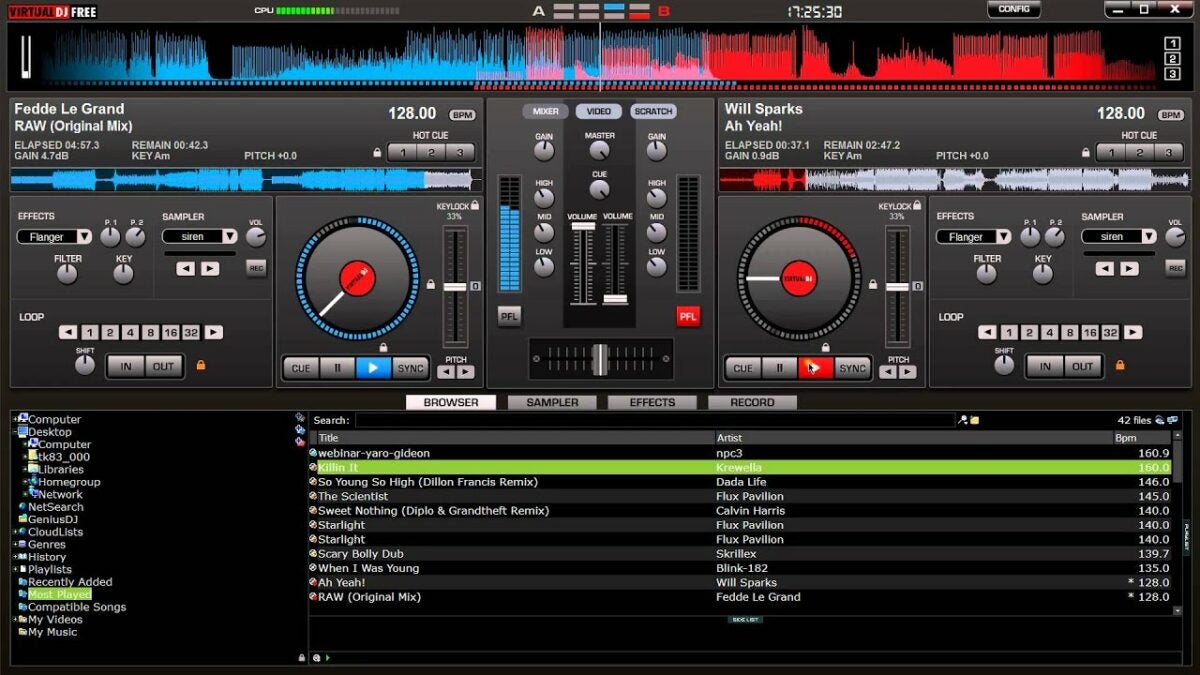
VirtualDJ enables users to edit, create and manipulate audio files. This specialized program is available for both Windows and Mac computers. The software was developed by Atomix Productions and has more than 35 years of experience. VirtualDJ is among the favorites when it comes to mixing digital music, along with the likes of Serato, Traktor, and Ableton.

VirtualDJ DOWNLOAD

There is a free version of the program available to give you a good feel for how the software works, and with the free version, you get 10 minutes of using premium functions once a day. So, let’s see what VirtualDJ is and how it works.

What Is VirtualDJ?

VirtualDJ is a Digital Audio Workstation (DAW) and virtual mixer for DJs to edit and manipulate digital audio files using virtual turntables. VirtualDJ first appeared in July 2003. Since its release, the program has undergone many changes in order to develop a fully-featured, virtual mixer that is easy to use and intuitive. The goal of VirtualDJ is to be a completely multideck standalone program that both beginners and experienced DJs can use.

With the highly versatile virtual mixers, it is possible to create music even while on the go. This editing software contains features such as ModernEQs. These can be accurately separated for smoother transitions. There are also Stem Pads available for real-time mixing. This allows you to separate different parts of the audio, which the DJ can then manipulate. For example, using Stem Pad, you can completely mute the drumline of a specific audio file or have the guitar line play solo without the other parts of the audio.

While VirtualDJ has a virtual deck available, users can also add their own DJ controllers to the platform. The software uses plug-and-play to detect any new controllers added to the program.

VirtualDJ to start mixing music 8

What is mixing?

Mixing songs together sits at the heart of the art of DJing. At its most simple you mix songs together in such a way that they sound harmonized as if they were a single song. It’s not as easy as it sounds though, as you’ll need to beat match both songs, slow or speed up the tracks so that the beat on them both is exactly the same, and then line up all the other musical elements so that the songs work with each other. The idea is that you guide your set from one song to the next without breaking the music.

This means that you need more than a simple media player to mix effectively. You’ll need a virtual crossfader to control whether the left deck or the right deck is playing, a virtual equalizer will help too, and a sampler will allow you to add other sound effects and elements on top of your mixes too. This is where Virtual DJ by Atomix Productions comes in, offering a robust package that covers all aspects of DJing. Once you’ve downloaded Virtual DJ and gone through today’s tutorial, you’ll be able to start mixing and take your DJ career to the next level.

VirtualDJ to start mixing music 8

VirtualDJ 2022

VirtualDJ 2022 is the latest release from Atomix Production. While most of the features remain the same, a few new features have been added to make the program even more powerful. There is one notable difference between VirtualDJ 2021 and previous versions. VirtualDJ 2022 has four different layouts (Starter, Pro, Essentials, and Performance).

These layouts can also be customized according to the users’ preferences. The layouts all work a little differently. For example, the Pro layout includes 4-decks instead of the standard two decks. Having multiple decks available makes it easier for DJs to manipulate multiple tracks to create a fresh new one.

Another new feature you can expect in VirtualDJ 2022 is the event scheduler. This handy feature allows you to set presets, playlists, and songs to play at a specific time. Another new feature is that VirtualDJ is now also compatible with Beatport, adding another music library for you.VirtualDJ was already compatible with SoundCloud and Deezer. By linking your Beatport account, you can easily access all your content in VirtualDJ.

How to Use VirtualDJ – the Definitive Tutorial

In this VirtualDJ beginners guide, we will share how to get started with the software. Once you’ve got the basics down, you can start experimenting with more features to create your own music. To begin using any mixing software, Like VirtualDJ, there are a few basics you need to understand. These concepts are how to import your music library, basic controls, prepare your tracks, and finally, mixing.

What you’ll need

As well as a PC or Mac or the Windows operating system, you’ll need hardware including a soundcard with two audio outputs and some headphones if you’re going to really get started. This will allow you to play different songs out of your speakers and headphones at the same time, which will allow you to line them up and beat match them both. It is possible to mix music without this basic setup but it will be next to impossible for beginners to do so. You can also add other DJing hardware to your Virtual DJ setup once you’ve mastered the basics.

Importing your Library

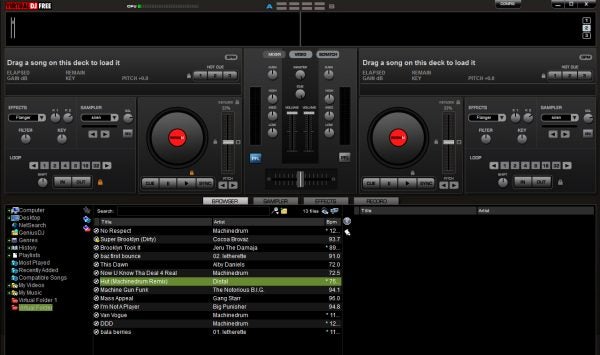
If you’re a new DJ, you’re going to need to organize all your tracks so that they’re easy to access when you want to play them. When you open Virtual DJ Free, start by finding your music library using the file tree on the left. Right-click and choose Virtual Folder, which will create a place you can keep all the tracks, remixes, and playlists you want in Virtual DJ.

Drag a few songs you like into this folder, and then one by one drag them into the decks. This will allow the app to analyze the beats per minute (BPM) of each song. We think it’s a good idea to put any song you play in the app into your Virtual Folder, as it’s more comfortable than the messy Windows file tree. You don’t want to be searching through iTunes while you’re juggling your next beat transition.

VirtualDJ to start mixing music 8

Basic controls

It’s easiest to use Virtual DJ combining some simple keyboard DJ mixing commands with the cursor keys. Here are the three essential DJ mixer keyboard commands you’ll need:

  • Tab – switch between A and B decks
  • C – mark a cue point and play from cue point
  • Space – play/pause.

Steps to use VirtualDJ to start mixing music

  1. Add your tracks to the decks

    VirtualDJ to start mixing music

    Once your music has been added to your library, you can drag the track you want to use onto the deck. Since this is a basic tutorial, we’ll only be using two decks, thus dragging a different song onto each deck. For the best results, choose two songs with matching BPM, which is conveniently shown next to the song’s length.

  2. Set a cue point in track A

    VirtualDJ to start mixing music

    By pressing the spacebar, track A will start to play. You’ll see a waveform moving as the song plays. This waveform is a useful visual presentation of music flow and can help identify a cue point. A cue point is where you want the track to start playing for your remix. Decide where to set your cue point, and click on that area in the waveform. Use the spacebar to start and stop the music until you’re at the precise location. Then press ‘C’ on your keyboard to set the cue point.

  3. Set a cue point in track B

    VirtualDJ to start mixing music

    Now, you’ll want to repeat step 2 above, but on track B. To switch to track B, hit the Tab key on your keyboard. You’ll see that the second deck is highlighted and active.

  4. Use the crossfader to adjust which track is heard

    VirtualDJ to start mixing music

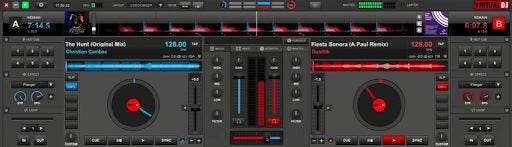
    Press the Tab key again to go back to deck A. In the center of the deck, you’ll see a crossfader. By sliding it out, you can let the song fade out. With the fader in the center, both tracks can be heard, but moving it towards one track will make that one stand out more. Adjust the fader until you’re happy with the results.

  5. Sync tracks

    VirtualDJ to start mixing music

    Press the Tab button to go to deck B. Once here, click on the ‘Sync’ button to automatically sync your songs. If it sounds slightly off, you can adjust the sync manually by pressing and holding ‘C’ and then using the pitch arrows to nudge the track forward or backward until it matches track A.