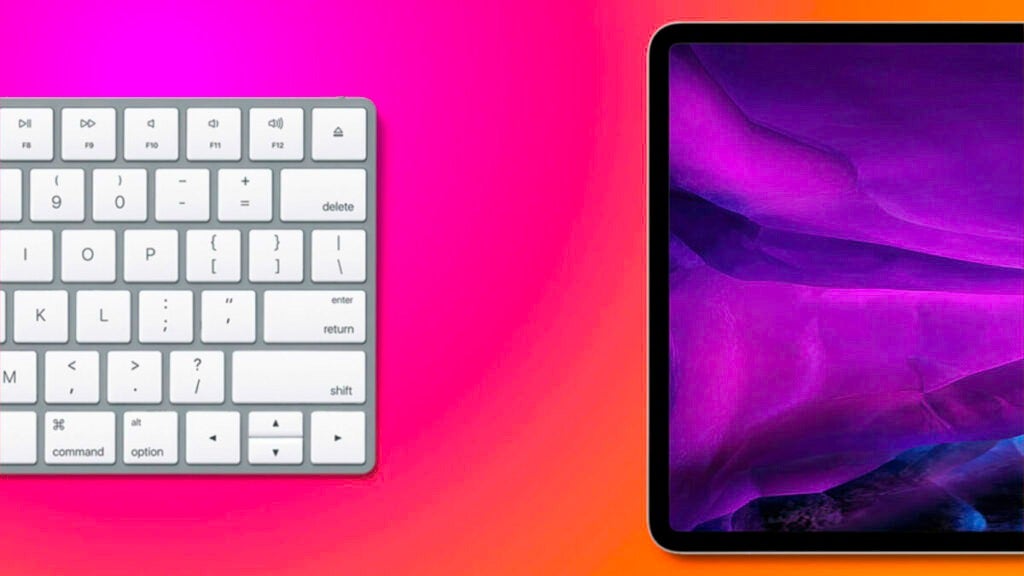
Time-Saving Tips: The Most Used Keyboard Shortcuts for iPad and How to Create Your Own

Once they get used to it, pressing a couple of keys to do something can be very comfortable and, above all, really fast.

One of the fastest and most efficient ways to interact with our devices is to use keyboard shortcuts. We may have to learn them at first instead of tapping or clicking on buttons, but as soon as we get used to them we will be much more agile.

Continue reading “Time-Saving Tips: The Most Used Keyboard Shortcuts for iPad and How to Create Your Own”

This shortcut does not work on my iPhone. What can we do about it

The last thing we want is for a Shortcut to not work. Fortunately, we have solutions about it.

The Shortcuts app on our iPhone or iPad opens up many possibilities in terms of what we can do. There are shortcuts of all kinds, and when we find just the one that fits what we want to do – like these 9 must-haves – the last thing we want is for it not to work. Fortunately, we have solutions for that.

Continue reading “This shortcut does not work on my iPhone. What can we do about it”

Streamline Your iPhone Workflow: Crafting Custom Shortcuts with ChatGPT

And if we want a shortcut that we can’t think of how to do it? That’s where ChatGPT comes into play.

Shortcuts on the iPhone are one of the most interesting and useful features that can be found on the Apple phone. They allow you to automate repetitive tasks and save time while simplifying almost any process. But what happens when we don’t know how to make a shortcut? What if we want a shortcut but can’t think of how to do it? That’s where ChatGPT comes in.

ChatGPT ACCESS

The truth is that it is quite amazing what the artificial intelligence developed by OpenAI, which relies on natural language technology to understand and answer questions, is capable of doing. In this case, it can guide us to create almost any shortcut on our iPhone.

An interactive shortcut creation manual

The Shortcuts app on the iPhone has become an essential tool for many of us. It’s not just that it allows us to simplify processes, it allows us to do things that are otherwise not possible. Options like being able to add a watermark to a photo, something that would require a dedicated app on the iPhone, in Shortcuts are just a couple of taps.

The way to build shortcuts is really simple, in terms of operation. All we have to do is drag small blocks of actions and chain them together to get a workflow. We can start with “Get last photo”, then follow with “Convert to JPEG” and then finish with “Send it to X contact”, to give a simplified example.

The thing is that sometimes, when the shortcuts are more complex, we may find it more difficult to decide which steps to take, which variables to save and how to retrieve information that we have managed at the beginning of the workflow. With ChatGPT, we can get detailed instructions on how to create a specific shortcut in the Shortcuts app on the iPhone. For example, if we want to create a shortcut to send a text message to someone every time we arrive at work, we can ask ChatGPT how to do it. He will provide us with the necessary instructions to create the shortcut and even automate the task.

Help yes, correction and ideas too

But that’s not all. We already know that ChatGPT is not infallible, but we also know that it is quick to learn from its mistakes. So, if we find any error or the shortcut does not do what it should, the best we can do is to explain what error we are seeing and the AI will propose us fixes.

Finally, if we explain to ChatGPT a shortcut we have already created, we can always ask it questions about how to improve it. We can even get ideas on what shortcuts might be useful to us. The results are quite surprising.

It’s clear that the Shortcuts app attracts attention. OpenAI has had to train its artificial intelligence based on content that revolves around the Shortcuts app on our iPhone. Thanks to this, we can now use it as a personalized help service. All we have to do is describe the idea and pull out our iPhone to start dragging the different components where requested.

ChatGPT ACCESS

The Shortcuts app on the iPhone is a very powerful tool that allows us to go far beyond what the operating system offers natively, and if not tell it to these 9 essential iPhone Shortcuts that we can already try or this one to charge our iPhone even faster. It may be a bit complex at first, but with the help of ChatGPT, we can take full advantage of this tool and make our iPhone work for us more efficiently. Creating custom shortcuts that allow us to automate everyday tasks and improve our productivity is already child’s play.

Some of the links added in the article are part of affiliate campaigns and may represent benefits for Softonic.
Effortlessly Boost Your iPhone Charging Speed with This One Shortcut

Sometimes we need to charge our iPhone at the highest possible speed. Sometimes a small percentage of battery more or less changes the difference. This is the shortcut we need.

Sometimes we need to charge our iPhone at the maximum possible speed. Sometimes a small percentage of battery over or under changes the difference. For those times when every minute counts, the best thing to do is to use a shortcut that will ensure our iPhone is charged as quickly as possible.

Freeform DOWNLOAD

A simple shortcut that we can automate to reduce the consumption of our iPhone during the charging process and, in this way, make all the energy that enters the system is dedicated to charge the battery, not to power other functionalities.

A Shortcut to activate faster charging on our iPhone

Although we are talking about a small difference, it is true that sometimes we will need to hurry every minute of charging. Two main variables come into play here. One is that, during charging, the system makes a backup in iCloud of all the content of our iPhone. The second is that it also takes advantage of that time with greater energy power to perform maintenance tasks such as retraining data inference models, for example.

What we are looking for is, therefore, to avoid these two behaviors when we want to charge our iPhone at maximum speed. Note, we will not always want to avoid them, as they are necessary for our phone to work and perform as we expect, but in some cases we will want to prioritize the battery filling.

That will take care of this shortcut that we can download and add to our library of the app Shortcuts along with these 9 Shortcuts for iPhone essential and that you can try now. What does it do? Turn on airplane mode to disable any kind of connectivity and prevent the process of backups, update, etc. Disable Bluetooth, as we don’t need the iPhone to connect with accessories as we want to prioritize charging. Activate the low power mode, with which model training tasks and other tasks are paused. Finally, activate the Do Not Disturb mode to prevent any notification from turning on the screen.

The shortcut is also designed to enable or disable the different elements depending on whether they are already enabled or disabled. In other words, we can use the same shortcut to enable or disable the fast charging mode. And this is key for the next step in our system: automation.

We can make our iPhone run the shortcut and, therefore, be configured for fast charging by plugging it into a charger. But we can also make the shortcut run again when unplugging the iPhone from the charger, so we will recover the normal operation of the phone. How? Very easy, the steps to follow are as follows:

  1. Open the Shortcuts app on your iPhone or iPad.
  2. Go to the Automation tab.
  3. Click on Create personal automation, if you do not see it, click first on the “+”.
  4. Choose Charger.
  5. At the bottom we select You are connected and also You are disconnected.
  6. Click on Next.
  7. Tap on Add action, type “execute” and click on Execute shortcut.
  8. Tap on Shortcut right next to “Run” and choose the shortcut you just downloaded.
  9. Click on Next.
  10. Deactivate Request confirmation.
  11. Click on Do not request.
  12. We touch OK.

Now, every time we connect the iPhone to the charger, the “Fast Charge” shortcut will automatically activate and disable the system functions that consume more battery so that we can charge our device faster. Something that, from the same Automations tab of the Shortcuts app we can disable to prevent it from happening automatically when it is not necessary.

Freeform DOWNLOAD

In any case, when we need to rush to the last minute of charging to fill the battery of our iPhone to the maximum, this system can be very useful. Simply by preventing a couple of tasks that the iPhone performs while it is charging, we will notice that the battery is charged more.

Some of the links added in the article are part of affiliate campaigns and may represent benefits for Softonic.

New shortcut allows Twitter users to detect if verified accounts have Twitter Blue

The line between authenticity verification and purchased verification has become very blurred, but it is solvable.

Twitter account verification has always been an important tool to ensure that as users we are interacting with legitimate and authentic accounts, especially when it comes to public figures such as politicians, journalists, artists and businesses. However, with the launch of Twitter Blue, the line between authenticity verification and purchased verification has become very blurred.

Twitter DOWNLOAD

Elon Musk, had announced that he was going to remove the blue verification seal given to media and government personalities, but his plans for this have been delayed. Right now, with paid and authenticity verification coexisting, Twitter has stopped distinguishing between those who pay for Twitter Blue and those who have a legacy verification seal. Fortunately, with a simple iOS Shortcut, we can tell if the person behind a Twitter account pays for the blue verification seal or not.

When in doubt, it is better to check the verification

A few days ago, Twitter displayed the message “This is a verified account under the old system. It may or may not be notable.” But now it shows that the account is “verified because it is subscribed to Twitter Blue or because it is a verified account under the old system”, which prevents us from distinguishing the two.

Faced with this prospect, Mike Beasley has created the “Checkmate” shortcut, which shows who is verified and who pays for Twitter Blue. After clicking on the link, tapping Get Shortcut and then tapping Get to add it to the Shortcuts app on our iPhone, iPad or Mac, all we have to do is run the Shortcut. This will ask us for the username of the account we want to check, the one that starts with @, and then it will tell us if that account pays for Twitter Blue or is a verified under the old system.

We can also, if it is more convenient, share the link to an account directly with the shortcut. This way, it takes care of checking the user and showing us the same information. Information, it must be said, that depending on the state of the Twitter API may take a few seconds to appear, but that will quickly give us clarity.

Beyond curiosity, the truth is that knowing the origin of the verification logo can be really important. When in doubt whether an account is official or someone who is impersonating someone else, this information can be key for us to identify the correct account that we want to follow or with which we want to interact. Something, it is also good to keep in mind, that we can achieve with the golden verification badge, which some institutions display and which does entail verification of the account itself.

Twitter DOWNLOAD

In any case, while we are in this impasse of somewhat mixed verifications, the best we can do is to check for ourselves the origin of the verification. Without losing sight of the fact that the badge system has always sought to make it clear to us which is the official account, among several similar ones, this is crucial information. Fortunately, while Twitter’s algorithm is already public, this is a check that we ourselves, thanks to the Shortcuts app on our iPhone, iPad or Mac, can carry out very easily and also with the reliability required to then be able to trust this information.

Some of the links added in the article are part of affiliate campaigns and may represent benefits for Softonic.