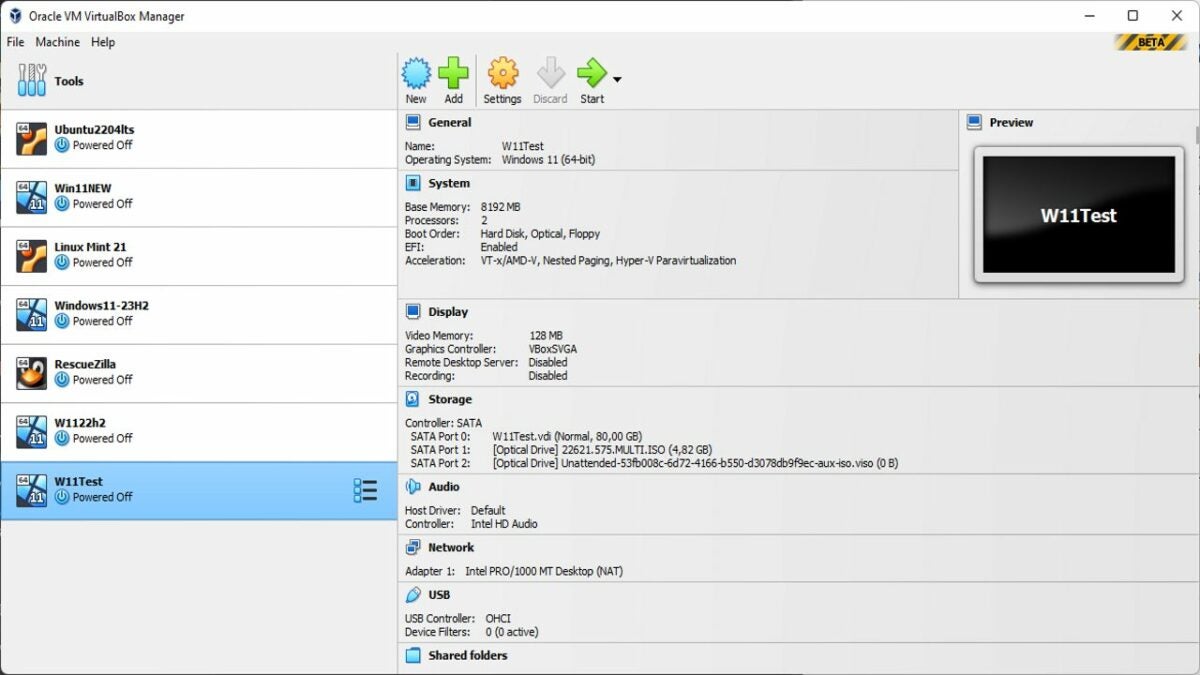
The free cross-platform virtualization software VirtualBox improves support for Microsoft’s Windows 11 operating system in its latest version.
VirtualBox 7 removes the incompatible hardware messages that user received when installing Windows 11, even on compatible systems.
VirtualBox is a popular program for Windows, Mac and Linux devices to create virtual operating systems. A virtual operating system functions in most regards similarly to regular operating systems, but it is fully separate from the main operating system of a device.
Computer users use virtual environments for different tasks: these include testing new versions of an operating system to make sure the computer is compatible, as development environments, for software testing, or to run a different operating system, e.g., Linux on a Windows host.
Take software testing as an example; if you stumble upon a new program, you may not want to install it on your main system right away. Maybe you have downloaded it from a source that you don’t trust fully, and not from a trusted software repository such as Softonic, or you don’t want the installer to pollute the system with files and Registry entries.
Installing the program in a virtual Windows environment keeps it from interacting with the underlying system. Even if its malicious, it can’t read personal data, modify files, install more malware, or do other harm. Best of all; you may remove the entire virtual environment at any point and no traces are left on the computer.
Another example: say you want to test Windows 11 on a device with Windows 7 or 10 installed. You may have questions about compatibility, if your favorite programs run, or if you like the look and feel of the new Windows version.
It takes a couple of minutes to install a virtual Windows 11 system on any device. You may then install software, browse the Internet, configure the system and test it for as long as you want to.
Again, deletion is just a keystroke or mouse click away at any time.
VirtualBox 7 and Windows 11 compatibility
Oracle released the first beta of VirtualBox 7, and with it full support for Microsoft’s Windows 11 operating system.
The virtualization software supported Windows 11 unofficially only up to this point. While you could install Windows 11 using it, you’d inevitably run into hardware compatibility issues.
Microsoft changed hardware requirements when it launched Windows 11. The operating system requires certain features, including Trusted Platform Module (TPM) 2.0 and Secure Boot.
Windows 11’s installer displayed a “not compatible” prompt during installation of the operating system in a virtual environment, even if the underlying system supported all the required hardware devices.
Now, that message is gone and the installation happens unhindered, provided that the system is compatible with Windows 11.
Installing Windows 11 using VirtualBox 7
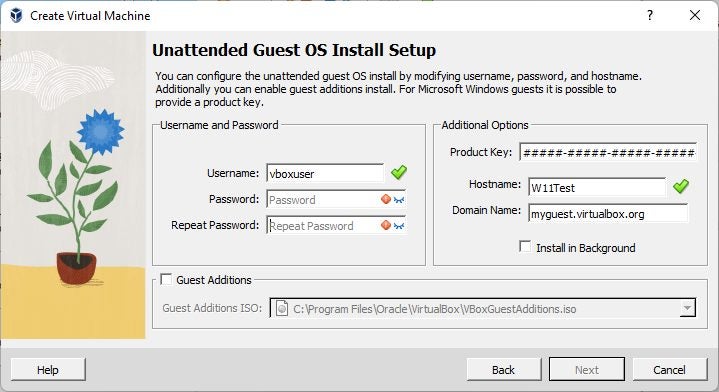
VirtualBox 7 improves the installation of Windows 11 in other ways. The virtualization software supports an unattended installation. The special type of installation skips most of the prompts that Windows 11 displays during setup; this includes entering the product key automatically and creating the first user account.
Here are step by step instructions:
- Download the latest version of VirtualBox from the company’s download server (it is VirtualBox-7.0.0_BETA1-153351-Win.exe at the time of writing).
- Install the application on the Windows PC.
- Download a Windows 11 ISO image from Microsoft.
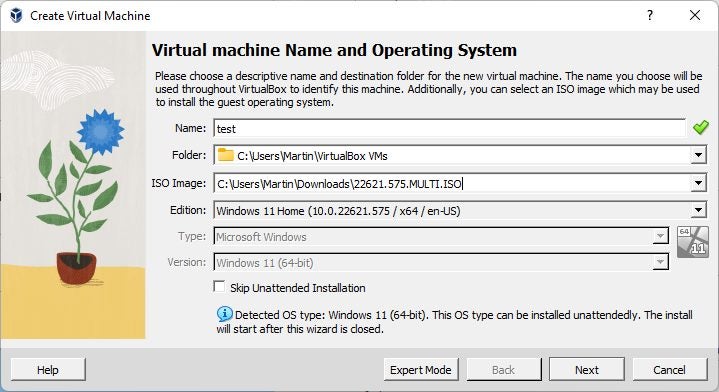
- Start VirtualBox and select New to create a new virtual environment.
- Select a name, folder and load the ISO image that you downloaded., and pick an edition, if available.
- Set username and password for the first user account.
- Add a product key (optional).
- Check “guest additions”, which help later on.
- Increase RAM, if the PC has enough, e.g., to 8192 MB. Make sure it is kept in the green range.
- Select next on the following steps and then finish to complete the setup.
Now, all that is required is to double-click on the new virtual machine to start it. Make sure you tap on a key when the “press any key” prompt is displayed in the program window.
Windows 11 installs automatically at this point and you can start using the operating system once the setup completes.
Closing Words
Virtualization may sound complicated, especially for new users, but the benefits outweigh the initial reservation that users may have.
Virtual operating systems are ideal for testing. Install a new version of Windows to find out if you like it, or a Linux distribution, or use the environment to test new programs and apps that you download.
