Microsoft is testing a new feature for its Windows 11 operating system that gives users energy recommendations. Designed to reduce a device’s carbon footprint and energy usage, it is useful mainly for mobile devices.

Power management is essential on laptops and other mobile devices. The less power a device uses, the longer it runs without requiring a connection to a power source.
Microsoft improved the power usage of Windows significantly when it launched Windows 10 and also Windows 11. The Power Mode feature, for example, may optimize battery life or performance, depending on the user’s preference.
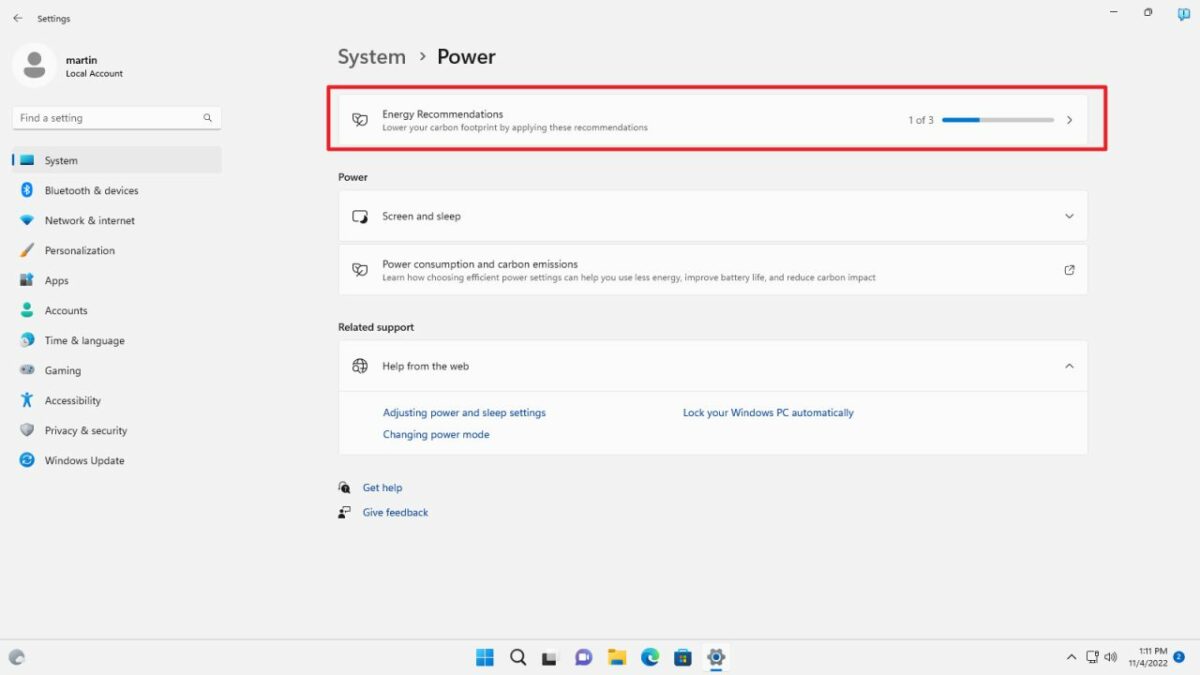
The latest Windows 11 Developer Insider Build includes a new feature related to power usage. Microsoft calls it energy recommendations, and it is found in the Settings application.
Energy Recommendations on Windows 11
Windows 11 users find the new option in the Settings application under System > Power. There, they find the new Energy Recommendations setting that helps them save energy and reduce their carbon footprint.
The power feature may highlight settings that are not ideal right away on the startpage. If you set standby to never occur, for instance, you get the recommendation to change that.
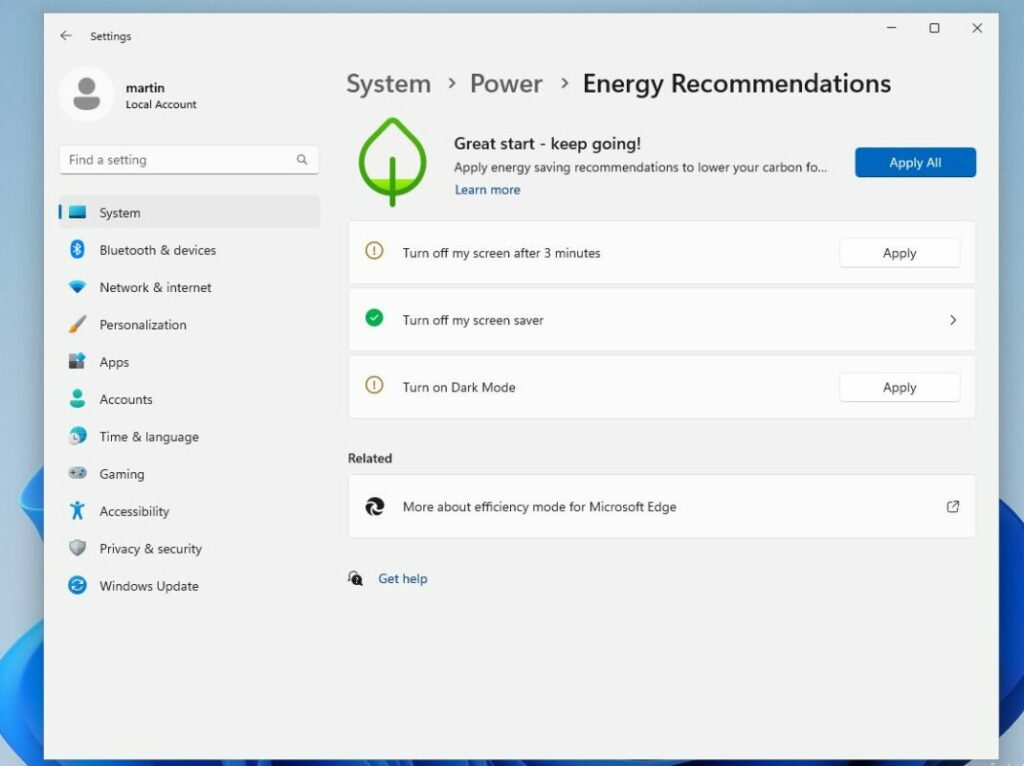
A click on the setting opens the preference’s startpage. There, users get an assessment of the current situation regarding power usage on the device. Windows 11 displayed “Great start – keep going!” on our system, for example when we opened the feature.
The operating system may point out areas of improvement, e.g., to adjust certain power-related features that improve the device’s power usage and carbon footprint.
Windows 11 displays multiple recommendations on the page. These recommendations may depend on the system’s hardware and the device itself, which means that not all recommendations may appear all the time.
The following recommendations may be displayed on the Energy Recommendation page:
- Turn off my screen after 3 minutes.
- Put my device to sleep after 3 minutes.
- Turn off my screen saver.
- Turn on Dark Mode.
- Set the power mode for best energy efficiency.
There may be more, but these are all we got on our test systems. A green icon indicates that a setting is configured correctly based on Microsoft’s recommendations.
A click on the “apply all” button modifies all settings that are not optimized in one operation. You may also apply individual changes instead, which is recommended.
How useful is the feature?
Energy Recommendations may help Windows 11 users when it comes to improving their devices power usage and battery life. Optimized settings may extend the time a device runs without power source.
Some of the recommendations extend battery life. Turning off the screen earlier extends it, and so do some other features such as selecting the best energy efficiency power mode.
Experienced Windows users may know all about these modifications already, but new or less experienced users may appreciate the help the new feature provides.
Some settings may reduce productivity. While it may make sense to turn off the screen after three minutes of inactivity, shutting down the system after the same period may result in unwanted work interruptions.
It is important to realize that some tweaks may be counter-productive. While it is easy enough to undo them in the system’s power settings, Microsoft should consider changing the default values to make them align more with real-world usage. There is a good chance of that happening, considering that the feature is still in active development.
How to enable Energy Recommendations
Energy Recommendations is only available in the latest Windows 11 Dev builds. There is a good chance that the feature is introduced in a future Moments update or, at the latest, in the 2023 feature update for the operating system.
Here is how you enable the feature on a Dev build right now:
- Download the latest version of the open source ViveTool application from its GitHub repository.
- Extract the downloaded zip archive on the device.
- Use Windows-X to display a menu with commands and run Terminal (Admin).
- Confirm the prompt that is displayed.
- Change the directory to the ViVeTool directory, .e.g, cd C:\Users\Martin\Downloads\ViVeTool-v0.3.2\
- Run the following commands:
- .\vivetool /enable /id:39427030
- .\vivetool /enable /id:41249924
- Restart the PC after the second command.
Open the Settings on the system after the restart and select System > Power to access the Energy Recommendations there.
