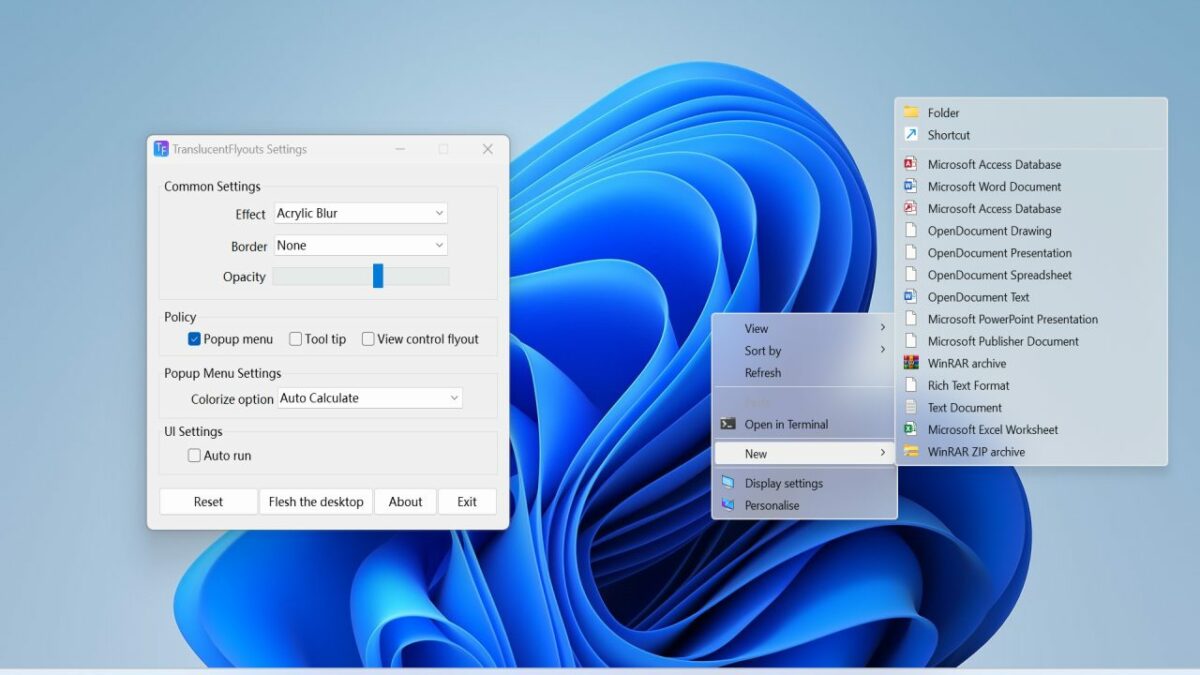
Windows 11 is Microsoft’s newest and most modern looking operating system. Windows users who dig a bit deeper find traces of older versions of the operating system. Some of these go back to the Windows XP era or even earlier.

Windows had a clear and concise look for the most part in Windows 7 and earlier versions. The release of Windows 8 changed this significantly, mixing old elements with new ones. Windows 10 made things worse, even, with its modernization of some areas of the operating system, while keeping others unchanged.
Windows 11 is Microsoft’s attempt to launch a modern operating system. The company updated several core applications and elements of the operating system to address glaring design differences.
Take the File Explorer context menu as an example. Microsoft introduced a modern looking interface in Windows 11. It fits the overall design philosophy. However, Microsoft kept the classic context menu as the modern one does not hold all the entries available on the system.
Make the entire context menu pretty
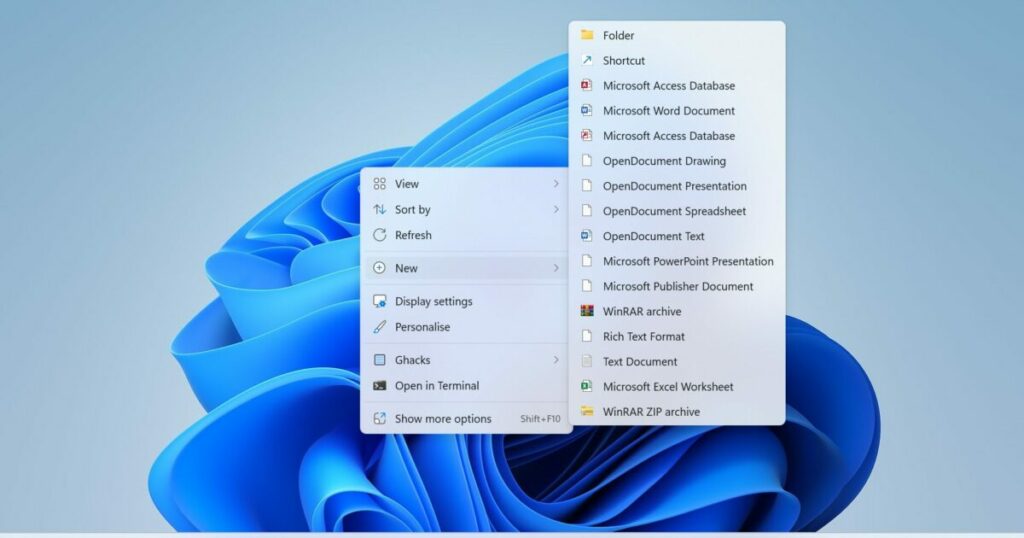
The classic context menu is a necessity at the moment, as entries of older applications may only be available through it. Applications such as 7-Zip, the Nvidia Control Panel, or even Microsoft’s own PowerToys tools, are only available in the classic context menu.
Applications like WinRAR resolved this through updates, but many apps are still only accessible through the classic context menu.
The classic version looks dated when it is compared to the modern context menu of Windows 11. Its design is old-fashioned and it lacks transparency effects on top of that.
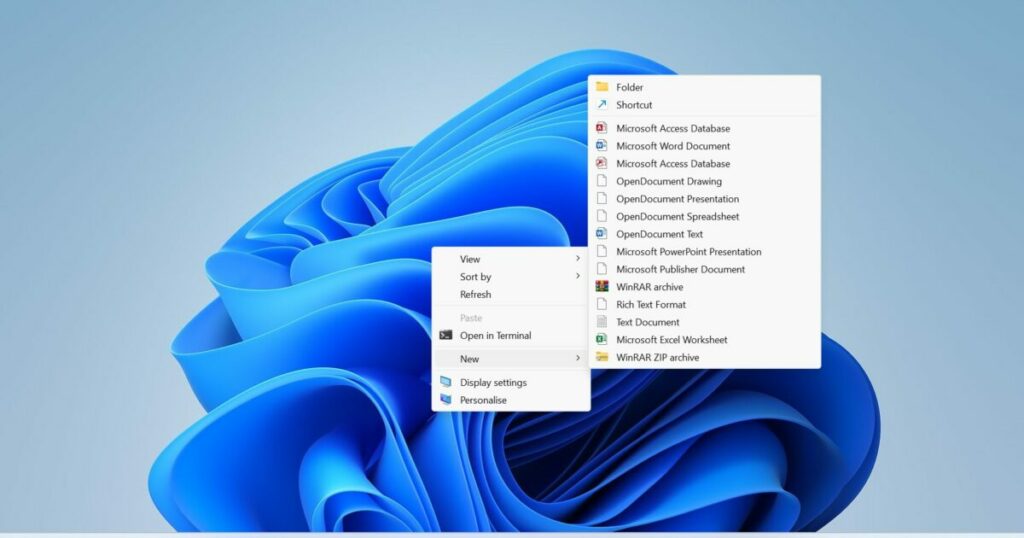
A free utility for Windows 11 comes to the rescue. Translucent Flyouts (via Gamestar) is an open source program for Windows 11 that beautifies several areas of the operating system. The application improves the look of the secondary context menu of the operating system and that of flyouts. Flyouts are used by Windows 11 to display notifications to the user.
The tool makes subtle changes to the operating system. Even better, it uses barely any resources while running. A quick check of the Windows Task Manager revealed that it uses less than 2 Megabytes of RAM while running.
The only requirement to using it is that transparency needs to be enabled in the operating system’s settings; this is the default and should therefore be enabled on most devices.
How to install the application
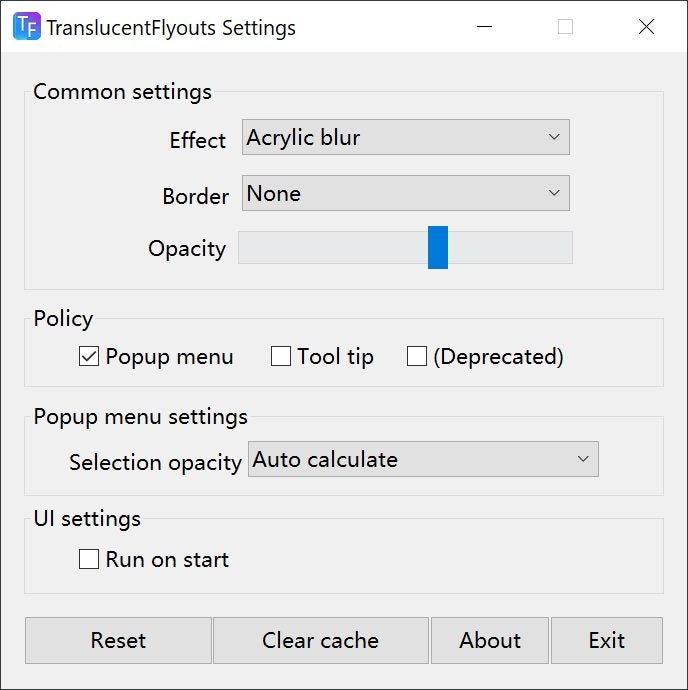
Installation of TranslucentFlyouts is straightforward. Download the latest version of the program from the project’s GitHub repository. We used version 1.0.5 for the test, but new versions get released regularly by the developer.
The program is provided as a ZIP archive, which you need to extract using a ZIP software. All that is left to do after the extraction is to run the executable file.
Use the provided tweaking options to change the transparency effect and related settings. Changes take effect immediately, and there is a reset option to start anew using the defaults.
There is a handy option to run the program on start. A right-click on the icon in the system tray area exits it.
