 As I like to try and save you pennies on your mobile calls I thought I’d let you know about this little gizmo: Gizmo VoIP. It’s a Skype-style piece of software that means expensive mobile calls should be a thing of the past. Gizmo works by connecting all your calls to the Internet not the mobile network. Simple. And it’s easy to install and set-up
Month: October 2007
Nokia golf swing analysis with Pro Session Golf
 OK, two things to say quickly. One, this appears to be an amazing use of mobile technology. Two, it won’t make you any better at golf. Or should I say probably won’t in case we get into any trouble legally. It’s just I have a particularly keen memory of how faith in golf technologies, and little dimpled amateurs who pose as golf teachers because they can’t make it as professionals, can end up costing a lot of money and time. Yes, I once thought I could be good at golf. Not once. About 37 times. From the ages of 13 to 24. The prime of my life. All gone because I used to hang around driving ranges hitting so many yellow balls into the dark that I had to sit in front of the television holding bags of frozen vegetables to soothe my blisters. Anyway, enough confessions.
If you’ve ever had a ‘video’ golf lesson (and I can tell you a few things about the hours I’ve spent on video golf lessons) you’ll know about swing analysis. Well now using Pro Session Golf (available for Nokia N95, N93i, N93, or N73) one thing you don’t need is a teacher. Although if you don’t know anything about swing analysis it might be worth buying a few books. Because this is a little complicated. The software allows you to record your swing; you do need someone to film you. Then by measuring the angles of trajectory and comparing two different swings in split-screen mode you can quickly see how you need to alter your upswing, downswing, hip swivel, weight transfer or whatever else is going wrong. Probably all of it. The software allows pausing, frame-by-frame playback, rewind and fast forward as well as selecting and marking any point of the swing. I have to say it looks amazing, but I suggest you don’t play around with it until you know what you’re doing. Either that or just give the game up completely. That worked for me.
Clean and improve Windows context menus
 Context menus are a convenient Windows feature that is often underestimated. A simple right click on a file enables you to perform many different actions and often saves you time, along with a couple of extra clicks.
However, context menus can also turn into a real pain, especially when they’re cluttered with a bunch of extra commands that different applications have added to it. Sometimes these extra options are displayed in context menus even after the application they belonged to has been uninstalled, and apparently there’s no way to get rid of them.
I said apparently because there is actually a way to delete them. It’s called Context Menu Editor and it’s a small tool that enables you to clear up context menus by erasing redundant entries. The program doesn’t delete the application, it only removes the link from context menus. Just use it with caution because the removal can’t be undone -you’d need to reinstall the application to get that erased option back.
But what if you want to do just the opposite, that is, add more options to context menus? Well, there’s also a way to do so. Install Context Magic and you’ll be able to add frequently used folders and apps to Windows context menus, making them even more useful.
Fix problems and improve PC performance
 If your PC starts to run slower, don’t panic. Most of the time performance issues can be easily fixed with some basic maintenance tasks. Computer Repair Free makes it even easier by providing you with a set of tools to quickly remove spyware, fix the Registry and remove activity tracks and junk files. Use it on a regular basis and you’ll keep your PC in great shape!
Measure your Mac’s bandwidth usage
 If your internet service provider limits your broadband, SurplusMeter is a useful tool to monitor your uploads and downloads and make sure you never go over. You’ll be able to configure what sort of connection you have and get detailed statistics on your monthly bandwidth usage.
Why get the Vista Start Menu on Windows XP?
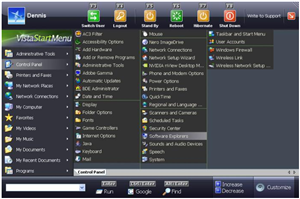 One of the ‘new features’ included with Windows Vista was the completely overhauled Start Menu. The old version, as seen in XP, is occasionally temperamental and certainly looks messy after you’ve installed a few dozen apps. It can be pretty hard to spot a favourite program you installed a while back and a wrong move with the mouse results in the whole thing disappearing again.
The new Start Menu is, unfortunately, also no paragon of usability. While the idea of using mouse-overs to display or hide the entire menu is not perfect, it is arguably superior than the new method of clicking a very small spot at the bottom of the menu to display your applications in a small, cramped menu. The fact that what is then displayed needs to be scrolled through, and that the program group icons each need to be clicked on actually make this a ‘browsing’ experience, rather than a traditional menu navigation experience.
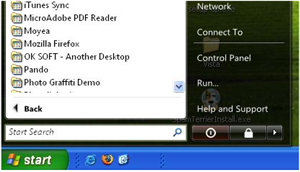 And I’ve not even mentioned the useless icon at the top of the right-side panel which changes appearance depending on which element your pointer is hovering over. Instinctively, your eye will follow the pointer, meaning that you probably didn’t even notice this feature.
OK, I admit it: I’m not a fan of the Vista Start Menu. But I’ll give it one thing: that ‘quick search we invented that looks nothing like Spotlight on Macs’ is pretty darned useful. So if you want to add that feature to your XP start menu (the only possible answer to my questioning title), here are two options for you: ViStart and Vista Start Menu. They’re fairly similar but ViStart probably has the edge on VSM because it’s completely free (without a ‘Pro’ version). Alternatively, go the whole hog and convert your XP to look like Vista completely. You won’t be missing out on much and you’ll save $400.
Manage your fonts more effectively
 I’ve just been reading some interesting observations about the use of type in the movies, which reveals that Hollywood directors are big fans of the Apple OS typeface. It’s amazing how much we take typography for granted and yet it plays such an important daily role in influencing the films we watch, the products we buy and the newspapers we read. With my curosity ignited I decided to see what fonts were kicking around on my machine and after a quick visit to the STC Font Browser, I was amazed by exactly how many typefaces I have.
If you want to make effective use of all these fonts, whether it’s for professional graphic design or simply for sending fancy letters to your pals, then you need to get them organized. Start by installing a font manager and use it to delete unwanted fonts and to ensure that all of your typefaces are stored in one location. Remember to back them up to prevent any nasty accidents. FontFrenzy is particularly good at this and it allows you to set up ‘restore points’ and reinstall the fonts that were on your system on a specific date.
The next stage is to activate the fonts that you want to use. Don’t activate those that you won’t use frequently because it hogs system resources (you can always come back and switch them on another time). Activating fonts is a simple business, and tools such as FontSuit and FontExpert let you turn them on and off with a single click.
It’s also a good idea to check for corrupt fonts. An application such as Fix Fonts Folder will scan your type files for errors and correct any problems that are repairable. Of course, it’s important to remember that fonts are affected by licencing laws in the same way that normal software is, so if you intend to publish stuff you should really use a solution like Suitcase Server to ensure that you’re legal.
Once your fonts are all up together it’s worth reading up on typography in order to find out how you can put them to best use. The Adobe Typography Primer is a good place to start, and if you’re anything like me you’ll soon start looking at bus stop hoardings, film posters and album covers in a completely new light.
Top online word processors
 There once was a time when if you wanted a decent word processor you’d have to shell out for a copy of Word. Since the rise of decent open source office suites such as OpenOffice these days are thankfully disappearing. What’s more, many developers are now investing their time in online solutions, such as the world’s biggest Internet company’s Google Docs. Now, even Adobe is looking to get in on the act after acquiring Buzzword, a rather lovely online word processing application.
This can only be good news for us users, because editing text online not only saves you money but also makes it easier to synchronise work and collaborate on shared projects. It also means that Google will find it even more difficult to get a foothold in the market, which already boasts some very workable applications. Here are five great online Word alternatives you can try now:
- Writeboard – Allows you to create ‘writeboards,’ which can be formatted with ease
- Google Docs – Create documents in Word format for free and apply HTML
- Zoho Writer – Online editor which Word users will find easy to pick up
- ThinkFree – Capable editor with a whopping 30Mb of storage space
- AjaxWrite – Another faithful Word clone, but only supports Firefox at the moment
How to create your own icons in XP
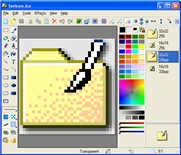 When Microsoft designed the icons for Windows, they were probably more concerned with making functional logos and symbols that would be easily recognisable across the world. In XP, the logos got a bit of a jazzy face-lift but nothing special. The problem is that once you’ve been working with XP for a long time, they can become very dull and boring. One of the best ways I’ve found to spice up my desktop is by using IconXP to edit, create and design my own icons.
The reason I use this is because unlike some other icon editors, it supports the new icon format introduced in Windows XP i.e. it supports smooth transparency and other visual effects. As a result, you can create and edit icons in either standard or custom sizes, with colour depths up to 32-bit True Color and 8-bit alpha channels. With 16 million colours to choose from, you can truly individualize your operating system. One of the coolest things you can use it for is to import images which you can then insert on the front of your folders. So for example, you can customise the front of all those folders with your favourite pictures, videos and music with photos of your favourite artists or shots.
Top 10 defrag tools
 Is your PC running slow? Are some of your programs taking longer and longer to open? Does your hard drive sound like it’s going to grind to a halt any minute? Chances are that you need to defragment your hard drive. Windows comes bundled with it’s own defrag tool but if you’ve ever used it, you’ll know that it’s painfully slow and lacks any kind of useful advanced features. Here’s my top ten:
- AMS FAST Defrag – Includes various other tools to speed-up your PC
- Auslogics Disk Defrag – Automatically shut-down your PC when the defrag is done
- Power Defragmenter GUI – Utilizes a special PowerMode defrag method
- SpeeDefrag – Shuts down your PC and defrags with minimum running processes
- JkDefrag – Defrags external devices such as floppies and USB sticks
- PageDefrag – Shows how fragmented your paging files and Registry files are
- VoptXP – Schedule defrags at specific times and dates
- UltraDefrag – Open source defragger with 4 different defrag types
- mst Defrag – Very comprehensive defragger packed with advanced features
- IObit SmartDefrag – Defrags in the background whilst you use your PC