 Have you noticed a sudden slow-down in your PC’s performance? Does your Internet router or modem seem to be working (lots of lights flashing) even when you’re not browsing the Net? Have your browser settings (like homepage and default search engines) changed without your permission? If you answered ‘yes’ to any two of these questions, there’s a good chance that your computer has been hijacked by hackers. Hijacked PCs are often used to harvest personal information like credit card details and are sometimes even employed by hackers to act as web servers which spread more spam, Trojans and viruses as well as other dangerous or illegal software. But fear not: there are three simple steps you can take to rescue your hijacked computer.
Step one: Disconnect
The first thing you should do is disconnect your PC from the internet and your home network. This is important for two reasons: hijacked computers receive instructions automatically via the internet, as well as uploading private information they may have harvested; also, an infected PC might well infect other devices connected to your home network, spreading the infection and putting more of your data at risk.
Step two: Clean up
You can get your PC clean by downloading and installing various free programs, but as your PC is already offline you’ll need to get hold of them at a friend’s house or perhaps at work. Make sure that you use a new USB stick or CD-ROM to store the software as any storage device that has been in contact with the hijacked machine is a potential infection hazard. The programs you’ll need are: Ad-Aware, Avast! Antivirus, GMER and Spybot Search & Destroy. Install these and run each in turn, using the maximum possible security settings. It’s a good idea to run them in Safe Mode too (you can launch Safe Mode by pressing and holding the F8 key as your computer boots).
Step three: Protect yourself
By now you should have eliminated even the most sneaky key-loggers and Trojans from your PC – but you’re still at risk if you’re not a careful Internet user. Downloading certain pirated materials or software cracks over the net will massively increase the chance that your PC will become hijacked again. The best advice I can offer here is that once you’re sure that you’ve erased all sign of the offending malware from your computer, you should use a backup program to create a one-off copy of your system in a stable state. That way, even if your anti-virus software and anti-spyware precautions somehow fail, you’ll have a safe version of your system which you can fall back on.
 OK, so we’re all a bit worried about the pandemonium on the World’s stock markets at the moment (not me incidentally, I hate money) and want to keep tabs on the fluctuations in trading prices. Instead of running to your computer every five minutes why not copy those frantic traders and use your phone to check the markets? There are dozens of applications for all of the mobile platforms that provide you with up-to-date stock prices to help you ensure that your portfolio doesn’t take a battering. I’ve picked out some of the best:
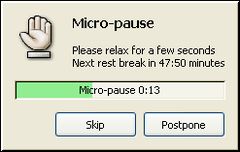 In this very moment, as you’re reading these lines, you’re probably increasing your possibilities to suffer from RSI. Don’t panic, it’s not a fatal disease:
  As you can see, taking care of your health while working with a PC is not that difficult. What’s more, there are software tools, like
  A while back, I wrote a
  It’s not only sheep that get cloned nowadays. Cloning your hard drive is one of the most secure ways of either backing-it-up or ensuring that you’ve always got a virtual version of it to work from if your original drive fails. For system administrators, it can be used it to dramatically reduce the time spent restoring, reconfiguring or copying data onto other hard drives.
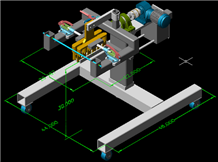 Computer Aided Design might sound like a bit of an antiquated term nowadays but it’s still used widely and the basis of many of today popular apps such as
  I’m a dog lover and I have my own pride and joy – a 3 year-old cocker spaniel from the city dog pound (pictured). She’s great fun most of the time but they do take a lot of taking care of. Owning a dog is not just about walking and feeding them – they need regular vaccinations, haircuts, cleaning and other things that I tend to forget about.
 Not a day passes by without seeing one of those sweet error messages in Windows. They can appear for a variety of reasons, which are usually explained in the message box itself – sometimes including strange numbers and error codes. So, what if you need to copy that text somewhere else, like in a Customer Support form or a chat window? Do you really have to type the whole thing by yourself?
 What does a reviewer do when he sees his readers disagree with him? He goes out and asks them their opinion. Now I’ve recently noticed that only 59% of Softonic users have liked my review of